1
Button
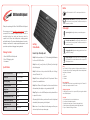
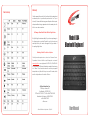
KB4 Bluetooth Keyboard
On/Off slider switch: ON or OFF to control power for the device.
ON/OFF
CONNECT
Thank you for purchasing the Califone® Model KB4 Bluetooth Keyboard.
We encourage you to visit www.califone.com/registration to register
your product for its warranty coverage, to sign up to receive our
newsletter, download our catalog, and learn more about the
complete line of Califone® audio visual products, including portable
and installed wireless PA systems, multimedia players and recorders,
headphones and headsets, computer peripheral equipment, visual
presentation products and language learning materials.
Package Contents
Status Light
Caps lock light: Status light when stay on under the uppercase
CAPS
Bluetooth Specification
Broadcom 3.0 chip
Dimensions
247 x 150 x 6.5mm
Operating Range
Up to 10 meters
Modulation System
GFSK
Standy time
30 days
Charge time
4 hours
Uninterrupted Work Time
44 hours
Lithium Battery Capacity
110 mAh
Lithium Battery Life
3 years
Key Life
3 million clicks
CHARGE
Step 1: Slide the power button to “on”. The blue status light will illuminate
for 4 seconds. The KB4 is still on.
POWER
Step 2: Press the [connect] button, the [Bluetooth] indicator light
will be blinking blue
Specifications
Bluetooth connect button: The On/Off switch is already in the On
position, Press the [connect] button, The KB4 is now ready to be
connect to your device.
Getting
Started Guide
How to Sync the Keyboard
• Ultra-slim KB4 Bluetooth keyboard
• Micro-USB charging cable
• User manual
Bluetooth connect button: The On/Off switch is already in the On
position, Press the [connect] button, The KB4 is now ready to be
connect to your device.
Step 3: On the device to be synced with the KB4, select: <Setting/
General / Bluetooth / On>
Step 4: The device will display “Bluetooth 3.0 keyboard or Califone
Keyboard” as an available device.
Step 5: Select “Bluetooth 3.0 keyboard” on the device and the device
will immediately then display a code generated by the KB4
Step 6: Type the code on the KB4 and press enter; keyboard will now
be paired to the device.
After pairing for the first time, your device will connect to the keyboard
automatically when powering on the keyboard.
Note: In case of connect failure, delete the pairing record from your
device and try the above procedures again.
Charging light (Red): lights when charging and will turn off once
the KB4 is fully charged.
Battery status light: slider the power button on. The red status light
will illuminate for four seconds and then turn off to save power. THE
KB4 keyboard is still on.
Note:
Press FN and Q,W or E keys together to shift between Android, Windows or
iOS systems after successfully connecting the KB4. Otherwise the keyboard’s
function key will be invalid.
Q - iOS
W - Android
E - Windows
Power Saving Mode
The keyboard cover will enter sleep mode after being idle for 15 minutes. To
activate it, press any key and wait for 3 seconds.
Charging the keyboard
To charge the KB4, connect it to a powered USB port using the cable that
comes with the keyboard.
Usage tips
1. Do not place heavy objects on the keyboard cover.
2. Do not knock or dismantle the product.
3. Keep the product away from oil, chemicals, and organic liquids.
4. Clean the product by lightly rubbing it with a slightly damp cloth.
5. Dispose of batteries according to local laws.