1
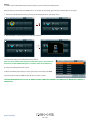
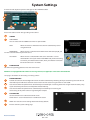
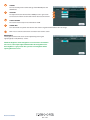
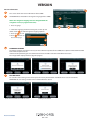
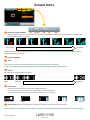
6.4 Change Start Position
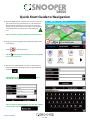
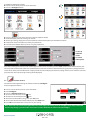
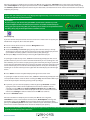
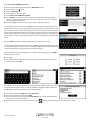
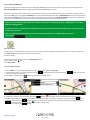
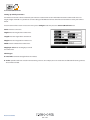
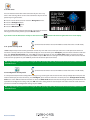
You can use this function if you would like to calculate a route but from a different
location to the one you are currently at. First input your destination address as normal
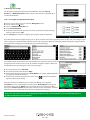
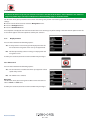
but when you reach the Summary page, press the ‘Route Option’ button.
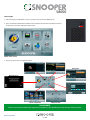
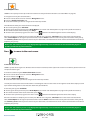
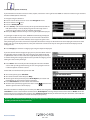
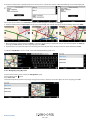
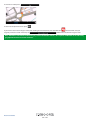
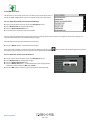
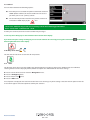
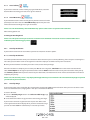
Now press the ‘Change Start Position’ icon. You are provided with the following search
options:
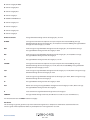
Find address by City
Find address by post code
●● Find by POI
●● Find by recently used
●●
●●
To find out how to use these options please refer to the applicable sections in this user manual.
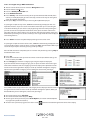
Once you have found the new starting point, press the ‘Set’ button.
The ‘Change Start Position’ is now highlighted with a red box. Now press the ‘Done’ button followed by the ‘Calculate’ button.
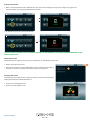
6.5 Summary Screen
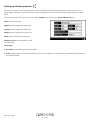
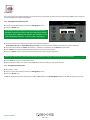
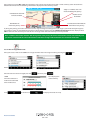
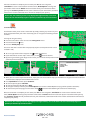
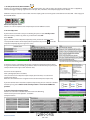
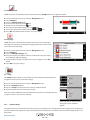
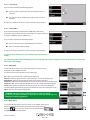
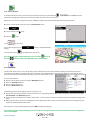
The summary screen provides you with the information of your intended route such as
distance to destination and estimated time of arrival for example and gives you the option
of making any changes or viewing the route prior to commencing your journey.
6.5.1 Simulation
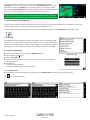
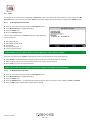
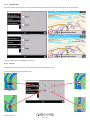
Press the ‘Simulation’ button and S8000 will take you through the calculated journey
step by step with full on screen and voice instructions.
Please Note: If at any time you wish to cancel the simulation press the return arrow
of the display.
located in the bottom right hand corner
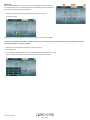
6.5.2 Route Options
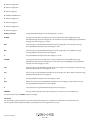
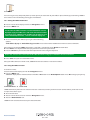
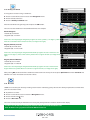
The ‘Route Option’ function can be accessed from this page, this allows you to tailor your journey using options such as ‘Shortest
Time’ or ‘Shortest Distance’ Please refer to the ‘Route Option’ section of this manual for more details.
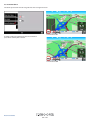
6.5.3 Guide
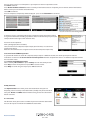
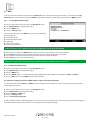
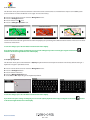
If you would like to check the turn by turn instructions of the route calculated prior to departure press the ‘Guide’ button on the
Summary screen.
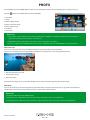
7.0 Quick Access Menu
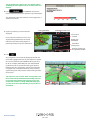
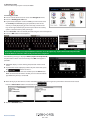
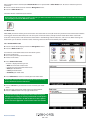
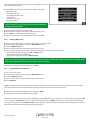
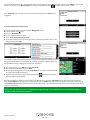
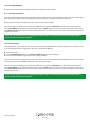
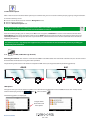
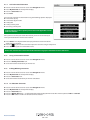
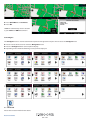
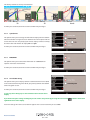
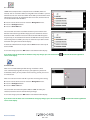
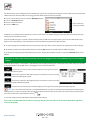
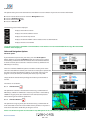
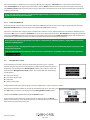
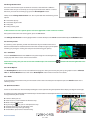
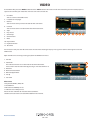
A small on-screen Menu can be launched by touching the screen anywhere along the top 10mm of the display. See diagram on the right.
The quick access menu will drop down automatically. If no other button on the drop down box are pressed the drop down box disappears
after approximately three seconds.
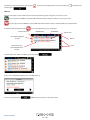
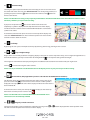
From this Menu you can:
Zoom closer in, or zoom further out from the map.
●● Mute or alter the audio level
●● By pressing the
icon you can manipulate the map
●● Switch between the 2D, 3D and North views.
●● Switch between day and night settings
●● Switch off the speed camera location facility.
●●
●●
Return to contents
71 • UK