1
CHAPTER 2 Getting started
2.1. Home screen
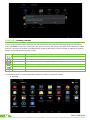
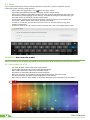
As soon as you power-on your tablet, you will see the Locked screen interface Slide your finger to the right to
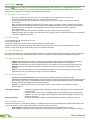
access the Home screen. This screen provides quick access to the things you need most. The home screen
contains a System bar, located in the bottom left corner of the display, which includes six default navigation
buttons accessible by touching the screen:
IconName
Description
Back
Opens the previous screen you were working in
Home
Opens the Home screen
Recent apps
Opens a list of thumbnail images of apps recently used
Volume down
Tap on this icon if you want to decrease the volume level
Volume up
Tap on this icon if you want to increase the volume level
Shortcut
Opens the options menu for frequently used applications
In addition the user can choose between two home screen visualization modes:
1.
Desktop
4
User Manual