1
CHAPTER 7 Settings
The icon
gives you access to a host of customizable features that each user can configure based on his/
her own individual preferences. The most frequently used features will be explained below. Please refer to the
manual in our website for a complete description of all settings.
7.1. Wireless and networks
•
•
•
•
•
•
•
Wi-Fi: turn on Wi-Fi so you can see a list of available wireless networks to connect to.
Data usage: measure the data used in a certain period of time.
Airplane mode: enable or disable this mode if you are in an area where no electronic devices
are allowed.
VPN (Virtual Private Network): connect to a VPN to access resources inside a secure local network,
from outside that network. To select this option, you should first choose a lock screen PIN or password.
Portable hotspot: configure a portable Wi-Fi spot in order to share your tablet’s network
data connections.
Wi-Fi direct: see a list of available networks to set up a peer-to-peer connectivity.
Mobile network: tap to enable access to data access, roaming data, use of 3G networks to save battery
or to select network operators.
7.2. 3G Internet
1. Turn off the device and plug in 3G card.
2. Turn on the device.
3. Unlock to enter into system, make sure the MID can search signal.
(Note: 3G internet can’t be used with wifi internet at the same time, the system is defaulted to use Wifi
internet. If you wish to use 3G internet, please turn off wifi internet.)
7.3. GPS Navigation
Map of the third parties is required for MID internal GPS satellite signal receiver positioning, after installation
the device can accurately implement traffic real-time navigation, meet the needs of outdoor navigation.
7.4. Device settings
• Sound: select the volume for music, video, games and other media, ringtones, notifications and alarms
•
Display: select brightness, wallpaper, the autorotate option, sleep, font size, screen adaption.
•
Storage: monitor the used and available space on your tablet’s internal storage and on the card.
•
Battery: monitor the battery used when the tablet is idle, by the display and backlight and by
the app.
•
Apps: see all the applications that have been downloaded, that are located on the SD card, the
applications that are currently running or to view all of them.
7.5. Personal settings
• Accounts and synchronization: add, remove and manage your Google and other accounts.
•
Location and services: enable Google’s location service or Location and Google search to let apps use data
from sources such as Wi-Fi and mobile networks to determine your approximate location or to let Google
use your location to improve search and other services.
•
Security: manage screen security, passwords, device administrators and credential storage.
(See Chapter 8)
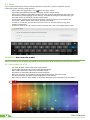
Language and input:
• Use the Language & Input settings to select the language you want to work with
on your tablet.
• From this menu, the user can configure the onscreen keyboard and other input
methods. It is also possible to add or remove words that have been stored in the
Personal dictionary.
Backup and reset: • enable or disable this setting to restore and backup data, passwords. (See 8.1)
7.6. System settings
Set the date and time, accessibility plug-ins, developer options and view information about your Tablet such
as system updates, Status, Legal information, Android version and more.
•
Date and time: check this option to allow the network to provide the time and date.
•
Accessibility: adjust font size, enable auto-rotate screen, and speak passwords and other settings.
10
User Manual