1
FIREHOUSE USER MANUAL
Creating User Field Table Tabs
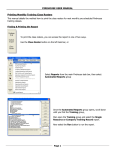
Use the following steps to create multiple tabs in a Firehouse user defined fields table.
First, select Administration on the top task bar.
Then select User-Defined Fields.
*To create a new user field tab, all Firehouse module screens must be
closed. If they are not closed the User-Defined Fields option will be
greyed out and not available.
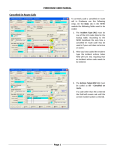
Next select the table where you
want to create the user field.
In this case the table is the NFIRS
Incident Report User Fields.
Double click on the table name or
highlight the name and select the
Setup button.
Page 1
FIREHOUSE USER MANUAL
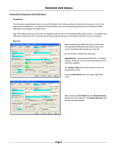
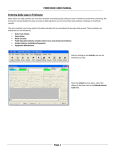
When the NFIRS Incident Report User Fields opens you can begin creating your new tab.
Select the Form & Table Properties icon on the User Field Toolbar, see below.
* Do not panic if your user field table looks different than mine, I have a lot of user fields!
Once the Form & Table Properties screen opens,
select the New button.
Page 2
FIREHOUSE USER MANUAL
When the page properties screen opens, the Page Caption
field will be filled in with the wording Page*.
Highlight what is listed in the Page Caption field and enter the
desired wording for your tab.
When you are done, select the OK button to close the Page
Properties screen.
Your new tab will appear at the
bottom of the page caption list.
If you are done adding tabs to your
screen select the OK button; if you
need to create additional tabs repeat
the steps listed above.
Page 3
FIREHOUSE USER MANUAL
Once you are done adding tabs and any new user fields, select the Save tab to close the user field table and
return back to the main Firehouse screen.
Page 4