1
2 Overview – At a Glance
In this short overview only the most important functions will be described, as a quick introduction.
2.1 The Interface
The interface is so constructed that most of the functions are very intuitive. However, you should be aware of the following:
• All display fields are also entry fields or else contain menus. They become visible by clicking or dragging with the mouse.
• Some functions or menus are only accessible by holding the CTRL or ALT key down while clicking with the mouse.
• Changes in the entry fields and elements are effective on the sample currently selected on the keyboard. However, it is
possible to select more than one thing and thus change several samples simultaneously.
8
3
2
10
5
4
12
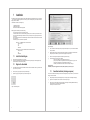
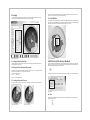
Figure 03 Elastik Website
d)
Enter the serial number into the field. The serial number is found on the inner right side of the DVD case
e)
Enter the challenge code from the clipboard or enter it manually from your paper note into the “challenge code” field.
f)
After confirming you will receive the response key. Copy this into the clipboard or make written
note of it.
g)
Now open the Elastik engine again. Enter the response key into the appropriate field on the setup page.
h)
After confirming with the OK button the setup page will close.
i)
The activated soundbank will now appear in the menu structure of the Elastik engine.
j)
If the soundbank does not appear, repeat steps a) through i). If this does not work, please contact Support via the Support
form on the website http://www.ueberschall.com
9
13
11
14
7
15
6
1
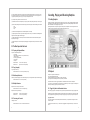
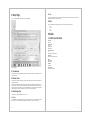
Figure 04 Interface
(1) Setup Button opens the Setup Page. The soundbanks (*.elastik) are installed here and activated with the challenge response
system.
(2) Presets to load soundbanks and their programs (factory presets) via a pulldown menu.
(3) Global Master Tempo and synchronization of the engine. By clicking on the “S” the master tempo is synchronized to the host
sequencer tempo. All the currently-mapped samples of the preset keyboard are converted to this tempo.
(4) Tempo of the Currently-Selected Sample. As a default setting the sample which was just loaded onto the lower keyboard is played
in its original tempo. This tempo can be read here. An individual value can also be entered in the field, such as half or double tempo.
(5) Pitch of the Currently-Selected Sample. By pressing the button and moving the mouse in the “semi” field, the pitch of the sample
can be changed by +/-12 semitones. Fine-tuning is similarly possible in the “fine” field.
(6) Keyboard Layout C1-B3. After loading one of the factory presets the related samples are automatically mapped onto the lower
keyboard, beginning with the key C1. The sounds can be played directly by mouse click or via an external MIDI keyboard. Other
functions, such as bouncing a sample, can be called when holding the CTRL key. (See the shortcut list below)
(7) Keyboard Layout C4-B6. This keyboard area is conceived for the creation of individualized keyboard layouts (user presets). To
do this, hold the ALT key down and drag a sample from the lower keyboard (C1 – B3) onto any key on the upper keyboard. These
loops will then be converted automatically to the current tempo of the host sequencer.
6
7