1
required for disbursement. For more information on how
documents are tracked and how document status affects
other processes, see “Tracking Documents for Individual
Students” on page 20.
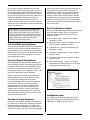
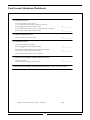
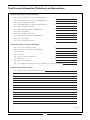
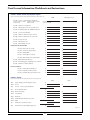
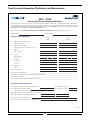
Figure 2.7
Grants/scholarships will automatically be shown as accepted.
“Process” (Proc) shows when the disbursement was
processed. “Disburse” (Disb) is available for manual posting of
a dollar amount when a check has been received by an
outside source. “Ref” is for manual posting of a reference or
check number.
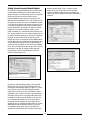
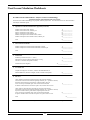
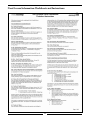
Figure 2.6
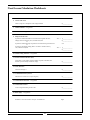
Student Packaging
When you click on the [Packaging] button while reviewing
applicant data, the list of funds awarded to the individual
student will be displayed. Under the “Status” column, the
following codes will appear, depending upon where the
student is in the packaging process:
• 1-awd (award)
• 2-acc (accept)
• 3-dsb (disbursement)
• 4-hld (hold)
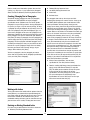
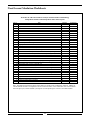
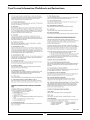
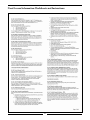
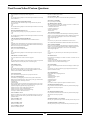
Special Functions
While reviewing applicant data, a list of functions you can
perform for individual students will be displayed by clicking
[Special Functions]. These functions include sending
correspondence, accepting or changing a student award, and
packaging a student (see Figure 2.8). If you plan to batch
process to handle your packaging and letters, use this
function for the exceptions only. The special functions options
are explained on the next page.
If you want to change the status for the individual student,
click on [Special Functions] and then click on [Change
Packaging Status]. If you want to package or repackage the
individual student, click on [Special Functions] and then click
on [Package/Repackage Student Funds]. If you want to post
an acceptance of the award or make a manual change to the
package, select [Special Functions] and then select [Change
Packaging Status]. For more information on how funds are
awarded to individual students and how the statistics are
posted to the Status/Funds screen, see “Funds Awarded to
Individual Students” on page 21.
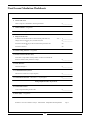
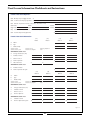
Student Disbursement
When you click on [Disbursement] while reviewing student
data, the list of funds and the disbursements will be displayed
(see Figure 2.7). The “Fund” field (Fund) shows the fund
packaged and accepted by the student. The “Scheduled”
(Sched) field shows that amount accepted.
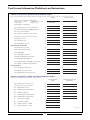
Figure 2.8
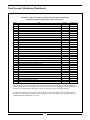
Send Applicant Letter
To print an individual student letter, select [Send Applicant
Letter]. Click on the name of the letter you wish to print and
click [OK].
9