1
XR16L784 Evaluation Board User’s Manual
Rev 1.2
Introduction
Exar is proud to announce our new ISA 4 Port UART. The XR16L784 is fully feature and 16550
compatible. For a list of features, refer to the data sheet at www.exar.com.
This user’s manual will help you to install the Windows NT 4.0 Driver and Application Program.
Once installed, it demonstrates it’s transmit and receive capability on all four ports in full duplex
and two in half duplex. The application program allows you to select operating parameters, FIFO
trigger levels, hardware or software flow control, and selection of test data patterns.
Description
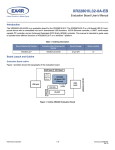
On the XR16L784 evaluation board, we have switches for addressing from 400 to B00H and
jumpers IRQ3-7 and IRQ10-14. We have added a +3.3v regulator to operate the XR16L784 at
+5v or +3.3v. There are four ports that use the four RS-232 ports 921.4kbps and one RS-485
2.5Mbps ports (option1). There is a infrared (IR) circuit that is used for transmitting and receiving
data at maximum of 4 Mb/s (option 2).
There is an external clock circuit (U4) or the standard crystal 14.7456Mhz. U4 clock multiplier
chip (ST49C101A-XX) is used factory external clock test. U4 can be clocked at multiple of
2,3,4,5,6,8,10 and 12, depending on the part selected (ST49C101A-XX) parts not installed. On
the XR16L784 evaluation board, there are several sets of jumpers. Jumpers and Test Points are
described under default setting below.
Warning: When installing the XR16L784 board, follow ESD Safety Procedures.
Ground yourself to prevent damage to the any electronic component.
Default setting for the XR16L784
Table 1
JUMPER
J2
J5
JP3
FUNCTION
+3.3V
ENIR Disable
IRQ5
J16-1&2
J17-1&2
SW1-2
SW3-2, 3, 4, &5
RXD0
RXD1
500H
Factory Testing
EXAR Corp. 48720 Kato Road, Fremont, CA 94538 Tel: 510-668-7000 www.exar.com
Page 1 of 6
/784usersmanual/rev-1.2/
Selectable Jumpers for the hardware on the XR16L784
Table 2
JUMPERS
FUNCTION
J2-1
+VREG Power to UART (circuit not installed)
J2-2
+3.3V Power to UART
J2-3
+5V Power to UART
J3
-RESET
J5
ENIR
J6
+3.3V_MAX (not installed) OPTIONAL 1
J7
RS-485 (not installed) OPTIONAL 1
J8
RXD/TXD OUTPUT RS-485 (not installed)
OPTIONAL 1
J9
TXD3/RXD3 SELECT RS-485 (not installed)
OPTIONAL 1
J10
TXD3 IR (not installed) OPTIONAL 2
J11
MODE 0 IR (not installed) OPTIONAL 2
J12
RXD3 IR (not installed) OPTIONAL 2
J13
MODE 1 IR (not installed) OPTIONAL 2
J14
FIR_SEL IR (not installed) OPTIONAL 2
J15
RS-232 CONNECTOR 4 CHANNELS
J16-1
RXD0
J16-2
RX0
J16-3
TXD1
J17-1
RXD1
J17-2
RX1
J17-3
TXD0
J18
JTAG FOR CPLD PROGRAMMING
FACTORY USE
J19
FACTORY USE
JP1
IRQ3
JP2
IRQ4
JP3
IRQ5
JP4
IRQ7
JP5
IRQ9
JP6
IRQ10
JP7
IRQ11
JP8
IRQ12
JP9
IRQ14
JP10
IRQ15
JP14
FACTORY USE
JP15
FACTORY USE
JP12-1
TXD0_RS232
JP12-2
RXD0_RS232
JP13-1
TXD1_RS232
JP13-2
RXD1_RS232
J16-1
RXD0
J16-2
RX0
J16-3
TXD1
J17-1
RXD1
J17-2
RX1
J17-3
TXD0
JP29-2
RXD1_RS232
EXAR Corp. 48720 Kato Road, Fremont, CA 94538 Tel: 510-668-7000 www.exar.com
Page 2 of 6
/784usersmanual/rev-1.2/
SW1 1-8
SW3 1
SW3 2-4
SW4
ADDRESS SELECT 400-B00
16 MODE/-68 MODE
FACTORY USE
FACTORY USE
Table 1. Port number label association to internal UART channels.
Table 3
XR16L784
Octopus Cable (port number label)
Channel 0
Port 1
Channel 1
Port 2
Channel 2
Port 3
Channel 3
Port 4
Installation of NT4.0 Driver, Application and GUI Program
IT IS RECOMMENDED TO HAVE A SYSTEM THAT IS AT LEST 350MHZ
Turn your computer on, and set your display setting to 1024 by 768 resolution.
Install the XR16L78x NT Driver, application and GUI.
•
•
•
•
•
•
•
•
•
•
Insert XR16L784 Disk in Drive D
Run D:\setup.exe.
Follow the setup Instructions
Press Next >
Press Next >
Choose (IRQ 5)-Default
Select Com Number (Port 5)-Default
Select Com Base I/O address (5=500)-Default
Press Next >
Press Finish
Note: IRQ, COM ports and base address are jumper and soft selectable. If it is changed,
make sure that the correct jumpers and soft options are selected.
•
• Remove disk from Drive D. Re-boot your computer.
•
The device driver and GUI are now installed and are ready to be used. Before you can
transmit any data, set up the GUI application program.
Select Start/Program/Exar78x/Serial78xUI
Below is the description of the Menus and different set-ups.
SerialUI-ExarXR17C15x/XR16L78x UART Series Test Program: On the top of the menu,
there is a pull down menu. Selections are as following:
TEST:
Start- Start the transmission of data
Stop- End the transmission of data
Delay- Used to delay transmitted data to the next transmitted data (10msecs)
Exit- Exit the application
Config:
Load- Loading a File from the hard or floppy drive
Save-Save desired files for future use
Help- Help files
EXAR Corp. 48720 Kato Road, Fremont, CA 94538 Tel: 510-668-7000 www.exar.com
Page 3 of 6
/784usersmanual/rev-1.2/
Setup:
Port Settings-used to enable or disable ports settings
View:
Toolbar-Enable or disable toolbar
Status Bar- Enable or disable status bar
Help:
About Serial78xUI-product description and revision level
Tool bar description: There are six icons that can be used in the SerialUI operation. From left to
right as follows.
•
•
•
•
•
•
Port Setting: See below
Test Start: Start test
Test Stop: Stop test
Load Configuration: Load configuration
Save Configuration: Save configuration
Help: See below
Get Started and Set Up Port Setting
Now you can set one or eight ports as needed by selecting Setup and Port Settings. You will
see the Ports Properties Menu; Select the desired Port by Checking Open Port for
Testing.
•
•
•
•
•
•
•
•
For each Channel, Select the Baud Rate at which you want to transmit and receive.
Select each channel’s Baud Rate (110 to 921,600 are available).
Select the Data Length (8)
Parity (None)
Stop Bits (1)
Flow Control Hardware-RTS/CTS, Software Xon/Xoff and None No Flow Control (None)
Com Base (Com5) Refer to Table 4
Table 4
Standard PC assigned Com Port
Com1
Com2
Com3
Com4
XR16L78x Com Port
Com5
Com6
Com7
Com8
•
•
•
•
•
DTR Hysteresis (6)
RTS Hysteresis (8)
TX FIFO Trigger Level (32)
Rx FIFO Trigger Level (32)
Note: Set the Trigger Levels as follows- 16 ≤ Tx (Rx) Trig Level ≤48.
EXAR Corp. 48720 Kato Road, Fremont, CA 94538 Tel: 510-668-7000 www.exar.com
Page 4 of 6
/784usersmanual/rev-1.2/
•
•
•
Port Enable Top left corner on each Port’s Menu. This will enable or disable the windows
for transmit and receive data. Make sure that the transmit side and receive side are the same
settings.
Once you have enabled the Port setting, click OK. The Port Property Menu is closed and
Select the pull down Test Menu, Click on Start.
This will launch the SerialUI-ExarXR17C15x/16L78x UART Series Test Program
Serial Communication Test Window:
•
•
•
•
•
•
•
•
•
•
•
•
•
•
•
•
•
•
•
Displayed Input RS-232 signals:
TXD-A checkmark is seen in this box when Transmitting Data -To be implemented
RTS-Displays the status of Request to Send -To be implemented
DTR-Displays the status of Data Terminal Ready -To be implemented
Error Count-Displays errors that are transmitted and received. When used in full duplex, you
must set the Transmit and Receive Data the same. If not, you will detect errors on the Error
Count Box- To be implemented
Packet Count- Counts the lines transmitted
Displayed Output RS-232 Signals:
DCD-Displays the status of Carrier Detect -To be implemented
RXD-Displays the status of Receive data -To be implemented
RI-Displays the status of Ring Indicator -To be implemented
DSR-Displays the status of Data Set Ready -To be implemented
CTS-Displays the status of Clear to Send -To be implemented
Internal Loop Test-This box enables the Transmit Data to the Receive Data internally of the
XR16L78x. -To be implemented
Test-These box enables testing functions to repeat.
Stop On-can be defined by two possibilities:
1) Error-Stop the Test when an Error has been Detected -To be implemented
2) Time-Run the Test per time set [HR] [MIN]
Run Button-This button starts the Test, Transmission of Data and Receiving of Data.
Note: This button will not work until you start the test from the main menu. (Test-Start)
Stop Button-This button stops the Test in progress
Transfer Button-This button allows you Select Data Patterns
1) Quick Brown Fox-Quick Brown Fox Jumps Over the Lazy Dog
2) Alphabets-0123456789abcdefghijklmnopqrstuvwxyz
3) User Pattern-user-defined pattern
4) File-This is any text file you want to transmit
•
• Ready to Transmit and Receive Data:
•
Now that you have completed the GUI application program, you are ready to Transmit Data
to a Remote Site, or communicate with another Computer. If you want to Communicate from
Computer to Computer, use a Crossover Cable that implements Full Null-Modem
connections. Refer to Table 5
Table 5
TX-pin2 to RX- pin 3
RX- pin 3 to TX- pin 2
CTS- pin 5 to RTS- pin 4
RTS- pin 4 to CTS- pin 5
GND – pin 7 to GND- pin 7
DRS- pin 8 to DTR- pin 20
DTR- pin 20 to DSR- pin 8
EXAR Corp. 48720 Kato Road, Fremont, CA 94538 Tel: 510-668-7000 www.exar.com
Page 5 of 6
/784usersmanual/rev-1.2/
Example 1
The following example is to be done on the local computer and remote computer. The settings
have to be the same. Steps 1 thru 19 are for one port, repeat for the other 7 ports.
Load the SerialUI-ExarXR17C15x/16L78x UART Series Test Program.
1)
2)
3)
4)
5)
6)
7)
8)
9)
10)
11)
12)
13)
14)
15)
16)
17)
18)
19)
Select the setup and then port settings
Check the box that says open port for testing
Set the baud rate for port1 for (921.6k)
Set data length (8)
Set parity (none)
Set stop bits (1)
Set flow control (None)
Set com base for (Com5)
Set DTR Hysteresis for (6)
Set RTS Hysteresis for (8) and leave the box checked
Set the TxFIFO trigger level to (32) and leave box checked
Set the RxFIFO trigger level to (32) and leave box checked
Press the OK button on bottom left corner of window
Go to the top left corner and click test
Select start and click
Find the test forever and check
Click the transfer button
Click Quick Brown Fox
Click the OK button
Repeat steps 2 thru 19 for the remaining ports. Now click the transfer button on the SerialUIExarXR17C15x/16L78x UART Series Test Program for each port on the local side and remote
side. You are now transmitting and receiving to the selected ports. You will see the packet
count number increasing. When you are completed with the transfer of data, click the stop
button on each port.
Change settings in port settings
1)
2)
3)
4)
Select the test (on the SerialUI window) and then stop
Select the setup and port settings
Repeat steps 2 thru 19 and or modify the setting
Follow steps 13 thru 19
Notes:
• 1) If the transmitted or receive data is slow, it is possible that one of the RS-232 is bad.
EXAR Corp. 48720 Kato Road, Fremont, CA 94538 Tel: 510-668-7000 www.exar.com
Page 6 of 6
/784usersmanual/rev-1.2/