1
Model number
Serial number
:
:
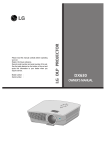
LG DLP PROJECTOR
Please read this manual carefully before operating
your set.
Retain it for future reference.
Record model number and serial number of the set.
See the label attached on the bottom of the set and
quote this information to your dealer when you
require service.
BX401C
OWNER’S MANUAL
DLP PROJECTOR
Warning
This is a class A product. In a domestic environment this product may cause radio interference, in
which case the user may be required to take adequate measures.
Contents
Contents
Safety Instructions ....................................4
Names of parts
Main Body .......................................................7
Connecting Part ..............................................7
Control Panel ..................................................8
Remote Control ...............................................9
Installing Batteries...........................................9
Projector Status Indicators..............................10
Accessories.....................................................11
Optional Extras ...............................................11
Installing and Composition
Installation Instructions ...................................12
Basic Operation of the Projector.....................13
Using Kensington Security System.................14
Turning on the Projector .................................15
Turning off the Projector .................................15
Focus and Position of the Screen Image........16
Selecting source mode ...................................16
Connection
Connecting
Connecting
Connecting
Connecting
Connecting
to
to
to
to
to
a
a
a
a
a
Desktop PC ..........................17
Notebook PC ........................17
Video Source ........................18
DVD ......................................18
D-TV Set-Top Box ................18
Special Menu Options
Selecting Language ........................................23
Using Aspect Ratio Function...........................23
Overscan Function ..........................................23
Flip horizontal Function...................................24
Flip vertical Function .......................................24
Sleep time Function ........................................24
Auto sleep Function ........................................25
Presentation timer Function ............................25
Using Digital Zoom Function...........................26
Using Keystone Function ................................27
Using Blank Function ......................................27
Selecting Blank image ...................................28
Captured Image Function ...............................28
Lamp mode Function ......................................28
Using Monitor out Function .............................29
Checking lamp time ........................................29
Using Still Function .........................................29
Screen Menu Options
Auto configure Function ..................................30
Using Phase Function.....................................30
Using Clock Function ......................................30
Using Horizontal Function...............................31
Using Vertical Function ...................................31
RS-232C
Function
External Control Device Setup........................32
Video Menu Options
Adjusting Video ...............................................19
Picture mode ...................................................19
Color Temperature Control..............................20
Gamma Function ............................................20
Gamma curve shift Function ...........................20
Brilliant color TM Function ................................21
White peaking Function ..................................21
Black level Function ........................................21
Expert color Function ......................................22
Reset...............................................................22
Information
Supported Monitor Display..............................37
Maintenance....................................................37
Replacing the Lamp ........................................38
How to fix the lens cap to the projector ..........40
Specifications ..................................................41
Disposal of your old appliance
1. When this crossed-out wheeled bin symbol is attached to a product it
means the product is covered by the European Directive 2002/96/EC.
2. All electrical and electronic products should be disposed of separately
from the municipal waste stream via designated collection facilities
appointed by the government or the local authorities.
3. The correct disposal of your old appliance will help prevent potential
negative consequences for the environment and human health.
4. For more detailed information about disposal of your old appliance,
please contact your city office, waste disposal service or the shop
where you purchased the product.
3
Safety Instructions
Safety Instructions
Please take note of the safety instructions to prevent any potential accident or misuse of the projector.
➟ Safety Instructions are given in two forms as detailed below.
WARNING : The violation of this instruction may cause serious injuries and even death.
NOTES : The violation of this instruction may cause light injuries or damage to the projector.
➟ After reading this manual, keep it in the place that the user always can contact easily.
Indoor Installation
Do not place the Projector in direct
sunlight or near heat sources such
as radiators, fires and stove etc.
This may cause a fire hazard !
WARNING
Do not place inflammable materials beside the projector
Do not allow children to hang on
the installed projector.
This may cause a fire hazard !
It may cause the projector to fall, causing injury or death.
Indoor Installation
Disconnect from the mains and
remove all connections before
moving.
NOTES
Do not place the projector close
to sources of steam or oil such
as a humidifier.
This may create a fire hazard or an
electric shock hazard !
When installing the projector on a
table, be careful not to place it
near the edge.
This may cause the projector to fall
causing serious injury to a child or
adult and serious damage to the
projector.
Only use a suitable stand.
Only use the projector on a level
and stable surface.
It may fall and cause injury and/or
damage to the unit.
Do not place the projector where
it might be exposed to dust.
This may cause a fire hazard or
damage to the unit!
Ensure good ventilation around the
projector. The distance between
the projector and the wall should
be more than 30cm/12 inches.
An excessive increase in its internal
temperature may cause a fire hazard or
damage to the unit!
Do not block the vents of the projector or restrict air-flow in any way.
Do not place the projector directly on a carpet, rug or place where
ventilation is restricted.
This would cause the internal temperature to increase and could cause a fire
hazard or damage to the unit!
This would cause its internal temperature to increase and might create a fire
hazard or damage the unit.
Outdoor Installation
WARNING
Do not use the projector in a damp place such as a bathroom where it is likely to get wet.
This may cause a fire or an electric shock hazard !
Power
Earth wire should be connected.
If the earth wire is not connected, there is a
possible danger of electric shock caused by
the current leakage.
If grounding methods are not possible, a
separate circuit breaker should be installed
by a qualified electrician.
Do not connect ground to telephone wires,
lightning rods or gas pipe.
4
WARNING
The mains plug should be inserted
fully into the power outlet to avoid a
fire hazard !
This may cause a fire hazard or damage
the unit.
Do not place heavy objects on
the power cord.
This may cause a fire or an electric
shock hazard !
Safety Instructions
Power
WARNING
Do not use too many plugs on the Mains multi-outlet.
It may result in overheating of the outlet and causes a fire hazard !
Power
Never touch the power plug with
a wet hand
This may cause an electric shock
hazard !
NOTES
Hold the plug firmly when unplugging. If you pull the cord, it may
be damaged.
Prevent dust collecting on the
power plug pins or outlet.
This may cause a fire hazard !
This may cause a fire hazard !
Do not plug when the power cord
or the plug is damaged or any
part of the power outlet is loose.
Ensure the power cord does not
come into contact with sharp or
hot objects such as a heater.
Place the projector where people
will not trip or tread on the power
lead.
This may cause a fire or an electric
shock hazard or damage to the unit!
This may cause a fire or an electric
shock hazard or damage to the unit!
This may cause a fire or an electric
shock hazard or damage to the unit!
Do not turn the projector On/Off by plugging-in or unplugging the power plug to the wall outlet.
(Do not use the power plug for switch.)
It may cause mechanical failure or could cause an electric shock.
Using
WARNING
Do not place anything containing
liquid on top of the projector such
as flowerpot, cup, cosmetics or
candle.
In case of impact shock or damage
to the projector switch it off and
unplug it from the mains outlet and
contact your service center.
This may cause a fire hazard or
damage to the unit!
This may cause a fire or an electric
shock hazard or damage to the unit!
If water is spilt into the projector
unplug it from the mains supply
outlet immediately and consult
your Service Agent.
This may cause an electric shock
hazard or damage to the unit!
Do not remove any covers
(except lens cover). High risk of
Electric Shock!
Dispose of used batteries carefully and safely.
In the case of a battery being
swallowed by a child please consult a
doctor immediately.
Do not allow any objects to fall
into the projector.
This may cause an electric shock
hazard or damage to the unit!
In the event that an image does
not appear on the screen please
switch it off and unplug it from
the mains supply and contact
your Service Agent.
This may cause a fire or an electric
shock hazard or damage to the unit!
Don’t look directly onto the lens
when the projector is in use. Eye
damage may occur!
Do not touch metal parts during or
soon after operation since the
vents and lamp cover will remain
very hot!
CAUTION concerning the Power Cord
Most appliances recommend they be placed upon a dedicated circuit; that is,a single outlet circuit which
powers only that appliance and has no additional outlets or branch circuits.Check the specification page
of this owner's manual to be certain.
Do not overload wall outlets. Overloaded wall outlets,loose or damaged wall outlets, extension cords,
frayed power cords,or damaged or cracked wire insulation are dangerous.Any of these conditions could
result in electric shock or fire. Periodically examine the cord of your appliance,and if its appearance indicates damage or deterioration, unplug it, discontinue use of the appliance, and have the cord replaced
with an exact replacement part by an authorized service personnel.
Protect the power cord from physical or mechanical abuse, such as being twisted, kinked, pinched,
closed in a door, or walked upon. Pay particular attention to plugs, wall outlets, and the point where the
cord exits the appliance.
5
Safety Instructions
Using
WARNING
Never touch the wall outlet when
there is leakage of gas, open the
windows and ventilate.
It can cause a fire or a burn by a
spark.
Do not drop the projector or allow
impact shock.
Don’t look at laser beam directly
as it can cause eye damage!
This may cause mechanical failure or
personal injury !
Always open the lens door or remove the lens cap when the projector lamp is on.
Using
NOTES
Do not place heavy objects on
top of projector.
This may cause mechanical failure or
personal injury!
Take care not to impact the lens
particularly when moving the
projector.
Do not touch the lens of the projector. It is delicate and easily
damaged.
Do not use any sharp tools on the projector as this will damage the casing.
Cleaning
WARNING
Do not use water while cleaning
the projector
This may cause damage to the
projector or an electric shock hazard.
In the unlikely event of smoke or
a strange smell from the projector,
switch it off , unplug it from the
wall outlet and contact your
dealer or service centre.
Use an air spray or soft cloth that
is moist with a neutral detergent
and water for removing dust or
stains on the projection lens.
This may cause a fire or an electric
shock hazard or damage to the unit!
Cleaning
Contact the Service
Center once a year to
clean the internal
parts of the projector.
Accumulated dust can
cause mechanical failure.
NOTES
When cleaning the plastic parts such as projector case, unplug the power and
wipe it with a soft cloth. Do not use cleanser, spray water or wipe with a wet
cloth. Especially, never use cleanser (glass cleaner), automobile or industrial
shiner, abrasive or wax, benzene, alcohol etc., which can damage the
product. Use an air spray or soft cloth that is moist with a neutral detergent
and water for removing dust or stains on the projection lens.
It can cause fire, electric shock or product damage (deformation, corrosion and damage).
Others
WARNING
Do not attempt to service the projector yourself. Contact your dealer or service centre.
This may cause damage to the projector and could give an electric Shock as well as invalidating the warranty !
Others
Be sure to unplug if the projector
is not to be used for a long period.
NOTES
Refer lamp servicing to qualified
service personnel.
Accumulated dust may cause a fire
hazard or damage to the unit!
Only use the specified type of battery.
This could cause damage to the remote control.
6
Do not mix new batteries with old
batteries.
This may cause the batteries to overheat and leak.
Names of parts
Names of parts
Main Body
* The projector is manufactured using high-precision technology. You may, however, see on the Projector
screen tiny black points and/or bright points (red, blue, or green). This can be a normal result of the
manufacturing process and does not always indicate a malfunction.
Focus ring
Zoom ring
Power button
Control panel
Front remote control sensor
Foot adjusting button
Connecting Part
HDMI IN
USB(SVC Only)
Rear remote RS-232C
control sensor
RGB IN-1
RGB IN-2
RGB OUT
Video
AC IN
Kensington Security
System Connector
(Refer to page 14)
7
Names of parts
Control Panel
SOURCE
MENU
MENU Button
SOURCE Button
Selects or closes menus.
/
/
/
Switches to RGB(Component),
HDMI, Video mode.
Button
Adjusts functions of menus.
AUTO Button
It automatically corrects the
position and the shaking of the
image at the RGB mode.
OK Button
AUTO
OK
Checks present mode and saves the function
changes.
POWER Button
Turn ON/OFF the projector.
POWER
8
Names of parts
Remote Control
POWER
POWER Button
MENU
SOURCE
MENU Button
/
/
/
SOURCE Button
Button
OK Button
EXIT Button
EXIT
OK
LASER Button
LAMP Button
AUTO Button
ZOOM Button
RATIO Button
AUTO
LASER
LAMP
RATIO
ZOOM
SLEEP
STILL
BLANK
KEYSTONE
TIMER
W.PEAK
GAMMA
MODE Button
MODE
STILL Button
GAMMA Button
TIMER Button
W.PEAK Button
SLEEP Button
Brightness Button
Contrast Button
BLANK Button
KEYSTONE Button
Laser Button
* Produces a bright red laser pointer on the
screen for the purpose of indication.
(Don’t look at laser beam directly as it
can cause eye damage!)
Installing Batteries
CAUTION
RISK OF EXPLOSION IF BATTERY IS REPLACED WITH AN INCORRECT TYPE.
DISPOSE OF USED BATTERIES ACCORDING TO THE INSTRUCTIONS.
• Open the battery compartment cover on the back of the remote control.
• Insert the specified type of batteries with correct polarity, match “+” with “+”, and
match “-” with “-”.
• Install two 1.5V AAA batteries. Don’t mix used batteries with new batteries.
9
Names of parts
Projector Status Indicators
* Lamp indicator, operation indicator and temperature indicator at the top of the projector show the user the operating status
of the projector.
Lamp Indicator
Operation Indicator
Temperature Indicator
Operation Indicator
Red
Green(flashing)
Green
Orange(flashing)
Off
Orange
Red(flashing)
Red
Lamp Indicator
Red(flashing)
Green(flashing)
Orange
Red
Temperature Indicator
Red (flashing)
10
Standby.
Lamp is starting up.
Unit is in operation (Lamp is turned on)
Projector lamp is cooling (10 sec.)
Power off.
Standby-This mode cools the projector naturally for 4
minutes after it is turned off.
This indicates a Colour Wheel problem.Please contact
your local service centre.
Projector lamp is reaching the end of its life and needs
to be replaced with a new lamp.
The projector is experiencing an error. Retry Power On
again later. If lamp indicator is red (flashing) again, contact the service center.
The lamp cover is open.
A high temperature state has been detected. Turn the
Projector off.
The Projector has turned off due to excessive heat.
Power has turned off due to problem with the internal
cooling fan. Contact your service center.
Names of parts
Accessories
POWER
MENU
SOURCE
EXIT
OK
AUTO
LASER
RATIO
LAMP
ZOOM
SLEEP
STILL
BLANK
KEYSTONE
TIMER
W.PEAK
GAMMA
MODE
Remote Control
Power Cord
1.5V
1.5V
2 Batteries
Computer Cable
Owner’s manual
CD Owner’s manual
Lens cap and Strap
Optional Extras
* Contact your dealer to purchase these items.
* Contact your service personnel for replacing of lamp.
* The lamp is consumable and needs to be replaced with a new one when it is burned out.
* Optional parts can be changed without notice to improve the quality of the product, and new optional parts can be added.
Ceiling installer for projector
Projection Screen
HDMI Cable
RS-232C Cable
Lamp
Component Cable
RCA to D-Sub Adapter
Video Cable
HDMI to DVI Cable
11
Installing and Composition
Installing and Composition
Installation Instructions
* Don’t place the projector in the following conditions. It may cause malfunction or product damage.
Provide proper ventilation for this projector.
● The projector is equipped with ventilation holes(intake)
● Do not place the projector on a carpet, rug or other
● Never push projector or spill any kind of liquid into the
● Leave an adequate distance(30cm/12 inches or
on the bottom and ventilation holes(exhaust) on the front.
Do not block or place anything near these holes, or internal heat build-up may occur, causing picture degradation
or damage to the projector.
projector.
similar surface. It may prevent a adequate ventilation of the projector bottom. This product should be
mounted to a wall or ceiling only.
more) around the projector.
Place this projector in adequate temperature and humidity conditions.
● Install this projector only in a location where adequate temperature and humidity is available. (refer p.41)
Don’t place the projector where it can be covered with dust.
● This may cause overheating of the projector.
Do not obstruct the slots and openings of the projector. This may cause overheating and create a fire
hazard.
The projector is manufactured using high-precision technology. You may, however, see tiny black points
and/or bright points (red, blue, or green) that continuously appear on the projector Screen. This is a normal result of the manufacturing process and does not indicate a malfunction.
To display DTV programs, it is necessary to purchase a DTV receiver (Set-top Box) and connect it to the
projector.
When the remote control does not work during operation.
● The remote control may not work when a lamp equipped with electronic ballast or a three-wavelength lamp is installed.
Replace those lamps with international standard products to use the remote control normally.
12
Installing and Composition
Basic Operation of the Projector
1.Place the projector on a sturdy and horizontal surface with the PC or AV source.
2.Place the projector with the desired distance from the screen. The distance between the projector and the screen
determines the actual size of the image.
3.Position the projector so that the lens is set at a right angle to the screen. If the projector is not set at a right angle, the
screen image will be crooked. If this is so then the keystone adjustment may correct this (Refer to page 27.).
4.Connect the cables of the projector to a wall power socket and other connected sources.
projection distance based on the picture format
Screen
Projection off-set ratio:100%
X/2
Screen height (X)
X/2
Projection distance (D)
Y/2
Screen
Screen Width (Y)
100mm
Y/2
Projection distance (D)
4 : 3 Scale
Projection Distance
Image
Diagonal Size
(inch)
Diagonal Size
(mm)
Horizontal Size
(mm)
Vertical Size
(mm)
Wide Distance
(mm)
Tele Distance
(mm)
* The longest/shortest distance
show status when adjusted by
the zoom function.
13
Installing and Composition
Using Kensington Security System
● The projector has a ‘Kensington’ Security System Connector on the side panel. Connect the ‘Kensington’
Security System cable as below.
● For the detailed installation and use of the Kensington Security System, refer to the user’s guide attached
to the Kensington Security System set.
And for further information, contact http://www.kensington.com, the internet homepage of the
Kensington company that deals with expensive electronic equipment such as notebook PCs or projectors.
● Kensington Security System is an optional item.
14
Installing and Composition
Turning on the Projector
1. Connect power cord correctly.
2. Remove the lens cap. If it is left on, it could become deformed due to the heat produced by
the projection lamp.
3. Press the POWER button on the remote control or top cover.
(Green operation indicator flashes if lamp is in start-up cycle.)
● An image will appear after the operation indicator light turns (Green).
● Select the source mode with the SOURCE button.
* Do not disconnect the power cord during the suction/discharge fan in operation. If the power cord is disconnected during the
suction/ discharge fan in operation, it may takes longer to activate the lamp after turning on the power and the lifespan of the
lamp may be shortened.
Turning off the Projector
1. Press the POWER button on the top cover or remote control.
2. Press the POWER button on the top cover or remote control again to turn off the power.
3. If the operation indicator LED is orange and blinking, do not disconnect(10 sec.) the supply until
the operation indicator LED is lit constantly (orange).
● If the operation indicator LED is orange and blinking, the power button on the top cover or on the remote control will not
operate.
● This projector features the Quick Power On/Off function that allows a user to turn it on and off quickly.
Power off?
Please press Power key again.
* What is the Quick Power On/Off function?
The projector enters into Standby mode without waiting it is cooled.
If Standby mode continues for a certain amount of time, the projector can operate without cooling when it is turned on.
15
Installing and Composition
Focus and Position of the Screen Image
When an image appears on the screen, check if it is in focus and fits well to the screen.
Zoom ring
Focus ring
● To adjust the focus of the image, rotate the focus ring which is the outer ring on the lens.
● To adjust the size of the image, rotate the zoom ring which is the inner ring on the lens.
To raise or lower the image on the screen, extend or retract the foot at the bottom of the projector
by pushing foot adjusting button as below.
1. While pressing the foot adjusting button, raise or lower the projector to place the screen image in the proper position.
2. Release the button to lock the foot in its new position.
3. Turn the foot at the back left or right to make a fine tune of the length of the projector.
After raising the front foot, do not press down on the projector.
Selecting source mode
1. Press the SOURCE button on the remote control or the control panel.
RGB1
RGB2
HDMI
Video
MENU
Exit
OK
2. After moving into desiring input by pressing *,*button,please press the confirm button.
● When a signal cable is plugged in and there ’s a signal,the selecting item is activated as white,and if there ’s no signal,the selecting item
is deactivated as gray.
● If pressing the input selection button,it is possible to select activated item.
● It is possible to watch by selecting RGB 1 for Component 1 input and RGB 2 for Component 2 input,and in case of Component,even
though there ’s an input signal,the OSD item is not activated.
16
Connection
Connection
Connecting to a Desktop PC
* You can connect the projector to a computer of VGA, SVGA, XGA and SXGA output.
* Refer to page 40 for the supported monitor displays of the projector.
* You can select an RGB input from the Monitor Out menu that will be output to RGB OUT(RGB1 or RGB2).
Computer Cable
<To use by connecting to RGB>
Connect the RGB IN-1 of the projector and the computer output
port with computer cable.
* You can also connect to the RGB IN-2 port.
HDMI to DVI Cable
<To use by connecting to HDMI terminal>
Please connect projector ’s HDMI IN terminal and computer ’s
output terminal by using HDMI to DVI cable.
Connecting to a Notebook PC
< How to connect >
Computer Cable
Connect the RGB IN-1 of the projector and the computer output
port with computer cable.
* If you set your computer to output the signal to both the display
of your computer and the external projector, the picture of the
external projector may not appear properly. In such cases, set
the output mode of your computer to output the signal only to
the external projector. For details, refer to the operating instructions supplied with your computer.
* You can also connect to the RGB IN-2 port.
17
Connection
Connecting to a Video Source
* You can connect a VCR, a camcorder or any other compatible video image source to the projector.
< How to connect >
<Video>
a. Connect the Video input jacks of the projector to the output
jacks of the A/V source with Video cable.
S VIDEO
(R) AUDIO (L)
VIDEO
OUT
IN
Connecting to a DVD
* The output jacks (Y, PB, PR) of the DVD might be labeled as Y, Pb, Pr / Y, B-Y, R-Y / Y, Cb, Cr according to the equipment.
< How to connect >
a. Connect the DVD Component cable to the RCA to D-Sub
Adapter and then connect the RCA to D-Sub Adapter to
RGB IN-1 of the projector.
Component cable
* When connecting the component cable, match the jack colors
with the component cable.(Y=green, PB=blue, PR=red)
(R) AUDIO (L)
Y
PB
PR
<DVD>
* You can also connect to the RGB IN-2 port.
Signal
Component
480i
O
480p
O
720p
O
1080i
O
576i
O
576p
O
Connecting to a D-TV Set-Top Box
* To receive D-TV programmes, it is necessary to purchase a D-TV receiver (Set-Top Box) and connect it to the projector.
* Please refer to the owner's manual of the D-TV Set-Top Box for the connection between projector and D-TV Set-Top Box.
HDMI Cable
< How to connect a HDMI source >
a. Connect the HDMI IN terminal of the projector to the HDMI
output terminal of the D-TV Set-Top Box via HDMI cable.
<D-TV Set-Top Box>
b. Use a DTV receiver with DTV 480p(576p)/720p/1080i mode.
* No support of audio.
< How to connect a Component source >
a. Connect the D-TV Set-Top Box Component cable to the
RCA to D-Sub Adapter and then connect the RCA to DSub Adapter to RGB IN-1 of the projector.
(R) AUDIO (L)
18
DTV OUTPUT
PB
Y
DVI OUTPUT
Component cable
<D-TV Set-Top Box>
(R) AUDIO (L)
* When connecting the component cable, match the jack colors
with the component cable.(Y=green, PB=blue, PR=red)
* You can also connect to the RGB IN-2 port.
* No support of audio.
HDMI OUTPUT
HDMI OUTPUT
DTV OUTPUT
DVI OUTPUT
Y
PB
PR
PR
Function
Function
* In this manual, the OSD(On Screen Display) may be different from your Projector’s because it is just an example to
help with the Projector operation.
* This operating guide explains operation of RGB(PC) mode mainly.
Video Menu Options
< RGB mode >
Adjusting Video
1. Press the MENU button and then use
,
button to select the
2. Press the
,
button to select a video item you want to adjust.
3. Press the
,
button to adjust the screen condition as you want.
●
●
Each adjustment of
menu options will not affect other inputs.
When receiving an NTSC signal, the picture item Tint is displayed and can
be adjusted.(60Hz only)
●
You can adjust contrast by pressing the
●
You can adjust brightness by pressing the
button on the remote control.
Press the MENU button twice or the EXIT button to exit the menu screen.
●
Picture mode
Contrast
Brightness
Sharpness
Color R
Color G
Color B
menu.
Normal
50
50
50
50
50
50
MENU Exit
Move
OK
< Video mode >
button on the remote control.
Picture mode
Contrast
Brightness
Color
Sharpness
Tint
MENU Exit
Normal
80
50
50
50
0
Move
OK
Picture mode
* Use Picture mode function to set the projector for the best picture appearance.
1. Press the MODE button on the remote control.
2. Press the
●
,
Each press of the
Normal
button to adjust the screen condition as you want.
,
button changes the screen as shown below.
Presentation
Film
User
Bright
●
●
Sports
Golf
Game
You can use this function through the MENU button.
To exit the menu display, press the EXIT button.
19
Function
Color Temperature Control
- To initialize values (reset to default settings), select the Natural option.
1. Press the MENU button and then use
2. Press the
●
button to select the
menu.
Color temp.
Gamma
Gamma curve shift
Brilliant color TM
White peaking
10
Expert Color
Reset
button to select Color temp. item.
,
3. Press the
,
button to make desired adjustments.
,
Each press of the
,
Natural
button changes the screen as shown below.
Cool
Medium
Natural
Normal
On
Warm
MENU Prev.
Move
Select
●
This function can be inactivated depends on the Picture mode. When the Picture
mode is set in Bright or Golf, you can’t adjust Color temperature function.
● Press the MENU button twice or the EXIT button to exit the menu screen.
Gamma Function
1. Press the GAMMA button on the remote control.
2. Press the
●
button to select the screen condition you want.
,
Each press of the
,
button changes the screen as shown below.
Middle
Maximum
High
Cinema
Low
●
●
You can use this function through the MENU button.
To exit the menu display, press the EXIT button.
Gamma curve shift Function
- This function shifts the gamma curves for Red, Green and Blue individually to
adjust brightness.
1. Press the MENU button and then use
2. Press the
3. Press the
,
,
button to select the
menu.
button to select Gamma curve shift item.
OK button.
,
button to move between the
4. When the window below appears, press
items and the
,
buttons to adjust the screen as you want.
●
Gamma curve shift Red, Green, Blue can be adjusted between -20 and 20.
●
Press the MENU button twice or the EXIT button to exit the menu screen.
Gamma Curve Shift Red
0
Gamma Curve Shift Green 0
Gamma Curve Shift Blue
0
Reset
Prev.
20
Move
Adjust
Color temp.
Gamma
Gamma curve shift
Brilliant color TM
White peaking
10
Expert Color
Reset
MENU Prev.
Natural
Normal
Press OK Key
On
Move
OK
Function
Brilliant color
TM
Function
1. Press the MENU button and then use
,
button to select the
2. Press the
,
button to select Brilliant color TM item.
3. Press the
,
button to select On or Off.
●
menu.
Press the MENU button twice or the EXIT button to exit the menu screen.
Color temp.
Gamma
Gamma curve shift
Brilliant color TM
White peaking
10
Expert Color
Reset
Natural
Normal
On
* What is the Brilliant color TM function?
This function increases the entire brightness of the screen or decreases it a little to
make the rich grayscale color.
MENU Prev.
Move
Select
White peaking Function
1. Press the W.PEAK button on the remote control.
2. Press the
,
White peaking
10
Exit
button to select the screen condition you want.
Adjust
●
The default value may change depending on input mode.
White peaking can be adjusted from 0 to 10.
● Adjust to higher setting to achieve brighter picture. Adjust to lower setting for
darker picture.
● You can use this function through the MENU button.
● To exit the menu display press the EXIT button.
●
Black level Function
1. Press the MENU button and then use
,
button to select the
2. Press the
,
button to select Black level item.
3. Press the
,
button to select Low or High.
menu.
●
This function works in the following mode : HDMI(Only activates in DTV signal),
Video
● To exit the menu display, repeatedly press the MENU button.
Color temp.
Gamma
Gamma curve shift
Brilliant color TM
White peaking
10
Black level
Expert Color
Reset
MENU Prev.
Move
Natural
Normal
On
Low
Select
* What is the Black level function?
When you watch the movie, this function adjusts the set to the best picture appearance. Adjusting the contrast and the brightness of the screen using the black level
of the screen.
21
Function
Expert color Function
- This function allows a user to adjust the Gain, Saturation and Hue for Red,
Green, Blue, Cyan, Magenta and Yellow individually.
1. Press the MENU button and then use
2. Press the
3. Press the
,
50
50
50
50
50
50
50
50
50
50
50
50
0
0
0
0
0
0
Move
MENU Prev.
Red Gain
●
●
,
Move
On
G
Press OK Key
Move
or
Adjust
button to move between the items and the
or
buttons to adjust the screen as you
Red, Green, Blue, Cyan, Magenta and Yellow Gain can be adjusted between 0 and 100.
Saturation-Red, Green, Blue, Cyan, Magenta and Yellow can be adjusted between 0 and 100.
Hue-Red, Green, Blue, Cyan, Magenta and Yellow can be adjusted between -50 and 50.
Press the MENU button twice or the EXIT button to exit the menu screen.
An advanced settings function is possible to be saved according to an image mode.
To return to the factory default settings, select [Reset] with
22
G
button.
Reset
●
G
Normal
50
Exit
●
Natural
Adjust
4. When the window above appears, press
●
F
Color temp.
Gamma
F
Gamma curve shift
Brilliant color TM
F
White peaking
10
Expert Color
Reset
OK button.
Prev.
●
menu.
button to select Expert Color item.
Red Gain
Green Gain
Blue Gain
Cyan Gain
Mgt Gain
Yellow Gain
Saturation-Red
Saturation-Green
Saturation-Blue
Saturation-Cyan
Saturation-Mgt
Saturation-Yellow
Hue-Red
Hue-Green
Hue-Blue
Hue-Cyan
Hue-Mgt
Hue-Yellow
Reset
5. Press the
want.
button to select the
,
,
buttons and press
OK button.
OK
Function
Special Menu Options
Selecting Language
1. Press the MENU button and then use
,
button to select the
2. Press the
,
button to select Language item.
3. Press the
,
button to select the language you want to use.
menu.
●
On-Screen-Display (OSD) is displayed in the selected language.
● Press the MENU button twice or the EXIT button to exit the menu screen.
English
Language
Aspect Ratio
Overscan
Flip horizontal
Flip vertical
Sleep time
Auto sleep
Set ID
Presentation timer
Digital Zoom
MENU Prev.
4:3
10%
Off
Off
1
Move
Select
Using ARC Function
1. Press the RATIO button.
Each press of the button changes the display as below.
16:9
4:3
4:3
●
16:9
You can also use this function by using the MENU button.
Overscan Function
1. Press the MENU button and then use
,
button to select the
2. Press the
,
button to select Overscan item.
3. Press the
,
buttons.
●
menu.
The Overscan function can be adjusted only in RGB, HDMI and Component
modes.
● The Overscan function can be adjusted between Off and 10%.
● The Overscan function can not be adjusted if the Zoom -/+ in Digital Zoom is
set to a value other than 100%.
● Press the MENU button twice or the EXIT button to exit the menu screen.
English
Language
Aspect Ratio
Overscan
Flip horizontal
Flip vertical
Sleep time
Auto sleep
Set ID
Presentation timer
Digital Zoom
MENU Prev.
4:3
10%
Off
Off
1
Move
Select
23
Function
Flip horizontal Function
* This function reverses the projected image horizontally.
Use this function when rear projecting an image.
1. Press the MENU button and then use
2. Press the
3. Press the
,
button to select the
menu.
button to select Flip horizontal item.
,
OK button to see reversed image.
●
Each time you press the
OK button, the image will be reversed.
● Press the MENU button twice or the EXIT button to exit the menu screen.
English
Language
Aspect Ratio
Overscan
Flip horizontal
Flip vertical
Sleep time
Auto sleep
Set ID
Presentation timer
Digital Zoom
MENU Prev.
4:3
10%
To flip
Off
Off
1
Move
OK
Flip vertical Function
* This function reverses the projected image vertically.
* When you hang the projector upside down from the ceiling,
you will need to reverse the image vertically and horizontally.
1. Press the MENU button and then use
2. Press the
3. Press the
,
button to select the
menu.
button to select Flip vertical item.
,
OK button to see reversed image.
●
Each time you press the
OK button, the image will be reversed.
● Press the MENU button twice or the EXIT button to exit the menu screen.
MENU Prev.
Sleep time Function
* The sleep timer turns the projector off at the preset time.
1. Press the SLEEP TIME button of remote control.
2. Press the
●
Each press of the
Off
240 Min
●
●
24
button to select the desired preset time.
,
,
button changes the screen as shown below.
10 Min
20 Min
180 Min
30 Min
120 Min
You can use this function through the MENU button.
To exit the menu display press the EXIT button.
60 Min
90 Min
English
Language
Aspect Ratio
Overscan
Flip horizontal
Flip vertical
Sleep time
Auto sleep
Set ID
Presentation timer
Digital Zoom
4:3
10%
To flip
Off
Off
1
Move
OK
Function
Auto sleep Function
* This function turns the projector off automatically after the preset time is passed
when there is no signal.
1. Press the MENU button and then use
button to select the
,
2. Press the
,
button to select Auto sleep item.
3. Press the
,
button to select the desired preset time.
●
menu.
Press the MENU button twice or the EXIT button to exit the menu screen.
Off
10 Min
20 Min
30 Min
60 Min
MENU Prev.
240 Min
180 Min
120 Min
English
Language
Aspect Ratio
Overscan
Flip horizontal
Flip vertical
Sleep time
Auto sleep
Set ID
Presentation timer
Digital Zoom
4:3
10%
Off
Off
1
Move
Select
90 Min
Presentation timer Function
1. Press the TIMER button of remote control.
2. Press the
button to select Time alarm or Time keeper item.
,
Time alarm
Time Keeper
Off
Off
MENU Exit
3. Press the
,
Move
Select
button to select the desired preset time.
4. The timer starts to operate if you select specific time.
●
Time alarm function : If you select a specific time, it is displayed in minute units. After 1 minute, the remaining
time is displayed at the bottom right of the screen, and then disappears after 5 seconds.
When the remaining time is displayed, other OSD windows are closed. When the set
time is reached, ‘0 minute’ flickers 10 times at 1 second intervals, and then disappears.
● Time keeper function : If you select a specific time, it continues to be displayed in minute(‘) and second(“)
units. Even though other OSD windows appear, the remaining time is displayed again
after the windows are closed. When the set time is reached. 0’ 00” flickers 10 times at 1
second intervals, and then disappears.
5. If the set time disappears because of the use of other menus, press the TIMER button on a remote
to display the set time again.
●
The Time alarm function and the Time keeper function cannot be used at the same time.
The Time alarm function can be set from 5 to 60 minutes at 5 minute intervals (Off, 5, 10, 15, 20, ..............,
55, 60 minutes).
● The Time keeper function can be set from 1 to 10 minutes at 1 minute intervals, and from 10 to 60 minutes al
5 minute intervals (Off, 1, 2, 3, 4, .............., 8, 9, 10, 15, 20, 25, .............., 55, 60 minutes).
● You can use this function through the MENU button.
● Press the EXIT button to exit the menu screen.
●
25
Function
Using Digital Zoom Function
* This function is available only in RGB input mode.The Zoom -/+and Position values return to their defaults when
you change the SOURCE or input signal,or turn the power off.
Adjusting the Position
Adjusting the Zoom
1. Press the ZOOM button on the remote control.
2. Press the
button to select Zoom -/+ item.
,
Zoom -/+
Position
Reset
100
MENU Exit
3. Press the
choice.
●
,
Move
1. Press the ZOOM button on the remote control.
2. Press the
Zoom -/+
Position
Reset
%
Select
button to adjust Zoom -/+ to your
You can adjust Zoom -/+ in 5%increments from 100%to
250%.
● You can also use this function by using the MENU button.
● Press the EXIT button to exit the menu screen.
,
MENU Exit
button to select Position item.
110
%
Press OK to Start
Move
OK
3. Press the OK button. When the window below appears
/
/
at the bottom right corner of the screen, press the
/
to adjust the position. When the arrow turns black,
maximum adjustment has been reached and no further
adjustment can be made.
Prev.
●
Position is activated only when Zoom --/+is set to more
than 105%.
● You can also use this function by using the MENU button.
● Press the EXIT button to exit the menu screen.
26
Function
To use keystone function
1. Press the KEYSTONE button on the remote control.
2. Press the
,
Top right
Top left
Keystone
button to select a item.
Top left
Bottom left
Bottom right
H
0
V
0
Background
Top
Bottom
3. Press the
,
and press the
Signal
Keystone reset
Left
Right
MENU Exit
button to select the item (H or V)you want,
,
button to adjust it.
Select
●
You can adjust each item from 0 to 100.
The default value may change depending on input mode.
● You can also use this function by using the MENU button.
● Press the MENU button to exit the menu screen.
●
To initialize keystone
To select a background image
1. Press the KEYSTONE button on the remote control.
2. Please select a Background image by
3. Please select desiring item by
●
,
,
button.
button.
1. Press the KEYSTONE button on the remote control.
2. Please select keystone initialization by
,
button.
3. Press the OK button.Keystone adjusting figure
returns to the factory price.
If there ’s no input signal,it is possible to adjust
keystone by using the adjusting pattern.
V
V
0
Background
Signal
Signal
Keystone reset
Keystone reset
MENU Exit
0
Background
Select
MENU Exit
Signal
Signal
Press OK Key
OK
Using Blank Function
* This function may be effective if you need to get the attention of the audience during presentations, meetings or briefings.
1. Press the BLANK button.
●
●
The screen turns off to a background color.
You can choose the background color.
(Refer to ‘Selecting blank image color’)
2. Press any button to cancel the blank function.
●
To temporarily turn off the lamp, press BLANK on the remote control. Do not block the projection lens with any
objects when the projector is under operation as this could cause the objects to become heated and deformed
or even cause a fire.
27
Function
Selecting Blank image
1. Press the MENU button and then use
2. Press the
button to select the
menu.
button to select Blank image item.
,
3. Press the
,
button to select the color you want to use.
,
●
Background image will be altered to the selected Blank image function.
● You can choose blue, black, green, or captured image for the Blank image.
● If you have a captured image, you can use it as a blank image instead of logo
image. And you only have one last captured image.
● When you select the Captured image, displays a logo, if you don’t have a captured image.
● Press the MENU button twice or the EXIT button to exit the menu screen.
Keystone
Blank Image
Captured Image
Lamp mode
Monitor Out
Lamp time
MENU Prev.
Black
High bright
RGB1
11 Hr
Move
Select
Captured Image Function
1. Press the MENU button and then use
2. Press the
3. Press the
,
button to select the
menu.
button to select Captured Image item.
,
OK button to capture actual screen image.
Confirm Screen Capture
Keystone
Blank Image
Captured Image
Lamp mode
Monitor Out
Lamp time
MENU Prev.
OK
4. Press the
Cancel
OK button again to save Screen capture image.
●
You can use the captured image as a Blank image.
You can not use the remote control when this function is in use.
● If you want see your captured image, select Captured image in the Blank image
function.
● Press the MENU button twice or the EXIT button to exit the menu screen.
●
Lamp mode Function
1. Press the LAMP button of remote control.
2. Press the
●
,
button to adjust the screen condition as you want.
Each press of the
High Bright
●
●
●
●
28
,
button changes the screen as shown below.
Economic
The menu automatically disappears at specific temperature (more than 35°C).
It is automatically changed into power saving mode at specific temperature (more than 35°C).
You can use this function through the MENU button.
To exit the menu display, press the EXIT button.
Black
To set
High bright
RGB1
11 Hr
Move
OK
Function
Using Monitor out Function
* You can select either of the two RGB inputs.
1. Press the MENU button and then use
2. Press the
3. Press the
●
●
,
,
,
button to select the
menu.
button to select Monitor Out item.
button to select RGB1, RGB2 or Auto.
Press the MENU button twice or the EXIT button to exit the menu screen.
Auto mode is the mode to output an image of currently seeing input among
RGB1 or RGB2 input.
Keystone
Blank Image
Captured Image
Lamp mode
Monitor Out
Lamp time
MENU Prev.
Black
High bright
RGB1
11 Hr
Move
Select
Checking lamp time
1. Press the MENU button and then use
,
button to select the
menu.
2. The used lamp time is displayed.
● When projector lamp is reaching the end of its life, the lamp indicator will turn
red. (Refer to the page 10.)
● The lamp warning LED illuminates red continuously in the case of excessive
lamp time.
● Press the MENU button twice or the EXIT button to exit the menu screen.
Keystone
Blank Image
Captured Image
Lamp mode
Monitor Out
Lamp time
MENU Exit
Black
High bright
RGB1
11 Hr
Move
OK
Using Still Function
1. Press the STILL button of remote control.
* You can freeze the input image.
<Moving Image>
<Still Image>
2. To exit STILL, press any button .
* The STILL function will release automatically after approximately 10 minutes.
29
Function
Screen Menu Options
Auto configure Function
* This function assures you of getting the best video quality by automatically adjusting the horizontal size and synchronization
of the image.
* Auto Tracking function works in RGB PC input only.
1. Press the AUTO button of the remote controller.
●
Image positioning and synchronization are automatically adjusted.
2. If any more manual adjustment is needed according to the various PC
mode inputs even after the auto-correction, execute Phase, Clock,
menu. In certain circumstances,
Horizontal and Vertical function in
you can’t get the best picture quality by only using auto-correction.
Auto Configure
You can also use this function by using the MENU button. (Only in RGB mode)
For best results, perform this function while displaying a still image.
Using Phase Function
1. Press the MENU button and then use
menu.
2. Press the
button to select the
button to select Phase item.
,
3. Press the
,
,
button to make desired adjustments.
8
0
0
0
MENU Prev.
●
Phase adjustment range is 0 ~63.
●
The variable range can be different depends on input resolutions.
Press the MENU button twice or the EXIT button to exit the menu screen.
●
Auto Configure
Phase
Clock
Horizontal
Vertical
Move
Adjust
Using Clock Function
1. Press the MENU button and then use
menu.
2. Press the
3. Press the
button to select the
button to select Clock item.
,
,
button to make desired adjustments.
●
Clock adjustment range is -20 ~ 20.
●
The variable range can be different depends on input resolutions.
Press the MENU button twice or the EXIT button to exit the menu screen.
●
30
,
Auto Configure
Phase
Clock
Horizontal
Vertical
MENU Prev.
8
0
0
0
Move
Adjust
Function
Using Horizontal Function
1. Press the MENU button and then use
menu.
,
button to select the
2. Press the
,
button to select Horizontal item.
3. Press the
,
button to make desired adjustments.
8
0
0
0
MENU Prev.
●
Horizontal adjustment range is -50 ~ 50.
●
The variable range can be different depends on input resolutions.
Press the MENU button twice or the EXIT button to exit the menu screen.
●
Auto Configure
Phase
Clock
Horizontal
Vertical
Move
Adjust
Move
Adjust
Using Vertical Function
1. Press the MENU button and then use
menu.
,
button to select the
2. Press the
,
button to select Vertical item.
3. Press the
,
button to make desired adjustments.
●
Vertical adjustment range is -25 ~ 25.
●
The variable range can be different depends on input resolutions.
Press the MENU button twice or the EXIT button to exit the menu screen.
●
Auto Configure
Phase
Clock
Horizontal
Vertical
MENU Prev.
8
0
0
0
31
RS-232C
External Control Device Setup
* Connect the RS-232C input jack to an external control device (such as a computer) and control the Projector’s functions externally.
SET ID
1. Press the MENU button and then use
2. Press the
OK button and then use
3. Press the
,
Press the
,
,
button to select the
menu.
button to select Set ID item.
button to select your desired number.
OK button to save the selected number.
●
The adjustment range of Set ID is 1~99.
● Only the projector with the specified ID number will operate from the remote control.
●
Press the MENU button twice or the EXIT button to exit the menu screen.
MENU Prev.
How to connect external control equipment
• Connect the serial port of the PC to the RS-232C jack on the projector back panel.
• RS-232C cable is not supplied with the projector.
• Use the RS232C cable to control the projector externally (Refer to Fig.1).
<Fig.1, RS-232 Interface Cable>
RXD
TXD
DTR
GND
DSR
RTS
CTS
RXD
TXD
DTR
2
3
4
5
6
7
8
2
3
4
5
6
7
8
PC
Projector
GND
DSR
RTS
CTS
* 1, 9 Pin No Connection
Communication Parameter Setup
• Baud Rate : 9600 bps(UART)
• Data Length : 8 bit
• Parity : none
• Stop bit : 1 bit
• Flow Control : none
• Communication code : ASCII code
32
9
5
6
1
English
Language
Aspect Ratio
Overscan
Flip horizontal
Flip vertical
Sleep time
Auto sleep
Set ID
Presentation timer
Digital Zoom
4:3
10%
Off
Off
1
Move
Select
RS-232C
Command Reference List
01.
02.
03.
04.
05.
06.
07.
08.
09.
10.
11.
12.
13.
14.
15.
16.
17.
18.
Power
Aspect Ratio
Screen Mute
Contrast
Brightness
Color
Tint
Sharpness
OSD Select
Remote Control Lock / Key Lock
Color Temperature
Red ADC gain adjustment
Green ADC gain adjustment
Blue ADC gain adjustment
Low Power
Auto configuration
Input Select
Key
Command1
Command2
k
k
k
k
k
k
k
k
k
k
k
j
j
j
j
j
x
m
a
c
d
g
h
i
j
k
l
m
u
w
y
z
q
u
b
c
Data
(Hexadecimal)
0~1
1~2
0~1
0 ~ 64
0 ~ 64
0 ~ 64
0 ~ 64
0 ~ 64
0~1
0~1
0~3
0 ~ 64
0 ~ 64
0 ~ 64
0~1
1
*
Key code
* Refer to the detailed information for data with [*] mark.
❑ Communication Protocol
* Real data mapping 1
* Real data mapping 2
33
RS-232C
External control device setup
1. Transmission
[Command1][Command2][ ][Set ID][ ][Data][Cr]
* [Command 1]
* [Command 2]
* [Set ID]
* [DATA]
* [Cr]
* [ ]
: First command to control the set.(k, j, x, ASCII code, 1 Character)
: Second command to control the set..(ASCII code, 1 Character)
: You can adjust the set ID to choose desired projector ID number in special menu. See previous page.
Adjustment range is 1 ~ 99. When selecting Set ID ‘0’, every connected projector set is controlled.
Refer to ‘Real data mapping 1’.
: To transmit command data. Transmit 2 character when organized ASCII code.
* Transmit ‘FF’ data to read status of command.
: Carriage Return
ASCII code ‘0x0D’
: ASCII code character correspond to “Space Bar” which is in order to classify command, set ID and Data.
2. OK Acknowledgement
[Command2] [ ] [Set ID] [ ] [OK] [Data] [x]
* The Projector transmits ACK (acknowledgement) based on this format when receiving normal data. At this time, if the data is
data read mode, it indicates present status data. If the data is data write mode, it returns the data of the PC computer.
3. Error Acknowledgement
[Command2] [ ] [Set ID] [ ] [NG] [Data] [x]
* The Projector transmits ACK (acknowledgement) based on this format when receiving abnormal data from non-viable
functions or communication errors.
Data : [1] : illegal code(This command is not supported.)
[2] : not support function(This function doesn’t work.)
[3] : wait and retry(Try again a few minute later.)
01. Power (Command:ka)
02. Aspect Ratio (Command:kc)
➜ To control Power On/Off of the Projector.
➜ To adjust the screen format.
Transmission
Transmission
[k] [a] [ ] [Set ID] [ ] [Data] [Cr]
Data
0 : Power Off
1 : Power On
Ack
[a] [ ] [Set ID] [ ] [OK] [Data] [x]
Data
0 : Power Off
1 : Power On
➜ To show Power On/Off status.
Transmission
[k] [a] [ ] [Set ID] [ ] [FF] [Cr]
Ack
[a] [ ] [Set ID] [ ] [OK] [Data] [x]
Data
0 : Power Off
1 : Power On
* In like manner, if other functions transmit ‘0xFF’ data based
on this format, Acknowledgement data feed back presents
status about each function.
34
[k] [c] [ ] [Set ID] [ ] [Data] [Cr]
Data 1 : 4:3
2 : 16:9
Ack
[c] [ ] [Set ID] [ ] [OK] [Data] [x]
Data 1 : 4:3
2 : 16:9
RS-232C
03. Screen Mute (Command:kd)
08. Sharpness (Command:kk)
➜ To select screen mute on/off.
➜ To adjust the screen sharpness.(Video/Component)
Transmission
Transmission
[k] [d] [ ] [Set ID] [ ] [Data] [Cr]
Data
0 : Screen Mute Off (Picture On)
1 : Screen Mute On (Picture Off)
Ack
[k] [k] [ ] [Set ID] [ ] [Data] [Cr]
Data Min : 0 ~ Max : 64
* Refer to ‘Real data mapping 1’.
Ack
[k] [ ] [Set ID] [ ] [OK] [Data] [x]
[d] [ ] [Set ID] [ ] [OK] [Data] [x]
Data 0 : Screen Mute Off (Picture On)
1 : Screen Mute On (Picture Off)
Data
Min : 0 ~ Max : 64
09. OSD Select (Command:kl)
04. Contrast (Command:kg)
➜ To select OSD On/Off.
➜ To adjust screen contrast.
Transmission
Transmission
[k] [g] [ ] [Set ID] [ ] [Data] [Cr]
Data Min : 0 ~ Max : 64
* Refer to ‘Real data mapping 1’.
Ack
[g] [ ] [Set ID] [ ] [OK] [Data] [x]
Data Min : 0 ~ Max : 64
05. Brightness (Command:kh)
➜ To adjust screen brightness.
Transmission
[k] [h] [ ] [Set ID] [ ] [Data] [Cr]
[k] [ l ] [ ] [Set ID] [ ] [Data] [Cr]
Data
0 : OSD Select Mode Off
1 : OSD Select Mode On
Ack
[ l ] [ ] [Set ID] [ ] [OK] [Data] [x]
Data
0 : OSD Select Mode Off
1 : OSD Select Mode On
10. Remote Control Lock/Key Lock
(Command:km)
➜ To lock the front panel controls on the
projector and remote control.
Data Min : 0 ~ Max : 64
* Refer to ‘Real data mapping 1’.
Transmission
Ack
[h] [ ] [Set ID] [ ] [OK] [Data] [x]
Data
Data
Ack
Min : 0 ~ Max : 64
[k] [m] [ ] [Set ID] [ ] [Data] [Cr]
0 : Lock Off
1 : Lock On
[m] [ ] [Set ID] [ ] [OK] [Data] [x]
Data
06. Color (Command:ki)
➜ To adjust the screen color. (Video/Component)
Transmission
0 : Lock Off
1 : Lock On
* If you're not using the remote control, use this mode.
When main power is On/Off, external control lock is released.
[k] [ i ] [ ] [Set ID] [ ] [Data] [Cr]
Data Min : 0 ~ Max : 64
* Refer to ‘Real data mapping 1’.
Ack
[ i ] [ ] [Set ID] [ ] [OK] [Data] [x]
Data
11. Color Temperature (Command:ku)
➜ Adjust the color temperature.
Transmission
Min : 0 ~ Max : 64
[k] [u] [ ] [Set ID] [ ] [Data] [Cr]
Data
07. Tint (Command:kj)
➜ To adjust the screen tint.(Video/Component 60Hz or
NTSC signal)
0 : Normal
1 : Cool
2:Warm
3 : Natural
Ack
[u] [ ] [Set ID] [ ] [OK] [Data] [x]
Data
0 : Normal
1 : Cool
2:Warm
3 : Natural
Transmission
[k] [ j ] [ ] [Set ID] [ ] [Data] [Cr]
Data Red : 0 ~ Green : 64
* Refer to ‘Real data mapping2’.
Ack
[ j ] [ ] [Set ID] [ ] [OK] [Data] [x]
Data
Red : 0 ~ Green : 64
35
RS-232C
External control device setup
12. Red ADC gain Adjustment (Color R)
(Command:jw)
➜ Adjust the Red gain of ADC part.(RGB)
16. Auto Configure (Command:ju)
➜ To adjust picture position and minimize image shaking
automatically. It works only in RGB mode.
Transmission
[ j ] [w] [ ] [Set ID] [ ] [Data] [Cr]
Data
Min : 0 ~ Max : 64
* Refer to ‘Real data mapping 1’.
Transmission
[ j ] [u] [ ] [Set ID] [ ] [Data] [Cr]
Data
1 : To set
Ack
Ack
[u] [ ] [Set ID] [ ] [OK] [Data] [x]
[w] [ ] [Set ID] [ ] [OK] [Data] [x]
Data Min : 0 ~ Max : 64
Data
1 : To set
17. Input Select (Command:xb)
13. Green ADC gain Adjustment (Color G)
(Command:jy)
➜ To select input source for the Set.
➜ Adjust the Green gain of ADC part.(RGB)
Transmission
Transmission
[x] [b] [ ] [Set ID] [ ] [Data] [Cr]
Data
20 : Video
61 : RGB2
[ j ] [y] [ ] [Set ID] [ ] [Data] [Cr]
Data Min : 0 ~ Max : 64
* Refer to ‘Real data mapping 1’.
60 : RGB1
80 : HDMI
Ack
[b] [ ] [Set ID] [ ] [OK] [Data] [x]
Ack
[y] [ ] [Set ID] [ ] [OK] [Data] [x]
Data Min : 0 ~ Max : 64
Data
20 : Video
61 : RGB2
60 : RGB1
80 : HDMI
14. Blue ADC gain Adjustment (Color B)
(Command:jz)
18. Key (Command:mc)
➜ Adjust the Blue gain of ADC part.(RGB)
➜ To send Key code of IR romote control.
Transmission
Transmission
[ j ] [z] [ ] [Set ID] [ ] [Data] [Cr]
Data Min : 0 ~ Max : 64
* Refer to ‘Real data mapping 1’.
[m] [c] [ ] [Set ID] [ ] [Data] [Cr]
Data
Key code
Ack
[b] [ ] [Set ID] [ ] [OK] [Data] [x]
Ack
[z] [ ] [Set ID] [ ] [OK] [Data] [x]
Data Min : 0 ~ Max : 64
Key code
Button
Transmission
[ j ] [q] [ ] [Set ID] [ ] [Data] [Cr]
Data
0 : Low Power Off
1 : Low Power On
Ack
[q] [ ] [Set ID] [ ] [OK] [Data] [x]
Data
36
0 : Low Power Off
1 : Low Power On
Button
Key code
40
BLANK
84
41
TIMER
26
02
W.PEAK
69
03
KEYSTONE
A4
POWER
AD
GAMMA
6E
SOURCE
EF
MODE
4D
MENU
43
EXIT
5B
15. Low Power (Command:jq)
➜ To reduce the power consumption of the projector.
Key code
4F
4E
44
ZOOM
5C
STILL
BC
LAMP MODE
68
RATIO
79
SLEEP
0E
AUTO
92
OK
Information
Supported Monitor Display
* The following table lists the display formats supported by the projector.
Sources
Format
Vertical Freq.(Hz)
Horizontal Freq.(kHz)
* If the projector does not support the input signal, “Out of Range”
message appears on the screen.
* The projector supports DDC1/2B type as Plug & Play function.
(Auto recognition of PC monitor)
* The Synchronization input form for horizontal and vertical frequencies are Separate.
* According to PC, the optimum vertical frequency may not be displayed up to the optimum frequency of set in ‘Registration information (Display registration information)’. (ex, The optimum vertical frequency may be displayed up to 85Hz or under in the resolution of 640X480 or 800X600.)
<DVD/DTV Input>
Signal
59.94 / 60Hz
50Hz
24/25/30Hz
Component-*1 HDMI(DTV)-*2
480i
O
X
480p
O
O
720p
O
O
1080i
O
O
576i
O
X
576p
O
O
720p
O
O
1080i
O
O
1080p
O
O
* Cable type
1- RCA to D-Sub Adapter
2- HDMI to HDMI Cable
Maintenance
* The projector needs little maintenance. You should keep the lens clean because any dirt or stains may appear on the screen. If any parts need to be replaced,
contact your dealer. When cleaning any part of the projector, always turn the power off and unplug the projector first.
Cleaning the lens
Clean the lens whenever you notice dirt or dust on the surface of it. Wipe the lens surface gently with an air spray or a soft, dry lint-free cloth.
To remove dirt or stains on the lens, moisten a soft cloth with water and a neutral detergent and wipe the lens surface gently.
Cleaning the Projector Case
To clean the projector case, first unplug the power cable. To remove dirt or dust, wipe the casing with a soft, dry, lint-free cloth. To remove stubborn dirt or stains,
moisten a soft cloth with water and a neutral detergent and then wipe the casing.
Do not use alcohol, benzene, thinners or other chemical detergents as these can cause the casing to be warped or discolored.
37
Information
Replacing the Lamp
Lamp Replacement
The change interval of lamp may depend on the use environment of Projector. You
can see the used lamp time in the CHECKING LAMP TIME section of the Menu
(page.29). You must replace the lamp when:
●
●
●
The projected image gets darker or starts to deteriorate.
The lamp indicator is red.
The message “Replace the lamp” appears on the screen when turning the
projector on.
<Front panel of the Projector>
Lamp indicators
Be careful when replacing lamp
- Press the POWER button on the control panel or remote control to turn off power.
- If the operation indicator LED is orange and blinking, do not disconnect the main supply until the operation indicator LED
is lit up constantly (orange).
- Allow the lamp to cool for 1 hour before replacing it.
- Replace only with the same type lamp from an LG Electronics Service Center. Using another manufacturers lamp may
cause damage to the Projector and lamp.
- Pull out the lamp only when replacing the lamp.
- Keep the lamp unit out of reach of children. Keep the Lamp away from heat sources such as radiators, stoves etc.
- To reduce the risk of fire do not expose the lamp to liquids or foreign materials.
- Do not place the lamp near any heat source.
- Make sure the new lamp is securely tightened with screws. If not, the image may be dark or there could be an increased
risk of fire.
- Never touch the lamp unit glass otherwise image quality may be compromised or lamp life maybe reduced.
To obtain a replacement Lamp unit
Lamp model number is on page 42. Check the lamp model and then purchase it from an LG Electronics Service Center.
Using another manufacturers lamp may cause damage to the projector.
Lamp unit disposal
Dispose of the used lamp by returning it to the LG Electronics Service Center.
38
Information
Replacing the Lamp
1
Turn off the projector and unplug the power cable.
Carefully place on a cushioned surface.
2
Unscrew the screw from the lamp cover using a
screwdriver.
(Allow the lamp to cool for 1 hour before
removing the used lamp from the projector.)
Lamp case screw
3
After lifting the lamp cover off, remove the two
retaining screws on the lamp case with a screwdriver.
4
Lift the lamp up from the projector.
Knob
Screws
5
7
Pull out the handle slowly and remove the lamp
case.
Tighten the screws you removed in step 3.
(Make sure they are fixed firmly.)
6
Insert the new lamp gently into the correct position.
Make sure it is inserted correctly.
8
Close the lamp cover and install the screws from
step 2 to install the cover.
(If the lamp cover is not installed correctly the unit will not
power on.)
Using another manufacturers lamp may cause damage to the projector or lamp.
Make sure the lamp cover is securely fastened. If the lamp cover is not installed correctly the unit will not power on.
If this fault persists contact an LG Authorized Service Center.
39
Information
Regarding the projector lamp control
WARNING
●
Don’t turn off the projector at least in 5 minutes after activating it.
- The frequent On/Off changes may cause the lamp function to deteriorate.
●
Don’t pull out the power cord while activating the projector and the cooling fan.
- It may cause the lamp life-span to shorten and get damaged.
●
The life-span of projector may considerably depend on the use environment and treatment conditions.
●
The projector uses the high pressure mercury lamp so that the serious caution is essential. The shock or abuse while using
may cause lamp to blow off with explosion.
●
When you continue to use the projector after an interval of lamp replacement, the lamp may be blown off with explosion.
●
The following treatment should be done, in case of lamp blow-off.
- Pull off the power cord immediately.
- Let some fresh air in immediately (Ventilation).
- Check the product condition at the nearer service center and replace it with new lamp, if necessary.
- Don’t try to disassemble the product without the authorized technician.
How to fix the lens cap to the projector
How to fix the lens cap
1
Prepare the lens cap and the strap supplied as
accessories.
2
Insert the non-knot end of the strap into the hole at
the bottom of the lens section of the projector.
3
Fix the strap at the hole of the projector into the
hole of the lens cap, and then pass the lens cap
through the strap lasso.
4
They are completely assembled as shown at
the below figure.
40
Information
Specifications
MODEL
BX401C (BX401C-JD)
Resolution
1024(Horizontal) x 768(Vertical)pixel
Horizontal / Vertical Ratio
4:3(horizontal:vertical)
DLP panel size
0.7 inches
Screen size
(Projection distance)
Tele : 1.50 ~ 11.47m(40 ~ 300 inches)
Projection off-set ratio
100%
Remote control distance
12m
Wide : 1.26 ~ 9.63m(40 ~ 300 inches)
Zoom ratio
1:1.2
Video compatibility
NTSC/PAL/SECAM/NTSC4.43/PAL-M/PAL-N
Power
AC 100 - 240V~ 50/60Hz, 3.7A-1.5A
Height(mm/inches)
114/4.5
Breadth(mm/inches)
346/13.6
Length(mm/inches)
263/10.4
Weight(kg/pound)
4.5/9.92
Operating Condition
Projector Lamp
Temperature
Lamp model
In operation : 32~104°F(0°C~40°C)
In storage and transit : -4~140°F(-20°C~60°C)
AJ-LDX5
Humidity
Lamp power consumption
In operation : 0 ~ 75% relative humidity by dry hygrometer
Not in operation : 0 ~ 85% relative humidity by dry hygrometer
300W
41
Skriv model- og fabrikationsnummeret på enheden
ned herunder.
Opgiv oplysningerne på mærkatet i bunden af
enheden til din forhandler, hvis du får brug
for service.
Modelnummer
Fabrikationsnummer
:
:
LG DLP PROJEKTOR
Du bedes læse denne brugervejledning grundigt
igennem, førend du betjener enheden.
Gem brugervejledningen til fremtidig brug.
BX401C
BRUGERVEJLEDNING