1
If you have not been provided this data, please contact your IP Office administrator for the details.
System Requirements
Processor
· Minimum: Pentium 4 2.4 GHz or equivalent.
· Optimal: Intel Core 2 Duo or equivalent, Video Card with DirectX 9.0c
support.
Memory
· Minimum: 1 GB RAM
· Optimal: 2 GB RAM
Hard Disk Space
· 50 MB
Operating System
· Microsoft Windows XP Service Pack 2
· Microsoft Windows Vista, 32-bit and 64-bit arch
· Microsoft Windows 7
Additional
· Microsoft .NET Framework 4
· Microsoft Visual C++ 2008 SP1
· Microsoft KB967634 Hotfix
Note: The installer will take care of installing the above items if they are not
already installed.
Connection
· IP network connection (broadband, LAN, wireless)
Sound Card
· Full-duplex, 16-bit or use USB headset
Browser Support
· Microsoft Internet Explorer 6.0 or later
Multimedia Device Requirements
The Softphone requires both speakers and a microphone to make calls. Any of the following configurations are acceptable:
· External speakers and microphone
· Built-in speakers and microphone
· Dual-jack multimedia headset
· USB multimedia headset
· USB phone.
HID-compliant devices can be configured to work with the Softphone to support e.g. hook-switch functionality.
Video Cameras
Calls made with the Softphone will work without a video camera, but a video camera is necessary to allow other parties to
see your image. The Softphone will work with most USB video cameras.
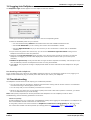
1.3 Installing IP Office Softphone
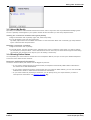
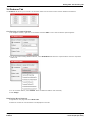
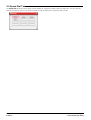
Run the IP Office Softphone installer and follow the prompts in the install wizard.
To start the softphone, select Launch the IP Office Softphone when the installation is complete.
Alternatively, use the Windows Start menu or double-click the IP Office Softphone desktop icon.
Softphone
IP Office
Page 8
- Issue 06e (05 April 2012)