1
SM-54
ENGLISH
3 Assembling and Bringing Into Service
1.
Unpack the transfer press.
2.
Bring the transfer press to it’s location of
service. Only use the assembled transport
device to move the press. Make sure that no
flammable or heat-sensitive materials or
equipment are in immediate vicinity of the
transfer press.
3.
4.
Remove the transport device. It is very
important to keep them, because the transfer
press can ONLY be moved through these
transport devices. In particular; faults which
will appear when trying to lift the transfer press
up on other parts than the transfer devices, will
be exempted from this warranty. It is especially
unacceptable, to lift the transfer press at the
sliding table or at the heat element. When you
assemble the transport devices, make sure you
plumb in the fixing screws tightly.
5.
Connect the power plug with an electrical outlet
and connect the compressed air pipe to the
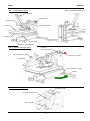
compressed air filter (see page 11, Fig. 2 and 4).
6.
Switch on the power switch to start the transfer
press.
7.
The transfer press will be ready for operations
now.
4 Settings
4.1 Height Adjustment for Work Plate
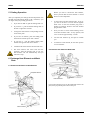
Remove the corrugated-head screws on the
sliding table. Keep these as well for a further
transport to secure the sliding table against
slipping.
1
3
2
1.
The first step will be to loose the locking of the
height adjustments. To do so, turn the clip
handle to the left.
2.
Now turn the work plate in clockwise direction
to lower it, or in anticlockwise direction to raise
it.
3.
When you reached your desired height, turn the
clip handle to the right to lock the height
adjustment.
The gap between the undersurface of the heat
element and the upper surface of the article to
be printed on, should be 15 – 25 mm. Is the gap
bigger/higher than 25 mm; the transfer press
will automatically cancel the printing process
for technical reasons, and the heat element will
go back into its original position.
4.2 Set Pressure
You can adjust the pressure with the pressure regulator;
the manometer in the control panel serves as a control for
your changes.
- 13 -