1
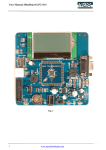
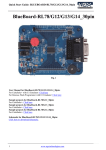
User Manual: BlueBoard-LPC1115 BlueBoard-LPC1115 Fig. 1 1 www.ngxtechnologies.com User Manual: BlueBoard-LPC1115 About NGX Technologies NGX Technologies is a premier supplier of development tools for the ARM7, ARM Cortex M0, M3 and M4 series of microcontrollers. NGX provides innovative and cost effective design solutions for embedded systems. We specialize in ARM MCU portfolio, which includes ARM7, Cortex-M0, M3 & M4 microcontrollers. Our experience with developing evaluation platforms for NXP controller enables us to provide solutions with shortened development time thereby ensuring reduced time to market and lower development costs for our customers. Our cost effective and feature rich development tool offering, serves as a testimony for our expertise, cost effectiveness and quality. Contact Information: NGX Technologies Pvt. Ltd. No.216, 5th main Road, R.P.C. Layout, Vijayanagar 2nd Stage, Bangalore – 560 104 Phone : +91-80-40925507 email:[email protected] CE certification NGX Technologies BLUEBOARD-LPC1115 board have been tested for radiated emission as per EN55022 class A standard. The device is under the limits of the standard EN55022 class A and hence CE marked. No other test have been conducted other than the radiated emission (EN55022 class A standard). The device was tested with the ports like USB, Serial, and Power excluding the GPIO ports. Any external connection made to the GPIO ports may alter the EMC behaviour. Usage of this device under domestic environment may cause unwanted interference with other electronic equipment’s. User is expected to take adequate measures. The device is not intended to be used in and end product or any subsystem unless the user re-evaluates applicable directive/conformance. 2 www.ngxtechnologies.com User Manual: BlueBoard-LPC1115 Table of Contents 1.0 INTRODUCTION ................................................................................................................................. 4 2.0 BLUEBOARD-LPC1115 Development Tool Setup ............................................................................. 5 2.1 IDE and debugger .............................................................................................................................. 5 2.2 Installation & Configuration of KEIL software ................................................................................ 5 2.3 Setup for ULINK2 and BLUEBOARD-LPC1115 Board ................................................................. 9 2.4 Configuration of ULINK2 Debugger .............................................................................................. 10 3.0 BLUEBOARD-LPC1115 Software Development .............................................................................. 12 3.1 Executing the sample projects ......................................................................................................... 12 3.2 Creating New project....................................................................................................................... 15 4.0 BLUEBOARD-LPC1115 Programming ............................................................................................. 19 4.1 Programming options ...................................................................................................................... 19 4.1.1 On-Chip bootloader (UART) ....................................................................................................... 19 4.2 Flashing the Hex file through UART .............................................................................................. 20 5.0 Schematic & Board Layout ................................................................................................................. 21 5.1 Schematic ........................................................................................................................................ 21 5.2 Board layout .................................................................................................................................... 21 6.0 CHANGE HISTORY .......................................................................................................................... 22 6.1 Change History ................................................................................................................................ 22 7.0 REFERENCES .................................................................................................................................... 22 3 www.ngxtechnologies.com User Manual: BlueBoard-LPC1115 1.0 INTRODUCTION This document is the User Manual for the BLUEBOARD-LPC1115, a low cost ARM Cortex-M0 based board by NGX Technologies. This document reflects its contents which include system setup, debugging, and software components. This document provides detailed information on the overall design and usage of the board from a systems perspective. Before proceeding further please refer the quick start guide for BLUEBOARD-LPC1115 features and BLUEBOARD-LPC1115 verification. For BLUEBOARD-LPC1115 Quick Start Guide: Click here. For the most updated information on the BLUEBOARD-LPC1115 board please refer to NGX’website. 4 www.ngxtechnologies.com User Manual: BlueBoard-LPC1115 2.0 BLUEBOARD-LPC1115 Development Tool Setup 2.1 IDE and debugger As mentioned in the earlier section, NGX’s MCU evaluation platforms are not coupled tightly with any one particular combination of IDE and debugger. The following sections will explain the setup for KEIL and ULINK2 as the IDE and debugger respectively. 2.2 Installation & Configuration of KEIL software The Installation of KEIL software is explained below: Note: We have used Keil uvision version 4.60 while creating the User manual for this evaluation kit. Please ensure that you are using uvision version 4.60 or above. Step 1: Open the keil setup Fig. 2 5 www.ngxtechnologies.com User Manual: BlueBoard-LPC1115 Step 2: Keil µvision4.60 information Click on Next Fig. 3 Step 3: Terms & conditions Fig. 4 6 www.ngxtechnologies.com User Manual: BlueBoard-LPC1115 Step 4: Provide the destination path and Click on Next Fig. 5 Step 5: Fill your Personal information and Click on Next Fig. 6 7 www.ngxtechnologies.com User Manual: BlueBoard-LPC1115 Step 6: Click on Next Fig. 7 Step 7: Keil µVision4.23 setup is completed. Click on Finish Fig. 8 8 www.ngxtechnologies.com User Manual: BlueBoard-LPC1115 2.3 Setup for ULINK2 and BLUEBOARD-LPC1115 Board The BlueBoard-LPC1115 board has on board 20 pin SWD box, the ULINK2 is not part of the BlueBoard-LPC1115 package, user need to buy separately. To run the BlueBoard-LPC1115 examples you will need the following and the image shows the each components: ULINK2 BlueBoard-LPC1115 Board USB type-B cable Fig. 9 Connections of components are as shows in the following image. Fig. 10 The above setup is ready to use for development in Keil IDE. 9 www.ngxtechnologies.com User Manual: BlueBoard-LPC1115 2.4 Configuration of ULINK2 Debugger The configuration flow of ULINK2 Debugger is explained below: Step 1: Open the Keil Workspace then by clicking on the target option, the window opens as shown below. Next click on Debug option and select the ULINK2 debugger as shown in the image. Fig.11 Step 2: Click on the settings option, the Cortex-M Target Driver Setup window opens then select SW port. After selection of the SW port the ULINK2 detected is as shown in the image below Fig.12 10 www.ngxtechnologies.com User Manual: BlueBoard-LPC1115 Step 3: Click on Utilities and select ULINK2 Cortex Debugger as shown below Fig.13 Step 4: By Clicking on Settings the Cortex-M Target Driver Setup window opens, Click on Add to select the flash as shown below Fig.14 Click OK to complete the ULINK2 Debugger configuration. 11 www.ngxtechnologies.com User Manual: BlueBoard-LPC1115 3.0 BLUEBOARD-LPC1115 Software Development 3.1 Executing the sample projects The sample projects are provided with the available kit. Steps to execute the sample projects: Step 1: Open the project folder. Step 2: Then open the file project_name.uvproj eg blinky.uvproj. Fig.15 Step 3: This launches the IDE Fig.16 12 www.ngxtechnologies.com User Manual: BlueBoard-LPC1115 Step 4: Click on Build to build the project as shown in the below image Fig. 17 Step 5: Click on Load to download as shown in the below image Fig. 18 13 www.ngxtechnologies.com User Manual: BlueBoard-LPC1115 Step 6: To debug the code click on Debug option then click on Start/Stop Debug session as shown in the below image. Press F5 to free run or press F10 to line by line debug. Fig. 19 14 www.ngxtechnologies.com User Manual: BlueBoard-LPC1115 3.2 Creating New project Follow the below steps, for creating new project: Step 1: Open the keil IDE. Fig. 20 Step 2: Click on to the Project tab – new uvision project. Fig. 21 15 www.ngxtechnologies.com User Manual: BlueBoard-LPC1115 Step 3: Give project name then click Save. Fig. 22 Step 4: Select the controller. Fig. 23 Step 5: Click on Yes. Fig. 24 16 www.ngxtechnologies.com User Manual: BlueBoard-LPC1115 Step 6: Go to file – new, & start writing the code. Fig. 25 Step 7: Save the file with some name. Fig. 26 17 www.ngxtechnologies.com User Manual: BlueBoard-LPC1115 Step 8: Add the file to the source group as shown in the below image. Fig. 27 Step 9: Select the file and click on Add as shown in the below image.(system_LPC11xx.c file is located in Common/src folder) Fig. 28 Step 10: To build, download and debug follow the steps 4, 5 and 6 in section 3.1. 18 www.ngxtechnologies.com User Manual: BlueBoard-LPC1115 4.0 BLUEBOARD-LPC1115 Programming 4.1 Programming options BlueBoard-LPC1115 can be programmed using the On-chip bootloader (UART) Debugger (ULINK2) 4.1.1 On-Chip bootloader (UART) In order to program the board either through UART we need to get the board under programming mode. Getting the board in programming mode: Theory: The On-chip bootloader looks for a logic LOW to be present on a pre-defined PIN (ISP pin) during reset. If the ISP pin is held LOW and reset signal is provided to the MCU, the MCU enters into programming mode. Practical: On the BlueBoard-LPC1115 the RESET and ISP signals are connected to buttons provided on the board. Look for the RESET and ISP marking on the board. Therefore to enter into programming mode: Press and hold the ISP button Press the RESET button and release it Now release the ISP button The board is in the programming mode 19 www.ngxtechnologies.com User Manual: BlueBoard-LPC1115 4.2 Flashing the Hex file through UART Step 1: Connect the serial cable to the PC as well as to the board UART0 and open the flash magic tool. Step 2: Input all the parameters as shown in below Fig. Fig. 29 Step 3: Click Start to flash the hex file. Press Reset to run. NOTE: Make sure that the Board is not powered through USB. Use Flash Magic version 7.02 or above. Please check for your machines COM port number. The COM port number can be different. 20 www.ngxtechnologies.com User Manual: BlueBoard-LPC1115 5.0 Schematic & Board Layout 5.1 Schematic This manual will be periodically updated, but for the latest documentations please check our website for the latest documents. The Board schematic and sample code are available after the product has been registered on our website. 5.2 Board layout Fig. 30 21 www.ngxtechnologies.com User Manual: BlueBoard-LPC1115 6.0 CHANGE HISTORY 6.1 Change History Rev 1.0 Changes Date (dd/mm/yy) Initial release of the manual 18/01/2013 By Veeresh Tumbaragi 7.0 REFERENCES In addition to this document, the following references are included on the NGX BLUEBOARDLPC1115 product and can also be downloaded from www.ngxtechnologies.com: NGX BLUEBOARD-LPC1115 schematic for the Development board. Additional references include: Information on development tool being used: - Keil uvision 4.60, http://www.keil.com/download/product/ - Flash magic, http://www.flashmagictool.com/ About this document: Revision History Version: V1.0 author: Veeresh Tumbaragi Company Terms & Conditions Legal NGX Technologies Pvt. Ltd. provides the enclosed product(s) under the following conditions: This evaluation board/kit is intended for use for ENGINEERING DEVELOPMENT, DEMONSTRATION, and EDUCATION OR EVALUATION PURPOSES ONLY and is not considered by NGX Technologies Pvt. Ltd to be a finished end-product fit for general consumer use. Persons handling the product(s) must have electronics training and observe good engineering practice standards. As such, the goods being provided are not intended to be complete in terms of required design-, marketing-, and/or manufacturing-related protective considerations, including product safety and environmental measures typically found in end products that incorporate such semiconductor components or circuit boards. This evaluation board/kit does not fall within the scope of the European Union directives regarding electromagnetic compatibility, restricted substances (RoHS), recycling (WEEE), FCC, CE or UL and therefore may not meet the technical requirements of these directives or other related directives. The user assumes all responsibility and liability for proper and safe handling of the goods. Further, the user indemnifies NGX Technologies from all claims arising from the handling or use of the goods. Due to the open construction of the product, it is the user’s responsibility to take any and all appropriate precautions with regard to electrostatic discharge. 22 www.ngxtechnologies.com User Manual: BlueBoard-LPC1115 EXCEPT TO THE EXTENT OF THE INDEMNITY SET FORTH ABOVE, NEITHER PARTY SHALL BE LIABLE TO THE OTHER FOR ANY INDIRECT, SPECIAL, INCIDENTAL, OR CONSEQUENTIAL DAMAGES. NGX Technologies currently deals with a variety of customers for products, and therefore our arrangement with the user is not exclusive. NGX Technologies assumes no liability for applications assistance, customer product design, software performance, or infringement of patents or services described herein. Please read the User’s Guide and, specifically, the Warnings and Restrictions notice in the User’s Guide prior to handling the product. This notice contains important safety information about temperatures and voltages. No license is granted under any patent right or other intellectual property right of NGX Technologies covering or relating to any machine, process, or combination in which such NGX Technologies products or services might be or are used. Disclaimers Information in this document is believed to be reliable and accurate. However, NGX Technologies does not give any representations or warranties, expressed or implied, as to the completeness or accuracy of such information and shall have no liability for the consequences of use of such information. NGX Technologies reserves the right to make changes to information published in this document, at any time and without notice, including without limitation specifications and product descriptions. This document replaces and supersedes all information supplied prior to the publication hereof. Trademarks All referenced trademarks, product names, brands and service names are the property of their respective owners. 23 www.ngxtechnologies.com