1
SketchUp 2 Thea
5 - Scene & Camera options
U S E R‘S
M A N U A L
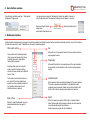
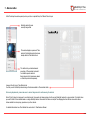
Scenes tab allows you to modify a camera settings for a current view or currently selected scene.
Displays a resolution
of a rendered image
Doubles the current resolution
Halves the current resolution
Specifies in % how
much of a view will
be sharp in a
rendered image. The
lower the value the
more out of focus a
final image will be.
Changes an orientation
of the rendering frame
(landscape/portrait)
Removes grey bars in
a scene\view used to
show aspect ratio in
0.73 version and older.
This button is active
only when a scene is
selected. It lets you
specify a focus distance
of the scene’s camera.
Click on a point to
calculate the distance.
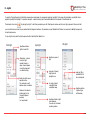
Camera / Image aspect ratio
It specifies proportions of a rendered
image.
When ‘SU window’ is selected a scene
or a current view camera will use
current SketchUp window proportions.
Custom option allows to enter any
valid values of horizontal and vertical
resolution.
In all cases shorter image width is
calculated in relation to the longer
one.
A red outline will be displayed in a
view to show chosen aspect ratio.
6 - Rendering settings
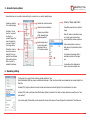
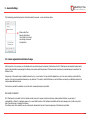
The Exporter lets you select three rendering methods available in Thea.
While first Adaptive (BSD) may require an additional fine-tuning in Thea, two other methods are unbiased and can be used straight from
SketchUp.
Unbiased (TR1) engine is preferred in exterior renders and interiors where direct lighting is the most dominant in the scene.
Unbiased (TR2) mode is preferred when difficult indirect lighting is dominant in the render or heavy caustics are present (such as “sunpool-caustics”).
You can also specify ISO sensitivity, shutter speed and f-number of the camera. Those settings will be transferred to Thea Darkroom.
PAGE 5