1
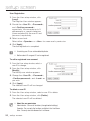
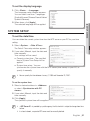
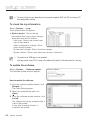
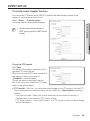
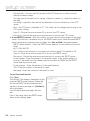
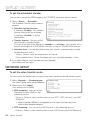
setup screen Install a public certificate : To install the camera’s certificate, you need to type a certificate name (it can be arbitrarily assigned by user), certificate file issued from the authority and a key file. When done, click [Install]. If the certificate is installed successfully, the user-defined certificate name will be displayed. Also, the option button of <HTTPS (Secure connection mode using the public certificate)> in the upper side becomes activated. M To access the camera using HTTPS mode, you have to type the IP address for the camera in the form of “https://<Camera_IP>”. 2. When done, click [Apply]. The web viewer will switch to the set secure connection system. Overlay Setup You can display text on the screen. To set the text 1. Select <overlay> - <overlay text>. The Overlay Text setup window appears. 2. When done, click [Apply]. Your settings will be saved. Overlay text settings : If you select <Disable>, the overlay text will not be displayed; If selecting <Enable>, it will display on the screen. Show date : Set to display the date information on the bottom screen. - Output Format : Select a display format of the date information. YYYY-MM-DD : Year-Month- Day / MM-DD-YYYY : Month-Day-Year/ DD-MM-YYYY : Day-Month-Year Show time : Set to display the time information on the bottom screen. - Output Format : Select a display format of the time information. 24hr : Displays the time in the 24-hour format. 12hr : Displays the time in the 12-hour format. Text color : Select black or white for the text color. Background color : Select black or white for the background color. 54_ setup screen