1
cs692.fm Page 18 Friday, October 15, 2010 10:20 AM
Upgrade Failed
If the Upgrade Succeeded screen doesn’t appear, it means that
the upgrade failed to complete successfully, in which case you
should do the following:
1. Disconnect the USB connectors on the KVM cables from the
computer.
2. Press and hold the Remote Port Selector’s pushbutton. While
you are still holding the pushbutton, reconnect the KVM
cable’s USB connectors to the computer.
3. Power on the CS692. It will now work with the factory default
firmware. Follow steps 3 to 9 on page 17 again.
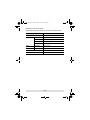
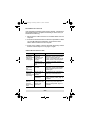
Troubleshooting
Symptom
Monitor does
not display
after the KVM
cable set is
hot-plugged.
Possible Cause
HDMI graphics
card is not
compatible with
cable set hotplugging.
Action
Power off all devices on the
installation; power off the CS692;
confirm all KVM cables are
properly connected; power on the
CS692; power on the computers.
Graphics card
Upgrade to the latest graphics
driver is not up-to- card driver.
date.
Mouse and/or
keyboard is
not
responding.
Switch needs to
be reset.
Power off all devices on the
installation; power off the CS692;
wait five seconds; power on the
CS692 again.
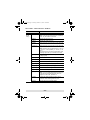
Mouse portMouse does not
switching
support this
function is not function.
responding.
Mouse emulation
is disabled.
This feature is only supported by
USB 3-key scroll wheel mice.
Cannot switch
ports by
pressing
[Scroll Lock]
twice.
Switch to the alternate HSM
invocation keys. See Alternate
Entering Hotkey Mode, page 14,
for details.
Keyboard is
incompatible with
[Scroll Lock]
invocation.
Enable mouse emulation. See
Hotkey Summary Table, page 15,
for details.
- 18 -