1
fig.2
fig.1
1. To export an event on the DVR, ensure that you have
a mouse connected to the DVR. Also ensure that you
have a USB storage device, such as a flash drive,
connected to the USB port in the back.
2. Right-click on the screen showing the cameras. If a
login screen is displayed, enter your user’s password
or click ok if the password has not been changed from
its default (which is no password for the “admin” user)
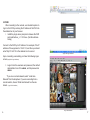
and it will disappear. (fig.1)
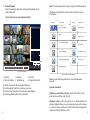
3. Right-click on the camera screen again, this time a
menu list comes up, select [PLAYBACK]. (fig.2)
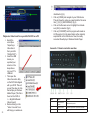
FIG. 3
Exporting a Video Event from your 60x/70x/90x DVR
24
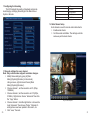
4. You’re now at the search screen. (fig.3) We need to tell
the system what time frame you want to search for by
clicking on the magnifying glass icon in the lower righthand side of the screen. This brings up the “Search
Criteria“ dialog box. (fig.3)
5. Select “All” from the drop-down “File Type:” (sometimes,
if nothing comes up, you can try changing this from “All”
to “MD” [this stands for “motion detect”])
6. The green arrow on the illustration shows the camera
numbers. Only camera channels that are highlighted
white will be searched. Enter the Start time and End
time of the event you want to review.
7. Click on the Search button.
8. To review a video, double-click on the entry on the righthand side of the results screen.
9. To export the video, click on the event in the upper
right-hand side of the screen and then on the hard disk
icon. (fig.3 circled)
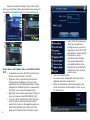
10.You should see your USB device listed as in (fig.4).
11. Click on [BACKUP] and the screen will change. Click
on [START]. When complete, a confirmation that the
25