1
Martine BOCCANFUSO
Marc EMILE
Axialis Professional
Screen Saver Producer 3.61
CORPORATE EDITION
Copyright © 1996-2004 Axialis Software – All Rights Reserved
http://www.axialis.com
Table Of Contents
INTRODUCING, LICENSE
What is Professional Screen Saver Producer?
User License Agreement - Corporate Edition
Acknowledgements
System Requirements
GETTING STARTED (QUICK TUTORIALS)
What is a Screen Saver?
Tutorial 1 - Create a Sprite Screensaver
1
2
3
4
5
7
8
11
Lesson 1.1 - Creating the new project
Lesson 1.2 - Defining the background
Lesson 1.3 - Adding a static sprite
Lesson 1.4 - Adding a moving sprite
Lesson 1.5 - Adding an animated sprite
Lesson 1.6 - Using collision effects
Lesson 1.7 - Defining a background music
Lesson 1.8 - Saving the project
Lesson 1.9 - Compiling the screensaver
Lesson 1.10 - Creating an install package
11
13
14
16
18
20
22
22
23
27
Tutorial 2 - Create a Slideshow Screensaver
33
Lesson 2.1 - Creating the new project
Lesson 2.2 - Defining the background
Lesson 2.3 - Adding the photos
Lesson 2.4 - Specifying display settings and transitions
Lesson 2.5 - Defining a background music
Lesson 2.6 - Saving the project
Lesson 2.7 - Compiling the screensaver
Lesson 2.8 - Creating an install package
Tutorial 3 - Create a Flash® Screensaver
Lesson 3.1 - Creating the new project
Lesson 3.2 - Defining the background
Lesson 3.3 - Specifying the Flash® file
Lesson 3.4 - Specifying display settings
Lesson 3.5 - Saving the project
Lesson 3.6 - Compiling the screensaver
Lesson 3.7 - Creating an install package
HOW TO PROCEDURES
How to quickly create a sprite screensaver...
How to quickly create a slideshow screensaver...
How to quickly create a Flash® screensaver...
How to quickly create a video screensaver...
How to create a simple "bouncing logo" screensaver...
How to work efficiently with Photoshop®...
How to create a limited demo/shareware screensaver...
How to add a RSS reader in a screensaver...
33
34
35
38
40
41
42
45
51
51
52
53
55
55
56
60
67
68
69
70
71
72
73
76
78
iii
Axialis Professional Screen Saver Producer
CORPORATE EDITION
How to customize a screensaver icon...
How to customize a screensaver illustration image...
How to install a SCR screensaver on a computer...
How to quietly install a screensaver on a computer...
CREATING SCREEN SAVERS
Create a Sprite Based Screen Saver
Create a sprite based screen saver project
Adjust general display properties
Add new sprites in the project
Change the sprite position
Change the sprite size
Change Motion, Type and Speed
Randomly change the sprite motion path
Add sprite collision effects
Add sprite collision sounds
Randomize position and speed at runtime
Create a transparent sprite
Specify sprite type
Save sprite image in a project
Duplicate sprites in a project
Import/Export sprites from the project
Customize the screen saver background
Add a background music
Add a movie or animation
Save the project (SSP file)
Test the screen saver full screen
Compile a screen saver file
Compile an installable package
Create a Slide Show Based Screen Saver
Create a Slide Show Based Screen Saver Project
Create slide show based screen saver project
Adjust general properties
Add new slides in the project
Arrange the slide sequence
Change slide image pathname
Display/change slide information
Save a slide in a project
Change the slide size
Customize transition effect
Customize slide display duration
Add a slide specific sound
Display the slide full screen
Customize the screen saver background
Add a default background music
Add a movie or animation
Save the project (SSP file)
Test the screen saver full screen
Compile a screen saver file
Compile an installable package
iv
80
82
84
85
87
88
88
88
89
90
91
92
92
93
93
94
95
95
96
96
96
97
98
99
101
102
102
102
103
103
103
104
104
106
107
107
107
108
108
108
108
109
109
110
111
113
113
113
114
Create a Flash® Based Screen Saver
115
Create a Flash® Based Screen Saver
115
Table Of Contents
Create slide show based screen saver project
Adjust general properties
Specify the Flash® movie
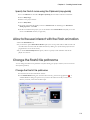
Allow to the user interact with the Flash animation
Change the Flash® file pathname
Save the Flash® file in the project
Adjust the Flash® movie display size
Adjust the Flash® movie position on screen
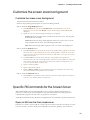
Customize the screen saver background
Specific FSCommands for the Screen Saver
Specific Flash® variables for screensavers with activation
Save the project (SSP file)
Test the screen saver full screen
Compile a screen saver file
Compile an installable package
Create Video Based Screen Saver
115
116
116
119
119
120
120
120
121
121
122
123
123
124
124
125
Create a Video Based Screen Saver
Create Video based screen saver project
Adjust general properties
Add/remove video movies in the playlist
Change the playlist order
Save the movie files in the project
Adjust the movie display size
Adjust the Flash® movie position on screen
Customize the screen saver background
Save the project (SSP file)
Test the screen saver full screen
Compile a screen saver file
Compile an installable package
125
125
126
126
129
130
130
130
131
131
132
132
132
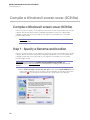
Compile a Windows® screen saver (SCR file)
134
Compile a Windows® screen saver (SCR file)
Step 1 - Specify a filename and location
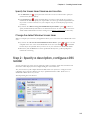
Step 2 - Specify a description, configure a RSS reader
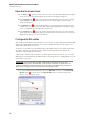
Step 3 - Customize icon and dialog box image
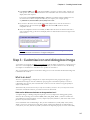
Step 4 - Specify the splash screen parameters
Step 5 - Specify the preview parameters
Step 6 - Compilation Summary
Compilation
Compile an installable screen saver file (EXE)
Step 1 - Specify the filename and location of the install package
Step 2 - Specify the installation properties, advanced customization
Step 3 - Specify the User License Agreement
Step 4 - Specify the screensaver filename and description
Step 5 - Customize icon and dialog box image
Step 6 - Specify the splash screen parameters
Step 7 - Specify the preview parameters
Step 8 - Specify an activation code (create a limited version)
Step 9 - Compilation Summary
Compilation
Command-line options
Working with the Photoshop® plug-in
Why a Photoshop® Plug-in?
134
134
135
137
140
141
143
143
144
144
145
150
151
153
155
156
157
159
160
160
164
164
v
Axialis Professional Screen Saver Producer
CORPORATE EDITION
Install the Photoshop® Plug-in
Use the Photoshop® Plug-in
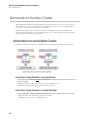
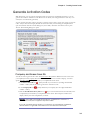
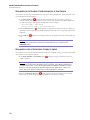
Generate Activation Codes
Information on Activation Codes
Generate Activation Codes
WORKING WITH THE AXIALIS LIBRARIAN
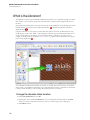
What is the Librarian?
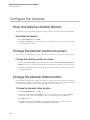
Configure the Librarian
Show and hide the Librarian Window
Change the Librarian position on screen
Change the Librarian folder location
Working with the Librarian
Open an item in the librarian
Open an item full screen
Edit an item with an External program
Toggle the auto full screen option
Rename one or more items
Send media items via email
Search items
Delete items
Preview an item in the librarian
Restore previously deleted items in the Librarian
Empty the Deleted Items folder
Create a new folder
Import files
Export files
Select files
Change the item display
Print the actual folder
Display a grid in the detailed list
Show info tooltips
Display the item properties
Change a folder icon
Show folders
Add Items to The Librarian
Add items to the librarian from the Explorer Document
Add an opened document to the librarian
Add items using the Import function
WORKING WITH THE AXIALIS MEDIA FILE EXPLORER
Using the Axialis Media File Explorer
Create a new Explorer window
Explorer Functions
Display the item properties
Search media files on the computer
Browse media files full screen
Print a folder content as thumbnail with preview
Move or copy media files
vi
164
165
168
168
169
171
172
174
174
174
174
175
175
175
175
176
176
176
176
177
177
178
178
178
178
179
179
179
180
180
180
181
181
181
182
182
182
182
183
184
184
185
185
185
186
186
187
Table Of Contents
Add a selection of files to the Librarian
Working with media files
188
189
Supported Media Types
Open a media file
Print a media file
Change display mode
Display full screen
Copy a media file to the Clipboard
189
190
191
192
192
193
Features Specific to the Image Files
194
Save an image to another file format
Resize an image
Crop an image
Change the color depth of an image
CUSTOMIZING THE APPLICATION
194
194
195
196
199
Customizing Toolbars and the Librarian
200
Customize the main toolbar
Show/hide the Toolbars
Show and hide the Librarian Window
Change the Librarian position on screen
Change the Librarian folder location
200
201
202
202
202
Changing the Program Preferences
Options in the General Tab
User Interface options
Options in the Toolbars Tab
Options in the Media Types Tab
Options in the Librarian Tab
Options in the Images Tab
Options in the Movies Tab
Options in the Temporary Files Tab
203
203
204
205
205
206
206
207
208
MISCELLANEOUS FEATURES, TIPS, UNINSTALLATION
209
Quick-open a file using the Recently Used Bar
Manage favorite files
Paste an image from another program to a project
Paste an image as a new document
Desktop Reorganization
Acquire a new image from a Twain device
Uninstall or repair the application
210
210
211
212
212
213
213
REGISTERING, UPGRADING, ONLINE FEATURES
Online Registration using Internet
Upgrade the application using Internet
Online Customer Service on Internet
Contact Axialis Software Team
INDEX
215
216
218
219
220
221
vii
CHAPTER 1
Introducing, License
In this chapter
What is Professional Screen Saver Producer?
User License Agreement
Acknowledgements
System Requirements
1
Axialis Professional Screen Saver Producer
CORPORATE EDITION
What is Professional Screen Saver Producer?
Axialis Professional Screen Saver Producer is a powerful tool designed to create Windows® screensavers.
It has a fully integrated workspace that permits you to work efficiently and create professional screen
savers in minutes.
What kind of Screen Savers can I produce?
Almost all kind of screen savers based on sprite animations (a sprite is an animated and/or moving image
- see the "Dancing Balls" sample on right). This new version let you also create screen savers based on
Shockwave Flash (no limit to your imagination!), Image Slide Shows (display your favorite photos) and
Movies (QuickTime, Mpeg, AVI, RealMedia...).
You compile and produce Windows 95/98/ME/2000/XP SCR compatible files with Control Panel
preview. Several options are available: Sprite collisions at different levels with sounds; MIDI, MP3 or
MOD/S3M/XM Background music support; Several Background effects; AVI, MPEG, QT Video
Sequences support; FLI, FLC, GIF Animations support; Compilation with image compression;
Customizable screen saver About dialog box, and more...
The screen savers you'll produce will support all video configurations (screen size and color depth). Now
the program supports images and icons with alpha channel (aka smooth transparency). This will permit
you to create beautiful screensavers at professional quality level. At least this new version permits to
create demo/limited versions of your screensavers with unlock feature. This is very interesting to
distribute and sell your screensavers. A powerful built-in module permits you to generate unlock codes.
A WYSIWYG Editor
To let you be more productive, we have created an advanced WYSIWYG screen saver editor with full
Drag & Drop support. WYSIWYG means "What You See Is What You Get". No surprise at compilation,
your final screen saver is strictly identical.
An Ergonomic Integrated Suite of Tools
A professional tool must be Powerful and Easy to Use. That's why we have created an intuitive fully
integrated workshop interface. All is visible and easy to access in the main window: A built in dockable
media files librarian to manage your files, a powerful explorer with thumbnail preview to explore your
hard disks or CD, an ergonomic Explorer® like toolbar with a Recently Used Files bar, a multidocument support, a WYSIWYG editor interface, and more...
The application has been designed to be the most ergonomic as possible. An action can always be done
using several methods. For example, to add a new sprite in a screen saver project you can use a standard
dialog box, the Mouse by Drag & Drop or the Clipboard by Copy/Paste. With Screen Saver Producer
you work the way you like!
A Powerful Built-in Librarian
A powerful built-in librarian let you easily manage all your media and screen saver projects files. This is a
dockable window (which can be hidden) where you can store, move, copy and extract all the files you're
using in your work (images, video, sounds and music). Very easy to use: Double click to open a file in a
window (even animations, music, video...), use Drag & Drop to add it in a project. And best of all, you
can find a specific file using a powerful search feature.
2
Chapter 1 - Introducing, License
User License Agreement - Corporate Edition
IMPORTANT NOTICE
Read this License Agreement carefully before using this Software. BY USING THIS SOFTWARE IN
ANY WAY YOU ACKNOWLEDGE THAT YOU HAVE READ, UNDERSTAND AND AGREE
TO THE TERMS OF THIS AGREEMENT. IF YOU DO NOT AGREE TO THESE TERMS, DO
NOT USE THIS SOFTWARE IN ANY WAY, AND PROMPTLY RETURN IT OR DELETE ANY
COPIES OF THIS SOFTWARE IN YOUR POSSESSION.
LICENSE GRANT
Axialis Software ("AXIALIS") grants you a non-exclusive license to use this software, and any associated
documentation ("The Software"), as indicated herein. If you have purchased a Single User License, one
copy of the Software may be installed and used, for internal use only, on a single computer. The Software
is in "use" on a single computer when it has been loaded into temporary memory (i.e. RAM) or installed
into permanent memory (hard disk or other device) of that computer. If you have purchased a Multiple
User License (you specified several copies of the software when you purchased it), the Software may be
installed and used, for internal purposes only, on the number of computers authorized at the time of
purchase.
You MAY: (a) redistribute compiled Screen Savers for commercial purpose; (b) make a copy of the
software for archival purpose only; (c) install the Software on another computer only if you change of
workstation. In such a case you must uninstall the software from the previous workstation.
RESTRICTIONS
You MAY NOT: (a) copy and distribute the Software or any portion of it; (b) sublicense, lease, rent, or
transfer this Software to another; (c) cause or permit reverse engineering, disassembly, decompilation or
alteration of this Software; (d) remove any product identification, copyright notices, or other notices or
proprietary restrictions from this Software; (e) copy the documentation accompanying the software.
TERM
This License is effective until terminated. You may terminate it at any time by destroying the Software,
together with all copies thereof. This License will also terminate if you fail to comply with any term or
condition of this Agreement. Upon such termination, you agree to destroy the Software, together with all
copies thereof.
COPYRIGHT/OWNERSHIP
This Software and its source code are proprietary products of AXIALIS and are protected by copyright
and other intellectual property laws. The Software is licensed and not sold. You acquire only the right to
use the Software and do not acquire any rights, express or implied, in the Software other than those
specified in this License.
DISCLAIMER OF WARRANTIES
The Software is supplied "AS IS". AXIALIS disclaims all warranties, expressed or implied, including,
without limitation, the warranties of merchantability and of fitness for any purpose. The user must
assume the entire risk of using the Software.
DISCLAIMER OF DAMAGES
AXIALIS assumes no liability for damages, direct or consequential, which may result from the use of the
Software, even if AXIALIS has been advised of the possibility of such damages. Any liability of the seller
will be limited to refund the purchase price.
3
Axialis Professional Screen Saver Producer
CORPORATE EDITION
Acknowledgements
Icons and Images used in the program
Thanks to these great icon artists for giving us permission to include some of their icons and images in
the program (toolbar buttons, icons, dialog illustration...):
. Marvilla ([email protected] - website: Iconica).
. Foood ([email protected] - website: Foood.net).
. Everaldo ([email protected] - website: Everaldo.com).
Sample Icons
Thanks to Yazoo for giving us permission to include some of its smiley icons in the "Internet" sample
screensavers. You are free to use the icons from Yazoo for private/non commercial use only. Please read
Yazoo-read-me.txt file (located in Librarian "Sprites" folder) to get more info. Visit
http://www.wbchug.com for more free Icons. Visit http://www.wbc-designs.com for a list of services.
Sample Loop Sounds
Thanks to Alexander Lau from Loopheads Soundware for giving us
permission to include some of its Loop sounds in the sample
screensavers. Loop sounds are short sounds which can be played in loop
to create an endless music. Contact Loopheads if using these sounds
commercially. To get more info about Loopheads visit their website:
http://www.loopheads.com
The sounds have been resampled to low quality (12.000 kHz, 8 Bits,
Stereo) for demo purpose. To get CD Quality versions (44.100 kHz, 16 Bits, Stereo) purchase Loopkit
Pro v1.0 CD which includes over 1200 copyright/royalty-free sound loops and samples at:
http://www.loopkit.com
Translations and Help Fixes
Thanks to the following persons who helped us on translations and help fixes:
. Dmitry Yerokhin ([email protected]) - Russian portions
. Giorgio Brausi ([email protected] - website www.vbcorner.net) - Italian portions
. Juan Carlos Hernández Pazos ([email protected] - website www.datafox.com) - Spanish
portions
. Marcus Vinícius - Portuguese portions
. Mark Budd ([email protected]) - English context help fixes
. Richard Bol ([email protected] - website www.rbol.nl) - Dutch portions
. Stefen C. Weber ([email protected] - website www.shannon.de) - German portions
Compression Support
Thanks to Jean-loup Gailly and Mark Adler for writing the fantastic and free ZLIB
compression/decompression library which is used in Axialis products. You can visite the official ZLIB
Web page at: http://www.cdrom.com/pub/infozip/zlib
4
Chapter 1 - Introducing, License
PNG Support
Thanks to the creators of the PNG graphic file format and its related source code. You can visite the
official PNG Web page at: http://www.cdrom.com/pub/png
JPEG Support
Thanks to Thomas G. Lane and the Independent JPEG Group for the JPEG graphic file format and its
source code. You can visite the official JPEG Web page at: http://www.ijg.org
System Requirements
Axialis Professional Screen Saver Producer has been designed to work with Microsoft Windows® 95, 98,
ME, NT4, 2000 and XP.
Minimum
Pentium® class CPU - 350 Mhz
65536 color video card - 800x600
64 Mb RAM
Microsoft Windows® 95 (with ComCtl32 v4.72+) or NT 4.0 SP4
Recommended
Pentium® 3/4 or AMD Athlon - 500 Mhz or more
True Color Video Card (24 or 32 bits - 16,8 M colors) - 1024x768
128 Mb RAM
Microsoft Windows® ME/2000/XP or more
5
CHAPTER 2
Getting Started (Quick Tutorials)
In this chapter
What is a Screensaver?
Tutorial 1 - Create a Sprite Screensaver
Tutorial 2 - Create a Slideshow Screensaver
Tutorial 3 - Create a Flash® Screensaver
7
Axialis Professional Screen Saver Producer
CORPORATE EDITION
What is a Screen Saver?
Axialis Professional Screen Saver Producer is a powerful tool designed to create Windows® screen
savers. But what is a screen saver (also written in one word: "screensaver")? A screen saver is an animated
image that is activated on a personal computer display when no user activity has been sensed for a certain
time. The original purpose of a screen saver was to prevent burn-in (the burning of an image into the
phosphor inside the cathode ray tube after hours of the same image being displayed). In fact, today's
CRT/LCD display technology makes burn-in unlikely except under extreme conditions. The prefect
screensaver is the black screen... a bit boring, huh? Many people get screen savers so that something
interesting is on the screen when they make a pause. Screensavers are also a good way to promote a
company or a product.
Windows® comes with built-in screen savers that you can select. If you purchase your computer with the
operating system already installed, a screen saver may have been selected for you. Also, many
screensavers can be downloaded from specific. Of course, the best way is to create your own and express
your talent...
A good screensaver must have the following characteristics:
A dark background or scene - This is to save power consumed by the display.
Moving objects or scene - This is to avoid pixel burning. Fixed objects must be dark.
Slow motion - The scene must be appeasing.
Silent - If you add sounds, use low-level ones and/or cool music.
Sensitive - It must stop on any user action (mouse move, click, keyboard hit...).
What is a Sprite based screensaver?
A sprite is an animated or fixed object which moves or is static on screen. As the goal of a screensaver is
to save screen pixels, it is better to use moving sprites (see "bouncing balls" example). The sprites can
move on screen, be static, be animated (a spinning ball for example, composed of several images),
bounce on the edge of the screen, collide with other sprites and more... The Sprite based screensaver is
the most commonly used.
What is a Flash based screensaver?
Macromedia Flash® is a powerful product which permits to create sophisticated vector animations for
the Web. SWF (Macromedia® Flash®) is the file format used by Macromedia Flash® to deliver graphics,
animation and sound over the Internet. These techniques are rapidly changing the way we play, work, or
just browse online.
What are vector graphics? Vector graphics, which manipulate coordinates and mathematical formulas
rather than pixel-by-pixel images, produce graphics files that are one-tenth the size of bitmaps.
Additionally, SWF can deliver animation, rich colors, sound, and interaction. To view a Flash animation,
the user must download and install the Flash® player. This is automatically done when he visits a website
using Flash®. As a result, over 95% of Internet users can now view SWF content: millions of people
have downloaded the Flash® player for their browser. Flash® is a great format to create gorgeous
screensavers.
What is a Slideshow based screensaver?
A slideshow is a sequence of full screen images, each one loading the next. Each image is called a "slide".
Each slide is displayed on screen for a specified period of time. When this period is over, the next slide is
displayed using a possible transition effect (cut, roll, fade...). A background music can be added as well as
8
Chapter 2 - Getting Started (Quick Tutorials)
a startup video sequence. This kind of screensaver is great to display your vacation photos or promote a
company slogan for example.
What is a Video based screensaver?
A video screensaver permits to display a list of video clips full screen in sequence. This kind of
screensaver is less used but could be useful to display a company advertisement clip for example.
What are the characteristics of a Windows® screen saver?
First of all, a screensaver is a program. It is in fact an executable file which has the SCR extension (not
EXE). Windows® SCR screensavers can be executed in 3 modes:
Full Screen mode - This is the default mode. If you launch a SCR file from Windows Explorer, it
will display full screen.
Configure mode - Specify "/C" of right-click on the file using Windows Explorer and select
"Configure". The screensaver built-in dialog box opens and permits you to adjust various settings.
Preview mode - This mode is reserved to Windows®. When launched in this mode, the
screensaver displays in small size in the Windows Display Properties dialog box (see below).
SCR files can be located anywhere on your hard disks but we recommend you to copy them in your
Windows system directory (see below how to install a screensaver).
How to install a screensaver on a Windows® computer?
If an install procedure is provided with the screensaver, just install it launching the procedure. When a
screensaver is distributed as a simple SCR file, You have to follow this procedure to install it on a
computer:
1. Copy the SCR file in your system folder. This folder vary with Windows version:
Windows XP/NT/2000 - C:\WINNT\SYSTEM32
Windows 95/98/ME - C:\WINDOWS\SYSTEM
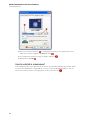
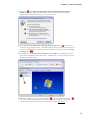
2. Right-click in the Windows Desktop background and select "Properties". A dialog box opens.
Select the "Screen Saver" tab:
9
Axialis Professional Screen Saver Producer
CORPORATE EDITION
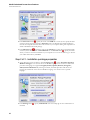
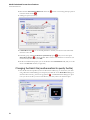
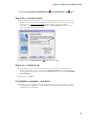
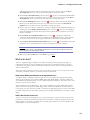
3. Select your screensaver in the list ( ). (it should appear in this list if you copied it in the correct
folder). The screensaver appears in the Preview screen ( ).
4. You can adjust the screensaver settings or display it full screen ( ).
5. When all done, click OK ( )
How to uninstall a screensaver?
If an uninstall procedure is provided with the screensaver, just uninstall it launching the procedure. When
a screensaver is distributed as a simple SCR file, you have to locate the SCR file and delete it. You can
also choose another screensaver (or simply specify "None") in the above list ( ).
10
Chapter 2 - Getting Started (Quick Tutorials)
Tutorial 1 - Create a Sprite Screensaver
Lesson 1.1 - Creating the new project
In this lesson we'll create a new sprite based screensaver project and take a look at the editor window.
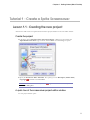
Create the project
1. In the menu, choose File/New/New Screen Saver Project, a dialog box opens. Select the
"Sprite Based Screen Saver" type in the list and click Next. A second dialog box opens:
2. Specify the Screensaver Title: "Tutorial1". Also specify your own Description, Author Name,
Copyright ( ) information and click Next.
REMARK: Click on the context help button (
area in the dialog box.
) to get more information on a specific
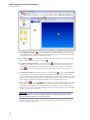
A quick tour of the screensaver project editor window
3. A new project window opens:
11
Axialis Professional Screen Saver Producer
CORPORATE EDITION
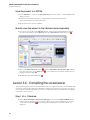
4. In the Application window ( ) you see the menu and the main toolbar. This toolbar can be
customized by double-clicking or right-clicking on it. When you select a command in this menu
or main toolbar, it acts on the selected item or window.
5. In the Librarian ( ) you can select the folder that contains the media files (images, animations,
music, sounds) that you'll use in your project ( ).
6. The Project document window is named "Tutorial1" ( ). The application is multi-document
enabled. It means that you can create or open several documents in the working area of the
application. A local toolbar is located in the document window. If you click on a button in this
toolbar ( ), it acts on the selected item in the document window. This toolbar cannot be
customized.
7. The Document window is divided in two parts. On the left side ( ), you see the list of sprites
included in the project (actually no sprite) as well as a Background properties element. Sprites
you'll add in the project will be added in this list. Each sprite is placed in an invisible layer so that
sprites on top of the list overlap sprites that are placed below. Sprite order can be rearranged by
drag & drop (in the list) but the background element is always placed at the bottom.
8. On the right side ( ), you see the editor area. Actually you see the default background (it can be
customized). Also, this area is WYSIWYG enabled. It means "What You See Is What You Get".
Each sprite is visible and moves in this area the same way it will move in the final screensaver.
But that's not all. You can also modify the sprites in this area using your mouse. It is a real editor
window, not only a preview window.
IMPORTANT: This editor window as well as all values used in the project (coordinates,
speeds) are based on the following visible dimensions: 640x480: [0,0] in the upperleft corner and [639,479] in the lower-right corner.
9. At the bottom of the main window, you see some important informations about the project
(mouse coordinates, sprite size...).
12
Chapter 2 - Getting Started (Quick Tutorials)
Lesson 1.2 - Defining the background
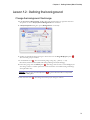
Change the background: Tiled image
1. In the WYSIWYG editor window, double-click (using the left button) or right-click and select
"Properties" or choose Project/Screen Background menu command.
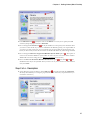
2. A Project Properties dialog box opens (Background tab is selected):
3. Actually, the "Gradient" background type is selected. Choose the Image Wallpaper option ( ).
The associated group is activated.
4. In the Pathname area ( ), select the following image (using the [...] button): "...\My
Documents\Axialis Librarian\Media Files\Images\Backgrounds\Wood04.jpg".
6. In the same group, select the Tiled option ( ). This image must be used as a tiled wallpaper (the
same image contains a seamless pattern that creates the illusion of an infinite background image
when placed like tiles).
REMARK: Click on the context help button (
area in the dialog box.
) to get more information on a specific
7. Click OK when done ( ). The background of the project changes as follows:
13
Axialis Professional Screen Saver Producer
CORPORATE EDITION
Lesson 1.3 - Adding a static sprite
In this lesson, we'll add our first sprite in the project: a static sprite. It means that this sprite will not
move on the screen. It is useful to add your company logo in a corner of the screen foe example. Also,
we'll change its transparency value to create a watermark effect.
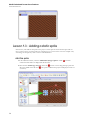
Add the sprite
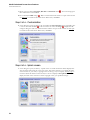
1. In the Librarian window, select the "Media Files\Images\Sprites" folder ( ). The files
contained in this folder are displayed in the list below.
2. Select the file "Axialis-logo-text.png" in the list ( ) and use a mouse drag & drop to place the
file in the middle of the edit area ( ). The sprite is added in the project and displayed at scale 1:1
(see below).
14
Chapter 2 - Getting Started (Quick Tutorials)
Resize and position the sprite
3. Now we're going to resize the sprite and place it in the lower-right corner of the screen. First off,
check that the project mode is "stopped". If not click on the Stop Animation button ( ).
4. The sprite is displayed with a bounding box and resize eight handles ( ). Select the handle that is
located in the lower-right corner with the mouse and use drag & drop to resize the sprite. In the
lower-left corner of the application window you see a real-time scale indicator. Adjust the size to
[40% x 40%] moving the mouse and release the button when done.
TIP: You can use the SHIFT key to keep the proportions of the sprite while resizing.
When you press the SHIFT key, the proportion is kept (same percent in width and
height).
5. As the end-user screen will probably be larger than 640x480, the sprite exact position will change
when the screensaver will be executed full screen. We want the sprite to be located and adjusted
in the lower-right corner of the screen. That's why we'll change the hot spot relative position
(aka. anchor point) of the sprite. By default, it is located in the center of the sprite [50% - 50%].
To be sure the sprite is adjusted in the lower-right corner, we'll specify the hot spot at [100% 100%]. Double-click on the sprite in the list ( ), see below. A dialog opens. In both Rel X and
Rel Y zones, specify 100% ( ). Click OK to apply (the sprite position change slightly on screen).
6. Using a mouse drag & drop (grab the sprite by pressing on an opaque region - a ball of the logo
for example), move the sprite to the lower-right corner of the screen at location [630, 470] ( ).
TIPS: To know the exact location of a sprite, look at the bottom of the main
application window. On the right side of the status bar, you'll see a coordinate
indicator (
). Near this indicator is displayed the exact location of the sprite. You
can finely adjust a sprite location by using the keyboard arrow keys. You can also
specify the exact location by opening the Properties dialog box (Alt+Enter), select
the Size & Position tab and set X and Y in the Absolute Position group.
Adjust sprite opacity and specify general information
7. We're almost done. Now we'll change the opacity of the sprite in order to show it as a watermark
on screen. Double-click on the sprite in the list ( ), see below.
15
Axialis Professional Screen Saver Producer
CORPORATE EDITION
6. A dialog opens. Select the Transparency tab. Using the Overall Opacity slider, specify 50%
( ). Click OK to apply. The sprite is now displayed with a watermark effect ( ).
7. The last operation to do is to specify some information in the sprite properties. This is a boring
step but this should always be done to make future modifications easier. Double-click on the
sprite in the list ( ), see above. A dialog box opens, select the General tab. In the Name field,
specify a short name for the sprite: "Watermark Logo". This name will be displayed in the sprite
list. Also, specify a Description of the sprite in the field below.
8. Now that we've added our first sprite, we can take a look at the result full screen. Press F11 or
click the Full Screen button in the toolbar. The screensaver is executed full screen. Is the sprite
well adjusted in the lower-right corner? Excellent! Press a key or move the mouse to end the full
screen test.
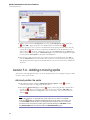
Lesson 1.4 - Adding a moving sprite
In this lesson, we'll add sprites that move on screen. We'll also learn how to configure the sprite to make
it bounce on the screen borders.
Add and position the sprite
1. In the Librarian window, select the "Media Files\Images\Sprites" folder ( ). The files
contained in this folder are displayed in the list below.
2. Select the file "Sphere-blue.png" in the list ( ) and use a mouse drag & drop to put the file in
the edit area ( ). Place it in the upper-right corner of the screen at location [490, 100]. The
sprite is added in the project and displayed at scale 1:1 (see below). Also, you can see it in the
sprite list ( ).
TIPS: To know the exact location of a sprite, look at the bottom of the main
application window. On the right side of the status bar, you'll see a coordinate
indicator (
). Near this indicator is displayed the exact location of the sprite. You
can finely adjust a sprite location by using the keyboard arrow keys. You can also
specify the exact location by opening the Properties dialog box (Alt+Enter), select
the Size & Position tab and set X and Y in the Absolute Position group.
16
Chapter 2 - Getting Started (Quick Tutorials)
Set the sprite motion parameters
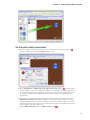
3. Now we're going to make the sprite move on screen. Double-click on the sprite in the list ( ),
see below. A dialog opens. Select the Motion tab if necessary.
4. Choose Straight Line and Bouncing on the edges of the screen options ( ). The first option
indicates the type of motion for this sprite. It will move in straight line. The second option we've
set will make the sprite bounce each time it will encounter a screen border. Of this option is not
set, the sprite continue its path disappearing under the screen border and reappearing on the
opposite side.
5. Now we'll set the direction and speed of the sprite. We can do this by specifying 2 values: The
Horizontal and Vertical speeds. By choosing these values (from -500 to +500) we can specify
any speed and direction. For the horizontal speed, a negative value makes the sprite move left, a
positive value makes it move right. For the vertical speed, a negative value makes the sprite move
down, a negative value makes it move up.
Specify -100 in Horizontal speed and +100 in Vertical speed ( ).
17
Axialis Professional Screen Saver Producer
CORPORATE EDITION
6. When done, click OK. The sprites does not move, nothing has visually changed. This is because
the project is in "Stopped" state. The sprites are displayed at their original locations (with resize
handles around the selected sprite. To see it move in the edit window, switch to "Play" mode by
clicking on the Play/Pause button ( ). Do you like what you see? Congratulations, you've made
your very first screensaver!
REMARK: In "play" mode ( ), the sprites are moving on screen but you cannot
adjust them (size and position). You can select them by clicking on them while
they're moving but you cannot change their original position and size. Return to
"Stopped" mode to do so.
7. We can take a look at the result fullscreen. Press F11 or click the Full Screen button in the
toolbar. The screensaver is executed fullscreen. Press a key or move the mouse to end the full
screen test.
Set the sprite general information
8. Like we did in the previous lesson, the last operation to do is perform is to specify some
information in the sprite properties. Double-click on the sprite in the list ( ), see above. A
dialog box opens, select the General tab. In the Name field, specify a short name for the sprite:
"Blue Sphere". This name will be displayed in the sprite list. Also, specify a Description of the
sprite in the field below.
Exercises
Repeat the procedure with the image file "Sphere-green.png". Place it in the lower-left corner of
the screen at location [150, 380]. Specify a straight line path bouncing on the edges of the screen.
Specify horizontal speed to +100 and vertical speed to -100. Name this sprite "Green Sphere".
Do the same exercise with the image file "Sphere-red.png". Place it in the upper-left corner of the
screen at location [150,100]. Specify a straight line path bouncing on the edges of the screen.
Specify horizontal speed to +100 and vertical speed to +100. Name this sprite "Red Sphere".
Test your screensaver project full screen.
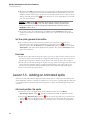
Lesson 1.5 - Adding an animated sprite
In this lesson, we'll add an animated sprite. It means that this sprite is composed of several frames that
will be displayed in sequence to simulate an animation. In our case, this is a spinning ball. Note that there
is no link between the animated and the motion properties of a sprite. An animated sprite can be static
on screen.
Add and position the sprite
1. First, be sure to be in "Stopped" mode. In the Librarian window, select the "Media
Files\Images\Sprites" folder ( ). The files contained in this folder are displayed in the list.
2. Select the file "Ball-anim.png" in the list ( ) and use a mouse drag & drop to put the file in the
edit area ( ). Place it in the upper-right corner of the screen at location [450, 320]. The sprite is
added in the project and displayed at scale 1:1 (see below). Also, you can see it in the sprite list
( ).
18
Chapter 2 - Getting Started (Quick Tutorials)
Animate the sprite
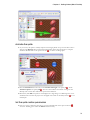
3. As you can see, this sprite is actually composed of 6 images placed on top of each others. This is
what we call a filmstrip. Now we'll enter this information in the sprite properties to setup the
animation. Double-click on the sprite in the list ( ), see below. A dialog opens:
4. Select the Animation tab if necessary. In the Number of Images zone specify 6 ( ). In the
Animation Speed zone specify 50 ( ). The first value indicates the number of images in the
filmstrip. The second value indicates the speed of the animation.
5. When done, click OK. The sprites is now displayed as a single image not a filmstrip) but it is not
animated. This is because the project is in "Stopped" state. Click on the "Play" button ( ) to see
the ball spin.
Set the sprite motion parameters
6. Now we're going to make the sprite move on screen. Double-click on the sprite in the list ( ),
see below. A dialog opens. Select the Motion tab if necessary.
19
Axialis Professional Screen Saver Producer
CORPORATE EDITION
7. Like you did for the previous sprites, choose Straight Line and Bouncing on the edges of the
screen options. Also, specify -80 for Horizontal and -80 for Vertical values. Click OK when
done.
8. We can take a look at the result fullscreen. Press F11 or click the Full Screen button in the
toolbar. The screensaver is executed fullscreen. Press a key or move the mouse to end the full
screen test.
Set the sprite general information
9. Like we did in the previous lesson, the last operation to do is perform is to specify some
information in the sprite properties. Double-click on the sprite in the list ( ), see above. A
dialog box opens, select the General tab. In the Name field, specify a short name for the sprite:
"Spinning Ball". This name will be displayed in the sprite list. Also, specify a Description of
the sprite in the field below.
Lesson 1.6 - Using collision effects
In this lesson, we'll learn how to add collision effects to the screensaver. Actually the sprites overlap
when they encounter each other, they do not collide. You can make them collide like balls on a pool
table.
Set the collision options
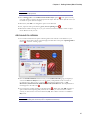
1. First, be sure to be in "Stopped" mode. Double-click on the sprite "Blue Sphere" in the list ( ),
see below. A dialog opens:
2. Click on the Sound & Collision tab if necessary. Select "Level 1" in the Object Collision Level
list ( ). The application supports several collision levels. For example, if you set the blue and red
balls to level 1, and if you set the green and spinning balls to level 2: blue and red balls will collide
together but they won't collide with green and spinning balls. You can consider levels like
invisible layers in which sprites are moving. The rule is simple: Two sprites must be in the same
collision level to collide together.
20
Chapter 2 - Getting Started (Quick Tutorials)
IMPORTANT: Collision level are not related to sprite order in the project (ie. the order
of sprites in the project list).
3. Select "Change path" in the Collision with another object option ( ). This option is mostly
used. This permits to change the motion path of the object after the collision (like this is the case
for 2 balls on a pool table for example).
4. When done, click OK. You changed the option for the blue ball.
5. Now, repeat the same procedure for green, red and spinning balls ( ).
6. When all the collision settings are set, try your screensaver full screen (F11) or switch to "play"
mode. Much more fun, isn't it?
Add sounds to collisions
7. You can add sounds when the sprites collide together. This could be a cool addition to your
screensaver (don't add too much sounds though!). Double-click on the sprite "Spinning Ball" in
the list ( ), see below. A dialog opens:
8. Select the Sound & Collision tab if necessary. In the Collision Sounds group, we'll specify a
sound in the Between Objects zone. You can specify a full pathname in this zone but we
recommend you to click on the "..." button ( ) and select the following file: "...\My
Documents\Axialis Librarian\Media Files\Sounds\Sound07.wav". The full pathname to
this file appear in the edit zone ( ).
9. You can hear the sound by clicking on the Play button ( ). When done, click OK. Each time a
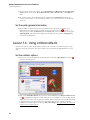
sprite collide with the Spinning Ball you'll hear this sound. If you want to hear the collision
sounds, you must test the screensaver fullscreen (F11). The collision sound are not audible in
Play mode.
IMPORTANT: Only WAV sounds are supported for collision sound. The sound feature
can be disabled by the end user (in the compiled screensaver).
21
Axialis Professional Screen Saver Producer
CORPORATE EDITION
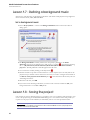
Lesson 1.7 - Defining a background music
In this lesson, we'll learn how to add a background music. This music will be played in loop. Supported
music formats are WAV, MP3, MID and MOD.
Set a background music
1. Choose Project/Music... or click on the Background Music button in the local toolbar. A
dialog opens:
2. The Background Music is already selected. You can specify a pathname in the Music
Pathname zone but we recommend you to click on the "..." button ( ) and select the following
file: "...\My Documents\Axialis Librarian\Media Files\Music\Autobahn-Urbanlexpssp.wav". The full pathname to this file appear in the edit zone.
3. You can hear the sound by clicking on the Play button ( ).
4. This file contains a loop music. It means that this is a short sequence (a few seconds) that can be
played in loop to simulate a music without end. Of course, we need to configure this and click on
the Restart music playback when finished option ( ). Note that this is almost always the case
with background music.
5. When this is all done, click OK.
6. If you want to hear the background music you must test the screensaver fullscreen (F11). The
background music is not audible in Play mode.
Lesson 1.8 - Saving the project
Our screensaver project is finished. Now it's a good idea to save it (we could have done this before). You
can save the project using the standard Windows® dialog box or use a built-in feature that permits you
to quick-save the project in the Librarian (recommended). Choose one of the procedures below:
IMPORTANT: Only SSP files can be saved, reloaded and modified in the built-in editor
window. Once compiled, a screensaver cannot be modified. So save your projects as
SSP files and don't lose these files!
22
Chapter 2 - Getting Started (Quick Tutorials)
Save the project to a SSP file
1. Choose File/Save... or click on the Save (Ctrl+S) button in the toolbar. A standard Windows®
dialog box opens.
2. Save the file in the Axialis Librarian: "...\My Documents\Axialis Librarian\Screen
Savers\Tutorial1.ssp". Click Save when done.
3. The project has been saved to a SSP file.
Quickly save the project in the Librarian (recommended)
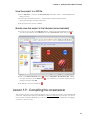
1. You can also save the file in the Librarian directly. A feature has been implemented to quickly
save files in the Librarian. In the librarian, select the "Screen Savers" folder in the tree ( ).
2. Click on the Add to Librarian button ( ) or choose File/Add to the Librarian (F3). A dialog
box opens (see above). In the Name field ( ), enter a filename (no extension required) or keep
the proposed name. Click OK.
3. The SSP file is saved in the Librarian ( ).
Lesson 1.9 - Compiling the screensaver
The screensaver project is done and saved. Time has come to compile it and create your first Windows®
screensaver. This procedure will create a SCR file (see What is a screensaver for more info). You can set
this screensaver as Windows® default or just save it in a specific location for redistribution. Compiling a
screensaver is done in 6 steps:
23
Axialis Professional Screen Saver Producer
CORPORATE EDITION
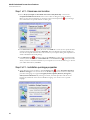
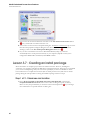
Step 1 of 6 - Filename
1. Choose Project/Compile a Screen Saver File (F4) or click on the Compile SCR File button
in the toolbar. A dialog box opens (see below). Before we start, keep in mind that you can click
on the context help button ( ) if you need get more information on a specific element of a
dialog box.
2. In the Filename field ( ), specify the name of the SCR file to create (do not specify the SCR
extension). Keep the proposed name "Tutorial1".
3. Do not change the Location field ( ). It may be disabled. You can specify here the folder where
you want to create the file. If you want to redistribute this SCR file, specify your output folder. If
you want to use this screensaver on your computer only, do not modify the proposed entry (see
below). In this tutorial, we'll set the screensaver as Windows® default. So, don't change this field.
4. Do not change the Place it in my personal Windows System folder option ( ). This option is
used to create the file in Windows system folder. In such a case, the screensaver will be visible in
Windows® screensaver settings list (see What is a screensaver for more info).
5. Choose the Set it as the Current Windows Screen Saver option ( ). The fields and are
disabled because they're set by default when you choose to set your screensaver as default. When
done, click Next.
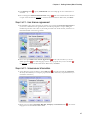
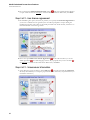
Step 2 of 6 - Description
6. A new dialog box opens (see below). In the Title field ( ), keep the proposed title "Tutorial1".
We always recommend you to keep the proposed title (which is the one you specified when you
created the screensaver).
24
Chapter 2 - Getting Started (Quick Tutorials)
7. Specify your own data in Copyright, Web Site and Comment fields ( ). See context help [?] for
more information on these fields.
8. Do not modify the RSS settings ( ). RSS is an advanced feature which is not part of this tutorial.
See this topic to read more about this feature. When done, click Next.
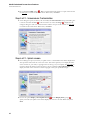
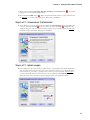
Step 3 of 6 - Customization
6. A new dialog box opens (see below). Do not modify the Customization settings. This dialog box
is used to customize the icon ( ) of the screensaver as well as the image ( ) displayed in the
configure dialog box. This is an advanced feature which is not part of this tutorial. See this topic
to read more about this feature. When done, click Next.
Step 4 of 6 - Splash screen
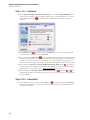
7. A new dialog box opens (see below). A splash screen is a small window that will be displayed for
short period of time before the screen saver starts. This feature permits you to display the name
of the screensaver, your name, a copyright notice or the logo of your company. See this topic to
read more about this feature. In this tutorial, we choose to display a Text splash screen. It will
display the name of the screensaver and the copyright notice (you specified in Step 2).
25
Axialis Professional Screen Saver Producer
CORPORATE EDITION
8. Choose the option Display a Text Splash Screen ( ). In the Display Time group ( ), specify
2 seconds. The splash screen will be displayed as text for 2 seconds. When done, click Next.
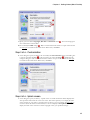
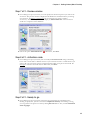
Step 5 of 6 - Preview window
9. A new dialog box opens (see below). You can specify here the kind of preview you wish for the
screensaver. The preview window is displayed in the Windows Control Panel when (you change
of screensaver. In this tutorial, we choose to display an Animated Preview of the screensaver.
You'll see a real preview of the moving and colliding balls!
10. Choose the option Animated Preview ( ). When done, click Next.
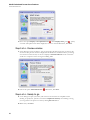
Step 6 of 6 - Ready to go
11. A new dialog box opens (see below). This is the last screen before the compilation starts.
Nothing to specify here. Just take a look at the compilation summary. If something is wrong,
you can go back to the previous screens by clicking Previous button
10. When done, click Next.
26
Chapter 2 - Getting Started (Quick Tutorials)
Compilation in progress... and done
12. A dialog box opens in which you see the compilation in progress (a few seconds). If a problem
occurs during the compilation, you see an error message. If it worked fine [we're sure it did :)],
the following screen is displayed:
13. You can test the screensaver full screen now. Click on the Test the Screen Saver Now button
( ). Do you like? This is YOUR screensaver now.
14. You can also test the screensaver Properties dialog box. See What is a screensaver topic for more
info about the properties/configure dialog box (see "How to install a screensaver", button
"Settings"). Click on the Test the Properties Dialog Box Now button ( ).
15. As you chose to install this screensaver as Windows® default (in Step 1), it will start
automatically after a certain period of inactivity of your computer (depends on what you've
configured in Windows® Control Panel). Click Close to finish.
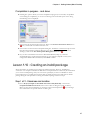
Lesson 1.10 - Creating an install package
We've learned how to compile a project and create a SCR screensaver. However, installing this
screensaver on a computer could be a bit difficult for an inexperienced user. That's why we recommend
you to create an install package with your screensaver especially if you wish to redistribute it. In this
lesson we'll learn ho to compile the screensaver (like we did in previous lesson) and create an install
package during the same procedure. Creating an installation package is done in 9 steps:
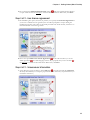
Step 1 of 9 - Filenames and location
1. Choose Project/Compile an Installable Screen Saver File (Shift+F4) or click on the
Compile Installable Screen Saver button in the toolbar. A dialog box opens (see below).
Before we start, keep in mind that you can click on the context help button ( ) if you need get
more information on a specific element of a dialog box.
27
Axialis Professional Screen Saver Producer
CORPORATE EDITION
2. In the Screensaver field ( ), specify the name of the SCR file to create (do not specify the SCR
extension). Keep the proposed name "Tutorial1". This is the filename that will be installed on
the end-user computer. This file will not be created on your computer during this compilation. It
will be embedded in the install package.
3. In the Filename field ( ), specify the name of the Install file to create (do not specify the EXE
extension). Enter this filename: "Tutorial1Install". In the Location field ( ), specify the folder
where you want to create the install file on your computer. You can use the button [...] to browse
your folders. When done, click Next.
Step 2 of 9 - Installation package properties
4. A new dialog box opens (see below). In the Language field ( ), select "Automatic (based on
Windows settings)". You can here choose the desired language for the screensaver and install
procedure. 8 languages are supported: English, French, Spanish, German, Portuguese,
Italian, Dutch and Russian. By selecting Automatic, the install procedure will choose the
language by itself based on the end-user Windows language. You can also force a specific
language.
5. In the Package field ( ), specify "Solid Install". See context help [?] for more information on
this field.
28
Chapter 2 - Getting Started (Quick Tutorials)
6. Do not change the Advanced Customization settings ( ). This is an advanced feature which is
not part of this tutorial. See this topic to read more about this feature. When done, click Next.
Step 3 of 9 - User license agreement
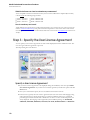
7. The third dialog box opens (see below). It permits you to specify a User License Agreement. If
you choose to include a license agreement, the user will be prompted to accept it during the
installation procedure. It he refuses it, the install procedure ends. In this tutorial, we'll choose to
include the default user license agreement.
8. Choose the option Add a User License Agreement ( ). In the edit zone below you see the
default agreement ( ). It is multi-languages. This is only a proposal that you can customize ( ).
See this topic to read more about this feature. When done, click Next.
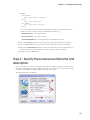
Step 4 of 9 - Screensaver Information
7. A new dialog box opens (see below). In the Title field ( ), keep the proposed title "Tutorial1".
We always recommend you to keep the proposed title (which is the one you specified when you
created the screensaver).
29
Axialis Professional Screen Saver Producer
CORPORATE EDITION
7. Specify your own data in Copyright, Web Site, Company and Comment fields ( ). See context
help [?] for more information on these fields.
8. Do not modify the RSS settings ( ). RSS is an advanced feature which is not part of this tutorial.
See this topic to read more about this feature. When done, click Next.
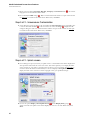
Step 5 of 9 - Screensaver Customization
9. A new dialog box opens (see below). Do not modify the Customization settings. This dialog box
is used to customize the icon ( ) of the screensaver as well as the image ( ) displayed in the
configure dialog box. This is an advanced feature which is not part of this tutorial. See this topic
to read more about this feature. When done, click Next.
Step 6 of 9 - Splash screen
10. A new dialog box opens (see below). A splash screen is a small window that will be displayed for
short period of time before the screen saver starts. This feature permits you to display the name
of the screensaver, your name, a copyright notice or the logo of your company. See this topic to
read more about this feature. In this tutorial, we choose to display a Text splash screen. It will
display the name of the screensaver and the copyright notice (you specified in Step 2).
11. Choose the option Display a Text Splash Screen ( ). In the Display Time group ( ),
specify 2 seconds. The splash screen will be displayed as text for 2 seconds. When done, click
Next.
30
Chapter 2 - Getting Started (Quick Tutorials)
Step 7 of 9 - Preview window
12. A new dialog box opens (see below). You can specify here the kind of preview you wish for the
screensaver. The preview window is displayed in the Windows Control Panel when (you change
of screensaver). See What is a screensaver topic for more info (see "How to install a
screensaver"). In this tutorial, we choose to display an Animated Preview of the screensaver.
You'll see a real preview of the moving and colliding balls!
13. Choose the option Animated Preview ( ). When done, click Next.
Step 8 of 9 - Activation code
14. A new dialog box opens (see below). Do not modify the Activation code settings. This dialog
box is used to create demo or limited versions of your screensavers. This is a useful feature if you
want to sell your screensavers. This is an advanced feature which is not part of this tutorial. See
this topic to read more about this feature. When done, click Next.
Step 9 of 9 - Ready to go
15. A new dialog box opens (see below). This is the last screen before the compilation starts.
Nothing to specify here. Just take a look at the compilation summary. If something is wrong,
31
Axialis Professional Screen Saver Producer
CORPORATE EDITION
you can go back to the previous screens by clicking Previous button. Also, read the information
about Copyright.
16. When done, click Next.
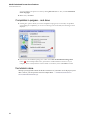
Compilation in progress... and done
17. A dialog box opens in which you see the compilation in progress (a few seconds). If a problem
occurs during the compilation, you see an error message. If it worked fine, the following screen is
displayed:
18. You can test the installation package now. Click on the Test the Installation Package Now
button ( ). The install procedure starts, just follow it. It will install the screensaver on your
computer. This is exactly whet the end user will do. Convenient, isn't it? Click Close to finish.
The tutorial is done
We hope you enjoyed the creation of this first screensaver. If you want to see if the project you've
done is correct, you can open our version to compare them: "...\Axialis Librarian\Screen
Savers\Tutorials\Tutorial1.ssp".
32
Chapter 2 - Getting Started (Quick Tutorials)
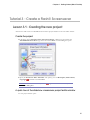
Tutorial 2 - Create a Slideshow Screensaver
Lesson 2.1 - Creating the new project
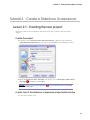
In this lesson we'll create a new slideshow based screensaver project and take a look at the editor
window.
Create the project
1. In the menu, choose File/New/New Screen Saver Project, a dialog box opens. Select the
"Slide Show Based Screen Saver" type in the list and click Next. A second dialog box opens:
2. Specify the Screensaver Title: "Tutorial2". Also specify your own Description, Author Name,
Copyright ( ) information and click Next.
REMARK: Click on the context help button (
area in the dialog box.
) to get more information on a specific
A quick tour of the slideshow screensaver project editor window
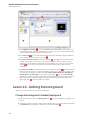
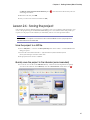
3. A new project window opens:
33
Axialis Professional Screen Saver Producer
CORPORATE EDITION
4. In the Application window ( ) you see the menu and the main toolbar. This toolbar can be
customized by double-clicking or right-clicking on it. When you select a command in this menu
or main toolbar, it acts on the selected item or window.
5. In the Librarian ( ) you can select the folder that contains the media files (images, animations,
music, sounds) that you'll use in your project ( ).
6. The Project document window is named "Tutorial2" ( ). The application is multi-document
enabled. It means that you can create or open several documents in the working area of the
application. A local toolbar is located in the document window. If you click on a button in this
toolbar ( ), it acts on the selected item in the document window. This toolbar cannot be
customized.
7. The Document window is divided in three parts. In the upper-left pane ( ) are located the edit
dialog boxes that you'll use to set project and slide properties. It is composed of 5 windows that
you can activate by clicking on the associated tabs: General, Slide Properties, Background,
Default Music and Video Clip. At the bottom of the window ( ) you see the list of slides
included in the project (actually no slide). Slides you'll add in the project will be added in this list.
Slide order can be rearranged by drag & drop and multi-selection is possible. Finally, in the
upper-right pane ( ), a preview window is available.
Lesson 2.2 - Defining the background
In this lesson, we'll customize the screensaver background.
Change the background: Gradient background
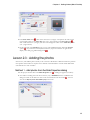
1. In the project window click on the Background tab ( ). The associated dialog box appears (see
below).
2. Actually the "Solid Color" background is selected. We'll define a gray gradient background. Select
the Gradient background type by clicking on the small option bullet ( ).
34
Chapter 2 - Getting Started (Quick Tutorials)
3. In the From Color field ( ), click on the down arrow (on right). A drop-down list with several
colors appears. Click on the "Gray-50" color (row 3, right column). In the To Color field ( ),
click on the down arrow (on right). The same color list appears. Click on the "Dark Gray" color
(row 1, right column).
4. On the right side of the Gradient group, you see some additional options. Select the Vertical
option ( ). If you followed correctly the instructions, the preview window on right should
display a nice dark gray gradient background ( ).
Lesson 2.3 - Adding the photos
In this lesson, we'll add the photos (slides) to the screensaver. We'll learn 3 different methods to perform
this operation. Please follow in sequence the 3 methods as described below. 2 slides will be added with
each method for a total of 6 slides.
Method 1 - Add photos from the Slide Properties dialog
1. In the project window click on the Slide Properties tab ( ). A dialog box appears (see below).
2. As no slides is actually present in the screensaver, only a Add Slides button is available in this
dialog box. Click on this button or click on the associated button in the toolbar ( ). You can
also choose Project/Insert New Slides (Ins) in the menu.
35
Axialis Professional Screen Saver Producer
CORPORATE EDITION
3. A standard Windows dialog box opens to let you choose the images you want to add as slides.
Browse your disks and go to this folder in the Librarian: "...\My Documents\Axialis
Librarian\Media Files\Images\Slides\". Select the two following files: "Ian Britton - Bales
of Hay.jpg" and "Ian Britton - Mountain Stream.jpg".
HINT: Press CTRL (keep pressed) while you click on the 2 files to select them.
4. Click Open button when done. The 2 files are added in the Slide list as follows ( ). The Slide
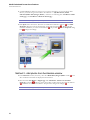
Properties dialog box contents has changed, several options appeared ( ). We'll work with
them later. Each time you select a slide in the list ( ), the preview ( ) and the Properties dialog
box ( ) changed accordingly.
Method 2 - Add photos from the Librarian window
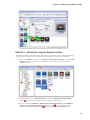
5. In the Librarian window (see below), select the "Media Files\Images\Slides" folder ( ). The
files contained in this folder are displayed in the list below.
6. Select the 2 files "Ian Britton - Poppies.jpg" and "Ian Britton - Sunrise over the River
Clyde.jpg" in the list ( ) and use a mouse drag & drop to place them at the end of the slide list
( ). The 2 files are added in the Slide list. The preview is changed accordingly ( ).
HINT: Press CTRL (keep pressed) while you click on the 2 files to select them.
36
Chapter 2 - Getting Started (Quick Tutorials)
Method 3 - Add photos using the Explorer window
The application includes a powerful built-in Explorer that will permit to browse your disks with image
previews. This will permit to select your files and copy/paste them to the project to add slides.
7. Open a new Explorer window: Choose File/New/New Explorer (Ctrl+E) or press the New
Explorer button in main toolbar. A new Explorer window opens over your actual project
window (see below).
8. In the left pane, browse in Axialis Librarian and select the "Media Files\Images\Slides"
folder ( ). The files contained in this folder are displayed in the right pane.
9. Select the 2 last files "Ian Britton - Winter Scene, Northumberland.jpg" and "Ian Britton Sunset over the Irish Sea from Blackpool.jpg" in the list ( ). Now copy the files in the
Clipboard by clicking the Copy button ( ) or by choosing Edit/Copy (Ctrl+C) menu.
37
Axialis Professional Screen Saver Producer
CORPORATE EDITION
HINT: Press CTRL (keep pressed) while you click on the 2 files to select them.
10. Return to the project document: Select Window/Tutorial2 in the menu or press Ctrl+F6.
Choose Edit/Paste (Ctrl+V) or click on the Paste button ( ). The 2 files are added in the Slide
list ( ). The preview is changed accordingly ( ).
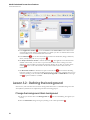
Lesson 2.4 - Specifying display settings and
transitions
In this lesson, see how to change the way the photos are displayed on screen. Also, we'll change the slide
transitions (the way we pass from one slide to another using a short animation effect). Finally, we'll test
the slide display fullscreen.
Change screensaver display options
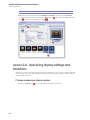
1. Select the General tab ( ). The associated dialog box appears (see below).
38
Chapter 2 - Getting Started (Quick Tutorials)
2. In the Options group, choose the Repeat Forever option ( ) to make the screensaver loop.
3. Select the Shadow behind pictures option ( ). This will add a cool relief effect to the slides.
4. In the Margin field ( ) enter "70". This parameter permits to specify a margin in the slides. As a
result, the images displayed using the "Maximized" option will respect this margin, creating a very
nice effect.
Change slide display options
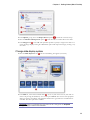
5. Select the Slide Properties tab ( ). The associated dialog box appears (see below).
6. In the Slide list, select all the available slides ( ). To do so, click on the first one, then click on
the last one pressing the SHIFT key. You can also press Ctrl+A. The content of the properties
dialog box changes accordingly. The pathname field becomes grayed because it is different for
each slide. The other options are available.
IMPORTANT: When several slides are selected in the list, changes in the Properties
dialog box apply to all the selected slides.
39
Axialis Professional Screen Saver Producer
CORPORATE EDITION
7. In the Display Size group, select Maximized (keep ratio) ( ). This will display the images
using the maximum available space (respecting the specified margin).
8. In the Duration group, select Fixed Duration and specify "5" seconds ( ). The display preview
changed accordingly ( ).
Change slide transition effects
Now we'll specify what transition effects we want when the slideshow passes from one slide to another.
The application permits you to specify a different transition effect for each slide. We'll use the fade effect
for the 3 first slides and the horizontal cross fade for the 3 last ones.
9. Select the 3 first slides in the Slide list. To do so, click on the first one, then click on the 3rd one
pressing the SHIFT key. In the Transition Effect group, select the "Fade" effect.
10. Select the 3 last slides in the Slide list using the same method. In the Transition Effect group,
select the "Cross Fade (horizontal)" effect.
11. We can take a look at the result fullscreen. Press F11 or click the Full Screen button in the
toolbar. The screensaver is executed fullscreen. Press a key or move the mouse to end the full
screen test.
Lesson 2.5 - Defining a background music
In this lesson, we'll learn how to add a background music. This music will be played in loop. Supported
music formats are WAV, MP3, MID and MOD.
Set a background music
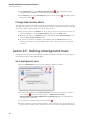
1. Select the Default Music tab. The associated dialog box appears (see below).
2. You can specify a pathname in the Music Pathname zone but we recommend you to click on
the "..." button ( ) and select the following file: "...\My Documents\Axialis
Librarian\Media Files\Music\Philharmone-Loophead-pssp.wav". The full pathname to
this file appear in the edit zone.
3. You can hear the sound by clicking on the Play button ( ).
4. This file contains a loop music. It means that this is a short sequence (a few seconds) that can be
played in loop to simulate a music without end. Of course, we need to configure this and click on
40
Chapter 2 - Getting Started (Quick Tutorials)
the Restart music playback when finished option ( ). Note that this is almost always the case
with background music.
5. When this is all done, click OK.
6. Now you can test the screensaver fullscreen (F11).
Lesson 2.6 - Saving the project
Our screensaver project is finished. Now it's a good idea to save it (we could have done this before). You
can save the project using the standard Windows® dialog box or use a built-in feature that permits you
to quick-save the project in the Librarian (recommended). Choose one of the procedure below:
IMPORTANT: Only SSP files can be saved, reloaded and modified in the built-in editor
window. Once compiled, a screensaver cannot be modified. So save your projects as
SSP files and don't lose these files!
Save the project to a SSP file
1. Choose File/Save... or click on the Save (Ctrl+S) button in the toolbar. A standard Windows®
dialog box opens.
2. Save the file in the Axialis Librarian: "...\My Documents\Axialis Librarian\Screen
Savers\Tutorial2.ssp". Click Save when done.
3. The project has been saved to a SSP file.
Quickly save the project in the Librarian (recommended)
1. You can also save the file in the Librarian directly. A feature has been implemented to quickly
save files in the Librarian. In the librarian, select the "Screen Savers" folder in the tree ( ).
41
Axialis Professional Screen Saver Producer
CORPORATE EDITION
2. Click on the Add to Librarian button ( ) or choose File/Add to the Librarian (F3). A dialog
box opens (see above). In the Name field ( ), enter a filename (no extension required) or keep
the proposed name. Click OK.
3. The SSP file is saved in the Librarian ( ).
Lesson 2.7 - Compiling the screensaver
The screensaver project is done and saved. Time has come to compile it and create your first Windows®
screensaver. This procedure will create a SCR file (see What is a screensaver for more info). You can set
this screensaver as Windows® default or just save it in a specific location for redistribution. Compiling a
screensaver is done in 6 steps:
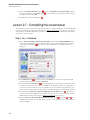
Step 1 of 6 - Filename
1. Choose Project/Compile a Screen Saver File (F4) or click on the Compile SCR File button
in the toolbar. A dialog box opens (see below). Before we start, keep in mind that you can click
on the context help button ( ) if you need get more information on a specific element of a
dialog box.
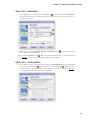
2. In the Filename field ( ), specify the name of the SCR file to create (do not specify the SCR
extension). Keep the proposed name "Tutorial2".
3. Do not change the Location field ( ). It may be disabled. You can specify here the folder where
you want to create the file. If you want to redistribute this SCR file, specify your output folder. If
you want to use this screensaver on your computer only, do not modify the proposed entry (see
below). In this tutorial, we'll set the screensaver as Windows® default. So, don't change this field.
4. Do not change the Place it in my personal Windows System folder option ( ). This option is
used to create the file in Windows system folder. In such a case, the screensaver will be visible in
Windows® screensaver settings list (see What is a screensaver for more info).
5. Choose the Set it as the Current Windows Screen Saver option ( ). The fields and are
disabled because they're set by default when you choose to set your screensaver as default. When
done, click Next.
42
Chapter 2 - Getting Started (Quick Tutorials)
Step 2 of 6 - Description
6. A new dialog box opens (see below). In the Title field ( ), keep the proposed title "Tutorial2".
We always recommend you to keep the proposed title (which is the one you specified when you
created the screensaver).
7. Specify your own data in Copyright, Web Site and Comment fields ( ). See context help [?] for
more information on these fields.
8. Do not modify the RSS settings ( ). RSS is an advanced feature which is not part of this tutorial.
See this topic to read more about this feature. When done, click Next.
Step 3 of 6 - Customization
6. A new dialog box opens (see below). Do not modify the Customization settings. This dialog box
is used to customize the icon ( ) of the screensaver as well as the image ( ) displayed in the
configure dialog box. This is an advanced feature which is not part of this tutorial. See this topic
to read more about this feature. When done, click Next.
43
Axialis Professional Screen Saver Producer
CORPORATE EDITION
Step 4 of 6 - Splash screen
7. A new dialog box opens (see below). A splash screen is a small window that will be displayed for
short period of time before the screen saver starts. This feature permits you to display the name
of the screensaver, your name, a copyright notice or the logo of your company. See this topic to
read more about this feature. In this tutorial, we choose to display a Text splash screen. It will
display the name of the screensaver and the copyright notice (you specified in Step 2).
8. Choose the option Display a Text Splash Screen ( ). In the Display Time group ( ), specify
2 seconds. The splash screen will be displayed as text for 2 seconds. When done, click Next.
Step 5 of 6 - Preview window
9. A new dialog box opens (see below). You can specify here the kind of preview you wish for the
screensaver. The preview window is displayed in the Windows Control Panel when (you change
of screensaver). See What is a screensaver topic for more info (see "How to install a
screensaver"). In this tutorial, we choose to display an Animated Preview of the screensaver.
You'll see a real preview of the slideshow!
10. Choose the option Animated Preview ( ). When done, click Next.
44
Chapter 2 - Getting Started (Quick Tutorials)
Step 6 of 6 - Ready to go
11. A new dialog box opens (see below). This is the last screen before the compilation starts.
Nothing to specify here. Just take a look at the compilation summary. If something is wrong,
you can go back to the previous screens by clicking Previous button. Also, read the information
about Copyright.
10. When done, click Next.
Compilation in progress... and done
12. A dialog box opens in which you see the compilation in progress (a few seconds). If a problem
occurs during the compilation, you see an error message. If it worked fine [we're sure it did :)],
the following screen is displayed:
13. You can test the screensaver fullscreen now. Click on the Test the Screen Saver Now button
( ). Do you like? This is YOUR screensaver now.
14. You can also test the screensaver Properties dialog box. See What is a screensaver topic for more
info about the properties/configure dialog box (see "How to install a screensaver", button
"Settings"). Click on the Test the Properties Dialog Box Now button ( ).
15. As you chose to install this screensaver as Windows® default (in Step 1), it will start
automatically after a certain period of inactivity of your computer (depends on what you've
configured in Windows® Control Panel). Click Close to finish.
Lesson 2.8 - Creating an install package
We've learned how to compile a project and create a SCR screensaver. However, installing this
screensaver on a computer could be a bit difficult for an unexperienced user. That's why we recommend
you to create an install package with your screensaver especially if you wish to redistribute it. In this
lesson we'll learn ho to compile the screensaver (like we did in previous lesson) and create an install
package during the same procedure. Creating an installation package is done in 9 steps:
45
Axialis Professional Screen Saver Producer
CORPORATE EDITION
Step 1 of 9 - Filenames and location
1. Choose Project/Compile an Installable Screen Saver File (Shift+F4) or click on the
Compile Installable Screen Saver button in the toolbar. A dialog box opens (see below).
Before we start, keep in mind that you can click on the context help button ( ) if you need get
more information on a specific element of a dialog box.
2. In the Screensaver field ( ), specify the name of the SCR file to create (do not specify the SCR
extension). Keep the proposed name "Tutorial2". This is the filename that will be installed on
the end-user computer. This file will not be created on your computer during this compilation. It
will be embedded in the install package.
3. In the Filename field ( ), specify the name of the Install file to create (do not specify the EXE
extension). Enter this filename: "Tutorial2Install". In the Location field ( ), specify the folder
where you want to create the install file on your computer. You can use the button [...] to browse
your folders. When done, click Next.
Step 2 of 9 - Installation package properties
4. A new dialog box opens (see below). In the Language field ( ), select "Automatic (based on
Windows settings)". You can here choose the desired language for the screensaver and install
procedure. 8 languages are supported: English, French, Spanish, German, Portuguese,
Italian, Dutch and Russian. By selecting Automatic, the install procedure will choose the
language by itself based on the end-user Windows language. You can also force a specific
language.
46
Chapter 2 - Getting Started (Quick Tutorials)
5. In the Package field ( ), specify "Solid Install". See context help [?] for more information on
this field.
6. Do not change the Advanced Customization settings ( ). This is an advanced feature which is
not part of this tutorial. See this topic to read more about this feature. When done, click Next.
Step 3 of 9 - User license agreement
7. The third dialog box opens (see below). It permits you to specify a User License Agreement. If
you choose to include a license agreement, the user will be prompted to accept it during the
installation procedure. It he refuses it, the install procedure ends. In this tutorial, we'll choose to
include the default user license agreement.
8. Choose the option Add a User License Agreement ( ). In the edit zone below you see the
default agreement ( ). It is multi-languages. This is only a proposal that you can customize ( ).
See this topic to read more about this feature. When done, click Next.
Step 4 of 9 - Screensaver Information
7. A new dialog box opens (see below). In the Title field ( ), keep the proposed title "Tutorial1".
We always recommend you to keep the proposed title (which is the one you specified when you
created the screensaver).
7. Specify your own data in Copyright, Web Site, Company and Comment fields ( ). See context
help [?] for more information on these fields.
47
Axialis Professional Screen Saver Producer
CORPORATE EDITION
8. Do not modify the RSS settings ( ). RSS is an advanced feature which is not part of this tutorial.
See this topic to read more about this feature. When done, click Next.
Step 5 of 9 - Screensaver Customization
9. A new dialog box opens (see below). Do not modify the Customization settings. This dialog box
is used to customize the icon ( ) of the screensaver as well as the image ( ) displayed in the
configure dialog box. This is an advanced feature which is not part of this tutorial. See this topic
to read more about this feature. When done, click Next.
Step 6 of 9 - Splash screen
10. A new dialog box opens (see below). A splash screen is a small window that will be displayed for
short period of time before the screen saver starts. This feature permits you to display the name
of the screensaver, your name, a copyright notice or the logo of your company. See this topic to
read more about this feature. In this tutorial, we choose to display a Text splash screen. It will
display the name of the screensaver and the copyright notice (you specified in Step 2).
11. Choose the option Display a Text Splash Screen ( ). In the Display Time group ( ),
specify 2 seconds. The splash screen will be displayed as text for 2 seconds. When done, click
Next.
48
Chapter 2 - Getting Started (Quick Tutorials)
Step 7 of 9 - Preview window
12. A new dialog box opens (see below). You can specify here the kind of preview you wish for the
screensaver. The preview window is displayed in the Windows Control Panel when (you change
of screensaver). See What is a screensaver topic for more info (see "How to install a
screensaver"). In this tutorial, we choose to display an Animated Preview of the screensaver.
You'll see a real preview of the slideshow!
13. Choose the option Animated Preview ( ). When done, click Next.
Step 8 of 9 - Activation code
14. A new dialog box opens (see below). Do not modify the Activation code settings. This dialog
box is used to create demo or limited versions of your screensavers. This is a useful feature if you
want to sell your screensavers. This is an advanced feature which is not part of this tutorial. See
this topic to read more about this feature. When done, click Next.
Step 9 of 9 - Ready to go
15. A new dialog box opens (see below). This is the last screen before the compilation starts.
Nothing to specify here. Just take a look at the compilation summary. If something is wrong,
you can go back to the previous screens by clicking Previous button. Also, read the information
about Copyright.
49
Axialis Professional Screen Saver Producer
CORPORATE EDITION
16. When done, click Next.
Compilation in progress... and done
17. A dialog box opens in which you see the compilation in progress (a few seconds). If a problem
occurs during the compilation, you see an error message. If it worked fine, the following screen is
displayed:
18. You can test the installation package now. Click on the Test the Installation Package Now
button ( ). The install procedure starts, just follow it. It will install the screensaver on your
computer. This is exactly whet the end user will do. Convenient, isn't it? Click Close to finish.
The tutorial is done
We hope you enjoyed the creation of this first screensaver. If you want to see if the project you've
done is correct, you can open our version to compare them: "...\Axialis Librarian\Screen
Savers\Tutorials\Tutorial2.ssp".
50
Chapter 2 - Getting Started (Quick Tutorials)
Tutorial 3 - Create a Flash® Screensaver
Lesson 3.1 - Creating the new project
In this lesson we'll create a new Flash® based screensaver project and take a look at the editor window.
Create the project
1. In the menu, choose File/New/New Screen Saver Project, a dialog box opens. Select the
"Flash® Based Screen Saver" type in the list and click Next. A second dialog box opens:
2. Specify the Screensaver Title: "Tutorial3". Also specify your own Description, Author Name,
Copyright ( ) information and click Next.
REMARK: Click on the context help button (
area in the dialog box.
) to get more information on a specific
A quick tour of the slideshow screensaver project editor window
3. A new project window opens:
51
Axialis Professional Screen Saver Producer
CORPORATE EDITION
4. In the Application window ( ) you see the menu and the main toolbar. This toolbar can be
customized by double-clicking or right-clicking on it. When you select a command in this menu
or main toolbar, it acts on the selected item or window.
5. In the Librarian ( ) you can select the folder that contains the media files (images, animations,
music, sounds) that you'll use in your project ( ).
6. The Project document window is named "Tutorial3" ( ). The application is multi-document
enabled. It means that you can create or open several documents in the working area of the
application. A local toolbar is located in the document window. If you click on a button in this
toolbar ( ), it acts on the selected item in the document window. This toolbar cannot be
customized.
7. The Document window is divided in two parts. In the left side ( ) are located the edit dialog
boxes that you'll use to set project and slide properties. It is composed of 3 windows that you can
activate by clicking on the associated tabs: General, Background and Flash Movie. In the right
side ( ), a preview window is available.
Lesson 3.2 - Defining the background
In this lesson, we'll customize the screensaver background. We'll choose a solid black background. It is
already black by default but we explain the procedure for learning purpose.
Change the background: Black background
1. In the project window click on the Background tab ( ). The associated dialog box appears (see
below).
2. Select the Solid Color background type by clicking on the small option bullet ( ).
52
Chapter 2 - Getting Started (Quick Tutorials)
3. In the Color field, click on the down arrow on right ( ). A drop-down list with several colors
appears. Click on the "Black" color. If you followed correctly the instructions, the preview
window on right should display a black background ( ).
IMPORTANT: We have chosen a black screen because the background color of the
Flash file we'll use is black. This is important that you use the same (or similar) color to
avoid color flashing when the screensaver starts.
Lesson 3.3 - Specifying the Flash® file
Specify the Flash® file from the Librarian window
1. In the Librarian window (see below), select the "Media Files\Images\Flash" folder ( ). The
files contained in this folder are displayed in the list below.
53
Axialis Professional Screen Saver Producer
CORPORATE EDITION
2. Select the file "Tutorial-Pssp-Black.swf" in the list ( ) and use a mouse drag & drop to place it
in the document window ( ).
3. A dialog box opens (see below).
4. In Flash Movie field ( ) you see the full pathname to the file you're about to add. Check that
this is the correct file.
5. In the Size group, select the Full Screen (maximized) option ( ). Also, be sure the option
Show Mouse Pointer ( ) is NOT checked. This is used to create interactive screensavers (not
for this tutorial). When done, Click OK.
6. The file is included in the project (you see the filename in the Flash Movie field) and you see the
movie in the Preview window (on right side).
Changing the Flash® file (another method to specify the file)
7. Once the file has been specified (even if no file has been added yet), you can browse your disks
using a Windows standard dialog box and specify any SWF file. In the Flash Movie dialog box
(click the tab if necessary), click on the [...] button ( ). A standard Windows dialog box opens
to let you choose the file you want to add. Browse your disks, select a file and click Open.
54
Chapter 2 - Getting Started (Quick Tutorials)
8. The full pathname is added in the Flash Movie field ( ) and you see the movie in the Preview
window ( ).
Lesson 3.4 - Specifying display settings
In this lesson, we'll see how to adjust the Flash display settings. Finally, we'll test the screensaver
fullscreen.
Change screensaver display options
1. Select the Flash Movie tab if necessary. The associated dialog box appears (see below).
2. In the Size group ( ), be sure the select the Full Screen option (it should be already selected).
Note that you can choose different settings (various scales, based on screen size, custom position
on screen...).
3. At the bottom of the dialog box, two options are available ( ). The first one Show Mouse
Pointer permit to create an interactive screensaver. It means that the user will see the mouse
pointer and will be able to move the mouse and click in the Flash movie without interrupting the
screensaver. The second option Automatically Repeat Forever permits to play the Flash movie
in loop (usually selected).
4. Let's take a look at the result fullscreen. Press F11 or click the Full Screen button in the toolbar.
The screensaver is executed on screen. Press a key or move the mouse to end the full screen test.
Lesson 3.5 - Saving the project
Our screensaver project is finished. Now it's a good idea to save it (we could have done this before). You
can save the project using the standard Windows® dialog box or use a built-in feature that permits you
to quick-save the project in the Librarian (recommended). Choose one of the procedure below:
IMPORTANT: Only SSP files can be saved, reloaded and modified in the built-in editor
window. Once compiled, a screensaver cannot be modified. So save your projects as
SSP files and don't lose these files!
55
Axialis Professional Screen Saver Producer
CORPORATE EDITION
Save the project to a SSP file
1. Choose File/Save... or click on the Save (Ctrl+S) button in the toolbar. A standard Windows®
dialog box opens.
2. Save the file in the Axialis Librarian: "...\My Documents\Axialis Librarian\Screen
Savers\Tutorial3.ssp". Click Save when done.
3. The project has been saved to a SSP file.
Quickly save the project in the Librarian (recommended)
1. You can also save the file in the Librarian directly. A feature has been implemented to quickly
save files in the Librarian. In the librarian, select the "Screen Savers" folder in the tree ( ).
2. Click on the Add to Librarian button ( ) or choose File/Add to the Librarian (F3). A dialog
box opens (see above). In the Name field ( ), enter a filename (no extension required) or keep
the proposed name. Click OK.
3. The SSP file is saved in the Librarian ( ).
Lesson 3.6 - Compiling the screensaver
The screensaver project is done and saved. Time has come to compile it and create your first Windows®
screensaver. This procedure will create a SCR file (see What is a screensaver for more info). You can set
this screensaver as Windows® default or just save it in a specific location for redistribution. Compiling a
screensaver is done in 6 steps:
Step 1 of 6 - Filename
1. Choose Project/Compile a Screen Saver File (F4) or click on the Compile SCR File button
in the toolbar. A dialog box opens (see below). Before we start, keep in mind that you can click
on the context help button ( ) if you need get more information on a specific element of a
dialog box.
56
Chapter 2 - Getting Started (Quick Tutorials)
2. In the Filename field ( ), specify the name of the SCR file to create (do not specify the SCR
extension). Keep the proposed name "Tutorial3".
3. Do not change the Location field ( ). It may be disabled. You can specify here the folder where
you want to create the file. If you want to redistribute this SCR file, specify your output folder. If
you want to use this screensaver on your computer only, do not modify the proposed entry (see
below). In this tutorial, we'll set the screensaver as Windows® default. So, don't change this field.
4. Do not change the Place it in my personal Windows System folder option ( ). This option is
used to create the file in Windows system folder. In such a case, the screensaver will be visible in
Windows® screensaver settings list (see What is a screensaver for more info).
5. Choose the Set it as the Current Windows Screen Saver option ( ). The fields and are
disabled because they're set by default when you choose to set your screensaver as default. When
done, click Next.
Step 2 of 6 - Description
6. A new dialog box opens (see below). In the Title field ( ), keep the proposed title "Tutorial3".
We always recommend you to keep the proposed title (which is the one you specified when you
created the screensaver).
57
Axialis Professional Screen Saver Producer
CORPORATE EDITION
7. Specify your own data in Copyright, Web Site and Comment fields ( ). See context help [?] for
more information on these fields.
8. Do not modify the RSS settings ( ). RSS is an advanced feature which is not part of this tutorial.
See this topic to read more about this feature. When done, click Next.
Step 3 of 6 - Customization
6. A new dialog box opens (see below). Do not modify the Customization settings. This dialog box
is used to customize the icon ( ) of the screensaver as well as the image ( ) displayed in the
configure dialog box. This is an advanced feature which is not part of this tutorial. See this topic
to read more about this feature. When done, click Next.
Step 4 of 6 - Splash screen
7. A new dialog box opens (see below). A splash screen is a small window that will be displayed for
short period of time before the screen saver starts. This feature permits you to display the name
of the screensaver, your name, a copyright notice or the logo of your company. See this topic to
read more about this feature. In this tutorial, we choose to display a Text splash screen. It will
display the name of the screensaver and the copyright notice (you specified in Step 2).
58
Chapter 2 - Getting Started (Quick Tutorials)
8. Choose the option Display a Text Splash Screen ( ). In the Display Time group ( ), specify
2 seconds. The splash screen will be displayed as text for 2 seconds. When done, click Next.
Step 5 of 6 - Preview window
9. A new dialog box opens (see below). You can specify here the kind of preview you wish for the
screensaver. The preview window is displayed in the Windows Control Panel when (you change
of screensaver). See What is a screensaver topic for more info (see "How to install a
screensaver"). In this tutorial, we choose to display an Animated Preview of the screensaver.
You'll see a real preview of the Flash movie!
10. Choose the option Animated Preview ( ). When done, click Next.
Step 6 of 6 - Ready to go
11. A new dialog box opens (see below). This is the last screen before the compilation starts.
Nothing to specify here. Just take a look at the compilation summary. If something is wrong,
you can go back to the previous screens by clicking Previous button. Also, read the information
about Copyright.
10. When done, click Next.
Compilation in progress... and done
12. A dialog box opens in which you see the compilation in progress (a few seconds). If a problem
occurs during the compilation, you see an error message. If it worked fine [we're sure it did :)],
the following screen is displayed:
59
Axialis Professional Screen Saver Producer
CORPORATE EDITION
13. You can test the screensaver fullscreen now. Click on the Test the Screen Saver Now button
( ). Do you like? This is YOUR screensaver now.
14. You can also test the screensaver Properties dialog box. See What is a screensaver topic for more
info about the properties/configure dialog box (see "How to install a screensaver", button
"Settings"). Click on the Test the Properties Dialog Box Now button ( ).
15. As you chose to install this screensaver as Windows® default (in Step 1), it will start
automatically after a certain period of inactivity of your computer (depends on what you've
configured in Windows® Control Panel). Click Close to finish.
Lesson 3.7 - Creating an install package
We've learned how to compile a project and create a SCR screensaver. However, installing this
screensaver on a computer could be a bit difficult for an unexperienced user. That's why we recommend
you to create an install package with your screensaver especially if you wish to redistribute it. In this
lesson we'll learn ho to compile the screensaver (like we did in previous lesson) and create an install
package during the same procedure. Creating an installation package is done in 9 steps:
Step 1 of 9 - Filenames and location
1. Choose Project/Compile an Installable Screen Saver File (Shift+F4) or click on the
Compile Installable Screen Saver button in the toolbar. A dialog box opens (see below).
Before we start, keep in mind that you can click on the context help button ( ) if you need get
more information on a specific element of a dialog box.
60
Chapter 2 - Getting Started (Quick Tutorials)
2. In the Screensaver field ( ), specify the name of the SCR file to create (do not specify the SCR
extension). Keep the proposed name "Tutorial3". This is the filename that will be installed on
the end-user computer. This file will not be created on your computer during this compilation. It
will be embedded in the install package.
3. In the Filename field ( ), specify the name of the Install file to create (do not specify the EXE
extension). Enter this filename: "Tutorial3Install". In the Location field ( ), specify the folder
where you want to create the install file on your computer. You can use the button [...] to browse
your folders. When done, click Next.
Step 2 of 9 - Installation package properties
4. A new dialog box opens (see below). In the Language field ( ), select "Automatic (based on
Windows settings)". You can here choose the desired language for the screensaver and install
procedure. 8 languages are supported: English, French, Spanish, German, Portuguese,
Italian, Dutch and Russian. By selecting Automatic, the install procedure will choose the
language by itself based on the end-user Windows language. You can also force a specific
language.
5. In the Package field ( ), specify "Solid Install". See context help [?] for more information on
this field.
61
Axialis Professional Screen Saver Producer
CORPORATE EDITION
6. Do not change the Advanced Customization settings ( ). This is an advanced feature which is
not part of this tutorial. See this topic to read more about this feature. When done, click Next.
Step 3 of 9 - User license agreement
7. The third dialog box opens (see below). It permits you to specify a User License Agreement. If
you choose to include a license agreement, the user will be prompted to accept it during the
installation procedure. It he refuses it, the install procedure ends. In this tutorial, we'll choose to
include the default user license agreement.
8. Choose the option Add a User License Agreement ( ). In the edit zone below you see the
default agreement ( ). It is multi-languages. This is only a proposal that you can customize ( ).
See this topic to read more about this feature. When done, click Next.
Step 4 of 9 - Screensaver Information
7. A new dialog box opens (see below). In the Title field ( ), keep the proposed title "Tutorial1".
We always recommend you to keep the proposed title (which is the one you specified when you
created the screensaver).
62
Chapter 2 - Getting Started (Quick Tutorials)
7. Specify your own data in Copyright, Web Site, Company and Comment fields ( ). See context
help [?] for more information on these fields.
8. Do not modify the RSS settings ( ). RSS is an advanced feature which is not part of this tutorial.
See this topic to read more about this feature. When done, click Next.
Step 5 of 9 - Screensaver Customization
9. A new dialog box opens (see below). Do not modify the Customization settings. This dialog box
is used to customize the icon ( ) of the screensaver as well as the image ( ) displayed in the
configure dialog box. This is an advanced feature which is not part of this tutorial. See this topic
to read more about this feature. When done, click Next.
Step 6 of 9 - Splash screen
10. A new dialog box opens (see below). A splash screen is a small window that will be displayed for
short period of time before the screen saver starts. This feature permits you to display the name
of the screensaver, your name, a copyright notice or the logo of your company. See this topic to
read more about this feature. In this tutorial, we choose to display a Text splash screen. It will
display the name of the screensaver and the copyright notice (you specified in Step 2).
63
Axialis Professional Screen Saver Producer
CORPORATE EDITION
11. Choose the option Display a Text Splash Screen ( ). In the Display Time group ( ),
specify 2 seconds. The splash screen will be displayed as text for 2 seconds. When done, click
Next.
Step 7 of 9 - Preview window
12. A new dialog box opens (see below). You can specify here the kind of preview you wish for the
screensaver. The preview window is displayed in the Windows Control Panel when (you change
of screensaver). See What is a screensaver topic for more info (see "How to install a
screensaver"). In this tutorial, we choose to display an Animated Preview of the screensaver.
You'll see a real preview of the Flash movie!
13. Choose the option Animated Preview ( ). When done, click Next.
Step 8 of 9 - Activation code
14. A new dialog box opens (see below). Do not modify the Activation code settings. This dialog
box is used to create demo or limited versions of your screensavers. This is a useful feature if you
want to sell your screensavers. This is an advanced feature which is not part of this tutorial. See
this topic to read more about this feature. When done, click Next.
64
Chapter 2 - Getting Started (Quick Tutorials)
Step 9 of 9 - Ready to go
15. A new dialog box opens (see below). This is the last screen before the compilation starts.
Nothing to specify here. Just take a look at the compilation summary. If something is wrong,
you can go back to the previous screens by clicking Previous button. Also, read the information
about Copyright.
16. When done, click Next.
Compilation in progress... and done
17. A dialog box opens in which you see the compilation in progress (a few seconds). If a problem
occurs during the compilation, you see an error message. If it worked fine, the following screen is
displayed:
17. You can test the installation package now. Click on the Test the Installation Package Now
button ( ). The install procedure starts, just follow it. It will install the screensaver on your
computer. This is exactly whet the end user will do. Convenient, isn't it? Click Close to finish.
The tutorial is done
We hope you enjoyed the creation of this first screensaver. If you want to see if the project you've
done is correct, you can open our version to compare them: "...\Axialis Librarian\Screen
Savers\Tutorials\Tutorial3.ssp".
We also have two other similar tutorials to show you how to create sprite and slideshow
screensavers... Have fun!
65
CHAPTER 3
How To Procedures
In this chapter
How to quickly create a sprite screensaver
How to quickly create a slideshow screensaver
How to quickly create a Flash® screensaver
How to quickly create a video screensaver
How to create a simple "bouncing logo" screensaver
How to work efficiently with Photoshop®
How to create a limited demo/shareware screensaver
How to add a RSS reader in a screensaver
How to customize a screensaver icon
How to customize a screensaver illustration image
How to install a SCR screensaver on a computer
How to quietly install a screensaver on a computer
67
Axialis Professional Screen Saver Producer
CORPORATE EDITION
How to quickly create a sprite screensaver...
A built-in Explorer permits you to browse your computer folders with thumbnail preview, select files and
quickly create a screensaver!
Open the built-in Explorer, select the files
1. In the menu, choose File/New/New Explorer (Ctrl+E). An explorer window opens in the
application:
2. The window is divided in two parts. The separator can be moved using the mouse. On the left
pane, use the folder tree to browse and find the desired folder ( ). In the right pane, you see a
thumbnail the media files present in this folder ( ). Images and video files are shown with
preview. You also see Flash and sound files (without preview).
3. Select the images files you want to add as sprite in your screensaver. It includes standard
images, icons, cursors and animated GIFs. If you want to add a background music, select a music
or sound file (MP3, WAV, MID...).
REMARK: You can select several files by clicking on files while pressing on the CTRL
key. To select a range of files, use the SHIFT key.
Create the screensaver
4. Click on the New Screen Saver Project From Selection (F7) button ( ) or choose
File/New/New Screen Saver Project From Selection in the menu.
5. A dialog box opens. Select Sprite Based Screen Saver option in the list. Click Next.
6. In this new dialog box, enter the screensaver title and some additional information (copyright,
author...). Click Next when done.
68
Chapter 3 - How To Procedures
Customize and compile the screensaver
7. The screensaver project window opens with all sprites added in the main edit zone. Select each
sprite in the list and adjust the associated properties: motion, size & position, collision,
transparency...
8. For example, if you want to create a bouncing sprite: Choose Straight Line and Bouncing on
the edges of the screen options. Set the direction and speed of the sprite. We can do this by
specifying 2 values: The Horizontal and Vertical speeds. Specify any data from -500 to +500.
You can also randomize the speed (see options on right). When done, click OK. To learn more
about sprite screensavers, we recommend you to follow this tutorial.
9. We can take a look at the result fullscreen. Press F11 or click the Full Screen button in the
toolbar. The screensaver is executed fullscreen. Press a key or move the mouse to end the full
screen test.
10. Save your project by choosing File/Save or by pressing Ctrl+S.
11. Now you can compile your screensaver or compile and create an installation package.
How to quickly create a slideshow screensaver...
A built-in Explorer permits you to browse your computer folders with thumbnail preview, select files and
quickly create a screensaver!
Open the built-in Explorer, select the files
1. In the menu, choose File/New/New Explorer (Ctrl+E). An explorer window opens in the
application:
2. The window is divided in two parts. The separator can be moved using the mouse. On the left
pane, use the folder tree to browse and find the desired folder ( ). In the right pane, you see a
thumbnail the media files present in this folder ( ). Images and video files are shown with
preview. You also see Flash and sound files (without preview).
3. Select the images files you want to add as slides in your screensaver. We recommend you to use
JPEG image files but you can also add BMP, PNG, icons, cursors and GIFs. If you want to add
a background music, select a music or sound file (MP3, WAV, MID...).
REMARK: You can select several files by clicking on files while pressing on the CTRL
key. To select a range of files, use the SHIFT key.
69
Axialis Professional Screen Saver Producer
CORPORATE EDITION
Create the screensaver
4. Click on the New Screen Saver Project From Selection (F7) button ( ) or choose
File/New/New Screen Saver Project From Selection in the menu.
5. A dialog box opens. Select Slide Show Screen Saver option in the list. Click Next.
6. In this new dialog box, enter the screensaver title and some additional information (copyright,
author...). Click Next when done.
Customize and compile the screensaver
7. The screensaver project window opens with all the files added in the slide list area. Now select the
slides and adjust display delay, transitions, scale... Specify also the screensaver display properties.
To learn more about slideshow screensavers, we recommend you to follow this tutorial.
8. Now take a look at the result full screen. Press F11 or click the Full Screen button in the toolbar.
The screensaver is executed full screen. Press a key or move the mouse to end the full screen
test.
9. Save your project by choosing File/Save or by pressing Ctrl+S.
10. Now you can compile your screensaver or compile and create an installation package.
How to quickly create a Flash® screensaver...
A built-in Explorer permits you to browse your computer folders with thumbnail preview, select files and
quickly create a screensaver!
Open the built-in Explorer, select the files
1. In the menu, choose File/New/New Explorer (Ctrl+E). An explorer window opens in the
application:
2. The window is divided in two parts. The separator can be moved using the mouse. On the left
pane, use the folder tree to browse and find the desired folder ( ). In the right pane, you see a
thumbnail the media files present in this folder ( ). Images and video files are shown with
preview. You also see Flash and sound files (without preview).
3. Select the Flash® movie you want to add in your screensaver.
70
Chapter 3 - How To Procedures
REMARK: Only one Flash® movie can be included in the screensaver.
Create the screensaver
4. Click on the New Screen Saver Project From Selection (F7) button ( ) or choose
File/New/New Screen Saver Project From Selection in the menu.
5. A dialog box opens. Select Flash® Based Screen Saver option in the list. Click Next.
6. In this new dialog box, enter the screensaver title and some additional information (copyright,
author...). Click Next when done.
Customize and compile the screensaver
7. The screensaver project window opens with the Flash® file selected. Now specify the screensaver
display properties. To learn more about Flash® screensavers, we recommend you to follow this
tutorial.
8. We can take a look at the result fullscreen. Press F11 or click the Full Screen button in the
toolbar. The screensaver is executed fullscreen. Press a key or move the mouse to end the full
screen test.
9. Save your project by choosing File/Save or by pressing Ctrl+S.
10. Now you can compile your screensaver or compile and create an installation package.
How to quickly create a video screensaver...
A built-in Explorer permits you to browse your computer folders with thumbnail preview, select files and
quickly create a screensaver!
Open the built-in Explorer, select the files
1. In the menu, choose File/New/New Explorer (Ctrl+E). An explorer window opens in the
application:
2. The window is divided in two parts. The separator can be moved using the mouse. On the left
pane, use the folder tree to browse and find the desired folder ( ). In the right pane, you see a
thumbnail the media files present in this folder ( ). Images and video files are shown with
preview. You also see Flash and sound files (without preview).
71
Axialis Professional Screen Saver Producer
CORPORATE EDITION
3. Select the video files you want to add in your screensaver. A video screensaver can include
several video files that will be played in sequence. Be careful of the final size of your screensaver
though!
REMARK: You can select several files by clicking on files while pressing on the CTRL
key. To select a range of files, use the SHIFT key.
Create the screensaver
4. Click on the New Screen Saver Project From Selection (F7) button ( ) or choose
File/New/New Screen Saver Project From Selection in the menu.
5. A dialog box opens. Select Video Based Screen Saver option in the list. Click Next.
6. In this new dialog box, enter the screensaver title and some additional information (copyright,
author...). Click Next when done.
Customize and compile the screensaver
7. The screensaver project window opens with all the files added in the video list. Now you can
simply adjust display settings of the screensaver. To learn more about video screensavers, see this
tutorial about Flash based screensavers creation (which is very close to video based screensavers).
8. Now take a look at the result fullscreen. Press F11 or click the Full Screen button in the toolbar.
The screensaver is executed fullscreen. Press a key or move the mouse to end the full screen test.
9. Save your project by choosing File/Save or by pressing Ctrl+S.
10. Now you can compile your screensaver or compile and create an installation package.
How to create a simple "bouncing logo"
screensaver...
If you want to promote your company, creating a simple screensaver with your logo bouncing on the
edges of the screen is so simple!
Create the Project
1. In the menu, choose File/New/New Screen Saver Project, a dialog box opens. Select the
"Sprite Based Screen Saver" type in the list and click Next. A second dialog box opens:
2. Specify the Screensaver Title: "MyBouncingLogo". Also specify your own Description,
Author Name, Copyright information and click Next.
REMARK: Click on the context help button (
area in the dialog box.
72
) to get more information on a specific
Chapter 3 - How To Procedures
A black background
3. In the WYSIWYG editor window, double-click (using the left button) or right-click and select
"Properties" or choose Project/Screen Background menu command.
4. A Project Properties dialog box opens (Background tab is selected). Select the Solid Color
option and choose Black.
Add the logo (sprite)
5. First, you need to create a nice image of your company logo. Create this image in an external
program like Photoshop® (professional tool), Paint Shop Pro® (shareware tool) or Gimp® (free
tool). Crop your image just around your logo. Do not leave a black space around the logo. Use
the real colors (24 bits), not 16 or 256 colors. If you know how to create 32 bit images with alpha
channel, the result will be better. If not, add a black background to your company logo too. Save
it to BMP or PNG file.
6. Return in the application, select your project document if necessary. Choose in the menu:
Project/New Sprite (Ins) or click the New Sprite button in the local toolbar. A standard
Windows dialog box opens. Search an select your file. Click Open. The logo is added in the
center of the screensaver.
Set the sprite motion parameters
7. Now we're going to make the sprite move on screen. Double-click on the logo sprite. A dialog
opens. Select the Motion tab if necessary.
8. Choose Straight Line and Bouncing on the edges of the screen options.
9. Now we'll set the direction and speed of the sprite. We can do this by specifying 2 values: The
Horizontal and Vertical speeds. Specify 40 in Horizontal speed and -40 in Vertical speed.
When done, click OK.
10. We can take a look at the result fullscreen. Press F11 or click the Full Screen button in the
toolbar. The screensaver is executed fullscreen. Press a key or move the mouse to end the full
screen test.
11. Save your project by choosing File/Save or by pressing Ctrl+S.
12. Now you can compile your screensaver or compile and create an installation package.
How to work efficiently with Photoshop®...
Adobe Photoshop® is actually the industry standard in image creation. That's why we made a
Photoshop® plug-in that will permit you to transfer your images directly to Axialis Professional Screen
Saver Producer without creating temporary PSD image files. This great feature will permit you to work
efficiently and create high quality screensavers.
Install the Photoshop® plug-in
1. The first time you've started the application, you probably have been prompted to install the
plugin (if Photoshop was installed). If you did not choose to install this plugin or installed
Photoshop® later, please follow step 2. Otherwise, go to step 6.
2. Before installing the plug-in we recommend you to close the Photoshop® application (if it is
actually opened in background). Choose File/Install Photoshop® Plug-in...
73
Axialis Professional Screen Saver Producer
CORPORATE EDITION
3. The dialog box Install the Photoshop Transfer Plug-in opens (see below). In the Location
edit zone ( ), specify the Photoshop plug-in folder. If you don't know the exact folder path,
click the browse button ( ) to choose the folder in a list.
4. If you want to create a subfolder "Axialis" to install the plug-in module (recommended to
organize your folder properly), activate the option "Install in a subfolder Axialis" ( ). Note
that creating a subfolder may fail with some compatible applications.
5. Click OK. When done, a message informs you that the plug-in has been installed.
REMARK: You can install the Plug-in in various other compatible applications. See
your application help file for more info on how to proceed. If Photoshop® is installed
on your computer, the plug-in folder will be automatically added to the edit zone.
Use the Photoshop® plug-in
6. Using Photoshop, create your image like shown below ( ). For better results we recommend you
to create an image with smooth transparency ( ). For example the image below is featured with
a cyan outer glow. Only the selected layer contents will be transferred ( ).
74
Chapter 3 - How To Procedures
7. In the menu ( ), select Filter/Axialis/Transfer To Axialis Professional Screen Saver
Producer. The Axialis application automatically starts (or activates if already running in
background) and a dialog box prompts you to choose an action:
8. Choose Create a New Screen Saver using this image as sprite option ( ) to create a new
screensaver. By choosing this action, you'll add this image as the first sprite in the screensaver. If
you want to add this image in an existing (and already opened) screensaver project, select Paste
the image option ( ).
9. For example, choose Create a New Screen Saver and click OK. A second dialog box opens.
Specify the requested information (title, author...) and Click Next. A new screensaver is created
with the image added as sprite:
10. The sprite is added in the center of the edit window ( ) and is also visible in the sprite list ( ).
Now you can adjust the sprite properties: motion, size & position, collision, transparency... To
learn more about sprite screensavers, we recommend you to follow this tutorial.
75
Axialis Professional Screen Saver Producer
CORPORATE EDITION
How to create a limited demo/shareware
screensaver...
With Axialis Professional Screen Saver Producer you can create shareware versions of your screensavers.
It means that these versions can be used for a limited period of time by a user for test purpose. When
this period is over the user has to purchase it or un-install it.
When the user purchases the screensaver you just have to send him an activation code (that you've
generated with this program too) to transform the trial version in a fully working version. You'll be able
to generate Activation Codes using a built-in feature (Alt+F6). Click here to read more about activation
codes.
Compile the screensaver in shareware mode
IMPORTANT: You can create demo/limited versions of your screensaver only if you
create an installation package of your screensaver. If you compile a simple
screensaver, you cannot add this feature.
1. Open your screensaver project. Choose Project/Compile an Installable Screen Saver File
(Shift+F4) or click on the Compile Installable Screen Saver button in the toolbar.
2. The first dialog box of the compilation wizard opens. Follow the procedure until Step 8
"Activation Code" (see below)
3. If you want to create a limited screensaver, you must click on the Use an Activation Code
option ( ). The other fields of the dialog box enable.
4. Below you see 2 fields with IDs ( ). The IDs that are proposed here are based on the
screensaver title and the company name you entered. Of course you can change them but don't
forget them once the screensaver is compiled. You'll need them to generate activation codes for
the users. You'll be able to Generate Activation Codes using a built-in feature after the
compilation (Alt+F6).
In the Screen Saver ID area, specify the Screen Saver ID (an 8 digit hexadecimal number
- 32 bits) that will be used to generate the Activation Codes. Two IDs are used to generate
the codes: The Screen Saver ID (which is different for each library you compiled) and the
Company ID (which is constant but differs for another company). This number is
proposed but you can modify it (recommended).
76
Chapter 3 - How To Procedures
In the Company ID area, specify the Company ID (another 8 digit hexadecimal number 32 bits) that will be used to generate the Activation Codes. This number is proposed but
you can modify it (recommended). However, if you modify it, we recommend you to keep
the same Company ID for all the screensavers you'll compile.
5. Click Code based on User Name ( ) if you want to use the customer name to generate codes.
Click here to read more about activation codes.
6. In the Limitations group ( ) you can specify if you want to create a Time Limited screensaver
or a Sprite/Slide Limited screensaver.
5. Some advanced parameters permits you to fully customize the trial version of your screensaver.
To access these parameters, click the Advanced button ( ). Another dialog box opens.
Specify Advanced Parameters
6. In the Version Name zone, specify the name of the limited version. Usually: 'Shareware
Version', 'Trial Edition', 'Demo Version'...
7. In the Registration URL zone, specify the Web Address of your purchase web page (for
example: http://www.axialis.com/purchase). This Web Address will be used in the
'Properties' dialog box as a real hyperlink (the user will be able to click on it to register).
8. In the Registration Text zone, specify the Registration Text. This text will be displayed in the
upper-left corner of the limited version of the screensaver. Once the screensaver is activated, this
text is hidden. Since the user can activate the screensaver using the A key and register using the R
key, adding a reminder in this text is a good idea: "Press 'A' to enter your activation code.
Press 'R' to register". This text can be localized.
Information about Localization
The text can be localized using macros (placed in the text body) that permit you to define conditional
portions. A conditional portion begins with #if and ends with a #endif. If a text line is not in a
conditional portion, it is always displayed. Example:
#if ENGLISH
... Text using english language ...
#endif
... Text always displayed ...
#if FRENCH
... Text using french language ...
#endif
Actually, 8 language macros are supported: ENGLISH, FRENCH, GERMAN, SPANISH,
DUTCH, ITALIAN, PORTUGUESE and RUSSIAN.
9. In the Registration Text zone, specify the Expiration Text. This text will be displayed in the
upper-left corner of the screen if the trial period is over. Once the screensaver is activated, this
text is hidden. Since the user can activate the screensaver using the A key and register using the R
key, adding a reminder in this text is a good idea: "Press 'A' to enter your activation code.
Press 'R' to register". This text can be localized.
10. If the "Enter Activation Code During Installation" box is checked, the user will be prompted
to enter his activation code (and eventually his name) during the installation of the screensaver.
You can configure this option as a proposal or an obligation by choosing an option below.
If the "Propose To Enter Code" option is chosen, the user will be prompted to enter his
activation code during install but will be able to bypass this step. He will be able to activate
it later during use. In this case, this step is a proposal, NOT an obligation.
If the "Force To Enter Code" option is chosen, the user will be prompted to enter his
activation code to proceed with installation. In this case, this step is an obligation, NOT a
proposal.
77
Axialis Professional Screen Saver Producer
CORPORATE EDITION
11. When done, click OK.
Compile the installation package
12. Now finish the compilation process of the screensaver. A dialog box opens in which you see the
compilation in progress (a few seconds). If a problem occurs during the compilation, you see an
error message. If it worked fine, the following screen is displayed:
13. You can test the installation package now. Click on the Test the Installation Package Now
button ( ). The install procedure starts, just follow it. It will install the screensaver on your
computer. This is exactly whet the end user will do. Click Close to finish. Once the
demo/limited screensaver starts, it display the message you've specified to ask the user to
register.
Generate activation codes
To send an activation code to the user who purchased, you have to generate it. The application includes a
feature that permits you can generate Activation Codes for previously compiled Screen Savers. You can
generate two kinds of Activation Codes: Based on User Name (one code generated for each user) or in
serial (a list of codes ban be generated).
You can generate activation codes at any time. You don't need to open a screen saver project to generate
codes. You just need the Company ID and the Screen Saver ID you used during the compilation (see
above).
14. To open the Generate Activation Codes dialog box, choose Edit / Generate Activation
Codes or press Alt+F6. A large dialog box opens.
How to add a RSS reader in a screensaver...
With Axialis Professional Screen Saver Producer you can screensavers with a RSS reader embedded. RSS,
which means "Really Simple Syndication", is a new way to publish information online. Think of it as a
distributable "What's New" for your site.
At the heart of the technology is special Web coding, called XML, which has been widely developed by
the online community over the past few years. Anyone can pick up the RSS codes and with the
appropriate software display the information.
78
Chapter 3 - How To Procedures
A RSS reader is included in the screensavers you will compile. You just have to create your own online
RSS feeds (see tutorial link below) and add the URLs to them in the above list. Adding RSS news in your
screensaver is a great idea.
Add a RSS reader in a screensaver
IMPORTANT: If your screensaver includes a RSS reader, it will attempt to access the
Internet. This may pop-up a firewall alert on the end-user computer. An Internet
access may be considered as suspicious by the this user (malicious codes like virus
or trojans act like this). We strongly recommend to inform the end-user about this.
1. Open your screensaver project. It works with all kind of screensavers (sprite, Flash, slideshow,
video). Compile it either as SCR or as Install Package. Choose Project/Compile an Installable
Screen Saver File (Shift+F4) or Project/Compile a Screen Saver File (F4).
2. The first dialog box of the compilation wizard opens. Follow the procedure until Step 2
"Description" (see below) if you choose to compile a SCR file or until Step 4 "Screensaver
Information" if you choose to create an install package.
3. To activate the RSS reader and specify feeds, in the RSS feeds zone, click on the Enable RSS
Reader option ( ). The Specify URLs button is activated. Click on this button, a second dialog
box opens:
79
Axialis Professional Screen Saver Producer
CORPORATE EDITION
3. In the Source URLs zone ( ), enter the feed URLs you wish to use in the reader. Specify one
URL per line. The reader will downloads the news in all URLs when the screensaver starts and
display them all in sequence.
You can also specify UNC network paths to XML files. It could be useful to publish news via
the screensaver on all the computers installed in your company. For example, specify:
"\\MainServer\CommonFiles\News\daily-news.xml"
4. If you want to allow the user to modify these URLs (add/remove) once the screensaver is
installed, click on the associated option ( ). When done click OK. Continue with the
compilation wizard.
5. Once the compiled screensaver is installed, the RSS reader will access the internet each time it
starts (in background), get the news and display them is a small window in the lower-right corner
of the screen:
REMARK: The end user can enable/disable the RSS reader and change URLs (if you
allowed it) from the screensaver "configure" dialog box.
How to customize a screensaver icon...
A screensaver is a program (see What is a screensaver). Therefore, it contain an icon. This icon is used to
display it in Windows Explorer or when you create a Shortcut to it in the Desktop for example. A
standard icon is used but it's now possible to customize it.
80
Chapter 3 - How To Procedures
What is an icon?
An icon is a graphic image, a small picture or object that represents a file, program, web page, or
command. Icons help you execute commands, open programs or documents quickly. To execute a
command by using an icon, click or double-click on the icon. It is also useful to recognize quickly an
object in a browser list.
That's almost all you need to know if you only use icons. But you want to use (or create) icons for the
screensaver customization feature, you need to know more about them.
What are the differences between an image and an icon?
A computer image is a bitmap (composed of pixels) or vector (composed of drawing paths) picture,
which can be saved using various formats (BMP, PNG, GIF, JPEG, WMF...). All these formats have
several different properties (bitmaps, vectors, compressed, layered, animated...) and can be used to store
pictures at any sizes and resolution.
Icons are different from standard images. They are have standard sizes (usually small): 16x16, 32x32,
48x48... One icon is composed of several images. Each of them with a different size and number of
colors (mono, 16 colors, 256 colors, 16.8M...). And the most important property of an icon is the ability
to include transparent areas. This allows seeing the screen background behind the icon within its square
image.
What is the structure of an icon?
As we've seen in previous paragraph, an icon is a group of images of various formats (size and colors).
Furthermore, each image can include transparent area. That's why you'll find a transparent color in the
drawing palette for 16 or 256 color images and a variable opacity parameter for the new Windows XP
format (opacity = 0 means transparent).
What kind of icons can I use to customize my screensaver?
To be compatible with the customization feature, the icon must be Windows compliant (ICO format)
contain at least the following image formats:
16x16 - 256 colors
32x32 - 256 colors
48x48 - 256 colors
16x16 - Windows XP
32x32 - Windows XP
48x48 - Windows XP
81
Axialis Professional Screen Saver Producer
CORPORATE EDITION
How to create my own icons?
Axialis Software has released an icon editor that will permit you to easily create your own icons in a few
minutes: Axialis IconWorkshop. This professional tool will permit to create icons with several formats
from images in a few clicks. You can download a shareware version here and test it for 30 days.
Customize the screensaver icon
1. Once your compatible icon is ready and saved in as an ICO file on your disk, open your
screensaver project. Compile it either as SCR or as Install Package. Choose Project/Compile an
Installable Screen Saver File (Shift+F4) or Project/Compile a Screen Saver File (F4).
2. The first dialog box of the compilation wizard opens. Follow the procedure until Step 3
"Screensaver Customization" if you choose to compile a SCR file (see below) or until Step 5
if you choose to create an install package.
3. Click on the option Use a custom icon for the screensaver SCR file to activate it ( ). The edit
fields below are automatically enabled.
4. In the edit zone, enter the full path to your ICO file on your disk or click the [...] button to
browse your disks and locate the file using a standard Windows dialog box.
5. Once the pathname has been entered you see a preview of the icon image in the window on right.
6. If this is the right icon, click Next. If the icon has the correct format (see specs above), you can
continue the compilation wizard. Finish the compilation and test it to see if the icon has been
properly changed.
REMARK: You can also customize the icon of the install EXE file if you have chosen to
create an installation package. The procedure is similar and the icon should have
the same specs. Click on the Advanced Customization button in Step 2 of the
compilation wizard.
How to customize a screensaver illustration
image...
A screensaver contains a Customize dialog box (see What is a screensaver). The application permits you
to customize the illustration image that is included in this window ( ):
82
Chapter 3 - How To Procedures
What kind of images can I use to customize my screensaver?
To be compatible with the customization feature, the image file must have the JPEG, BMP or PNG
format. Also, we recommend you to use an image with the following dimension: Width = 400, Height =
90.
How to create my illustration image?
Create this image using an external application like Photoshop® (professional tool), Paint Shop Pro®
(shareware tool) or Gimp® (free tool).
Customize the screensaver image
1. Once your compatible icon is ready and saved in as an ICO file on your disk, open your
screensaver project. Compile it either as SCR or as Install Package. Choose Project/Compile an
Installable Screen Saver File (Shift+F4) or Project/Compile a Screen Saver File (F4).
2. The first dialog box of the compilation wizard opens. Follow the procedure until Step 3
"Screensaver Customization" if you choose to compile a SCR file (see below) or until Step 5
if you choose to create an install package.
3. Click on the option Use a custom image in Configure dialog box to activate it ( ). The edit
fields below are automatically enabled.
4. In the edit zone, enter the full path to your image file on your disk or click the [...] button to
browse your disks and locate the file using a standard Windows dialog box.
5. Once the pathname has been entered you see a preview of the image in the window on right.
6. If this is the right image, click Next. You can continue the compilation wizard. Finish the
compilation and test it to see if the image has been properly changed.
83
Axialis Professional Screen Saver Producer
CORPORATE EDITION
REMARK: You can also customize the image of the install EXE file if you have chosen
to create an installation package. The procedure is similar and the image should be
500x60 pixels. Click on the Advanced Customization button in Step 2 of the
compilation wizard.
How to install a SCR screensaver on a computer...
How to install a screensaver on a Windows® computer?
If an install procedure is provided with the screensaver, just install it launching the procedure. When a
screensaver is distributed as a simple SCR file, You have to follow this procedure to install it on a
computer:
1. Copy the SCR file in your system folder. This folder vary with Windows version:
Windows XP/NT/2000 - C:\WINNT\SYSTEM32
Windows 95/98/ME - C:\WINDOWS\SYSTEM
2. Right-click in the Windows Desktop background and select "Properties". A dialog box opens.
Select the "Screen Saver" tab:
3. Select your screensaver in the list ( ). (it should appear in this list if you copied it in the correct
folder). The screensaver appears in the Preview screen ( ).
4. You can adjust the screensaver settings or display it fullscreen ( ).
5. When all done, click OK ( )
How to un-install a screensaver?
If an un-install procedure is provided with the screensaver, just un-install it launching the procedure.
When a screensaver is distributed as a simple SCR file, you have to locate the SCR file and delete it. You
can also choose another screensaver (or simply specify "None") in the above list ( ).
84
Chapter 3 - How To Procedures
How to quietly install a screensaver on a
computer...
If you've created an installation package for your screensaver, many command-line options are available
to configure the install procedure. Options are specified after the EXE filename in the execution
command-line.
How to quietly install a screensaver on a computer
In the command-line specify "/q" after the EXE install program name ("q" means "quiet"). For example:
Install /q
All the command-line options
The Screensaver Installer command-line syntax includes the following options:
Option
Parameters
Definition
/? or /h
Help - Displays a help screen.
/q
Quiet Mode - Installs the screensaver quietly without user
interface. If the installation failed the error code
(ERRORLEVEL) returned by the install is 1. If it is successful,
the returned value is 0.
/f
Display the Progress and Final Screens - In quiet mode,
displays the progress and the final notice screens to inform the
user during the screensaver installation result. This option is
ignored if the installation is not in quiet mode.
/d
[-]
Set as Default Screensaver - Set the installed screensaver as
Windows® default screensaver. Specify "/d-" to clear the
option.
/s
[-]
Create a Desktop Shortcut - Create a shortcut icon on the
Windows® Desktop (to easily launch and test the screensaver).
Specify "/s-" to clear the option.
/m
[-]
Create a Start Menu Entry - Creates an entry in the
Windows® Start Menu (to easily launch the screensaver).
Specify "/m-" to clear the option.
/p
[-]
Open Display Properties - Automatically open the
Windows® display properties dialog box (to select and adjust
the screensaver configuration). Specify "/p-" to clear the
option.
/u
Uninstall the Screensaver - Automatically uninstall the
screensaver.
/x
Windows® XP User Interface - Forces the installation to use
a XP-like user interface.
/w
Windows® ME/2000 User Interface - Forces the installation
to use a standard ME/2000 user interface.
85
Axialis Professional Screen Saver Producer
CORPORATE EDITION
Command-line examples
1. Automatically un-install the screensaver:
Install /u
2. Install the screensaver in quiet mode, set the screensaver as default Windows® screensaver and do
NOT create a desktop shortcut icon:
Install /q /d /s-
3. Install the screensaver in quiet mode, display a progress dialog box and force use of the Windows®
ME/2000 standard interface :
Install /w /q /f
86
CHAPTER 4
Creating Screen Savers
In this chapter
Create a Sprite Based Screen Saver
Create a Slideshow Based Screen Saver
Create a Flash® Based Screen Saver
Create a FLI/FLC Animation Based Screen Saver
Compile a Screen Saver File (SCR)
Compile an Installable Screen Saver File (EXE)
Working with the Photoshop® Plug-in
Generate Activation Codes
87
Axialis Professional Screen Saver Producer
CORPORATE EDITION
Create a Sprite Based Screen Saver
A sprite is an animated or fixed object which moves or is static on screen. As the goal of a screensaver is
to save screen pixels, it is better to use moving sprites (see "bouncing balls" example). The sprites can
move on screen, be static, be animated (a spinning ball for example, composed of several images),
bounce on the edge of the screen, collide with other sprites and more... The Sprite based screensaver is
the most commonly used.
Create a sprite based screen saver project
To create a screen saver, you must create a Project first (.SSP file). Only this file can be
saved/reloaded/modified in the built-in editor window.
1. Choose File/New Screen Saver Project. A dialog box opens. Choose the type of screen saver
to create: "Sprite based Screen Saver". The screen saver is composed of several animated
sprites moving over a static background. Many effects available: sounds, collisions, bouncing
effects...
2. Click on the Next Button. The "Create Screen Saver Project" dialog box opens. You can specify
Screen saver and Author information in the areas: Title, Description, Name and Copyright.
3. Click on the Next button. The application creates a new project with a default Gradient
Background.
Adjust general display properties
Adjust general display properties
1. Activate the Screen Saver window document.
2. Choose Project/Project Properties or click right, choose Properties and activate the Identity Tab.
3. In the Title area, specify the name of the screen saver. This field will be useful at compile time.
4. In the Author area, specify the author of the screen saver. This field will be useful at compile
time.
5. In the Copyright area, specify the copyright of the screen saver. This field will be useful at
compile time.
6. In the Description area, specify a description of the screen saver. This field will be useful at
compile time.
88
Chapter 4 – Creating Screen Savers
Add new sprites in the project
A sprite is a graphical object that can be static or animated. It can be based on an image or animation.
See Animation File format or Image file format.
You can also add SSS files, which are Sprite files with full properties embedded. Sprite files (SSS
extension) can be created by exporting sprites from a screensaver project.
1. Activate the Screen Saver Document window.
2. Choose Project/New Sprites or right-click and choose New sprites.
3. Browse your disks and select the image files you wish to add. Click Open. The new sprites are
added.
Add new sprites using Drag and Drop from the Librarian
1. Open the Screen Saver Document window.
2. Select one or more sprites in the Librarian then drag and drop them to the Screen Saver
Document window.
Add new sprites from the Explorer
1. Open a new Explorer window (Ctrl+E) or choose File/New/New Explorer.
2. Browse your disks and select the images you want to add as sprites.
3. Select Edit/Copy (Ctrl+C).
4. Open or select the Screen Saver Document window.
5. Select Edit/Paste (Ctrl+V). The new sprites are added.
NOTES: When you add sprites by using drag and drop from the librarian, the
application automatically sets the sprite background to transparent. The upper left
pixel color is used to determine the transparent color except the JPEG, JPG files (the
background is opaque).
89
Axialis Professional Screen Saver Producer
CORPORATE EDITION
If you want to keep the sprite background when you add sprite, select the sprite,
press CTRL then drag and drop to the Screen Saver Document window.
If you add a video file (FLI/FLC), the program prompts you that you are going to
add an Autodesk FLI/FLC animation to the active project. You can choose to add it
as a sprite or an independent window (like video clip). You can choose between
two options:
Convert the Animation in sprite: The animation will be converted into a sprite with
transparency. This is not recommended for large file.
Add the Animation as an Independent Window: The animation will be embedded
in the screen saver as an independent window. The animation can be played once
before the screen saver starts or forever with sprites playing in background.
If you add an animated cursor file (ANI), the program will automatically add it as an
animated sprite to the active project.
If you add an icon or cursor files associated to several image formats, the program
prompts you to choose a file format. Then this file is automatically added as an
animated sprite to the active project.
Change the sprite position
When you add new sprites, they are initially placed in the upper left corner of the Screen Saver working
area. They can change the sprite Initial Position (X: Horizontal and Y: Vertical).
To change the Absolute Position
1. Select the sprite in the Screen Saver Document window.
2. Choose Project/Sprite Properties or Right click and choose Properties.
3. Click on the Size and Position tab.
4. In the Absolute Position group, enter here the X coordinate of the Initial position of the
sprite of screen (from -640 to 1280). ). 0 means the left border and 640 the right border of the
screen. This value indicates the position of the sprite's hot spot on the screen (not necessary the
position of the upper-left corner of the sprite - see hot spot definition). Sprite initial position can
also be specified using drag & drop in the screen saver document window.
5. In the Absolute Position Group, enter here the Y coordinate of the Initial position of the
sprite on screen (from -480 to 960). 0 means the top border and 480 the bottom border of the
screen. This value indicates the position of the sprite's hot spot on the screen (not necessary the
position of the upper-left corner of the sprite - see hot spot definition). Sprite initial position can
also be specified using drag & drop in the screen saver document window.
NOTES: The visible screen coordinates are always specified from (0,0: top-left) to
(640,480: bottom-right). Of course if you launch your screen saver on a 1024x768
display for example, the sprites coordinates will be recalculated accordingly. You
can specify a coordinate outside of the visible area to make a sprite initially hidden.
90
Chapter 4 – Creating Screen Savers
To change the Relative Position
1. Select the sprite in the Screen Saver Document window.
2. Choose Project/Sprite Properties or Right Click and choose Properties.
3. In the Hot Spot Relative Position group, enter here the X (horizontal) relative position of the
hot spot within the sprite.
4. In the Hot Spot Relative Position group, enter here the Y (vertical) relative position of the
hot spot within the sprite.
5. Click to specify the hot spot relative position within the sprite. When you click in the image,
the X and Y values (at the bottom) are updated accordingly.
NOTE: The sprite position is defined by the absolute position of the hot spot (in the
screen coordinates) and by the relative position of the hot spot within the sprite (in
percent).
If relative position is (0%, 0%) the absolute position of the sprite is based on the
position of the upper-left corner of the sprite.
If relative position is (100%, 100%) the absolute position of the sprite is based on the
position of the bottom-right corner of the sprite.
By default the relative position is (50%, 50%): the center of the sprite.
Change the sprite size
Change the Sprite display size
1. Select the sprite.
2. Choose Project/Sprite Properties or Right click and choose Properties.
3. Click on the Size and Position tab.
4. In the Scale Group, enter here the width of the sprite in percent (100% by default). The final
width is based on the original sprite bitmap width. Sprite width can also be changed using mouse
in the screen saver document window.
5. In the Scale Group, enter here the height of the sprite in percent (100% by default). The final
height is based on the original sprite bitmap height. Sprite height can also be changed using
mouse in the screen saver document window.
6. In the Scale Group, check the Proportional to Screen box if you want the application to
automatically resize the sprite when running the screensaver on the user screen. The size of the
sprite will be automatically calculated to keep the same display ratio on all screen resolutions.
REMARK: The size of the final sprite is calculated from a 640x480 screensaver project
(the size of the WYSIWYG editor window). For example, if the final user launches the
screen saver on a 800x600 display, the sprite size multiplier will be: 1.25. If his screen
size is 1024x768, the multiplier will be 1.6 and so on...
91
Axialis Professional Screen Saver Producer
CORPORATE EDITION
Change Motion, Type and Speed
Change Motion and Speed of a Sprite
You can change the Type, Motion Links and Speed of the Sprite.
1. Activate the Screen Saver Document window.
2. Choose Project/Sprite Properties or Right click and choose Properties.
3. In the Type Group:
Static: Click to make a static sprite. The sprite may be animated but to not move on
screen.
Straight Line: Click here to define a straight-line motion path. The sprite moves at a
constant speed through the screen. The speed and directions are defined by the horizontal
and vertical speed values (see below).
Bouncing on the bottom of the screen: Click here to define a sprite that bounces at
the bottom of the screen, like a ball bouncing on the floor. The height of the bounce is
defined by the initial Y position of the sprite (0=top of the screen, 480=bottom of the
screen).
4. In the Motion Links Group:
Pass over and over: Click here if you want the sprite to cross the screen without
bouncing on its borders. For example, if the sprite disappears on the right border of the
screen, it appears again on the left border and so on.
Pass randomly: Click here if you want the sprite to pass randomly on the screen. It works
like the previous option, but if the sprite disappears on one side, it do not appears
immediately on the other side. It waits for a random period.
Bouncing on the edges of the screen: Click here if you want the sprite to bounce on the
screen borders, like a ball on a pool table. It is usually used with the "straight-line motion
path" option. However, it can be combined with the "bounce at the bottom of the screen"
option.
5. In the Speed Group:
Horizontal: Enter here the initial horizontal speed of the sprite (-500 to +500). Positive
speed means from left to right, negative speed means from right to left.
Vertical: Enter here the initial vertical speed of the sprite (-500 to +500). Positive speed
means from top to bottom, negative speed means from bottom to top.
Randomly change the sprite motion path
You can randomly modify the sprite motion path parameters. The application randomly changes the
Type, Links and Speed parameters.
1. Activate the Screen Saver document window.
2. Choose Project/Randomly Change Sprite Motion Path.
92
Chapter 4 – Creating Screen Savers
Add sprite collision effects
Add Collision effects to Sprites
Two sprites must have the same level to collide.
1. Select the sprite.
2. Choose Project/Sprite Properties or Right click and choose Properties.
3. Click on the Sounds and Collisions tab.
4. In the area Object Collision level, specify the Collision level of this sprite.
5. Click to specify if the path of the sprite must change after a collision with another sprite occurs.
If you choose Change path, the object's path changes after a collision. This case respects
the physics rules.
If you choose Keep path, the object keep the same path after the collision. This case
doesn't respect the physics rules and may accelerate small objects after a few moments of
animation.
NOTE: Two sprites must have the same level to collide. Choose level 0 if you don't
want this sprite to collide with other sprites. The collision is elastic. It means that it
preserves kinetic energy, which is based on speed and mass of each sprite. It acts
like 2 balls colliding on a pool table. In our model, the "mass" of a sprite is
proportional to its size.
Add sprite collision sounds
Add Collision sounds to Sprites
1. Select the sprite.
2. Choose Project/Sprite Properties or Right click and choose Properties.
3. In the Collision Sounds group:
In the Between Object area, enter here the full path to a WAV sound file that will be
played each time the sprite collide with another sprite.
In the Screen (Left + Right) area, enter here the full path to a WAV sound file that will
be played each time the sprite collide with the left or right borders of the screen.
In the Screen (Top + Bottom) area, Enter here the full path to a WAV sound file that
will be played each time the sprite collide with the top or bottom borders of the screen.
NOTES: Only WAV sound files are supported for collision sounds. To be more realistic,
we recommend you to use short sound files. Use bass tones for big sprites and highpitched sounds for small sprites.
When 2 sprites with different sounds collide, the sound of the biggest sprite is played.
93
Axialis Professional Screen Saver Producer
CORPORATE EDITION
Randomize position and speed at runtime
When you add a sprite its position and speed (if any) are fixed and will be kept at runtime. It could be
useful to randomize these values at runtime. As a result, sprite initial position, speed and direction will be
different each time the screensaver starts.
Randomize the initial position of the sprite
1. Select the sprite in the Screen Saver Document window.
2. Choose Project/Sprite Properties or Right click and choose Properties.
3. Click on the Size and Position tab.
4. In the Absolute Position group, click to choose the Random Position option. The two above
values will be ignored at runtime and the sprite will be displayed anywhere on screen at each
runtime.
Randomize the speed and direction of the sprite
1. Select the sprite in the Screen Saver Document window.
2. Choose Project/Sprite Properties or Right Click and choose Properties.
3. Click on the Motion tab.
4. In the Speed group, click to choose the Randomize Speed option.
5. In the Horz and Vert fields, enter the random ranges. The initial random speed is calculated by a
random number, between 0 and the value you specify (0-500), being added to or subtracted from
the Initial Speed for horizontal and vertical respectively
REMARKS:
A value smaller than the Initial Horizontal Speed will give the sprite a random speed
but maintain the direction. Example: Initial=100, Random=80. This will give you a
random speed from 20 to 180, always moving from left to right.
A value larger than the Initial Horizontal Speed will give the sprite a random speed
and direction. Example: Initial=0, Random=100. This will give you a random speed
from -100 to +100. Positive values move the sprite from left to right and negative
values move the sprite right to left.
A value of 'zero' will add no random value to the Initial Horizontal Speed and
therefore have no effect, effectively turning the feature off..
A value smaller than the Initial Vertical Speed will give the sprite a random speed
but maintain the direction. Example: Initial=100, Random=80. This will give you a
random speed from 20 to 180, always moving from top to bottom.
A value larger than the Initial Vertical Speed will give the sprite a random speed
and direction. Example: Initial=0, Random=100. This will give you a random speed
from -100 to +100. Positive values move the sprite from top to bottom and negative
values move the sprite bottom to top.
A value of ‘zero’ will add no random value to the Initial Vertical Speed and
therefore have no effect, effectively turning the feature off.
94
Chapter 4 – Creating Screen Savers
Create a transparent sprite
The transparency of a sprite is especially useful when you move or copy an object. For this operation,
pure colors are normally used.
1. Choose Project/Sprite Properties or Right Click and choose Properties.
2. Click on the Transparency tab.
3. If the box "Using a transparent color" is checked, the specified transparent color and tolerance
will be used to create a transparent area in the sprite. If the box is not checked, the sprite is
opaque.
4. In the Transparent Color group:
In the Red area, enter the red component of the 'transparent' color. Values from 0 to 255
can be specified. The "Using a transparent color" box must be checked to access this
value.
In the Green area, enter the green component of the 'transparent' color. Values from 0 to
255 can be specified. The "Using a transparent color" box must be checked to access this
value.
In the Blue area, enter the blue component of the 'transparent' color. Values from 0 to
255 can be specified. The "Using a transparent color" box must be checked to access this
value.
In the Tolerance area, specify the tolerance of the 'transparent' color. The color tolerance
setting determines how close the color of a pixel must be considered as the 'transparent'
color. Values from 0 to 100 percent can be specified (20% is generally a good value). The
"Using a transparent color" box must be checked to access this value.
In the Overall opacity area, specify the global object opacity.
Create Transparent sprite using directly click in the sprite preview
1. Choose Project/Sprite Properties or Right Click and choose Properties.
2. Click on the Transparency tab.
3. Click in the sprite preview. This area permits you to specify a transparent color by clicking directly
on the picture preview. The "Using a transparent color" box must be checked if you want to
click in this area.
Create Transparent Sprite using drag and drop
1. Select a sprite in the librarian.
2. Drag and drop to the Screen Saver Document window.
NOTE: When you add sprites by using drag and drop from the librarian, the
application automatically sets the sprite background to transparent. The upper left
pixel color is used to determine the transparent color except the JPEG, JPG files (the
background is opaque).
Specify sprite type
You can specify the type of the image in the sprite: Illustration or Photo.
1. Select the sprite.
95
Axialis Professional Screen Saver Producer
CORPORATE EDITION
2. Choose Project/Sprite Properties or Right click and choose Properties.
3. Click on the Image tab. You can read in this box, the filename and its location, its specifications
(Image format, Size, colors).
4. In the Type of Image group:
If you specify this image as an Illustration (generally objects with transparency) it will
automatically be compressed and converted using the PNG format during compilation.
This compression is lower than JPEG but do not alter the image and preserve
transparency.
If you specify this image as a Photo (generally pictures without transparency) it will
automatically be compressed and converted using the JPEG format during compilation.
This compression is higher than PNG but may alter the image and not preserve
transparency.
Save sprite image in a project
The sprite image will be able to be included into the screen saver file when saved. This option is useful
because the image file doesn't need to be present on your hard disk the next time you'll open the SSP
document. The drawback is that the SSP file is larger and space consuming.
1. If you checked the "Save a copy of this image in the Document" option, the image file will be
included into the screen saver file when saved.
2. If you uncheck this option, the image file will NOT be included into the screen saver file
when saved. The SSP file is smaller but the image file must be present on your hard disk (at the
right location) or you'll get an error the next time you'll open the SPP document.
Duplicate sprites in a project
Duplicate a sprite
1. Activate the Stop Animation button in the toolbar.
2. Select the Sprite.
or
3. Choose Edit/Copy and Edit/Paste.
1. Activate the Stop Animation button in the toolbar.
2. Select the sprite and press CTRL (keep pressed) then use Drag and Drop to move it in the
screen saver area.
Import/Export sprites from the project
Sprites are complex objects composed of several items (image, sounds, properties...). You can already
copy/paste sprite objects from one project to another.
96
Chapter 4 – Creating Screen Savers
Another useful feature is the ability to export a sprite object in a file (SSS extension) to permanently store
it in the librarian for example. Later, you'll be able to import it back in another project. All its properties
(position, size, speed, motion, collision effects...) will be kept.
Export/Save a sprite in a file
1. Select the sprite you wish to export in the list.
2. Right-click on it and select Save Sprite As command in the menu.
3. A standard Windows dialog box opens. Save the sprite as a SSS file at the desired location.
Import/Add a sprite from a SSS file
1. Activate the Screen Saver Document window.
2. Choose Project/New Sprites or right-click and choose New sprites.
3. Browse your disks and select the SSS files you wish to add. Click Open. The new sprites are
added.
Export an image from a sprite object
A sprite is mainly composed of an image. It may be interesting to export this image to a file. Unlike SSS
files, the image does not include the sprite properties (position, size...). Only the image is saved as BMP,
JPEG or PNG.
1. Select the sprite you wish to save as image in the list.
2. Right-click on it and select Save Sprite As Image command in the menu.
3. A standard Windows dialog box opens. Save the sprite as an Image file at the desired location.
Customize the screen saver background
A new project is created with a default gradient background. You can easily change this default
background. Several options are available.
Customize the screensaver background
1. Activate the Screen Saver window Document.
2. Choose Project/Project Properties or Click in the Screen Saver Background and choose
Properties.
3. Click on the Background tab.
4. If You check the Image Wallpaper button:
In the Pathname area, specify the full pathname of the bitmap file to use for the background.
You can also click Browse to locate the file using a standard Windows® dialog box.
Specify the way you want the background image to be displayed:
Stretch: Means that the image will be stretched to fit the entire screen. The image may be
distorted when stretched.
Center: Means that the image will be displayed centered on screen at scale 1:1. If the
image is smaller than the screen, the visible background is black.
97
Axialis Professional Screen Saver Producer
CORPORATE EDITION
Tile: Means that the image will be repeated at scale 1:1 to make a tiled background.
5. If you check the Gradient button:
In the From color area, specify the first color of the gradient. If the gradient is horizontal,
this is the color on the left border of the screen. If the gradient is vertical, this is the color
at the top of the screen. Just click on the combo-box and choose your color. You can also
define a custom color.
In the To Color area, specify the second color of the gradient. If the gradient is
horizontal, this is the color on the right border of the screen. If the gradient is vertical, this
is the color at the bottom of the screen. Just click on the combo-box and choose your
color. You can also define a custom color.
Specify a Vertical gradient.
Specify a Horizontal gradient.
Specify a Mirror gradient. It means that the second color is placed at the center of the
screen and the first color is placed on screen borders.
6. If you check the Solid Color button:
In the Color area, specify the chosen solid color. Just click on the combo-box and choose
your color. You can also define a custom color.
Check the Keep Screen Background button to specify that you want to keep the screen
background as it was just before the screen saver starts.
7. Check the Keep Screen Background button to specify the background darker (25%, 50% or
75%). Click here to specify that you want to keep the screen background as it was just before the
screen saver starts.
Set a background wallpaper using Drag & Drop
1. Go to the librarian, Expand Media Files, select the Images then Backgrounds folders.
2. If you want a Stretched background Wallpaper, select a background, press SHIFT (keep pressed)
then drag /drop to the Screen Saver Document window.
3. If you want a Tiled background Wallpaper, select a background, press SHIFT+CTRL (keep
pressed) then drag /drop to the Screen Saver Document window.
4. If you want a Center background Wallpaper, double click on the Screen Saver Document
window. The dialog box Project Properties opens. In the Image Wallpaper Group, choose
the option Center.
Add a background music
Add a background music
1. Activate the Screen Saver window document.
2. Choose Project/Background Music or Right click and choose Background Music.
3. The "Background Music" window opens. In the Music Pathname area, specify the full
pathname of the file to use for the background music. You can also click Browse to locate the
file using a standard Windows® dialog box. Many of these files are available for download on
Internet (check copyright before redistributing). Several file format are supported:
MID (Midi Sequence): This is the most recommended file format for background music
(small file size and the ability to be played with collision sounds simultaneously).
98
Chapter 4 – Creating Screen Savers
MP3 (Layer III Mpeg): This is a CD-quality music playback. CD songs can be
compressed using this method. The drawback of this file format is the size (approx 1Mb
per minute). Cannot be played with sound collisions.
MOD/S3M/XM (Music Modules): Excellent quality but this is a musical sequence. CD
songs cannot be compressed using this format. The file size is small/medium (generally <
500Kb). Cannot be played with sound collisions.
WAV (Windows Wave): Excellent quality but very large file size. Not recommended
4. If the Save a copy of the Music file in the Project document option is checked, the music file
will be stored in the screen saver project (not recommended for large files).
If you check this option, the music file will be included into the screen saver file when
saved. This option is useful because the music file doesn't need to be present on your hard
disk the next time you'll open the SSP document. The drawback is that the SSP file is
larger and space consuming.
If you uncheck this option, the music file will NOT be included into the screen saver
file when saved. The SSP file is smaller but the music file must be present on your hard
disk (at the right location) or you'll get an error the next time you'll open the SSP
document.
5. If you want to play again the music when finished, check "Restart music playback when
finished".
Add a background music using Drag & Drop
1. Go to the librarian, Expand Media Files and select the Music folder.
2. Select a music file then drag and drop to the Screen Saver Document window.
3. The name of the Music file displays in the area "Music Pathname" in the Dialog box
"Background Music". Click YES.
Add a background music using the Edit/Copy/Paste function
1. Go to the librarian, Expand Media Files and select the Music folder or select a Music file from the
built-in Explorer.
2. Choose Edit/Copy.
3. Return to the project window.
3. Choose Edit/Paste.
5. The name of the Music file displays in the area "Music pathname" in the Dialog box
"Background Music properties". Click OK.
Add a movie or animation
Add a movie or animation
1. Activate the Screen Saver window document.
2. Choose Project/Video Clip or Right click and choose Video Clip.
3. The Video Clip window opens. In the Video Clip Pathname area, specify the full pathname of
the file to use for the screen saver video clip. You can also click Browse to locate the file using a
99
Axialis Professional Screen Saver Producer
CORPORATE EDITION
standard Windows® dialog box. Many of these files are available for download on Internet
(check copyright before redistributing). Several file format are supported:
AVI (Microsoft Video): This is the most recommended file format for video file
(medium file size but compatible with all Windows® versions).
MPG (Mpeg I): Another recommended file format (very small file size). The drawback is
that the user must have Windows 98 (or Windows 95 with Active Movie installed).
MOV/QT (Apple QuickTime®): Medium file size, very good quality. The drawback is
that the use must have installed QuickTime for Windows (version 4 or more).
RAM/RM (Real Media): Small file size, average quality. The drawback is that the user
must have installed RealPlayer (version 6 or more).
SWF (Shockwave/Flash): It's a multimedia animation file format. Very small file size,
very good vector quality. This format lets you create powerfull animation. The drawback is
that the user must have installed the Shockwave Flash Runtime Player (provided with
Windows Millenium Edition).
FLI/FLC (Autodesk Animation): It's an animation file format. Average file size. Very
good bitmap quality. This format is generally used to produce 3D animations. No
additional component is needed to play this format.
4. If the Save a copy of the Video clip file in the Project Document option is checked, the video
file will be stored in the screen saver project (not recommended for large files).
If you check this option, the video file will be included into the screen saver file when
saved. This option is useful because the video file doesn't need to be present on your hard
disk the next time you'll open the SSP document. The drawback is that the SSP file is
larger and space consuming.
If you uncheck this option, the video file will NOT be included into the screen saver file
when saved. The SSP file is smaller but the video file must be present on your hard disk
(at the right location) or you'll get an error the next time you'll open the SSP document.
5. In the Position (center) group:
In the X area, enter here the X coordinate of position of the video windows on screen
(from -640 to 1280). 0 means the left border and 640 the right border of the screen. This
value indicates the position of the center of the video window.
In the Y area, Enter here the Y coordinate of position of the video windows on screen
(from -480 to 960). 0 means the top and 640 the bottom of the screen. This value
indicates the position of the center of the video window.
NOTE: The visible screen coordinates are always specified from (0,0: top-left) to
(640,480: bottom-right). Of course if you launch your screen saver on a 1024x768
display for example, the coordinates will be recalculated accordingly.
6. In the Size group:
If you check Full screen (maximized) option, it allows to display full screen the video.
In the Width area, enter here the width of the video window in percent (100% by default).
The final width is based on the original video clip width.
In the Height area, enter here the height of the video window in percent (100% by
default). The final width is based on the original video clip width.
If you check Based on screen size option, the video size is based on the screen size in
percent.
7. If you check Play the Video clip Forever (screen saver playing in background) option, it
allows to specify a video clip that will be played over and over. The screen saver (other sprites for
example) will play in background. The video clip window is opaque and is always displayed in
foreground.
100
Chapter 4 – Creating Screen Savers
8. If you check Play the Video clip once before the screen saver starts option, it allows to
specify a video clip that will be played once before the screen saver starts. When the video clip is
finished, it disappears and the screen saver starts. It can be used as an animated splash screen.
Add a video clip or animation using Drag & Drop
1. Go to the librarian, Expand Media Files and select the Animation folder.
2. Select a music file then drag and drop to the Screen Saver Document window.
3. The name of the Music file displays in the area "Video Clip Pathname" in the Dialog box
"Video clip properties". Click YES.
When you add a FLI-FLC Animation to Project using drag and drop, you can choose to add it as a
sprite or as an independant window.( like clips videos).
If you choose the "Convert the Animation into Sprite" the animation will be converted
into a sprite with transparency. This is not recommended for larges files.
If you choose the "Add animation as an independant window", the animation will be
embedded in the screen saver as an independant window. The animation can be played
once before the screen saver starts or forever with sprites playing in background.
Add a default music using the Edit/Copy/Paste function
1. Go to the librarian, Expand Media Files and select the Animation folder or select a Music file
from the built-in Exploreur.
2. Choose Edit/Copy.
3. Return to the project window.
4. Choose Edit/Paste.
5. The name of the Video clip file displays in the area "Video pathname" in the Dialog box "Video
clip properties". Click OK.
Save the project (SSP file)
To create a screen saver, you must first create a Project (.SSP file). Only SSP files can be
saved/reloaded/modified in the built-in editor window.
Then to create a Windows compatible Screen Saver (.SCR file) you have just to compile this project. The
Screen Saver (.SCR) that has been created, can't be modified or decompiled.
Save the Project to a SSP file
1. Choose File Save or File Save As.
or
2. Choose the directory and enter the new project name (add SSP extension).
1. Select the folder in the librarian.
2. Select the active project window.
3. Click on the Add to the Librarian button in the local toolbar.
101
Axialis Professional Screen Saver Producer
CORPORATE EDITION
4. The dialog box Add a project to the librarian opens. Specify the new project name. The default
extension is SSP.
Test the screen saver full screen
You can test the Screen Saver Project using full screen resolution.
1. Choose Project/Test Full screen or F11.
Compile a screen saver file
Once your project is created, you can compile your screensaver in order to be installed on the end-user
computer. The file that will be created will be compatible with Windows screen savers (.SCR). When
compiled, you'll be able to use it personally on your computer or to distribute it as is. No install
procedure will be created.
IMPORTANT: Once created, the SCR file can't be modified or decompiled. Don't loose
your SSP file!
To learn how to create a SCR screensaver from your project, read this topic (later in this chapter):
Compile a screen saver file (SCR)
Compile an installable package
Once your project is created, you must compile your screensaver in order to be installed on the end-user
computer. The file that will be created will be compatible with Windows screen savers. You can choose
to create an installation package (strongly recommended).
During this compilation process, the project will first be compiled as a SCR file. Then, this file will be
compressed and included in an easy-to-use installation package.
REMARK: Using this compilation method you can create demo/limited versions of your
screensavers.
Create an installable screen saver package
To learn how to create a install package from your project, read this topic: Compile an installable
screen saver file (EXE)
Install a screensaver on a computer using an install package
When a screensaver is compiled as an install package, the installation is very simple for the end user.
1. Launch the install package. A dialog box opens.
2. Follow the installation wizard. Accept the license agreement if any.
3. The screensavers is installed (as default if asked by the user).
102
Chapter 4 – Creating Screen Savers
Create a Slide Show Based Screen Saver
Create a Slide Show Based Screen Saver Project
A slideshow is a sequence of full screen images, each one loading the next. Each image is called a "slide".
Each slide is displayed on screen for a specified period of time. When this period is over, the next slide is
displayed using a possible transition effect (cut, roll, fade...). A background music can be added as well as
a startup video sequence. This kind of screensaver is great to display your vacation photos or promote a
company slogan for example.
Create slide show based screen saver project
To create a screen saver, you must create a Project first (.SSP file). Only this file can be
saved/reloaded/modified in the built-in editor window. Then to create a Windows compatible Screen
Saver (.SCR file) you have just to compile this project. The Screen Saver (.SCR) that has been created,
can't be modified or decompiled.
1. Choose File/New Screen Saver Project. A dialog box opens. You can choose the type of
screen saver to create: "Slide Show based Screen Saver" The screen saver is made on several
photos displaying on screen file like a slide show. Several options: music, transition effects.
2. Click on the Next Button. The "Create a New Screen Saver Project" dialog box opens. You can
specify Screen saver and Author information in the areas: Title, Description, Name and
Copyright.
3. Click on the Next button. The application creates a new project window (see below):
Librarian window, folder tree - Here you can browse your personal Librarian to access your
working files.
103
Axialis Professional Screen Saver Producer
CORPORATE EDITION
Librarian window, File list - The files which are present in the selected Librarian folder are
present here. You can open a file by double-clicking on it or you can add it to your project ( or
) using drag and drop.
Project properties - You can change/edit the project properties here. Five dialogs are available
here: "General", "Slide Properties", "Background", "Music" and "Video Clip".
Slide list - Here is displayed the list of slides (images) included in the screensaver. To change
slide properties, select one of more slides here and select the "Slide Properties" in . The
changes made in affect all the selected slides in the list.
Preview window - You see here a small preview of the display. It changes with the slide
selection in .
Adjust general properties
Adjust general properties
1. Activate the Screen Saver window document.
2. Choose Project/Project Properties or click on the General Tab
3. In the Title area, specify the name of the screen saver. This field will be useful at compile time.
4. In the Author area, specify the author of the screen saver. This field will be useful at compile
time.
5. In the Copyright area, specify the copyright of the screen saver. This field will be useful at
compile time.
6. In the Description area, specify a description of the screen saver. This field will be useful at
compile time.
7. In the Options group, choose one of the options:
If you check the 'Repeat Forever' box, the screen saver will automatically restart from the
beginning when it reaches the end.
If you check the "Display slide Information" box, the screen saver will display the name
and description for each slide.
If you check the "Draw a shadow behind the picture", the screen saver will display a
shadow for each slide. It's recommended if you use a textured background.
In the area Margin, enter a value in pixels. It's recommended if you display full screen
slides.
Add new slides in the project
A slide is an image. To add slides in the project you just have to add images that you selected from your
disks.
1. Activate the Screen Saver Document window.
2. Choose Project/Insert New Slides or select Slide Properties tab and click the Add Slides button.
104
Chapter 4 – Creating Screen Savers
3. Browse your disks and select the image files you wish to add. Click Open. The new slides are
added.
Add new slides using Drag and Drop from the Librarian
1. Open the Screen Saver Document window.
2. Select one or more images in the Librarian then drag and drop them to the Screen Saver
Document window.
HINT: Press CTRL (keep pressed) while you click on the 2 files to select them.
105
Axialis Professional Screen Saver Producer
CORPORATE EDITION
Add new sprites from the Explorer
1. Open a new Explorer window (Ctrl+E) or choose File/New/New Explorer.
2. Browse your disks and select the images you want to add as sprites.
3. Select Edit/Copy (Ctrl+C).
4. Open or select the Screen Saver Document window.
5. Select Edit/Paste (Ctrl+V). The new sprites are added.
Arrange the slide sequence
You can arrange the order of your slides.
Bring the slide to the beginning of the slide show
1. Select a slide
2. Choose Project/Bring to the Beginning or Right click and choose Bring to the Beginning.
This option brings the selected slide to the beginning of the slide show
Send the slide to the end of the slide show
1. Select the slide.
2. Choose Project/Send to the End or Right Click and choose Send to the End.
The option sends the selected file to the end of the slide show.
Move slides in the slide show
1. Select one or more slides then use drag and drop to move them to the new location.
or
1. Select one or more slides then choose Edit/Cut and Edit/Paste
106
Chapter 4 – Creating Screen Savers
Duplicate slides in the slide show
1. Select one or more slides, press CTRL then use drag and drop to copy them to the new
location.
or
1. Select one or more slides then choose Edit/Copy and Edit/Paste
Change slide image pathname
1. Select the Slide Properties tab.
2. In the Slide image pathname area, specify the new location and name of the slide.
3. If you checked the "Save a copy of the file in the project document" option, the slide file will
be included into the screen saver file when saved. This option is useful because the slide file doesn't
need to be present on your hard disk the next time you'll open the SSP document. The drawback is
that the SSP file is larger and space consuming.
4. If you unchecked this option, the slide file will NOT be included into the screen saver file
when saved. The SSP file is smaller but the image file must be present on your hard disk (at the
right location) or you'll get an error the next time you'll open the SSP document.
Display/change slide information
1. Select the slide in the slide list area.
2. In the area Name and Description, you can change the Name and Description of the selected
slide. By default the filename is added here but you can change it.
NOTE: This title will be displayed at the bottom of the screen if you choose Display
Slide Information in general tab.
Save a slide in a project
The slide file will be included into the screen saver project file when saved. This option is useful because
the slide file doesn't need to be present on your hard disk the next time you'll open the SSP document.
The drawback is that the SSP file is larger and space consuming.
1. If you checked the "Save a copy of the file in the project document" option, the slide file will be
included into the screen saver file when saved. This option is useful because the slide file doesn't
need to be present on your hard disk the next time you'll open the SSP document. The drawback is
that the SSP file is larger and space consuming.
2. If you unchecked this option, the slide file will NOT be included into the screen saver file
when saved. The SSP file is smaller but the image file must be present on your hard disk (at the
right location) or you'll get an error the next time you'll open the SSP document.
107
Axialis Professional Screen Saver Producer
CORPORATE EDITION
Change the slide size
1. Select one or more slides in the slide list area.
2. Choose in the group Size, you can choose:
Scale 1:1: It means that image will be initially displayed centered on screen using its
original dimension (scale 1:1).
Maximized: It means that image will be displayed maximized on screen.
REMARK: If you specified a Margin in general tab, the image will not touch the
border of the screen.
Customize transition effect
You can choose from a large selection of transition effects: Random transition, Wipe left, Wipe Right,
cut...
1. Select one or more slides
2. Choose in the Transition Effect Drop Down list, the transition associated with a slide.
TIP: Choose Display Slide Full Screen to see the transition effect when chosen.
Customize slide display duration
You have two options regarding how long your slide remains on the screen.
1. In the Duration group, you can choose:
Fixed Duration: It allows to specify how many seconds to wait before diplaying the next
slide.
Based on associated sound: If you choose this option, the slide will be paused waiting
for the associated sound to end. You must specify an associated sound to use this option
in the area below.
Add a slide specific sound
You can associate a specific sound to each slide. The sound will start playing once the screen saver fully
appears on the screen.
1. Select a slide.
2. Choose in the "Associated sound" group one option:
Default: the screen saver plays a default music (which has been specified in the "Default
Music" Tab)
Mute: the screen saver is not associated to music.
Specific: It allows to specify in this area the location and name of the sound associated to
slide. The slide will be paused waiting for the associated sound to end
108
Chapter 4 – Creating Screen Savers
3. If you check "Save a copy in a project", the sound file will be included into the screen saver file
when saved. This option is useful because the sound file doesn't need to be present on your hard
disk the next time you'll open the SSP document. The drawback is that the SSP file is larger and
space consuming.
4. If you unchecked this option, the sound file will NOT be included into the screen saver file
when saved. The SSP file is smaller but the image file must be present on your hard disk (at the
right location) or you'll get an error the next time you'll open the SSP document.
5. If you check the "Repeat" box, the screen saver will automatically play slide specific sound when it
reaches the end.
Display the slide full screen
You can display the document/item using full screen resolution associated with its transition effect.
1. Select the slide.
2. Choose Project/Display Slide full screen or press Enter.
Customize the screen saver background
Customize the screen saver background
1. Activate the Screen Saver Document window.
2. Choose Project/Background Properties or Click on the Background tab.
3. If You check the Image Wallpaper button:
In the Pathname area, specify the full pathname of the bitmap file to use for the background.
You can also click Browse to locate the file using a standard Windows® dialog box.
Specify the way you want the background image to be displayed:
Stretch: Means that the image will be stretched to fit the entire screen. The image may be
distorted when stretched.
Center: Means that the image will be displayed centered on screen at scale 1:1. If the
image is smaller than the screen, the visible background is black.
Tile: Means that the image will be repeated at scale 1:1 to make a tiled background.
4. If you check the Gradient button:
In the From color area, specify the first color of the gradient. If the gradient is horizontal,
this is the color on the left border of the screen. If the gradient is vertical, this is the color
at the top of the screen. Just click on the combo-box and choose your color. You can also
define a custom color.
In the To Color area, specify the second color of the gradient. If the gradient is
horizontal, this is the color on the right border of the screen. If the gradient is vertical, this
is the color at the bottom of the screen. Just click on the combo-box and choose your
color. You can also define a custom color.
Specify a Vertical gradient.
Specify a Horizontal gradient.
Specify a Mirror gradient. It means that the second color is placed at the center of the
screen and the first color is placed on screen borders.
109
Axialis Professional Screen Saver Producer
CORPORATE EDITION
5. If you check the Solid Color button:
In the Color area, specify the chosen solid color. Just click on the combo-box and choose
your color. You can also define a custom color.
Add a default background music
Add a default music to the screen saver
1. Activate the Screen Saver project window.
2. Choose Project/Default Music or Right click and choose Default Music.
3. The "Default Music" window opens. In the Music Pathname area, specify the full pathname of
the file to use for the background music. You can also click Browse to locate the file using a
standard Windows® dialog box. Many of these files are available for download on Internet (check
copyright before redistributing). Several file format are supported:
MID (Midi Sequence): This is the most recommended file format for background music
(small file size and the ability to be played with collision sounds simultaneously).
MP3 (Layer III Mpeg): This is a CD-quality music playback. CD songs can be
compressed using this method. The drawback of this file format is the size (approx 1Mb
per minute). Cannot be played with sound collisions.
MOD/S3M/XM (Music Modules): Excellent quality but this is a musical sequence. CD
songs cannot be compressed using this format. The file size is small/medium (generally <
500Kb). Cannot be played with sound collisions.
WAV (Windows Wave): Excellent quality but very large file size. Not recommended
4. If the Save a copy of the Music file in the Project document option is checked, the music file
will be stored in the screen saver project (not recommended for large files).
If you check this option, the music file will be included into the screen saver file when
saved. This option is useful because the music file doesn't need to be present on your hard
disk the next time you'll open the SSP document. The drawback is that the SSP file is
larger and space consuming.
If you un-check this option, the music file will NOT be included into the screen saver
file when saved. The SSP file is smaller but the music file must be present on your hard
disk (at the right location) or you'll get an error the next time you'll open the SSP
document.
5. If you want to play again the music when finished, check "Restart music playback when
finished".
NOTE: The music will be automatically placed in background if you choose "Default"
associated sound in slide properties.
Add a default music using Drag & Drop
1. Go to the librarian, expand Media Files and select the Music folder.
2. Select a music file then drag and drop to the Screen Saver Document window.
3. The name of the Music file displays in the area "Music Pathname" in the Dialog box "Default
Music properties". Click OK.
110
Chapter 4 – Creating Screen Savers
Add a default music using the Edit/Copy/Paste function
1. Go to the librarian, Expand Media Files and select the Music folder or select a Music file from
the built-in Exploreur.
2. Choose Edit/Copy.
3. Return to the project window.
3. Choose Edit/Paste.
5. The name of the Music file displays in the area "Music Pathname" in the Dialog box "Default
Music properties". Click OK.
Add a movie or animation
Add a movie or animation at the beginning of the screen saver
1. Activate the Screen Saver window.
2. Choose Project/Video Clip or Right click and choose Video Clip.
3. The Video Clip window opens. In the Video Clip Pathname area, specify the full pathname of
the file to use for the screen saver video clip. You can also click Browse to locate the file using a
standard Windows® dialog box. Many of these files are available for download on Internet
(check copyright before redistributing). Several file format are supported:
AVI/ASF/WMF (Microsoft Video): This is the most recommended file format for
video file (medium file size but compatible with all Windows® versions).
MPG/MPEG (Mpeg I): Another recommended file format (very small file size). The
drawback is that the user must have Windows 98 (or Windows 95 with Active Movie
installed).
MOV/QT (Apple QuickTime®): Medium file size, very good quality. The drawback is
that the use must have installed QuickTime for Windows (version 4 or more).
RAM/RM/RT (Real Media): Small file size, average quality. The drawback is that the
user must have installed RealPlayer (version 6 or more).
SWF (Shockwave Flash): It's a multimedia animation file format. Very small file size,
very good vector quality. This format lets you create powerfull animation. The drawback is
that the user must have installed the Shockwave Flash Runtime Player (provided with
Windows Millenium Edition).
FLI/FLC (Autodesk Animation): It's an animation file format. Average file size. Very
good bitmap quality. This format is generally used to produce 3D animations. No
additional component is needed to play this format.
4. If the Save a copy of the file in the Project Document option is checked, the video file will be
stored in the screen saver project (not recommended for large files).
If you check this option, the video file will be included into the screen saver file when
saved. This option is useful because the video file doesn't need to be present on your hard
disk the next time you'll open the SSP document. The drawback is that the SSP file is
larger and space consuming.
If you un-check this option, the video file will NOT be included into the screen saver file
when saved. The SSP file is smaller but the video file must be present on your hard disk
(at the right location) or you'll get an error the next time you'll open the SSP document.
5. In the Position (center) group:
111
Axialis Professional Screen Saver Producer
CORPORATE EDITION
In the X area, enter here the X coordinate of position of the video windows on screen
(from -640 to 1280). 0 means the left border and 640 the right border of the screen. This
value indicates the position of the center of the video window.
In the Y area, Enter here the Y coordinate of position of the video windows on screen
(from -480 to 960). 0 means the top and 640 the bottom of the screen. This value
indicates the position of the center of the video window.
NOTE: The visible screen coordinates are always specified from (0,0: top-left) to
(640,480: bottom-right). Of course if you launch your screen saver on a 1024x768
display for example, the coordinates will be recalculated accordingly.
6. In the Size group:
If you check Full screen (maximized) option, it allows to display full screen the video.
If you check Specific size, you can enter video Width and Height:
In the Width area, enter here the width of the video window in percent (100% by
default). The final width is based on the original video clip width.
In the Height area, enter here the height of the video window in percent (100% by
default). The final width is based on the original video clip width.
If you check Based on screen size option, the video size is based on the screen size in
percent.
7. If you check Play the Video clip Forever (screen saver playing in background) option, it
allows to specify a video clip that will be played over and over. The video clip window is opaque
and is always displayed in foreground.
8. If you check Play the Video clip once before the screen saver starts option, it allows to
specify a video clip that will be played once before the screen saver starts. When the video clip is
finished, it disappears and the screen saver starts. It can be used as an animated splash screen.
Add a video clip or animation using Drag & Drop
1. Go to the librarian, Expand Media Files and select the Animation folder.
2. Select a video/animation file then drag and drop to the Screen Saver Document window.
3. The name of the Music file displays in the area "Video Clip Pathname" in the Dialog box
"Video clip properties". Click YES.
When you add a FLI-FLC Animation to Project using drag and drop, you can choose to add it as a
sprite or as an independent window.( like clips videos).
If you choose the "Convert the Animation into Sprite" the animation will be converted
into a sprite with transparency. This is not recommended for larges files.
If you choose the "Add animation as an independent window", the animation will be
embedded in the screen saver as an independent window. The animation can be played
once before the screen saver starts or forever with sprites playing in background.
Add a video clip or animation using the Edit/Copy/Paste function
1. Go to the librarian, Expand Media Files and select the Animation folder or select a Music file
from the built-in Explorer.
2. Choose Edit/Copy.
3. Return to the project window.
4. Choose Edit/Paste.
112
Chapter 4 – Creating Screen Savers
5. The name of the Video clip file displays in the area "Video pathname" in the Dialog box "Video
clip properties". Click OK.
Save the project (SSP file)
To create a screen saver, you must before create a Project (.SSP file).
IMPORTANT: Only SSP files can be saved/reloaded/modified in the built-in editor
window.
Then to create a Windows compatible Screen Saver (.SCR file) you have just to compile this project. The
Screen Saver (.SCR) that has been created, can't be modified or decompiled.
Save the Project to a SSP file
1. Choose File Save or File Save As.
or
2. Choose the directory and enter the new project name .SSP.
1. Select the folder in the librarian.
2. Select the active project window.
3. Click on the Add to the Librarian button in the local toolbar.
4. The dialog box Add a project to the librarian opens. Specify the new project name. The default
extension is SSP.
Test the screen saver full screen
You can test the Screen Saver Project using full screen resolution.
1. Choose Project/Test Full screen or F11.
Compile a screen saver file
Once your project is created, you can compile your screensaver in order to be installed on the end-user
computer. The file that will be created will be compatible with Windows screen savers (.SCR). When
compiled, you'll be able to use it personally on your computer or to distribute it as is. No install
procedure will be created.
IMPORTANT: Once created, the SCR file can't be modified or decompiled. Don't loose
your SSP file!
To learn how to create a SCR screensaver from your project, read this topic (later in this chapter):
Compile a screen saver file (SCR)
113
Axialis Professional Screen Saver Producer
CORPORATE EDITION
Compile an installable package
Once your project is created, you must compile your screensaver in order to be installed on the end-user
computer. The file that will be created will be compatible with Windows screen savers. You can choose
to create an installation package (strongly recommended).
During this compilation process, the project will first be compiled as a SCR file. Then, this file will be
compressed and included in an easy-to-use installation package.
REMARK: Using this compilation method you can create demo/limited versions of your
screensavers.
Create an installable screen saver package
To learn how to create a install package from your project, read this topic: Compile an installable
screen saver file (EXE)
Install a screensaver on a computer using an install package
When a screensaver is compiled as an install package, the installation is very simple for the end user.
1. Launch the install package. A dialog box opens.
2. Follow the installation wizard. Accept the license agreement if any.
3. The screensavers is installed (as default if asked by the user).
114
Chapter 4 – Creating Screen Savers
Create a Flash® Based Screen Saver
Create a Flash® Based Screen Saver
Macromedia Flash® is a powerful product which permits to create sophisticated vector animations for
the Web. SWF (Flash®) is the file format used by Macromedia Flash® to deliver graphics, animation and
sound over the Internet.
What are vector graphics? Vector graphics, which manipulate coordinates and mathematical formulas
rather than pixel-by-pixel images, produce graphics files that are one-tenth the size of bitmaps.
Additionally, SWF can deliver animation, rich colors, sound, and interaction. To view a Flash animation,
the user must download and install the Flash® player. This is automatically done when he visits a website
using Flash®. As a result, over 95% of Internet users can now view SWF content: millions of people
have downloaded the Flash® player for their browser. Flash® is a great format to create gorgeous
screensavers.
Create slide show based screen saver project
To create a screen saver, you must create a Project first (.SSP file). Only this file can be
saved/reloaded/modified in the built-in editor window. Then to create a Windows compatible Screen
Saver (.SCR file) you have just to compile this project. The Screen Saver (.SCR) that has been created,
can't be modified or decompiled.
1. Choose File/New Screen Saver Project. A dialog box opens. You can choose the type of
screen saver to create: "Flash based Screen Saver".
2. Click on the Next Button. The "Create a New Screen Saver Project" dialog box opens. You can
specify Screen saver and Author information in the areas: Title, Description, Name and
Copyright.
3. Click on the Next button. The application creates a new project window (see below):
115
Axialis Professional Screen Saver Producer
CORPORATE EDITION
4. In the Application window ( ) you see the menu and the main toolbar. This toolbar can be
customized by double-clicking or right-clicking on it. When you select a command in this menu
or main toolbar, it acts on the selected item or window.
5. In the Librarian ( ) you can select the folder that contains the media files (images, animations,
music, sounds) that you'll use in your project ( ).
6. The Project document window is placed in the working area ( ). The application is multidocument enabled. It means that you can create or open several documents in the working area
of the application. A local toolbar is located in the document window. If you click on a button in
this toolbar ( ), it acts on the selected item in the document window. This toolbar cannot be
customized.
7. The Document window is divided in two parts. In the left side ( ) are located the edit dialog
boxes that you'll use to set project and Flash movie properties. It is composed of 3 windows that
you can activate by clicking on the associated tabs: General, Background and Flash Movie. On
the right side ( ), a preview window is available.
Adjust general properties
Adjust general properties
1. Activate the Screen Saver window document.
2. Choose Project/Project Properties or click on the General Tab
3. In the Title area, specify the name of the screen saver. This field will be useful at compile time.
4. In the Author area, specify the author of the screen saver. This field will be useful at compile
time.
5. In the Copyright area, specify the copyright of the screen saver. This field will be useful at
compile time.
6. In the Description area, specify a description of the screen saver. This field will be useful at
compile time.
Specify the Flash® movie
A Flash screensaver can play only one movie. You just have to specify it in the project. Several methods
are available though.
Specify the movie from the project window
1. Activate the Screen Saver Document window.
2. In the Flash Movie dialog box (click the tab if necessary), click on the [...] button ( ). A
standard Windows dialog box opens to let you choose the Flash movie file you want to use.
Browse your disks, select a file and click Open.
116
Chapter 4 – Creating Screen Savers
3. The full pathname is added in the Flash Movie field ( ) and you see the movie in the Preview
window ( ).
4. If the Save a copy of the file in the Project Document option is checked, the video file will be
stored in the screen saver project (not recommended for large files).
If you check this option, the animation file will be included into the screen saver file when
saved. This option is useful because the animation file doesn't need to be present on your
hard disk the next time you'll open the SSP document. The drawback is that the SSP file is
larger and space consuming.
If you uncheck this option, the animation file will NOT be included into the screen saver
file when saved. The SSP file is smaller but the video file must be present on your hard
disk (at the right location) or you'll get an error the next time you'll open the SSP
document.
5. In the Position (center) group:
In the X area, enter here the X coordinate of position of the animation windows on
screen (from -640 to 1280). 0 means the left border and 640 the right border of the screen.
This value indicates the position of the center of the animation window.
In the Y area, Enter here the Y coordinate of position of the animation windows on
screen (from -480 to 960). 0 means the top and 640 the bottom of the screen. This value
indicates the position of the center of the animation window.
NOTE: The visible screen coordinates are always specified from (0,0: top-left) to
(640,480: bottom-right). Of course if you launch your screen saver on a 1024x768
display for example, the coordinates will be recalculated accordingly.
6. In the Size group:
If you check Full screen (maximized) option, it allows to display full screen the video.
In the Width area, enter here the width of the video window in percent (100% by default).
The final width is based on the original video clip width.
In the Height area, enter here the height of the video window in percent (100% by
default). The final width is based on the original video clip width.
If you check Based on screen size option, the video size is based on the screen size in
percent.
7. If you check Automatically Repeat Forever option, it allows to specify an animation that will be
played over and over.
117
Axialis Professional Screen Saver Producer
CORPORATE EDITION
8. If you check Show Mouse Pointer option, it allows to let the user interact with the animation..
Add a Flash file using Drag & Drop
1. Go to the librarian, expand Media Files and select the Animation folder.
2. Select a flash file then drag and drop ( ) to the Screen Saver document window:
3. A dialog box opens (see below).
4. In Flash Movie field ( ) you see the full pathname to the file you're about to add. Check that
this is the correct file.
5. In the Size group, select the Full Screen (maximized) option ( ). Also, be sure the option
Show Mouse Pointer ( ) is NOT checked. This is used to create interactive screensavers (not
for this tutorial). When done, Click OK.
6. The file is included in the project (you see the filename in the Flash Movie field) and you see the
movie in the Preview window (on right side).
118
Chapter 4 – Creating Screen Savers
Specify the Flash® movie using the Clipboard (copy/paste)
1. Go to the librarian or the built-in Explorer (Ctrl+E), browse folders and select a Flash file.
2. Choose Edit/Copy.
3. Return to the project window.
4. Choose Edit/Paste.
5. The name of the Flash file displays in the area "Flash movie" in the Dialog box "Shockwave
Flash properties". Click OK.
6. The file is included in the project (you see the filename in the Flash Movie field) and you see the
movie in the Preview window (on right side).
Allow to the user interact with the Flash animation
1. Select the Flash Movie tab.
2. if you check the option Show Mouse Pointer option, the mouse pointer will be visible and the end
user will be able to interact with the Flash animation by clicking on it (if the Flash project has been
programmed to receive mouse clicks).
3. If you check Automatically forever option, it allows to specify a Flash animation that will be
played over and over.
Change the Flash® file pathname
You can change the Flash movie pathname at anytime during your project creation (even if a movie has
already been specified).
Change the Flash® file pathname
1. Activate the Screen Saver Document window.
2. In the Flash® Movie dialog box (click the tab if necessary), click on the [...] button ( ). A
standard Windows dialog box opens to let you choose the Flash movie file you want to use.
Browse your disks, select a file and click Open.
119
Axialis Professional Screen Saver Producer
CORPORATE EDITION
3. The full pathname is added in the Flash Movie field ( ) and you see the movie in the Preview
window ( ).
Save the Flash® file in the project
1. Click on the Flash Movie Tab
2. If you check the "Save a copy of the file in the project document" option, the file will be
included into the screen saver project file (SSP) when saved. This option is useful because the Flash
file doesn't need to be present on your hard disk the next time you'll open the SSP document. The
drawback is that the SSP file is larger and space consuming.
3. If you uncheck this option, the file will NOT be included into the screen saver file when saved.
The SSP file is smaller but the image file must be present on your hard disk (at the right location)
or you'll get an error the next time you'll open the SSP document.
Adjust the Flash® movie display size
1. Click on the Flash Movie tab:
2. In the Size group:
If you check Full screen (maximized) option, it allows to display full screen the
animation.
In the Width area, enter here the width of the animation window in percent (100% by
default). The final width is based on the original animation clip width.
In the Height area, enter here the height of the animation window in percent (100% by
default). The final width is based on the original animation clip width.
If you check Based on screen size option, the animation size is based on the screen size
in percent.
Adjust the Flash® movie position on screen
1. Click on the Shockwave Flash tab.
2. In the Position (center) group:
In the X area, enter here the X coordinate of position of the video windows on screen
(from -640 to 1280). 0 means the left border and 640 the right border of the screen. This
value indicates the position of the center of the video window.
In the Y area, enter here the Y coordinate of position of the video windows on screen
(from -480 to 960). 0 means the top and 640 the bottom of the screen. This value
indicates the position of the center of the video window.
120
Chapter 4 – Creating Screen Savers
Customize the screen saver background
Customize the screen saver background
1. Activate the Screen Saver Document window.
2. Choose Project/Background Properties or Click on the Background tab.
3. If you check the Image Wallpaper button:
In the Pathname area, specify the full pathname of the bitmap file to use for the
background. You can also click Browse to locate the file using a standard Windows®
dialog box.
Specify the way you want the background image to be displayed:
Stretch: Means that the image will be stretched to fit the entire screen. The image may
be distorted when stretched.
Center: Means that the image will be displayed centered on screen at scale 1:1. If the
image is smaller than the screen, the visible background is black.
Tile: Means that the image will be repeated at scale 1:1 to make a tiled background.
4. If you check the Gradient button:
In the From color area, specify the first color of the gradient. If the gradient is horizontal,
this is the color on the left border of the screen. If the gradient is vertical, this is the color
at the top of the screen. Just click on the combo-box and choose your color. You can also
define a custom color.
In the To Color area, specify the second color of the gradient. If the gradient is
horizontal, this is the color on the right border of the screen. If the gradient is vertical, this
is the color at the bottom of the screen. Just click on the combo-box and choose your
color. You can also define a custom color.
Specify a Vertical gradient.
Specify a Horizontal gradient.
Specify a Mirror gradient. It means that the second color is placed at the center of the
screen and the first color is placed on screen borders.
5. If you check the Solid Color button:
In the Color area, specify the chosen solid color. Just click on the combo-box and choose
your color. You can also define a custom color.
Specific FSCommands for the Screen Saver
Macromedia Flash® can use the FSCommand action to control the playback and appearance of
projectors, as well as launch external applications. The FSCommand action takes two parameters: a
command and an argument. In some cases, an argument is not required.
Axialis Professional Screen Saver Producer has implemented 4 new commands to perform specific tasks.
Open an URL from the Flash screensaver
Sometimes it is useful to open an URL (in a separate browser window) when the user performs an action
(a click on a button). An action already exists in Flash® to perform this: getURL(). For an unknown
121
Axialis Professional Screen Saver Producer
CORPORATE EDITION
reason, this action (which is executed by Flash) does not work when the screensavers is executing. It may
even cause a crash. Do not use this action.
If you want the screensaver to open a web page in a separate window, use the FSCommand "OpenURL".
Here is an example of script that opens an URL when the user release the mouse button on a specific
area:
on (release) {
fscommand ("OpenUrl", "http://www.axialis.com");
}
Close the Flash Screensaver
If you want to close the screensaver using an action, use the FSCommand "CloseScreensaver". DO NOT
use the "quit" command. Here is an example of script that closes the screen saver when the user release
the mouse button on a specific area:
on (release) {
fscommand ("CloseScreensaver");
}
Open a Message Box
To open a dialog box which displays a text message, use the FSCommand "MessageBox". Here is an
example of script that opens a message box when the user release the mouse button on a specific area:
on (release) {
fscommand ("MessageBox","This is the message");
}
Open the Activation Box
If you created a demo/limited screensaver, it could be useful to open the ActivationBox using the
FSCommand "ActivationBox". Here is an example of script that opens the box when the user release the
mouse button on a specific area:
on (release) {
fscommand ("ActivationBox");
}
Specific Flash® variables for screensavers with
activation
Axialis Professional Screen Saver Producer creates and initialize various variables specific to the screen
saver. These variables can be useful in the Flash® scripts to handle the activation status of the
screensaver:
Variables
Description
HasActivationCode
"0" --> The screensaver has NO activation code
"1" --> The screensaver has an activation code system
The variables below exist only if HasActivationCode is "1":
122
Chapter 4 – Creating Screen Savers
LimitationType
"0" --> Time Limited (N days)
"1" --> Limited to N sprites/slides
Limit
The total number of days or sprite/slides of the limitation. It
depends of the LimitationType value
DaysLeft
Number of days left in the trial period (only if LimitationType is
"0")
IsActivated
"0" --> The screensaver has NOT been activated (demo mode)
"1" --> The screensaver IS activated (full mode)
HasExpired
"0" --> The screensaver has NOT yet expired
"1" --> The screensaver HAS expired
Save the project (SSP file)
To create a screen saver, you must before create a Project (.SSP file).
IMPORTANT: Only SSP files can be saved/reloaded/modified in the built-in editor window.
Then to create a Windows compatible Screen Saver (.SCR file) you have just to compile this project. The
Screen Saver (.SCR) that has been created, can't be modified or decompiled.
Save the Project to a SSP file
1. Choose File Save or File Save As.
or
2. Choose the directory and enter the new project name .SSP.
1. Select the folder in the librarian.
2. Select the active project window.
3. Click on the Add to the Librarian button in the local toolbar.
4. The dialog box Add a project to the librarian opens. Specify the new project name. The default
extension is SSP.
Test the screen saver full screen
You can test the Screen Saver Project using full screen resolution.
1. Choose Project/Test Full screen or F11.
123
Axialis Professional Screen Saver Producer
CORPORATE EDITION
Compile a screen saver file
Once your project is created, you can compile your screensaver in order to be installed on the end-user
computer. The file that will be created will be compatible with Windows screen savers (.SCR). When
compiled, you'll be able to use it personally on your computer or to distribute it as is. No install
procedure will be created.
IMPORTANT: Once created, the SCR file can't be modified or decompiled. Don't loose
your SSP file!
To learn how to create a SCR screensaver from your project, read this topic (later in this chapter):
Compile a screen saver file (SCR)
Compile an installable package
Once your project is created, you must compile your screensaver in order to be installed on the end-user
computer. The file that will be created will be compatible with Windows screen savers. You can choose
to create an installation package (strongly recommended).
During this compilation process, the project will first be compiled as a SCR file. Then, this file will be
compressed and included in an easy-to-use installation package.
REMARK: Using this compilation method you can create demo/limited versions of your
screensavers.
Create an installable screen saver package
To learn how to create a install package from your project, read this topic: Compile an installable
screen saver file (EXE)
Install a screensaver on a computer using an install package
When a screensaver is compiled as an install package, the installation is very simple for the end user.
1. Launch the install package. A dialog box opens.
2. Follow the installation wizard. Accept the license agreement if any.
3. The screensavers is installed (as default if asked by the user).
124
Chapter 4 – Creating Screen Savers
Create Video Based Screen Saver
Create a Video Based Screen Saver
A video screensaver permits to display a list of video clips full screen in sequence. This kind of
screensaver is less used but could be useful to display a company advertisement clip for example.
Create Video based screen saver project
To create a screen saver, you must create a Project first (.SSP file). Only this file can be
saved/reloaded/modified in the built-in editor window. Then to create a Windows compatible Screen
Saver (.SCR file) you have just to compile this project. The Screen Saver (.SCR) that has been created,
can't be modified or decompiled.
1. Choose File/New Screen Saver Project. A dialog box opens. You can choose the type of
screen saver to create: "Video based Screen Saver".
2. Click on the Next Button. The "Create a New Screen Saver Project" dialog box opens. You can
specify Screen saver and Author information in the areas: Title, Description, Name and
Copyright.
3. Click on the Next button. The application creates a new project window (see below):
4. In the Application window ( ) you see the menu and the main toolbar. This toolbar can be
customized by double-clicking or right-clicking on it. When you select a command in this menu
or main toolbar, it acts on the selected item or window.
5. In the Librarian ( ) you can select the folder that contains the media files (images, animations,
music, sounds) that you'll use in your project ( ).
125
Axialis Professional Screen Saver Producer
CORPORATE EDITION
6. The Project document window is placed in the working area ( ). The application is multidocument enabled. It means that you can create or open several documents in the working area
of the application. A local toolbar is located in the document window. If you click on a button in
this toolbar ( ), it acts on the selected item in the document window. This toolbar cannot be
customized.
7. The Document window is divided in two parts. In the left side ( ) are located the edit dialog
boxes that you'll use to set project and slide properties. It is composed of 3 windows that you can
activate by clicking on the associated tabs: General, Background and Flash Movie. On the
right side ( ), a preview window is available.
Adjust general properties
Adjust general properties
1. Activate the Screen Saver window document.
2. Choose Project/Project Properties or click on the General Tab
3. In the Title area, specify the name of the screen saver. This field will be useful at compile time.
4. In the Author area, specify the author of the screen saver. This field will be useful at compile
time.
5. In the Copyright area, specify the copyright of the screen saver. This field will be useful at
compile time.
6. In the Description area, specify a description of the screen saver. This field will be useful at
compile time.
Add/remove video movies in the playlist
A video screensaver can play several movies in sequence. You just have to add them in the project
playlist. You can also change the playlist sequence order.
Add video movies to the playlist
1. Activate the Screen Saver Document window.
2. Select the Playlist dialog box (click the tab if necessary), click on the Add button ( ). A standard
Windows dialog box opens to let you choose the video movie files you want to add. Browse your
disks, select the files and click Open.
3. The files are added in the playlist ( ). The selected video file is displayed in the Preview window
( ).
4. In the Size group ( ):
If you check Full screen (maximized) option, it allows to display the video full screen.
In the Width area, enter here the width of the video window in percent (100% by default).
The final width is based on the original video clip width.
In the Height area, enter here the height of the video window in percent (100% by
default). The final width is based on the original video clip width.
If you check Based on screen size option, the video size is based on the screen size in
percent.
126
Chapter 4 – Creating Screen Savers
5. In the Position (center) group ( ):
In the X area, enter here the X coordinate of position of the video window on screen
(from -640 to 1280). 0 means the left border and 640 the right border of the screen. This
value indicates the position of the center of the video window.
In the Y area, Enter here the Y coordinate of position of the video window on screen
(from -480 to 960). 0 means the top and 640 the bottom of the screen. This value
indicates the position of the center of the video window.
NOTE: The visible screen coordinates are always specified from (0,0: top-left) to
(640,480: bottom-right). Of course if you launch your screen saver on a 1024x768
display for example, the coordinates will be recalculated accordingly.
6. Click the Automatically Repeat Forever option ( ) if you want to play the playlist in loop. If
this option is unchecked, the playlist is played once.
7. If the Save a copy of the files in the Project Document option is checked ( ), the video file
will be stored in the screen saver project (not recommended for large files).
If you check this option, the animation file will be included into the screen saver file when
saved. This option is useful because the animation file doesn't need to be present on your
hard disk the next time you'll open the SSP document. The drawback is that the SSP file is
larger and space consuming.
If you uncheck this option, the animation file will NOT be included into the screen saver
file when saved. The SSP file is smaller but the video file must be present on your hard
disk (at the right location) or you'll get an error the next time you'll open the SSP
document.
Add files using Drag & Drop
1. Go to the librarian, expand Media Files and select the Movies folder.
2. Select the files then drag and drop to the Screen Saver document window.
3. The files are added in the playlist ( ). The selected video file is displayed in the Preview window
( ).
4. Set the playback options as above.
127
Axialis Professional Screen Saver Producer
CORPORATE EDITION
Add files using the Clipboard (copy/paste)
1. Go to the librarian or the built-in Explorer (Ctrl+E), browse your folders and select the files.
2. Choose Edit/Copy.
3. Return to the project window.
4. Choose Edit/Paste.
5. The files are added in the playlist ( ). The selected video file is displayed in the Preview window
( ).
6. Set the playback options as above.
Remove files from the playlist
1. Activate the Screen Saver Document window.
2. Select the Playlist dialog box (click the tab if necessary), the video files appear in the playlist ( ).
3. Select the video files you want to remove.
TIP: You can select several files by clicking on files while pressing on the CTRL key. To
select a range of files, use the SHIFT key.
4. Click on the Remove button ( ). You're prompted to confirm the deletion. Click YES.
Change playlist order
1. Activate the Screen Saver Document window.
2. Select the Playlist dialog box (click the tab if necessary), the video files appear in the playlist ( )
as shown above.
3. Select the video file you want to move in the playlist.
4. Click on the Up or Down button ( ) to move the file.
128
Chapter 4 – Creating Screen Savers
Change the playlist order
A video screensaver can play several movies in sequence. Once the movie files have been added in the
project you can rearrange them to change the playlist sequence order.
Change playlist order
1. Activate the Screen Saver Document window.
2. Select the Playlist dialog box (click the tab if necessary), the video files appear in the playlist ( )
as shown below:
3. Select the video file you want to move in the playlist.
4. Click on the Up or Down button ( ) to move the file.
Remove files from the playlist
1. Activate the Screen Saver Document window.
2. Select the Playlist dialog box (click the tab if necessary), the video files appear in the playlist ( )
as shown above.
3. Select the video files you want to remove.
TIP: You can select several files by clicking on files while pressing on the CTRL key. To
select a range of files, use the SHIFT key.
4. Click on the Remove button ( ). You're prompted to confirm the deletion. Click YES.
129
Axialis Professional Screen Saver Producer
CORPORATE EDITION
Save the movie files in the project
1. Click on the Playlist tab
2. If you check the "Save a copy of the files in the project" option, the movie files will be included
into the screen saver project file (SSP) when saved. This option is useful because the video files
doesn't need to be present on your hard disk the next time you'll open the SSP document. The
drawback is that the SSP file is larger and space consuming.
3. If you uncheck this option, the files will NOT be included into the screen saver file when
saved. The SSP file is smaller but the files must be present on your hard disk (at the right location)
or you'll get an error the next time you'll open the SSP document.
REMARK: This option is set for all the files in the playlist (not only the selected ones if
any).
Adjust the movie display size
1. Click on the Playlist tab:
2. In the Size group:
If you check Full screen (maximized) option, it allows to display full screen the
animation.
In the Width area, enter here the width of the animation window in percent (100% by
default). The final width is based on the original animation clip width.
In the Height area, enter here the height of the animation window in percent (100% by
default). The final width is based on the original animation clip width.
If you check Based on screen size option, the animation size is based on the screen size
in percent.
REMARK: This option is set for all the files in the playlist (not only the selected ones if
any).
Adjust the Flash® movie position on screen
1. Click on the Playlist tab.
2. In the Position (center) group:
In the X area, enter here the X coordinate of position of the video windows on screen
(from -640 to 1280). 0 means the left border and 640 the right border of the screen. This
value indicates the position of the center of the video window.
In the Y area, enter here the Y coordinate of position of the video windows on screen
(from -480 to 960). 0 means the top and 640 the bottom of the screen. This value
indicates the position of the center of the video window.
REMARK: This option is set for all the files in the playlist (not only the selected ones if
any).
130
Chapter 4 – Creating Screen Savers
Customize the screen saver background
Customize the screen saver background
1. Activate the Screen Saver Document window.
2. Choose Project/Background Properties or Click on the Background tab.
3. If you check the Image Wallpaper button:
In the Pathname area, specify the full pathname of the bitmap file to use for the
background. You can also click Browse to locate the file using a standard Windows®
dialog box.
Specify the way you want the background image to be displayed:
Stretch: Means that the image will be stretched to fit the entire screen. The image may
be distorted when stretched.
Center: Means that the image will be displayed centered on screen at scale 1:1. If the
image is smaller than the screen, the visible background is black.
Tile: Means that the image will be repeated at scale 1:1 to make a tiled background.
4. If you check the Gradient button:
In the From color area, specify the first color of the gradient. If the gradient is horizontal,
this is the color on the left border of the screen. If the gradient is vertical, this is the color
at the top of the screen. Just click on the combo-box and choose your color. You can also
define a custom color.
In the To Color area, specify the second color of the gradient. If the gradient is
horizontal, this is the color on the right border of the screen. If the gradient is vertical, this
is the color at the bottom of the screen. Just click on the combo-box and choose your
color. You can also define a custom color.
Specify a Vertical gradient.
Specify a Horizontal gradient.
Specify a Mirror gradient. It means that the second color is placed at the center of the
screen and the first color is placed on screen borders.
5. If you check the Solid Color button:
In the Color area, specify the chosen solid color. Just click on the combo-box and choose
your color. You can also define a custom color.
Save the project (SSP file)
To create a screen saver, you must before create a Project (.SSP file).
IMPORTANT: Only SSP files can be saved/reloaded/modified in the built-in editor window.
Then to create a Windows compatible Screen Saver (.SCR file) you have just to compile this project. The
Screen Saver (.SCR) that has been created can't be modified or decompiled.
Save the Project to a SSP file
1. Choose File Save or File Save As.
131
Axialis Professional Screen Saver Producer
CORPORATE EDITION
or
2. Choose the directory and enter the new project name .SSP.
1. Select the folder in the librarian.
2. Select the active project window.
3. Click on the Add to the Librarian button in the local toolbar.
4. The dialog box Add a project to the librarian opens. Specify the new project name. The default
extension is SSP.
Test the screen saver full screen
You can test the Screen Saver Project using full screen resolution.
1. Choose Project/Test Full screen or F11.
Compile a screen saver file
Once your project is created, you can compile your screensaver in order to be installed on the end-user
computer. The file that will be created will be compatible with Windows screen savers (.SCR). When
compiled, you'll be able to use it personally on your computer or to distribute it as is. No install
procedure will be created.
IMPORTANT: Once created, the SCR file can't be modified or decompiled. Don't loose
your SSP file!
To learn how to create a SCR screensaver from your project, read this topic (later in this chapter):
Compile a screen saver file (SCR)
Compile an installable package
Once your project is created, you must compile your screensaver in order to be installed on the end-user
computer. The file that will be created will be compatible with Windows screen savers. You can choose
to create an installation package (strongly recommended).
During this compilation process, the project will first be compiled as a SCR file. Then, this file will be
compressed and included in an easy-to-use installation package.
REMARK: Using this compilation method you can create demo/limited versions of your
screensavers.
Create an installable screen saver package
To learn how to create a install package from your project, read this topic: Compile an installable
screen saver file (EXE)
132
Chapter 4 – Creating Screen Savers
Install a screensaver on a computer using an install package
When a screensaver is compiled as an install package, the installation is very simple for the end user.
1. Launch the install package. A dialog box opens.
2. Follow the installation wizard. Accept the license agreement if any.
3. The screensavers is installed (as default if asked by the user).
133
Axialis Professional Screen Saver Producer
CORPORATE EDITION
Compile a Windows® screen saver (SCR file)
Compile a Windows® screen saver (SCR file)
Once your project is created, you can compile your screensaver in order to be installed on the end-user
computer. The file that will be created is compatible with Windows screen savers (.SCR). When
compiled, you'll be able to use it personally on your computer or to distribute it as is. No install
procedure will be created.
IMPORTANT: Once created, the SCR file can't be modified or decompiled. Don't
loose your SSP file!
Step 1 - Specify a filename and location
Once your project is created, you can compile your screensaver in order to be installed on the end-user
computer. The file that will be created will be compatible with Windows screen savers (.SCR). When
compiled, you'll be able to use it personally on your computer or to distribute it as is. No install
procedure will be created.
IMPORTANT: Once created, the SCR file can't be modified or decompiled. We
recommend you to save your project to a SSP file before compiling it. Don't loose your
SSP file!
1. Choose Project/Compile a Screen Saver File (F4) or click on the Compile SCR File button
in the toolbar. A dialog box opens (see below). Keep in mind that you can click on the context
help button ( ) if you need get more information on a specific element of a dialog box.
134
Chapter 4 – Creating Screen Savers
Specify the Screen Saver Filename and Location
1. In the Filename area ( ), specify the name of the file to create. You don't need to specify an
extension here (.SCR by default).
2. In the Location area ( ), specify the folder where you want to create the file. If you want to
redistribute this SCR file, specify your output folder. You must type a folder full pathname here.
If you want to use this screensaver on your computer only, do not modify the proposed entry
(see below).
3. If you check the "Place it in my personal Windows System folder" option ( ), it allows to
specify the Windows® System folder as the destination location. In such a case, the screensaver
will be visible in Windows® screensaver settings list (see What is a screensaver for more info).
Change the default Windows Screen Saver
When you compile your screensaver, the application allows you to set it as the current Windows® screen
saver.
4. If you check the "Set it as the Current Windows Screen Saver" option ( ), it allows to set the
compiled screen saver as the current Windows® screen saver. The fields and are disabled
because they're set by default when you choose to set your screensaver as Windows® default.
5. When done, click the Next button. If the specified file already exists, you'll be prompted to
confirm the overwriting.
Step 2 - Specify a description, configure a RSS
reader
You can customize your screen saver by specifying a Title, a Copyright, a Web and a Comment. This
information will be displayed in the Configure dialog box of the screen saver.
Also, the screensaver you'll compile will include a RSS reader. You just have to configure it in this
compilation step to activate it. RSS is a new way to publish information online. Think of it as a
distributable "What's New" for your site.
The Step 2 dialog box looks like this:
135
Axialis Professional Screen Saver Producer
CORPORATE EDITION
Describe the Screen Saver
1. In the Title area ( ), specify the Title of the screen saver. This title will be displayed in the Splash
screen (if you choose the standard splash screen) and in the 'Properties' dialog box.
2. In the Copyright area ( ), specify a Copyright associated with the screen saver. This copyright
will be displayed in the Splash screen (if you choose the standard splash screen) and in the
'Properties' dialog box.
3. In the Web Site area ( ), specify the Web Address of your personal page or company site (for
example: http://www.axialis.com). This Web Address will be displayed in the 'Properties' dialog
box as a real hyperlink (the user will be able to click on it).
4. In the Comment area ( ), specify a Comment associated with the screen saver. This comment
will be displayed in the 'Properties' dialog box (1024 characters maxi). If the text is too long to be
displayed in the dialog box it will scroll vertically.
Configure the RSS reader
With Axialis Professional Screen Saver Producer you can screensavers with a RSS reader embedded. RSS,
which means "Really Simple Syndication", is a new way to publish information online. Think of it as a
distributable "What's New" for your site.
At the heart of the technology is special Web coding, called XML, which has been widely developed by
the online community over the past few years. Anyone can pick up the RSS codes and with the
appropriate software display the information.
A RSS reader is included in the screensavers you will compile. You just have to create your own online
RSS feeds (see tutorial link below) and add the URLs to them in the above list. Adding RSS news in your
screensaver is a great idea.
IMPORTANT: If your screensaver includes a RSS reader, it will attempt to access the
Internet. This may pop-up a firewall alert on the end-user computer. An Internet access
may be considered as suspicious by the this user (malicious codes like virus or trojans act
like this). We strongly recommend to inform the end-user about this.
7. To activate the RSS reader and specify feeds, in the RSS feeds zone, click on the Enable RSS
Reader option ( ) as shown above. The Specify URLs button is activated. Click on this
button, a second dialog box opens:
136
Chapter 4 – Creating Screen Savers
8. In the Source URLs zone ( ), enter the feed URLs you wish to use in the reader. Specify one
URL per line. The reader will downloads the news in all URLs when the screensaver starts and
display them all in sequence.
You can also specify UNC network paths to XML files. It could be useful to publish news via
the screensaver on all the computers installed in your company. For example, specify:
"\\MainServer\CommonFiles\News\daily-news.xml"
9. If you want to allow the user to modify these URLs (add/remove) once the screensaver is
installed, click on the associated option ( ). When done click OK. Continue with the
compilation wizard.
10. Once the compiled screensaver is installed, the RSS reader will access the internet each time it
starts (in background), get the news and display them is a small window in the lower-right corner
of the screen:
REMARK: The end user can enable/disable the RSS reader and change URLs (if you
allowed it) from the screensaver "configure" dialog box.
Step 3 - Customize icon and dialog box image
A screensaver is a program (see What is a screensaver topic in chapter 2. Therefore, it contains an icon.
This icon is used to display it in Windows Explorer or when you create a Shortcut to it in the Desktop
for example. A standard icon is used but it's now possible to customize it.
Also, your screensaver contains a "Customize" dialog box. You can customize the illustration image that
is included in this window.
What is an icon?
An icon is a graphic image, a small picture or object that represents a file, program, web page, or
command. Icons help you execute commands, open programs or documents quickly. To execute a
command by using an icon, click or double-click on the icon. It is also useful to recognize quickly an
object in a browser list.
That's almost all you need to know if you only use icons. But you want to use (or create) icons for the
screensaver customization feature, you need to know more about them.
What are the differences between an image and an icon?
A computer image is a bitmap (composed of pixels) or vector (composed of drawing paths) picture,
which can be saved using various formats (BMP, PNG, GIF, JPEG, WMF...). All these formats have
several different properties (bitmaps, vectors, compressed, layered, animated...) and can be used to store
pictures at any sizes and resolution.
Icons are different from standard images. They are have standard sizes (usually small): 16x16, 32x32,
48x48... One icon is composed of several images. Each of them with a different size and number of
colors (mono, 16 colors, 256 colors, 16.8M...). And the most important property of an icon is the ability
137
Axialis Professional Screen Saver Producer
CORPORATE EDITION
to include transparent areas. This allows seeing the screen background behind the icon within its square
image.
What is the structure of an icon?
As we've seen in previous paragraph, an icon is a group of images of various formats (size and colors).
Furthermore, each image can include transparent area. That's why you'll find a transparent color in the
drawing palette for 16 or 256 color images and a variable opacity parameter for the new Windows XP
format (opacity = 0 means transparent).
What kind of icons can I use to customize my screensaver?
To be compatible with the customization feature, the icon must be Windows compliant (ICO format)
contain at least the following image formats:
16x16 - 256 colors
32x32 - 256 colors
48x48 - 256 colors
16x16 - Windows XP
32x32 - Windows XP
48x48 - Windows XP
How to create my own icons?
Axialis Software has released an icon editor that will permit you to easily create your own icons in a few
minutes: Axialis IconWorkshop. This professional tool will permit to create icons with several formats
from images in a few clicks. You can download a shareware version from www.axialis.com and test it for
30 days.
Customize the screensaver icon
1. The Step 3 dialog box looks like this:
138
Chapter 4 – Creating Screen Savers
2. Click on the option Use a custom icon for the screensaver SCR file to activate it ( ). The edit
fields below are automatically enabled.
3. In the edit zone, enter the full path to your ICO file on your disk or click the [...] button to
browse your disks and locate the file using a standard Windows dialog box.
4. Once the pathname has been entered you see a preview of the icon image in the window on right.
5. If this is the right icon, click Next. If the icon has the correct format (see specs above), you can
continue the compilation wizard.
Customize the screensaver image
The screensaver that you'll create will contain a Customize dialog box. The application permits you to
customize the illustration image that is included in this window ( ):
What kind of images can I use to customize my screensaver?
To be compatible with the customization feature, the image file must have the JPEG, BMP or PNG
format. Also, we recommend you to use an image with the following dimension: Width = 400, Height =
90.
How to create my illustration image?
Create this image using an external application like Photoshop® (professional tool), Paint Shop Pro®
(shareware tool) or Gimp® (free tool).
1. The Step 3 dialog box looks like this:
139
Axialis Professional Screen Saver Producer
CORPORATE EDITION
2. Click on the option Use a custom image in Configure dialog box to activate it ( ). The edit
fields below are automatically enabled.
3. In the edit zone, enter the full path to your image file on your disk or click the [...] button to
browse your disks and locate the file using a standard Windows dialog box.
4. Once the pathname has been entered you see a preview of the image in the window on right.
5. If this is the right image, click Next. You can continue the compilation wizard.
Step 4 - Specify the splash screen parameters
When you the Screen Saver starts, it displays a splash screen during a few seconds. By default, it displays
a text splash screen with the information of the previous screen. But you can specify a custom image
(BMP, JPEG, PNG) to replace the default screen.
The Step 4 dialog box looks like this:
140
Chapter 4 – Creating Screen Savers
The Splash Screen Parameters
1. If you don't want a splash screen, select No Splash Screen option
2. If you select the Display a Text Splash Screen option, a standard window will display the
screen saver Title and the Copyright text.
3. If you want to display a custom splash screen based on an image, select the Display an Image
Based Splash Screen option. In the Pathname area, specify the full pathname (name and
location) of the desired splash bitmap. Supported file formats are BMP, JPEG and PNG. The
image size must be smaller than 640x480. You can click the "..." button to browse your disks
using a standard Windows dialog box. When done, the Preview area displays a small picture of
the selected bitmap file.
4. In the Display Time area, specify the display delay of the splash screen in seconds.
5. When done, Click Next button.
Step 5 - Specify the preview parameters
When the user selects a screensaver in Windows Control Panel, it appears in a small preview window
( ):
By default, a reduced animated preview is displayed but you can also specify a custom or a standard static
image. The Step 5 dialog box looks like this:
141
Axialis Professional Screen Saver Producer
CORPORATE EDITION
Specify an Animated Preview
1. If you want to display a standard Animated Preview Window (small sprites, flash, video), choose
the Animated Preview option ( ).
2. When the user will select the screen saver in the Windows Control Panel, it will display a small
moving preview of the screensaver. When done, click Next.
IMPORTANT: We DO NOT recommend using a classic animated preview for Video
based screensavers (especially for large video files). Some Windows
versions/configurations may cause the screensaver preview to crash under special
circumstances.
Specify a Static Preview Image
If you don't want the animated preview, you can choose to display a static image. Two options are
available for the static image:
1. Select No Preview - Default Image if you don't want to design an image by yourself. In this
case, the application will display a default image (a computer screen displaying a screen saver).
2. Select No Preview - Custom Static Image if you want to specify an image you've designed
using an external drawing program. Only BMP, PNG or JPEG files are supported for preview
images. If you choose this option you must specify an image file in the area below. You can click
the "..." button to browse your disks using a standard Windows dialog box. For better results,
we recommend you to resize the image to 152 x 112.
3. When done, click Next.
IMPORTANT: We STRONGLY recommend static preview image for Video based
screensavers (especially for large video files). Some Windows
versions/configurations may cause the screensaver preview to crash under special
circumstances.
142
Chapter 4 – Creating Screen Savers
Step 6 - Compilation Summary
This dialog box summarizes all the parameters of the compilation. We recommend you to read this
summary carefully before proceeding.
Compilation Summary
1. Read the compilation summary.
2. Read carefully the note about copyright. Click the More Info About Copyright button:
3. When you're ready to go, click the Go and Compile! button.
Compilation
This dialog box displays the compilation process running. You can stop the compilation at any time. The
Compilation dialog box looks like this:
Compilation Process
1. You can test the screensaver fullscreen now. Click on the Test the Screen Saver Now button
( ).
2. You can also test the screensaver Properties dialog box. See What is a screensaver topic for more
info about the properties/configure dialog box (see "How to install a screensaver", button
"Settings"). Click on the Test the Properties Dialog Box Now button ( ).
3. As you chose to install this screensaver as Windows® default (in Step 1), it will start automatically
after a certain period of inactivity of your computer (depends on what you've configured in
Windows® Control Panel). Click Close to finish.
143
Axialis Professional Screen Saver Producer
CORPORATE EDITION
Compile an installable screen saver file (EXE)
Once your project is created, you must compile your screensaver in order to be installed on the end-user
computer. The file that will be created is compatible with Windows screen savers. But this file is not easy
to install on a computer for a beginner. That's why we strongly recommend you to create an installation
package. Furthermore, a few additional options are available when you compile an installation package.
During this process, the project will be compiled as a temporary SCR file and it will be compressed and
included in an easy-to-use installation package (EXE file).
Once created, the EXE/SCR file can't be modified or decompiled. Save your project
and don't loose your SSP file!
Using this compilation method you can create demo/limited versions of your screensavers.
How to install a screensaver using an installable package
When a screensaver is compiled as an install package, the installation is very simple for the end user:
1. Launch the install package. A dialog box opens.
2. Follow the installation wizard. Accept the license agreement if any.
3. The screensavers is installed (as default if asked by the user).
Step 1 - Specify the filename and location of the
install package
Once your project is created, you must compile your screensaver in order to be installed on the end-user
computer. The file that will be created is compatible with Windows screen savers. But this file is not easy
to install on a computer for a beginner. That's why we strongly recommend you to create an installation
package. Furthermore, a few additional options are available when you compile an installation package.
During this process, the project will be compiled as a temporary SCR file and it will be compressed and
included in an easy-to-use installation package (EXE file).
IMPORTANT: Once created, the SCR file can't be modified or decompiled. We
recommend you to save your project to a SSP file before compiling it. Don't loose your SSP
file!
1. Choose Project/Compile an Installable Screen Saver File (Shift+F4) or click on the
Compile Installable Screen Saver button in the toolbar. A dialog box opens (see below). Keep
in mind that you can click on the context help button ( ) if you need get more information on a
specific element of a dialog box..
144
Chapter 4 – Creating Screen Savers
Specify the Filename and Location of the Install file to create
2. In the Screensaver field ( ), specify the name of the SCR file to create (do not specify the SCR
extension). You can keep the proposed name. This is the filename that will be installed on the
end-user computer. This file will not be created on your computer during this compilation. It will
be embedded in the install package.
3. In the Filename field ( ), specify the name of the Install file to create (usually Install.exe). Do
not specify the EXE extension.
4. In the Location field ( ), specify the folder where you want to create the install file on your
computer. You can use the button [...] to browse your folders.
5. When done, click Next.
Step 2 - Specify the installation properties,
advanced customization
The install procedure has a built-in multi-language support. You can specify a fixed language or let Install
determine the language used by the end user. The install also support a multi-volume configuration. This
feature permits you to distribute your package in one large file or in several files which can be copied on
a set of floppy disks.
Also, you'll be able to fully customize the installation package (image, icon, window style, colors,
options...). The Step 2 dialog box looks like this:
145
Axialis Professional Screen Saver Producer
CORPORATE EDITION
Specify the Language of the Installation Package
1. In the Language field ( ), select "Automatic (based on Windows settings)". You can here
choose the desired language for the screensaver and install procedure. 8 languages are supported:
English, French, Spanish, German, Portuguese, Italian, Dutch and Russian. By selecting
Automatic, the install procedure will choose the language by itself based on the end-user
Windows language. You can also force a specific language.
Specify the Installation Package format
2. The final package can be a single solid or composed of a set of files (useful for floppy
distribution). Choose an option in the list ( ):
Solid install (one file -Internet or CD-ROM distribution): The produced package is a
single install file. It can be a very large file. This is interesting to distribute the package by
download using Internet or on CD-ROM
1.44 MB Install (several files - HD floppy distribution): The produced package is a set
of files. Each file size cannot exceed 1.44 Mb. The first file has a EXE extension, the
other files are automatically indexed 001,001.. This is very interesting to distribute the
package on HD floppy disks
2.88 MB Install (several files - HHD floppy distribution): The produced package is a
set of files. Each file size cannot exceed 2.88 Mb. The first file has a EXE extension, the
other files are automatically indexed 001,001.. This is very interesting to distribute the
package on HHD floppy disks.
Customization of the install package
3. If you want to customize the installation package, click the Advanced Customization button
( ). A secondary dialog box opens:
146
Chapter 4 – Creating Screen Savers
Customize the installation illustration image
A standard image is used to illustrate the installation wizard but it's possible to customize it. The image
will be located at the top of the installation window.
What kind of images can I use to customize my installation package?
To be compatible with the customization feature, the image file must have the JPEG, BMP or PNG
format. Also, we recommend you to use an image with the following dimension: Width = 500, Height =
60.
How to create my illustration image?
Create this image using an external application like Photoshop® (professional tool), Paint Shop Pro®
(shareware tool) or Gimp® (free tool).
4. Click on the option Use a custom image in the Installation Wizard to activate it ( ). The edit
fields below are automatically enabled.
5. In the edit zone ( ), enter the full path to your image file on your disk or click the [...] button
( ) to browse your disks and locate the image file using a standard Windows dialog box. Once
the pathname has been entered you see a preview of the image in the window on right ( ).
Customize the installation icon
The install package is a program. Therefore, it contain an icon. This icon is used to display it in Windows
Explorer or when you create a Shortcut to it in the Desktop for example. A standard icon is used but it's
now possible to customize it. The image will be located at the top of the installation window. To get
more information about the icon, read What is an icon topic below.
6. Click on the option Use a custom icon for the Installation file to activate it ( ). The edit
fields below are automatically enabled.
7. In the edit zone ( ), enter the full path to your image file on your disk or click the [...] button
( ) to browse your disks and locate the icon file using a standard Windows dialog box. Once the
pathname has been entered you see a preview of the icon in the window on right ( ).
147
Axialis Professional Screen Saver Producer
CORPORATE EDITION
Advanced Customization
8. Click the Display Title and Copyright in the Top Image option ( ) if you want a Title Text
displayed in the top image. If you don't select this option, only the image will be displayed. This
is interesting if you want to create the text in the image using a graphic editor. If you choose this
option, you can adjust the text color in the field Text Color (below the option check box).
9. In the Layout Style field ( ), you can choose the style of the window style:
Automatic - The style will be chosen by the install procedure at execution depending on
the end-user Windows version. One of the two following styles will be chosen.
Windows Classic - The classic Windows style will be forced (Windows ME/2000 style).
Windows XP - A Windows XP style will be forced (coloured style).
10. In the XP Dialog Color field ( ), specify the overall color (tint) of the Windows XP layout (if
the XP layout style is used).
11. If the Show Install Options is chosen ( ), some options will be proposed to the end user in
the first screen of the installation wizard. Options are:
Set as Default Windows Screen Saver – The user can set the screen saver as the default.
Open Display Properties After Installation – The user can choose to display the
Windows Display Properties dialog box after the installation.
Create a Start Menu Entry – The user can choose to create an entry in the Start menu to
launch or uninstall the screensaver.
Create a Desktop Icon – The user can choose to create a Desktop icon (shortcut) to
launch the screensaver.
REMARK: If you don’t display these options, the user won’t be able to change them
during installation. It does not mean that these features won’t be executed. You
can choose to activate some of them (see options below) even if you decide to
hide them.
12. If the Open Display Properties after Install is chosen ( ), the standard Windows® Display
Properties dialog box will be opened at the end of installation procedure. In this window you can
148
Chapter 4 – Creating Screen Savers
select the actual screensaver and set its properties. If you have chosen to activate the Show
Install Options feature (see above) the user will be able to change this option.
13. If the Create a Start Menu Entry option is chosen ( ), an entry in the Windows® Start Menu
will be created to launch or uninstall the screen saver. If you have chosen to activate the Show
Install Options feature (see above) the user will be able to change this option.
14. If the Create Desktop Icon option is chosen ( ), a shortcut will be created on the Windows®
Desktop to easily launch the screen saver. If you have chosen to activate the Show Install
Options feature (see above) the user will be able to change this option.
15. Your screen saver contains a comment text. This text is displayed in the Properties Dialog box (a
scrolling area). If the Display Comment Text option is chosen ( ), this text is also displayed
during the installation procedure. This may be useful to inform the user about the screen saver
before it is installed.
16. If the Include an Uninstall Procedure option is chosen ( ), a program to uninstall the
screensaver will be installed on the users computer. This will permit the user to easily uninstall
the screensaver if necessary. We strongly recommend you include this uninstall procedure.
17. If the Propose Uninstall if Already Installed option is chosen ( ), the installation wizard will
prompt the user to uninstall the screen saver if it is already present on his computer.
REMARK: This feature is different than the above uninstall procedure. It has been
implemented to keep compatibility with previous versions. We strongly recommend
you to use the new uninstall procedure.
18. When done, click the OK button. Click Next to go to Step 3.
What is an icon?
An icon is a graphic image, a small picture or object that represents a file, program, web page, or
command. Icons help you execute commands, open programs or documents quickly. To execute a
command by using an icon, click or double-click on the icon. It is also useful to recognize quickly an
object in a browser list.
That's almost all you need to know if you only use icons. But you want to use (or create) icons for the
screensaver customization feature, you need to know more about them.
What are the differences between an image and an icon?
A computer image is a bitmap (composed of pixels) or vector (composed of drawing paths) picture,
which can be saved using various formats (BMP, PNG, GIF, JPEG, WMF...). All these formats have
several different properties (bitmaps, vectors, compressed, layered, animated...) and can be used to store
pictures at any sizes and resolution.
Icons are different from standard images. They are have standard sizes (usually small): 16x16, 32x32,
48x48... One icon is composed of several images. Each of them with a different size and number of
colors (mono, 16 colors, 256 colors, 16.8M...). And the most important property of an icon is the ability
to include transparent areas. This allows seeing the screen background behind the icon within its square
image.
What is the structure of an icon?
As we've seen in previous paragraph, an icon is a group of images of various formats (size and colors).
Furthermore, each image can include transparent area. That's why you'll find a transparent color in the
drawing palette for 16 or 256 color images and a variable opacity parameter for the new Windows XP
format (opacity = 0 means transparent).
149
Axialis Professional Screen Saver Producer
CORPORATE EDITION
What kind of icons can I use to customize my screensaver?
To be compatible with the customization feature, the icon must be Windows compliant (ICO format)
contain at least the following image formats:
16x16 - 256 colors
32x32 - 256 colors
48x48 - 256 colors
16x16 - Windows XP
32x32 - Windows XP
48x48 - Windows XP
How to create my own icons?
Axialis Software has released an icon editor that will permit you to easily create your own icons in a few
minutes: Axialis IconWorkshop. This professional tool will permit to create icons with several formats
from images in a few clicks. You can download a shareware version from www.axialis.com and test it for
30 days.
Step 3 - Specify the User License Agreement
You can specify a User License Agreement text that will be displayed before the installation starts. The
user must agree with this agreement to proceed.
The Step 3 dialog box looks like this:
Specify a User License Agreement
1. If you want a License Agreement to be displayed during the installation, select the option Add a
User License Agreement. If you don't want to add an agreement, unselect this option and click
Next button.
2. Once you've selected this option, the text area and the buttons below activate.
3. In the Text area, specify the User License Agreement Text. The text can be multi-language using
codes (placed in the text body) that permit you to define conditional portions. A conditional
portion begins with #if and ends with a #endif. If a text line is not in a conditional portion, it is
always displayed. The language codes supported by the installation package are: ENGLISH,
FRENCH, SPANISH, GERMAN, ITALIAN, DUTCH, PORTUGUESE and RUSSIAN.
150
Chapter 4 – Creating Screen Savers
Example:
#if ENGLISH
.. Text using english language ..
#endif
.. Text always displayed ..
#if FRENCH
.. Text using french language ..
#endif
You can also specify macros that will be automatically replaced by its related variable text at
runtime (see below). A macro must be specified between brackets {..} :
{CompanyName} - Your company name.
{ScreenSaverTitle} - The screen saver title.
{InstalledScrFileName} - The full pathname of the installed screen saver.
4. Click on the Load text button to load a User License Agreement text from an external file
5. Click on the Save text button to save the User License Agreement text to an external file
6. Click on the Load Default text button to replace the current User License Agreement text by
the default Axialis Screen Saver Producer text. The current text will be overwritten.
7. When done, click the Next button.
Step 4 - Specify the screensaver filename and
description
You can customize your screen saver by specifying a Title, a Copyright, a Web and a Comment. This
information will be displayed in the Configure dialog box of the screen saver. You also have to specify
the name of the SCR file that will be installed on the end-user computer.
The Step 4 dialog box looks like this:
151
Axialis Professional Screen Saver Producer
CORPORATE EDITION
Specify the Name of the Screen Saver File
1. In the Filename area, specify the name of the Screen Saver file (the name SCR file after
installation). You don't need to specify an extension (.SCR by dafault). This is the name of the
file that will be installed on the end-user computer.
OUR ADVICE: We recommend you to specify a long filename to your SCR file
because this is the name that will appear in the end-user available screen saver list
(in the Control Panel screensaver properties dialog box). For example specify "My
New York Trip.scr" rather than "NEWYORK.SCR".
Describing the Screen Saver
2. In the Title area, specify the Title of the screen saver. This title will be displayed in the Splash
screen (if you choose the standard splash screen) and in the 'Properties' dialog box.
3. In the Copyright area, specify a Copyright associated with the screen saver. This copyright will
be displayed in the Splash screen (if you choose the standard splash screen) and in the
'Properties' dialog box.
4. In the Web Site area, specify the Web Address of your personal page or company site (for
example: http://www.axialis.com). This Web Address will be displayed in the 'Properties' dialog
box as a real hyperlink (the user will be able to click on it).
5. In the Company area, specify the name of the company that will appear in the screensaver install
procedure.
6. In the Comment area, specify a Comment associated with the screen saver. This comment will
be displayed in the 'Properties' dialog box (1024 characters maxi). If the text is too long to be
displayed in the dialog box it will scroll vertically.
7. When done, click the Next button.
Configure the RSS reader
With Axialis Professional Screen Saver Producer you can screensavers with a RSS reader embedded. RSS,
which means "Really Simple Syndication", is a new way to publish information online. Think of it as a
distributable "What's New" for your site.
At the heart of the technology is special Web coding, called XML, which has been widely developed by
the online community over the past few years. Anyone can pick up the RSS codes and with the
appropriate software display the information.
A RSS reader is included in the screensavers you will compile. You just have to create your own online
RSS feeds (see tutorial link below) and add the URLs to them in the above list. Adding RSS news in your
screensaver is a great idea.
IMPORTANT: If your screensaver includes a RSS reader, it will attempt to access the
Internet. This may pop-up a firewall alert on the end-user computer. An Internet
access may be considered as suspicious by the this user (malicious codes like virus
or trojans act like this). We strongly recommend to inform the end-user about this.
7. To activate the RSS reader and specify feeds, in the RSS feeds zone, click on the Enable RSS
Reader option ( ) as shown above. The Specify URLs button is activated. Click on this
button, a second dialog box opens:
152
Chapter 4 – Creating Screen Savers
8. In the Source URLs zone ( ), enter the feed URLs you wish to use in the reader. Specify one
URL per line. The reader will downloads the news in all URLs when the screensaver starts and
display them all in sequence.
You can also specify UNC network paths to XML files. It could be useful to publish news via
the screensaver on all the computers installed in your company. For example, specify:
"\\MainServer\CommonFiles\News\daily-news.xml"
9. If you want to allow the user to modify these URLs (add/remove) once the screensaver is
installed, click on the associated option ( ). When done click OK. Continue with the
compilation wizard.
10. Once the compiled screensaver is installed, the RSS reader will access the internet each time it
starts (in background), get the news and display them is a small window in the lower-right corner
of the screen:
REMARK: The end user can enable/disable the RSS reader and change URLs (if you
allowed it) from the screensaver "configure" dialog box.
Step 5 - Customize icon and dialog box image
A screensaver is a program). Therefore, it contain an icon. This icon is used to display it in Windows
Explorer or when you create a Shortcut to it in the Desktop for example. A standard icon is used but it's
now possible to customize it.
Also, your screensaver contains a "Customize" dialog box. You can customize the illustration image that
is included in this window.
153
Axialis Professional Screen Saver Producer
CORPORATE EDITION
What is an icon?
See Step 2 for more information on icons.
Customize the screensaver icon
1. The Step 5 dialog box looks like this:
2. Click on the option Use a custom icon for the screensaver SCR file to activate it ( ). The edit
fields below are automatically enabled.
3. In the edit zone, enter the full path to your ICO file on your disk or click the [...] button to
browse your disks and locate the file using a standard Windows dialog box.
4. Once the pathname has been entered you see a preview of the icon image in the window on right.
5. If this is the right icon, click Next. If the icon has the correct format (see specs above), you can
continue the compilation wizard.
Customize the screensaver image
The screensaver that you'll create will contain a Customize dialog box. The application permits you to
customize the illustration image that is included in this window ( ):
What kind of images can I use to customize my screensaver?
To be compatible with the customization feature, the image file must have the JPEG, BMP or PNG
format. We recommend you to use an image with the following dimension: Width = 400, Height = 90.
154
Chapter 4 – Creating Screen Savers
How to create my illustration image?
Create this image using an external application like Photoshop® (professional tool), Paint Shop Pro®
(shareware tool) or Gimp® (free tool).
1. The Step 3 dialog box looks like this:
2. Click on the option Use a custom image in Configure dialog box to activate it ( ). The edit
fields below are automatically enabled.
3. In the edit zone, enter the full path to your image file on your disk or click the [...] button to
browse your disks and locate the file using a standard Windows dialog box.
4. Once the pathname has been entered you see a preview of the image in the window on right.
5. If this is the right image, click Next. You can continue the compilation wizard.
Step 6 - Specify the splash screen parameters
When you the Screen Saver starts, it displays a splash screen during a few seconds. By default, it displays
a text splash screen with the information of the previous screen. But you can specify a custom image
(BMP, JPEG, PNG) to replace the default screen.
The Step 6 dialog box looks like this:
155
Axialis Professional Screen Saver Producer
CORPORATE EDITION
The Splash Screen Parameters
1. If you don't want a splash screen, select No Splash Screen option ( ).
2. If you select the Display a Text Splash Screen option ( ), a standard window will display the
screen saver Title and the Copyright text.
3. If you want to display a custom splash screen based on an image, select the Display an Image
Based Splash Screen option ( ). In the Pathname area, specify the full pathname (name and
location) of the desired splash bitmap. Supported file formats are BMP, JPEG and PNG. The
image size must be smaller than 640x480. You can click the "..." button to browse your disks
using a standard Windows dialog box. When done, the Preview area displays a small picture of
the selected bitmap file.
4. In the Display Time area ( ), specify the display delay of the splash screen in seconds.
5. When done, Click Next button.
Step 7 - Specify the preview parameters
When the user selects a screensaver in Control Panel, it appears in a small preview window.
By default, a reduced animated preview is displayed but you can also specify a custom or a standard static
image. The Step 7 dialog box looks like this:
Specify an Animated Preview
1. If you want to display a standard Animated Preview Window (small sprites, flash, video), choose
the Animated Preview option ( ).
2. When the user will select the screen saver in the Windows Control Panel, it will display a small
moving preview of the screensaver. When done, click Next.
IMPORTANT: We DO NOT recommend using a classic animated preview for Video
based screensavers (especially for large video files). Some Windows
versions/configurations may cause the screensaver preview to crash under special
circumstances.
156
Chapter 4 – Creating Screen Savers
Specify a Static Preview Image
If you don't want the animated preview, you can choose to display a static image. Two options are
available for the static image:
1. Select No Preview - Default Image if you don't want to design an image by yourself. In this
case, the application will display a default image (a computer screen displaying a screen saver).
2. Select No Preview - Custom Static Image if you want to specify an image you've designed
using an external drawing program. Only BMP, PNG or JPEG files are supported for preview
images. If you choose this option you must specify an image file in the area below. You can click
the "..." button to browse your disks using a standard Windows dialog box. For better results,
we recommend you to resize the image to 152 x 112.
3. When done, click Next.
IMPORTANT: We STRONGLY recommend static preview image for Video based
screensavers (especially for large video files). Some Windows
versions/configurations may cause the screensaver preview to crash under special
circumstances.
Step 8 - Specify an activation code (create a
limited version)
Using this feature, you'll be able to create a limited version of your screensaver. The will user will be able
to test the screensaver before buying it (a.k.a. shareware version). One he purchased it, the user receives
an activation code to unlock it. The codes will be generated by you using the two ID numbers. Click here
to read more about activation codes.
1. If you want to create a demo/limited version of your screensaver, check the Use an Activation
Code box ( ) and follow the procedure below. If you want to create a fully working version of
your screensaver, be sure to uncheck this option ( ) and click on the Next button and jump
directly to step 8.
157
Axialis Professional Screen Saver Producer
CORPORATE EDITION
Specify the Activation Code Properties
If you check Use an Activation Code, you'll create a demo/limited version of the screensaver. The enduser will have to enter an Activation Code to unlock it. You'll be able to generate Activation Codes using
a built-in feature after the compilation (Alt+F6). Click here to read more about activation codes.
2. In the Screen Saver ID area ( ), specify the Screen Saver ID (an 8 digit hexadecimal number 32 bits) that will be used to generate the Activation Codes. Two Ids are used to generate the
codes: The Screen Saver ID (which is different for each library you compiled) and the Company
ID (which is constant but differs for another company). This number is proposed but you can
modify it (recommended).
3. In the Company ID area ( ), specify the Company ID (another 8 digit hexadecimal number - 32
bits) that will be used to generate the Activation Codes. This number is proposed but you can
modify it (recommended). However, if you modify it, we recommend you to keep the same
Company ID for all the screensavers you'll compile.
Remarks on IDs:
Each digit in a hexadecimal number is coded from 0 to 9 and A to F (A=10 &ldots;
F=15). This is a typical computer notation.
These numbers are just proposal based on several Screen Saver and Company
properties. You can freely modify and customize them (recommended). If you
customize these numbers, do not enter a 'simplistic' one.
Don't loose these numbers! You'll need it to generate the Activations Codes later
(using the built-in feature, after the compilation - Alt+F6).
4. If you activate Code based on User Name option ( ), the end-user will have to enter his name
along with the activation codes. This option is more secure but forces you to generate one Code
per user. If you don't activate this option, the screen saver activation will use a standard serial
Activation Code. Click here to read more about activation codes.
Specify the Screen Saver Limitations
Now you have to specify the type of limitation you wish to implement in your screen saver. Two kind of
limitation are available: a time limitation (screensaver with trial period) or an object/images limitation
(only a part of the screensaver is displayed).
5. If the "Expiration Date" option is chosen ( ), the application will generate a screen saver which
contains all features (all sprites and slides) but which is time limited. After a trial period (# of
days can be specified in the edit zone below), the screen saver will freeze and the user will be
prompted to activate it.
6. If the "Limited Number of Sprites/Slides" option is chosen ( ), the application will generate a
screen saver which displays only a limited number of sprites or slides (# of objects can be
specified in the edit zone below). The screen saver is NOT time limited and will never expire.
After activation, all the objects are displayed.
REMARK: Only the Expiration Date system is available for Flash, Video and FLI/FLC
based screensavers.
158
Chapter 4 – Creating Screen Savers
Specify Advanced Parameters
Some advanced parameters permits you to fully customize the trial version of your screensaver. To
access these parameters, click the Advanced button ( ).
7. In the Version Name zone, specify the name of the limited version. Usually: 'Shareware
Version', 'Trial Edition', 'Demo Version'...
8. In the Registration URL zone, specify the Web Address of your purchase web page (for
example: http://www.axialis.com/purchase). This Web Address will be used in the 'Properties'
dialog box as a real hyperlink (the user will be able to click on it to register).
9. In the Registration Text zone, specify the Registration Text. This text will be displayed in the
upper-left corner of the limited version of the screensaver. Once the screensaver is activated, this
text is hidden. Since the user can activate the screensaver using the A key and register using the R
key, adding a reminder in this text is a good idea: "Press 'A' to enter your activation code.
Press 'R' to register". This text can be localized.
Information about Localization
The text can be localized using macros (placed in the text body) that permit you to define conditional
portions. A conditional portion begins with #if and ends with a #endif. If a text line is not in a
conditional portion, it is always displayed. Example:
#if ENGLISH
... Text using english language ...
#endif
... Text always displayed ...
#if FRENCH
... Text using french language ...
#endif
Actually, 8 language macros are supported: ENGLISH, FRENCH, GERMAN, SPANISH,
DUTCH, ITALIAN, PORTUGUESE and RUSSIAN.
10. In the Registration Text zone, specify the Expiration Text. This text will be displayed in the
upper-left corner of the screen if the trial period is over. Once the screensaver is activated, this
text is hidden. Since the user can activate the screensaver using the A key and register using the R
key, adding a reminder in this text is a good idea: "Press 'A' to enter your activation code.
Press 'R' to register". This text can be localized.
11. If the "Enter Activation Code During Installation" box is checked, the user will be prompted
to enter his activation code (and eventually his name) during the installation of the screensaver.
You can configure this option as a proposal or an obligation by choosing an option below.
If the "Propose To Enter Code" option is chosen, the user will be prompted to enter his
activation code during install but will be able to bypass this step. He will be able to activate
it later during use. In this case, this step is a proposal, NOT an obligation.
If the "Force To Enter Code" option is chosen, the user will be prompted to enter his
activation code to proceed with installation. In this case, this step is an obligation, NOT a
proposal.
Step 9 - Compilation Summary
This dialog box summarizes all the parameters of the compilation. We recommend you to read this
summary carefully before proceeding.
159
Axialis Professional Screen Saver Producer
CORPORATE EDITION
Compilation Summary
1. Read the compilation summary.
2. Read carefully the note about copyright. Click the More Info About Copyright button:
3. When you're ready to go, click the Go and Compile! button.
Compilation
This dialog box displays the compilation process running. You can stop the compilation at any time.
Compilation Process
1. A dialog box opens in which you see the compilation in progress (a few seconds). If a problem
occurs during the compilation, you see an error message. If it worked fine, the following screen is
displayed:
2. You can test the installation package now. Click on the Test the Installation Package Now
button ( ). The install procedure starts, just follow it. It will install the screensaver on your
computer. This is exactly whet the end user will do.
3. Click Close to finish.
Command-line options
If you've created an installation package for your screensaver, many command-line options are available
to configure the install procedure. Options are specified after the EXE filename in the execution
command-line.
All the command-line options
The Screensaver Installer command-line syntax includes the following options:
160
Chapter 4 – Creating Screen Savers
Option
Parameters
Definition
/? or /h
Help - Displays a help screen.
/q
Quiet Mode - Installs the screensaver quietly without user
interface. If the installation failed the error code
(ERRORLEVEL) returned by the install is 1. If it is successful,
the returned value is 0.
/f
Display the Progress and Final Screens - In quiet mode,
displays the progress and the final notice screens to inform the
user during the screensaver installation result. This option is
ignored if the installation is not in quiet mode.
/d
[-]
Set as Default Screensaver - Set the installed screensaver as
Windows® default screensaver. Specify "/d-" to clear the
option.
/s
[-]
Create a Desktop Shortcut - Create a shortcut icon on the
Windows® Desktop (to easily launch and test the screensaver).
Specify "/s-" to clear the option.
/m
[-]
Create a Start Menu Entry - Creates an entry in the
Windows® Start Menu (to easily launch the screensaver).
Specify "/m-" to clear the option.
/p
[-]
Open Display Properties - Automatically open the
Windows® display properties dialog box (to select and adjust
the screensaver configuration). Specify "/p-" to clear the
option.
/u
Uninstall the Screensaver - Automatically uninstall the
screensaver.
/x
Windows® XP User Interface - Forces the installation to use
a XP-like user interface.
/w
Windows® ME/2000 User Interface - Forces the installation
to use a standard ME/2000 user interface.
Command-line examples
1. Automatically un-install the screensaver:
Install /u
2. Install the screensaver in quiet mode, set the screensaver as default Windows® screensaver and do
NOT create a desktop shortcut icon:
Install /q /d /s-
3. Install the screensaver in quiet mode, display a progress dialog box and force use of the Windows®
ME/2000 standard interface :
Install /w /q /f
161
163
Axialis Professional Screen Saver Producer
CORPORATE EDITION
Working with the Photoshop® plug-in
Adobe Photoshop® is actually the industry standard in image creation. That's why we made a Photoshop®
plug-in that will permit you to transfer your images directly to Axialis Professional Screen Saver Producer
without creating temporary PSD image files. This great feature will permit you to work efficiently and create
high quality screensavers.
Why a Photoshop® Plug-in?
A plug-in is a program extension module. In fact, this is a small a program which is "plugged" (added)
into another application to enhance it or add a new feature to it. The plug-in must be compatible with
the "parent" application specifications.
Adobe® created a powerful plug-in interface for Photoshop®. This plug-in model is now a widely used
standard in the graphical industry. As a result, a Photoshop® compatible plug-in can also be used with
various other graphical applications (Illustrator®, Paint Shop Pro®...).
Why a Photoshop® plug-in for Professional Screen Saver
Producer?
We created such a plug-in to permit you to transfer an image or a drawing directly from Photoshop® (or
any plug-in compatible application) to Professional Screen Saver Producer through the memory.
This is much more fast and secure. No more temporary PSD or PNG file to transfer your image into the
application. No more risk to loose your file while transferring it.
Before using this plug-in you have to install it in the Photoshop plug-ins directory.
Install the Photoshop® Plug-in
Using the Photoshop to IconWorkshop plug-in, you'll be able to transfer an image or a drawing directly
from Photoshop® (or any plug-in compatible application) to Professional Screen Saver Producer
through the memory.
Install the Photoshop® plug-in
1. Before installing the plug-in we recommend you to close the Photoshop® application (if it is
actually opened in background). Choose File/Install Photoshop® Plug-in...
2. The dialog box Install the Photoshop Transfer Plug-in opens (see below). In the Location edit
zone ( ), specify the Photoshop plug-in folder. If you don't know the exact folder path, click the
browse button ( ) to choose the folder in a list.
164
Chapter 4 - Creating Screen Savers
3. If you want to create a subfolder "Axialis" to install the plug-in module (recommended to
organize your folder properly), activate the option "Install in a subfolder Axialis" ( ). Note
that creating a subfolder may fail with some compatible applications.
4. Click OK. When done, a message informs you that the plug-in has been installed.
5. Now you can start your Photoshop® application. The plug-in is visible in
Filter/Axialis/Transfer To Professional Screen Saver Producer menu. Read this for more
info on how to use the plug-in filter.
REMARK: You can install the Plug-in in various other compatible applications. See
your application help file for more info on how to proceed.
If Photoshop® is installed on your computer, the plug-in folder will be automatically
added to the edit zone. Also, you'll be prompted to install the plug-in the first time
you'll launch Professional Screen Saver Producer.
Use the Photoshop® Plug-in
To use the Photoshop® to Professional Screen Saver Producer plug-in, you must start the Photoshop®
application first. The plug-in is accessible from within Photoshop® only.
Use the Photoshop® plug-in
1. First launch Photoshop® and open or create an image file. You don't need to launch
Professional Screen Saver Producer before using the plug-in. It will be automatically launched by
the plug-in if necessary.
2. Select the layer and the portion of the image you want to transfer to Professional Screen Saver
Producer ( ). If you don't create a selection area, the whole layer image will be transferred. Only
rectangular selections are supported for transfer.
165
Axialis Professional Screen Saver Producer
CORPORATE EDITION
3. Choose the Filter/Axialis/Transfer to Axialis Professional Screen Saver Producer...
command in the menu.
4. Axialis Professional Screen Saver Producer is automatically launched (or activated if running in
background) and the dialog box Image Transfer from Photoshop® opens (see below).
3. The image is about to be transferred in IconWorkshop. You can choose one of the following
operations: Create a New Image Document ( ): The application creates a new document
containing the image. You'll be able to perform various operations on the image (resize, crop,
save...); Create a New Screen Saver using this image as sprite ( ): The application will create
a new sprite based screen saver. The transferred image will be used to create the first sprite. The
alpha channel will be preserved during the transfer; Paste the Image in the Current Screen
Saver project ( ): This option is enabled only if a screensaver document is already opened in the
application. It pastes the image in the current editor area (just like the Clipboard paste operation).
4. If you choose the 2nd option (Create a New Screen Saver using this image as sprite), the
Create a New Screen Saver Project dialog box opens (see below).
166
Chapter 4 - Creating Screen Savers
5. In the Screen Saver group ( ), enter the title and the description of the new project.
6. In the Author group ( ) specify your personal data. Click Next.
7. A new screensaver document is created and the transferred image has been placed at the center of
the project as a sprite.
167
Axialis Professional Screen Saver Producer
CORPORATE EDITION
Generate Activation Codes
With Axialis Professional Screen Saver Producer you can create shareware versions of your screensavers.
It means that these versions can be used for a limited period of time by a user for test purpose. When
this period is over the user has to purchase it or un-install it.
When the user purchases the screensaver, you just have to send him an activation code (that you've
generated with this program too) to transform the trial version in a fully working version. You'll be able
to generate Activation Codes using this feature.
Information on Activation Codes
Two kinds of Activation Codes have been implemented in Axialis Professional Screen Saver Producer.
Activation Codes Based on the User Name
The user has to enter his name and his activation code using this format: 1234-1234-1234-1234 (4
groups of 4 digits).
Pro: The user has to provide his name if he wants to publish the code.
Con: The author has to manually generate a code for each user.
Activation Codes Based on a Serial Number
The user just enters a longer activation code using this format: 123456-1234-1234-1234-1234
Pro: The author can automatically generate a list of codes.
Con: The user can anonymously publish his code.
168
Chapter 4 - Creating Screen Savers
Generate Activation Codes
With this feature, you can generate Activation Codes for previously compiled Screen Savers. You can
generate two kinds of Activation Codes: Based on User Name (one code generated for each user) or in
serial (a list of codes ban be generated).
You can generate activation codes at any time. You don't need to open a screen saver project to generate
codes. You just need the Company ID and the Screen Saver ID you used during the compilation. To
open the Generate Activation Codes dialog box, choose Edit / Generate Activation Codes or press
Alt+F6. The following dialog box opens:
Company and Screen Saver IDs
Two Ids are used to generate the codes: The Screen Saver ID (which is different for each screen saver
you compiled) and the Company ID (which is constant but differs for another company). You must
specify the same number you specified when you compiled the Screen Saver.
1. In the Screen Saver ID area ( ), specify the ID of your screensaver (an 8 digit hexadecimal
number - 32 bits) that will be used to generate the Activation Codes.
2. In the Company ID area ( ), specify the ID of your company (also an 8 digit hexadecimal
number - 32 bits).
3. Click the Get IDs from history file button ( ) if you can't recall the Screen Saver ID and/or the
Company ID you used when you compiled the Screen Saver. This will open a window and
display a history list of the compilations you made.
REMARKS: Each digit in a hexadecimal number is coded from 0 to 9 and A to F
(A=10 &ldots; F=15). This is a typical computer notation.
If you can't recall the Screen Saver ID or company ID you specified at compilation,
click the button on right side of this edit zone to choose this it in a history list.
169
Axialis Professional Screen Saver Producer
CORPORATE EDITION
Generate an Activation Code based on a User Name
If you choose an Activation Code based on the User Name during Compilation, specify the name of the
User and Click the Generate button.
1. In the User Name area ( ), specify the name of the user for who you want to generate an
Activation Code. This name must have at least 6 letters. The activation code will be displayed in
the edit zone on right and copied in the clipboard as in this example:
Your User Name : John Smith
Your Activation Code : 1527-9872-0984-6717
2. Click the Generate Button ( ). It will generate an Activation Code based on the User Name you
specified on left. The activation code will be displayed in the edit zone on right and copied in the
clipboard.
3. In the Code area ( ) displays the resulting Activation Code (based on the user name specified on
left).
REMARK: You don't need to copy this code in the clipboard. A special string has
already been created and copied in the clipboard when you clicked on the
"Generate" button
Generate a List of Activation Codes in Serial
If you don't choose a Username based Activation Code, you can specify a range of code generation then
click generate to save result in a text file.
1. In the From Number to To Number areas ( ), specify the range of Activation Codes you
whish to generate.
REMARK: Using this feature you can automatically generate a list of activation
codes. These codes will not be based on the Username. They will be indexed using
a 6 digit number (thus, codes can be generated from 000001 to 999999). In these 2
fields, you can specify the lower and the upper bounds. When done, click on the
button placed on right to create a list of codes and save it in a text file.
2. Click on the Generate file button ( ), it will generate a list of codes and save it in a text file.
Don't forget to specify the generation range (fields on left) before proceeding.
170
CHAPTER 5
Working With the Axialis
Librarian
In this chapter
What is the Librarian?
Configure the Librarian
Working with the librarian
Add Items to the librarian
171
Axialis Professional Screen Saver Producer
CORPORATE EDITION
What is the Librarian?
The application contains a powerful built-in Librarian that permits you to efficiently manage your media
files as well as your screensaver project files. The Librarian is a docked window (integrated in the userinterface).
In the figure below, the librarian is located on the left side of the application. Using the upper part of the
librarian window, you can browse the folders included in it ( ). The files included in this folder are
displayed below ( ).
Using this Librarian you can organize your files like a file explorer. However, the librarian shows only
media (images, sounds, video, Flash...) and working files (screensaver projects SSP, sprites SSS). One of
the most useful feature is the ability to use mouse Drag & Drops to add files to your projects. For
example, in the figure below, we add the Axialis Software Logo sprite from the Librarian to the opened
project using drag & drop ( ):
Files and folders included in the Librarian are located on your disk drive. This location is set by default
(the first time you installed the application) in your "My Documents" folder. A sub-folder is created and
is named "Axialis Librarian". You can change this folder and location (see below).
Change the Librarian folder location
1. Select View/Preferences or press F2.
2. A dialog box opens. Select the Librarian tab. You can change the Librarian folder in the Path
field. You can also use the Browse button to choose a location using a browse dialog box.
3. Click OK when done.
172
Chapter 5 - Working With The Axialis Librarian
4. Now quit the application and transfer your files from the old location to the new one (the
application does not perform this operation).
5. Restart the application.
Show/hide the Librarian
1. Select View/Librarian or press ESC.
2. By hiding the Librarian, you gain some space in your application work area. The opened windows
are automatically rearranged.
Change the Librarian position on screen
1. Using the left mouse button, click on the Librarian window title and keep the button pressed.
2. Move the mouse over the right or bottom side of the application window and release the button.
3. The Librarian window location has changed. This new location will be saved (even if you quit and
restart the application).
173
Axialis Professional Screen Saver Producer
CORPORATE EDITION
Configure the Librarian
Show and hide the Librarian Window
The Librarian is a docked window (integrated in the user-interface). It can be easily shown and hidden.
Show/hide the Librarian
1. Select View/Librarian or press ESC.
2. By hiding the Librarian, you gain some space in your application work area. The opened windows
are automatically rearranged.
Change the Librarian position on screen
The Librarian is a docked window (integrated in the user-interface). Its location can be easily changed.
Change the Librarian position on screen
1. Using the left mouse button, click on the Librarian window title and keep the button pressed.
2. Move the mouse over the right or bottom side of the application window and release the button.
3. The Librarian window location has changed. This new location will be saved (even if you quit and
restart the application).
Change the Librarian folder location
Files and folders included in the Librarian are located on your disk drive. This location is set by default
(the first time you installed the application) in your "My Documents" folder. A sub-folder is created and
is named "Axialis Librarian". You can change this folder and location (see below).
Change the Librarian folder location
1. Select View/Preferences or press F2.
2. A dialog box opens. Select the Librarian tab. You can change the Librarian folder in the Path
field. You can also use the Browse button to choose a location using a browse dialog box.
3. Click OK when done.
4. Now quit the application and transfer your files from the old location to the new one (the
application does not perform this operation). Restart the application.
174
Chapter 5 - Working With The Axialis Librarian
Working with the Librarian
Open an item in the librarian
1. Go to the librarian.
2. Select the folder or item.
3. Choose Librarian/Open item.
REMARK: If you have chosen a folder, its contents is displayed. If you have chosen a
media file (Animation, Image, Sound, Video...) or a Screen Saver projects (SSP), the
file will be displayed in a document window.
Open an item full screen
1. Go to the librarian.
2. Select the icon image.
3. Choose Librarian/Open item Full screen.
Edit an item with an External program
1. Select an item.
2. Choose Librarian/Edit item.
3. If you have not specified the pathname of an external editor, the application asks you to specify it.
Click on Yes.
4. The "Preferences" dialog box opens. Specifies the list of supported media files. You can select one
or more files to perform an action ('Change Editor' for example). To associate a media file type to
the application just check the associated box within this list. To restore the original media file
association, uncheck this box.
5. Click on the All button to select all the Media files in the list
6. Click on the Associate/Restore button to restore the original association of the selected media files.
7. In the Media Type Details, the selected extensions are displayed and are associated with the
chosen program.
8. Click to Change icon to change the folder icon associated with the program.
9. Click to change the default Player/Viewer application for the selected media file types. This
application will be launched when you'll choose the Open command in Windows explorer.
175
Axialis Professional Screen Saver Producer
CORPORATE EDITION
10. Click to change the default Editor application for the selected media file types. This external
application will be launched when you'll choose the Edit command in Windows or the application
explorers.
Toggle the auto full screen option
1. Activate the command Librarian/Auto Full Screen.
NOTE: When you open an item, it will be automatically displayed in full screen
window.
Rename one or more items
1. Select one or more items.
2. Choose Librarian/Rename.
3. If you have selected one item, enter in the edit zone, the new name of the item.
4. If you have selected several icons, the dialog box "Rename several media items" opens.
5. Enter the name of the item. The items will be automatically indexed. For example, "Image" will
rename "Image1", "Image2",..."ImageN".
6. If you select the "Add zero characters in index" check box, the items will be indexed
differently. For example, "Image" will rename "Image001", "Image002",..."Image00n".
Send media items via email
1. Select one or more items.
2. Choose Librarian/Send as email.
3. The dialog box "Send Media Items" opens.
4. In the To, specifies the list of recipients. You can specify several recipients by separating email
addresses with a semicolon (;) or click to select the recipients directly from your Address Book.
This feature is implemented only if you use Microsoft Outlook® address book
5. In the Subject area, enter description for the selected items attached as an Internet email.
6. In the Message area, enter a message for the selected items attached as an Internet email.
7. Click on the Send button
Search items
1. Choose Librarian/Search.
2. The dialog box "Search Media Files in the Librarian" opens.
3. In the Type area, choose the type of Items to find (All types, Screen Saver Projects, Images,
Animations, Videos Clips or Sounds Music, Icons, Cursors, Web)
176
Chapter 5 - Working With The Axialis Librarian
4. In the Name area, enter a search criterion for the item's filename (blank=no search on name).
Wildcards are needed to perform multi-files search. For example, to get all the PNG files with
"B" as the first letter, enter "b*.PNG".
5. In the Author area, enter a search criterion for the item's author (blank=no search on author).
Do not use wildcards. For example, to find the files made by John Smith, you can just enter
"smith".
6. In the Keyword area, enter a search criterion for the item's keywords (blank=no search on
keywords). Do not use wildcards. For example, to find the files that have the 'ball' keyword, just
enter "ball". Enter the Name, the Author, the Keyword and the Description of the item.
7. In the Description area, enter a search criterion for the item's description (blank=no search on
description). Do not use wildcards. For example, to find the files that contain the word 'rock' in
the description, just enter "rock".
NOTE: The "Name" is the name of file, "Author", "Keyword" and "Description" are fields
that you can enter in the dialog box Librarian/Properties/Description. You can
specify only one criteria per field. Blank fields will be ignored. Search is not case
sensitive
8. Each time you launch the "Search" command, the application will create a "Found Media
Files" document window.
9. You can work in each "Found Media Files" document window.
Delete items
1. Select items from the librarian.
2. Choose Edit/Delete.
3. An information dialog box prompts you. Click OK.
NOTE: The selected files or folders are moved to the "Deleted Items" special folder.
You can restore them back to their original locations at any time or you can also
permanently deleted them.
Preview an item in the librarian
1. Select one or more items in the librarian.
2. Activate Librarian/Preview.
3. The item is displayed in the thumbnail.
NOTES: The option Preview is only available if you activate the command
Librarian/Display/Large icons. Only pictures can be previewed in thumbnails
177
Axialis Professional Screen Saver Producer
CORPORATE EDITION
Restore previously deleted items in the Librarian
1. Go to the folder "Deleted items" from the librarian.
2. Select one or more items.
3. Right click and choose Restore or Double click or Return on the item(s).
4. The dialog box "Restore deleted items" opens. You can restore the selected items back to their
original locations. Click YES.
Empty the Deleted Items folder
1. Right click and choose Empty Folder.
2. The dialog box Empty folder "Deleted items" opens.
3. If you are sure to permanently delete all the items, click YES.
WARNING: You will not be able to UNDO this operation.
Create a new folder
1. Go to the librarian.
2. Select the folder where you wish create a new folder.
3. Choose Librarian/New Folder and Enter the name of the folder.
To go to the Parent Folder
1. Choose Librarian/Parent Folder.
This command permits you to return to the parent folder.
Import files
1. Select the folder where you're going to import the files.
2. Choose Librarian/Import.
3. Select the file type from the File Type Drop Down box.
Video Animations
(*.AVI;*.ASF;*.MOV;*.QT;*.MPG;*.MPEG;*.RM;*.RT;*.RAM;*.WMV; *.FLI;*.FLC,
*.SWF),
Images Files
(*.BMP;*.DIB;*.RLE;*.GIF;*.JPG;*.JPE;*.JPEG;*.PICT;*.FPX;*.FPIX;*.PIC;*.QTI;*.QT
IF;*.PSD;*.PCT;*.PCD;*.WMF;*.PNG;*.PCX;*.RLE;*.TGA;*.TIF;*.TIFF;*.LBM;*.IFF),
Sound Files
(*.MP3;*.MP2;*.WAV;*.MID;*.MIDI;*.MOD;*.S3M;*.XM;*.RA;*.SMI;*.SND;*.SAU;*.A
IF;*.AIFC;*.AIFF;*.WM;*.WMA;*.RMI).
178
Chapter 5 - Working With The Axialis Librarian
Icons files (*.ICO;*.ICL).
Cursor files (*.CUR; *.ANI; *.ACL).
Screen Saver Producer Files (*.SSP).
Web files (*.HTM;*.HTML;*.HTX;*.ASP;*.ALX;*.STM;*.SHTML;*.SHTM;*.DHTML).
4. Click on the file that you want to select in the Contents List box and click on the Open button.
The imported files will be automatically placed in the librarian.
Export files
1. Select one or several items to export.
2. Choose Librarian/Export. The dialog box "Browse folder" opens.
3. Choose the destination folder for the selected item.
Select files
1. Select the Folder in the librarian.
2. Choose Librarian/Select Files.
3. You can choose one of these options:
Select (Num+): You can add file type to the selection. The dialog box "Expand
Selection" opens. Specify file type to add to the selection . For example *.JPG. If you
select the "Replace the current selection" check box, the application unselects all files
already selected and selects files with the current selection.
Unselect (Num -): You can remove file type from the selection. The dialog box "Shrink
Selection" opens. Specify file type to remove from the current selection. For example
"*.JPEG". The application unselects all files already selected.
Select all (Ctrl Num +): You select all the items in the selected folder.
Unselect all (Ctrl Num -): You clear all the items in the selected folder.
Invert selection (Num *): You invert the selection in the selected folder.
To select all items in the folder
1. Choose Librarian/Select all items.
Change the item display
1. Choose Librarian/Display and click on Large icons, Small icons, Lists or Details.
2. You can also sort the items by Name, Size, Date, Size, Ascending or Descending.
3. You can activate the command Librarian/Display/Auto Preview. This option will allow you to
display an image preview for all items but it is CPU time consuming. If you have not selected this
option, you'll have to manually preview each selected item by selecting the command
Librarian/Preview.
179
Axialis Professional Screen Saver Producer
CORPORATE EDITION
NOTES:
If you choose Large icons, all items will be displayed by using large icons with
preview, Filename, File Size, Dimensions and File format.
If you choose Small icons, all items will be displayed by using small icons without
preview but with the filename.
If you choose List, all items will be displayed in a list.
If you choose Details, the application displays information about each itm in the
window.
Print the actual folder
1. Choose Librarian/Print
2. In the group Selection, you can select Print all items or Print Selected items in the librarian,
Explorer or search result window.
3. In the group Items size, choose the options:
Very Small (0.8 in.)
Small (1.6 in.)
Medium (2.4 in.)
Large (3.2 in.)
4. In the group Header and Footer, check the "Print Header & Footer Text" box. The Print
Header and Footer text option allows to specify macros that will be automatically replaced by its
related variable text at printing. A macro must be specified between brackets {}. Fill the different
areas "Header and Footer" by using macros and/or static text
{PATHNAME}: Your username
{DATE}: Actual print date
{TIME}: Actual print time
{PAGE}: Page Number
Display a grid in the detailed list
If you have chosen the option "Librarian/Display/Details", you can show grid in report view.
1. Choose Librarian/Show Grid to toggle the option.
Show info tooltips
For each item, you can display an information tooltip.
1. Choose the option Librarian/Show Info Tooltips to toggle this feature. When you pass over an
item, a tooltips displays. You can read the Filename, The File Type, Size/Colors, Date, Time and
Size.
180
Chapter 5 - Working With The Axialis Librarian
Display the item properties
1. Select one or more items.
2. Choose Librarian/Properties.
3. The dialog box "Items Properties" opens.
4. In ITEM PROPERTIES tab, you can read the next information (Filename, Location, Last
Modification, File Size, Format, Size/Colors, Memory used)
5. In EXTENDED INFORMATION tab, you can enter the Name, Author and Keywords in
their areas.
6. In DESCRIPTION tab, you can enter the Description of the file in its area.
7. In PREVIEW tab, you can visualize an image preview.
These keywords "Filename, Author, Keywords and Description" will be used later to easily retrieve the
item using the Find feature. You can select several items, open the "Properties" dialog box and specify
the same keywords to all of them in one operation. Please insert a comma between keywords.
If you select more items, the ITEM PROPERTIES tab has been replaced by the SELECTION tab.
You can read the item total number and the total size of the selected files. For Example:
Items: 4 Items
Total Size: 121.44 Kb (124 353 bytes)
If you select folders, the Librarian/Properties command opens the standard Windows Properties
dialog box.
Change a folder icon
1. Select a folder in the librarian
2. Click right and choose the option "Change icon".
3. The dialog box "Change Folder icon" opens.
4. In the area Icon file, enter the filename (.ICO, .ICL .EXE, ou .DLL) or click the button Browser.
The icons list displays. Select the new icon.
NOTE: The new icon will be displayed in the Explorer Windows.
Show folders
1. Choose Librarian/Show Folders.
The application shows all folder items in the list.
181
Axialis Professional Screen Saver Producer
CORPORATE EDITION
Add Items to the Librarian
Add items to the librarian from the Explorer
Document
1. Select a folder in the librarian where you want to add items.
2. Select one or more items in the Explorer Document.
3. Right click and choose Add to the librarian.
Add an opened document to the librarian
1. Select a folder in the librarian where you want to add Media Files.
2. Open a Document (Image, Sound, Video Clip, Screen Saver Project...) or activate an existing
document window.
3. Right click and choose Add to the librarian.
Add items using the Import function
1. Select a folder in the librarian where you want to import items.
2. Choose Librarian/Import.
3. The Import in the Library dialog box opens. Enter the filenames or select the files to import
and click on the Save Button.
182
CHAPTER 6
Working With the Axialis Media
File Explorer
In this chapter
Using the Axialis Media File Explorer
Working with Media Files
Features Specific to Image Files
183
Axialis Professional Screen Saver Producer
CORPORATE EDITION
Using the Axialis Media File Explorer
The application contains a powerful Axialis Media File Explorer that permits you to browse your disks,
locate media files, display them as thumbnail with preview, organize them and more...
Create a new Explorer window
1. Choose File/New/New Explorer or press CTRL+E.
2. A new Explorer document window is created in the working area ( ). You can open several
Explorer windows.
3. The Explorer window is divided in two parts. On the left pane you can see the Folder Tree ( ). On
the right pane, all the supported files present in the selected folder are listed in thumbnail view ( ).
The separator between the 2 panes can be moved using the mouse.
4. Many functions are available. Most of them are accessible by clicking buttons in the local toolbar
( ).
184
Chapter 6 - Working With The Axialis Media File Explorer
Explorer Functions
Many of the Explorer functions are similar to those present in the Librarian. For that reason, we propose
to you to jump to the related Librarian functions (see below).
Explorer/Open
Explorer/Edit
Explorer/Open Full Screen
Explorer/Automatic Full Screen
Explorer/Preview
Explorer/Rename
Explorer/Send as email
Explorer/File Selection
Explorer/Show folders
Explorer/Show grid
Explorer/Show Info tooltips
Display item or selection properties
Display the item properties
1. Select one or more items.
2. Choose Explorer/Properties. The command opens the Windows standard "Properties" dialog
box.
Search media files on the computer
1. Choose Explorer/Search.
2. The dialog box "Search on the Computer" opens.
3. In the Named area, enter a search criterion for the item's filename (blank=no search on name).
Wildcards are needed to perform multi-files search. For example, to get all the PNG files with
"B" as the first letter, enter "b*.PNG".
4. In the Look In area, enter a pathname (blank=no search on author).
5. If you check the option "Include Subfolders",
6. In the Type area, enter a search criterion for the item's type (blank=no search on keywords). Do
not use wildcards.
7. If you check the Date option, you can specify a range of date.
8. If you check the Size option, you can specify a file size criteria.
185
Axialis Professional Screen Saver Producer
CORPORATE EDITION
Browse media files full screen
One of the most useful feature of the Axialis Explorer is the ability to browse media files in full screen
mode. Once a media file is opened full screen, you can easily display the next file in the folder staying in
full screen mode. It works even if the media files have different types (e.g. Image -> Movie -> Music ->
Flash...).
Open a media file full screen
1. Create a New Explorer window by choosing File/New/New Explorer (Ctrl+E).
2. Browse your disks and select the appropriate folder in the left pane. The media files included in
the folder appear in the right pane.
3. Select the files you wish to browse full screen. If only one file is selected, you'll browse all the
files.
REMARK: You can select several files by clicking on files while pressing on the CTRL
key. To select a range of files, use the SHIFT key.
4. Choose the Explorer/Open Item Fullscreen (F11). The first selected file appears fullscreen.
Browse the files
5. You can browse your files by using the PgUp and PgDn keys:
Press PgDn to go to the Next media file.
Press PgUp to go to the previous media file.
6. Press ESC key to exit the fullscreen mode and return to the Explorer view.
Zoom in, zoom out, change display mode
7. While viewing a file fullscreen, you can zoom in or zoom out by pressing [+] or [-] keys.
8. With image files, you can zoom using the left/right mouse buttons. Move the mouse to slide
the image on screen (if larger than screen - in zoom mode for example). You can also use the
arrow keys. A double-click quits the fullscreen mode.
9. Three display modes are available (scale, best fit, stretched). You can change the mode by pressing
the Tab key.
Print a folder content as thumbnail with preview
It may be useful to print a folder content in thumbnail preview.
Print a folder content as thumbnail
1. Create a New Explorer window by choosing File/New/New Explorer (Ctrl+E).
2. Browse your disks and select the appropriate folder in the left pane. The media files included in
the folder appear in the right pane.
186
Chapter 6 - Working With The Axialis Media File Explorer
3. Select the files you wish to print. If only one file is selected, you'll print all the files.
REMARK: You can select several files by clicking on files while pressing on the CTRL
key. To select a range of files, use the SHIFT key.
4. Choose the File/Print. An option dialog box opens.
5. In Selection group, choose to print either the selected media files or all the files included in the
folder.
6. In Item Size group, choose the desired size of each item in the thumbnail printout.
7. In Header & Footer group, click the Print Header and Footer Texts option if you want to
print texts at the top and bottom of the printout.
8. In the fields below, Specifies the Header and Footer texts to print. You can specify macros that
will be automatically be replaced by its related variable text at printing. A macro must be specified
between brackets {…}:
{DATE} Actual print date.
{TIME} Actual print time.
{FILENAME} Filename of the file to print (no path).
{PATHNAME} Filename and full path of the file to print.
{PAGE} Page number.
You can also specify a separator “|” to split the text in two parts. The first part will be printed on
the left side and the second part on the right side of the page. If no separator is specified the text is
centered.
9. When done, click OK and continue the print procedure.
Move or copy media files
Using the explorer, you can copy or move files in folders.
Move files
1. Create a New Explorer window by choosing File/New/New Explorer (Ctrl+E).
2. Browse your disks and select the appropriate folder in the left pane. The media files included in
the folder appear in the right pane.
3. Select the files you wish to move.
REMARK: You can select several files by clicking on files while pressing on the CTRL
key. To select a range of files, use the SHIFT key.
Using the mouse:
4. Using Drag & Drop, move the files to the desired location including: A folder visible in the
tree, another explorer window or the Librarian folder or tree.
Using the Clipboard:
4. Choose Edit/Cut (Ctrl+X). Select another location and choose Edit/Paste (Ctrl+V).
187
Axialis Professional Screen Saver Producer
CORPORATE EDITION
Copy files
1. Create a New Explorer window by choosing File/New/New Explorer (Ctrl+E).
2. Browse your disks and select the appropriate folder in the left pane. The media files included in
the folder appear in the right pane.
3. Select the files you wish to copy.
REMARK: You can select several files by clicking on files while pressing on the CTRL
key. To select a range of files, use the SHIFT key.
Using the mouse:
4. Press the Ctrl key and keep it pressed. Using Drag & Drop, move the files to the desired
location including: A folder visible in the tree, another explorer window or the Librarian folder
or tree. Release the mouse button and release the Ctrl key after the mouse button.
Using the Clipboard:
4. Choose Edit/Copy (Ctrl+C). Select another location and choose Edit/Paste (Ctrl+V).
Add a selection of files to the Librarian
Using the explorer, you can add several files to the Librarian.
Add files to the Librarian
1. Create a New Explorer window by choosing File/New/New Explorer (Ctrl+E).
2. Browse your disks and select the appropriate folder in the left pane. The media files included in
the folder appear in the right pane.
3. Select the files you wish to add to the Librarian.
REMARK: You can select several files by clicking on files while pressing on the CTRL
key. To select a range of files, use the SHIFT key.
4. Choose File/Add to the Librarian (F3). The files are copied to the actual Librarian Folder.
IMPORTANT: The files are copied, NOT moved.
188
Chapter 6 - Working With The Axialis Media File Explorer
Working with media files
All the media files supported by the application can be opened in a specific viewer document window. You
can open several types of media files including Images, Flash, Video clips, Sounds (music) and Animations.
Each viewer type has its own features. Some of them are common to all media files (print, display full
screen...). Let's see one of the most useful.
Supported Media Types
All the media files supported by the application can be opened in a specific viewer document window.
You can open several types of media files including Images, Flash, Video clips, Sounds (music) and
Animations. Each viewer type has its own features. Here is the list of media files supported by the
application:
Images
Windows® Images (BMP, DIB, WMF)
Windows® Icons and Cursors (ICO, CUR, ANI)
Macintosh® Images (PICT, PIC, PCT, QTI)
Photoshop® Images (PSD)
Portable Network Graphic Images (PNG)
JPEG (JPG, JPEG)
Targa® Images (TGA)
TIFF (TIF, TIFF)
Kodak® FlashPix® Image (FXP)
Kodak® PhotoCD® Images (PCD)
Amiga® Images (IFF, LBM)
ZSoft® Paintbrush Images (PCX)
Flash movies
Macromedia® Flash movies (SWF)
Video movies
Windows® Media Video Movies (AVI, WMA, ASF)
Real® Media Movies (SMI, RAM, RM)
Apple® QuickTime® Movies (MOV)
MPEG Movies (MPG, MPEG)
Animations
Autodesk® Animator Animations (FLI/FLC)
Animated GIF (GIF)
189
Axialis Professional Screen Saver Producer
CORPORATE EDITION
Sounds and Music
Layer 3 MPEG (MP3)
Apple® Wave Sounds (AIF, AIFF)
Digital Music Modules (S3M, XM, MOD)
Wave Sounds (SND)
Windows® Wave Sound (WAV)
Windows® Media Audio (WMA)
Midi Music Sequences (MIDI, MDI, RMI)
Real® Audio Sounds (RA)
UNIX Sounds (AU)
Open a media file
Using the explorer, you can easily open a media file.
1. Create a New Explorer window by choosing File/New/New Explorer (Ctrl+E).
2. Browse your disks and select the appropriate folder in the left pane. The media files included in
the folder appear in the right pane.
Open a media file
3. Select the file you wish to open.
4. Double click on it or choose Explorer/Open Item (Enter) or right-click on it and choose Open
in the menu.
IMPORTANT: If the Auto Full Screen (Ctrl+F11) option is ON, the file is opened full
screen.
Open a media full screen
3. Select the file you wish to open full screen.
4. Choose Explorer/Open Item Full Screen (F11) or right-click on it and choose Open Full
Screen in the menu.
IMPORTANT: If the Auto Full Screen (Ctrl+F11) option is ON, the file is opened full
screen using the simple open command.
Switch ON/OFF the Auto Full Screen option
3. Choose Explorer Auto Full Screen option or press Ctrl+F11.
IMPORTANT: If the Auto Full Screen (Ctrl+F11) option is ON, the file is opened full
screen using the simple open command.
Zoom in, zoom out, change display mode (in full screen mode)
5. While viewing a file full screen, you can zoom in or zoom out by pressing [+] or [-] keys.
190
Chapter 6 - Working With The Axialis Media File Explorer
6. With image files, you can zoom using the left/right mouse buttons. Move the mouse to slide
the image on screen (if larger than screen - in zoom mode for example). You can also use the
arrow keys. A double-click quits the fullscreen mode.
7. Three display modes are available (scale, best fit, stretched). You can change the mode by pressing
the Tab key.
Print a media file
Using the explorer, you can easily print a media file (image, animation or video still only).
1. Create a New Explorer window by choosing File/New/New Explorer (Ctrl+E).
2. Browse your disks and select the appropriate folder in the left pane. The media files included in
the folder appear in the right pane.
3. Select the file you wish to open.
4. Double click on it or choose Explorer/Open Item (Enter) or right-click on it and choose Open
in the menu.
Print a media file (image, animation or video still only)
5. Choose the File/Print. An option dialog box opens.
6. In Options group, choose Print image in one page option.
7. In Header & Footer group, click the Print Header and Footer Texts option if you want to
print texts at the top and bottom of the printout.
8. In the fields below, Specifies the Header and Footer texts to print. You can specify macros that
will be automatically be replaced by its related variable text at printing. A macro must be
specified between brackets {…}:
{DATE} Actual print date.
{TIME} Actual print time.
{FILENAME} Filename of the file to print (no path).
{PATHNAME} Filename and full path of the file to print.
{PAGE} Page number.
You can also specify a separator “|” to split the text in two parts. The first part will be printed on
the left side and the second part on the right side of the page. If no separator is specified the text
is centered.
9. When done, click OK and continue the print procedure.
Print a media file as a poster (image, animation or video still
only)
This feature permit to print an image in very large format. The image is printed on several pages that
you'll have to collate after the printing to create a large poster.
5. Choose the File/Print. An option dialog box opens.
6. In Options group, choose Print image as a poster option. Specify Height and Width in
inches.
7. In Header & Footer group, click the Print Header and Footer Texts option if you want to
print texts at the top and bottom of the printout.
191
Axialis Professional Screen Saver Producer
CORPORATE EDITION
8. In the fields below, Specifies the Header and Footer texts to print. You can specify macros that
will be automatically be replaced by its related variable text at printing. A macro must be
specified between brackets {…}:
{DATE} Actual print date.
{TIME} Actual print time.
{FILENAME} Filename of the file to print (no path).
{PATHNAME} Filename and full path of the file to print.
{PAGE} Page number.
9. You can also specify a separator “|” to split the text in two parts. The first part will be printed
on the left side and the second part on the right side of the page. If no separator is specified the
text is centered.
10. When done, click OK and continue the print procedure.
Print as preview
5. You can print in a preview window. It may be useful to see the result before printing. Choose the
File/Print Preview. An option dialog box opens. Follow the above procedures.
Change display mode
1. Create a New Explorer window by choosing File/New/New Explorer (Ctrl+E).
2. Browse your disks and select the appropriate folder in the left pane. The media files included in
the folder appear in the right pane.
3. Select the file you wish to open.
4. Double click on it or choose Explorer/Open Item (Enter) or right-click on it and choose
Open in the menu.
Change display mode (image, animation or video still only)
5. Choose the View/Normal display if you want to see the image or video at fixed scales. In this
mode, you can use the zoom commands: Zoom In [+], Zoom Out [-], scale 1:1 (Space)
6. Choose the View/Best Fit display if you want the image to be stretched to the maximum
available size when displayed within the document window. The image proportion will always be
kept. Zoom commands are disabled.
7. Choose the View/Maximized display if you want the image to be stretched to the maximum
available size when displayed within the document window. The image may be distorted. Zoom
commands are disabled
Display full screen
Using the explorer, you can easily open a media file full screen.
1. Create a New Explorer window by choosing File/New/New Explorer (Ctrl+E).
2. Browse your disks and select the appropriate folder in the left pane. The media files included in
the folder appear in the right pane.
192
Chapter 6 - Working With The Axialis Media File Explorer
Open a media full screen
3. Select the file you wish to open fullscreen.
4. Choose Explorer/Open Item Full Screen (F11) or right-click on it and choose Open Full
Screen in the menu.
IMPORTANT: If the Auto Full Screen (Ctrl+F11) option is ON, the file is opened full
screen using the simple open command.
Switch ON/OFF the Auto Full Screen option
3. Choose Explorer Auto Full Screen option or press Ctrl+F11.
IMPORTANT: If the Auto Full Screen (Ctrl+F11) option is ON, the file is opened full
screen using the simple open command.
Zoom in, zoom out, change display mode (in full screen mode)
5. While viewing a file fullscreen, you can zoom in or zoom out by pressing [+] or [-] keys.
6. With image files, you can zoom using the left/right mouse buttons. Move the mouse to slide
the image on screen (if larger than screen - in zoom mode for example). You can also use the
arrow keys. A double-click quits the fullscreen mode.
7. Three display modes are available (scale, best fit, stretched). You can change the mode by pressing
the Tab key.
Copy a media file to the Clipboard
When a file is opened in a viewer document window, you can copy it in the clipboard. Two elements are
copied in the Clipboard:
The displayed image (if the document contains an image)
The full pathname to the document file. It may be useful to add the document in a project for
example.
1. Create a New Explorer window by choosing File/New/New Explorer (Ctrl+E).
2. Browse your disks and select the appropriate folder in the left pane. The media files included in
the folder appear in the right pane.
3. Select the file you wish to copy.
4. Double click on it or choose Explorer/Open Item (Enter) or right-click on it and choose Open in
the menu.
Copy to the Clipboard
5. Select Edit/Copy (Ctrl+C).
Paste the media file in a project
6. Select a project document (screensaver or other) and choose Edit/Paste (Ctrl+V).
193
Axialis Professional Screen Saver Producer
CORPORATE EDITION
Features Specific to the Image Files
Save an image to another file format
If a media file contains images (images, animations, video movies), it may be useful to save the displayed
image to a specific file format. It may be different from the original format.
1. Create a New Explorer window by choosing File/New/New Explorer (Ctrl+E).
2. Browse your disks and select the appropriate folder in the left pane. The media files included in
the folder appear in the right pane.
3. Select the file you wish to open.
4. Double click on it or choose Explorer/Open Item (Enter) or right-click on it and choose
Open in the menu.
Save an Image to another format
5. If the document is an image, you can save it to JPEG, BMP, PNG or PSD. Select File/Save As,
a dialog box opens. Select the file format and click Save.
Save a Video Snapshot to an image file
5. If the document is a video sequence, you can save an instant snapshot image to a JPEG, BMP,
PNG or PSD file. Select File/Save Snapshot As, a dialog box opens. Select the file format and
click Save.
Resize an image
The application contains a high quality image resize feature (a.k.a resampling). This may be useful to
change an image size without loosing quality.
1. Create a New Explorer window by choosing File/New/New Explorer (Ctrl+E).
2. Browse your disks and select the appropriate folder in the left pane. The media files included in
the folder appear in the right pane.
3. Select the file you wish to open.
4. Double click on it or choose Explorer/Open Item (Enter) or right-click on it and choose
Open in the menu.
Resize the image
5. Select Image/Resize Image (R), a dialog box opens.
6. Enter the new size in pixels by specifying Width and Height.
7. Click OK when done. The image is resized.
194
Chapter 6 - Working With The Axialis Media File Explorer
Undo the change
8. If you want to undo the resize operation, select Edit/Undo (Ctrl+Z).
9. You can also redo the change by choosing Edit/Redo (Ctrl+Y).
Save the modified image
10. As the document has been changed, you'll be prompted to save it when you'll close the window.
You can only save the new image to a JPEG, BMP, PNG or PSD file.
Crop an image
Cropping an image means reducing its size be removing unwanted parts (usually around the image or
borders). But this is done without resizing the image content. This may be useful if interesting part of an
image is not properly centered.
1. Create a New Explorer window by choosing File/New/New Explorer (Ctrl+E).
2. Browse your disks and select the appropriate folder in the left pane. The media files included in
the folder appear in the right pane.
3. Select the file you wish to open.
4. Double click on it or choose Explorer/Open Item (Enter) or right-click on it and choose
Open in the menu.
Select the image portion to keep
5. First be sure the Selection Mode is the active mode. Select Image/Selection Mode (Z) if
necessary.
6. Select the portion of the image you wish to keep using the mouse. A selection rectangle is
displayed when done.
Crop the image
7. Select Image/Crop Image (C).
8. The image is cropped.
Undo the change
9. If you want to undo the crop operation, select Edit/Undo (Ctrl+Z).
10. You can also redo the change by choosing Edit/Redo (Ctrl+Y).
Save the modified image
11. As the document has been changed, you'll be prompted to save it when you'll close the window.
You can only save the new image to a JPEG, BMP, PNG or PSD file.
195
Axialis Professional Screen Saver Producer
CORPORATE EDITION
Change the color depth of an image
The image viewer includes a feature to change the color depth of an image. This may be useful to reduce
the file size of an image. Three image color depth are supported by the application:
True Colors with Alpha Channel (32 Bits) - Each pixel of the image is coded using 4 bytes. It
creates high quality image and supports alpha channel transparency. The file size is very big.
True Colors (32 Bits) - Each pixel of the image is coded using 3 bytes. It creates high quality
image but does NOT support alpha channel transparency. The file size is big.
Indexed colors (32 Bits) - Each pixel of the image is coded using 1 bytes. It can only display 256
colors stored in a color table (aka palette). It creates low quality image and does NOT support
alpha channel transparency. The file size is small.
1. Create a New Explorer window by choosing File/New/New Explorer (Ctrl+E).
2. Browse your disks and select the appropriate folder in the left pane. The media files included in
the folder appear in the right pane.
3. Select the file you wish to open.
4. Double click on it or choose Explorer/Open Item (Enter) or right-click on it and choose
Open in the menu.
Change to True Colors with Alpha Channel
5. Select Image/Convert to True Color with Alpha. A dialog box opens.
6. This dialog permits you to create a transparent area in your image. This feature is useful to create a
sprite-ready image with transparent background. To do this, you must click the Convert The
Following Color To Transparent option. In the field below, select the color that you want to
transform to transparent in the image. This is usually the background color of your image.
7. Click OK when done.
8. The image is converted. All the area containing the color specified have been transformed to
transparent.
Change to True Colors
5. Select Image/Convert to True Color. If the image was 32 bits (with Alpha Channel), a dialog
box opens.
6. This dialog permits you to specify the color you wish to use as background color.
7. Click OK when done.
8. The image is converted. All the area containing transparency have been transformed to the
specified color.
Change to Indexed Colors
5. Select Image/Convert to True Color. If the image was 32 bits (with Alpha Channel), a dialog
box opens.
6. This dialog permits you to specify the color you wish to use as background color.
7. Click OK when done.
8. The image is converted. All the area containing transparency have been transformed to the
specified color. A color table has been associated to the image.
196
Chapter 6 - Working With The Axialis Media File Explorer
Undo the change
9. If you want to undo the crop operation, select Edit/Undo (Ctrl+Z).
10. You can also redo the change by choosing Edit/Redo (Ctrl+Y).
Save the modified image
11. As the document has been changed, you'll be prompted to save it when you'll close the window.
You can only save the new image to a JPEG, BMP, PNG or PSD file.
197
CHAPTER 7
Customizing the Application
In this chapter
Customizing Toolbars and the Librarian
Changing the Program Preferences
199
Axialis Professional Screen Saver Producer
CORPORATE EDITION
Customizing Toolbars and the Librarian
Customize the main toolbar
The main toolbar is Internet Explorer-like and you can fully customizing it. You can add/remove
buttons or change the order they are displayed, show/hide labels and areas and more...
Show/hide the Main Toolbar
1. Right-click on the main toolbar or the top menu and choose Standard Buttons in the menu or
press F9.
Change Main Toolbar text style
1. Right-click in the main toolbar or the top menu and choose No Text Labels to remove all the
texts.
2. Right-click in the main toolbar or the top menu and choose All Text Labels to display texts
under each button.
3. Right-click in the main toolbar or the top menu and choose Selective Text Labels to display
texts on right of important buttons only.
Add/remove/move buttons in the Main Toolbar
1. Choose View/Customize Main Toolbar in the menu or right-click in the main toolbar and
choose Customize Buttons command or double-click the main toolbar.
2. The dialog box "Customize Toolbar" Opens.
3. An available toolbar buttons list displays. You can add these buttons in the Current toolbar
buttons list by selecting one button and clicking on the Add Button.
4. If you want to delete a button in the current toolbar, you must select it and click on the Remove
button.
5. You can Move Up or Move Down the button in the Current Toolbar buttons list. Select the
button and click on Move Up/Move Down. You can also use the Drag and Drop to move the
buttons.
6. If you want to go back with the Default Main toolbar, click on the Reset button.
Show/hide the Recently Used Bar
This bar permits to quick open a file in the application. It contains a long edit zone and is usually located
under the main toolbar.
1. Right-click in the main toolbar or the top menu and choose Recently Used Bar to show/hide the
bar.
200
Chapter 7 - Customizing The Application
Empty the Recently Used List
1. Choose View/Preferences. The dialog box "Preferences" opens.
2. Select the "Toolbars" tab.
3. Click on the "Empty Recently Used List" button. Click OK.
NOTE: You can move toolbar buttons directly from the Toolbar by pressing ALT +
selecting the button and moving with the mouse.
You can move or resize the Recently Used bar using the mouse: Place the mouse pointer on the
left side of the Recently Used area. When the cursor changes into a cross with 4 arrows, move it
using drag and drop.
Show/hide the Toolbars
The main toolbar is Internet Explorer-like and you can fully customizing it. You can add/remove
buttons or change the order they are displayed, show/hide labels and areas and more...
Show/hide the Main Toolbar
Document windows contain local toolbars. To hide the local toolbar of a document window, select it
and follow this procedure:
1. Right-click on the main toolbar or the top menu and choose Standard Buttons in the menu or
press F9.
Show/hide the Recently Used Bar
This bar permits to quick open a file in the application. It contains a long edit zone and is usually located
under the main toolbar.
1. Right-click in the main toolbar or the top menu and choose Recently Used Bar to show/hide the
bar.
Show/hide a Local Toolbar
Document windows contain local toolbars. To hide the local toolbar of a document window, select it
and follow this procedure:
1. Choose View/Local Toolbar or press Alt+F9.
Show/hide the Status Bar
1. Choose View/Status Bar or press Alt+F8.
Show/hide the Librarian
1. Choose View/Librarian or press Esc.
201
Axialis Professional Screen Saver Producer
CORPORATE EDITION
Show/hide the Animation (top-right)
1. Right-click on the main toolbar or the top menu and choose Animation in the menu.
NOTES: When the command has a check mark next to it, it means that the toolbar is
displayed. When you point to a menu command, the status bar at the bottom of
the window displays a description of the command.
Show and hide the Librarian Window
The Librarian is a docked window (integrated in the user-interface). It can be easily shown and hidden.
1. Select View/Librarian or press ESC.
2. By hiding the Librarian, you gain some space in your application work area. The opened windows
are automatically rearranged.
Change the Librarian position on screen
The Librarian is a docked window (integrated in the user-interface). Its location can be easily changed.
1. Using the left mouse button, click on the Librarian window title and keep the button pressed.
2. Move the mouse over the right or bottom side of the application window and release the button.
3. The Librarian window location has changed. This new location will be saved (even if you quit and
restart the application).
Change the Librarian folder location
Files and folders included in the Librarian are located on your disk drive. This location is set by default
(the first time you installed the application) in your "My Documents" folder. A sub-folder is created and
is named "Axialis Librarian". You can change this folder and location (see below).
1. Select View/Preferences or press F2.
2. A dialog box opens. Select the Librarian tab. You can change the Librarian folder in the Path
field. You can also use the Browse button to choose a location using a browse dialog box.
3. Click OK when done.
4. Now quit the application and transfer your files from the old location to the new one (the
application does not perform this operation). Restart the application.
202
Chapter 7 - Customizing The Application
Changing the Program Preferences
Most of the program settings can be customized using the Preferences dialog box. Select View/Preferences
or press F2 to open this dialog box. It includes several option tabs.
Options in the General Tab
To access these options, choose View/Preferences or press F2. The "Preferences" dialog box opens,
click on the General tab to display the related options.
Create a new Explorer window
If this option is checked, the application will automatically create a new explorer window each time it
starts.
Create a new Screen Saver Project window
If this option is checked, the application will automatically create a new blank screen saver document
window each time it starts.
Warn if insufficient video colors
If this box is checked, the application warns you if your display configuration is insufficient (less than
65536 colors) each time it starts. It is highly recommended to configure screen settings to Hi Colors
(65536) or True Colors (16.8M) when using the application.
Display Welcome and tips window
If this option is checked, the application automatically opens the welcome window and displays a new
Tip of The Day each time it starts
Warn if Project Files are not associated
If this option is checked, the application prompts you when it starts if SSP project files are not properly
associated with it. If this box is not checked, the application will ignore bad file association. It is highly
recommended to associate SSP with Axialis Screen Saver Producer to permit fast screen saver document
access from Windows Explorer.
Show Splash Screen When Application Starts
Uncheck this option if you don't want to display the Axialis splash screen when the application starts.
Warn if Windows components are missing
If this option is checked, the application prompts you at startup if one or more Windows® components
are missing or have an old version (ComCtl32 v4.72, Html Help, QuickTime...). For example, the
application includes a special feature that permits you to use a built-in "Internet Explorer like" toolbar.
ComCtl32 v4.72 or more must be installed in order to use this very useful toolbar. You can install this
component directly from this warning window.
Language
You can choose the language of the application. Only available/installed languages are displayed. To add
more languages see available packs on our website: http://www.axialis.com.
203
Axialis Professional Screen Saver Producer
CORPORATE EDITION
Use External Internet Browser
If this option is checked, the application will use an External Internet Browser to display web pages.
Otherwise, the application will display web pages in a document window.
Maximize Document Windows at Opening
If this option is checked, the application will automatically maximize new document windows.
Auto Save a copy of a Media Files in Projects
If this box is checked, the application automatically stores media files in screen saver documents (sprite
images, video, music, sound...).
If a media file is saved in a project: The image file doesn't need to be present on your hard disk
the next time you'll open the SSP document. The drawback is that the SSP file is larger and space
consuming.
If a media file is NOT saved in a project: The SSP file is smaller but the image file must be
present on your hard disk (at the right location) or you'll get an error the next time you'll open the
SSP document.
Prompt before Sprite Deletion
If this box is checked, the application prompts you before deleting a sprite from a screen saver
document. This option is recommended because a sprite deletion cannot be undone.
Prompt to Create a New Document if a Project File Does Not Exist
If this box is checked, the application prompts you to create a new document if you try to open a file that
does not exist. It happens when you specify a new filename directly in the "Recent" combo box or if an
old document has been removed.
Remember Folder During Save As Operation
If this box is checked, the "Save As" dialog box always starts to the previously used folder. This option is
useful to quickly save modified documents in the same folder.
Prompt for Options when Transferring from Photoshop
If this box is checked, you'll be prompted to choose an action each time an image is transferred from
Photoshop. Otherwise, the first option will always be chosen.
User Interface options
To access these options, choose View/Preferences or press F2. The "Preferences" dialog box opens,
click on the User Interface tab to display the related options.
User Interface Style - Windows Standard User Interface
Allows to use standard Microsoft Windows® interface. If you want to use the new XP interface
customization feature, you must choose this option.
User Interface Style - Axialis Software User Interface
Allows using Axialis Software user interface. If you choose this interface you can adjust the color of
windows title, controls and more. You can also specify the desired application main color. This color will
be applied to every windows and dialog boxes (in the application only). You can only specify a HUE
value (you cannot modify the lightness or the saturation of the color).
204
Chapter 7 - Customizing The Application
Background colors - Full Screen Mode
Click here to change the color of the screen background (when you open a media file using full screen:
images, video clips...).
Background colors - Document windows
Click here to change the color of the document windows background (when you open a media file
window: images, video clips...).
Options in the Toolbars Tab
To access these options, choose View/Preferences or press F2. The "Preferences" dialog box opens,
click on the Toolbars tab to display the related options.
Local Toolbar Display (within document windows)
If this option is checked, a local toolbar will be initially visible (within the document window) each time
you'll open a document. Otherwise, it will be initially hidden. You can set your preferences for each
document category: Screen Savers Projects, Animated Sequences, Explorers, Video Clips, Sounds, Flash
and Images.
Display Standard Buttons (Main Toolbar)
Specifies whether you want the application to display application standard buttons in the toolbar.
Display Animation
Specifies whether you want the application to display an animation in the toolbar. This feature is
accessible only if you have chosen to use an 'Internet Explorer®' like toolbar.
Display "Recently Used" List
If this box is checked, the application displays a 'Recently Used' area in the Toolbar. This area permits
you to quickly reopen a file recently opened with this program. To open a file simply click on it in the
list. You can also specify a HTTP of FTP file by typing its URL, search an expression in the edit area and
just hit 'enter'.
Empty "Recently Used" List
Allows you to empty the Recently Used list.
Text options - No Text label, Show Text labels, Selective Text Label on Right
Specifies how text descriptions of the toolbar buttons appear:
No Text Labels - To display only icons in the Toolbar.
Show Text Labels - To display the names of the buttons underneath each button on the toolbar.
Selective Text Labels on Right - To display the names of certain buttons, such as Search and
Library, on their right side.
Options in the Media Types Tab
To access these options, choose View/Preferences or press F2. The "Preferences" dialog box opens,
click on the Media Types tab to display the related options. You can specify here an External Editor
Program for each File Category.
205
Axialis Professional Screen Saver Producer
CORPORATE EDITION
Media Type list
This list specifies the list of supported media files. You can select one or more files to perform an action
('Change Editor' for example). To associate a media file type to Axialis Pro Screen Saver Producer, just
check the associated box within this list. To restore the original media file association, uncheck this box.
Click on the All button to select all the media file types in the list. Click on the Associate/Restore button
to restore the original associations of the selected media file types.
Media Types Details Group
You can change the icon to associate with a selected extension by clicking on the Change icon button.
Click to change the default Viewer application for the selected media file types. This application will be
launched when you'll choose the Edit command in Windows explorer.
Click to change the default Editor application for the selected media file types. This external application
will be launched when you'll choose the Edit command in Windows or Axialis Pro Screen Saver
Producer explorers.
Options in the Librarian Tab
To access these options, choose View/Preferences or press F2. The "Preferences" dialog box opens,
click on the Librarian tab to display the related options.
Change the Axialis Librarian Location on Disk
You can change the location of the librarian on your hard disk by specifying a new path to the directory
structure containing your Media Files.
1. Specifies a Path for the librarian or click on the Browse button.
2. When done, click OK and restart the application. If you specify the new location for the librarian,
the change will occur the next time you'll launch Axialis Screen Saver Producer.
Show Information Window when deleting items
this option is checked, you will be informed each time you delete an item in the librarian. This is just a
reminder to inform you that the files has not been deleted but just moved to the "Deleted Items" folder.
Show Information Window when deleting items
If this option is enabled, the application permits you to store various additional properties for each file
stored in the Librarian (Author, Keywords, Description...). This extended information is stored in .ii files
and is also used to find files in the librarian using a built-in search feature. If this option is unchecked, no
.ii files will be created.
Options in the Images Tab
To access these options, choose View/Preferences or press F2. The "Preferences" dialog box opens,
click on the Images tab to display the related options.
JPEG: Writing options
Image Quality - Specify the JPEG compression level (values from 1 to 99). A low compression level (1 to
10) produces small files but the image quality is very low. A high compression level (80 to 99) produces
very good quality images but larger files.
206
Chapter 7 - Customizing The Application
WMF: Default Load Size
Width and Height - Specify the WMF default width and Height. WMF is a vector format. It means that it
can be opened and displayed at any size without quality loss. To display it, the application needs to
convert it to bitmap and need a default size to perform the conversion.
Kodak PhotoCD
Default Load Size - Specify the default Kodak PhotoCD® (PCD) load size. Kodak PhotoCD® is a
multi-resolution format. It means that each PCD file includes several resolutions of the same picture.
Small resolutions are fast to load but with poor quality. High resolutions have good quality but are
memory consuming.
Image Display mode
Various - Click to set default image display to 'Various Scales'. It means that images will be initially
displayed at scale 1:1 (with possibility to change scale)
Best Fit - Click to set default image display to 'Best Fit'. It means that images will be stretched to
the maximum available size when displayed (within document windows or full screen). The image
aspect ratio will always be kept.
Full Window - Click to set default image display to 'Full Window'. It means that images will be
stretched to the maximum available size when displayed (within document windows or full screen).
The image may be distorted when stretched.
Ignore Transparency Information in GIF files
GIF files contain transparency information. By default, the application reads this information and
automatically converts the GIF image to a 32BPP bitmap with alpha channel transparency. If this option
is chosen, the transparency information will be ignored (GIF only) and the image background will keep
its original color (for compatibility with previous versions of the application).
Options in the Movies Tab
To access these options, choose View/Preferences or press F2. The "Preferences" dialog box opens,
click on the Movies tab to display the related options.
Animation Default Display mode
Various Scales - It means that animations will be initially displayed at scale 1:1 (with possibility to
change scale).
Best Fit (keep aspect ratio) - It means that animations will be stretched to the maximum
available size when displayed (within document windows or full screen). The animation proportion
will always be kept.
Full Window (stretched) - It means that animations will be stretched to the maximum available
size when displayed (within document windows or full screen). The animation may be distorted
when stretched.
Movie Default Display mode
Various Scales - It means that movies will be initially displayed at scale 1:1 (with possibility to
change scale).
Best Fit (keep aspect ratio) - It means that movies will be stretched to the maximum available
size when displayed (within document windows or full screen). The movie proportion will always
be kept.
Full Window (stretched) - It means that movies will be stretched to the maximum available size
when displayed (within document windows or full screen). The movie may be distorted when
stretched.
207
Axialis Professional Screen Saver Producer
CORPORATE EDITION
Animation Default Playback Speed
Specifies the initial playback speed of animations (in document windows or full screen only, not in screen
savers).
Movie Default Playback Speed
Specifies the initial playback speed of movies (in document windows or full screen only, not in screen
savers).
Options in the Temporary Files Tab
To access these options, choose View/Preferences or press F2. The "Preferences" dialog box opens,
click on the Temporary Files tab to display the related options.
Store picture previews on disk for fast browsing
Pictures preview you see in the Explorer windows are stored in a special folder for quick viewing later.
This feature greatly improves preview speed when you browse your computer. You can define below the
amount of disk space you want to make available for those files or just disable this feature (not
recommended).
If this option is checked, you can adjust the cash size (10, 100 or 200 MB) using the slider. You can also
check Exclude files from Removable & CDROM drives and Exclude Files from Network to avoid
overloading the cash.
If you click on the DELETE button, the application warns you if you want to delete all in files in
Temporary Preview folder. Click on YES or NO.
NOTE: This operation can't be undone.
208
CHAPTER 7
Miscellaneous Features,
Tips, Uninstallation
In this chapter
Quick-open a file using the Recently Used Bar
Manage favorite files
Paste an image from another program to a project
Paste an image as a new document
Desktop Reorganization
Acquire a new image from a Twain device
Uninstall or repair the application installation
209
Axialis Professional Screen Saver Producer
CORPORATE EDITION
Quick-open a file using the Recently Used Bar
This bar permits to quick open a file in the application. It contains a long edit zone and is usually located
under the main toolbar.
Quick-open a media file or project
1. In the Recently Used edit zone, enter the full pathname of a file and press Enter. The
application automatically opens the requested file.
Quick-open a recently-opened media file or project
1. In the Recently Used edit zone, click on the down arrow button (located on the right side of the
bar). A large drop-list opens, select the file in the list.
Quick-create a new project
1. In the Recently Used area, enter the full pathname of a file that does not exist and press Enter.
2. As the file does not exists, the File not Found dialog box opens. It asks you if you want to
create a new document using this filename. Click on YES. A new project is created.
NOTE: If you specify a filename without a folder location, the application
automatically searches (or creates if you specify a project) the file in the default
"Open" folder (this is the location you specify the last time you used the Open dialog
box).
Manage favorite files
If you have favorite documents (media files or projects) or folders, you can add them to a "Favorite List"
to retrieve them faster. You can also easily manage this list.
Add a Document to the Favorite List
1. Select an opened document window.
2. Choose Favorites/Add to Favorites.
In the area "Name" displays the name of the document as it will appear in the Favorite List. You
can change the name and click OK.
Add a Folder to the Favorite List
1. Open a New Explorer window and select the desired folder (Ctrl+E).
2. Choose Favorites/Add to Favorites.
In the area "Name" displays the name of the document as it will appear in the Favorite List. You
can change the name and click OK.
210
Chapter 7 - Miscellaneous Features, Tips, Uninstallation
Open an Item from the Favorite List
1. Open the Favorites menu.
2. Choose the desired item to open it.
If the item is a file, a document window opens.
If the item is a folder, an Axialis Explorer window opens.
Modify the Favorite List
1. Choose Modify/Favorites.
2. The Favorite List contents displays. You must select the document you want to change or
remove from the list.
3. If you want to change the name of the selected document (you will change the name that
appears in the list, not the filename on disk) click the Rename button.
4. If you want to remove the selected document from the list (you will NOT delete the file or folder
on the disk) click the Remove button.
Paste an image from another program to a project
You can copy an image from an external program and paste it into a screen saver project window. The
application will then prompt you to know what you want to do with this new image.
Paste an image from another program to a project
1. Copy an image from another program to the Clipboard.
2. Select a Screen Saver Project and choose Edit/Paste.
3. The "Paste a New Image To Screen Saver project" dialog box opens. You must specify the
type of operation to perform and a file format for this new image (The image will be saved in the
project file).
4. Choose a format:
Windows Bitmap (BMP)
Portable Network Graphic (PNG)
JPEG Compressed (JPG)
5. Choose the operation to perform:
Create a new sprite with transparency: Use the image present in the Clipboard. This
sprite will use the image background color as transparent
Create a new sprite: Use the image present in the Clipboard. This sprite will be opaque
(no transparency).
Use it as Tiled Wallpaper: Use the image in the Clipboard as the screen saver's
background. The same image will be use like tiles to create the background
Use it as a Stretched Wallpaper: Use the image in the Clipboard as the screen saver's
background. The image will be stretched to cover the entire screen.
211
Axialis Professional Screen Saver Producer
CORPORATE EDITION
Paste an image as a new document
If an image is present in the Clipboard, you can paste it in the application and create a new Image
document window.
Paste an image as a new document
1. Select an image item in the application (Librarian, Explorer, opened image document - with or
without selection) and choose Edit Copy.
2. You can also copy an image from an external application.
3. Choose Edit/Paste as a new image.
4. A new document is created. The image is displayed in a new "ImageN" window.
5. Choose File/Save As from the edit window or File/Add to librarian.
You can save the image as a JPEG, PNG, BMP or PSD format or add it to the Librarian (F3).
NOTE: This command will permit you to easily add new image files to the
application. Each time you select this command you create a new document
window.
Desktop Reorganization
The application features a dynamic system to ergonomically reorganize the application Desktop area.
With this system, document windows are tiled and grouped by type. Desktop is divided in 2 parts:
Explorer and Search Result windows in one part, Media Document windows in the other part. It can be
automatic or manual.
Reorganize Desktop at any Time
1. Choose Windows/Reorganize Desktop or press F12.
2. You can also click on the Display button on the main toolbar.
NOTE: This feature is useful only if you don't choose an automatic reorganisation
option (see below).
Toggle Automatic Desktop Reorganization
1. Choose Window/Automatic Reorganization.
NOTE: If this option is enabled, a Desktop Reorganization is performed each time
you open, close, reduce or restore a window
Change Reorganisation mode
1. Choose Windows/Full Window Reorganization if you want the application to display each
document window using all the available space.
212
Chapter 7 - Miscellaneous Features, Tips, Uninstallation
2. Choose Windows/Tile Reorganization if you want the application organize the windows using
an ergonomic tile scheme.
TIP: You can switch from one win to another using Ctrl+F6 or Shift+Ctrl+F6.
Acquire a new image from a Twain device
If you have a Twain compatible scanner, video capture card or numeric camera, you can acquire and
create a new image document from within the application.
Acquire an image from a Twain device
1. If you have several capture devices, select the desired device using the File/Select Source
command then click OK.
2. Choose File/Acquire to open the Twain interface.
NOTE: Each time you acquire an image a new window is created.
Uninstall or repair the application
Uninstall the application
This procedure removes all the application files (program, samples, temporary files) and cleans the
Windows registry.
1. Open Start menu in the Windows task bar, choose Control Panel. Double-click on the Add or
Remove Programs icon. In the list, choose "Axialis Professional Screen Saver Producer"
and click Change/Remove. The Axialis Setup window opens.
- or Open Start menu in the Windows task bar, choose All Programs >. Select "Axialis Software".
In the sub-menu, choose "Uninstall or repair Axialis Professional Screen Saver Producer".
The Axialis Setup window opens.
2. Select "Uninstall Application" then click Next. Follow the instructions.
NOTE: If you have added new files in the librarian, the uninstaller DOES NOT remove
them. Please delete them manually.
To repair the application files
If you have technical issues with the application, some files may be corrupted. In such a case, try to repair
the installed files. This procedure keeps your settings. It just restores the program and the help files. To
perform this operation, the original setup file must be present on your hard disk.
1. Open Start menu in the Windows task bar, choose Control Panel. Double-click on the Add or
Remove Programs icon. In the list, choose "Axialis Professional Screen Saver Producer"
and click Change/Remove. The Axialis Setup window opens.
- or 213
Axialis Professional Screen Saver Producer
CORPORATE EDITION
Open Start menu in the Windows task bar, choose All Programs >. Select "Axialis Software".
In the sub-menu, choose "Uninstall or repair Axialis Professional Screen Saver Producer".
The Axialis Setup window opens.
2. Select "Repair Installation" then click Next. Setup will try to launch the installation file at the
original location. If the program is not present or elsewhere, please specify the right location
using the opened dialog box.
3. The repair procedure starts. When completed, a final message is displayed. Click Finish.
IMPORTANT: If you upgraded online since your original installation, you need to
upgrade again. The repair process resets your program version.
214
CHAPTER 8
Registering, Upgrading,
Online features
In this chapter
Online Registration
Online Free Upgrade
Customer Service
Contact Axialis Software
215
Axialis Professional Screen Saver Producer
CORPORATE EDITION
Online Registration using Internet
IMPORTANT - Information for Version 3.5 Owners
If you've already registered Axialis Professional Screen Saver Producer v3.5 (or a prior version), you
need to register again specifying the Product Key you've received with this new version. If you don't
register, you won't be able to upgrade to future versions.
Why Register?
Join the family of registered Axialis Software customers by registering your program. The online
registration is NOT a purchase procedure. Registration can be completed in just a few seconds using
Internet. Your personal information be kept strictly confidential and not given or sold to anyone.
If you register, you'll get the following benefits:
LIFETIME FREE UPGRADES for the REST OF YOUR LIFE! Incredible but TRUE! Never
pay again for future versions (for registered customers and using Internet online update only).
Receive up-to-the-minute notices about new products and offers from Axialis Software.
Free technical support (using Internet email only).
To Register Online Using Internet
1. Choose the command ?/Online Registration.
2. A dialog box opens. Read general info then click Register Now.
3. A second "Online Registration Using Internet" dialog box opens:
Your Personal Login Data: To register, you must specify yourself as a customer. If this is the
first time you register using this online system, choose "New Customer". Otherwise, specify
your personal login data.
Check the "I'm a New customer (or I don't have a Username)" option if you've never
registered an Axialis Product using this online registration system. Choose this option only
if you don't have an Axialis Customer username/password logon data. Otherwise, choose
the other option "I Already Have a Username".
Check the "I already have a Username" option if you've already registered an Axialis
Product using this online registration system. Choose this option only if you have an
Axialis Customer username/password logon data. Otherwise, choose the other option
"I'm a New Customer".
IMPORTANT: if you've registered another Axialis program using this new registration
system (such as AX-CDPlayer, Screen Saver Producer) you should already have an
Axialis Username
4. If you're a New Customer:
A personal account will be created with your personal info (name, email, address, country,
username, password, hint question...). Your personal information will be kept strictly
confidential and will never be sold or given to any third company. A "New Customer"
dialog box opens:
Name - Specify your Name here. This is not a username but your Real Name. Ex: "John
Smith".
216
Chapter 8 - Registering, Upgrading, Online features
Email - Specify here your personal e-mail address. This address is important. It will be
used to send you information about new products, offers... Confirm this address in the
Confirm field.
Address - Specify here your personal address (street, city, state, zip...). This field is
facultative.
Country - Specify here your country.
Language - Specify here your preferred language. This field is facultative.
Username - Specify here your desired Username. As a new customer you must specify a
new username. If the username you specified already exists, you will be asked to choose a
different one. This field is not case sensitive and must contain at least 6 characters. This
field is very important: it must be easy to remember, but not too easy! It's not
recommended to specify spaces in your username.
Password - Specify here your Password. As a new customer you must specify a new
password. This field is not case sensitive and must contain at least 6 characters. This field
is very important: it must be easy to remember, but not too easy! It's not recommended to
specify spaces in your password. Confirm this password in the Confirm field. This
confirmation is useful to avoid errors.
Question - Specify here your password Hint Question. If you have lost your password,
you'll be able to retrieve it using this question. In such a case, your personal hint question
will be asked to you. If your answer is correct (if it matches your hint answer) then your
password will be given to you. Specify a personal question only. Ex: "What's the last name
of your neighbor?"
Answer - Specify here your password Hint Answer. If you have lost your password, you'll
be able to retrieve it using this answer. In such a case, your personal hint question will be
asked to you. If your answer is correct (if it matches this hint answer) then your password
will be given to you. Specify short answer that must not be too easy for other people. This
field is not case sensitive. It's not recommended to specify spaces in your answer.
5. If you already have a Username:
Specify in the Username area, your personal Axialis Customer Username. If you're
already an Axialis customer (if you already have registered a program using this new online
registration system, not the old one), you should have a personal Username. The username
is not case sensitive.
Specify in the Password area your personal Axialis Customer Password. If you're already
an Axialis customer (if you already have registered a program using this new online
registration system, not the old one), you should have a personal Password. The password
is not case sensitive.
IMPORTANT: If you have lost your password click on the Lost Password button. A Web
page will open and your personal hint question will be asked to you. If your answer is
correct, your password is displayed. You specify the hint question and answer when
you create your customer account (new customer).
6. When done, click on the Next button. A fourth "Online Registration Using Internet" dialog
box opens.
In the "The Product You purchased" area, provide information about the product your
purchased..
In the "Product Key" area, specify the Product Key you received after your purchase.
NOTE: The product key has been sent to you when you purchased the product or
received an upgrade. It has the following format: 12345678-12345-12345-1234512345. In this edit zone, you find a copy of the key you specified when you installed
the program. We recommend you to leave it as is.
217
Axialis Professional Screen Saver Producer
CORPORATE EDITION
In the "Where did you purchase …" enter the name of the reseller (or Web site) where
you purchased the program. Please specify also the date and the order number (if
possible). Important: A correct information is required to register. If you don't
specify this info, your registration will be rejected.
7. When done, click on the Next button. A five "Online Registration Using Internet" dialog
box opens:
Ready to Register: You are about to send your registration information. You must be connected
to Internet before proceeding. If you are not connected to Internet, please connect now. If you're
connected to Internet through a proxy/firewall server, fill the proxy related fields.
If you' using a modem, check that you're connected to Internet. If you're connected to Internet
without a Firewall, click Register Now. If you use a Firewall, check the Connected to Internet
using a Proxy/Firewall box and fill the following fields:
Address & Port - Specify here the HTTP Proxy address and port number (usually 80).
Proxy authentication is required - If this box is checked, the application will send an
authentication message to the proxy server when connecting to Internet. Check this
option only if your server requires authentication then fill the following fields:
Login & Password - Specify here the Proxy Authentication Login & Password.
8. Click the Register Now button. The last dialog box opens showing the registration progress.
9. Congratulations! You're registered.
To Access your Customer Account
We recommend you to log into your customer account (http://www.axialis.com/customer) to
check that your registration has been successfully completed. You need your username and password
to access your account.
Upgrade the application using Internet
This is an update system which is reserved to registered users only. It is part of Axialis Lifetime License.
It works through Internet to automatically upgrade your application to the latest release.
It's FREE and for LIFE! Pay once and get all new versions for using Online Update.
Upgrade your Application Online Using Internet
1. Choose the command ?/Free Online Update.
2. A "Online Update" dialog box opens. Axialis Online Update will check our server for a new
version and download a patch if necessary. To upgrade your application online, you must be a
registered user of this application. customer Username and Password:
It requires authentication then specify your Axialis Customer Username and Password.
If you're already an Axialis customer (if you already have registered a program using this
new online registration system, not the old one), you should have a personal Username
and Password. Username and Password are NOT case sensitive.
If you have lost your password, click the "Oops! I've lost my password..." button. A
Web page will open and your personal hint question will be asked to you. If your answer is
correct, your password is displayed. You specify the hint question and answer when you
create your customer account (new customer).
218
Chapter 8 - Registering, Upgrading, Online features
IMPORTANT: We strongly recommend you to save and close all the opened screen
saver project windows before proceeding (at the end of the download procedure,
the application will be restarted).
3. A "Ready to Register" dialog box opens. If you' using a modem, check that you're connected to
Internet. If you're connected to Internet without a Firewall, click Update Now. If you use a
Firewall, check the Connected to Internet using a Proxy/Firewall box and fill the following
fields:
4. In the HTTP Settings group specify:
Address & Port - Specify here the HTTP Proxy address and port number (usually 80).
Proxy authentication is required - If this box is checked, the application will send an
authentication message to the proxy server when connecting to Internet. Check this
option only if your server requires authentication then fill the Login & Password fields
below.
5. In the FTP Settings group specify:
Firewall Type - Specify here the FTP Firewall Authentication type you use. We support
the following types:
. SITE hostname
. USER after logon
. Proxy OPEN
. Transparent
. USER with no logon
. USER FireID@Remotehost
. USER RemoteID@remoteHost fire ID
. USER remoteID@fireID@remoteHost
Address & Port - Specify here the FTP Proxy address and port number (usually 80).
Login & Password - Specify here the Proxy Authentication Login & Password.
6. Click the Update Now button. The last dialog box opens showing the connexion and download
progress.
NOTE: If a new version is available, a patch is downloaded and the application is
restarted to be upgraded.
Online Customer Service on Internet
The customer services are available to registered Axialis customers only. Once you've purchased an
Axialis product we strongly recommend you to register online using either the feature included in the
program or using the online form (http://www.axialis.com/customer).
Accessing Customer Service from the Application
1. Launch the application.
2. Select Help/Customer Area.
3. The built-in Browser opens displaying the customer service page.
IMPORTANT: The application will access the Internet. This may result in an alert
message from your firewall program (if any installed). You can configure your
firewall to authorize the application to access to Internet. Axialis applications DO
219
Axialis Professional Screen Saver Producer
CORPORATE EDITION
NEVER access the Internet without informing you. Also, our applications do not (and
will never) contain spyware or malicious code.
Accessing Customer Service from an Internet Browser
1. Launch your Internet Browser
2. Enter this URL in the address bar: http://www.axialis.com/customer/
Contact Axialis Software Team
Due to recent SPAM growth, you cannot contact us by direct email anymore. We've created a contact
page on our website. It includes various ways to contact us. The most convenient way is to use the
contact forms accessible from this page. Using this form, we'll receive a message and the rest of the
discussion bill be made by email.
Contacting us using an Internet Browser
1. Launch your Internet Browser
2. Enter this URL in the address bar: http://www.axialis.com/contact/. You can choose on of
the following topic to contact us:
Ask a technical question about a program
Report a bug in a program
Suggest a new function in a program
Send feedback about this website
Ask questions about prices, site license
Get information about Axialis Software company
Send a Translation Proposal
Other
If you're a customer or have a purchase question, please check our Customer FAQ
(http://www.axialis.com/customer/) before contacting us.
220
Index
A
Acknowlegments ................................................4
Acquire
new image................................................213
Acquire .......................................................... 213
Activation....................................................... 122
Activation code
Specify ......................................................157
Activation code ............................................. 157
Actual folder
Print............................................................180
Actual folder .................................................. 180
Add
animated sprite ..........................................18
background music.....................................98
default music............................................110
movie ........................................................111
opened document..................................182
photos .........................................................35
RSS reader...................................................78
selection....................................................188
slide specific sound ..................................108
static sprite..................................................14
Add ...................................................................14
Add ...................................................................16
Add ...................................................................18
Add ...................................................................35
Add ...................................................................78
Add ...................................................................98
Add ................................................................ 108
Add ................................................................ 110
Add ................................................................ 111
Add ................................................................ 182
Add ................................................................ 188
Add items....................................................... 182
Add items using Import function ................... 182
Add slides ...................................................... 104
Add sprite Collision effects ...............................93
Add sprite collision sounds ...............................93
Add sprites ........................................................89
Add/remove video movies ............................ 126
Allow
user interact ............................................. 119
Allow............................................................... 119
Animated sprite
Adding ....................................................... 18
Animated sprite ............................................... 18
Animation....................................................... 111
Another file format ......................................... 194
Another program
project...................................................... 211
Another program ........................................... 211
Arrange
slide sequence ........................................ 106
Arrange .......................................................... 106
Axialis Software
User Licence Agreement............................ 3
Axialis Software .................................................. 3
B
Background
Defining........................................... 13, 34, 52
Background ..................................................... 13
Background ..................................................... 34
Background ..................................................... 52
Background music
Add............................................................. 98
Defining.................................................22, 40
Background music........................................... 22
Background music........................................... 40
Background music........................................... 98
Box image.............................................. 137, 153
Browse media files full screen........................ 186
C
Change display mode .................................. 192
Change Flash file pathname ........................ 119
Change Flash file position ............................. 120
Change Flash file size.................................... 120
Change folder icon ....................................... 181
Change Motion ............................................... 92
Change playlist order.................................... 129
Change slide image pathname ................... 107
Change sprite Initial Position ........................... 90
Change sprite size ........................................... 91
221
Axialis Professional Screen Saver Producer
CORPORATE EDITION
Change Video file position............................ 130
Change Video file size .................................. 130
Changing
color depth...............................................196
item display...............................................179
Librarian folder location ..................174, 202
Librarian position ..............................174, 202
Changing ...................................................... 174
Changing ...................................................... 174
Changing ...................................................... 179
Changing ...................................................... 196
Changing ...................................................... 202
Changing ...................................................... 202
Clipboard ...................................................... 193
Color depth
Change.....................................................196
Color depth ................................................... 196
Command-line options ................................. 160
Compilation................................................... 160
Compilation Summary........................... 143, 159
Compile
Installable Screen Saver .. 102, 114, 124, 132
Screen Saver file ........102, 113, 124, 132, 134
screensaver .................................... 23, 42, 56
Compile ............................................................23
Compile ............................................................42
Compile ............................................................56
Compile ......................................................... 102
Compile ......................................................... 102
Compile ......................................................... 113
Compile ......................................................... 114
Compile ......................................................... 124
Compile ......................................................... 124
Compile ......................................................... 132
Compile ......................................................... 132
Compile ......................................................... 134
Compile ......................................................... 143
Computer
Search media files....................................185
Computer .........................................................84
Computer ...................................................... 185
Contact Axialis Software................................ 220
Copy
media file ..................................................193
Copy.............................................................. 193
Copy media files ........................................... 187
Create
install package............................... 27, 45, 60
new Explorer window...............................184
new folder.................................................178
new project .................................... 11, 33, 51
slide show..................................................103
slide show based screen saver project ..103
sprite based screen saver project ............88
time-limited shareware screensaver ........76
Video based screen saver project .........125
Create ..............................................................11
Create ..............................................................27
Create ..............................................................33
Create ..............................................................45
222
Create.............................................................. 51
Create.............................................................. 60
Create.............................................................. 76
Create.............................................................. 88
Create............................................................ 103
Create............................................................ 103
Create............................................................ 125
Create............................................................ 178
Create............................................................ 184
Create Flash Based Screen Saver ................. 115
Create transparent sprite ................................ 95
Crop
Image ....................................................... 195
Crop............................................................... 195
Customize
main toolbar ............................................ 200
screensaver icon ....................................... 80
screensaver illustration image.................. 82
Customize ........................................................ 80
Customize ........................................................ 82
Customize ...................................................... 200
Customize duration........................................ 108
Customize icon ...................................... 137, 153
Customize screen saver background .. 109, 121,
131
Customize transition effect ............................ 108
D
Default music
Add........................................................... 110
Default music ................................................. 110
Defining
background.................................... 13, 34, 52
background music...............................22, 40
Defining ........................................................... 13
Defining ........................................................... 22
Defining ........................................................... 34
Defining ........................................................... 40
Defining ........................................................... 52
Delete items................................................... 177
Deleted items folder
empty ....................................................... 178
Deleted items folder ...................................... 178
Description
Specify...................................................... 135
Description..................................................... 135
Description..................................................... 151
Display full screen.......................................... 192
Display general properties ............................ 116
Display item properties.................................. 181
Display slide full screen ................................. 109
Display slide size ............................................ 108
Display/Change slide information ................. 107
Duplicate Sprites.............................................. 96
E
Empty
Deleted items folder................................ 178
Empty ............................................................. 178
EXE file....................................102, 114, 124, 132
Explorer Document ........................................ 182
Index
Explorer Functions.......................................... 185
Export files...................................................... 179
F
Favorites
Managing .................................................210
Favorites......................................................... 210
Filename
Specify ..............................................134, 144
Filename........................................................ 134
Filename........................................................ 144
Files
Librarian ....................................................188
Files ................................................................ 188
Flash file
Save...........................................................120
Flash file ......................................................... 120
Flash® file
Specifying ...................................................53
Flash® file .........................................................53
Flash® screensaver ..........................................70
Folder content
Print............................................................186
Folder content ............................................... 186
G
General tab ................................................... 203
H
Hide
Librarian ............................................174, 202
Hide ............................................................... 174
Hide ............................................................... 202
I
Image
Crop ..........................................................195
Paste..................................................211, 212
Resize.........................................................194
Save...........................................................194
Image ............................................................ 194
Image ............................................................ 194
Image ............................................................ 195
Image ............................................................ 196
Image ............................................................ 211
Image ............................................................ 212
Images tab .................................................... 206
Import files ..................................................... 178
Import/Export sprites..........................................96
Information on Activation Codes .................. 168
Install
Photoshop® plug-in .................................164
SCR screensaver.........................................84
Install.................................................................84
Install.............................................................. 164
Install package
Creating.......................................... 27, 45, 60
location.....................................................144
Install package.................................................27
Install package.................................................45
Install package.................................................60
Install package.............................................. 144
Installable Screen Saver
Compile ............................ 102, 114, 124, 132
Installable Screen Saver ................................ 102
Installable Screen Saver ................................ 114
Installable Screen Saver ................................ 124
Installable Screen Saver ................................ 132
Internet........................................................... 218
Item
Open ........................................................ 175
Preview..................................................... 177
Rename ................................................... 176
Item display
Change.................................................... 179
Item display ................................................... 179
Item full screen
Open ........................................................ 175
Item full screen .............................................. 175
L
Librarian
files ............................................................ 188
hide....................................................174, 202
Librarian ......................................................... 172
Librarian ......................................................... 174
Librarian ......................................................... 177
Librarian ......................................................... 188
Librarian ......................................................... 201
Librarian ......................................................... 202
Librarian folder location
Change.............................................174, 202
Librarian folder location ................................ 174
Librarian folder location ................................ 202
Librarian position
Change.............................................174, 202
Librarian position ........................................... 174
Librarian position ........................................... 202
Librarian tab .................................................. 206
Lists ................................................................. 181
Location
install package ........................................ 144
Location ......................................................... 134
Location ......................................................... 144
Logo screensaver ............................................ 72
M
Main toolbar
Customize ................................................ 200
Main toolbar .................................................. 200
Managing
Favorites ................................................... 210
Managing ...................................................... 210
Media file
Copy......................................................... 193
Open ........................................................ 190
Print ........................................................... 191
Media file....................................................... 190
Media file....................................................... 191
Media file....................................................... 193
Media Types Tab ........................................... 205
More items ..................................................... 178
Movie
223
Axialis Professional Screen Saver Producer
CORPORATE EDITION
Add............................................................111
Movie ............................................................. 111
Movies Tab..................................................... 207
N
New document.............................................. 212
New Explorer window
Create.......................................................184
New Explorer window .................................... 184
New folder
Create.......................................................178
New folder ..................................................... 178
New image
Acquire .....................................................213
New image .................................................... 213
New project
Creating.......................................... 11, 33, 51
New project ......................................................11
New project ......................................................33
New project ......................................................51
O
Online Customer Services ............................. 219
Online Registration using Internet.................. 216
Open
item ...........................................................175
item full screen .........................................175
media file ..................................................190
Open ............................................................. 175
Open ............................................................. 175
Open ............................................................. 190
Opened document
Add............................................................182
Opened document ....................................... 182
Options ..........................203, 205, 206, 207, 208
P
Paste
image................................................211, 212
Paste .............................................................. 211
Paste .............................................................. 212
Photos
Adding ........................................................35
Photos ...............................................................35
Photoshop®......................................................73
Photoshop® plug-in
Install..........................................................164
Use .............................................................165
Why............................................................164
Photoshop® plug-in ...................................... 164
Photoshop® plug-in ...................................... 164
Photoshop® plug-in ...................................... 165
Playlist ............................................................ 126
Preview
item ...........................................................177
Preview........................................................... 177
Preview........................................................... 186
Preview parameter
Specify ..............................................141, 156
Preview parameter ........................................ 141
Preview parameter ........................................ 156
224
Print
actual folder ............................................ 180
folder content.......................................... 186
media file ................................................. 191
Print ................................................................ 180
Print ................................................................ 186
Print ................................................................ 191
Professional Screen Saver Producer .................. 2
Project
another program .................................... 211
Save......................................... 22, 41, 55, 101
Project.............................................................. 22
Project.............................................................. 41
Project.............................................................. 55
Project.............................................................. 96
Project.............................................................. 96
Project.............................................................. 96
Project............................................................ 101
Project............................................................ 104
Project............................................................ 107
Project............................................................ 120
Project............................................................ 130
Project............................................................ 211
Project SSP
Save........................................... 113, 123, 131
Project SSP...................................................... 113
Project SSP...................................................... 123
Project SSP...................................................... 131
Q
Quickly ........................................... 68, 69, 70, 71
Quietly.............................................................. 85
R
Random Sprite Properties
Set ............................................................... 92
Random Sprite Properties ................................ 92
Randomize position ......................................... 94
Rename
item........................................................... 176
Rename ......................................................... 176
Reorganize Desktop now............................... 212
Resize
image ....................................................... 194
Resize ............................................................. 194
Restore ........................................................... 178
RSS reader
add ............................................................. 78
RSS reader........................................................ 78
Runtime............................................................ 94
S
Save
Flash file .................................................... 120
image ....................................................... 194
project..................................... 22, 41, 55, 101
project SSP ................................ 113, 123, 131
Video file .................................................. 130
Save ................................................................. 22
Save ................................................................. 41
Save ................................................................. 55
Index
Save............................................................... 101
Save............................................................... 113
Save............................................................... 120
Save............................................................... 123
Save............................................................... 130
Save............................................................... 131
Save............................................................... 194
Save slide ...................................................... 107
Save sprite image.............................................96
SCR ................................................................ 134
SCR screensaver
install............................................................84
SCR screensaver...............................................84
Screen.................................................... 174, 202
Screen saver
Specific Flash Variables ...........................122
Specific FSCommands.............................121
Screen saver.......................................................8
Screen saver.................................................. 121
Screen saver.................................................. 122
Screen Saver file
Compile .....................102, 113, 124, 132, 134
Screen Saver file............................................ 102
Screen Saver file............................................ 113
Screen Saver file............................................ 124
Screen Saver file............................................ 132
Screen Saver file............................................ 134
Screen saver full
Test............................................. 113, 123, 132
Screen saver full ............................................ 113
Screen saver full ............................................ 123
Screen saver full ............................................ 132
Screen saver full screen
Test.............................................................102
Screen saver full screen ................................ 102
Screensaver
Compiling ....................................... 23, 42, 56
Screensaver......................................................23
Screensaver......................................................42
Screensaver......................................................56
Screensaver......................................................78
Screensaver......................................................85
Screensaver filename
Specify ......................................................151
Screensaver filename.................................... 151
Screensaver icon
customize....................................................80
Screensaver icon..............................................80
Screensaver illustration image
customize....................................................82
Screensaver illustration image .........................82
Search items .................................................. 176
Search media files
computer..................................................185
Search media files......................................... 185
Select files...................................................... 179
Selection
Add............................................................188
Selection........................................................ 188
Set
Random Sprite Properties ......................... 92
Set .................................................................... 92
Shortcuts using Recently Used area .............. 210
Show....................................................... 174, 202
Show Folders .................................................. 181
Show Grid....................................................... 180
Show Info Tooltips........................................... 180
Show-Hide
Toolbars .................................................... 201
Show-Hide ...................................................... 201
Slide sequence
Arrange .................................................... 106
Slide sequence.............................................. 106
Slide show
create....................................................... 103
Slide show ...................................................... 103
Slide show based screen saver project
Create ...................................................... 103
Slide show based screen saver project ........ 103
Slide specific sound
Add........................................................... 108
Slide specific sound....................................... 108
Slideshow screensaver .................................... 69
Specific Flash Variables
Screen Saver............................................ 122
Specific Flash Variables................................. 122
Specific FSCommands
Screen Saver............................................ 121
Specific FSCommands .................................. 121
Specify
Activation code ...................................... 157
description ............................................... 135
filename ............................................134, 144
Flash® file ................................................... 53
preview parameter..........................141, 156
screensaver filename ............................. 151
splash screen parameters ...............140, 155
User License Agreement......................... 150
Specify ............................................................. 53
Specify ........................................................... 134
Specify ........................................................... 135
Specify ........................................................... 140
Specify ........................................................... 141
Specify ........................................................... 144
Specify ........................................................... 145
Specify ........................................................... 150
Specify ........................................................... 151
Specify ........................................................... 155
Specify ........................................................... 156
Specify ........................................................... 157
Specify sprite type ........................................... 95
Specifying display settings .............................. 55
Specifying transitions ....................................... 38
Speed ........................................................ 92, 94
Splash screen parameters
Specify...............................................140, 155
Splash screen parameters............................. 140
Splash screen parameters............................. 155
Sprite based screen saver project
Create ........................................................ 88
225
Axialis Professional Screen Saver Producer
CORPORATE EDITION
Sprite based screen saver project ...................88
Sprite screensaver ............................................68
Sprites ...............................................................16
SSP file............................................................ 101
Static sprite
Adding ........................................................14
Static sprite .......................................................14
Step...... 134, 135, 137, 140, 141, 143, 144, 145,
150, 151, 153, 155, 156, 157
Supported media types................................. 189
System Requirements .........................................5
T
Temporary Files tab ....................................... 208
Test
screen saver full........................ 113, 123, 132
screen saver full screen ...........................102
Test................................................................. 102
Test................................................................. 113
Test................................................................. 123
Test................................................................. 132
Thumbnail ...................................................... 186
Time-limited shareware screensaver
create .........................................................76
Time-limited shareware screensaver................76
Toggle Auto full screen option ...................... 176
Toolbars
Show-Hide.................................................201
Toolbars ......................................................... 201
Twain device ................................................. 213
Type ..................................................................92
U
Uninstall
226
application .............................................. 213
Uninstall .......................................................... 213
Use
Photoshop® plug-in ................................ 165
Use ................................................................. 165
Use Free Online Update................................. 218
User interact
Allow......................................................... 119
User interact................................................... 119
User Interface options.................................... 204
User Licence Agreement
Axialis Software............................................ 3
User Licence Agreement ................................... 3
User License Agreement
Specify...................................................... 150
User License Agreement ................................ 150
Using collision effects....................................... 20
V
Video based screen saver project
Create ...................................................... 125
Video based screen saver project................ 125
Video file
Save.......................................................... 130
Video file........................................................ 130
Video screensaver........................................... 71
W
Why
Photoshop® plug-in ................................ 164
Why ................................................................ 164
Work efficiently ................................................ 73