1
Chapter 2 - Getting Started (Quick Tutorials)
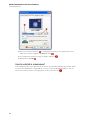
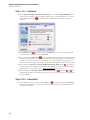
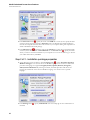
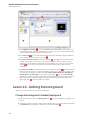
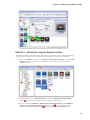
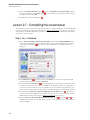
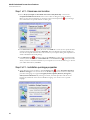
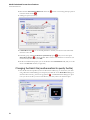
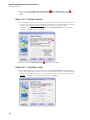
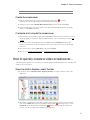
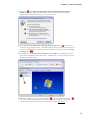
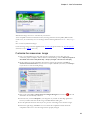
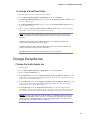
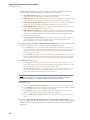
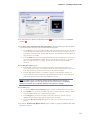
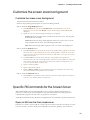
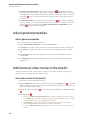
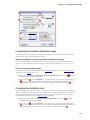
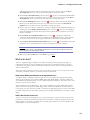
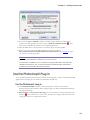
3. In the From Color field ( ), click on the down arrow (on right). A drop-down list with several
colors appears. Click on the "Gray-50" color (row 3, right column). In the To Color field ( ),
click on the down arrow (on right). The same color list appears. Click on the "Dark Gray" color
(row 1, right column).
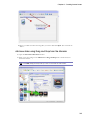
4. On the right side of the Gradient group, you see some additional options. Select the Vertical
option ( ). If you followed correctly the instructions, the preview window on right should
display a nice dark gray gradient background ( ).
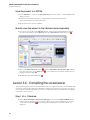
Lesson 2.3 - Adding the photos
In this lesson, we'll add the photos (slides) to the screensaver. We'll learn 3 different methods to perform
this operation. Please follow in sequence the 3 methods as described below. 2 slides will be added with
each method for a total of 6 slides.
Method 1 - Add photos from the Slide Properties dialog
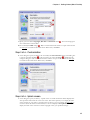
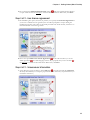
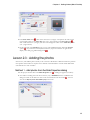
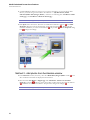
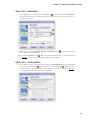
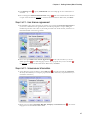
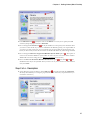
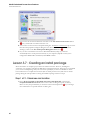
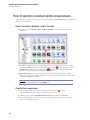
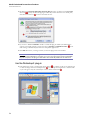
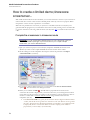
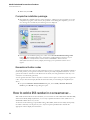
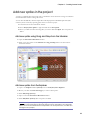
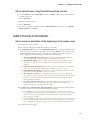
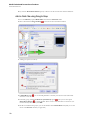
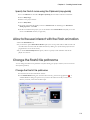
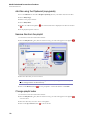
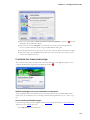
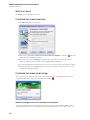
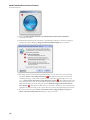
1. In the project window click on the Slide Properties tab ( ). A dialog box appears (see below).
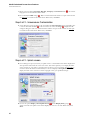
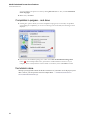
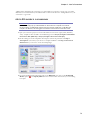
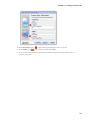
2. As no slides is actually present in the screensaver, only a Add Slides button is available in this
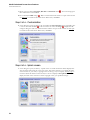
dialog box. Click on this button or click on the associated button in the toolbar ( ). You can
also choose Project/Insert New Slides (Ins) in the menu.
35