1
seats they wish to book, they click the Select This Flight button. At this point, the user needs to click
Continue to finish booking tickets.
4. Executing a Pick-up of Tickets
Much like booking a ticket, in order to pick up tickets, the customer name must first be entered
into the Enter Information internal frame (See Figure II.3.1, Figure II.3.2, and accompanying
explanations)
Once tickets are booked, the customer has to come in to pick up the tickets. Thus, QuickTrip also
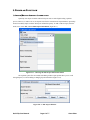
allows the user to execute a pick-up of tickets. To do so, simply select Pick Up Tickets! From the File
drop-down menu.
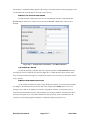
Figure II.4.1 – Choosing the ‘Pick Up Tickets!’ Option
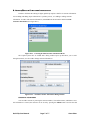
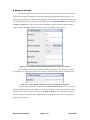
This will load the ticket pick-up internal frame (Figure II.4.2). This frame will display both the
outstanding balance and the quick-glance travel itinerary for the customer entered, and will allow the user
to process a payment transaction.
Figure II.4.2 – Ticket Pick-up Internal Frame
QuickTrip allows for a number of payment options, including all major credit cards, as well as
debit and cash/cheque. There are two buttons on the ticket pick-up internal frame – Exact Amount and
Pick Up Tickets! The Exact Amount button will enter the exact value of the “Amount Owing” text field
into the “Amount Paid” text field (this process is shown in Figure II.4.2). The payment method can be
selected from a number of radio buttons. To complete the transaction, press the Pick Up Tickets! button.
This will then subtract the value of the “Amount Paid” text field from the customer’s balance. If the
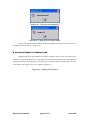
balance for the customer is now zero, the ticket pickup will be completed, and a confirmation message
(Figure II.4.3) will be displayed. If the resulting customer balance is lower than zero (for example, if the
customer in figure II.4.2 paid $130.00 cash), a message showing how much change is owed to the customer
will be displayed (Figure II.4.4), followed by the confirmation message (Figure II.4.3)
QuickTrip User Manual
Page 12 of 17
Omar Khan