1
MS -BB300
B L A C K B O X E N T E R TA I N M E N T S Y S T E M
User/Installation Manual
FUSIONENTERTAINMENT.COM
PRECAUTIONS
Do not attempt to open the unit. There are no user serviceable parts or
adjustment’s inside.
No responsibility can be taken for use of the unit other than under normally expected
operating conditions.
If exposed to direct sunlight or operated for extended periods metal surfaces may
become hot. Take care when handling.
USING iPod/iPhones
This unit has been tested with compatible authentic iPod models under normal expected operating
conditions, free from any pre-existing defects in either the unit or the iPod.
No responsibility can be taken for use of the unit other than under normally expected operating
conditions in conjunction with fully functional and undamaged iPod units which have been
manufactured and authorized by Apple Inc.
USB FLASH DRIVES
• Drive format: All USB flash drives used with this unit must be formatted to either FAT32
or NTFS format. These are the most commonly used format for USB flash drives.
• Audio track format: Audio tracks stored on USB flash drive must be in MP3, M4A or FLAC formats
to play on this unit.
REGISTER YOUR PRODUCT ONLINE
For your own peace of mind, register your product purchase online at
www.fusionentertainment.com
We’ll keep you up to date with any news related to your product or new
accessories to help you get the most from your product.
RECORD YOUR PRODUCT DETAILS HERE:
SERIAL NUMBER
AFFIX RECEIPT HERE
2
DATE OF PURCHASE
CONTENTS
INSTALLATION�������������������������������������������������������������������������������������������������������� 4
WIRING DIAGRAM��������������������������������������������������������������������������������������������������� 7
CONNECTIONS�������������������������������������������������������������������������������������������������������� 8
BUTTON DESCRIPTION����������������������������������������������������������������������������������������� 10
GENERAL OPERATION������������������������������������������������������������������������������������������ 11
RADIO OPERATION������������������������������������������������������������������������������������������������ 14
USB OPERATION��������������������������������������������������������������������������������������������������� 15
AUX OPERATION��������������������������������������������������������������������������������������������������� 15
iPod/iPhone OPERATION��������������������������������������������������������������������������������������� 16
BLUETOOTH OPERATION�������������������������������������������������������������������������������������� 18
SiriusXM ® SATELLITE RADIO��������������������������������������������������������������������20
ZONE OPERATION������������������������������������������������������������������������������������������������� 21
ADDITIONAL FEATURES���������������������������������������������������������������������������������������� 22
TROUBLESHOOTING��������������������������������������������������������������������������������������������� 23
FUSION MARINE ACCESSORIES���������������������������������������������������������������������������� 25
SPECIFICATIONS AND LICENSING������������������������������������������������������������������������ 27
3
INSTALLATION
If any modification to the vessel is required, such as drilling holes etc FUSION
recommends consultation with your boat dealer or manufacturer beforehand.
MOUNTING CONSIDERATIONS
This device should be mounted in a location that is not exposed to extreme
temperatures or conditions. Extended exposure to high temperatures, in storage
or operating conditions, may cause device failure. Extreme-temperature-induced
damage and related consequences are not covered by the warranty.
·
The device must be mounted in a location where it is not submerged.
·
The device must be mounted in a location with adequate ventilation where it is not exposed to extreme temperatures.
·
The device should be mounted so that the cables can be connected easily.
·
To achieve IPX3 water ingress protection and optimal heat sink cooling, the device must be mounted on a vertical surface with the connectors pointing downward.
·
The device may be mounted on a horizontal surface, but such positioning might not achieve IPX3 water ingress protection.
·
To avoid interference with a magnetic compass, the device should be installed at least 203 mm (8 in.) away from a compass.
MOUNTING THE DEVICE
1.
Place the device in the mounting location and mark the location of the pilot holes.
4
2.
Drill the appropriate pilot hole for one corner of the device.
3.
Loosely fasten the device to the mounting surface with one corner and examine the other three pilot-hole marks.
4.
Mark new pilot-hole locations if necessary, and remove the device from the mounting surface.
5.
Drill the appropriate pilot holes for the other three marks.
6.
Secure the device to the mounting location.
5
ELECTRICAL WIRING
Caution: The MS-BB300 is designed for vessels with a 12V DC Negative ground electrical system
INSTALLATION WARNING
• Ensure the marine vessels +12V lead is removed from the battery
before any equipment is connected
• Investigate the marine vessel’s fuel tanks and electrical wiring
locations before you begin installation
• Ensure all wiring is protected to avoid damage
When wiring the MS-BB300, ensure that the wires are away from sharp objects and
that rubber grommets and insulated bungs are used when routing the wiring. Ensure
that when connecting the wires to the speakers and audio system, the terminals and
connections are protected from shorting to each other or ground.
Note: Ensure the antenna cable is routed away from any power cables, and is the minimal
length, as long cable runs will affect AM reception performance.
For optimum radio reception please ensure you use a dedicated AM/FM ground
independent marine antenna.
Please refer to the following site for further info: www.pacificaerials.co.nz
ELECTRICAL ISOLATION OF THE MS-BB300
The MS-BB300 stereo has a metal chassis which is connected to the Ground /
Negative / Black wire (like most other stereos).Extra care should be taken when
installing this type of stereo in an aluminium boat (or boats with a conductive hull) if
you require the electrical system to be isolated from the boat hull.
6
WIRING DIAGRAM
PANEL
CONNECTIONS
POWER/SPEAKER
CONNECTIONS
ANT
EXTERNAL AM/FM ANTENNA
YELLOW
BATTERY (+12 V constant)
AUX1 IN
STEREO LINE-LEVEL RCA AUXILIARY
RED
IGNITION (+12V switched)
SOURCE
BLACK
GROUND (-12v)
STEREO LINE-LEVEL RCA AUXILIARY
WHITE
SPEAKER ZONE 1 L (+)
WHITE/BLACK STRIPE
SPEAKER ZONE 1 L (-)
GREY
SPEAKER ZONE 1 R (+)
GREY/BLACK STRIPE
SPEAKER ZONE 1 R (-)
GREEN
SPEAKER ZONE 2 L (+)
GREEN/BLACK STRIPE
SPEAKER ZONE 2 L (-)
PURPLE
SPEAKER ZONE 2 R (+)
PURPLE/BLACK STRIPE
SPEAKER ZONE 2 R (-)
BLUE/WHITE STRIPE
AMPLIFIER ON
BROWN/WHITE STRIPE
TEL MUTE/INTERRUPT AUX
AUX2 1N
SOURCE
ZONE3
LINE-OUT ZONE 3
SUB OUT
SUBWOOFER OUTPUT
(TIED TO ZONE 3)
NMEA2000
NMEA 2000 NETWORK
SiriusXM
SiriusXM TUNER CONNECTOR
USB
USB-COMPATIBLE MEDIA DEVICE
Note: Minimum speaker load impedance 4 Ohm
7
CONNECTIONS
CO N N E C TO R A
BATTERY +12VDC
Connect to the battery positive (+12VDC), or bus bars. A fuse or circuit breaker MUST
be used at the battery end of the cable. Use a minimum wire size of 16AWG for wire
length up to up to 6 meters / 20 feet.
IGNITION +12V switched
Connect to a separate switched +12V wire to control stereo ON/Off operation.
Alternatively connect to the battery positive (+12VDC), or bus bars.
When the red “Ignition +12V switched” wire is not required for ignition on/off control,
it MUST be connected together with the Yellow “Battery +12V” wire at the MS-BB300
head unit wiring loom.
GROUND WIRE — Recommended minimum wire size for Negative Ground wire:
16AWG for wire length up to up to 6 meters / 20 feet.
AMPLIFIER ON — When using an external amplifier connect to the “Remote turn
ON” connection on the external amplifier.
TELE MUTE / INTERRUPT AUX — Connect to handsfree kit to either mute the stereo
or switch to AUX to hear call. Activated when this line is taken to ground.
PA NEL C ONNEC T ORS
AUX INPUTS — Connect an Auxiliary source to the left and right RCA
(White = L, Red = R).
SUBWOOFER OUT (DUAL MONO) — Connect to a subwoofer amplifier, volume
control linked to Zone 3. (Orange + Orange)
LINEOUT ZONE 3 — Connect to an amplifier, volume control linked to Zone 3.
(White = L, Red = R).
8
ANTENNA CONNECTION — Connect an AM/FM marine antenna.
Note: Boat installations do not typically offer the best ground plane environment. For optimum
performance a ground plane independent antenna is recommended.
There are two main types of Antenna supplied for FM/AM reception in a marine environment.
The first is a “Ground Dependant” Antenna. This is designed to be used where the antenna base
is in contact with a metal surface such as steel or aluminium that has a surface area of 0.5m²
or greater. This is a ground plane and the antenna depends on it for reception signal strength, if
fitted on a vessel without this you will get very poor reception.
The second is a “Ground Independent” antenna. This is suitable for non metal vessels and a
ground plane is not required.
Ensuring you have the correct type of antenna for your vessel is something that is missed
sometimes as it is not well advertised. VHF splitters are another option but we do not recommend them for optimum reception, as you
are relying on the short wire run from the stereo to the splitter and this is generally inside the
vessel or behind a dash so reception is limited.
USB/iPod/MTP CONNECTION — Connect a USB key / flash drive (not included),
a FUSION Marine Uni-Dock (not included), a MTP device or a certified Apple iPod
sync cable (not included).
Media Transfer Protocol (MTP): MTP is a standard developed for connecting media (music)
devices over USB. It has been adopted on a number of platforms including Android. FUSION
currently supports a range of smartphones utilising MTP.
Refer to www.fusionentertainment.com for the latest list of supported devices.
SiriusXM® SATELLITE RADIO (USA only) — Connect to SiriusXM Connect Vehicle Tuner
(not included) (For use in USA only).
For more information on how to install the SiriusXM Connect Vehicle tuner, consult the
installation guide included with the tuner.
NMEA 2000 — Through the NMEA2000 network you control the MS-BB300 from a
MS-NRX200i remote control or FUSION-Link compatible Multi Function Display. Two connection
options are available;
A) MS-BB300R bundle. Supplied with a NRX200i remote control and all necessary cables to
create a stand-alone FUSION remote control network.
B) MS-BB300. Supplied with a FUSION NMEA2000 drop cable (CAB000863) for connection to an
existing NMEA2000 network.
Important Note: Adaptor cable CAB000862, provided with the MS-BB300R MUST not be used
to connect the MS-BB300 to an existing NMEA 2000 network. Existing networks are normally
powered separately. The non-powered drop cable (CAB000863) is available from FUSION for
connecting to existing NMEA 2000 networks.
Note: FUSION recommends updating the MS-BB300 and NRX200i remote control software at the
time of installation to the latest software available from www.fusionentertainment.com. See the
Settings sections for more information.
9
BUTTON DESCRIPTION
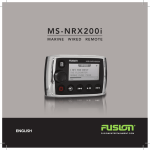
MS-NRX200i - Optional Accessory
ROTARY ENCODER
Turn to adjust volume, move up or down menu structures.
Press to select.
POWER
Press to turn on the MS-BB300 and MS-NRX200i. Press and
hold for two seconds to power off. Press momentarily to mute/
un-mute audio.
SOURCE
Press to cycle available sources.
MENU
Press to enter menu system. Press to return to previous
screen. Press and hold to exit the menu structure.
PLAY/PAUSE
Press to pause or resume play.
AM/FM/SiriusXM Press to cycle through tuning modes. Press
to store the current station as a preset.
BACK/PREVIOUS
Short Press to select previous track or previous AM/FM/
SiriusXM station or preset. Press and Hold to rewind playback
or fast stepping of frequencies.
FORWARD/NEXT
Short Press to select next track or next AM/FM/SiriusXM
station or preset. Press and Hold to fast forward playback or
fast stepping of frequencies.
10
GENERAL OPERATION
INITIAL SETUP
Important: For correct AM/FM operation select the Tuner Region appropriate to your
location. Default - USA.
See section: Tuner Region Selection
ADJUSTING THE VOLUME
Turn the ‘Rotary Encoder’ to adjust the volume.
ZONE VOLUME
Press the ‘Rotary Encoder’ to step through zones.
All zones
Zone 1
Zone 2
Zone 3
SETTINGS
Press the ’Menu’ button and select ‘Settings’. Select the desired setting to adjust.
Note: Whilst in Settings the ‘Menu’ button acts as a back/return to the previous screen.
Any key press exits the menu screen.
ZONE SETUP — The MS-BB300 Marine Stereo features Multi-Zone technology
which enables 3 ‘Zones’ with independent volume/balance control.
Select the Zone you wish to setup.
Select ‘Balance’ to adjust the audio balance from left to right within the selected zone.
Select ‘Volume Limit’ to set the maximum volume limit within the selected zone.
Select ‘Zone Name’ to give the zone a name of your choice. Turn the rotary
encoder to change the character. Press the rotary encoder to select. Press the
‘Previous’ button to delete characters
- To save changes press the ‘Play’ key
- To exit without saving any changes: press the ‘Menu’ key.
Zone Enable - Zones 2 and 3 can be disabled if required. This is useful, for
example, if only one or two zones have been set up, as disabled zones are not
displayed when setting volume levels.
Select the zone you wish to disable.
Select or deselect `Enable’.
Link to Zone 1. Zones 1 and 2 can be linked so that any volume level changes are
applied to both Zones. A small “+” sign is displayed on screen between Zones 1
and 2 when this feature is enabled. To enable this feature select `Zone 2’.
Select `Link to Zone 1’
11
TONE — Select ‘Settings’ then ‘Zones’ then ‘Tone’. Adjust the Bass/
Middle/Treble settings. Press the ‘Rotary Encoder’ to cycle between
Bass/Middle/Treble
SUBWOOFER — Select ‘Settings’ then ‘Zones’ then ‘Zone 3’ then ‘Subwoofer’.
Select ‘Sub level’ to set the desired maximum subwoofer output volume.
Select ‘Sub Filter’ to select the desired cut-off frequency.
55Hz - 85Hz - 120Hz - 160Hz
Default: 85Hz
LCD — Press the Rotary Encoder to cycle between Contrast and Brightness.
Turn to adjust (MS-NRX200i display).
POWER SAVE — Press the Rotary Encoder to cycle between ‘On’ and ‘Off’.
OFF
LCD/Button backlight on constantly
ON
LCD/Button backlight turns off after 30 seconds of non-activity.
Press any key to resume.
KEY SOUND — Press the Rotary Encoder to cycle between ‘On’ and ‘Off’.
LANGUAGE — Select the desired language for the on screen display
English - Deutsch - Nederlands - Espanol - Italiano - Francais
SEARCHING — If your iPod/iPhone or MTP device contains more than 100 artists,
songs or albums, you can use FUSION Alpha Search Technology (FAST) to quickly
navigate by letter or number. Use this option to control when to display the FAST
menu.
• Off. The song/album list is displayed but not the FAST menu.
• 100 -800. Display the FAST menu when your device contains more than the
selected number of items.
TUNER REGION — Select the appropriate Region.
USA
Europe
Japan
Australasia
Important: The correct Tuner Region must be selected. Default - USA.
TELE MUTE OPTIONS — Control the connection to a cell phone hands-free kit.
MUTE — Mutes the audio output from the MS-BB300 Marine Stereo when a call
is received on your cell phone.
AUX — Allows the received call to be broadcast through the AUX 1.
Note: This feature may not operate with all available hands-free kits.
Hands free kit must be connected to the TELMUTE input and AUX input.
12
ARTWORK — Enable or disable sending Album Artwork over NMEA2000 network.
Disable to reduce data traffic on NMEA2000 network.
Note: The MS-BB300 can be completely disconnected from the constant +12V voltage supply
(Battery switch) with no settings lost.
SOURCES — Use this option to turn on/off the AM source.
For example this is useful if you only wish to listen to FM and do not wish to step
through AM when selecting a tuner source.
Note: USB/iPod/MTP Device source only available if a device is connected.
SET DEVICE NAME — Select `Set Device Name’ to give the MS-BB300 a network
name of your choice. The name is visible to other devices (Marine Wired Remotes
MS-NRX200i) connected to the same network. Rotate the rotary encoder to
change the character. Press the rotary encoder to select. Press the `Previous’
button to delete characters.
· To save changes press the ‘Play’ key.
· To exit without saving any changes: press the Menu key.
UPDATE – MS-BB300 — This option is provided for future MS-BB300
software updates.
MS-NRX200i: This option is provided for future software updates to
remote controls
(MS-NRX200i) attached to your MS-BB300.
Note: FUSION recommends updating all remote(s) software via the MS-BB300 at time of
installation to ensure compatibility. This can be done via the Update menu. Please refer to your
remote manual for more information.
FACTORY RESET — The factory reset function will return all settings in the
MS-BB300 to the factory default value.
Warning: All AM and FM presents are erased. Tuner region is reset to USA. All
zones are enabled and zone settings, tone, subwoofer filter settings, source
settings and device name are returned to default values.
ABOUT — This option displays the MS-BB300 Marine Stereo software version,
remote control version and F-Link software versions.
13
RADIO OPERATION
SOURCE SELECTION
Press the ‘Source’ button and cycle to desired source.
AM
FM
AUX
AUX 2
iPod
MTP Device
USB
Bluetooth
SiriusXM (USA only)
Note: Disconnected sources may not be displayed.
STATION SEARCH
Press ‘Play’ to cycle between tuning seek modes.
Auto
Manual
Preset
AUTOMATIC SEEK TUNING
Press ‘Play’ to cycle to Auto tuning mode. Press the ‘Previous’ or ‘Next’ button to scan to the next station.
MANUAL SEEK TUNING
Press ‘Play’ to cycle to Manual tuning mode. Press the ‘Previous’ or ‘Next’ button to step up and down the
spectrum. Press & Hold the ‘Previous’ or ‘Next’ button for fast frequency/channel stepping.
PRESET TUNING MODE
Press ‘Play’ to cycle to Preset tuning mode. Press the ’Previous’ or ‘Next’ button to select
previous or next preset.
Note: Preset function is only available when more than one preset has been saved.
PRESETS
STORING A STATION AS A PRESET
When listening to a station/channel (AM/FM), press and hold the ‘Play’ button to store preset. Alternatively: Press the ‘Menu’ button and select ‘Presets’. Select ‘Save Current’. Note:
There are 15 presets available per band.
VIEW PRESETS
Press ‘Menu’ and select ‘Presets’. Use the ‘Rotary Encoder’ to cycle and select a saved
preset.
REMOVE PRESET
Press ‘Menu’ and select ‘Presets’. Select ‘Remove Preset’. Select the desired preset or
select ‘Remove All’.
14
USB OPERATION
SOURCE SELECTION
Press the ‘Source’ button and cycle to USB (only if USB flash drive is connected).
PLAYING AUDIO TRACKS FROM USB FLASH DRIVES
You can store audio tracks (MP3, M4A and FLAC formats only) on a USB flash drive
for playback. Audio tracks can be stored in folders on the flash drive and selected for
playback, as required. The flash drive must be formatted to FAT32 or NTFS (these are
the most commonly used flash drive format).
Press the `Menu’ button to display the attached devices, then select the folder on your
USB flash drive. Turn the encoder to navigate down the folder list and press to select.
Note: Press the ‘Menu’ button to return to the previous menu screen.
PLAY/PAUSE Play or Pause the track
BACK/PREVIOUS Short Press: Selects previous track
Press and Hold: Rewind track
NEXT/FORWARD Short Press: Selects next track
Press and Hold: Fast-forward track
REPEAT
Press the ‘Menu’ button and select ‘Repeat’, to repeat all playable tracks within the
folder of the current selection. Default: On.
SHUFFLE
Press the ‘Menu’ button and select ‘Shuffle’, to shuffle all playable tracks within the
folder of the current selection. Default: Off.
Important: Ensure the USB Device is formatted as Fat32 or NTFS.
AUX OPERATION
CONNECTING AN AUXILIARY AUDIO DEVICE
The AUX RCA plugs are located at the rear of the unit.
Connect your auxiliary audio device.
Note: You may require an adapter cable to connect your device.
ADJUSTING AUX INPUT LEVEL (dB figure)
To allow for the wide range of input levels, the AUX inputs have adjustable input gain
(dB). The dB value is displayed on the AUX screen.
• Increase gain (volume) by pressing the Forward key (1dB steps up to 9dB)
• Decrease gain by pressing the Rewind key (1dB steps down to -9dB).
LISTENING TO YOUR AUXILIARY AUDIO DEVICE
Press ‘Source’ and cycle to AUX mode.
Start playback on your auxiliary audio device.
• Use both the volume control on your auxiliary device (if available) and the volume control
on the FUSION Marine Stereo to set the volume level.
15
iPod/iPhone OPERATION
CONNECTING AN iPod/iPhone
Connect a FUSION compatible Marine Dock to gain the benefits of integrated housing
for your iPod or iPhone. Alternatively a certified Apple iPod sync cable can be used to
connect your iPod/iPhone to the MS-BB300.
LISTENING TO AN iPod/iPhone
Press ‘Source’ button and cycle to iPod. Playback of the iPod/iPhone will start automatically.
Only available if a iPod/iPhone is connected.
iPod/iPhone NAVIGATION
Press the ‘Menu’ button to enter the iPod menu. The rotary encoder operates similar to the click
wheel on your iPod. Turn to navigate and press to enter.
Note: Press the ‘Menu’ button to return to the previous menu screen.
PLAY/PAUSE
Play or Pause the track
BACK/PREVIOUS Short Press: Press once to jump
back to start of current track.
Press twice to select previous track.
Press and Hold: Rewind track
NEXT/FORWARD Short Press: Selects next track
Press and Hold: Fast-forward track
iPod SETTINGS
REPEAT
Press the ‘Menu’ button and select ‘iPod Settings’, select ‘Repeat’.
OFF
ONE
ALL
OFF
TRACKS
SHUFFLE
Press the ‘Menu’ button and select ‘iPod Settings’, select ‘Shuffle’.
ALBUMS
F.A.S.T
FUSION ALPHA SEARCH TECHNOLOGY
If your iPod contains more than 100 Artists, Songs or Albums you can use F.A.S.T to
quickly navigate by letter or number.
Example: Press the ‘Menu’ button and select ‘Artists’. Select ‘D’ and the first ‘Artist’ beginning with ‘D’ will
automatically highlight. Using the ‘Rotary Encoder’ you can then scroll up or down from this selection.
NO iPod CONNECTED
If this appears on the display possible causes are:
• Ensure the iPod/iPhone is correctly connected
• Ensure the cable is not excessively bent
• The iPods battery remains low (refer to iPod manual and charge the battery)
• Reset your iPod/iPhone
• Ensure your iPod/iPhone is on the list of supported models.
(refer to www.fusionentertainment.com for a list of supported models)
16
ANDROID (MTP) DEVICE OPERATION
Media Transfer Protocol (MTP) is a standard developed for connecting media (music)
devices over USB. It has been adopted on a number of platforms including Android.
FUSION currently supports a range of smartphones utilising MTP.
Refer to www.fusionentertainment.com for the latest list of supported devices.
CONNECTING A MTP Device
Connect a FUSION UNI-Dock (MS-UNIDOCK) to gain the benefits of integrated housing
and charging for your MTP device. Alternatively your device USB cable can be used to
connect to the MS-BB300.
LISTENING TO A MTP DEVICE
Press ‘Source’ button and cycle to MTP. Playback will start automatically. Only available
if a MTP device is connected.
INITIAL SONG TITLE LOADING FROM MTP DEVICES
Following connection to the USB connector, the MS-BB300 will download the full
list of song names from the device to create a song title index. This process must be
completed before music playback can begin. For devices with large music collections
this may take several minutes. The song count will be displayed during this process.
Other sources can be selected while this process is underway. The file name download
and indexing will continue as a background task.
Note: Your entire music collection may not be available for playback. Only audio tracks
stored in MP3 or M4A format are indexed.
MUSIC FOLDER STRUCTURE
FUSION recommends that folders contain no more than 300 files each. Exceeding this
limitation may cause the phone to become unresponsive and the FUSION Stereo to
reset the USB link to the phone. Music files must be located in a folder using one of the
following names. The folder must be located in the root directory of your device.
My Music
My_Music
mobile
Music
SD cards may be used on devices that support them. Songs may be copied to both the
phone’s internal memory and the external memory. The rules regarding folder naming
apply to both memory types.
MTP DEVICE NAVIGATION
Press the ‘Menu’ button to enter the MTP menu. Songs stored in MP3 and M4A format
(see note below) can be played on the FUSION Stereo. The FUSION Stereo will display
your music collection in groupings of Songs, Albums and Artists allowing you to browse
in these categories. In addition to the above groupings your music collection can be
browsed according to the folder structure on your device. The root folder for each
storage memory on your device memory will be displayed in the Settings menu, for
example; PHONE, CARD, etc. Storage card locations on phones are also supported.
Note: Different operating systems and phones provide varying levels of support for MTP.
Please refer to www.fusionentertainment.com for device compatibility information.
17
MTP DEVICE CONTROL
PLAY/PAUSE
BACK/PREVIOUS
NEXT/FORWARD
Play or Pause the track
Short Press: Press once to jump back to start of current track.
Press twice to select previous track.
Short Press: Selects next track
F.A.S.T
FUSION ALPHA SEARCH TECHNOLOGY
If your MTP device contains more than 100 Artists, Songs or Albums you can use F.A.S.T
to quickly navigate by letter or number.
Example: Press the ‘Menu’ button and select ‘Artists’. Select ‘D’ and the first ‘Artist’ beginning
with ‘D’ will automatically highlight. Using the ‘Rotary Encoder’ you can then scroll up or down
from this selection.
MTP SETTINGS
To change a setting in the MTP settings menu:
1. Press the Menu key while the MTP Source screen is displayed.
2. Turn and then press the Rotary Encoder to select one of the following settings to change.
• Repeat On/Off. Repeat mode is turned on/off (not supported on all devices)
• Shuffle On/Off. Random play shuffle is turned on/off (not supported on all devices)
BLUETOOTH OPERATION
Bluetooth is designed to provide audio streaming from a compatible smartphone or
media player directly to your MS-BB300.
The Bluetooth supports control (Play/Pause/Next/Back) of the media device from
the MSBB300. Song information such as song title, artist name and duration are
displayed, depending on the capability of your phone and music application.
The MS-BB300 does NOT provide phone call control. Hands free operation of the
phone is not supported from the FUSION stereo.
Discovering the MS-BB300
To pair with the MS-BB300 for the first time you need to discover it from your
Bluetooth compatible device. Please refer to your smartphone or media player
user manual to start the Bluetooth discovery mode. Ensure the MS-BB300 is in
discoverable mode (see below).
The name of the MS-BB300 in discovery (pairing) mode is the same name given to
your MS-BB300. See SET DEVICE NAME in the SETTINGS menu. The default name
is MS-BB300. You do not require a PIN number to pair.
18
BROWSING MUSIC COLLECTIONS OVER BLUETOOTH
NOT SUPPORTED
Browsing music collections from the MS-BB300 is not supported over Bluetooth.
Initial song and Playlist selection must be done on the media device. However the
FUSION Stereo does provide basic playback control with the Play / Pause, Next and
Previous keys. Fast Forward and Rewind functions are not supported.
BLUETOOTH DEVICE CONTROL
PLAY/PAUSE
Play or Pause the track
BACK/PREVIOUS
Short Press: Press once to jump back to start
of current track.
Press twice to select previous track.
NEXT/FORWARD
Short Press: Selects next track
Note: The availability of song information such as song title, artist name, track duration and album
cover artwork is dependent on the capability of your phone and music application. Album cover
artwork and Shuffle/Repeat Status icons are not supported over Bluetooth.
BLUETOOTH SETTINGS
To change a setting in the Bluetooth settings menu:
1. Press the Menu key while the BT Source screen is displayed.
2. Turn and then press the Rotary Encoder to select one of the following;
• List of Paired Bluetooth media devices.
To connect to an active device on the Paired Devices list rotate the rotary encoder to
select the device. Press the rotary encoder to select the check box.
The device must be turned on, with Bluetooth on and not connected to another
Bluetooth device, otherwise it will not connect.
DISCOVERABLE OFF/ON
Enable this option to make the MS-BB300 discoverable to Bluetooth media devices.
Press the encoder to select/deselect the check box.
Note: To prevent interruption to audio streaming over Bluetooth it is recommended that the
Discoverable feature is turned off after pairing your device to the MS-BB300.
REMOVE DEVICES
Select this option to display the current list of paired devices. Select the device to be
removed by rotating and pressing the rotary encoder.
19
SiriusXM SATELLITE RADIO
(USA only) - Requires optional SiriusXM Vehicle Connect Tuner (not included)
Only SiriusXM® brings you more of what you love to listen to, all in one place. Get over
140 channels, including commercial-free music plus the best sports, news, talk, comedy
and entertainment. Welcome to the world of satellite radio. A SiriusXM Vehicle Tuner
and Subscription are required. For more information, visit www.siriusxm.com.
The MS-BB300 is ready to connect to a SiriusXM Connect Tuner. The SiriusXM tuner is an
optional extra that must be purchased separately.
Activating your SiriusXM tuner: You must activate the SiriusXM tuner before you can
begin to receive the SiriusXM Radio Service.
The SiriusXM Radio ID is required for activation and can be found by tuning to Channel 0 as
well as on the label found on the SiriusXM Connect tuner and its’ packaging. The Radio ID
does not include the letters I, O, S or F.
Power on your system and make sure that you are receiving good signal, you are able to
hear audio on the SiriusXM Preview channel (Channel 1)
In the USA, you can activate online or by calling SiriusXM Listener care:
• Visit www.siriusxm.com/activatenow
• Call SiriusXM Listener Care at 1-866-635-2349
For Canadian Subscriptions, please contact:
• Visit www.siriusxm.ca/activatexm
• Call XM customer Care at 1-877-438-9677
As part of the activation process, the SiriusXM satellites will send an activation message
to your tuner. When your radio detects that the tuner has received the activation message,
your radio will display “Subscription Update”. Once subscribed, you can tune to channels in
your subscription plan. Note, the activation process usually takes 10 to 15 minutes, but may
take up to an hour. Your radio will need to be powered on and receiving the SiriusXM signal
to receive the activation message.
20
SiriusXM OPERATION
Press ‘Source’ to cycle to the SiriusXM Satellite radio source.
Press the ‘Menu’ button and turn the rotary encoder to select the desired menu option.
CHANNELS
Select the desired channel (listed in channel order) and music preference
CATEGORY
Select the desired genre type. (The unit will only play the selected option)
PRESET TUNING MODE
Press ‘Play’ to cycle to preset tuning mode. Press the ‘Previous’ or ‘Next’ button to select
previous or next preset.
Note: Preset function is only available when more than one preset has been saved.
PRESETS
Add your channel preset to your favourites list by selecting ‘Add Preset’ (Maximum 15
channels). Remove channels by selecting ‘Remove Preset’. Select ‘All’ or the individual
channel. Exit by pressing the ‘Menu’ button.
Alternatively: Press and hold the ‘Play’ button to store favourite.
PARENTAL CONTROL LOCK
The Parental Control feature allows you to limit access to any SiriusXM channels,
including those with mature content. When enabled, the Parental Control feature
requires you to enter a passcode to tune to the locked channels
ENABLE ON/OFF
Select to enable channels to be locked/unlocked
PIN #
Turn the ‘Rotary Encoder’ to select number and press to enter, repeat to enter the 4 digit
code. (Factory setting is 0000)
Note: Must be entered before the following items are operational.
LOCK / UNLOCK
Select the channel to be locked or unlocked
CHANGE PIN
Personalise your Pin number. (4 digits max)
PIN RESET
When on SiriusXM source, press & hold mute key for 15 seconds. PIN will be reset to ‘0000’.
21
ADDITIONAL FEATURES
FUSION-Link
FUSION-Link has the ability to fully control on-board FUSION Entertainment systems
(Supported models), by utilizing FUSION-Link capable multi-function displays installed
at the helm, flybridge or nav station of the vessel, providing integrated entertainment
control and a less cluttered console.
You can control one or more FUSION-Link capable stereo units from a single location
on the boat with the touch of a button. FUSION-Link operates over existing industry
standard networks including NMEA2000 .
Link Zones or manage the entire audio system from the steering station
on the boat. The partnered multi-purpose display becomes the portal to
which all audio on the vessel is controlled, no matter where on the vessel
the stereo is installed. The FUSION-Link equipped stereo can be installed out of sight if
space is an issue and users need to visit the unit only to replace removable media.
For a list of FUSION-Link capable products from companies that are partnering with
FUSION, please visit www.fusionentertainment.com for further details.
TOTAL AUDIO CONTROL VIA NMEA 2000
NMEA 2000 is the most popular marine standard for data communication within vessels.
It has become the standard for sending navigation and engine management data within
vessels. FUSION introduces an industry-first product by incorporating NMEA 2000
functionality in its audio remote control devices. This will enable the user to monitor a
series of available NMEA sentences. Visit www.fusionentertainent.com for a full list of
supported NMEA sentences
FUSION MS-NRX200I REMOTE CONTROL
(OPTIONAL ACCESSORY)
The MS-BB300 Marine Stereo can be controlled by MS-NRX200i wired remote controls
installed in the audio Zones throughout the vessel. The remote Control has a fullfeatured user interface. It includes a full size LCD screen and provides full functionality
for navigating iPods and iPhones.
The remote control will also serve as an NMEA repeater displaying NMEA navigation data
or vessel performance data from other NMEA devices on an existing NMEA 2000 network.
22
TROUBLESHOOTING
FACTORY RESET
The factory reset function will return all settings in the MS-BB300 to the factory default value.
Warning: All AM, FM station presets are erased. Tuner region is set to USA. All zones
are enabled and zone settings, tone, subwoofer filter settings, source settings and
device name are returned to default values.
To reset your MS-BB300 to factory default values:
1. Press the Menu Key.
2. Select Settings > Update. Select Factory reset. All settings will be restored
to the factory default. At the completion of the reset process the stereo will
automatically power down and restart.
iPod
Why does my FUSION Head unit keep locking up when connected to my iPod/iPhone?
If you are experiencing software lock-ups or your unit freezes:
• Reset your iPod/iPhone (see Apple website from model-specific information).
This should resume normal operation.
• Make sure you have the latest version of iTunes and the latest operating
software in your iPod/iPhone. It is important to update software when Apple
releases new versions. If you are connected via a dock, ensure you are using
the correct sleeve and the connection to the Head unit is secure.
Note: After any IOS update to your Apple iPhone we recommend resetting the iPhone to ensure
correct operation. Press and hold the Sleep/Wake button and the Home button together for at least
ten seconds, until the Apple logo appears.
Will my iPod/iPhone connect to my FUSION product if the battery is flat?
No. It will take a number of minutes for the Apple product to get a minimum level of
charge before it can connect and become operational. Please connect and wait for the
unit to initialise.
My iPod/iPhone will not connect to the head unit while in a FUSION dock accessory.
If your Head unit displays “Not Connected” while using iPod as input source:
Ensure that you have the latest version of operating software installed in your iPod/
iPhone and the latest iTunes version. To do this, connect your iPod/iPhone to iTunes and
it will check and, if necessary, prompt you to download the latest version.
If you are uncertain which iPod model you have, go to http://www.apple.com/support/
to get the correct model information for your iPod.
23
If you are still unable to connect once you have confirmed that you have the latest
software or you have updated your iPod/iPhone:
• Reset the iPod/iPhone (see the user manual for your Apple product) and also reset the Head unit (Page 23).
If you are still unable to connect:
• Contact your FUSION dealer or contact FUSION via the tech email on the
FUSION website.
Problem
Solution
Bluetooth
Why does my
Bluetooth source
not display all song
information
The availability of song information such as song title, artist name, track
duration and album cover artwork is dependent on the capability of your
phone and music application. Album cover artwork and Shuffle/Repeat
Status icons are not supported over Bluetooth.
My Bluetooth audio Bluetooth performs best with line-of-sight operation. Ensure the music
is interrupted by
device is not covered or obstructed and is located near the Bluetooth module.
short breaks.
To prevent interruption to audio streaming over Bluetooth it is recommended
that the Discoverable feature is turned off after pairing your device to the
FUSION Stereo.
Problem
Solution
MTP Device
Why has my MTP
device become
unresponsive?
FUSION recommends that folders contain no more than 300 files each.
Exceeding this limitation may cause the phone to become unresponsive
and the FUSION Stereo to reset the USB link to the phone.
Note: Different operating systems and phones provide varying levels of
support for MTP. Please refer to www.fusionelectronics.com for device
compatibility information.
Why can’t the
Music files must be located in a folder using one of the following names.
FUSION stereo find
The folder must be located in the root directory of your device.
my music files?
My Music
My_Music
mobile
Music
24
Problem
Solution
SiriusXM
When I press the tuner
source button the SiriusXM
screen is not displayed.
Unplug the SiriusXM module and check the pins in the SiriusXM plug
are not damaged.
SiriusXM message: `Check
Tuner’
• Ensure the SiriusXM module is plugged into the MS-BB300.
• Ensure the SiriusXM cable has not been damaged.
SiriusXM message: `Check
Antenna’
• Ensure the antenna is plugged into the SiriusXM Tuner module.
• Ensure the antenna is not damaged.
• Ensure the antenna cable has not been damaged
SiriusXM message: `No
Signal’
• Ensure the antenna is not damaged.
• Ensure the antenna has a clear view of the sky and is not obscured.
• Ensure the antenna cable has not been damaged
SiriusXM message:
A SiriusXM message informing you that the current channel is
`Channel xx Not Available’’ unavailable. Possible causes are SiriusXM has removed the channel or
your SiriusXM subscription has changed.
• Contact SiriusXM to update your subscription.
• Online: Go to www.siriusxm.com
• Phone: Call 1-866-635-2349
SiriusXM message:
‘Channel xx Unsubscribed’
• Contact SiriusXM to update your subscription.
• Online: Go to www.siriusxm.com
• Phone: Call 1-866-635-2349
SiriusXM message:
`Subscription Updated’
• A SiriusXM message informing you that you have either been granted
access to or unsubscribed from various channels.
• Press the Rotary Encoder to clear the message.
For more information about your subscription:
• Online: Go to www.siriusxm.com
• Phone: Call 1-866-635-2349
FUSION MARINE ACCESSORIES
MARINE ACTIVE SUBWOOFER
MS-AB206
Features a down firing bass reflex
enclosure and its own internal Active 210
Watt amplifier allowing easy connection
to the music source delivering crisp
clear low frequency reproduction from
any music selection.
MARINE 5 CHANNEL AMPLIFIER
MS-DA51600
Add more power and increase the music
bass level of your FUSION Marine Audio
System by connecting a 5-Channel
Amplifier. Built for the harsh marine
environment with conformal coated PCB.
25
Marine UNI-Dock (MS-UNIDOCK)
The revolutionary UNI-Dock supports the
widest array of smart phones, media players
and USB devices on the market. The UNIDock charges and protects your device from
the harsh marine environment. It allows users
to enjoy on-the-water entertainment from an
extensive range of Apple and supported MTP
(Media Transfer Protocol) enabled Android
smartphones.
CONNECTING TO AN EXISTING
NMEA 2000 NETWORK
Connect the FUSION MS-BB300 Marine
Stereo to an existing NMEA 2000 network
with FUSION optional accessories:
MS-BB300 NMEA 2000 Drop Cable:
CAB000863
FUSION NMEA 2000 T-Connector:
CAB000581
26
MARINE WIRED REMOTE
MS-NRX200i
The Marine Wired Remote Control extends
the capabilities of our Stereo by enabling
local control of the audio in each zone
of your vessel. Up to three remote’s can
be linked to the Stereo, providing true
system flexibility.
MARINE ZONE AMPLIFIER
MS-AM702
The Marine 2x70 Watt D-Class Zone
Amplifier is designed to support the MultiZone technology of the Marine Stereo. The
Zone Amplifier is small, enabling discrete
installation and when combined with the
Marine Stereo provides the platform for a
True Multi-Zone audio system.
SPECIFICATIONS AND LICENSING
SPECIFICATIONS
FCC COMPLIANCE
STATEMENT
DIMENSIONS
Depth 66mm - 2.63”
Width 235mm – 9.25”
Height 99.6mm – 3.94”
10.8 – 16VDC Negative
OPERATING VOLTAGE: ground
15 Amp
FUSE RATING:
50 Watts x 4 (Max)
OUTPUT POWER: 4 Ohms per channel
SPEAKER IMPEDANCE: PRE – OUTPUT VOLTAGE: 3V
0.88kg (1.96 lb.)
WEIGHT:
IPX3: Protected against
WATER RESISTANCE:
spraying water when tilted up
to 60 degrees vertically.
OPERATING
0 to 50 °C (from 32 to 122°F)
TEMPERATURE:
STORAGE TEMPERATURE: -20 to 70 °C (from -4 to 158°F)
1 (50 mA)
NMEA 2000 LEN:
TUNING RANGE
EUROPE AND AUSTRALASIA:
FM Radio
Frequency Range:
87.5 – 108 MHz
Frequency step:
50 kHz
AM Radio
Frequency Range:
522 – 1620 kHz
Frequency step:
9 kHz
USA
FM Radio
Frequency Range:
87.5 – 107.9 MHz
Frequency step:
200 kHz
AM Radio
Frequency Range:
530 – 1710 kHz
Frequency step:
10 kHz
JAPAN
FM Radio
Frequency Range:
76 – 90 MHz
Frequency step:
50 kHz
AM Radio
Frequency Range:
522 – 1620 kHz
Frequency step:
9 kHz
This equipment has been tested and found
to comply with the limits for a Class B
digital device pursuant to part 15 of the
FCC Rules. These limits are designed to
provide reasonable protection against
harmful interference in a residential
installation. This equipment generates,
uses, and can radiate radio frequency
energy and if not installed and used in
accordance with the instructions, may
cause harmful interference to radio
communications. However, there is
no guarantee that interference will
not occur in a particular installation.
If this equipment does cause harmful
interference to radio or television
reception, which can be determined by
turning the equipment off and on, the
user is encouraged to try to correct the
interference by one of the following
measures:
• Reorient or relocate the receiving
antenna
• Increase the separation between the
equipment and receiver
• Connect the equipment into an outlet on
a circuit different from that to which the
receiver is connected
• Consult the dealer or an experienced
radio/TV technician for help.
LICENSING
Apple, the Apple logo, iPod, iPhone, ‘Made for iPod’ and ‘Made for iPhone’ are
Trademarks of Apple Computer, Inc., registered in the U.S. and other countries.
Sirius, XM and all related marks and logos are trademarks of SiriusXM Radio Inc.
All rights reserved.
NMEA 2000 is a registered Trademark of the National Marine Electronics
Assosiation, Inc.
PUBLISHED BY Garmin Ltd, (C) Copyright 2014. All rights reserved. Specifications and design are s ubject to change without
notice. YOU CAN HELP PROTECT THE ENVIRONMENT Please remember to respect the local regulations: Hand in the nonworking electrical equipment to an appropriate waste disposal centre.
27
28
58.2mm
5
2 16 "
223.2mm
13
8 16 "
235.0mm
1
94"
99.6mm
15
3 16 "
66.0mm
5
28"
NOTES
.................................................................................................................................................................................................................
.................................................................................................................................................................................................................
.................................................................................................................................................................................................................
.................................................................................................................................................................................................................
.................................................................................................................................................................................................................
.................................................................................................................................................................................................................
.................................................................................................................................................................................................................
.................................................................................................................................................................................................................
.................................................................................................................................................................................................................
.................................................................................................................................................................................................................
.................................................................................................................................................................................................................
.................................................................................................................................................................................................................
.................................................................................................................................................................................................................
.................................................................................................................................................................................................................
.................................................................................................................................................................................................................
.................................................................................................................................................................................................................
.................................................................................................................................................................................................................
.................................................................................................................................................................................................................
.................................................................................................................................................................................................................
.................................................................................................................................................................................................................
.................................................................................................................................................................................................................
.................................................................................................................................................................................................................
.................................................................................................................................................................................................................
.................................................................................................................................................................................................................
.................................................................................................................................................................................................................
.................................................................................................................................................................................................................
.................................................................................................................................................................................................................
.................................................................................................................................................................................................................
.................................................................................................................................................................................................................
.................................................................................................................................................................................................................
.................................................................................................................................................................................................................
29
NOTES
.................................................................................................................................................................................................................
.................................................................................................................................................................................................................
.................................................................................................................................................................................................................
.................................................................................................................................................................................................................
.................................................................................................................................................................................................................
.................................................................................................................................................................................................................
.................................................................................................................................................................................................................
.................................................................................................................................................................................................................
.................................................................................................................................................................................................................
.................................................................................................................................................................................................................
.................................................................................................................................................................................................................
.................................................................................................................................................................................................................
.................................................................................................................................................................................................................
.................................................................................................................................................................................................................
.................................................................................................................................................................................................................
.................................................................................................................................................................................................................
.................................................................................................................................................................................................................
.................................................................................................................................................................................................................
.................................................................................................................................................................................................................
.................................................................................................................................................................................................................
.................................................................................................................................................................................................................
.................................................................................................................................................................................................................
.................................................................................................................................................................................................................
.................................................................................................................................................................................................................
.................................................................................................................................................................................................................
.................................................................................................................................................................................................................
.................................................................................................................................................................................................................
.................................................................................................................................................................................................................
.................................................................................................................................................................................................................
.................................................................................................................................................................................................................
.................................................................................................................................................................................................................
30
NOTES
.................................................................................................................................................................................................................
.................................................................................................................................................................................................................
.................................................................................................................................................................................................................
.................................................................................................................................................................................................................
.................................................................................................................................................................................................................
.................................................................................................................................................................................................................
.................................................................................................................................................................................................................
.................................................................................................................................................................................................................
.................................................................................................................................................................................................................
.................................................................................................................................................................................................................
.................................................................................................................................................................................................................
.................................................................................................................................................................................................................
.................................................................................................................................................................................................................
.................................................................................................................................................................................................................
.................................................................................................................................................................................................................
.................................................................................................................................................................................................................
.................................................................................................................................................................................................................
.................................................................................................................................................................................................................
.................................................................................................................................................................................................................
.................................................................................................................................................................................................................
.................................................................................................................................................................................................................
.................................................................................................................................................................................................................
.................................................................................................................................................................................................................
.................................................................................................................................................................................................................
.................................................................................................................................................................................................................
.................................................................................................................................................................................................................
.................................................................................................................................................................................................................
.................................................................................................................................................................................................................
.................................................................................................................................................................................................................
.................................................................................................................................................................................................................
.................................................................................................................................................................................................................
31
FUSIONENTERTAINMENT.COM
190-01822-00