1
Photo Editor
2.
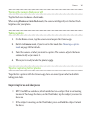
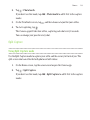
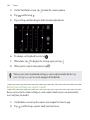
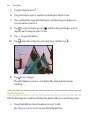
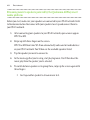
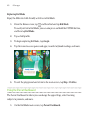
In the slideout menu that opens, tap Effects >
3.
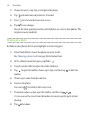
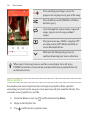
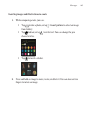
Choose a shape to add to your photo.
4.
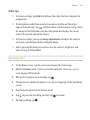
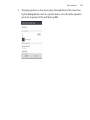
Select a shape color by dragging the color slider.
5.
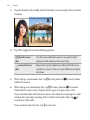
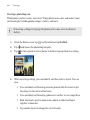
Drag the shape to move it.
6.
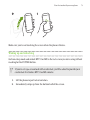
Drag your fingers apart or together on the shape to adjust its size.
7.
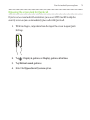
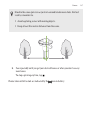
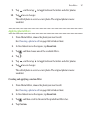
Press and hold the shape with two fingers and then drag your fingers in a
circular motion to rotate it.
8.
Tap
9.
Tap
.
10.
Tap
11.
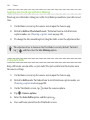
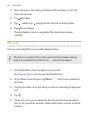
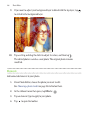
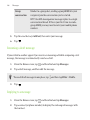
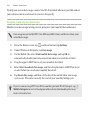
If you want to adjust your photo to blend with the shape, tap
the shape layer to the photo layer.
12.
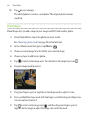
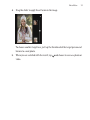
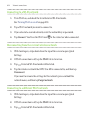
Tap a setting to adjust its values, and then tap
163
.
to open the toolbar.
, choose a different blending option for the selected layer, and then tap
>
, and then drag the slider to adjust the shape's opacity.
.
to switch from