1
Chapter 2. Using Client-Side Capture for Fiddler with mobile
devices
This section describes how to configure Fiddler for use with capturing sessions
from mobile devices using Client-Side Capture.
For more information about Client-Side Capture and Fiddler, see Chapter 1, “Using
Client-Side Capture for Fiddler,” on page 1.
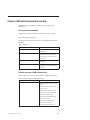
Installing Client-Side Capture for Fiddler for use with mobile
applications
Use the information in this section to learn how to download and install the
Client-Side Capture plug-in for Fiddler for use with mobile applications.
Fiddler download
Fiddler is an HTTP proxy debugger that you can download for free.
The free tool is available at:
http://www.fiddler2.com/fiddler2/.
Installing CSC plug-in for Fiddler
For information about installing the CSC plug-in for Fiddler, see the Using
Client-Side Capture for Fiddler.
See Chapter 1, “Using Client-Side Capture for Fiddler,” on page 1.
Enabling remote connections
Since Fiddler cannot be deployed on a Mac or iOS device, Fiddler must be
configured to use a remote connection.
1. In the Fiddler menu, select Tools > Fiddler Options > Connections Tab.
2. On this tab, select the Allow remote computers to connect check box.
Note: Write down the port number on which Fiddler is listening for HTTP
traffic. By default, the port is 8888. This port number and the system's name/IP
address are required to configure the proxy settings on the Mac system and the
device.
3. Restart Fiddler for all the settings to take effect.
4. Verify that the proxy is working:
a. Start Internet Explorer.
b. Clear the browser cache.
c. Browse to any website.
d. The HTTP traffic should be captured by Fiddler.
© Copyright IBM Corp. 1999, 2015
9