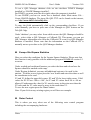
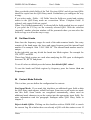
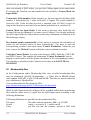
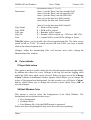
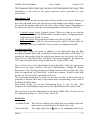
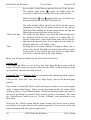
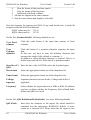
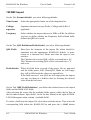
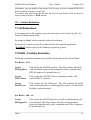
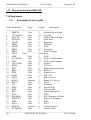
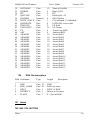
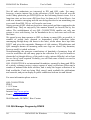
1
HAM-LOG for Windows Version 3.40 User’s Guide February 2010 Author: Arthur Schwarz, DJ6LS In der Au 15, D-72585 Riederich, Germany Tel.: ++49(0) 7123-33077 Fax: ++49(0) 7123-367470 Internet: http://www.hamlog.de Copyright 1989, 2010 HAM-LOG for Windows User’s Guide Version 3.40 ________________________________________________________________ Legal notes Copyright (C) This Software and the accompanying written materials are copyrighted and are proprietary products of Arthur Schwarz, DJ6LS. Restrictions You may not decompile, disassemble or otherwise reverse engineer the Software. Warranty Ham-Log is provided “as is” with no expressed warranty. Ham-Log has been tested under Windows9X, Windows ME, Windows 2000, Windows XP and Windows Vista. The Author cannot be held liable in any way for any special, incidental, indirect, or consequential damages whatsoever arising out of the use of or inability to use the software product or the provision of or failure to provide support services. By your use of the HAM-LOG Software, you accept and agree to the conditions set forth in these Legal Notes. IOTA The official IOTA diskette is copyrighted material of the IOTA committee, represented by Mr. Roger Balister, G3KMA. The official contact person for Germany is Mr. Hans George Goebel, DK1RV. _________________________________________________________________ 2 HAM-LOG for Windows User’s Guide HAM-LOG for Windows User’s Guide Version 3.40 _________________________________________________________________ Preface Ever since the Windowsversion of HAM-LOG was introduced to the Ham community more then 5 years ago, it has been constantly improved. Many ideas and suggestions have been implemented to make HAM-LOG one of the leading Logging programs on the Market today. Please visit my Homepage http://www.hamlog.de for information on new updates for the DOK- and Countrylists. Vy 73 de DJ6LS, Arthur ________________________________________________________________ Notes 3 HAM-LOG for Windows User’s Guide Version 3.40 ________________________________________________________________ 1 INTRODUCTION..........................................................................................10 2 SYSTEM REQUIREMENTS.......................................................................11 3 Hardware......................................................................................................11 4 Operating systems........................................................................................11 5 INSTALLATION ON A HARD DISK.........................................................11 6 Install HAM-LOG into any directory........................................................11 7 Installation von CD-ROM .........................................................................11 8 Further installation ....................................................................................11 9 STARTING HAM-LOG (WINDOWS)........................................................12 10 ENTER QSOS..............................................................................................13 11 EDIT LOG FILE..........................................................................................22 12 SEARCH WITHIN THE LOG FILE.........................................................24 13 QSL MANAGEMENT.................................................................................28 14 Incoming QSLs / Change QSL Status......................................................28 15 Selection from all QSOs............................................................................29 16 Select from all eligible QSLs.....................................................................30 17 QSL Statistic..............................................................................................32 18 PRINT LOG BOOK.....................................................................................32 19 Print QSO Notes........................................................................................32 20 REPORTS AND STATISTICS...................................................................32 21 QSO Summary Report..............................................................................32 22 DXCC Summary Report...........................................................................32 23 DOK/Region Report..................................................................................33 _________________________________________________________________ 4 HAM-LOG for Windows User’s Guide HAM-LOG for Windows User’s Guide Version 3.40 _________________________________________________________________ 24 DXCC Matrix.............................................................................................33 25 DOK/Region Matrix..................................................................................33 26 Graphical Charts.......................................................................................33 27 QSO Band Chart.......................................................................................33 28 QSO Chart for one year............................................................................33 29 SW Distance Chart....................................................................................33 30 UHF/VHF Distance Chart.........................................................................34 31 QSOs per Continent..................................................................................34 32 Grid Square Locator Statistic..................................................................34 33 DL-Topliste.................................................................................................34 34 AWARDS......................................................................................................35 35 DLD Award................................................................................................35 36 DXCC (DX Century Club) Award..........................................................35 37 IOTA (Islands On The Air) Award.........................................................36 38 Worked all Continents Award.................................................................37 39 Worked all Europe Award.......................................................................38 40 Worked all States Award..........................................................................39 41 Worked all Zones Award..........................................................................40 42 EDIT DATABASES.....................................................................................41 43 Update DOK file........................................................................................41 44 DXCC Identification..................................................................................41 45 Update DXCC file......................................................................................42 46 Update special DXCC file.........................................................................43 47 Update DXCC pointer file........................................................................44 48 Update Synonym file.................................................................................44 49 Update superseded DXCCs file................................................................45 50 Update Special Callsigns for DXCC........................................................45 ________________________________________________________________ Notes 5 HAM-LOG for Windows User’s Guide Version 3.40 ________________________________________________________________ 51 Update IOTA file.......................................................................................45 52 Update DIGLISTE file..............................................................................45 53 Update QSO Notes.....................................................................................46 54 Update QSL Images File...........................................................................46 55 Merge Log Files.........................................................................................46 56 Sort Log file by Date.................................................................................47 57 Refresh Log file fields................................................................................47 58 Re-index Log file........................................................................................47 59 Re-index DXCC files.................................................................................47 60 Re-index other files....................................................................................47 61 Save Log file (BACKUP)...........................................................................47 62 Restore Log File.........................................................................................48 63 Refresh PacketDXCC................................................................................48 64 Clear Window positions............................................................................48 65 Re-Calculate Points...................................................................................48 66 LOGBOOK OF THE WORLD (LOTW)..................................................48 67 Update confirmed LoTW QSOs...............................................................49 68 QSL IMAGE.................................................................................................49 69 PACKET RADIO.........................................................................................49 70 TRANSCEIVER CONTROL.....................................................................52 71 CONTEST EVALUATION.........................................................................52 72 CONFIGURATION.....................................................................................53 73 General Options.........................................................................................53 74 Predefined searches during logging.........................................................54 _________________________________________________________________ 6 HAM-LOG for Windows User’s Guide HAM-LOG for Windows User’s Guide Version 3.40 _________________________________________________________________ 75 Predefined values for the QSO input fields.............................................55 76 Various definitions.....................................................................................56 77 Select QSO input fields..............................................................................58 78 RIG Files.....................................................................................................58 79 Station descriptions...................................................................................58 80 Transceiver descriptions............................................................................58 81 Antenna descriptions.................................................................................59 82 C.A.T. Configuration................................................................................59 83 Packet Radio Configuration.....................................................................61 84 Log book reports........................................................................................64 85 Report and QSL list formats....................................................................65 86 QSL Card/Label formats..........................................................................66 87 Callbook CD...............................................................................................68 88 QSL Manager.............................................................................................68 89 Europe Grid Square Statistics..................................................................69 90 Rotor Control.............................................................................................69 91 MixW Interface..........................................................................................70 92 Copy Fields of previous QSOs..................................................................70 93 Set Band Limits..........................................................................................71 94 Contest Mode Defaults..............................................................................71 95 Membership files........................................................................................72 96 Color defaults.............................................................................................73 97 Input field colors.......................................................................................73 98 Shell Window Color..................................................................................73 99 Select Fonts.................................................................................................74 100 Configure Browser Mode.......................................................................74 101 REPORT GENERATOR..........................................................................74 ________________________________________________________________ Notes 7 HAM-LOG for Windows User’s Guide Version 3.40 ________________________________________________________________ 102 Brief overview..........................................................................................74 103 The Menu system.....................................................................................76 104 Standard Report Wizard........................................................................78 105 QSO IMPORT............................................................................................81 106 All Import formats...................................................................................81 107 Import ASCII Data..................................................................................81 108 Import ADIF Data...................................................................................83 109 DBF Import..............................................................................................84 110 CONTEST EVALUATION.......................................................................85 111 All Evaluations.........................................................................................85 112 IARU - Fieldday Evaluation...................................................................85 113 UHF/VHF - Contest Evaluation.............................................................86 114 CQ WW WPX - Contest Evaluation......................................................86 Log sheet..........................................................................................................86 115 DIG-QSO-Party - Contest Evaluation...................................................86 116 ONLINE HELP..........................................................................................87 117 FILES PROVIDED WITH HAM-LOG...................................................88 118 Data bases.................................................................................................88 119 Description of the Log file......................................................................88 120 DOK file description...............................................................................89 121 NOTES........................................................................................................89 122 QSL COLLECTION...............................................................................89 123 QSL Manager Program by DF6EX.......................................................90 124 HAMMAP Program by DJ6FM.............................................................91 125 QSXer Program by W6HN.....................................................................91 _________________________________________________________________ 8 HAM-LOG for Windows User’s Guide HAM-LOG for Windows User’s Guide Version 3.40 _________________________________________________________________ 126 Appendix..................................................................................................91 127 Abbreviations of the American States.....................................................91 ________________________________________________________________ Notes 9 HAM-LOG for Windows User’s Guide Version 3.40 ________________________________________________________________ 1 Introduction HAM-LOG is a modern state of the art logging software for IBM PC’s and compatible. HAM-LOG provides the following functions: Log QSOs, normal or in fast input mode More than 50 colour maps to show the QTHs Postpone QSOs for later logging, enter comments per Callsign Locator to Latitude/Longitude conversion Edit and print log file Sort log file by date / combine log file Search log file & send QSOs found to printer or file Mark received QSLs in the log file Define QSL cards / labels and print selected QSOs Define log lists and print logbook Summary reports and graphical charts QRB Charts (lines or circles) on a World, Europe or DL Map Display DXCC country, CQ-zone, ITU, distance and direction Track Awards (DLD, DXCC, IOTA, WAC, WAE, WAS, WAZ) Field day, UHF/VHF, WPX and DIG QSO Party contest + evaluation Display a Grid Square graphic for Europe/world (HAMMAP 8.1) Various configurations, Save multiple configurations Log file BACKUP and RESTORE C.A.T. interface for ICOM, KENWOOD, YAESU and Elecraft K2 radios CAT via TRX-Manager (F6DEX) or HamRadioDeluxe (HB9DRV) Packet Radio Monitor / DX-Cluster Monitor via TNC or Internet Rotor control ARSWIN (EA4TX),SARtek,WinRotor,BigBoy,ProSysTel Interface to QSL-Manager database of DF6EX Interface to the Radio Amateur Call Book CD or Internet Get QSO data from MixW Logbook of The World (LoTW) functions _________________________________________________________________ 10 HAM-LOG for Windows User’s Guide HAM-LOG for Windows User’s Guide Version 3.40 _________________________________________________________________ 2 System Requirements 3 Hardware IBM Personal Computer (or 100% compatible) Screen resolution min. 800x600 Processor Pentium 200 or higher 1 Floppy disk or CD-Drive and a hard disk CD-Drive for the Radio Amateur Callbook CD A printer is required to print QSL cards/labels or lists. C.A.T. interface for C.A.T. operation (radio dependant) 4 Operating systems MS Windows 9X, Windows ME, MS Windows NT 4.0, MS Windows 2000, Windows XP or Windows Vista. 5 Installation on a Hard disk 6 Install HAM-LOG into any directory 7 Installation von CD-ROM Insert the HAM-LOG CD into your CD-drive. Legen Sie die HAM-LOG CD in das CD-Laufwerk ein. Press on the windows task list the START button and select RUN. Press the BROWSE button and select on the CD within the directory HAMLOG32 the available file to start the installation. 8 Further installation After a short time you may select the install language. After that you are prompted to enter the installation directory, the default is C:\HAMLOG32. Change it to your needs or leave the default. Some time later you are asked to enter the name of the program group for HAM-LOG. Please enter a name or leave the default. ________________________________________________________________ Notes 11 HAM-LOG for Windows User’s Guide Version 3.40 ________________________________________________________________ Registration: The HAM-LOG version on the CD is basically a Demo version. To change it into a production version select ‘Help’ under the main menu and then select ‘HAM-LOG Registration’. Now enter your Callsign and the Registration-code. It may be necessary now to close and restart HAM-LOG. When you install HAM-LOG over a former Demo version with more than 100 QSOs you will be prompted to enter the Registration-code immediately. Note: 1. This version of HAM-LOG allows creating multiply configurations. These configurations are stored within the HAMCFG directory directly under the HAM-LOG directory. By default there exists several configurations called STANDARD, DIG-QSO-Party, IARU-Fieldday, UKW-Contest and WPXContest. After first installation the STANDARD will be the active configuration. You may verify this by looking to the HAM-LOG status line. 2. When the installation is complete, please update the items under menu item ‚Configuration’ to your needs. Select ‘General Options’ and edit the various data. It is very important to change the default Log file name ‘HAMLOGW’ to a different name, for example you may use your Callsign. Furthermore you should edit all values under ‘Predefined Searches’ and ‘Station descriptions’ accordingly. 9 Starting HAM-LOG (Windows) A new program group for HAM-LOG has been created during the installation. You will find 3 entries there: HAM-LOG for Windows - the amateur radio software HAM-LOG Beacon - NCDXF Beacon clock Readme - display the Readme.txt file If you start HAM-LOG for Windows the first time all necessary index file will be created. _________________________________________________________________ 12 HAM-LOG for Windows User’s Guide HAM-LOG for Windows User’s Guide Version 3.40 _________________________________________________________________ 10 Enter QSOs To log QSOs click ‚File Management’ on the main menu and then ‚Enter QSOs’. A new window shows an entry screen divided into two parts. On the upper side you will see all the input fields, the lower side consists of several tab windows. You may select the different tab windows with the left mouse button or by pressing ALT-1 thru ALT-0 or select ‚Tab’ on the main menu. Some of the tab windows have also input fields. ________________________________________________________________ Notes 13 HAM-LOG for Windows User’s Guide Version 3.40 ________________________________________________________________ Entry fields: Here is where you enter the Callsign of your QSO partner. The Call format of the call is PPPPPPPP/CCCCCCCCCC/SSSSSS, where PPPPPPPP stands for the prefix, CCCCCCCCCC for the Callsign and SSSSSS for the suffix. Typical examples are: ZS9/DJ0WQ, DJ6LS/M. In some cases the suffix can also be the country. i.e. DA1AF/HB0. If the suffix does not consist of the usual /P, /MM or /M, you will get a POP-UP window where you can specify which part of the Callsign is the DXCC country. You may determine the DXCC directly by entering for example the Callsign DJ6LS/HK in following form: DJ6LS/*HK. Please note the asterisk, it selects the part of the Callsign, which determines the DXCC. If the callsign in new within the logfile it is displayed in the color which is selected in the configuration under ‘Color for new Callsign in the logfile”. By entering partial Callsigns in the CALL field, you can have HAM-LOG program display the DXCC name of the country. After you enter a Callsign, the DXCC country name is displayed along with its zone, ITU, distance, local time and beam heading (short and long path). Depending on how you configure HAM-LOG, you can also display if you have this country worked or confirmed. The same goes for the zone (WAZ). The worked/confirmed display consists of the characters N, W or C. W stands for worked, C for confirmed and N for still open. You will find this information within the tab QSO-Info. The display is the same for DXCC and WAZ and other items. If the Callsign cannot be identified correctly, on the tab 3, Add.DXCCs a small (i) will be displayed to inform you. On this Tab window you may choose one of the valid DXCC or WAE countries. To select one of the entries, press the Enter or F12 key. Date This field is for the date of the QSO. Normally, the current date from the PC is used. If you configured for real time input mode the date is updated each time you log a QSO. In the deferred input mode the date stays unchanged until you overwrite it QRG This field is for the frequency of your QSO in Mhz. The decimal point can either be ´.´or ´,´. The frequency is used to determine which band the contact is on. i.e. 14.290 Mhz would be 20meters. _________________________________________________________________ 14 HAM-LOG for Windows User’s Guide HAM-LOG for Windows User’s Guide Version 3.40 _________________________________________________________________ This field is for the type of QSO. You should always use the Mode same name for the same type of contact. i.e. SSB or J3E but not the two mixed. This field can always be set to a default on startup of the program. See the configuration section for more information. rRpt / sRpt These fields are for the RST received (rRpt) and RST given (sRpt). These fields can also be filled at start-up time with default values (see configuration section). rQSL / sQSL These fields are for keeping track on QSL cards received (rQsl) and QSL cards sent (sQsl). Standard status are: Y = You have sent or are expecting a QSL card. N = You did not send nor are expecting a QSL card. R = Only for the QSO received field: you have received a card. S = Only for the QSO sent field: you have sent a card out. DIG The DIG number of the German Award Hunters Group can be put in this field. RIG This field contains the station depending of the entered QRG. If the automatic system is configured, the appropriate station will be picked up out of the STATION.DBF table according to the QRG. Otherwise you have to enter the correct station by yourself. Instead of the RIG field you may now use two separate fields, TX and ANT (see Configuration section). TX This field contains the Transceiver depending of the entered QRG. If the automatic system is configured, the appropriate Transceiver will be picked up out of the TX.DBF table according to the QRG. Otherwise you have to enter the correct station by yourself. This field should be used together with the ANT field instaed of the RIG field. This field contains the Antenna depending of the entered QRG. If the automatic system is configured, the appropriate Antenna will be picked up out of the ANT.DBF table according to the QRG. Otherwise you have to enter the correct station by yourself. This field should be used together with the TX field instaed of the RIG field. ________________________________________________________________ Notes 15 ANT HAM-LOG for Windows User’s Guide Version 3.40 ________________________________________________________________ Pwr This is where you can keep track of your output power if specified in the configuration section. If you specify that your 2meter RIG have 25Watts, then all contacts between 144-146mhz would be logged with your output power being 25Watts (see configuration section). Name This field is for the name of your QSO partner. You could also specify in the configuration panels that the name is to be taken from a previous contact with the same station. QTH This field is for the location of your QSO partner. You can enter up to 25 characters. This field can also be configured to have the location carried forward from a previous QSO with the same station. Loc The WW-locator can either be in the old 5-digit system (EI37J) or in the new 6-digit system (JN48PN). After this field is filled, the distance and beam heading (short and long path) is displayed. DOK The DOK of the other station can be entered here. DOK applies only to German club and special-event stations. For example, one of the local clubs in Frankfurt would be F05. The name of the club or special-event station along with the worked/confirmed display is displayed (if configured). Sp This field can be used for special situations. IOTA If you have configured to search for the IOTA the name of the IOTA will be displayed after you enter an IOTA along with information on which band you have confirmed or worked them before. If you press the right mouse button on this field you will be presented with a list of IOTAs. US-State Here you enter the US State. If you press the right mouse button on this field you will be presented with a list of the available US Counties. US-County Here you enter the US County. If you press the right mouse button on this field you will be presented with a list of the available US Counties. _________________________________________________________________ 16 HAM-LOG for Windows User’s Guide HAM-LOG for Windows User’s Guide Version 3.40 _________________________________________________________________ Here you enter the mode for satellite operation. SatMode SatName Here you may enter the satellite name. Time This is the start time of the QSO. The time is automatically set to UTC unless otherwise overwritten by the user. Depending on the configuration the time will be set after entering the Call and again when entering the date. Rem. The text field can be used for comments (up to 50 characters). Later on you can search this field for text strings. QslMgr This field is for the QSL-Manager of the QSO partner. This call sign can be used later on when printing QSL labels. If you have installed either the international call book CD, the ON6DP QSLManager database or the Windows-QSL-Manager program from DF6EX, this field can be filled in automatically. End This field is used for the ending time of the QSO. Its format is UTC but can be overwritten. The end time can be updated automatically by a timer e.g. if MixW mode is activated. The end time is than displayed in the Logging Clock color. This function may be activated in the configuration under Predefined searches. In this mode you cannot overwrite the time manually. Fast Input This input field only appears if you are in the so-called Fast input mode. To switch into this mode you have to select Tabs on the Menu and click on the Menu item Fast Input or you select Fast input under Configuration – Contest mode defaults. This mode is especially useful for Contests but can also be used for the normal QSO input. The input into this field is partially recognized automatically or may be controlled by certain characters. Automatically recognized are the Callsign, received report and the locator. To put the input of this field into the other input fields it is required to enter a certain letter, a space and than the desired value. You may find out the required letter within the field description in front of the input fields, two brackets surround it. If you want to enter e.g. a frequency you would enter ‘f 21.200’ and the input will be moved to the input field frequency. To enter a name just type in ‘n arthur’ and so on. ________________________________________________________________ Notes 17 HAM-LOG for Windows User’s Guide Version 3.40 ________________________________________________________________ To clear a field just press the appropriate character following by a dash, for example ‘N-‘, this clears the Name field. Especially for Field days you may enter ‚.P’ or ‚/P’ to add or remove the portable status of a Callsign. Below the normal Input fields a group is shown, called QSO-Information. Here you will find the additional Input fields DXCC, WPX, WAE, WAZ, ITU, Continent and District. These fields are normally filled in automatically but can be modified if necessary. The input field QSLType is used for QSOs where the QSL should not be sent via buro. Please enter a ‘D’ here for a direct QSL or an ‘E’ for an electronic QSL. The input field LotW (Logbook of The World) can be set to U=Uploaded or C=Confirmed in this program version. Furthermore additional information like distance and direction to the QSO partner are displayed. _________________________________________________________________ 18 HAM-LOG for Windows User’s Guide HAM-LOG for Windows User’s Guide Version 3.40 _________________________________________________________________ Tabs: This time 11 Tabs are available: On this page you will see on which band a DXCC, WAZ etc. is QSO-Info already confirmed or worked (C=confirmed, W=worked, N=New). Pressing the right mouse button allows to modify the colors of the different states. In the ‚Configuration – Predefined searches’ you may select the bands and search values (DXCC, WAE, etc.) which should be displayed here. A double click with the left mouse button or the enter key on one of rectangles within the table shows all the QSOs for this item. They are sorted on confirmed than worked. Maps Here you may select one of the available maps. The 2 boxes on the left hand side belong to the actual DXCC where the other two boxes belong to the IOTAs. The select box ‚All maps’ shows all available maps delivered with HAM-LOG while the ‚Select. Maps’ box displays all the maps that belong to the current DXCC. The same is valid for the IOTA boxes. To display one of the maps double click it with the left mouse button or press the Enter key. It is also possible to display the maps with HAMMAP. Click under HAMMAP Maps the DXCC button or the IOTA button for the IOTA location. Add. DXCC If the entered call sign cannot be mapped to a certain DXCC this window shows all possible DXCCs for the call sign. To select one of them press the Enter or F12 key. Callbook CD This window shows all information found on the Callbook CDs resp. on QRZ.COM via Internet for the entered call sign. In the left lower area the push buttons are displayed. Each for RACB, Buckmaster and QRZ.COM. Depending on the Callbook configuration the push buttons are activated. The push button representing the first within the search order is displayed with a yellow background color. If there are information available the text of the push button changes to red. By clicking on one of the push button the corresponding information can be displayed. The information of the 'yellow' push button are displayed by default. ________________________________________________________________ Notes 19 HAM-LOG for Windows User’s Guide Version 3.40 ________________________________________________________________ You may transfer the fields into the QSO-entry screen by pressing the F8 key (copy all fields) or the F7 key (complete fields). In addition the DIG information are displayed on this window. You may transfer the DIG data into the QSO-entry mask by pressing the F9 key. QSLManager Here you will find the QSL-Manager found in the database of DF6EX (if installed). The QSL-Manager may also be taken from the ON6DP QSL-Manager database or the Callbook CD. To copy one call sign into the QSO entry screen select it and press the F12 function key. A small (i) will indicate that this Tab contains any QSL Manager call signs. Last QSOs This screen shows the last entered QSOs. You may scroll up and down in this list. The list can be sorted by Callsign too. You have just do a double-click on the caption for the column Callsign. The colour of the caption will then change to red. Prev. QSOs Here are presented the previous QSOs with this call sign if any are available. It is indicated by a small (i) in the tab. You can copy the data of a QSO from here to the QSO entry mask. Just select the desired line and press the F12-key. Depending on the configuration the data are copied directly or a selection window will popup. Notes Here you may enter additional information for the call sign. If there is already information available for the entered call sign you will be informed by a small (i) in the tab. Postp. QSOs This window contains the QSOs that have been postponed in this session (Alt-A). You may postpone any number of QSOs. A small (i) in the tab informs you if there are any postponed QSOs. To put back a postponed QSO into the QSO entry mask just select it and press the function key F12. Attention: Any data currently in the QSO entry mask are overwritten! By pressing the right mouse button within the browser window you may save all the QSOs or just the one which is currently selected. Here you will find 15 additional fields for awards. The names of Award _________________________________________________________________ 20 HAM-LOG for Windows User’s Guide HAM-LOG for Windows User’s Guide Version 3.40 _________________________________________________________________ these fields may be changed by right-clicking with the mouse button at the desired field name. Please plan the names for the fields carefully, because changing the names later on can lead to problems with the relation of field name and field contents. Locator A pop-up calculator appears where you can convert locator to degrees or degrees to locator. If you have entered a locator in the logging screen, it will be used but can be overwritten. To save a QSO just press the Save button, press the ALT-S keys or the F4-key. To initialise the input fields press the New QSO button or the ALT-N keys. To postpone a QSO just press the postpone QSO button, the ALT-Q keys or the F2 key. To switch the cursor to the current Tab below the QSO entry fields just press the F3 key. To switch back to the QSO entry fields press the ALT-1 to ALT-9 keys depending on the Tab you are currently. By pressing the F12 key you may update the begin time of the QSO. By pressing the button QSL-Matrix or the ALT-M keys you can display the status for the DXCC, WAE, WAZ, WPX, Locator, Grid squares, DOK and IOTA separated by Mode and Band. You may configure the desired modes by yourself. The button DX-Message or ALT-X keys allows you to send a DX-Message. This function will use the Callsign currently entered in the QSO input mask. Note: You have to be connected to a DX-Cluster. If the C.A.T. function is enabled (Configuration) the buttons C.A.T Put (ALTP) and C.A.T. Read (ALT-R) are enabled. You may send and receive the mode and QRG to/from the Transceiver if it is connected to your computer. The buttons RotS (ALT-O) and RotL (ALT-L) allows you to turn the rotor in the direction, which is shown in the field ‚Beam’. By pressing the RotS button the short path will be used, pressing the RotL button turns the beam to the long path. To use this function it is required to have installed the appropriate program inclusive the accompanying hardware. You may select the rotor defaults under Configuration – Rotor Control. ________________________________________________________________ Notes 21 HAM-LOG for Windows User’s Guide Version 3.40 ________________________________________________________________ When pressing one of the ‚Rotor’ buttons the first time, the configured rotor program will be launched and the rotor will aim to the desired direction. Note: It may happen when using this function the first time the rotor will not rotate. Please press one of the ‚Rotor’ buttons again in this case. The push button MixW allows you to start the program MixW, if the program was entered before in the MixW configuration and ‚Get QSO Data from MixW’ is marked. If Mixw was started before only the DDE connection to MixW will be established. If the entered Callsign is found within the QSL Image table the button QslImg will be activated. To show the QSL Image just press this button. The normal QSL Image function is still available. 11 Edit Log file This function can be selected under File Management – Update Log file. You will get a window showing the QSOs in a browse display (table). To select QSOs use the arrow keys, PgUp/PgDn keys or the mouse. By clicking the Form tab or pressing Alt-2 you may switch to a form display. When editing the Callsign field be careful to enter the information correctly. The Callsign field is divided into 3 parts: Prefix, Callsign, Suffix. Enter the Callsign accordingly. Example: The Callsign HB9/DJ6LS/M should be split up into Prefix = HB9, Callsign = DJ6LS and suffix = M. The list can be sorted by Callsign too. You have just do a double-click on the caption for the column Callsign. The colour of the caption will then change to red. It is also possible to change the size and position of the columns. To change the size of a column put the mouse pointer to the right edge of a columns header until the mouse pointer changes the appearance. Press now the left mouse button and change the horizontal size. To move the column position place the mouse pointer onto a columns header and press the left mouse button. The mouse pointer changes his form and you may drag and drop the column to another position. All this changes can be made permanent when leaving the edit function. By pressing the right mouse button you may change the colours of the browser. Furthermore you can search for and display the US-Counties. _________________________________________________________________ 22 HAM-LOG for Windows User’s Guide HAM-LOG for Windows User’s Guide Version 3.40 _________________________________________________________________ You may manipulate the size; position and colour of the columns also on the other edit functions too. To mark/select a QSO press the F10-key or the ALT-M keys. This works like a toggle switch. You may also mark a QSO by double-clicking with the left mouse button on the leftmost column. To remove all the selections at once press ALTF10 or ALT-U. A marked QSO is shown by a ‚#’ sign in the leftmost column. By pressing the F6-key you can open an extra window for the Callbook CD. While in the browser display you may show the Callbook CD information for the currently selected Callsign by pressing the F7-key. By pressing the buttons ‚Complete fields’ or ‚Overwrite fields’ you may copy the information into the Log file. From the Callbook information window you may also copy or complete the information into the Log file. By pressing ALT-X (Data export) you may copy all or only the marked QSOs into another file. This is useful to make separate evaluations (Basic, dBase, Excel...) or just to transfer QSOs to another computer or LoTW. Click on the check box ‚only marked’ for copying only the marked QSOs. You may select following file formats: • Database (dBase) format • IOTAMEM – IOTA Member’s Computer System Format (G3NUG) • ASCII – Text format • ADIF – Amateur Data Interchange Format 1.0 Enter the desired file name. The file extension will be set automatically. Under ‚Write modus’ you decide whether the new data are appended or an existing file should be replaced. If you activate the ‚Mark LoTW Uploaded’ checkbox then the exported QSOs are set to U=Uploaded in the Field LOTW_STATUS. You may start a ‚Search and replace’ function under the menu item ‚Edit’. Here you may search and replace values for the currently active column. By preceeding the search text by a asterisk (*) the complete field content is searched. If the date field is selected the entry format must be YYYYMMDD (YYYY=Year, MM=Month, DD=Day). Shorter search values like YYYY or YYYYMM are possible. To search for an empty field just enter a blank in the search field. To empty a field enter a blank in the ‘replace with’ field. ________________________________________________________________ Notes 23 HAM-LOG for Windows User’s Guide Version 3.40 ________________________________________________________________ Function keys Show a Callbook CD information window F6 F7 Search for the Callbook CD information for the selected Callsign F9 Edit the QSO notes for the current Callsign F10 Mark or unmark a QSO F11 Move to the first data record F12 Move to the end of file (last record) PgUp ↑ Browse one page up or down PgDn ↓ 12 Search within the Log File This function can be selected under File Management – Search in Log file. Searches in the QSO database may include multiple fields in the same search. If more than one field is searched for, the fields are searched with the condition .AND. and all search arguments must be satisfied for the QSO to be displayed. For example, if you enter DJ6LS in the Callsign field, all QSOs that have DJ6LS in the Callsign field will be displayed. If you were to add mode=SSB, then all QSOs with Callsign=DJ6LS and mode=SSB would be displayed. Most fields can be searched generically with ? and *. ? * = = any character will match the search any characters before or after the * Some examples: DJ6* In this example, all Callsigns starting with DJ6 are selected regardless of how many other characters follow the DJ6. *LS All Callsigns ending with LS are selected regardless of the characters before the LS. _________________________________________________________________ 24 HAM-LOG for Windows User’s Guide HAM-LOG for Windows User’s Guide Version 3.40 _________________________________________________________________ *6L* All QSOs are selected that have 6L anywhere in the Callsign. *?* If you would enter this in the NAME field you would find all QSOs where the NAME field is not empty. * Please not the space on the left side of the asterisk. This would find all QSOs where this field is empty. D??S* All QSOs are selected that start with D, ignoring the next two characters, the 4th character must be an S and the rest is not checked. There is also a possibility for an OR-search per input field. This is accomplished by using the character Vertical Line ( AltGr + | ). A possible entry for the field ZONE could be: 14|15|16. The result would be that all QSOs are displayed where the ZONE field contains either 14, 15 or 16. Exceptions: • Begin and End date • Band field • Field CQ Zone • ITU field • Home QTH • Locator field • Points field • Power field Begin and End date These fields must contain complete and valid dates. If only one date field is filled, only QSOs on this date are displayed. If both fields are filled, all QSOs between these dates are displayed. Band This field may contain one or more (OR-search) Amateur Bands. Only QSOs on these band(s) are displayed. CQ Zone Only valid CQ-Zones between 1 and 40 and the vertical line may be entered here. Only QSOs logged for these zones are displayed. ________________________________________________________________ Notes 25 HAM-LOG for Windows User’s Guide Version 3.40 ________________________________________________________________ ITU Only valid ITU zones between 1 and 75 and the vertical line may be entered here. Home QTH Only valid HomeQTH between 1 and 99 may be entered here. Locator field To find grid squares (big squares) you may use the character ‚#’ here. Some examples: • To find all grid squares enter ‚?*#’. That means the locator field must not be empty (?*) and the ‚#’ decides to evaluate for big squares. • To search for all grid squares ‚JO’ enter here: ‚JO#’ Please note, that when using the ‚#’ character for grid square searches the other sorting possibilities are disabled. Points You may search the log file for point (distance) ranges. Please read the following examples: - 500 all points from 0 to 500 600 all points from 600 100 – 1000 all points from 100 to 1000 Power You may search the log file for power values and power ranges. Please read the following examples: 100 all QSOs with 100 Watts output power -10 all QSOs with up to 10 Watts 50all QSOs with 50 Watts and more You can also specify how the selected log entries are to be sorted. You can specify up to 3 sort fields that can either be ascending or descending. If you wanted to sort by DOK, select from the list box ‘DOK/Region’. By default, all sort fields are sorted in ascending order. You can also suppress the displaying of double QSOs. In the above example, only one contact per DOK would be displayed even if there were more than one contact per DOK. Special search: This allows to search and sort for award abbreviations within fields remarks and special. The abbreviation (e.g. DFCF, DCI, DLI, HH) may be at any position within the field. _________________________________________________________________ 26 HAM-LOG for Windows User’s Guide HAM-LOG for Windows User’s Guide Version 3.40 _________________________________________________________________ The field separator sign contains the character which separates the different abbreviations. The default character is a (,) comma. If the special search is selected the sorting is done on the selected field. All the other sorting options are disabled!!! Changes within the report lists: There are two new variables for the reports: myRemarksAward (remarks field) and mySpecialAward (special field). With this the search argument is transferred to the report. If the search field remarks contains for example *DLI* then the string 'DLI' is transferred within the variable myRemarksAward to the report. Within the function list of the report generator there is a new function named 'GetAwardToken()' available. This function transfers the complete award abbreviation, e.g. 'DCI SV-010', from the fields remarks/special and displays it. The other entries within these fields are suppressed. An example for the remarks field within the report is: GetAwardToken(ham_srch.bem, myRemarksAward, ",") An example report list for the remarks field can be found in the directory Hamlog32\log_form with the name LogCallA4_quer_award.rpt You can clear all fields by pressing the ‚Clear fields’ button. This can be useful when you want to start a new search. To re-use an entered search definition you may save all the entry fields by pressing the ‚Save search’ button and entering a name for this search definition. Pressing the ‚Load search’ button allows filling all the entry fields from a previous search definition. If one or more QSOs are found, you will get a browse display of the QSOs. Use the arrow keys to scroll in this display. Under the Menu item ‚List->Print‘ the found QSOs can be printed. You may select one of the available list formats. You will see a preview of the selected list on the screen. To print the QSOs just press on the printer icon with the mouse button. Furthermore you may select a printer and you may change the print options. ________________________________________________________________ Notes 27 HAM-LOG for Windows User’s Guide Version 3.40 ________________________________________________________________ With the ALT-2 keys you may switch to a form display of the QSOs. To mark/select a QSO press the F10-key or the ALT-M keys. This works like a toggle switch. To remove all the selections at once press ALT-F10 or ALT-U. A marked QSO is shown by a ‚#’ sign in the leftmost column. Pressing the ALT-L keys allows copying the QSOs into a file. Please see for more details under ‚Edit Log file’. To edit the QSO notes for the selected call sign press the F9 key or select ‚QSONotes’ form the menu list. Under Menu item Graphic you can display a distance graphic with lines or small circles per QSO. You may select between a World-, Europe or DL-Map. Furthermore you can display a grid square locator statistic for the found QSOs. You must have installed the program HAMMAP Version 8.1 or higher for this statistic. The Menu item Select QSL form allows you to print QSLs for the QSOs within the table. You may reduce the number of QSO by marking them with the F10 key. 13 QSL Management The function QSL Management can be selected from the main menu under ‚QSL-Management‘. This menu has 4 submenus: Incoming QSLs / Change QSL Status Select from all QSOs Select from all eligible QSLs QSL Statistic 14 Incoming QSLs / Change QSL Status Use this function to mark QSL cards as received. Just enter the Callsign of the station whose card you received in the field ‚Search Callsign’ and press the Enter key. The Log file is searched for the QSO. Partial Callsigns may also be entered. A list of contacts will be displayed in ascending order of Callsign and date. _________________________________________________________________ 28 HAM-LOG for Windows User’s Guide HAM-LOG for Windows User’s Guide Version 3.40 _________________________________________________________________ The list can be sorted by Date too. You have just do a double-click on the caption for the column Date. The colour of the caption will then change to red. The Callsign search field will disappear in this case. To sort again on Callsign just do a double-click on the caption for the column Callsign. The F10-key acts as a flip/flop key that marks or unmarks the QSO for QSL printing. You may also mark a QSO by double-clicking with the left mouse button on the leftmost column. All selected QSOs are marked with a ‚M’ in the leftmost column. After you have selected the QSOs for printing you may select ‚Select QSL form’. You may then select between ‚Marked QSLs’ and ‚All eligible QSLs’. Then a list of available QSL forms is presented. At the lower border of the browse window the current QSL status of the selected QSO is displayed. By pressing one of the radio buttons you may change the QSL status. For example you may press the F9 key to mark the QSL as received. The field R-QSL (received QSL) is set to "R". By pressing the F6-key you can open an extra window for the Callbook CD. While in the browser display you may show the Callbook CD information for the currently selected Callsign by pressing the F7-key. By pressing the buttons ‚CB complete’ or ‚CB overwrite’ you may copy the information into the Log file. From the Callbook information window you may also copy or complete the information into the Log file. 15 Selection from all QSOs With this function you can select QSOs that should have QSL cards/labels printed. This menu allows you to select from all QSOs regardless if a QSL card/label has been printed before or not. Use the arrow / page keys to select a record. The F10-key acts as a flip/flop key that marks or unmarks the QSO for QSL printing. You may also mark a QSO by double-clicking with the left mouse button on the leftmost column. All selected QSOs are marked with a ‚M’ in the leftmost column. After you have selected the QSOs for printing you may select ‚Select QSL form’. You may then select between ‚Marked QSLs’ and ‚All eligible QSLs’. Then a list of available QSL forms is presented. ________________________________________________________________ Notes 29 HAM-LOG for Windows User’s Guide Version 3.40 ________________________________________________________________ Furthermore it is possible when selecting the menu items ‚multi-line’ to print labels or cards with more than one QSO per label/Card. The next menu will allow selecting the number of QSOs per QSL Card/Label. Please note that it is required to select a QSL form which corresponds in number of QSOs to the selection made before. Otherwise the print results are unpredictable. After selecting the QSL form the print data are displayed on the screen. To print them just click on the printer icon. When printing is finished a popup window is shown where you can define the print status. Depending on your selection the QSOs in the log file are marked as printed or not. The last item, QSLs printed including Callsign, allows you to mark only parts of the QSOs in case of a printer problem or other reasons. Just enter the Callsign for which the QSL cards have been printed successful. You may further decide to unmark all ‚marked QSOs’. The menu items ‘Blank QSLs’ and ‘Blank QSLs multi-line’ allows you to print empty cards or labels to be filled later on by hand. Please be sure to select a corresponding QSL-Format to match the normal or multi-line feature. Under the menu item ‚Select List form’ you may print a list of the QSOs to write the QSLs later on by hand. The menu item 'Data Export' allows you to write the QSOs into a file. You may select the formats Database (dBase), IOTAMEM, Text (ASCII) and ADIF. By pressing the F6-key you can open an extra window for the Callbook CD. While in the browser display you may show the Callbook CD information for the currently selected Callsign by pressing the F7-key. By pressing the buttons ‚Complete fields’ or ‚Overwrite fields’ you may copy the information into the Log file. From the Callbook information window you may also copy or complete the information into the Log file. 16 Select from all eligible QSLs With this function you can select QSOs that should have QSL cards/labels printed. Only the QSOs that are marked with a ‚Y’ (you want to print a QSL) in the S-QSL field are displayed. Use the arrow / page keys to select a record. The F10 key acts as a flip/flop key that marks or unmarks the QSO for QSL printing. _________________________________________________________________ 30 HAM-LOG for Windows User’s Guide HAM-LOG for Windows User’s Guide Version 3.40 _________________________________________________________________ You may also mark a QSO by double-clicking with the left mouse button on the leftmost column. All selected QSO´ are marked with an ‚M’ in the leftmost column. After you have selected the QSOs for printing you may select ‚Select QSL form’. You may then select between ‚Marked QSLs’ and ‚All eligible QSLs’. Then a list of available QSL forms is presented. Furthermore it is possible when selecting the menu items ‚multi-line’ to print labels or cards with more than one QSO per label/Card. The next menu will allow selecting the number of QSOs per QSL Card/Label. Please note that it is required to select a QSL form which corresponds in number of QSOs to the selection made before. Otherwise the print results are unpredictable. After selecting the QSL form the print data are displayed on the screen. To print them just click on the printer icon. When printing is finished a popup window is shown where you can define the print status. Depending on your selection the QSOs in the log file are marked as printed or not. The last item, QSLs printed including Callsign, allows you to mark only parts of the QSOs in case of a printer problem or other reasons. Just enter the Callsign for which the QSL cards have been printed successful. The menu items ‘Blank QSLs’ and ‘Blank QSLs multi-line’ allows you to print empty cards or labels to be filled later on by hand. Please be sure to select a corresponding QSL-Format to match the normal or multi-line feature. Under the menu item ‚Select List form’ you may print a list of the QSOs to write the QSLs later on by hand. The menu item 'Data Export' allows you to write the QSOs into a file. You may select the formats Database (dBase), IOTAMEN, Text (ASCII) and ADIF. By pressing the F6-key you can open an extra window for the Callbook CD. While in the browser display you may show the Callbook CD information for the currently selected Callsign by pressing the F7-key. By pressing the buttons ‚Complete fields’ or ‚Overwrite fields’ you may copy the information into the Log file. From the Callbook information window you may also copy or complete the information into the Log file. ________________________________________________________________ Notes 31 HAM-LOG for Windows User’s Guide Version 3.40 ________________________________________________________________ 17 QSL Statistic Here you can see at a glance the state of your QSL Cards for a selected date range. • Number of sent resp. received QSLs. • Ratio of sent/received QSLs shows how much QSLs you have received compared to the QSLs you have sent. • QSLs still to send resp. still awaiting. 18 Print Log book To print your log select ‚Reports and Statistics’ on the main menu and then ‚Print Log book’. Now a window appears where you can select the date range. You may also select between preview or print the logbook. After pressing the start button you may select the different available log formats. The log formats can be created or edited under configuration. 19 Print QSO Notes To print your QSO Notes select ‚Reports and Statistics’ on the main menu and then ‚Print QSO Notes’. Now a window appears where you can select the callsign range. You may also select between preview or print the logbook. After pressing the start button you may select the available report formats (only one format is delivered). The report formats can be created or edited under configuration. 20 Reports and Statistics 21 QSO Summary Report This report shows you, divided into confirmed and worked, the number of Callsigns, DOKs, Squares, Locators and Countries. You may reduce the search to a certain band or/and mode. The report can be written into a file to have a printout later on. The filename default is HAM_STAT.TXT. 22 DXCC Summary Report _________________________________________________________________ 32 HAM-LOG for Windows User’s Guide HAM-LOG for Windows User’s Guide Version 3.40 _________________________________________________________________ This report shows you all confirmed and worked DXCCs depending on mode and band. 23 DOK/Region Report This report shows you all confirmed and worked DOK/Regions depending on mode and band. When creating the report for Germany (DL) you may omit the ‘Special DOKs’. This report may be created for other countries as well. To create for example a report for all Swiss cantons just click ‘HB9’ within the DXCC list box. 24 DXCC Matrix This report shows a matrix of all worked and confirmed countries (DXCCs). You may select within bands, mode and date. A file named DXC_LIST.TXT will be created. 25 DOK/Region Matrix This report shows a matrix of all worked and confirmed DOK/Regions. You may select bands, mode, DXCC and date. A file named DOK_LIST.TXT will be created. 26 Graphical Charts 27 QSO Band Chart This chart shows the number of QSOs by band. You may reduce the search results by mode, band and a certain date range. 28 QSO Chart for one year This chart shows the number of QSOs within one year. You may reduce the search results by mode, band and a certain date range. 29 SW Distance Chart This chart shows the number of QSOs for 18 different distance groups. You may reduce the search results by mode, band and a certain date range. The distance groups can be modified under ‘QRB Defaults X-Axis’. ________________________________________________________________ Notes 33 HAM-LOG for Windows User’s Guide Version 3.40 ________________________________________________________________ 30 UHF/VHF Distance Chart This chart shows the number of QSOs for 18 different distance groups. You may reduce the search results by mode, band and a certain date range. The distance groups can be modified under ‘QRB Defaults X-Axis’. 31 QSOs per Continent This chart shows the number of QSOs per Continent. You may reduce the search results by mode, band and a certain date range. 32 Grid Square Locator Statistic This function requires HAMMAP Version 8.1 or newer. Please find further information in the appendix. Before using HAMMAP together with HAM-LOG you should make following configuration changes within HAMMAP: • Under display - Extras: disable title page • Under display - Font: Small Fonts, Standard, select Size 7 • Under file - map: select World-pl.bmp • Under file – save configuration The font size may be adjusted later on again depending on the screen resolution. This evaluation allows examining your logbook for grid squares (big squares). You have to select the date range, a region, a mode and a band before starting an evaluation. Additional regions may be created under configuration. Instead of using a region you may enter longitude and latitude values directly. To do so disable the checkbox Region. Longitude values are possible from 0 to –180° (west) or from 0 to 180° (east). Latitudes are valid from 0 to 90° (north) and from 0 to –90° (south). If you would write the locator in each grid square click on ‚Locator in all fields’. To print the graphic in parallel please select ‚Print map’. After you pressed Start, the HAMMAP program will be started and the selected map will be painted. This may take a while if you have a lot of QSOs. 33 DL-Topliste Here you may create the DL-Topliste. It is only possible for German Radio Amateurs. _________________________________________________________________ 34 HAM-LOG for Windows User’s Guide HAM-LOG for Windows User’s Guide Version 3.40 _________________________________________________________________ The conditions to participate are described within the CQ-DL 4/1991. 34 Awards Award tracking can be reached under main menu ‚Reports and Statistics’ and then ‚Awards’. 35 DLD Award After specifying the band, mode, dxcc, from and to date, count special DOKs or not, award file, HAM-LOG will look through your log file and count the number of contacts you have confirmed for the DLD award (HF). The DLD award starts with 100 DOKs confirmed and the top award is the DLD 1000. Stickers and pins are also available. When the evaluation is finished you will see a browse view of all DOKs. Furthermore you will see the first confirmed resp. worked QSO for that DOK. At the lower part of the screen the total number of DOKs, the confirmed and the worked DOKs are displayed. By pressing ALT-O you may sort the list by DOK or by status. Sorted by status means that on the top all the confirmed DOKs are displayed, then the worked and at last the not worked DOKs. You may display and select alternative call signs for a given DOK by pressing the keys ALT-A. Each award can be saved into a file by pressing keys ALT-S. To print the award list press keys ALT-P. You may select whether • all • confirmed only • confirmed and worked only • worked (not confirmed) only • all not yet worked DOKs should be printed. 36 DXCC (DX Century Club) Award This function searches your log file and counts the number of DXCC countries worked/confirmed. You must specify a band and mode to be searched for depending on the award needed. The band MixedAll uses all available bands whereas band Mixed5Bnd uses only bands 80-40-20-15-10m. Then you must ________________________________________________________________ Notes 35 HAM-LOG for Windows User’s Guide Version 3.40 ________________________________________________________________ specify either “New award” or “Saved award”. A “Saved award” consists of information saved during the last DXCC award search. You may select the Modes used for the award by pressing the ‘Modes’ button. After the search is finished, depending on the type of award wanted, a list of DXCC countries is displayed. One line is displayed per DXCC. The display shows the first confirmed or worked QSO for each DXCC country. The total number of confirmed DXCC countries is displayed at the bottom of the screen. In the second line you will find the values of the ‚Deleted countries’. By pressing the ALT-O keys, you can sort the list by DXCC or by worked/confirmed status - Confirmed shown first, followed by the worked DXCC and then all DXCC still needed. In the 5- and 9-Band-DXCC only the Callsign is displayed per DXCC country and band. You can scroll in this display and select a country & band. By pressing ALT-O keys you may reduce the display to the DXCCs that are confirmed on 5 resp. 9 different bands. Pressing keys ALT-T may display a DXCC Top List. You may display and select alternative call signs for a given DXCC by pressing the keys ALT-A. Each award can be saved into a file by pressing keys ALT-S for later use. To print the award list press keys ALT-P. You may select whether • all • confirmed only • confirmed and worked only • worked (not confirmed) only • all not yet worked • DXCCs should be printed. When printing the ‘not yet worked’ DXCCs you may omit the deleted countries. 37 IOTA (Islands On The Air) Award This function searches your log file and counts the number of IOTA islands worked/confirmed. You must specify a band and mode to be searched for depending on the award needed. Then you must specify either “New award” or “Saved award”. A “Saved award” consists of information saved during the last IOTA award search. You may select the Modes used for the award by pressing the ‘Modes’ button. _________________________________________________________________ 36 HAM-LOG for Windows User’s Guide HAM-LOG for Windows User’s Guide Version 3.40 _________________________________________________________________ After the search is finished, depending on the type of award wanted, a list of IOTA islands is displayed. One line is displayed per IOTA. The display shows the first confirmed or worked QSO for each IOTA Island. The total number of confirmed IOTA islands is displayed at the bottom of the screen. By pressing the ALT-O keys, you can sort the list by IOTA or by worked/confirmed status - Confirmed shown first, followed by the worked IOTA and then all IOTA still needed. In the 9-Band-IOTA only the Callsign is displayed per IOTA Island and band. You can scroll in this display and select an IOTA & band. By pressing ALT-O keys you may reduce the display to the IOTAs that are confirmed on 9 different bands. You may display and select alternative call signs for a given IOTA by pressing the keys ALT-A. Each award can be saved into a file by pressing keys ALT-S for later use. To print the award list press keys ALT-P. You may select whether • all • confirmed only • confirmed and worked only • worked (not confirmed) only • all not yet worked IOTAs should be printed. 38 Worked all Continents Award This function searches your log file and counts the number of continents worked/confirmed. You must specify a band and/or mode to be searched for depending on the award needed. Then you must specify either “New award” or “Saved award”. A “Saved award” consists of the information saved during the last WAC award search. You may select the Modes used for the award by pressing the ‘Modes’ button. After the search is finished, depending on the type of award wanted, a list of continents is displayed. One line is displayed per continent. The display shows the first confirmed or worked QSO for each continent. The total number of confirmed continents is displayed at the bottom of the screen. ________________________________________________________________ Notes 37 HAM-LOG for Windows User’s Guide Version 3.40 ________________________________________________________________ By pressing the ALT-O keys, you can sort the list by continent or by worked/confirmed status - Confirmed are shown first, followed by the worked continents and then all continents still needed. In the 5-Band-WAC only the Callsign is displayed per continent and band. You can scroll in this display and select a continent & band. By pressing ALT-O keys you may reduce the display to the continents, which are confirmed on 5 different bands. You may display and select alternative call signs for a given continent by pressing the keys ALT-A. Each award can be saved into a file by pressing keys ALT-S for later use. To print the award list press keys ALT-P. You may select whether • all • confirmed only • confirmed and worked only • worked (not confirmed) only • all not yet worked Continents should be printed. 39 Worked all Europe Award This function searches your log file and counts the number of WAE countries worked/confirmed. You must specify a band and mode to be searched for depending on the award needed. Then you must specify either “New award” or “Saved award”. A “Saved award” consists of information saved during the last WAE award search. You may select the Modes used for the award by pressing the ‘Modes’ button. After the search is finished, depending on the type of award wanted, a list of WAE countries is displayed. One line is displayed per WAE. The display shows the first confirmed or worked QSO for each WAE country. In the browse view, the countries which are confirmed on five or more bands, are displayed in green instead of yellow. The total number of confirmed WAE countries is displayed at the bottom of the screen. In the second line you will find the values of the ‚Deleted countries’. Sort by status (ALT-O) shows first the countries which are confirmed on most of the bands. To display an evaluation of the WAE-Award just press the keys ALT-W. For the WAE-Classic-Award press the keys ALT-C. _________________________________________________________________ 38 HAM-LOG for Windows User’s Guide HAM-LOG for Windows User’s Guide Version 3.40 _________________________________________________________________ In addition you can see whether one of the WAE-Award is completed or not. You may display and select alternative call signs for a given WAE by pressing the keys ALT-A. Each award can be saved into a file by pressing keys ALT-S for later use. To print the award list press keys ALT-P. You may select whether • all • confirmed only • confirmed and worked only • worked (not confirmed) only • all not yet worked WAEs should be printed. 40 Worked all States Award This function searches your log file and counts the number of US states worked/confirmed. This report uses the information stored in the field “USSTATE”. In order to be counted for the W.A.S. award, you must have entered the abbreviation of the US state (for example CA for California). You must specify a band and/or mode to be searched for depending on the award needed. Then you must specify either “New award” or “Saved award”. A “Saved award” consists of information saved during the last WAS award search. You may select the Modes used for the award by pressing the ‘Modes’ button. After the search is finished, depending on the type of award wanted, a list of US states is displayed. One line is displayed per US state. The display shows the first confirmed or worked QSO for each US state. The total number of confirmed US states is displayed at the bottom of the screen. By pressing the ALT-O keys, you can sort the list by US state or by worked/confirmed status - Confirmed shown first, followed by the worked states and then all states still needed. In the 5-Band-WAS only the Callsign is displayed per US state and band. You can scroll in this display and select a state & band. By pressing ALT-O keys you may reduce the display to the US states which are confirmed on 5 different bands. You may display and select alternative call signs for a given US state by pressing the keys ALT-A. Each award can be saved into a file by pressing keys ALT-S for later use. ________________________________________________________________ Notes 39 HAM-LOG for Windows User’s Guide Version 3.40 ________________________________________________________________ To print the award list press keys ALT-P. You may select whether • all • confirmed only • worked (not confirmed) only • all not yet worked US states should be printed. 41 Worked all Zones Award This function searches your log file and counts the number of CQ Zones worked/confirmed. You must specify a band and mode to be searched for depending on the award needed. When Mode = Digital is selected the modes PSK31, AMTOR and PACTOR are used. Then you must specify either “New award” or “Saved award”. A “Saved award” consists of information saved during the last WAE award search. You may select the Modes used for the award by pressing the ‘Modes’ button. After the search is finished, depending on the type of award wanted, a list of CQ zones is displayed. One line is displayed per CQ zone. The display shows the first confirmed or worked QSO for each CQ zone. The total number of confirmed CQ zones is displayed at the bottom of the screen. By pressing the ALT-O keys, you can sort the list by CQ zone or by worked/confirmed status - Confirmed shown first, followed by the worked CQ zones and then all CQ zones still needed. In the 5-Band-WAZ only the Callsign is displayed per CQ zone and band. You can scroll in this display and select a CQ zone & band. By pressing ALT-O keys you may reduce the display to the CQ zones that are confirmed on 5 different bands. You may display and select alternative call signs for a given CQ zone by pressing the keys ALT-A. Each award can be saved into a file by pressing keys ALT-S for later use. To print the award list press keys ALT-P. You may select whether • all • confirmed only • worked (not confirmed) only • all not yet worked _________________________________________________________________ 40 HAM-LOG for Windows User’s Guide HAM-LOG for Windows User’s Guide Version 3.40 _________________________________________________________________ CQ zones should be printed. 42 Edit Databases Select ‚Edit Databases’ under main menu ‚File management’. The following notes are valid for all Databases. To append a new record press keys ALT-N. To delete a record press keys ALTL. Searching a record can be accomplished by pressing keys ALT-S. To switch between a browse view and a form view you may press keys ALT-1 or ALT-2. Under menu item ‚View’ you may split the display vertically into two parts. So the left part can be static and the right part can be scrolled horizontally. Furthermore you may change the size and position of the columns. Please refer to the function ‚Edit Log book’ for further details. 43 Update DOK file This function allows updating the DOK file. The field DXCC contains ‘DL’ for German stations and in the field DISTRICT the District (P for Württemberg) is entered. A special DOK is indicated by a ‘S’ within field FLAGS. This allows handling also Austrian ADLs, Swiss cantons, French departments and the regions/provinces of the Netherlands. Please note that when entering QSOs the correct recognition of DOKs/ADLs etc. is only guarantied if the correct DXCC is entered here. 44 DXCC Identification Under File Management – Special callsigns for DXCC you may enter special callsigns (e.g. from an expedition) if the normal DXCC identification is not successful. This table will always search first ! If no match is found HAM-LOG proceeds as follows: After you have typed in at least two letters of a Callsign, HAM-LOG searches the synonym file for a match. If found, the substitution is used for further searches. Example (part of the synonym list): Synonyme 5L 9B Substitution EL EP ________________________________________________________________ Notes 41 HAM-LOG for Windows User’s Guide Version 3.40 ________________________________________________________________ If you had entered the Callsign 5L5TG, it would be changed to EL5TG for further searches. The next search is done in the special DXCC file. Example: search for EL5TG Prefix EL4 EL5 EL6 Ref_LA EL4 EL5 EL6 If the prefix is found (in our example EL5), the Ref_LA field is used to find the country in the prefix file (LA.DBF). In the prefix file, all information on that DXCC can be found. The information consists of country name, Latitude, Longitude, continent, zone, offset to UTC, DXCC and other info. The entry for EL5: Prefix EL4 EL5 EL6 . . . CY9 WAE . . . Country Liberia:Maryland Liberia:Loffa Liberia:Grand Ged. . . . Sable, Saint Paul Is. Latit. 4.42 8.42 6 . . . 44 Longit. 352.28 350.30 351.85 . . . 300 Hrs 0 0 0 . . . -4 CN AF AF AF . . . NA Zn 35 35 35 . . . 05 DXCC EL EL EL . . . ITU 46 46 46 . . . 09 WPR D 0 0 0 CY9 0 ->Date Date-> N If the WPR field is filled, then HAM-LOG searches the Special DXCC file for more information. The WPR should always be filled if the DXCC cannot be determined. During QSO input, the prefix can be selected within the Tab ‚Add. DXCCs’. For CY9 you will find the following entry: WPR CY9 CY9 WAE Country Sable Island Saint Paul Island Latit. 44 44 Longit. 300 300 Hrs -4 -4 CN NA NA Zn DXCC 05 VESA 05 VESP ITU D N 0 0 0 0 The two entries differ only in the DXCC and country fields. An entry in the WAE field means that it is an European country and will be counted for the WAE award. 45 Update DXCC file This function allows you to change the DXCC file. A typical 1-line entry: GI GI Nordirland 55 3 54.00 0 EU 14 GI 27 0 1 265 _________________________________________________________________ 42 HAM-LOG for Windows User’s Guide HAM-LOG for Windows User’s Guide Version 3.40 _________________________________________________________________ Field descriptions (from left to right): GI GI Nordirland 55 354.00 0 EU 14 GI 27 0 1 256 This field will be compared to the call sign Only for Europe (WAE Award) Country name Latitude (north = +, south = -) Longitude (east) Difference between local time and UTC in hours Continent (EU, NA, SA, AF, AS, OC) CQ Zone DXCC ITU Zone WPR (additional prefixes) DXCC deleted. 1 = deleted DXCC is valid from this date DXCC is valid until this date Country name valid for DXCC evaluation Amateur Data Interchange Number (ADIF) Please note that the second field (for WAE) should only be filled if it is for a European country. Use care when filling these fields as the contents influence the tracking of the WAE award! 46 Update special DXCC file Here is where you can update the special DXCC file. A typical entry (1 line) could be: 3D2 Fidschi Inseln -17.9 178.6 12 OZ 32 3D2F 56 0 1 176 Field descriptions (from left to right): 3D2 Special Prefix Only for Europe (for the WAE award) Fidschi Inseln Country name -17.9 Latitude (north = +, south = -) 178.60 Longitude (east) 12 Offset local time to UTC in hours OZ Continent (EU, NA, SA, AF, AS, OZ) 32 CQ Zone 3D2F DXCC 56 ITU Zone ________________________________________________________________ Notes 43 HAM-LOG for Windows User’s Guide Version 3.40 ________________________________________________________________ 0 Deleted DXCC. 1 = deleted 1 Country name valid for DXCC evaluation 176 Amateur Data Interchange Number (ADIF) Please note that the second field (for WAE) should only be filled if it is for a European country. Use care when filling these fields as the contents influence the tracking of the WAE award! 47 Update DXCC pointer file The DXCC pointer file can be updated here. A typical entry could be as follows: PREFIX 1A Ref_LA 1A Field descriptions: 1A The Callsign is compared to this field 1A Pointer to the Country-prefix-file (LA.DBF) The function of the DXCC Pointer file is as follows: The Callsign is compared with the PREFIX field. If an entry is found, the field REF_LA points to the DXCC file (LA.DBF), which contains all the information for a DXCC country. 48 Update Synonym file This is where you edit the synonym file. A typical entry could be as follows: GB GE GG GA GA GA Field definitions: GB GA This field will be replaced. This is the replacement _________________________________________________________________ 44 HAM-LOG for Windows User’s Guide HAM-LOG for Windows User’s Guide Version 3.40 _________________________________________________________________ After a Callsign is entered, this list is searched first. If an entry is found, the replacement is used. The Prefix-pointer-list can be small - not every prefix needs to be included. 49 Update superseded DXCCs file This is a list of superseded DXCCs mainly for the states of the former USSR. Entered are the old and new DXCC and the date from when the new DXCC is valid. This file is used for the DXCC Award only. 50 Update Special Callsigns for DXCC This is a list of spezial callsigns for which the normal DXCC identification does not work. You may enter callsigns and the corresponding DXCC by yourself. This table is search first if any callsigns are entered. 51 Update IOTA file This is where you edit the IOTA file. A typical entry could be as follows: EU062 LA 64.5 68.5 10 16 A NORDLAND/TRONDELAG Field definitions: IOTA DXCC LA1 LA2 LO1 LO2 A IOTA Name IOTA number All possible DXCCs for the IOTA Latitude (Start) Latitude (End) Longitude (Start) Longitude (End) Pertinent to Award, i.E. A = IOTA ARCTIC ISL. Name of the Island/Island group 52 Update DIGLISTE file This is where you edit the DIGLISTE file. This is the official DIG file of the Diplom Interessen Gemeinschaft (DG8FAY). OM Konrad, DG8FAY, has allowed, distributing this file together with HAM-LOG. HAM-LOG uses only fields DIGNR, CALL_AKT, VORNAME (first name), DOK and SK (Silent key). ________________________________________________________________ Notes 45 HAM-LOG for Windows User’s Guide Version 3.40 ________________________________________________________________ 53 Update QSO Notes This is where you edit the Notes for a Callsign. To add a new line you have to press the <Cntrl> + Enter key. 54 Update QSL Images File This is where you manages the QSL Images File. The field 'Location of QSL Images' must be filled with the path to the picture files. To add an entry to the list press the button 'New'. By pressing button 'Add QSL Image' you may select several image files at once. These images will automatically be put to the list. The file name of the image must correspond to the Callsign. 55 Merge Log Files This function allows you to combine log files. For example if you want to add a contest log to your normal log file. The log database structure must be the same. Under ‚Append Mode’ you can decide just to copy all QSOs or check for double QSOs. Under 'QSL state behaviour' you may decide that the QSL state is handled like while in QSO Entry mode. That means, if a QSO with this callsign on this band (and with this Mode) exists, the QSL state is set to ‘N’. Here it is not necessary that the QSL state of the previous QSO is ‘R’ (received) resp. ‘S’ (sent) as before. Under ‚State for outgoing QSL' you can decide to update the field GQSL (outgoing QSL) according to the previous QSOs. If, for example, already a QSL was sent for a station, then the QSL state for the imported QSO will be set to ‚S’ like ‘sent’. This function can also check band and mode if you mark the corresponding check boxes. Under ‚State for incoming QSL' you can decide to update the field EQSL (incoming QSL) according to the previous QSOs. If, for example, already a QSL was received for a station, then the QSL state for the imported QSO will be set to ‚R’ like ‘received’. This function can also check band and mode if you mark the corresponding check boxes. If the check box ‘New QSOs’ is marked only new QSOs are copied. _________________________________________________________________ 46 HAM-LOG for Windows User’s Guide HAM-LOG for Windows User’s Guide Version 3.40 _________________________________________________________________ You may browse your hard disk for log files by pressing the ‚Logfile selection’ button. The target file is always the current log file. 56 Sort Log file by Date This function sorts your log file by the QSO date. This must be done if you insert older QSOs. An unsorted log file could lead to wrong results if you intend to search the field by date. This function can take a while on slower PCs. 57 Refresh Log file fields This function allows to update or refresh various Log file fields. It is required to select a valid Log file. Under Country information an entry mask may appear if the DXCC/WAE cannot determined exactly. For example for Callsigns like DJ6LS/HB9. When frequency/Band is marked first a valid frequency is searched. If necessary an input field is shown to enter the correct frequency. If the frequency field is empty a valid Band value is searched and an appropriate frequency is entered. Under Callbook CD information the Callbook (or Internet) is used which is konfigured under Callbook configuration. When the checkbox ‘Complete fields’ is marked only empty Log file fields are modified. Under ‚Change QSO Data’ you may change the log data into Upper or Lower case. You have to select the desired fields within the listbox. The first letter of name, location and US county will stay in upper case. 58 Re-index Log file The primary use of this function is to remove the deleted log entries from your log file. After the entries are deleted, the file is re-indexed. 59 Re-index DXCC files This function creates new index files for the DXCC recognition files. 60 Re-index other files This function creates new index files for files like DOK, QSONOTIZ etc. 61 Save Log file (BACKUP) ________________________________________________________________ Notes 47 HAM-LOG for Windows User’s Guide Version 3.40 ________________________________________________________________ This function will backup your log file, QSO notes or Configuration files. You should backup your log file as often as possible. If the log file is larger than 1 diskette, HAM-LOG will ask for more diskettes. If you backup to diskettes you may format them before. The number of diskettes needed is shown on the right hand side. The target drive can be a diskette drive, a ZIP drive or any directory on a hard disk. If you press ‚Save Backup path’ it is stored in the configuration file. The data are stored in a special format, which is used by the function ‚Restore Log file’. 62 Restore Log File This function restores your log file, QSO Notes or Configuration files created with the HAM-LOG function ‘Save Log File’. Be careful not to overwrite a newer version of your log file. You may select the source and target drive including a directory. 63 Refresh PacketDXCC This function is used to refresh the PackDXCC.DBF file. This file is used only for Packet Radio operation. It contains in compressed form all confirmed/worked DXCCs. When DX spots are received this file will be used to find out whether a DXCC is already confirmed/worked or not. 64 Clear Window positions This function removes all saved window positions. This can be necessary if you switch between different screen resolutions. 65 Re-Calculate Points Here you can re-calculate the points resp. the distances within the field ‘POINTS’. Under ‘Select Records’ you may decide to include only records with a filled in locator or include the other records too. Furthermore you can select whether existing point values should be overwritten or not. You may also select whether the points should be calculated in Kilometers or in Miles. 66 Logbook of The World (LoTW) _________________________________________________________________ 48 HAM-LOG for Windows User’s Guide HAM-LOG for Windows User’s Guide Version 3.40 _________________________________________________________________ 67 Update confirmed LoTW QSOs Here you update the log file with the from LoTW delivered file (lotwreport.adi). The field LOTW_STATUS is changed to C=Confirmed and the field QSLRDATE is set to the corresponding date. If the checkbox ‚Write protocol file’ is marked a protocol file is written where the modified QSOs are listed. The file name is LOTW_PROTOCOL.TXT 68 QSL Image A QSL card image depending on the callsign can be displayed while in QSO entry mode, select (Main menu ->File management ->Qsl Image). You have to scan in the QSL cards and put the image files into a directory on your hard disk. The HAM-LOG directory contains already a subdirectory \QslImages but you may uses any other directory too. Supported are bitmap and JPEG formats, a resolution of 150 dpi is recommended. The files should be named depending on the Callsign, e.g. DJ6LS.JPG or W3DZZ.BMP. For callsigns like HB9/DJ6LS/M the name of the image file must be changed into HB9-DJ6LS-M because Windows does not allow slashes in the file name. Please enter the name within the QSL Image table accordingly. The management of the image files can be done under ‘Edit Databases ->Update QSL Images file’. 69 Packet Radio This function can be selected from the main menu under ‚Communication‘ and then ‚Packet Radio Monitor‘. In order to use the packet radio function you must have the following: 1. A free RS-232 port on your PC 2. A Packet Radio Controller. (TNC2, TNC3, PK-232, KAM, ...). The TNC2 controllers should be in TAPR or WA8DED mode. Please be sure that your Callsign id entered correctly in the TNC ( MYCALL DJ6LS or I DJ6LS ). The packet radio interface is designed to send and receive DX-announcements to and from your local DX-cluster. Other TNC2/PK-232 commands can also be issued and the received lines displayed on the screen. This allows you to get any information you need from your DX-cluster without the use of an extra program or even an extra PC. ________________________________________________________________ Notes 49 HAM-LOG for Windows User’s Guide Version 3.40 ________________________________________________________________ The big advantage of the HAM-LOG packet interface is that you do not have to be logged on to the cluster. As long as at least one station is logged on to the cluster and gets the current DX-announcements, HAM-LOG will filter the announcements and display them also for your use. The screen is divided into 3 parts. The upper part is for received packets, the middle part allows you 1 input line and the bottom part displays the DXannouncements. The following describes the screen in detail. RX-Lines The upper part of the screen displays the incoming data from your packet controller. The screen area scrolls up if the last line is reached. Input line Each time you enter a line and press the Enter key, the contents are sent to your TNC. If you press the ESC key your PR controller will switch to the command mode. This is accomplished by sending a certain character to the controller, which can be defined in the configuration. For the TNC2 in WA8DED mode the character ESC (ASCII 27) is used. If you want to repeat one of the last entered lines just press the Arrow-Up key and a small windows will appear with the last entered lines. You may select one of them and put it into the input line or send it directly to the controller. DX-Spots The bottom part of the screen displays all DX-announcements, “TO ALL” messages and “WX” messages. These messages are filtered from the incoming data and displayed in this area. Push Buttons At the lower part of the window are shown 6 push buttons. A description of these buttons follows now: DX spots This opens a window, which will show all DX spots. The DX spots are displayed in different colors depending on the DXCC is new, already worked or confirmed. The colors may be changed by pressing the right mouse button within the DX spots window. The function will consider the amateur bands as well as the Mode (CW/SSB) if configured. At the lower part of the window following push buttons are available: _________________________________________________________________ 50 HAM-LOG for Windows User’s Guide HAM-LOG for Windows User’s Guide Version 3.40 _________________________________________________________________ Call/QRG -> QSO Puts callsing and QRG/Mode of the DX spots into the QSO Input mask. You may also execute a doubleclick with the left mouse button on the DX spot to get the same effect. QRG/Mode -> RIG Transfers the frequency and mode to the transceiver. Worked Call Opens a new window and shows previous QSOs with the currently selected station. Mark the checkbox ‘Check band’ to show only QSOs worked on the same band. DXCC Status Opens a new window and shows a QSL-Matrix for the incomming DX-spots. You may select between DXCC, WAZ and IOTA. IOTA information are being extracted out of the DX-spot comments. The matrix shows by default the information of the latest DX-spot. By selecting any other DX-spot the information for this one is displayed. Read DX-Spots Reads the latest DX spots from the internet (dxsummit). This is only possible if a connection to the internet via TCP/IP exists and the appropriate configuration is done. Rotor short/long Path Turns the antenna to the direction for the selected DXCC (short or long way). Display=ON/OFF Here you may prevent to write the incoming PR data to be written into the RX window. This should be used on slow PCs and/or if you use a high baud rate to the TNC. Other functions like filtering out DX spots are not affected. Packet / RTTY This push button is used to switch between Packet Radio and Mode a limited RTTY mode. In RTTY mode the entered characters are sent directly when under ‘Configuration’ the check box ‘Send characters on space key’ is not marked. Otherwise (RTTY mode) the characters are sent only if the space key (or Enter key) is pressed. ________________________________________________________________ Notes 51 HAM-LOG for Windows User’s Guide Version 3.40 ________________________________________________________________ Write File=ON/OFF The contents of the RX lines window can be written to a file in parallel. A valid file name must be entered under configuration. If the text on the button is ‚ON’ writing is active, ‚OFF’ means writing is stopped. Please erase this file from time to time. Send INI This allows sending the contents of an INI file to the PR controller. You have to select the name of the INI file under configuration. A description of the possible entries within the INI file can be found under Configuration – Packet Radio. Send Text When pressing this push button a small window will appear showing all the text lines found in the Packet Radio INI file. All lines in this file starting with a ‚#’ character are used. Lines starting with the ‘%’ character (PF keys) are shown for example like [PF03]. You may send one of the lines directly to the TNC or put them into the input line. Pressing the push button ‚Call/QRG -> QSO’ within the windows ‚Worked/New DXCCs’ will put the Callsign of the DX spot to the QSO entry screen and the QRG will be sent to the transceiver. Pressing the ‚QRG/Mode -> RIG’ button switches the transceiver to the corresponding Frequency/Mode. 70 Transceiver Control To start the Transceiver Control select ‚Communication’ on the main menu and then ‚Transceiver Control‘. This requires that the C.A.T. function is enabled under ‚C.A.T. Configuration’. A small window will appear which allows sending the QRG and Mode to the transceiver. If configured for automatic mode, the display will show all changes on the radio automatically. Pressing the button ‚Update Transceiver automatically’ will send the frequency modified with the vertical spinner controls automatically. This will be done only if a 100-hertz step is reached. 71 Contest evaluation _________________________________________________________________ 52 HAM-LOG for Windows User’s Guide HAM-LOG for Windows User’s Guide Version 3.40 _________________________________________________________________ This function allows showing a preliminary evaluation of the DIG-QSO-Party, IARU-Field day, UHF/VHF and WPX contests. You have to select the appropriate setting under configuration. The calculation of the points can by manual or automatic. The Menu item ‚Contest Serial Number’ shows a small window with the next contest number. This window is to ease the Radio Operator to read the contest number. You may change the size of the display by enlarging the window. You need to select the mode, CW or SSB in order to show the contest number. The button ‘Refresh’ allows you to refresh the display although this is normally not necessary. 72 Configuration The configuration data of HAM-LOG are stored in configuration files within the directory HAMCFG. If you start HAM-LOG the first time, configuration file STANDARD.CFG will be used. The corresponding settings for the browse views are stored in files with the extension .BRO, for example STANDARD.BRO. The file HAMLOG.INI is used only at start up time of HAM-LOG. The HAM-LOG installation contains three additional configurations for the IARU-Fieldday, UKW-Contest and WPX-Contest. You may create additional configurations for your personal needs. To do so copy one of the existing configuration file by pressing the ‚Copy’ button. After that you may select this one and press ‚OK’ to use it. Now you can make the changes for the new configuration. The currently selected configuration will be shown in the status line of HAMLOG. 73 General Options Here is where you define the directory and name of your log file. Also information such as Callsign for print outs, time difference to UTC, Locator, Name, QTH, DOK, DXCC, continent etc. can be entered here. The configuration number is stored into the field Home_Qth of the Log file. This is used to have a reference from the QSO to the configuration data of general options. Now you may use this data like name, locator when printing QSLs or other lists. The locator is important for calculating the distance to your QSO partner. If you don’t enter your QTH locator, HAM-LOG can’t calculate any distances. If you ________________________________________________________________ Notes 53 HAM-LOG for Windows User’s Guide Version 3.40 ________________________________________________________________ enter the locator, longitude and latitude values are calculated and inserted. The previous values are overwritten. If you enter longitude/latitude values the locator is calculated and inserted, but the locator field has to empty before. The time difference UTC is needed to calculate the time of your QSO in UTC. In Germany, the difference would normally be -1 (daylight saving time would be -2). Of course this will only work if your computers clock is set to your local time. The offset can be up to +12 / -12 hours. You may switch automatically between normal and daylight saving time when the check box 'Take over daylight saving time' is marked. This will detect the time switch of the Windows operating system and adjusts the HAM-LOG time accordingly. You don't have to change the time difference anymore. Selecting QSO input in real-time will update the begin and end times automatically. In addition the date will be updated each time a QSO have been logged. In deferred mode you have to take care of these input field by your own. This mode is usually used for entering QSOs made in the past. Save QRB means that the distance in Kilometres is saved to the field POINTS. If you select Locator, the distance is logged only if a locator is entered in the QSO entry mask. The distance and the points may be calculated resp. saved either in Kilometres or in Miles. Validity: Together with the definitions 'Contest mode for input fields' and 'Reject double QSOs' under 'Contest Mode defaults' a date and time range can be defined under 'Validity'. The QSO double check is then valid for the selected range only. This allows to use the normal log file for contests with the advantage to get information to a callsign which was previously contacted (Locator,etc.). 74 Predefined searches during logging While entering QSO information to be logged, HAM-LOG can search for certain information. This screen allows you to define which information should be searched for. You can search for the following: _________________________________________________________________ 54 HAM-LOG for Windows User’s Guide HAM-LOG for Windows User’s Guide Version 3.40 _________________________________________________________________ DXCC CQ Zone Callsign WAE WPX DOK IOTA DIG US State Locator Square Previous QSOs You may also decide whether a sound should occur or not. The desired sound can be set under ‚Sound’. Previous QSOs: If you select this option and have entered a valid Callsign, HAM-LOG will display the last QSOs you have had with the station. In addition, the fields with data from a previous QSO are filled. i.e. name, QTH, locator according to the selection under ‘Copy QSO data from previous QSOs’. Bands to search for: Select here the bands to make predefined searches. Searches Mode-dependent: Here you decide whether the search for worked DXCC, CQ zone etc. should be made dependent from the currently entered mode or independent of that. 75 Predefined values for the QSO input fields In this screen you can select which predefined values should be set in the QSO entry screen. For each field you can choose one of the following: 0 = the field is empty 1 = the field is filled with a predefined value 2 = the field keeps the last entered value. If this field is empty, the predefined value is used. For each field you can define predefined values, i.e. frequency = 14.200 MHz Exceptions: ________________________________________________________________ Notes 55 HAM-LOG for Windows User’s Guide Version 3.40 ________________________________________________________________ Remarks/Special field: The predefined type ‚3’ can be used here. This means that the content of the last filled field with this Callsign will be copied. Output power: The output power is selected dependent on the station description (if automatically chosen). Depending on the frequency, a description is chosen and the defined output power is entered in the field output power. If no entry is found, the predefined value is used. Default value for RIG not possible: if no automatically default value out of the RIG- resp. ANT- and TX tables is possible the value entered here is taken into the QSO Entry mask fields. Received/Sent QSL: The predefined type “2” will set the fields QSL Received/Sent to “Y” after the first contact with this station (QSL is expected/ QSL will be sent). Otherwise these fields will be set to “N” (no QSLing). The values for the different types may be selected by the corresponding push buttons. 76 Various definitions Here you define various definitions for HAM-LOG Refresh begin time when date is entered: Here you decide whether the begin time of the QSO should be set when entering the date. Otherwise the time of entering the Callsign is used. Show previous QSOs depending on the DXCC: Here you decide whether the DXCC should be taken into account when displaying previous QSOs. For example, entering the Callsign HB9/DJ6LS will only show those previous QSOs where DJ6LS has worked from the Switzerland (HB9). Update end time automatically by a timer: Here you may define that the end time is automatically updated. This is e.g. useful when MixW mode is selected because only the start time is send to HAM-LOG. Use Transceiver / Antenna fields: Instead of the RIG field you can use the Antenna (ANT) and Transceiver (TX) fields. This allows to combine Transceiver / Antenna combinations much more flexible. You may also hide or show the corresponding QSO entry fields according to this selection. _________________________________________________________________ 56 HAM-LOG for Windows User’s Guide HAM-LOG for Windows User’s Guide Version 3.40 _________________________________________________________________ Set Rig: If selected, HAM-LOG will determine (by frequency) which station description to be stored in this log entry. If not selected, you must manually enter/change the station description. It then stays the same until overwritten. RIG / HomeQTH: If selected, the station descriptions (RIG) while in QSO entry mode will be filtered by the field ALL_CFG and HOME_QTH of STATION.DBF. If the field ALL_CFG in not empty, e.g. 'X', then this station (RIG) will be displayed within all configurations. The value within the field HOME_QTH will be compared with the configuration number of the current configuration. Only stations (RIG) will be displayed which have corresponding numbers. Start HAM-LOG DDE Data server: This selection causes HAM-LOG to announces frequency and mode via DDE Interface while in QSO-Entry mode. Currently this is only used to communicate with the software QSXer ( http://www.qsxer.com ). This program (for free) show on a world map in the internet stations which are connected to himself. Technical information to the DDE-Interface: Server name : HAMLOG4WIN Topic : HAMLOG_DATA Items : FREQUENCY, MODE Copy QSO data from previous QSOs: Here you define whether all fields, configured fields only (see Configuration – Copy fields of previous QSOs) or no data are copied. Activate Windows XP visual themes: If you select this check box the program will be displayed in XP visual themes (Restart required). Save QSO input data in upper case: If select the QSO Data will be saved in upper case into the log file. QSL Criteria for QSO input: Here you define whether all fields, Here you may select the input fields which are compared with previous QSOs. This means, if the field content changes compared to previous QSOs the QSL state will be set to 'Y'. A new BAND always changes the QSL state to 'Y'. Following fields may be selected: MODE, DOK/OK, IOTA, Locator, US-State, US-County, Award1-Award15. ________________________________________________________________ Notes 57 HAM-LOG for Windows User’s Guide Version 3.40 ________________________________________________________________ 77 Select QSO input fields This is where you select which fields should appear in the screen for entering QSOs. All fields except the Callsign field can be selected / deselected. This can be very useful for contests of DX-peditions. The fields within the left box will be displayed, the fields in the right box are not displayed. To select the order of the fields just select one field and move it Up or Down by pressing the appropriate push button. To move one field to the other box press the ‚Field >’ or ‚< Field’ button. To move all fields at once press on of the button showing ‚<<All’. Pressing the ‚Standard’ button will set the default fields and order. The column ‘Mode’ is used to determine the behaviour of the input field. A ‚+‚ means that if the entry field is selected, the previous contents of the fields are marked and are erased if any key is pressed. If a ‚-‚ is used you have to erase/overwrite the previous field contents manually. To switch the mode just double-click on the desired field name. The selection mode for the Callsign and FastInput field can be also be set. 78 RIG Files 79 Station descriptions Here you can define different station descriptions. These information about your radio and antennas can be included on your QSL cards / labels. It is very important that you enter the frequency and output power correctly, so that HAMLOG can choose the correct description. In the column ‚All Config’ you decide by entering a ‚X’ whether the station/antenna should be used for all configurations or only for a certain configuration. In this case you have to enter the desired configuration number into the column HomeQTH. Since version 3.20 of HAM-LOG separate descriptions for Transceiver and Antennas are possible (see Transceiver and Antenna descriptions). It is recommended while in QSO Entry mode to use either the present RIG field or both the new TX and ANT field. You may configure this within ‘configuration – select input fields’. 80 Transceiver descriptions _________________________________________________________________ 58 HAM-LOG for Windows User’s Guide HAM-LOG for Windows User’s Guide Version 3.40 _________________________________________________________________ Here you can define different Transceiver descriptions. These information about your radio can be included on your QSL cards / labels. It is very important that you enter the frequency and output power correctly, so that HAM-LOG can choose the correct description. In the column ‚All Config’ you decide by entering a ‚X’ whether the radio should be used for all configurations or only for a one or more configurations. In this case you have to enter the desired configuration numbers separated by a comma into the column HomeQTH. While in QSO entry mode it is recommended to use both the TX field (Transceiver) and the ANT field (Antenna) instead of the RIG field. 81 Antenna descriptions Here you can define different Antenna descriptions. These information about your antenna can be included on your QSL cards / labels. It is very important that you enter the frequency correctly, so that HAM-LOG can choose the correct description. In the column ‚All Config’ you decide by entering a ‚X’ whether the antenna should be used for all configurations or only for a one or more configurations. In this case you have to enter the desired configuration numbers separated by a comma into the column HomeQTH. While in QSO entry mode it is recommended to use both the TX field (Transceiver) and the ANT field (Antenna) instead of the RIG field. 82 C.A.T. Configuration In order for the C.A.T. interface between computer and radio to work, it must first be configured. Information needed are: make and model of radio, which RS-232 port (COM1 ... COM8), the baud rate, no. of data bits, stop bits and parity bit. Please check you radio documentation for information on which baud rate to use. Normally ICOM radios use 1200 baud, 8 data bits, 1 stop bit and no parity bit. Kenwood/Yaesu use 4800 baud, 8 Data bits, 2 Stop bits und no parity. The Kenwood TS-2000 is set by default to 9600 Baud, 8 Data bits, 1 Stop bit and no parity. Newer radios allow reading the S-Meter values too. Please enter in the fields ‚S9 value’ and ‚S9+60dB value’ the values that are delivered from the radio for this S-Meter indications. The address is necessary only for ICOM radios. You will find the address in the user’s manual of the transceiver. ________________________________________________________________ Notes 59 HAM-LOG for Windows User’s Guide Version 3.40 ________________________________________________________________ To activate a cyclic readout of the C.A.T. data from YAESU radios you may use the ‚YAESU Polling in Sec.’. You may set the polling rate between 2 and 9 seconds or set it to off. You may enter a value under Transverter Offset if a Transverter is used. If you are transmitting for example on the 10m band and the Transverter converts the frequency to the 2m band a value of 116000 has to be entered. The value is calculated by 144000 KHz minus 28000 KHz equals to 116000. Wenn z.B. auf dem 10m-Band gesendet wird und ein Transverter die Frequenz auf das 2m-Band umsetzt muss hier 116000 eingetragen werden. Das ergibt sich aus 144000 KHz – 28000 Khz = 116000. Use the check box ‚C.A.T. active‘ to toggle the C.A.T. function on or off. With ‚Read QRG/Mode automatically‘ you decide whether the data from the radio will be read automatically or the push button ‚C.A.T. read‘ in the QSO entry mask have to be pressed. This automatic function is only possible for ICOM and Kenwood radios. With ‚Set QRG/Mode automatically‘ you decide whether the data of the QSO entry fields QRG and Mode are sent to the radio automatically if you press enter in one of the fields or not. You may send the data also by pressing the ‚C.A.T. Put‘ push button. With ‚Set Mode depending on band limits‘ you decide to set the Mode according to the frequency, depending on the band limits (Configuration). For the mode Phone the 10 MHz limit decides between LSB and USB. When you have installed the TRX-Manager of F6DEX, you may control the RIG also via this program together with HAM-LOG. To use it, activate the check box ‚Use TRX Manager’. In addition you have to decide the time interval for reading the data from TRX-Manager. The TRX-Manager has to be configured accordingly (OLE enabled). When you have installed the program Ham Radio Deluxe of HB9DRV you may control the RIG also via this program together with HAM-LOG. To use it, activate the check box ‚Use Ham Radio Deluxe’ and enter the path and HamRadioDeluxe.exe. Pressing the push button ‚TRX Modes‘ will show a window in which you can define the substitutions for the modes that are read from the radio. I.e. SSB for LSB and USB. _________________________________________________________________ 60 HAM-LOG for Windows User’s Guide HAM-LOG for Windows User’s Guide Version 3.40 _________________________________________________________________ You may also define how the frequency should be transferred to the QSO entry field regarding the digits of the frequency. 83 Packet Radio Configuration The interface between computer and TNC is defined with these screens. As with the C.A.T. interface the port address and values associated with it are defined here. The baud rate, data bits, stop bits must match your TNC. The maximum DX-Lines defines how many lines of cluster DX-spots are stored for possible use. The maximal number of lines that can be scrolled is 250. The same applies to the maximum RX-Lines. If during operation, the defined number is reached, the file is wrapped around. New messages replace the old ones. This display can be scrolled up or down. PR Command Char: Here you define the value, which is sent to the PRController if the ESC-key is pressed on the PR monitor. This is to switch the TNC into command mode. The value must be entered as an ASCII value. For example: The TNC2 uses ESC that is an ASCII value of 27. Band filter for DX-Spots: Mark the bands for which you want receive DXSpots. You may also select ‚ALL’ for all bands. Message Filter: Mark here the desired message type you like to receive. 'Init. Filename': The contents of the initialisation file name can be sent to the TNC if you start the packet radio monitor the first time. This allows setting the TNC into a certain state for use with HAM-LOG. Delivered with HAM-LOG are two files for the TNC2S, HAMTAPR.INI and HAMWA8.INI. You have to change these files before using them, because my call sign (DJ6LS) is entered. You may enter into this file also Commands and Phrases (Text), which you need very often. It is also possible to use the function keys 2 to 12 for commands/text. Possible entries: • Entries that should be sent to the Controller when the Packet Radio monitor is started. These entries start with the ASCII character of decimal 27 for the WA8DED Mode or ASCII 3 for the TAPR Mode. Unfortunately these characters are displayed as unreadable characters under Windows. To enter one of them copy an existing line and edit it. Below you will find some examples for the WA8DED mode: ←I DJ6LS ________________________________________________________________ Notes 61 HAM-LOG for Windows User’s Guide Version 3.40 ________________________________________________________________ ←S 1 ←M IUC ←T 250 ←E 1 ←A 1 • Entries which should be available under ‚Send Text’ within the Packet Radio Monitor must begin with the ‚#’ character (Number sign) followed by the desired phrase or command. Examples are: #←S1 #←L #←C DB0SDX V DB0ID • Entries, which should be related to a function key within the Packet Radio Monitor, must begin with the ‚%’ character followed by the figures 02 to 12. To use for example the function key 5 you should enter %05 followed by the desired text or command. To send the text/command directly to the controller when the function key is pressed enter a ‚@’ character at the end. Examples are: %02C DB0SDX V DB0ID %03←C DB0SDX V DB0ID@ %04PF-Key 4 Test %05PF-Key 5 Direct Transmission Test@ Within the text following macros may be used: • \\CR inserts a CR (Enter) into the text • \\LF inserts a line feed (LF) into the text • \\CS inserts the Callsign currently in the QSO input mask • \\NA inserts the OP name currently in the QSO input mask • \\[A to \\[Z inserts CTRL-A to CTRL-Z characters into the text Examples for RTTY Mode are: %06x\\crMy Name is Arthur\\crMy QTH is Riederich\\crMy Locator is JN48PN\\[d %07x\\cr\\cs de DJ6LS\\[d 'Trace Filename': Enter a file name where the contents of the Packet monitor should be written in parallel. ‚New DXCC Sound’: Decide which sound should be issued if a new DX spot is received. _________________________________________________________________ 62 HAM-LOG for Windows User’s Guide HAM-LOG for Windows User’s Guide Version 3.40 _________________________________________________________________ ‚Check Mode’: Here you decide whether DX spots should take care of the frequency or not to find out the mode. To achieve this, the frequency values from the configuration are used. The resulting mode can be CW, RTTY or phone. ‚Save DX Spots': Here you decide to save the current DX Spots when closing the Packet Radio Monitor into the file $$dxspot.txt. These DX Spots will be displayed again when opening the Packet Radio Monitor. ‚Use TX-QRG for DX-Spot to Call Input': Here you decide when transferring a DX-Spot to use the QRG of the Transceiver instead of the QRG from the DXSpot. This is useful if the Transceiver was tuned first by using the button 'QRG/Mode -> RIG' and than the Transceiver's QRG was changed manually. ‚RTTY Mode’: Here you decide (only for RTTY) to send the entered characters only if the space key is pressed. This allows editing the last word before it is sent. Packet Program HAM-LOG supports external Packet Radio programs that exchange data via DDE. EasyPacket Professional by Christian Straßer is one of them, see Internet address http://www.easypacket.de/. To use this program just select ‚Easy Packet’. Enter following values under ‚DDE Definitions’ - SERVER = EASYPACKET - TOPIC = DX - ITEM = DX DX-Telnet by IK4VYX – DX Spots from the Internet. Please do following steps before using it: • Start DXTelnet and press Esc to close the Site list window. Select 'Configuration', then the 'Links' submenu. • In the 'Link to DXHUNTER or external LOG' section mark the 'Enable Link' checkbox, type C:\DXTELNET\DDEDUPE\ in the path textbox and press the Save button. (Use the correct Drive/Path). • Quit and restart DXTelnet connecting to any Internet site. • Now start DDEDUPE.EXE (\DXTELNET\DDEDUPE\) and set the ExeName to HAMLOG32. Set the Link Topic to HLPACKET, the Link Item to PACKET. • Press the Apply button. • Now configure HAM-LOG so it can receive DX-Spots from DXTelnet (Configuration - Packet Radio). • From now on, Internet spots should flow into HAM-LOG. ________________________________________________________________ Notes 63 HAM-LOG for Windows User’s Guide Version 3.40 ________________________________________________________________ To use other programs click on ‚Other’ and enter the appropriate values for Server, Topic and Item. DX Spot DXCC Here you may select which DX spots, depending on the DXCC of the sender (DX de), should be filtered out. You may select it for each band separately. This filter can be set to continents or single DXCCs. To filter single DXCCs just mark the check box ‘Select DXCCs’ TCP/IP It is possible now to use the DX Spots of http://www.dxsummit.fi/DxSpots.aspx via Internet. To do so select within Packet Radio configuration under Packet Program the entry 'TCP/IP'. This activates the push button 'TCP/IP Config' to enter further definitions. IMORTANT: Actually only DX Spots of the URL http://www.dxsummit.fi/DxSpots.aspx are supported. Other URLs may leed to unpredictable problems. Under ‘Polling rate’ you decide in which time intervals the DX Spots should be retrieved. A value of 0 disables the polling. You may then use the push button 'DX-Spots' on the DX-Spots window to get the data from oh2aq. ‘Via Proxy’ is only required if you are connected to the Internet via a Proxy Server. 84 Log book reports This is to select an existing or new Logbook report. If you select ‚Modify existing Format' a list of all existing formats will be displayed. After opening one of the formats, you are in the Edit-Mode and can make your changes. The changes are done with the integrated Reporting System. The Online-Help and the manual will support you. If your changes have been made you may save the new logbook format under 'File' and then 'Save as'. Select an eloquent file name to distinguish between the file names later on. There are two possibilities to create a new format. Either you make all changes by hand, then you have to select ‚Standard Report new' or you use the integrated wizard and choose ‚Standard Report Wizard new'. For your first experiments in creating new formats it is recommended to use the wizard. The following example shows you how to create a new format with help of the wizard. Please read in parallel the manual starting at page 12. _________________________________________________________________ 64 HAM-LOG for Windows User’s Guide HAM-LOG for Windows User’s Guide Version 3.40 _________________________________________________________________ You will find in Chapter Standard Report Wizard how to create a report using the wizard. The selections ‚Label Report new' and ‚Label Report Wizard new' are normally not used in Log book Reports. Following formats are delivered: Format Name LogCallA4_hoch_home.RPT LogCallA4_quer_home.RPT LogCallA4_hoch.RPT LogCallA4_quer.RPT LogDatumA4_hoch.RPT LogDatumA4_quer.RPT LogDigA4_hoch.RPT LogDigA4_quer.RPT LogNeutralA4_hoch.RPT LogNeutralA4_quer.RPT Description All Reports are in German. LogCall* are sorted by Call sign. LogDatum* are sorted by Date. LogDIG* are sorted by DIG. LogNeutral* are not sorted – can be used to print data from the search function. *hoch are A4 Portrait *quer are A4 Landscape *home use HomeQTH data LogCallA4_port_home.RPT LogCallA4_land_home.RPT LogCallA4_port.RPT LogCallA4_land.RPT LogDatumA4_port.RPT LogDatumA4_land.RPT LogDigA4_port.RPT LogDigA4_land.RPT LogNeutralA4_port.RPT LogNeutralA4_land.RPT All Reports are in English. LogCall* are sorted by Call sign. LogDatum* are sorted by Date. LogDIG* are sorted by DIG. LogNeutral* are not sorted – can be used to print data from the search function. *port are A4 Portrait *land are A4 Landscape *home use HomeQTH data 85 Report and QSL list formats This is to select an existing or new QSL-List report. If you select ‚Modify existing Format' a list of all existing formats will be displayed. After opening one of the formats, you are in the Edit-Mode and can make your changes. The changes are done with the integrated Reporting System. The Online-Help and the user's guide will support you. If your changes have been made you may save the new logbook format under 'File' and then 'Save as'. Select an eloquent file name to distinguish between the file names later on. ________________________________________________________________ Notes 65 HAM-LOG for Windows User’s Guide Version 3.40 ________________________________________________________________ There are two possibilities to create a new format. Either you make all changes by hand, then you have to select ‚Standard Report new' or you use the integrated wizard and choose ‚Standard Report Wizard new'. For your first experiments in creating new formats it is recommended to use the wizard. You will find in Chapter Standard Report Wizard how to create a report using the wizard. The list formats are stored in the directory LST_FORM as child directory of the HAM-LOG directory. 86 QSL Card/Label formats This is to select an existing or new QSL report. If you select ‚Modify existing Format' a list of all existing formats will be displayed. After opening one of the formats, you are in the Edit-Mode and can make your changes. The changes are done with the integrated Reporting System. The Online-Help and the user's guide will support you. If your changes have been made you may save the new logbook format under 'File' and then 'Save as'. Select an eloquent file name to distinguish between the file names later on. There are two possibilities to create a new format. Either you make all changes by hand, then you have to select ‚Standard Report new' or you use the integrated wizard and choose ‚Standard Report Wizard new'. For your first experiments in creating new formats it is recommended to use the wizard. You will find in Chapter Standard Report Wizard how to create a report using the wizard. Additional information for formats with more then one QSL per Label/Card. To support these formats I had to fool the report generator, because this is normally not possible. The selected QSOs are copied into a temporary database before the print process is started. In case of multiple QSOs per label a special database with additional fields is used to put all QSOs into one record. The additional fields are date, begin time, frequency, band, sent report, mode and received QSL. These fields are numbered consecutively like date1, date2, ... date8. If you create or modify a QSL format you may select these fields by including the table QSL-List Multi QSOs. The QSL formats are stored in the directory QSL_FORM as child directory of the HAM-LOG directory. Following formats are delivered: Format Name Description QSL_3X_90_140_mm_ba_st_home.rpt QSL Card in a size of 90x140 mm. _________________________________________________________________ 66 HAM-LOG for Windows User’s Guide HAM-LOG for Windows User’s Guide Version 3.40 _________________________________________________________________ Three QSOs per Card, HomeQTH-Data (General Options) are used. QSL_4X_90_140_mm_ba_st_home.rpt QSL Card in a size of 90x140 mm. Four QSOs per Card, HomeQTH-Data (General Options) are used. QSL_90_140_mm_ba_st_home.rpt QSL Card in a size of 90x140 mm. One QSO per Card, HomeQTH-Data (General Options) are used. QSL_90_140_mm_ba_st.rpt QSL Card in a size of 90x140 mm. One QSO per Card. QSL_Label_3_70_42mm.RPT Labels on a DIN-A4 page. Three rows of labels in a size of 70x42 mm, one QSO per label. QSL_Label_3fach 3_70_42mm.RPT Labels on a DIN-A4 page. Three rows of labels in a size of 70x42 mm, three QSO per label. QSL_Label_ZF4781.RPT Labels from Zweckform ZF4781 on a DIN-A4 page. One QSO per label. QSL_Label_ZF4781_Home.RPT Labels from Zweckform ZF4781 on a DIN-A4 page. One QSO per label. The HomeQTH-Data (General Options) is used. QSL_Label_ZF4742.RPT Labels from Zweckform ZF4742 on a DIN-A4 page. One QSO per label. QSL_Label_2_105_41mm.RPT Labels on a DIN-A4 page. Two rows of labels in a size of 105x41 mm, one QSO per label. QSL_Label_3fach 2_105_41mm.RPT Labels on a DIN-A4 page. Two rows of labels in a size of 105x41 mm, three QSO per label. QSL_Label_3_70_37mm.RPT Labels on a DIN-A4 page. Three rows of labels in a size of 70x37 mm, one QSO per label. QSL_Label_2_97_42mm.RPT Labels on a DIN-A4 page. Two rows of labels in a size of 97x42 mm, one QSO per label. QSL_Label_3X_2_97_42mm.RPT Labels on a DIN-A4 page. Two rows of labels in a size of 97x42 mm, three QSO per label. QslLabelVia_2_97_42mm.rpt Labels on a DIN-A4 page. Two rows of labels in a size of 97x42 mm, one QSO per label. QSL-Manager Callsign will ________________________________________________________________ Notes 67 HAM-LOG for Windows User’s Guide Version 3.40 ________________________________________________________________ be printed. 87 Callbook CD Here you select the use of the Radio Amateur Call Book CD (from 1996), the Buckmaster HamCall CD and the connection to QRZ.COM via the Internet. To use the Callbook CDs you have to select them. In addition you must enter the drive letter of the CD-drive, for example 'E:' If there is enough space (about 600 MB) on your hard disk you may copy the directory \DATA of the Radio Amateur CD to your hard disk, for example into the directory C:\RACB\DATA. Enter here now this directory instead of the CD drive letter, in this example C:\RACB\ (without \DATA). This will also allow faster searches and your CD drive is free for other CDs. For the Buckmaster HamCall CD copy the \HAM0 directory to the hard disk, for example into C:\HamCall\HAM0\ Instead of the drive letter you have to enter the complete directory. If you like to get the Callbook Informationen from the Internet (www.qrz.com) you have to select the radio button ‚QRZ.COM vom Internet’. The author of this site don’t want that the information are fetched by a program without an userid/password ! Therefore you may now enter an userid/password from QRZ.COM to get the desired information for a callsign. Please click on QRZ XML access an enter an userid/password. Under ‚Callbook Search order’ you may decide the order of the search. Within the QSO-Entry screen, Callbook information, the corresponding push button will be changed to a yellow background color which is here on the topmost row. If you select 'copy fields automatically', the field name, QTH, locator and special are copied to the QSO entry screen without further notice. When you select manually you have to press the button 'copy fields' or 'complete fields' on the Callbook CD register. Under 'Fields' you can decide, whether all fields should be copied or only the fields, which are empty in the QSO input screen. Under 'Fields to copy' you may select the fields to be copied. 88 QSL Manager Here you select the use of the Windows-QSL-Manager program by DF6EX and the ON6DP QSL manager database. _________________________________________________________________ 68 HAM-LOG for Windows User’s Guide HAM-LOG for Windows User’s Guide Version 3.40 _________________________________________________________________ To use a QSL Manager database click on the checkbox 'DF6EX Manager installed' or ‘ON6DP Manager installed’. For DF6EX you must enter the drive/path where the program is installed. To use ON6DP you have to create first a database under Main menu: File – Create ON6DP database. The input file QSL.TXT can be found on the internet, see http://www.dd3kf.de/on6dp.htm To copy the fields automatically click on the corresponding checkbox. If you select manually you have to press one of the 'Manager to QSO' buttons on the Tab QSL-Mgr. Under 'database' you may select from which source the QSL Manager should be used - select either a QSL Manager or Callbook CD. This means, you can get QSL Manager information also from the Callbook CD even if no QSL-Manager database is installed. Please note that the information on the Callbook CD is normally not as up-to-date as the QSL Manager database. 89 Europe Grid Square Statistics Here you select the conditions for the Locator Square Statistics. Please note that this function is only possible with the additional program HAMMAP version 8.1 or newer. Under worked and confirmed locators you select the form and colour how the Squares should be marked on the map. Under 'Region definition' you may add additional regions to be used by the statistic. To define a new region press the 'new' button and enter the name as well the coordinates to be used. X1 and Y1 define the upper/left corner, X2 and Y2 the lower/right corner. Valid values for X1/X2 are -180 to +180°, for Y1 and Y2 values from -90 to +90 are allowed. Furthermore the value for X1 must be more in direction west than the X2 value and the Y2 value must be more in the north than Y2. To save the new region press the 'Save' button. Note: If you click on any existing region you will have an example. 90 Rotor Control This is where you may select one of the following rotor control program including the accompanying hardware: ________________________________________________________________ Notes 69 HAM-LOG for Windows User’s Guide Version 3.40 ________________________________________________________________ • EA4TX Rotor Control (ARSWIN) • SARtek Universal Antenna Rotor Interface • FUNKBOX WinRotor Interface • Big Boy • ProSisTel If you select one of the first three you have to enter the corresponding path and program name too. You may use the ‚Browse...’ button to make it easier. Normally the file names are ARSWIN.EXE, SARTEK.EXE resp. WINROTOR32.EXE. When Big Boy or ProSisTel is selected you have to enter the values for the serial port. Normally they are: 9600 Baud, 8 data bits, 1 stop bit, parity none. By pressing the ‚OK’ button your entries will be saved into the current INI-file. 91 MixW Interface Here you can establish a connection (DDE) between MixW and HAM-LOG to exchange the QSO data. You need to mark the checkbox ‘Get QSO data from Mixw’ and enter the path/filename of the MixW program. Important to know is that in 'MixW Mode' the QSO entry mask has a different behaviour and should not used for the normal QSO entry. The QSO data will be sent from MixW to HAM-LOG if the MixW fields like callsign, name, qth etc. are filled out. Furthermore the data of a QSO can be sent to HAM-LOG if you click on the leftmost column within a QSL line above the QSO entry line. When the checkbox ‘Save QSO when ‘Save’ button is pressed in Mixw’ is marked, the QSO is saved in parallel to MixW also in HAM-LOG. If you do not use this function please keep in mind that MixW clears these fields if the QSO will be saved. Therefore you should first save the QSO within HAMLOG and than within MixW. Independent of this function you should mark the checkbox ‘Update the end time automatically by a timer’ under Predefined searches because MixW sends only the start time to HAM-LOG. Furthermore you may select the fields which are transferred from MixW to HAM-LOG. The Callsign will always be transferred. 92 Copy Fields of previous QSOs _________________________________________________________________ 70 HAM-LOG for Windows User’s Guide HAM-LOG for Windows User’s Guide Version 3.40 _________________________________________________________________ Here you decide which fields of the Tab ‚Previous QSOs’ and of previous QSOs should be copied into the QSO Entry mask. Furthermore you configure the way to copy. If you select under ‚Fields – All Fields’ then the fields are copied and existing entries in the QSO Entry mask are overwritten. When ‘Complete fields’ is selected, only empty fields are copied. When ‘Copy fields automatically’ is selected all the fields marked here are copied if you press the F12 key on the currently selected QSO. With the selection ‘manually’ another selection window will be presented where you can select the fields to copy as well as the way to copy. 93 Set Band Limits Enter here the frequency ranges for each of the radio amateur bands. One entry consists of the band name, the lower and upper frequency and the internal band number. For example ‘80m 3.500 3.800 80’. The internal band number must be unique. In the right table you may divide the bands into Mode regions. For example for CW, RTTY and SSB. These three Mode regions are used when analysing the DX spots to distinguish between CW, RTTY and phone. To set all values to default press the button ‚Set default QRG values'. To sort the bands and Mode regions by frequency press the button ‚Sort on Frequency‘. 94 Contest Mode Defaults This is where you can define the configuration for contests. Fast Input Mode: If you mark this checkbox an additional input fields within the QSO Entry mask appear, called Fast Input. From now on all entries are made into this field. Some entries are recognized automatically, others need an additional mark character to put the entries into the appropriate input fields. For more information read the paragraph FastInput under QSO Entry fields in chapter 5. Reject double QSOs: Clicking on this checkbox advises HAM-LOG to search the current Log file whether there was already a QSO with this station or not. If ________________________________________________________________ Notes 71 HAM-LOG for Windows User’s Guide Version 3.40 ________________________________________________________________ there was already a QSO before, you use this Callsign again on the same band. To activate this function you must enable also the checkbox ‚Contest Mode for Input fields'. Consecutive QSO number: If this option is set, the sent report field (sRpt) QSO number is incremented by 1 after each QSO is logged. The actual number is stored in a file. If this file does not exist, a standard value of 59001 is used. As long as this function is activated, the automatic predefinition is switched off. Contest Mode for input fields: If this mode is selected, entry fields like the Locator field are not changed if you enter a new Callsign. You can also configure the QSO input fields for contest mode so that only a minimum of fields has to be filled during a contest. Re-calculate points automatically: If this option is selected, the calculation of points for the selected contest is done automatically. You have to start the corresponding windows from main menu 'Contest Evaluation'. Otherwise you have to press the 'Refresh' button within the contest evaluation window. Calculate Contest Points: You may select between IARU-Field day, UHF/VHF and WPX Contest. This enables the main menu 'Contest Evaluation' item to display a small window with the points calculation of the corresponding contest. The complete evaluation for the Contests can be done with LOGUTIL for HAM-LOG. 95 Membership files In the Configuration under 'Membership files' now so-called membership files may be maintained (AGCW, Holzhammer, ...). These files in dBASE format must contain fields NR, CALL, DOK and NAME. The files are stored within the new subdirectory \MemberFiles. You can download the files from the URL: http://freenet-homepage.de/DL7AUB.freenet.de/daten.html While in QSO Input mask the callsign will be searched within these membership files and the values may be copied into the QSO Input mask according to the following definitions. Following definitions are possible for the membership files: File name file name without extension .DBF, eg. F11HH Search empty = no search, X = enable search Entry put this text into the remarks, special or DIG field _________________________________________________________________ 72 HAM-LOG for Windows User’s Guide HAM-LOG for Windows User’s Guide Version 3.40 _________________________________________________________________ (destination values 1, 2 or 3) Destination value=1 put the 'Entry' into the remarks field, value=2 put the 'Entry' into the special field value=3 put the 'Entry' into the DIG field value=A put the data into field Award1 value=B put the data into field Award2 … value=O put the data into field Award15 Copy Name X = Name will be copied Copy DOK X = DOK will be copied Copy rem. X = Remarks will be copied Copy Nr X = Number will be copied, eg. :1234 bzw. HH:1234 Tone X = a sound will be issued if the callsign is found 'Edit file' allows you to modify the selected membership file. The table can be sorted on NR or CALL. To switch between NR and CALL just issue a double click on the desired caption area. Changes within the membership files will become active after closing the 'Membership files' window. 96 Color defaults 97 Input field colors This option is used to set the colours for the selected and not selected input fields. In addition the colors for a new Callsign in the log file and the logging clock within the QSO entry mask can be selected. When you press one of the 'Change Colour' buttons an additional window appears which allows you to change the colour of foreground and background. On this window you will find a ‘Colour’ button, which allows you to change the colours in more detail. Press ‚OK' to save the changes. 98 Shell Window Color This option is used to select the background of the Shell Window. The background can be defined in three ways: • Grey background • Gradient colour • Own Bitmap file. Only the BMP format is supported Please note that a big bitmap file may slow down the screen painting. ________________________________________________________________ Notes 73 HAM-LOG for Windows User’s Guide Version 3.40 ________________________________________________________________ 99 Select Fonts Here you may select the Font for the QSO entry mask, seperated by the callsign and other fields as well as for the browser windows, the Packet Radio Monitor and the PR DX-Cluster window . If you have choosen one selection you will see under ‘Font’ an example of the Font as well as the name of the Font. To change the Font press the ‘Font’ button. Along with HAM-LOG three Fonts containing the zero with a slash (Ø) are delivered. These are Arial Hamlog (ArialHL.tff), Courier Hamlog (CourHL.tff) and Microsoft Sans Serif Hamlog (MsSanSerHL.tff). The option to configure a zero with a slash (Ø) under ‘Configuration - General options’ is not available anymore. By pressing the ‘Save’ button you may save the selected Font. 100 Configure Browser Mode Here you may configure the behaviour of the browser edit mode. There are two possibilities to switch into edit mode: by pressing the Enter key or by just pressing any key. Furthermore you can configure whether all the text is selected or the cursor will be put to the beginning or the end of the text. 101 Report generator 102 Brief overview One of the most important views of the Report generator is the Work window. The Work window is also the ‘central control’ to create reports: _________________________________________________________________ 74 HAM-LOG for Windows User’s Guide HAM-LOG for Windows User’s Guide Version 3.40 _________________________________________________________________ Work Window The inner window is the Work window of the Report generator. When you create a new report and have not saved it yet, the text [New] is displayed in the title bar. When you open an existing report the title bar shows the file name of the report. Toolbar Underneath the work window title bar is the report generator toolbar. The toolbar allows quick access to frequently used menu options. Horizontal and vertical Ruler Below the toolbar is the ruler. The ruler indicates where on the report surface you are drawing or editing. On the left side of the work window you will find the band ruler. The band ruler indicates the size of the band and identifies the vertical placement of objects in the band. It also contains controls that allow you to change the height of each band. Bands The report surface is divided into four bands. The Page Header allows you to specify objects that will be printed on the top of every page. The Page Body is used to print information that constitutes the body of the report. ________________________________________________________________ Notes 75 HAM-LOG for Windows User’s Guide Version 3.40 ________________________________________________________________ The Page Footer allows you to specify objects that are printed on the bottom of every page. The Summary band allows you to print summary information at the end of the report. The light grey area on the left side of the report surface represents the left margin of the report. Background At the bottom of the band ruler is the Background Toggle Button. This button places the report generator work window in the background edit mode. When in the background mode, the bands are hidden and the Background Band is displayed. Selection Tab Bar To the right of the Background Toggle Button is the Selection Tab Bar. The tab bar displays one tab for each section defined in the report. You select a section by clicking its tab. When you do so the current section is hidden and the selected section is shown. At the bottom of the main report generator window is the status bar. The status bar is used to display help information about menu and toolbar options. 103 The Menu system Menu structure Accelerators Menu Option Save Save As Close Set up, Report Set up, Section The shell window, the work window and the print preview windows own a menu. Each menu option on the menu bar has an accelerator, which is identified by an underlined character. The accelerator allows you to use the keyboard to quickly access the menu option. To activate an accelerator, hold down the Alt key and at the same time press the underlined character. For example, the File, Close menu option has the C as accelerator. Accelerator Strg-s Description Saves the opened report Saves the opened report with a different name Closes the report Displays a dialog to allow you to specify options specific to the report. Add, delete and configure sections and _________________________________________________________________ 76 HAM-LOG for Windows User’s Guide HAM-LOG for Windows User’s Guide Version 3.40 _________________________________________________________________ tables. Set up, Printer Displays the printer’s set-up dialog where you configure the printer. Print Sends the report to the printer. Print Preview Sends the report to the print preview. Exit Alt-F4 Terminates the Report generator. Edit Report generator provides a wealth of editing features to aid in the development of reports. You will notice that some of these options are not always available. This is because the availability of the editing features depends on the status of objects in the work window. For example, the Copy option is not available if there are no selected objects in the work window. Editing commands Menu Option Cut Accelerator Ctrl-x Description Deletes the selected report objects and places them into the clipboard. Copy Ctrl-c Copies the selected report objects (without deleting them) into the clipboard. Paste Ctrl-v Pastes objects that were either Cut or Copied into the current work window. Delete Ctrl-Del. Deletes the selected report objects without placing them into the clipboard. Bring to Front Ctrl-f Brings the selected objects to the front of the Z-order. The Z-order determines which objects lie on top of other objects. Send to Back Ctrl-b Sends the selected objects to the back of the Z-order. A ‘send to back’ object will lie behind all other objects in the same band. Centre Objects Ctrl-e Centres the selected objects horizontally in the report. Note that when more than one object is selected the rectangle that bounds all of the selected objects is centred. Select All Ctrl-a Selects all objects in the current work window. Set Font Sets the font for all selected objects. For example, if you wish to change the font of all field and text objects on a report, you would click the Selected All menu option ________________________________________________________________ Notes 77 HAM-LOG for Windows User’s Guide Version 3.40 ________________________________________________________________ and then click the Set Font option. Order Group Filter Tools Menu Option Drawing Tools When selected, it displays the Sort Order dialog for the currently displayed section. When selected it displays the Grouping dialog where you specify how data should be grouped for the current section. When selected it displays the Expression Builder to allow you to specify a filter for the current section. This menu option allows you to select the tools necessary to create a report. Each of the key menu options is identified in the table below. Accelerator Grid Snap Proof Mode Field Wizard Ctrl-F5 Object Inspector Description Displays another menu listing drawing tools. Toggles the display of the design grid. The resolution of the design grid is set using the set-up dialog window and works in conjunction with the Snap To Grid feature. Toggles the snap to grid feature of the design grid. When ON all drawing will snap to the resolution of the design grid. Toggles the proof mode. When a report is in the proof mode, object shadows are displayed in the work window otherwise they are hidden. Displays the Field Wizard. Displays the Object Inspector. 104 Standard Report Wizard Select ‚Standard Report Wizard new‘. A Tabbed dialog will be shown which allows you to set the different attributes of the report. Title Tab This tab allows you to specify a report title and store comments about the report you are creating. The title appears in the caption of the report work window making it easier to identify the report you are working on. _________________________________________________________________ 78 HAM-LOG for Windows User’s Guide HAM-LOG for Windows User’s Guide Version 3.40 _________________________________________________________________ The Comments edit is where you can enter a brief description of the report. This information is not used by the report generator and is provided for your convenience. Data Source Tab This tab is where you specify what data will be available to the report. When you first select the Data source tab, the list box in the middle of the dialog is empty. To specify the primary table click the Select Main Table button. Depending on the report you want to create the corresponding Main Table must be selected: Logbook report: Select Logbook formats. When you want to use also the data from the Home QTH table please read the section: Configuring tables. Otherwise press ‚Fields’ or ‚Next’. QSL List report: Select the desired table and click on ‚Fields’ or ‚Next’. QSL report: Select QSL-List for normal reports, QSL-List Multi QSOs for multiple QSOs per Card/Label. Now you have to configure the table. Configuring tables To print QSL Cards you need in addition to the QSO data also the RIG description (station table) and eventually the data from the Home QTH table. To include the station table click the right mouse button over the object ‘Qsl_Sort’. Now click on ‘Add Child Table’ and select ‘Station and Antenna’, then press the ‘OK’ button. Repeat these actions to add also the ‘Home QTHs’ table. Now you have to set the relationship between the tables. Click the right mouse button over the object ‘Station’ and select ‘Relationship’. Change the ‘Parent Expression’ (Qsl_Sort) by pressing the Change-button on the top right side. Now erase the expression ‘Qsl_Sort.Prefix’ in the lower window. Search in the Fields list box for ‘Qsl_Sort.Rig’ and double-click on it. The expression should now be placed in the lower window. It allows the report generator to find the RIG data in the station table corresponding to the value in the Rig field (QSO data). Next action to take is to set the ‘Relationship Type’ to ‘One To One’. This completes the relationship setting between the QSO table and the station table. Now you have to set the relationship for the Home QTHs table. You have to set the ‘Relationship Type’ to ‘One To One’, that’s all. Fields Tab Available Fields This list box displays the fields that are available from the data sources you specified on the Data Source tab. Selected Fields The single right arrow moves the highlighted field from ________________________________________________________________ Notes 79 HAM-LOG for Windows User’s Guide Version 3.40 ________________________________________________________________ the Available Fields list box into the Selected Fields list box. The double right arrow copies all Fields from the Available Fields list box into the Selected Fields list box. With the buttons and single fields resp. All fields can be removed from the Selected Fields list box. Tables List Box Font The order of the fields in the Selected Fields list box can be changed by clicking the left mouse button over the desired field and while holding the mouse button down moving the filed to the preferred position in the list box. The Tables list box allows you to limit the fields displayed in the Available Fields list box to those of a single table. To specify a table filter, click on the down arrow on the list box and choose the desired table. If you want to see the fields for all tables select the <All Tables> entry. Pressing the Font button displays a dialog to allow you to select a font for all field and text objects that will be created for the report. If you wish to specify a font for a single field, you’ll have to do that later in the work window. Move now all required fields into the Selected Fields list box. Sorting Tab The Sorting tab allows you to specify how data from the data source will be sorted. For QSL reports you may sort here for the DXCC field moving the field Qsl_Sort.Dxcc into the Sorted By list box. Grouping Tab and Filtering Tab are not required for logbook and QSL reports. Click on the ‚Style Tab’ now, then on ‚Page Setup’ and set the desired page options. If you want to create QSL label or QSL card report you have to set some options under ‚Column/Label Setup’. Select on the drop-down list box the desired label format or choose ‘User Defined Format’. With User Defined Format you may set the size of the labels by yourself. Sizes must be given in Centimetre. The value for ‘Labels/Record’ must be set to 1. Set the ‘Columns’ value according to your label sheet. Press now the ‚Finish’ button and the report wizard will open a work window and build a new report based on the options specified. You are now in the edit mode and can modify the report to your needs. _________________________________________________________________ 80 HAM-LOG for Windows User’s Guide HAM-LOG for Windows User’s Guide Version 3.40 _________________________________________________________________ Pressing the button ‚Preview the Report' shows you the report in a full page zoom mode. To see really some entries there must be at least one record in the database file Qsl_Sort resp. Ham_Srch. To put records into this database you may use the QSL print or search function. Records, which are found by the search function, will be put into these databases. Please do not forget to save the Report! This new created Report is not yet 'complete', but you see how easy it is to create a standard Report. The definition of your first Reports will be something difficult but with some experience you may create even sophisticated Reports. The variables myCall, myQTH and myLocator may be used to put values out of the configuration into your Report. Furthermore you can use the data from the table HomeQth that contains the entries from the general options (configuration). The Report files are located in the directory ‚LOG_FORM' as child directory of the HAM-LOG directory. 105 QSO Import 106 All Import formats On the Tab ‚File names’ you select the Input File Name and Output File Name. Do not enter the file name of your current log file - it will be overwritten !!! Furthermore you may select an existing definition file. If you want to create a new definition file press the ‘Save Definitions’ button. To save a change to a definition file use this button too. To begin with the data import just press the ‚Start’ button. 107 Import ASCII Data This function converts ASCII data format into HAM-LOG database format (dBase). Before you execute this function verify with a text editor the following prerequisites for the data: 1. One line per QSO 2. The Callsign must be one string without blanks 3. Note the first valid line number which contains QSO data ________________________________________________________________ Notes 81 HAM-LOG for Windows User’s Guide Version 3.40 ________________________________________________________________ 4. Note the format of date and time entries 5. Note the format of the frequency 6. Additional with fixed columns 1. All data are aligned in the same columns 2. Note the start column and length of each field Note the character for sent/received QSL (if any) and decide how it should be assigned to the HAM-LOG definitions. GQSL values may be: N Y S EQSL values may be: N Y R On the Tab ‚Format defaults’ following defaults are set: Text: Fixed columns Click this radio button if the input data consists of fixed columns. Text: Columns delimited Click this button if a separator character separates the input data. In this case you have to enter the delimiter character that separates the single fields, default is a comma (,). In addition a string delimiter character is required. This is to define begin and end of a field, default is quotation marks. Start line of 1. Enter the line of the ASCII file where the log data begins. QSO Select the appropriate format out of the dropdown list. Date format Time format Select the appropriate format out of the dropdown list. Callsign separator Separator character between Prefix, Callsign and Suffix if applicable. Frequency Select whether the import data are in MHz or KHz. In addition you have to define whether the Frequency field or Band fields defines the QRG to be used. On the Tab ‚QSL Definitions/Field defaults’ you select following defaults: Enter here the character of the import file which should be translated into the appropriate HAM-LOG default. A space counts as a character too! Please note that the input is case _________________________________________________________________ 82 HAM-LOG for Windows User’s Guide QSL Fields HAM-LOG for Windows User’s Guide Version 3.40 _________________________________________________________________ sensitive. The Character for received QSL will be converted into a ‚R’, The Character for awaiting QSL will be converted into a ‘Y’ and so on. Field defaults When all fields from a record of the source file are imported and the fields power, RIG, HomeQTH, Mode are still empty they will be filled with the values you entered here. If the fields received / sent QSL are still empty after the import you may set them to a default value by choosing the desired value from the list boxes. On the Tab ‚Field Definitions’ following defaults will be set: Which data should be copied is determined by clicking the appropriate field. After a filed has been activated you may enter additional settings. The possible entries differ on whether you selected fixed format or delimited. If you selected fixed format you may enter the start column and the length for a field. Otherwise you should enter the corresponding field number of the import file. If you select ‚Overwrite DXCC Information’ then the values belonging to a country like DXCC, Zone, ITU and so on will be overwritten by values which are determined by HAM-LOG. When finished, you may append the new file to your current log file. 108 Import ADIF Data Version 1 of the ADIF Format is supported. On the Tab ‚QSL Definitions/Field defaults’ you select following defaults: Field defaults When all fields from a record of the source file are imported and the fields power, RIG, HomeQTH, Mode are still empty they will be filled with the values you entered here. If the fields received / sent QSL are still empty after the import you may set them to a default value by choosing the desired value from the list boxes. ________________________________________________________________ Notes 83 HAM-LOG for Windows User’s Guide Version 3.40 ________________________________________________________________ 109 DBF Import On the Tab ‚Format defaults’ you select following defaults: Time format Select the appropriate format out of the dropdown list. Callsign separator Separator character between Prefix, Callsign and Suffix if applicable. Frequency Select whether the import data are in MHz or KHz. In addition you have to define whether the Frequency field or Band fields defines the QRG to be used. On the Tab ‚QSL Definitions/Field defaults’ you select following defaults: QSL Fields Enter here the character of the import file which should be translated into the appropriate HAM-LOG default. A space counts as a character too! Please note that the input is case sensitive. The Character for received QSL will be converted into a ‚R’, The Character for awaiting QSL will be converted into a ‘Y’ and so on. Field defaults When all fields from a record of the source file are imported and the fields power, RIG, HomeQTH, Mode are still empty they will be filled with the values you entered here. If the fields received / sent QSL are still empty after the import you may set them to a default value by choosing the desired value from the list boxes. On the Tab ‚DBF Field Definitions’ you define the relation between the import fields and the HAM-LOG fields. After selecting the source file the available fields appear within the list box on the left under column ‘Input fields’. In the list box located on the right all HAMLOG fields appear under column ‘Available fields’. To relate a field from the import file select them with the mouse. Then select the corresponding field within the HAM-LOG list and press the ‘< field’ button. _________________________________________________________________ 84 HAM-LOG for Windows User’s Guide HAM-LOG for Windows User’s Guide Version 3.40 _________________________________________________________________ Alternative you can double click on the field to copy it to the column HAM-LOG fields within the list box on the left. To remove one field from the list box on the left just double click on them or select it and press the ‘> field’ button. 110 Contest Evaluation 111 All Evaluations In the upper part of the windows you enter the name of the Contest log file, the contest Callsign and the Date. Pressing the ‚Start’ button starts the selected evaluation. In general it is useful to print the evaluation lists by using the application ‚WordPad’ which is part of the Windows Operating system. 112 IARU - Fieldday Evaluation Following evaluation functions are available depending on the selected band: For Band = ALL Create FDLogAll.txt This creates the file FDLogAll.txt. This file contains all QSOs with calculated points in chronologically order, separated into DIN-A4 pages to be printed later on. Create DXCCfd.txt This creates the file DXCCfd.txt containing a table of all worked DXCC countries. Create FDLOG.txt This creates the file FDLog.txt. This file contains all QSOs with calculated points in chronologically order to be sent to the Fieldday evaluation point. For Band = 160…10 Create FDLognn.txt This creates the file FDLognn.txt, nn will be substituted by the selected band. This file contains all QSOs with calculated points in chronologically order, separated into DIN-A4 pages to be printed later on. ________________________________________________________________ Notes 85 HAM-LOG for Windows User’s Guide Version 3.40 ________________________________________________________________ This creates the file CALLnn.txt, nn will be substituted by the Create CALLnn.txt selected band. This file contains a list of all worked Callsigns in ascending order for the selected band. 113 UHF/VHF - Contest Evaluation Enter on the Tab ‚UHF/VHF' the Contest-Band and the Operator mode (Single/Multi Operator). The resulting evaluation group is displayed on the window. Then enter the Contest Locator. This evaluation creates the file UHFnnnn.txt, nnnn will be substituted by the selected band. This file contains all QSOs in chronologically order with calculated points. 114 CQ WW WPX - Contest Evaluation Enter on the Tab ‚CQ WW WPX-Contest’ the Contest DXCC and the Contest Continent. In addition you have to select the operator mode (Single/Multi operator). This evaluation may create two different lists: This creates the file WPXLOG.txt. This file contains all QSOs Log sheet in chronologically order with calculated points, separated into DIN-A4 pages to be printed later on. Check list This creates the file WPXCHECK.txt. This file contains all worked WPX prefixes in ascending order. 115 DIG-QSO-Party - Contest Evaluation First fill in the fields like name, address etc. Select on the Tab ‘DIG-QSO-Party’ the contest and enter the Locator and DIG number. Request a certificate by marking the checkbox ‚A certificate is requested’ Depending on the selected contest a file will be created within the HAM-LOG directory \Contest. Contest: Dateiname: Shortwave FONE: diglogSwFone.txt Shortwave CW: diglogSwCW.txt _________________________________________________________________ 86 HAM-LOG for Windows User’s Guide HAM-LOG for Windows User’s Guide Version 3.40 _________________________________________________________________ VHF 2m Mixed: diglogvhf2Mixed.txt VHF 2m CW: diglogvhf2CW.txt VHF 70cm Mixed: diglogvhf70Mixed.txt VHF 70cm CW: diglogvhf70CW.txt These files contain all needed information of the contest. 116 Online help Currently 3 online help files are delivered with HAM-LOG • HAMLOGGE.HLP • HAMLOGUK.HLP • RP2DSN.HLP The help file RP2DSN.HLP is for the Report generator and can be displayed (F1 key) while creating/modifying reports under configuration. The help file HAMLOGxx.HLP (German and English) are for all the other functions of HAM-LOG. To get general help press the F1 key. To get help for a single entry field press the Shift-F1 keys. Now you see a cursor containing a question mark (?). Use this cursor now to click on the desired entry field and the accompanying help test will be displayed. ________________________________________________________________ Notes 87 HAM-LOG for Windows User’s Guide Version 3.40 ________________________________________________________________ 117 Files provided with HAM-LOG 118 Data bases 119 Description of the Log file Field Field name Type Length Description -----------------------------------------------------------------1 PREFIX Char 8 Prefix of the call sign 2 CALLSIGN Char 10 Call sign 3 SUFFIX Char 6 Suffix of the call sign 4 DATUM Date 8 QSO Date 5 AZEIT Char 5 Begin time 6 EZEIT Char 5 End time 7 MODE Char 6 Mode 8 FREQ Char 16 Frequency 9 ERPT Char 7 Received report 10 GRPT Char 7 Sent report 11 DOK Char 8 DOK 12 OP_NAME Char 15 Name of QSO partner 13 ORT Char 25 QTH of QSO partner 14 LOCATOR Char 6 Locator 15 ZONE Char 2 CQ Zone 16 DIG Char 6 Diplom Interessen Gem. 17 BEM Char 50 Remarks 18 PWR Char 4 Output power 19 GQSL Char 1 QSL sent 20 EQSL Char 1 QSL received 21 BAND Numeric 3 Band (160, 80 etc.) 22 DXCC Char 5 DXCC 23 CN Char 2 Continent 24 SPEZ Char 30 Special field 25 SQSL Char 1 Selected QSL 26 RIG Char 1 Station description 27 WAE Char 5 WAE 28 QSLMGR Char 8 QSL-Manager call sign 29 DISTRICT Char 3 District in Germany 30 WPX Char 5 WPX 31 IOTA Char 5 IOTA 32 POINTS Numeric 6 Points (distance) 33 SATMODE Char 2 Satellite mode _________________________________________________________________ 88 HAM-LOG for Windows User’s Guide HAM-LOG for Windows User’s Guide Version 3.40 _________________________________________________________________ 34 SATNAME Char 10 Name of Satellite 35 QTHREF Char 2 Home QTH 36 ITU Char 2 ITU 37 QSLTYPE Char 1 Direkt QSL = D 38 QSONBR Numeric 8 QSO Number 39 LOTW_STATE Char 1 C=Confirmed, U=Uploaded 40 QSLRDATE Date 8 LoTW QSL receive date 41 USSTATE Char 2 US State 42 USCOUNTY Char 22 US County 43 TX Char 4 Transceiver (RIG) 44 ANT Char 4 Antenna (RIG) 45 AWARD1 Char 10 Award field 1 46 AWARD2 Char 10 Award field 2 47 AWARD3 Char 10 Award field 3 48 AWARD4 Char 10 Award field 4 49 AWARD5 Char 10 Award field 5 50 AWARD6 Char 10 Award field 6 51 AWARD7 Char 10 Award field 7 52 AWARD8 Char 10 Award field 8 53 AWARD9 Char 10 Award field 9 54 AWARD10 Char 10 Award field 10 55 AWARD11 Char 10 Award field 11 56 AWARD12 Char 10 Award field 12 57 AWARD13 Char 10 Award field 13 58 AWARD14 Char 10 Award field 14 59 AWARD15 Char 10 Award field 15 120 DOK file description Field Field name Type Length Description --------------------------------------------------------------1 DOK Char 12 DOK 2 DOK_NAME Char 50 DOK city name 3 DXCC Char 5 DXCC of DOK 4 DISTRICT Char 3 District in Germany 5 FLAGS Char 3 S = Special DOK 121 Notes 122 QSL COLLECTION ________________________________________________________________ Notes 89 HAM-LOG for Windows User’s Guide Version 3.40 ________________________________________________________________ Not all radio enthusiasts are interested in DX and QSL cards. For many, however, a major interest lies in the collection of QSL cards from all over the world. Many particular pre-WWII QSLs are fast becoming historic items. It is a long time since we have seen a PK from Java, let alone an AU from Siberia - but with new countries emerging and old ones being dissolved at an astonishing rate even cards from DM, UQ etc. will soon be rare items. Ninety percent of QSL cards are kept for a short period and then consigned to the rubbish heap. They are enjoyed by the amateur himself (or herself) but by few others. The establishment of our QSL COLLECTION enables not only one person to view such history, but for hundreds to do so, both now and well into the future. We appeal to any ham operator or SWL to donate as many QSLs as possible. A number of people have donated or bequeathed whole collections (after rummaging through dusty old boxes in the attic), whilst others have kept their DXCC and given the remainder. Managers of club stations, DXpeditioners and QSL managers donate all incoming cards once logs are closed. Any donation, however small, is indeed welcome. Notwithstanding the generous contributions of hundreds of amateurs from all over the world there are still many gaps in the collection. So if you feel unable to donate the lot (though delivery of the cards is only a minor difficulty) ask at least for our list of cards required. Probably you will find some of those we need in your own collection. QSL COLLECTION is an international foundation, operated by hams and SWLs as a strictly voluntary project, enjoys support of many well-known DXers and a number of national ham radio societies, and is today the largest collection of its kind worldwide. Cards are being filed, stored, made available for publications and research, and put on display in public exhibitions both on site and abroad. For more information please write to: QSL COLLECTION POB 2 1112 Vienna Austria/Europe Internet: http://www.qsl.at Email: [email protected] Wolf Harranth, OE1WHC, Hon. Curator 123 QSL Manager Program by DF6EX _________________________________________________________________ 90 HAM-LOG for Windows User’s Guide HAM-LOG for Windows User’s Guide Version 3.40 _________________________________________________________________ This program can be ordered at DF6EX, Manfred Meier, Tel.: ++49 (0)9632-91340. Internet: http://qrz.com/df6ex This is where you get also the latest updates of the QSL manager files. 124 HAMMAP Program by DJ6FM Author: Gerhard Berg Friedrich-Ebert-Str. 27 D-69207 Sandhausen Tel. 06224-922198 E-Mail [email protected] Homepage http://www.hammap.de The programm can be downloaded for free from the above URL. 125 QSXer Program by W6HN Author: Howard Nurse W6HN Email [email protected] The program can be downloaded for free from http://www.qsxer.com/ See also under Configuration – Various definitions. 126 Appendix 127 Abbreviations of the American States ALABAMA AL ALASKA (KL7) AK ARIZONA AZ ARKANSAS AR CALIFORNIA CA COLORADO CO CONNECTICUT CT DELAWARE DE FLORIDA FL GEORGIA GA ________________________________________________________________ Notes 91 HAM-LOG for Windows User’s Guide Version 3.40 ________________________________________________________________ HAWAII (KH6) HI IDAHO ID ILLINOIS IL INDIANA IN IOWA IA KANSAS KS KENTUCKY KY LOUISIANA LA MAINE ME MARYLAND (D.C.) MD MASSACHUSETTS MA MICHIGAN MI MINNESOTA MN MISSISSIPPI MS MISSOURI MO MONTANA MT NEBRASKA NE NEVADA NV NEW HAMPSHIRE NH NEW JERSEY NJ NEW MEXICO NM NEW YORK NY NORTH CAROLINA NC NORTH DAKOTA ND OHIO OH OKLAHOMA OK OREGON OR PENNSYLVANIA PA RHODE ISLAND RI SOUTH CAROLINA SC SOUTH DAKOTA SD TENNESSEE TN TEXAS TX UTAH UT VERMONT VT VIRGINIA VA WASHINGTON WA WEST VIRGINIA WV WISCONSIN WI WYOMING WY _________________________________________________________________ 92 HAM-LOG for Windows User’s Guide