1
TimePilot
Tap+ Instructions
TimePilot Corporation
340 McKee St., Batavia, Illinois 60510
630-879-6400 www.TimePilot.com
TimePilot Tap+ Instructions
1
2
TimePilot Tap+ Instructions
Introduction
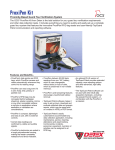
Congratulations and thank you for purchasing a TimePilot
Tap+ timeclock. We’ve worked hard to make the Tap+ simple
and easy to use.
How does it work? Here’s the short explanation:
Employees tap their iButtons to clock-in and -out at the
clock. When it’s time for payroll, you connect the clock to
your computer with the included USB cable, and the data is
transferred from the clock to the TimePilot database on your
PC. Supervisors then use the password-protected TimePilot
Central software to view and edit the data, create reports
and prepare the data for payroll software or services.
Please note: These
instructions describe
the installation and use
of the TimePilot Tap+
portable timeclock. For
instructions on how
to use the TimePilot
Central software, please
see the accompanying
manual and/or the
online Help built into
the software.
You can also leave the Tap+ connected to your PC with the
USB cable and use it as as desktop timeclock. As employees clock in and out, their transactions
are sent instantly to the TimePilot software and their name and clock-in or clock-out time
appear on the PC screen.
And here’s a little more detail about how Tap+ works as a portable timeclock:
When employees tap their iButtons to the batterypowered Tap+, the clock saves three things to its memory:
the iButton’s serial number (which identifies the
employee), the time and date and whether it’s a clock-in
or a clock-out.
The clock’s memory can handle up to 12,000 clock-ins and
clock-outs. Its battery should last a year before it needs to
be recharged.
When it’s time to do payroll, you’ll move those
clock-ins and clock-outs from the clock to the
TimePilot software. That’s done by first starting up
the “TimePilot
Tap Manager,”
which is a
small software
program that
acts as the
go-between
for your Tap+ clock and your computer. Then you connect the Tap+ clock to your
computer with the included USB cable.
TimePilot Tap+ Instructions
3
Immediately, the Tap+ Manager moves
the clock-ins and clock-outs into the
TimePilot database on your computer
(or on your server—you choose the
location when you set up TimePilot
Central). And at the same time, as
long as the clock is connected by cable
to the computer, the battery is being
recharged and the date and time on
the clock is synchronized to match the time on the computer.
To see the clock-ins and
clock-outs (also called
“Transactions”), start
TimePilot Central. This
password-protected
software performs all
the calculations and
lets supervisors correct,
insert and delete clockins or clock-outs, as
well as create reports and prepare the data for payroll. For much more on TimePilot
Central, see the User Manual.
Getting your Tap+ up and running
There are several methods to get your Tap+ up and running. Generally, if you’re new to
TimePilot, you should choose Method 1. If you have other TimePilot products and want the
clock-ins and clock-outs collected by your Tap+ clock to appear in your current TimePilot
database, you’ll choose Method 2. Please choose the method below that’s right for you.
Method 1
1.
Place the CD into your computer’s CD drive. When the opening screen appears, click
“Install TimePilot Software.” Choose the “TimePilot Installation Wizard,” then follow
the instructions to install TimePilot Central and TimePilot Tap Manager. (Note that the
software will ask you if you’re installing other TimePilot Products, too. If you didn’t
purchase those products, just click “No” for each.)
2. When TimePilot Central and the Tap Manager have finished
installing, you’ll see their icons on your desktop, as seen at right.
3. Now you’ll set up your company in TimePilot Central. First, start TimePilot Central by
clicking its icon on your desktop. You’ll need your software’s serial number; it’s on a
sticker on the inside front cover of your user manual.
A. The first time you start the software, you’ll be asked if you want to create or open
a TimePilot database. (Shown on next page.) Click the “Create a new TimePilot
4
TimePilot Tap+ Instructions
database...” button. In
the TimePilot system, the
database is where all employee
transactions are stored.
Generally, the database is
not kept with the TimePilot
software files, much like a
letter that you write with word
processing software generally is
not saved in the same folder as
the word processing program.
By keeping the data in a separate location, you can uninstall or install the TimePilot
software without affecting the data that the system has collected. (Note: If you’re
re-installing the software, you may see an existing database listed; if you wish to use
that database, click it to highlight it and then click “Open.” )
B. The software will suggest a location for the new database. You can accept that
location or change it to any location you want.
C. After you set up your database, you’ll be taken to the TimePilot Setup Wizard, which
guides the first-time user step-by-step through the process of setting up the system.
Simply follow the steps, and when you complete a task, the next task will become
available.
The seven-step
process includes:
• Add a Company:
Here’s where
you’ll enter
your company
information,
including name,
your pay cycle
(weekly, bi-weekly,
etc.), whether
you want to have
rounding applied
to your employees,
etc. If you have
more than one
pay cycle, you can
create a second
“company” with
different settings.
• Add/Edit Overtime Policy: Do you pay overtime to your employees? You can
have multiple overtime policies, each with a different set of criteria and payment
rates.
TimePilot Tap+ Instructions
5
• Add/Edit Pay Types: This is where you’ll set up how your employees will be
treated in terms of whether they get overtime, vacation pay, holiday pay, etc.
You can have multiple pay types; for instance, one for salaried employees and
another for hourly employees.
• Add/Edit Departments: You’ll enter your company’s departments here. Later,
when you’re using the system, you can generate reports grouped by department.
• Add/Edit Shifts: This is where you create your employees’ shifts. The system uses
shift schedules to determine if an employee is early or late.
• Add/Edit Holiday Schedules: You’ll set up your company holiday schedule here.
You can have more than one schedule.
• Add/Edit Employee Profiles: You’ll add your employees here. Make it easy on
yourself: You can use the Tap+ clock to enter each worker’s iButton serial number.
To do so, make sure that the Tap Manager is running and use the USB cable
to connect the Tap+ clock to your computer. Then click the blue “Get iButton
Number” on the employee profile screen and touch his or her iButton to one of
the probes on the Tap+ clock. The number will be entered automatically.
When you finish the process, click OK and the TimePilot Central screen will appear. See
the TimePilot Instruction Manual for instructions on how to use TimePilot Central.
4. Your Tap+ is ready to go. If TimePilot Tap+ Manager is running, every time you plug in
your Tap+ the time and date on the clock is updated, the battery recharges and any
transactions collected are downloaded into TimePilot Central.
Method 2
1.
Place the CD into your computer’s CD drive. When the opening screen appears,
click “Install TimePilot Software.” Choose the “TimePilot Installation Menu” (not
the “TimePilot Installation Wizard”), then follow the instructions to install only the
TimePilot Tap Manager.
2. When the Tap Manager has finished installing, you’ll see its icon on your
desktop, as seen at right.
3. The first time you run the Tap Manager, it will automatically connect to your existing
TimePilot database. If it can’t find the database on your computer (if you are using
TimePilot on a network and your PC isn’t running TimePilot Central, for instance), the
software will ask you for the database’s location. You can get the location from the
person in charge of your TimePilot system.
Want to verify that the clock-ins and clock-outs collected by your Tap+ are going to
the correct database? Just click the “Menu” button in the Tap Manager and choose
“Options.” The location will be displayed in the section titled “Data.”
4. Your Tap+ is ready to go.
6
TimePilot Tap+ Instructions
Using your Tap+
You can keep the Tap+ cabled to your PC, and all clock-ins and clock-outs will be instantly sent to
the database, or you can unplug the cable and use the Tap+ as the ultimate portable timeclock.
Either way, employees clock in and out by tapping their iButtons to the In or the Out probe on
the clock. Just a gentle tap will do—the metal surface of the iButton just needs to make contact
with the inner surface of the probe and the probe’s inner rim.
If you’re using your Tap+ without the cable—that’s how we intended it to be used when we
designed it—at some point you’ll want to get your clock-ins and clock-outs into the TimePilot
database on your PC. Here’s how:
1.
Click the TimePilot Tap icon. The Tap Manager
will appear on your screen. (See screenshot at
right.) Note that the words “Not Connected”
appear in the white box. That will change in
the next step!
2. Connect the USB cable that came with your
Tap+ to the port on the Tap+ clock and plug the
other end into a USB port on your computer.
In a few seconds, the Red “Not Connected”
will change to a green “Connected” and the
date and time will appear. (See screenshot
at right.) At the same time, the clock-in and
clock-out data is automatically transferred
from the clock to the database, the time on the clock is updated to match the time on
your PC and the battery in the clock is recharged.
All About the Tap Manager
The Tap Manager is the software
that handles communication between your PC and the Tap+ clock.
It only needs to be running when
you want to connect the Tap+ clock
to your PC.
Clicking the “Menu” button on the
Tap Manager screen brings up the
following choices:
1.
Options: There are five
things you can control here:
TimePilot Tap+ Instructions
7
A. Properties. Lists the connected Tap+’s serial number and firmware version. You can
give this clock a name here, too, which will appear in TimePilot Central next to each
clock-in or clock-out that this particular clock collects. If you have more than one
Tap+, naming the clock is a good way to be able to tell which Tap+ collected which
clock-in or clock-out. Possible names could be “Job Site 1” or “Bill’s Tap.”
B. Data. By default, the “Store transactions in TimePilot database” should be checked,
and the location of the database will appear on the line below. The second choice,
“Store transactions in the Cloud,” is only for users of TimePilot’s Enterprise Edition.
Enterprise Edition users have the option to store their database on the Internet,
which gives them more flexibility.
C. Date and Time. If you want the date and time on the Tap+ clock to be updated
with the date and time on your PC every time it’s connected, make sure this box is
checked (it is checked by default). If you prefer to choose when to update the date
and time, uncheck the box; then you can update the date and time manually by
clicking the “Set Tap Clock to PC’s Date and Time” button.
D. Password. Allows you to set a password to protect access to this screen and stop
unauthorized uses from making changes.
E. Advanced Button. (Note: We suggest you use this feature only after consultation
with a TimePilot Technical Support Specialist.) Even after you download your data to
your PC, the Tap+ clock keeps them in its memory until it needs that memory space
for new transactions. If, for instance, your PC’s hard drive fails and you lose your
TimePilot database, contact our support staff ([email protected] or 1-630879-6400) and there’s a good chance they can guide you through the process of
re-downloading your most recent transactions.
2. About: Displays the software’s version and build number (useful if you’re contacting a
TimePilot Support Specialist). Also shows the Data Path, which is where your database
is located.
3. Minimize: Keeps the Tap Manager running, but minimizes it to the taskbar at the
bottom of your screen.
4. Exit: Closes the program.
8
TimePilot Tap+ Instructions
FAQs
Q. How do I set the time and date on the Tap+ clock?
A. First, make sure the Tap Manager is running on your PC, then simply plug the clock into the
computer. Three things happen automatically: Clock-in and clock-out data on the Tap+ clock is
downloaded to the computer; the time and date is updated on the Tap+ clock (using the time
and date on your PC) and the battery is recharged.
Q. Is there a low battery warning?
A. No. The clock is always charging when it is plugged in. The LED in the iButton probe will flash
red periodically to indicate charging. When the device is fully charged, it will flash green. The
Tap+ has been tested to run for a year before it needs any recharge at all.
TimePilot Tap+ Instructions
9
TimePilot Supplies and Services
To order supplies and extra services, please visit the TimePilot web site (www.TimePilot.com)
or call TimePilot at 630.879.6400. Available supplies and services include:
For all TimePilot systems:
• Additional iButtons. These iButtons make it simple for you to add employees to your
system. iButtons are available in packs of 5, 10, 30, 50, 100 and 200 and in 12 different
colors.
• Support contracts. One year of telephone or e-mail support, in addition to the 30 days
of free support that start at the time of your purchase.
• iButton Receptors.
• QuickBooks Pro. A discount is offered to TimePilot customers.
For TimePilot Tap+
• USB Cables.
For TimePilot PC:
• Upgrade to TimePilot Vetro. Includes necessary items--clock, cable, iButtons, etc.--to
add TimePilot Vetro functionality to TimePilot PC installations.
• Extra licenses. They come in packs of 5, 10 and 25. Larger installations are also
available.
For TimePilot Extreme:
• Additional Extreme time clocks.
• Extreme mounting plates.
• USB drives.
• Management iButtons.
• Extreme padlocks.
Technical Support
For technical support, call us at 630.879.6400 or e-mail us at
[email protected]. When you contact a TimePilot Technical Support specialist, please
have your registration number available. The registration number can be found on a sticker on
the inside cover of this manual.
TimePilot Tip
Before you call or e-mail for support...
...you might be able to save some time by checking the help files in the TimePilot
Central software. Those files contain many details about our systems and definitions of
terms that are used throughout this manual. You can view the help files by clicking the
“Help” menu in TimePilot Central.
10
TimePilot Tap+ Instructions
TimePilot End-User License Agreement
NOTICE TO USER:
THIS IS A CONTRACT. READ IT CAREFULLY. BY BREAKING THE SEAL ON THE DISK ENVELOPE
YOU ACCEPT ALL THE TERMS AND CONDITIONS OF THIS AGREEMENT. IF YOU DO NOT AGREE
WITH THE TERMS AND CONDITIONS OF THIS AGREEMENT, YOU WILL NOT BE ABLE TO USE THE
SOFTWARE. IF YOU DO NOT ACCEPT THIS AGREEMENT AND HAVE PROOF OF PURCHASE, YOU
SHOULD RETURN THE UNUSED SOFTWARE AND THE TIMEPILOT PRODUCT IN ITS ENTIRETY
TO THE PLACE OF PURCHASE FOR A REFUND, WITHIN THE TERMS OF THE RETAILER’S RETURN
POLICY.
This TimePilot Corporation License Agreement for TimePilot (“Agreement”) is a legal agreement
between you (either an individual or a single legal entity) and TimePilot Corporation, whose
products include computer software and may include associated media, firmware, printed
materials, and “online” or electronic documentation (“Licensed Material”). By downloading,
installing, copying, or otherwise using the Licensed Material, you agree to be bound by the
terms of this Agreement.
LICENSE FOR LICENSED MATERIAL
Copyright laws and international copyright treaties, as well as other intellectual property laws,
including, without limitation, those covering trade secrets, and treaties protect the Licensed
Material. The Licensed Material is licensed, not sold.
GRANT OF LICENSE.
This Agreement grants you the following rights:
Licensed Material: You may install and use, during the Term of this Agreement, the Licensed
Material on the number of computers identified by you when you purchased this Licensed
Material License to use TimePilot.
Storage/Network Use: You may also store or install a copy of the Licensed Material on a storage
device, such as a network server, used only to install or run the Licensed Material on your other
computers over an internal network: however, you must acquire and dedicate a license for
each separate computer on which the Licensed Material is installed or run from the storage
device. A license for the Licensed Material may be shared and used concurrently on different
computers to the limit specified above.
Exclusion for Commercial Use: Notwithstanding the foregoing, you are not licensed to use the
Licensed Material to provide services of any kind to others, whether for a fee or not, without
TimePilot Corporation’s express written consent.
DESCRIPTION OF OTHER RIGHTS AND LIMITATIONS.
Assignment: Neither this Agreement nor any rights hereunder may be assigned, sublicensed or
otherwise transferred, in whole or in part, by you.
Limitation on Reverse Engineering, Decompilation and Disassembly: You may not reverse
engineer, decompile or disassemble the Licensed Material.
Rental: You may not rent, lease, lend or otherwise transfer the Licensed Material whether for
value or not.
Support Services: TimePilot Corporation may provide you with support services related to the
Licensed Material (“Support Services”). Use of Support Services is governed by the TimePilot
Corporation policies and programs described on its web site, in “online” documentation and/
or in other TimePilot Corporation-provided materials. Any supplemental Licensed Material
TimePilot Tap+ Instructions
11
provided to you as part of the Support Services shall be considered part of the Licensed
Material and subject to the terms and conditions of this Agreement. With respect to technical
information you provide to TimePilot Corporation as part of the Support Services, TimePilot
Corporation may use such information for its business purposes, including but not limited to
product support and development. TimePilot Corporation shall not be obligated to provide
Support Services during any period during which an annual fee is not paid by Licensee or
offered by TimePilot Corporation.
Termination: Without prejudice to any other rights, TimePilot Corporation may terminate this
Agreement if you fail to comply with the terms and conditions of this Agreement or fail to pay
TimePilot Corporation’s invoice for this Licensed Material. In such event, you must destroy all
copies of the Licensed Material and all of its component parts.
Upgrades: If the Licensed Material is labeled as an upgrade, you must be properly licensed
to use a product identified by TimePilot Corporation as being eligible for the upgrade in
order to use the Licensed Material. Licensed Material labeled as an upgrade replaces and/or
supplements the product that formed the basis for your eligibility for the upgrade. You may
use the resulting upgraded product only in accordance with the terms of this Agreement. If the
Licensed Material is an upgrade of a component of a package of software programs that you
licensed as a single product, the Licensed Material may be used and transferred only as part of
that single product package and may not be separated for use on more than one computer.
Copyright: All title and copyrights in and to the Licensed Material (including, but not limited
to, any images, photographs, animations, video, audio, music, text, and “applets” incorporated
into the Licensed Material), the accompanying printed materials, and any copies of the
Licensed Material are owned by TimePilot Corporation and/or its suppliers. Copyright laws and
international treaty provisions protect the Licensed Material. Therefore, you must treat the
Licensed Material like any other copyrighted material. You may not copy the printed materials
accompanying the Licensed Material.
Dual-Media Licensed Material: You may receive the Licensed Material in more than one
medium. Regardless of the type or size of medium you receive, you may use only one medium
that is appropriate for your computer. You may not use or install the other medium on another
computer. You may not loan, rent, lease or otherwise transfer the other medium to another
use.
Intended beneficiary: TimePilot Corporation, its suppliers and Licensors are the intended
beneficiaries of this Agreement and shall have the right to enforce it on their own behalf and in
their name.
U.S. GOVERNMENT RESTRICTED RIGHTS. The Licensed Material and documentation are
provided with RESTRICTED RIGHTS. Use, duplication, or disclosure by the Government is
subject to restrictions as set forth in subparagraph (c)(1)(ii) of the Rights in Technical Data
and Computer Software clause at DFARS 252.227-7013 or subparagraphs (c)(1) and (2) of
the commercial Computer Software -- Restricted Rights at 48 CFR 52.227-19, as applicable.
Manufacturer is TimePilot Corporation, Illinois, USA.
LIMITED WARRANTY.
TimePilot Corporation warrants that (a) the Licensed Material will perform substantially in
accordance with the accompanying written materials for a period of thirty (30) days from
the date of receipt, and (b) any Support Services provided by TimePilot Corporation shall
be substantially as described in applicable written materials provided to you by TimePilot
Corporation, and TimePilot Corporation support engineers will make commercially reasonable
efforts to solve any problem issues. Some states and jurisdictions do not allow limitations on
duration of an implied warranty, so the above limitation may not apply to you. To the extent
12
TimePilot Tap+ Instructions
allowed by applicable law, implied warranties on the Licensed Material, if any, are limited to
thirty (30) days.
CUSTOMER REMEDIES.
If a problem with the licensed material cannot be resolved by TimePilot Corporation’s Limited
Warranty above, TimePilot Corporation and its suppliers’ entire liability and your exclusive
remedy shall be the remedy provided in the Time Clock Limited Warranty found on the
preceding pages of this manual. This Limited Warranty is void if failure of the Licensed Material
has resulted from accident, abuse, or misapplication. Any replacement Licensed Material will
be warranted for the remainder of the original warranty period or thirty (30) days, whichever
is longer. Outside the United States, neither these remedies nor any product support services
offered by TimePilot Corporation are available without proof of purchase from an authorized
source.
NO OTHER WARRANTIES.
TO THE MAXIMUM EXTENT PERMITTED BY APPLICABLE LAW, TIMEPILOT CORPORATION AND
ITS SUPPLIERS DISCLAIM ALL OTHER WARRANTIES AND CONDITIONS, EITHER EXPRESS OR
IMPLIED, INCLUDING, BUT NOT LIMITED TO, IMPLIED WARRANTIES OF MERCHANTABILITY,
FITNESS FOR A PARTICULAR PURPOSE, TITLE, AND NON-INFRINGEMENT, WITH REGARD TO THE
LICENSED MATERIAL, AND THE PROVISION OF OR FAILURE TO PROVIDE SUPPORT SERVICES.
THIS LIMITED WARRANTY GIVES YOU SPECIFIC LEGAL RIGHTS. YOU MAY HAVE OTHERS, WHICH
VARY FROM STATE/JURISDICTION TO STATE/JURISDICTION.
LIMITATION OF LIABILITY.
TO THE MAXIMUM EXTENT PERMITTED BY APPLICABLE LAW, IN NO EVENT SHALL TIMEPILOT
CORPORATION OR ITS SUPPLIERS BE LIABLE FOR ANY SPECIAL, INCIDENTAL, INDIRECT, OR
CONSEQUENTIAL DAMAGES WHATSOEVER (INCLUDING, WITHOUT LIMITATION, DAMAGES
FOR LOSS OF BUSINESS PROFITS, BUSINESS INTERRUPTION, LOSS OF BUSINESS INFORMATION,
OR ANY OTHER PECUNIARY LOSS) ARISING OUT OF THE USE OF OR INABILITY TO USE THE
LICENSED MATERIAL OR THE PROVISION OF OR FAILURE TO PROVIDE SUPPORT SERVICES, EVEN
IF TIMEPILOT CORPORATION HAS BEEN ADVISED OF THE POSSIBILITY OF SUCH DAMAGES.
IN ANY CASE, TIMEPILOT CORPORATION’S ENTIRE LIABILITY UNDER ANY PROVISION OF THIS
AGREEMENT SHALL BE LIMITED TO THE GREATER OF THE AMOUNT ACTUALLY PAID BY YOU FOR
THE LICENSED MATERIAL OR U.S. $5.00; PROVIDED, HOWEVER, IF YOU HAVE ENTERED INTO
A TIMEPILOT CORPORATION SUPPORT SERVICES AGREEMENT, TIMEPILOT CORPORATION’S
ENTIRE LIABILITY REGARDING SUPPORT SERVICES SHALL BE GOVERNED BY THE TERMS OF THAT
AGREEMENT. BECAUSE SOME STATES AND JURISDICTIONS DO NOT ALLOW THE EXCLUSION OR
LIMITATION OF LIABILITY, THE ABOVE LIMITATION MAY NOT APPLY TO YOU.
MISCELLANEOUS
This Agreement is governed by the laws of the State of Illinois. Should you have any questions
concerning this Agreement, please contact TimePilot Corporation.
TimePilot Tap+ Instructions
13