1
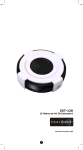
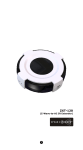
ZXT-120 (Z-Wave-to-AC IR Extender) 1 Table of Contents Introduction .................................................... 3 Controller and Gateway Requirements ............ 4 Built-in IR code library .................................... 4 Glossary .......................................................... 5 ZXT-120 Operations ........................................ 6 Product Overview ............................................. 7 Z-Wave Remote Control ................................... 8 ZXT-120 Information ....................................... 9 Listening Mode ................................................ 10 IR Code Learning ............................................ 11 Reset ZXT-120 to factory default........................ 12 INSTALLATION ................................................ 13 MOUNTING THE ZXT-120 TO A WALL .................. 13 WIRELESS INFORMATION ............................... 16 MAINTENANCE................................................. 16 FREQUENTLY ASKED QUESTIONS .................... 16 Z-Wave Frequently Asked Questions ................... 16 TECHNICAL SPECIFICATIONS .......................... 18 CHECKING ACCESSORIES ................................ 23 FCC NOTICE .................................................... 23 WARNINGS ...................................................... 23 CAUTION ........................................................ 23 2 Z-ExtenderTM ZXT-120 (Z-Wave-to-AC IR Extender) Operating Instructions Introduction The ZXT-120 is a Z-Wave to air-conditioner (AC) IR Extender (Figure 1) and it works with any Z-Wave compliant gateway or portable controller by translating Z-Wave’s Thermostat commands to AC IR control code. User can set the IR code from the built-in code library of ZXT-120 through the configuration commands, or use the learning function of ZXT-120 through the UI on gateway. ZXT-120 also builtin a temperature sensor that allow to report your room temperature to home gateway. It can be utilized to control or monitor your room temperature by your smart phone or PC while you are at office, home anywhere or around the world. Figure 1 ZXT-120 ZXT-120 can be configured as either “Frequently Listening Routing Slaves” (FLiRS) or “Always Listening” node after exclusion process. FLiRS node type is targeted for battery operated applications and it will enter sleep mode frequently in order to conserve battery consumption that can provide the flexibility if there is out of 5Vdc power source. Also, user can place the unit in anywhere at home. Always Listening node type is targeted for the needs of required a fast response application. The installed location should come with 5Vdc power source. Always Listening node can act as a repeater, which will re-transmit the RF signal to ensure that the signal is received by its intended destination by routing the signal around obstacle and radio dead spots. ZXT-120 supports Network Wide Inclusion (NWI) and Explore Frames. It also supports Z-Wave networks with multiple gateways and controllers. Like every Z-Wave accessory, user will need to include the 3 ZXT-120 into their Z-Wave network using the primary controller. Then, the user can use either the primary controller or secondary controller to configure and setup the ZXT-120 using Z-Wave’s configuration command class. Once the configuration and setup is complete, the controller can use Z-Wave’s “Thermostat commands class” to control their IR-controlled air-conditioner with the ZXT-120. Controller and Gateway Requirements The ZXT-120 is architected to work with any Z-Wave compliant controller or gateway supporting the following Z-Wave commands. - Configuration Command Class - Multilevel Sensor Command Class - Sensor Configuration Command Class - Thermostat Command Class Thermostat Mode Command Class Thermostat Fan Mode Command Class Thermostat Set-point Command Class Built-in IR code library The built-in IR code library enables the ZXT-120 to work with any ZWave compliant gateway and controller. Gateway and controller will not need to have any knowledge related to IR control code. It also eliminates the needs of complicated set up procedures and proprietary Z-Wave commands to configure the system. The IR code library supports various brand name air conditioners found in the today’s market. User can use his controller or gateway to send a 3 digits AC IR code number (include the brand selection) using standard Z-Wave configuration command. 4 Glossary Device or Node Inclusion Exclusion Remove Z-Wave Network Primary Controller Secondary Controller Inclusion Controller Devices and nodes are all terms to describe an individual Z-Wave device. These are all interchangeable when setting up your ZWave network. Add a Z-Wave device to the network. Delete a Z-Wave device from the network. To take a device out of a group, scene or association group while that device still exists in the same Z-Wave network. A collection of Z-Wave devices is controlled by primary and secondary controllers operating on the same system. A Z-Wave network has its own unique ID code so that controllers not in the network cannot control the system. The first controller is used to set up your devices and network. Only the Primary Controller can be used to include or delete devices from a network. It is recommended that you mark the primary controller for each network for ease in modifying your network. A controller containing network information about other devices within the network and is used for controlling devices. Secondary controller is created from the Primary Controller and cannot include or delete devices to the network. A controller containing network information about other devices within the network and is used for controlling devices. Inclusion controller is created from the Primary Controller in a SIS enabled Z-Wave network. Inclusion Controllers have the ability to add and remove devices from the network. 5 ZXT-120 Operations Before using the ZXT-120, please read the [INSTALLATION] if it is needed to mount the ZXT-120 to a wall. Power up the ZXT-120 by the USB Power 5Vdc or Dry battery AAA x 3pcs. x Plug-in 5Vdc power into the USB socket if operated at Always Listening mode. Or Install 3xAAA batteries if operated at FLiRS mode. Please refer to the section of [MOUNTING PROCEDURE]. Remove the battery cover on the back of your ZXT-120 battery chassis. Mount the battery cover into the main unit with 2 screws. Check the polarity of the batteries and the "+/-" marks inside the battery compartment. Insert the batteries. Push the battery cover and main unit back in place. x x x x x x x L CAUTION (battery and power adaptor safety) Use new batteries of the recommended type and size only. Never mix used and new batteries together. To avoid chemical leaks, remove batteries from the ZXT-120 if you do not intend to use the remote for an extended period of time. Dispose of used batteries properly; do not burn or bury them. (Please carefully read through the following then store the manual for future reference.) 6 Product Overview Temperature sensor “PROG” Button, Learning and LED Indication Battery chassis External IR Port USB Power 5V DC Surround IR Output for top and 4-directions Figure 2 PROG Key and IR Port of ZXT-120 7 Z-Wave Remote Control 1) 2) 3) 4) 5) Select your operation mode; please refer to ĀListening Modeā section. Include or Exclude the unit from the existing Z-Wave home control network with your primary controller. Refer to your primary controller instructions to process the inclusion / exclusion setup procedure. When prompted by your primary controller, click once on the PROG button. The primary controller should indicate that the action was successful. If the controller indicates the action was unsuccessful, please repeat the procedure. User can use either the primary controller or secondary controller (should support configuration command class) to setup the ZXT120 AC code by the parameter 27 (IR code number for built-in code library), please refer to code list for the parameter value then setup your AC control code. Once the configuration and setup were completed, the controller can use Z-Wave’s “Thermostat commands class” to control their IR-controlled air-conditioner with the ZXT-120. You can record down your device code under the below table for future reference after setting up the ZXT-120 correctly. AC device programmed to your ZXT-120 Code no.: 8 ZXT-120 Information How to get the NIF “Node Information Frame” on ZXT-120 Step Setup Key Press the PROG button on the ZXT-120 1 LED Indication Status on ZXT-120 x LED flashes once then stay off (ZXT-120 will report the supported command class) Parameter No. and Parameter Value of configuration command Parameter Number 25 (0x19) 26 (0x1A) Definitions Parameter Value Indicate a location for IR code learning and start learning Learning status register 1-20 (0x00 – 0x14) Note: The status value 0x01 and 0x04 will be reset to 0 when the ZXT-120 receive a get command to this parameter 0x01: OK - the latest learning process successful and completed 0x00: Idle - this IR channel is idle (default) 0x02: Learning - the ZXT-120 is busy processing previous learning request 0x04: Failed - the latest learning request failed 27 (0x1B) IR code number for builtin code library 28 (0x1C) External IR Emitter power level 32 (0x20) Surround IR control - to avoid the IR interference by disabling the surrounding IR emitter if 2 airconditioners in a room 9 Refer “Code list” for details 0x00: normal power mode 0xFF: high power mode (default) 0x00: disable Surround IR Emitters 0xFF: enable Surround IR Emitters (default) 34 (0x22) are used - extend the battery life by disabling the Surround IR Emitters Indicate a location for transmitting a learnt IR code Parameter Table 1-20 (0x00 – 0x14) L Mapping Information BASIC Set Value 0x00 will map to Thermostat mode Off 0x00. BASIC set Value 0xFF will map to Thermostat mode Resume 0x05. Listening Mode (default mode is FLiRS) ZXT-120 can be configured as either “Frequently Listening Routing Slaves” (FLiRS) or “Always Listening” node after exclusion process. FLiRS node type is targeted for battery operated applications and it will enter sleep mode frequently in order to conserve battery consumption. Always Listening node type is targeted for the needs of required a fast response application. Important: It is not allow changing ZXT-120 operation mode without the step of exclusion process. How to switch ZXT-120 listening mode from ϘAlways Listeningϙ to ϘFLiRSϙ (or vice verse) LED Indication Status on ZXT-120 Step Setup Key x LED stay off 1 Press and hold the PROG button on the ZXT-120 for around 4 seconds Release the button and then press the PROG button 3 times within 3 seconds x LED flashes twice then stay off (ZXT-120 set in FLiRS mode) OR 2 10 x LED flashes four times then stay off (ZXT-120 set in Always Listening mode) IR Code Learning User can follow the gateway UI to implement the learning function, the learnt IR code will be stored in a specify control key which contains the Mode, Temperature and Fan Speed information. Learning example for Key_1: Mode = COOL Temperature = 20oC Fan Speed = HIGH How to learn an IR code on ZXT-120 Step Setup Key 1 Configuration command class with following parameter number and value are received. Parameter number: 25 Parameter value: 1 – 20 2 Place the ZXT-120 and your device remote as shown below, aimed at each other 1-3 inches apart. Press and keep holding the key on your original equipment remote until ZXT-120 reacted. 3 LED Indication Status on ZXT-120 x LED flashes once - x LED flashes twice and then OFF (learn code success) OR x LED flashes six times rapidly and then OFF (learn code fail) 11 Figure 3 Learning setup Reset ZXT-120 to factory default Press and hold “PROG” button for 10seconds on ZXT-120. The LED will flash twice until reset process is completed. Note: This reset step will not affect the operation mode of ZXT-120, user should refer to ϘListening Modeϙ section if you want to change the operation mode. L Important Information If you are using Gateway or other Z-wave controllers to operate ZXT-120, Please follow the instruction from the gateway or other controller. You can check either the specifications in the manual of your ZXT-120 or also check online at www.remotec.com.hk for a full list of products that can be used with your ZXT-120. 12 INSTALLATION MOUNTING THE ZXT-120 TO A WALL MOUNTING LOCATION PRECAUTIONS x Before mounting, check the material and structure of the mounting location. If the location does not have the proper material or structure, the ZXT-120 can fall and cause injuries. x Use commercial items that best match the wall structure and material for the screws and other fixtures. x Do not mount near a kitchen counter, humidifier, or other location in which it can be exposed to smoke or steam. Doing so could cause a fire or electrical shock. x Do not mount in locations with high humidity or large amounts of dust. Doing so could cause a fire or electrical shock. x Do not mount to locations subject to high temperatures, high humidity, or exposure to water. Doing so could cause a fire or electrical shock. x Do not mount to locations subject to large amounts of vibration, large jolts, or large forces. These could cause an injury if the ZXT120 falls and breaks. MOUNTING PROCEDURE PRECAUTIONS x Do not modify parts or use the ZXT-120 in ways other than its intended use. Doing so could cause the ZXT-120 to fall and result in an injury. x Be sure to fully check that there are no electrical wires or pipes inside the wall before mounting. x If any of the screws are loose, the ZXT-120 can fall and cause an injury. Do not mount the ZXT-120 with the screws still loose. x Check that the two screws mounted to the wall are fully inserted into the key holes of the ZXT-120. Otherwise, the ZXT-120 can fall and cause an injury. x Do not mount the ZXT-120 so that it sticks out from the wall edge. It could get hit by people’s bodies or objects and cause an injury. x Supplier will not be liable for any accidents or injuries that occur due to improper mounting or handling. x When mounting, be careful not to get your fingers pinched or injure your hands. MOUNTING PROCEDURE The ZXT-120 can be mounted to a wall or wooden racks using the two key holes in the bottom case. Note 1: The reception sensitivity varies depending on the antenna direction. Note 2: Before mounting to a wall, be sure to fully read the precautions. 13 1. Obtain two screws suitable for the wall strength and material. The screw size is shown in the figure below. 2. The positional relationship between the ZXT-120 key holes and the screw mounting positions are shown in the figure below. Note 1: When mounting the screws to the wall, leave a space between the wall and screw cap as shown in the figure. 3. Insert the ZXT-120 key holes onto the two screws mounted to the wall, and then slide downward to secure in place. 4. After securing the ZXT-120 to the wall, connect the USB Power or batteries and IR emitter cable to the ZXT-120. Note 1: Check that the ZXT-120 is firmly secured to the wall. Note 2: Insert USB plug or batteries and IR emitter cable so that they are firmly connected to the ZXT-120. 14 5. When removing the ZXT-120 from the wall, lift up the ZXT-120, then pull it towards you. 6. Detach the main unit from the battery chassis by move toward to top position. 15 WIRELESS INFORMATION Wireless range: This device has an open-air line-of-sight transmission distance of 100 feet which complies with the Z-Wave standards. Performance can vary depending on the amount of objects in between Z-Wave devices such as walls and furniture. Every Z-Wave device set up in your network will act as a signal repeater allowing devices to talk to each other and find alternate routes in the case of a reception dead spot. Radio frequency limitations: 1. Each wall or object (i.e.: refrigerator, bookshelf, large TV, etc) can reduce the maximum range of 65 feet by up to 25 to 30%. 2. Plasterboard and wooden walls block less of the radio signal then concrete, brick or tile walls which will have more of an effect on signal strength. 3. Wall mounted Z-Wave devices will also suffer a loss of range if they are housed in metal junction boxes which could also reduce the range by up to 25 to 30%. MAINTENANCE 1 2 3 4 5 Do not expose your ZXT-120 to dust, strong sunlight, humidity, high temperatures or mechanical shocks. Do not use old and new batteries together as old batteries tend to leak. Do not use corrosive or abrasive cleansers on your ZXT-120. Keep the unit dust free by wiping it with a soft, dry cloth. Do not disassemble your ZXT-120, it contains no user-serviceable parts. FREQUENTLY ASKED QUESTIONS Z-Wave Frequently Asked Questions Q A Why won’t my ZXT-120 work with the Z-Wave devices I purchased from another country? Due to different countries regulations Z-Wave products from different regions are set to different frequencies. Before purchasing new devices make sure you have checked that the device is compatible in your region. Q How do I know which product is compatible with my ZXT-120? A ZXT-120 should work with any Z-Wave controller or gateway that has control capability for “Thermostat” devices. You can check either the specifications in the manual of your ZXT-120 or also check online at www.remotec.com.hk for a full list of products that can be used with your ZXT-120. All Z-Wave products also come with the Z-Wave logo. 16 Q Can I use the USB port to configure ZXT-120? A No, the mini USB port only provides an alternative option for user to power the ZXT-120. Q A Do I need an electrician to install Z-Wave products in my house? Installation can be simple. In some cases all you need to do is mount the ZXT-120 to a wall or wooden racks. You also can place the ZXT-120 on the desk and power it with dry cell batteries. Q A How to select my air-conditioner IR code from ZXT-120? You should refer to the code list and look into the brand and try the code no. sequentially until you find the right code. You can record down your device code under the table for future reference after setting up the ZXT-120 correctly. Q ZXT-120 is working on top and 4-directions IR output, but there is no response on the IR emitter socket, why? ZXT-120 supports two IR power levels for the external IR emitter to avoid saturation of the IR receiver. You can set the IR output power level by the Parameter Table value (normal or high power mode) or adjust the position of your external IR emitter. A Q A Q A Can I use 2 or more ZXT-120 in my house? What is the max. units if yes? Yes and it is very depend on the capability of gateway / controller. For example, gateway can supports up to 8, 16 or 32 ZXT-120 in a network. How to avoid the IR interference if I am using 2 identical airconditioners in same location but want to control them individually? User can disable the Surround IR Output function, connect the external IR emitter and aim it at the specific AC unit. The operating distance of external IR emitter is around 100cm (High power mode) and 50cm (Low power mode) but it is also depends on the sensitivity of the IR receiver. External IR emitter cable 17 Q A Where can I keep up to date with the latest Z-Wave products for my house? You can keep up to date by visiting the www.remotec.com.hk website where we will have information and ideas for using ZWave technology. TECHNICAL SPECIFICATIONS Model no. RF frequency RF operating distance BW8377EU (ZXT-120EU) BW8377AU (ZXT-120AU) BW8377US (ZXT-120US) BW8377IN (ZXT-120IN) 868.4MHz (EU) (ZXT-120EU) 921.4MHz (AU) (ZXT-120AU) 908.4MHz (US) (ZXT-120US) 865.22MHz (IN) (ZXT-120IN) up to 80ft outdoor line of sight, in unobstructed environment IR operating distance up to 25ft line of sight, in unobstructed environment IR learning Max. 20 commands Temperature Powered by Dimension Weight Measurable range: 32 – 104 °F / 0 – 40 °C Operation: 0 - 40°C Storage: -20 - 60°C USB Power DC 5V 100mA or Dry battery AAA x 3pcs Dia.=70mm, T = 18mm (Main unit) Dia.=70mm, T = 15.5mm (Battery chassis) 35g (Battery chassis excluded) 60g (Battery chassis included) 90g (Main + Battery chassis + AAA x3pcs) Z-Wave device type Basic Device Class: BASIC_TYPE_ROUTING_SLAVE Generic Device Class: GENERIC_TYPE_THERMOSTAT Specific Device Class: SPECIFIC_TYPE_THERMOSTAT_GENERAL_V2 Z-Wave Command Class Version Controlled Supported COMMAND_CLASS_THERMOSTAT_MODE Version2 NO YES COMMAND_CLASS_THERMOSTAT_SETPOINT Version2 NO YES COMMAND_CLASS_THERMOSTAT_FAN_MODE Version2 NO YES COMMAND_CLASS_BATTERY Version1 NO YES COMMAND_CLASS_CONFIGURATION Version1 NO YES 18 COMMAND_CLASS_BASIC Version1 NO YES COMMAND_CLASS_VERSION Version1 NO YES COMMAND_CLASS_SENSOR_MULTILEVEL Version1 NO YES COMMAND_CLASS_POWERLEVEL Version1 NO YES COMMAND_CLASS_SWITCH_ALL Version1 NO YES COMMAND_CLASS_MANUFACTURER_SPECIFIC Version1 NO YES Supported function in Thermostat Command Class Z-Wave command class Description Supported Auto/Auto Low YES Low YES Auto High YES High YES Auto Medium YES Medium YES Heating YES Cooling YES Furnace NO Dry Air YES Moist Air NO Auto changeover YES Energy Save heating NO Energy Save cooling NO Away heating NO Off YES Heat YES Cool YES Auto YES Auxiliary/Emergency Heat NO Resume YES Fan only YES Furnace NO Dry Air YES Moist Air NO Thermostat Fan mode Thermostat Set point Thermostat Mode 19 Auto Changeover NO Energy Save Heat NO Energy Save Cool NO AWAY NO ZXT-120 functions and Parameters summaries: AIR FUNCTIONS CONDITIONER Z-WAVE COMMAND COMMAND PARAMETER Z-WAVE COMMAND CLASS FUNCTION COMMAND_CLASS_THERMOSTAT THERMOSTAT_ _MODE MODE_SET COMMAND_CLASS_BASIC BASIC_SET COMMAND_CLASS_THERMOSTAT THERMOSTAT_ _MODE MODE_SET COMMAND_CLASS_BASIC BASIC_SET COMMAND_CLASS_THERMOSTAT THERMOSTAT_ _MODE MODE_SET COMMAND_CLASS_THERMOSTAT THERMOSTAT_ _MODE MODE_SET COMMAND_CLASS_THERMOSTAT THERMOSTAT_ _MODE MODE_SET COMMAND_CLASS_THERMOSTAT THERMOSTAT_ _MODE MODE_SET COMMAND_CLASS_THERMOSTAT THERMOSTAT_ _MODE MODE_SET MODE = 5 POWER ON VALUE = 0XFF POWER MODE = 0 POWER OFF AUTO MODE = 3 COOL MODE VALUE = 0X00 MODE = 2 FAN MODE = 6 HEAT MODE = 1 DRY MODE = 8 SETPOINT TYPE = HEAT mode 1, TEMPERATURE Temperature VALUE SETPOINT TYPE = COOL mode 2, TEMPERATURE Temperature TEMPERATURE COMMAND_CLASS_THERMOSTAT THERMOSTAT_ VALUE SETTING _SETPOINT SETPOINT_SET SETPOINT TYPE = DRY mode 8, TEMPERATURE Temperature VALUE SETPOINT TYPE = AUTO mode 10, TEMPERATURE Temperature VALUE THERMOSTAT_ COMMAND_CLASS_THERMOSTAT FAN SPEED FAN_MODE_SE FAN MODE = 0 _FAN_MODE, v1 T FAN AUTO THERMOSTAT_ COMMAND_CLASS_THERMOSTAT FAN MODE = 0, 2, or FAN_MODE_SE _FAN_MODE, v2 4 T THERMOSTAT_ COMMAND_CLASS_THERMOSTAT FAN_MODE_SE FAN MODE = 1 _FAN_MODE, v1 T FAN LOW (1/3) THERMOSTAT_ COMMAND_CLASS_THERMOSTAT FAN_MODE_SE _FAN_MODE, v2 T 20 FAN MODE = 1 FAN MID (2/3) - - THERMOSTAT_ COMMAND_CLASS_THERMOSTAT FAN_MODE_SE FAN MODE = 5 _FAN_MODE, v2 T THERMOSTAT_ COMMAND_CLASS_THERMOSTAT FAN_MODE_SE FAN MODE = 3 _FAN_MODE, v1 T FAN HIGH (3/3) THERMOSTAT_ COMMAND_CLASS_THERMOSTAT FAN_MODE_SE FAN MODE = 3 _FAN_MODE, v2 T PARAMETER NO. = 33 SWING ON/ COMMAND_CLASS_CONFIGURATI CONFIGURATIO SWING AUTO ON N_SET SIZE = 1 VALUE = 1 SWING PARAMETER NO. = 33 COMMAND_CLASS_CONFIGURATI CONFIGURATIO ON N_SET SIZE = 1, SWING OFF VALUE = 0 PARAMETER NO. = 27 IR CODE SETUP COMMAND_CLASS_CONFIGURATI CONFIGURATIO ON N_SET SIZE = 2, VALUE = (CODE#) PARAMETER NO. = 28 NORMAL COMMAND_CLASS_CONFIGURATI CONFIGURATIO POWER LEVEL ON N_SET SIZE = 1, VALUE = 0 IR TRANSMISSION PARAMETER NO. = POWER LEVEL 28 HIGH POWER COMMAND_CLASS_CONFIGURATI CONFIGURATIO LEVEL ON N_SET SIZE = 1, VALUE = 0xFF PARAMETER NO. = 32 COMMAND_CLASS_CONFIGURATI CONFIGURATIO ON N_SET SIZE = 1, DISABLE VALUE = 0 FRONT IR TRANSMISSION PARAMETER NO. = CONTROL 32 COMMAND_CLASS_CONFIGURATI CONFIGURATIO ON N_SET SIZE = 1, ENABLE VALUE = 0xFF 21 BATTERY COMMAND_CLASS_BATTERY BATTERY_GET COMMAND_CLASS_VERSION VERSION_GET LEVEL VERSION MANUFACTURE MANUF'ER COMMAND_CLASS_MANUFACTUR R_SPECIFIC_GE ER_SPECIFIC T SPECIFIC TEMPERATURE SENSOR COMMAND_CLASS_SENSOR_MUL SENSOR_MULTI TILEVEL LEVEL_GET 22 CHECKING ACCESSORIES After opening the cover of the packing box, check that the following accessories are included. x ZXT-120 (Z-Wave-to-AC IR Extender) x Screws (bottom cover) x 2pcs x ZXT-120 User Manual (download from our website) x AC Code List (download from our website) FCC NOTICE This device complies with Part 15 of the FCC rules. Operation is subject to the following two conditions: (1) this device may not cause harmful interference, and (2) this device must accept any interference received, including interference that may cause undesired operation. WARNINGS Changes or modifications not expressly approved by the party responsible for compliance could void the user's authority to operate the equipment. - RISK OF FIRE - RISK OF ELECTRICAL SHOCK - RISK OF BURNS - The socket-outlet shall be installed near the equipment and shall be easily accessible. - Use only power supplies listed in the user instructions. Do not dispose of electrical appliances as unsorted municipal waste, use separate collection facilities. Contact your local government for information regarding the collection systems available. CAUTION - RISK OF EXPLOSION IF BATTERY IS REPLACED BY AN INCORRECT TYPE. - DISPOSE OF USED BATTERIES ACCORDING TO THE INSTRUCTIONS. www.remotec.com.hk Printed in China F820-8377-0000 23