1
Introduction
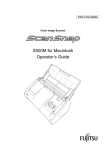
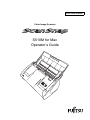
Thank you for purchasing the Color Image Scanner ScanSnap S510M.
ScanSnap S510M is a feature-rich, office-ready color image scanner. It is designed to help you
improve productivity and solve problems in scanning.
The ScanSnap scanner has the following features:
■ Converting paper documents into PDFs by pressing a single button!
You can turn the documents cluttering up your desk into PDFs, and manage and
archive them on your computer.
ScanSnap S510M can automatically detect whether the documents are color or blackand-white, so that the size of scanned image files can be made smaller when scanning
color and black-and-white documents mixed in a batch. In addition, the scanner can
automatically remove blank pages in documents to further reduce the size of files.
■ Effortless scanning!
Double-sided color documents in A4 or letter size can be scanned at a speed of about
18 sheets/minute (when used with a computer with a PowerPC® G5 processor of
1.6GHz or higher running Mac OS X v10.2.8 or later and with Scan mode Normal,
Color mode Auto, and Compression rate 3).(*1)
■ Small desktop footprint!
Having a footprint smaller than a sheet of A4 or Letter size paper, the ScanSnap scanner can be left on your desk all the time.
(*1) - Depending on the document types, the scanning speed may slow down when scanning
is performed in "B&W" (Black-and-White) mode (because the data of scanned color
documents is converted into monochrome data).
- When "Allow automatic blank page removal" or "Correct skewed character strings
automatically" is enabled, scanning speed may slow down.
(*2) - ScanSnap S510M does not support the TWAIN and ISIS standards.
This document describes how to use ScanSnap S510M and the basic operations. Be sure to read
this manual thoroughly before using ScanSnap S510M.
In this document, ScanSnap S510M is hereinafter referred to as ScanSnap.
ScanSnap S510M Operator's Guide
i