1
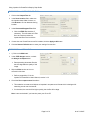
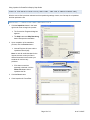
Using Impatica for PowerPoint Step-by-Step Guide PREPARE NARRATION FOR POWERPOINT When adding narration to your presentation, use the following guidelines: • Write a script before recording (in the recording exercise you can read the title of each slide). • Be brief and to the point. o • Narration per slide should be no longer than 1 minute and preferably less than 30 seconds. Identify yourself or the author of the presentation. EXERCISE 1 – ADJ UST THE AUDIO SETTINGS IN POWERPOINT 1. From the Slide Show menu, select Record Narration. The Record Narration dialog box will appear. Set Microphone Level Change Quality 2. Click the Set Microphone Level button. The microphone check dialog box appears. 3. Check your microphone’s recording level by following the directions. 4. When done, click the OK button. The Record Narration dialog box will reappear. Page 5 of 12 As of 10/18/07