1
Advanced Configuration
Chapter 3
Click Save Settings to apply your changes, or click Cancel
Changes to cancel your changes.
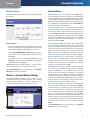
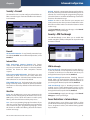
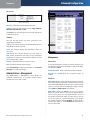
Applications and Gaming > QoS
Quality of Service (QoS) ensures better service to
high-priority types of network traffic, which may
involve demanding, real-time applications, such as
videoconferencing.
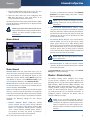
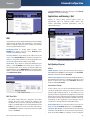
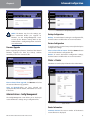
Applications and Gaming > DMZ
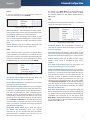
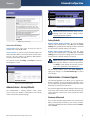
DMZ
Any PC whose port is being forwarded must have its DHCP
client function disabled and should have a new static IP
address assigned to it because its IP address may change
when using the DHCP function.
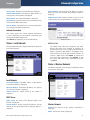
Enabled/Disabled To disable DMZ hosting, select
Disabled. To expose one PC, select Enabled. Then
configure the following settings:
Source IP Address If you want any IP address to be the
source, select Any IP Address. If you want to specify an IP
address or range of IP addresses as the designated source,
select and complete the IP address range fields.
Destination If you want to specify the DMZ host by IP
address, select IP Address and enter the IP address in
the field provided. If you want to specify the DMZ host
by MAC address, select MAC Address and enter the MAC
address in the field provided. To retrieve this information,
click DHCP Client Table.
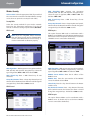
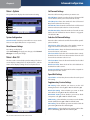
Applications and Gaming > QoS
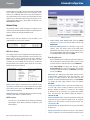
QoS (Quality of Service)
Wireless
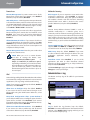
WMM Support If you have other devices that support
Wi‑Fi Multimedia (WMM) on your network, select Enabled.
Otherwise, keep the default, Disabled.
No Acknowledgement If you want to disable the Router’s
Acknowledgement feature, so the Router will not re-send
data if an error occurs, then select Enabled. Otherwise,
keep the default, Disabled.
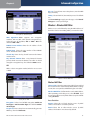
Internet Access Priority
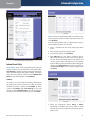
DMZ > DHCP Client Table
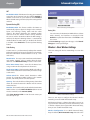
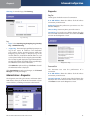
DHCP Client Table
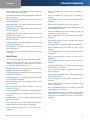
The DHCP Client Table lists computers and other
devices that have been assigned IP addresses by
the Router. The list can be sorted by Client Name, IP
Address, and MAC Address. To select a DHCP client, click
Select. To retrieve the most up-to-date information,
click Refresh. To exit this screen and return to the DMZ
screen, click Close.
Wireless-G Broadband Router with 2 Phone Ports
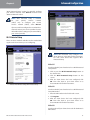
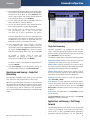
In this section, you can set the bandwidth priority for a
variety of applications and devices. There are four levels
priority: High, Medium, Normal, or Low. When you set
priority, do not set all applications to High, because this will
defeat the purpose of allocating the available bandwidth.
If you want to select below normal bandwidth, select Low.
Depending on the application, a few attempts may be
needed to set the appropriate bandwidth priority.
Enabled/Disabled To use the QoS policies you have set,
keep the default, Enabled. Otherwise, select Disabled.
Upstream Bandwidth To allow the Router to control the
maximum bandwidth for upstream data transmissions,
keep the default, Auto. To manually set the maximum,
24