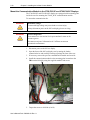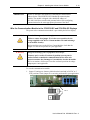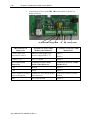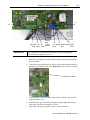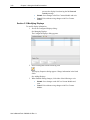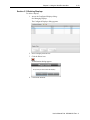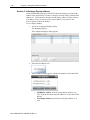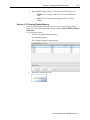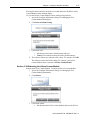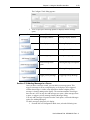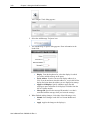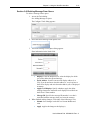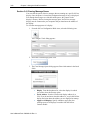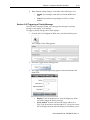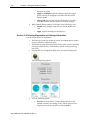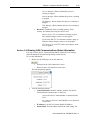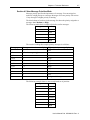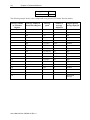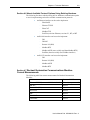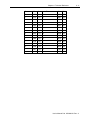
1
A User's Manual Pub. 0300289-01 Rev. A Software User’s Guide, InView® Messaging Software User’s Manual Pub. 0300289-01 Rev. A ii ® Software User’s Guide, InView Messaging Software Important Notes Please read all the information in this manual before installing the product. The information in the manual applies through InView Messaging Software Version 1.0. This manual assumes that you have a full working knowledge of the relevant equipment. Notice The product described in this manual is useful in a wide variety of applications. Therefore, you and others responsible for applying the product described herein are responsible for determining its acceptability for each application. While efforts have been made to provide accurate information within this manual, Spectrum Controls, Inc. assumes no responsibility for the accuracy, completeness, or usefulness of the information herein. Under no circumstances will Spectrum Controls, Inc. be responsible or liable for any damages or losses, including indirect or consequential damages or losses, arising out of either the use of any information within this manual or the use of any product referenced herein. No patent liability is assumed by Spectrum Controls, Inc. with respect to the use of any of the information, or product referenced herein. The information in this manual is subject to change without notice. Limited Warranty We warrant to you that, for a period of 60 days after delivery of this copy of the Software to you: 1. The physical media on which this copy of the Software is distributed will be free from defects in materials and workmanship under normal use, 2. The Software will perform in accordance with the printed documentation distributed with it by us, and 3. To the best of our knowledge your use of the Software in accordance with its printed documentation will not, in and of itself, infringe any third party’s copyright, patent, or other intellectual property right. To the extent permitted by applicable law, THE FOREGOING LIMITED WARRANTY IS IN LIEU OF ALL OTHER WARRANTIES OR CONDITIONS, EXPRESS OR IMPLIED, AND WE DISCLAIM ANY AND ALL IMPLIED WARRANTIES OR CONDITIONS, INCLUDING ANY IMPLIED WARRANTY OF TITLE, OF NON-INFRINGEMENT, OF MERCHANT ABILITY, OR OF FITNESS FOR A PARTICULAR PURPOSE, regardless whether we know or have reason to know of your particular needs. No employee, agent, dealer, or distributor of ours is authorized to modify this limited warranty, nor to make any additional warranties. No action for any breach of the above limited warranty may be commenced more than one (1) year following the expiration date of the warranty. If implied warranties may not be disclaimed under applicable law, then ANY IMPLIED WARRANTIES ARE LIMITED IN DURATION TO 60 DAYS AFTER DELIVERY OF THIS COPY OF THE SOFTWARE TO YOU. Some states do not allow limitations on how long an implied warranty lasts, so the above limitation may not apply to you. This warranty gives you specific legal rights, and you may also have other rights which vary from state to state. User’s Manual Pub. 0300289-01 Rev. A ® Software User’s Guide, InView Messaging Software iii Limited Remedy Your exclusive remedy in the event of a breach of the foregoing limited warranty, TO THE EXCLUSION OF ALL OTHER REMEDIES, is set forth in this paragraph. In such event, you shall return all copies of the Software to us and pay for shipping; you must include a dated proof of the date on which this copy of the Software was delivered to you, such as a copy of your dated receipt or invoice for this copy. We will, at our option, either (i) ship you a replacement copy of the Software on non-defective physical media at our expense or (ii) refund your license fee in full. Trademarks InView is a trademark of Spectrum Controls, Inc. Microsoft and Microsoft Windows are registered trademarks of Microsoft Corporation. The Encompass logo, ControlLogix, RSLinx, and EtherNet/IP are trademarks of Rockwell Automation. Other brands and their products are trademarks or registered trademarks of their respective holders and should be noted as such. User’s Manual Pub. 0300289-01 Rev. A iv ® Software User’s Guide, InView Messaging Software User’s Manual Pub. 0300289-01 Rev. A Table of Contents IMPORTANT NOTES........................................................................................................................... II CHAPTER 1 INVIEW MESSAGING SOFTWARE OVERVIEW ..................................................................1-1 SECTION 1.1 START HERE............................................................................................................................. 1-1 SECTION 1.2 INVIEW OVERVIEW ................................................................................................................... 1-1 CHAPTER 2 INSTALLING THE INVIEW COMMUNICATIONS MODULE ..................................................2-1 SECTION 2.1 ABOUT THE INVIEW COMMUNICATIONS MODULE® ....................................................................... 2-2 SECTION 2.2 HARDWARE SPECIFICATIONS ....................................................................................................... 2-4 SECTION 2.3 ENVIRONMENTAL AND EMC SPECIFICATIONS ................................................................................ 2-5 SECTION 2.4 CERTIFICATIONS FOR INVIEW COMMUNICATIONS MODULES............................................................ 2-6 SECTION 2.5 INSTALLING THE INVIEW COMMUNICATIONS MODULE.................................................................... 2-7 POWER SUPPLY REQUIREMENTS .....................................................................................................2-9 MOUNT THE COMMUNICATIONS MODULE TO THE 2706-P42-SC AND 2706-P44-SC DISPLAYS ...........2-9 WIRE THE COMMUNICATION MODULE TO THE 2706-P42-SC AND 2706-P44-SC .............................. 2-10 MOUNT THE COMMUNICATION MODULE TO THE 2706-P72-SC AND 2706-P74-SC DISPLAYS ........... 2-14 WIRE THE COMMUNICATION MODULE TO THE 2706-P72-SC AND 2706-P74-SC DISPLAYS ............... 2-15 MOUNT THE COMMUNICATION MODULE TO THE 2706-P92-SC AND 2706-P94-SC DISPLAYS ........... 2-18 WIRE THE COMMUNICATION MODULE TO THE 2706-P92-SC AND 2706-P94-SC DISPLAYS ............... 2-19 USING THE COMMUNICATION MODULE WITH A 2706-P22R-SC DISPLAY ........................................ 2-22 SECTION 2.6 GETTING HARDWARE AND SOFTWARE INFORMATION .................................................................. 2-26 SECTION 2.7 GETTING IP ADDRESS INFORMATION ......................................................................................... 2-28 SECTION 2.8 PINGING IP ADDRESSES .......................................................................................................... 2-29 SECTION 2.9 GENERAL PUBLIC LICENSE INFORMATION .................................................................................... 2-30 SECTION 2.10 LIMITED WARRANTY ............................................................................................................. 2-30 CHAPTER 3 USING THE INVIEW MESSAGING SOFTWARE INTERFACE .................................................3-1 SECTION 3.1 USING THE INVIEW MESSAGING SOFTWARE USER INTERFACE ......................................................... 3-1 SECTION 3.2 LOGGING ONTO THE INVIEW COMMUNICATIONS MODULE ............................................................. 3-1 SECTION 3.3 ABOUT THE INVIEW USER INTERFACE WINDOW ............................................................................ 3-4 3.3.1 InView Comms Module User Interface Title Bar ........................................................................ 3-5 3.3.2 InView User Interface Menu Bar ................................................................................................ 3-5 3.3.3 InView User Interface Configuration Work Area ....................................................................... 3-6 SECTION 3.4 CONFIGURING NETWORK SETTINGS FOR THE INVIEW COMMS MODULE ............................................ 3-7 3.4.1 Configuring Web Server Setup for the InView Comms Module ................................................. 3-7 SECTION 3.5 CONFIGURING WAN SETTINGS FOR THE INVIEW COMMS MODULE .................................................. 3-9 SECTION 3.6 CONFIGURING MESSAGE SERVER SETUP FOR THE INVIEW COMMS MODULE .................................... 3-11 3.6.1 Configuring Industrial Network Settings.................................................................................. 3-13 SECTION 3.7 TESTING DEVICE CONNECTIONS ................................................................................................ 3-15 SECTION 3.8 CONFIGURING SERIAL COMMUNICATIONS SETUP ......................................................................... 3-17 SECTION 3.9 MANAGING DISPLAYS.............................................................................................................. 3-19 SECTION 3.10 ADDING DISPLAYS................................................................................................................. 3-20 User’s Manual Pub. 0300289-01 Rev. A ii ® Software User’s Guide, InView Messaging Software SECTION 3.11 MODIFYING DISPLAYS ........................................................................................................... 3-22 SECTION 3.12 DELETING DISPLAYS .............................................................................................................. 3-23 SECTION 3.13 SETTING A DISPLAY ADDRESS .................................................................................................. 3-24 SECTION 3.14 CLEARING DISPLAY MEMORY.................................................................................................. 3-25 SECTION 3.15 SETTING DATE AND TIME ....................................................................................................... 3-27 SECTION 3.16 CONFIGURING MESSAGE GROUPS ........................................................................................... 3-28 SECTION 3.17 ADDING MESSAGE GROUPS ................................................................................................... 3-29 SECTION 3.18 MODIFYING MESSAGE GROUPS .............................................................................................. 3-30 SECTION 3.19 DELETING MESSAGE GROUPS ................................................................................................. 3-32 SECTION 3.20 DOWNLOADING A MESSAGE GROUP........................................................................................ 3-33 SECTION 3.21 CONFIGURING MESSAGES ...................................................................................................... 3-34 SECTION 3.22 ADDING MESSAGES .............................................................................................................. 3-35 SECTION 3.23 MODIFYING MESSAGES ......................................................................................................... 3-42 SECTION 3.24 DELETING MESSAGES ............................................................................................................ 3-43 SECTION 3.25 INSERTING CUSTOM CHARACTERS ........................................................................................... 3-44 SECTION 3.26 MANAGING INVIEW COMMS MODULE MAINTENANCE OPTIONS ................................................. 3-47 SECTION 3.27 IMPORTING INVIEW COMMS MODULE DATA ............................................................................ 3-47 SECTION 3.28 IMPORTING CUSTOM CHARACTERS .......................................................................................... 3-49 SECTION 3.29 RESTORING THE INVIEW COMMS MODULE ............................................................................... 3-50 SECTION 3.30 EXPORTING INVIEW COMMS MODULE MESSAGES ..................................................................... 3-51 SECTION 3.31 EXPORTING CUSTOM CHARACTERS .......................................................................................... 3-52 SECTION 3.32 BACKING UP THE INVIEW COMMS MODULE ............................................................................. 3-54 SECTION 3.33 UPDATING FIRMWARE ........................................................................................................... 3-55 SECTION 3.34 RESETTING THE INVIEW COMMS MODULE TO DEFAULT CONFIGURATION ...................................... 3-56 SECTION 3.35 REBOOTING THE INVIEW COMMS MODULE .............................................................................. 3-57 SECTION 3.36 CONFIGURING SECURITY SETUP FOR THE INVIEW COMMS MODULE.............................................. 3-58 SECTION 3.37 CONFIGURING TOOLS ............................................................................................................ 3-58 SECTION 3.38 ADDING MESSAGE TO A QUEUE .............................................................................................. 3-59 SECTION 3.39 DELETING MESSAGE FROM QUEUE.......................................................................................... 3-61 SECTION 3.40 CLEARING MESSAGE QUEUE ................................................................................................... 3-62 SECTION 3.41 TRIGGERING A PRIORITY MESSAGE .......................................................................................... 3-63 SECTION 3.42 VIEWING DIAGNOSTICS AND STORAGE INFORMATION................................................................. 3-64 SECTION 3.43 VIEWING LAN COMMUNICATIONS STATUS INFORMATION .......................................................... 3-65 SECTION 3.44 VIEWING WAN COMMUNICATIONS STATUS INFORMATION ........................................................ 3-66 SECTION 3.45 VIEWING HELP INFORMATION ................................................................................................ 3-67 CHAPTER 4 TECHNICAL REFERENCE ..................................................................................................4-1 SECTION 4.1 INVIEW COMMUNICATIONS MODULES MESSAGES ......................................................................... 4-1 SECTION 4.2 CONCEPTS ............................................................................................................................... 4-2 SECTION 4.3 CALCULATING MESSAGE SIZE ...................................................................................................... 4-5 SECTION 4.4 ABOUT COMMUNICATION TAGS ................................................................................................. 4-6 SECTION 4.5 HOW MESSAGE PRIORITIES WORK .............................................................................................. 4-7 SECTION 4.6 ABOUT AVAILABLE PROTOCOL OPTIONS USING EXISTING HARDWARE ............................................... 4-9 SECTION 4.7 ROCKWELL AUTOMATION COMMUNICATIONS MODULES CURRENT MEASUREMENTS .......................... 4-9 SECTION 4.8 EXTENDED ASCII CHARACTER SET ............................................................................................. 4-10 INDEX ............................................................................................................................................. I-1 User’s Manual Pub. 0300289-01 Rev. A ® Software User’s Guide, InView Messaging Software iii Read this introduction to become familiar with the rest of the manual. This preface covers the following topics: Who should use this manual How to use this manual Technical support Conventions used in this manual Who Should Use This Manual Use this manual if you are responsible for installing and running an InView Communications Module using v1.0 software. How to Use This Manual This manual provides step-by-step instructions for installing and running a WebPort using InView software. Technical Support For technical support, please contact your local distributor or contact Spectrum Controls, Inc. at: (425) 746-948 from 8:00 am to 4:00 pm Pacific Time or send an email to [email protected] Conventions Used in This Manual The following conventions are used throughout this manual: Bulleted lists (like this one) provide information not procedural steps. Numbered lists provide sequential steps or hierarchical information. Italic type is used for emphasis Bold type identifies headings and sub-headings WARNING WARNING Are used to identify critical information to the reader User’s Manual Pub. 0300289-01 Rev. A iv ® Software User’s Guide, InView Messaging Software User’s Manual Pub. 0300289-01 Rev. A Chapter 1 InView Messaging Software Overview This manual provides comprehensive information about installing, configuring, and using your InView Messaging Software. You use the InView Communications Module User Interface to configure and interact with one or more InView Message Displays and programmable logic controllers. NOTE You can configure your InView Messaging software without having an InView display connected. Section 1.1 Start Here Your InView Communications Module ships with an easy-to-use installation manual. Instructions are also provided in the InView Messaging Software’s online help. When running the InView Messaging Software, to access context-sensitive online help from each of the main InView dialogs, click the following button on the upper right-hand side of the InView menu bar: Section 1.2 InView Overview Refer to the listed chapter for the following information: Chapter 2, Installing the InView Communications Module Chapter 3, Using the InView Interface Chapter 4, Technical Reference Index User’s Manual Pub. 0300289-01 Rev. A 1-2 Chapter 1: WebPort 1.4 Overview User’s Manual Pub. 0300289-01 Rev. A Chapter 2 Installing the InView Communications Module The topics listed here provide technical information that is useful when you install your InView Communications Module (ICM). The installation instructions shipped with your InView Communications Module provide needed warning, access, and disclaimer information. The Spectrum Controls, Inc. InView Communications Modules, catalog numbers 2706-PENETK2-SC, 2706-PENETM2-SC, and 2706-PENETP2-SC, are designed to work with InView displays. The type of module and mounting procedures are described in this section. InView Communications Modules replace previous versions as follows: Replacement Communications Module Model Existing Communications Module Model 2706-PENETK2-SC 2706-PENETK-SC 2706-PENETM2-SC 2706-PENETM-SC 2706-PENETP2-SC 2706-PENETP-SC InView Cables are provided as follows: Cable PN Use with 6010104-01, InView Display, 3 Meter Used on 2705-PENETK2-SC and 2706-PENETM2-SC 6010100-01, InView Display, 5 Meter, shielded 2706-PENETP2-SC only The InView Communication Module (ICM) provides a hardware and software protocol interface for one or more types of InView Displays. Communication to the display itself from the ICM occurs over either an RS-232 or RS-485 serial interface following the InView communications protocol. The InView displays are powered from an external AC source. Each InView display receives its power from an external 120/240 VAC source. Larger displays generate their own regulated supply and output a regulated +5 VDC at 1 ADC supply to the InView Communications Module. Smaller displays do not have a power supply with the capacity to power an ICM. In this case the ICM is powered by an external DC supply. The module ships with a jumper that sets whether the board uses 24 VDC or 5 VDC. You must check to ensure the jumper is correctly set for your usage. User’s Manual Pub. 0300289-01 Rev. A 2-2 Chapter 2: Installing the InView Comms Module The InView Communications Module input power summary is as follows: 5 VDC ±2% at 1.0 ADC maximum from the InView display. External voltage. The external supply voltage can range from +9.6 VDC to +28.8 VDC at 10 W (maximum). Inrush current must be less than 1.75 A. Jumper J2 settings are shown as labeled on the board and in 24 VDC or 5 VDC positions: Pin 1 The ICM and InView Display are typically programmed using a PC temporarily connected to the ICM to program it. Then connect the ICM to the Display to program the Display. This connection currently uses the serial port used to connect the ICM to the Display. The ICM can also be programmed over an Ethernet connection once its IP address is setup using the RS-232 connection. Section 2.1 About the InView Communications Module® NOTE The Spectrum Controls, Inc. InView Communications Module is capable of functioning as a message server for systems that do not contain PLCs. NOTE To physically install the InView Comms Module hardware, use the steps provided below. The InView Comms Module hardware is drop-in compatible with the Allan Bradley 2706-PENET (P/M/K) Communications Modules. Additional documentation is available from the Spectrum Controls website: www.spectrumcontrols.com The supported protocol for Version 1.0 release software is EtherNet/IP. The InView Comms Module provides EtherNet/IP access to a configured message server PLC. These PLCs are typically used to update system variables, and to trigger system messages. However, you do not need to be connected to a PLC to program and display messages on any of the existing InView display models. User’s Manual Pub. 0300289-01 Rev. A Chapter 2: Installing the InView Comms Module 2-3 You interact with the Spectrum Controls, Inc. InView Comms Module via an embedded webpage that provides configuration and management access. The web page opens and runs in an Internet browser. (The legacy InView Messaging Software functions only on Windows XP, and requires a separate host PC application.) Ethernet TCP/IP connectivity for InView message signs is currently available using the existing Allan Bradley 2706-PENET1 Communications Module. This type of connection allows a host PC application to act as the InView message server over a TCP/IP network. No PLC is required to program and send messages to any of the existing InView displays. ControlNet connectivity for InView message signs is currently available using the Allan Bradley 2706-PCNET (P/M/K) Communications Module. To help transition to the new interface, the new user interface software allows you to import existing InView Project .ivp and .ivl files generated by the legacy InView software. The software extracts current settings and message tables for display in the user interface. You may also export files to the .ivp and .ivl format. This allows you to remain compatible with Allan Bradley 2706-Pxxxx-SC Communications Modules. You configure the InView Comms Module using an embedded web page. The InView Communications Module makes it possible for a PLC or PC to display information on the different types of InView display. Example: The InView Comms Module retrieves updates from a message server PLC via EtherNet/IP. The ICM is external to the display for all displays other than the P7 and P9 series displays. NOTE In order to view the InView Comms Module interface, your personal computer or hand-held device must be able to run an Adobe Flash Player compatible browser. (Adobe and Flash are either registered trademarks or trademarks of Adobe Systems Incorporated in the United States and/or other countries.) All other copyrights and registered trademarks are the property of their respective owners. NOTE The images that appear are dependent on your choice of browser and browser version. If you are using a different operating system, your windows may appear different. User’s Manual Pub. 0300289-01 Rev. A 2-4 Chapter 2: Installing the InView Comms Module Section 2.2 Hardware Specifications Spectrum Controls, Inc. InView specifications replace previous versions as follows: Specification Description Fault Detection Expansion Memory Input Protection 30 VDC Connectors Power: 4-pin plug and socket power connector Ethernet: 2 RJ-45 connectors. Ethernet1 is used at present. Terminal Block: 10-pin RS-232/485 connector to the InView display. Plug-In Modules: Main board-to-daughter board connectors are to be installed for future, expanded functionality such as cell modem and wireless. RTC Inaccuracy: 1 minute per month maximum. Keep-alive time on power OFF is 3 days minimum. Isolation Power supply, Ethernet: 250 VAC, Continuous, Class 1 1500 VAC, one minute 2100 VDC, one minute RS-232/RS-485 Number of Inputs/Outputs Power Requirements 120 VAC, Continuous, Class 1 1000 VAC, one minute 1410 VDC, one minute 1 Power 2 Ethernet 1 RS-232/RS-485 24 V nominal input Ranges from 9.6 VDC at 0.625 mA maximum to 28.8 VDC at 210 mA maximum 5 V nominal input 5 VDC +/-2% at 1.0 ADC maximum Power Dissipation within Module Less than, or equal to 6 W Dimensions Circuit board no larger than 13.70 by 13.34 cm (5 by 5.625 inches) with a minimum of 4 mounting hole locations with grounded standoffs. Weight (unpackaged) 0.20 Kg (0.45 lbs) PCB and Cable User’s Manual Pub. 0300289-01 Rev. A Chapter 2: Installing the InView Comms Module Specification 2-5 Description Weight (packaged) 0.36 Kg (0.8 lbs) PCB, cable, and cardboard box 0.82 Kg (1.8 lbs) PCB, cable, enclosure (plastic DIN clips), and cardboard box 1.38 Kg (3.05 lbs) PCB, cable, enclosure (metal DIN clips), and cardboard box Section 2.3 Environmental and EMC Specifications The following table lists the environmental specifications for the InView Communications Modules: Environmental Test Description Attribute Standard Class/Limit Mechanical Vibration of Unpackaged Products IEC 60068-2-6 FC Channel Mount: 10 Hz < f < 57 Hz 0.012 in. p-p displacement 57 Hz < f 500 Hz 1.0 g DIN Rail Mount: 10 Hz < f < 57 Hz 0.012 in Shock of Unpackaged Products, Operating IEC 60068-2-27; Ea Shock of Unpackaged Products, IEC 60068-2-27; Ea 15 g peak acceleration 11(±1) mS pulse width, half-sine 30 g peak acceleration 11(±1) mS pulse width, half-sine Non-Operating Vibration of Packaged Products Shock of Packaged Products NIST 1A; ASTM D999-75(81) IEC 60068-2-32, Ed Procedure 1 Packaged drop at 122 cm (48 in.), all sides, 3 edges, 1 corner (Not applicable for phase 1 development) Operating Temperature Cycling IEC 60068-2-3 0°C to +55°C (32˚C to 131˚F) Non-Operational Storage Temperature IEC 60068-2-3 -25°C to +70°C (-13˚C to 158˚F) Humidity IEC 60068-2-3 5 to 95% non-condensing at 60°C Temperature / Humidity User’s Manual Pub. 0300289-01 Rev. A 2-6 Chapter 2: Installing the InView Comms Module Section 2.4 Certifications for InView Communications Modules Certification 2706-PENETK2-SC, 2706-PENETM2-SC, 2706-PENETP2-SC c-UL-us UL Listed Industrial Control Equipment, certified for US and Canada. UL listed for UL508C-Industrial Control Products UL listed for ANSI/ISA 12.12.01-Hazardous Environments Class 1, Division 2, Groups A, B, C, and D; Class II, Division 2, Groups F and G; and Class III, Division 2 UL Listed for Canadian Safety Standards CSA 22.2 No. 14-M91 CE European Union 89/336/EEC EMC Directive, compliant with: 2006/95/EC 2004/108/EC EN 61000-4; Conducted Emissions, AC P/S Input EN 61000-4; Radiated Emissions, entire product EN 61000-4-2; ESD Immunity, Conductive Non-operator Interface EN 61000-4-3; Radiated Immunity, Non-conductive, Non-operator Interface EN 61000-4-4; Fast Transient Immunity; Analog I/O and associated power input EN 61000-4-5; Surge Immunity, Information communications and analog shielded lines EN 61000-4-6; Conducted Immunity, Analog I/O and associated power input EN 61000-4-11; Line, AC P/S input EN 61000-6-6; Electromagnetic Compatibility IEC 61131-2:2007; Programmable Controllers-Equipment Class 1, Dielectric, port to backplane/port to port C-Tick Australian Radiocommunications Act, compliant with: AS/NZS CISPR 11-Group 1, Class A The PCA must be installed in a UL 1212 approved display module. HAZLOC is not required Performance Criteria A The equipment shall operate without malfunction or loss of performance during the whole time test stimulus is applied, and after removal of test stimulus (at the conclusion of the entire test). A loss of performance is acceptable provided the level of performance is no worse than the stated tolerance allowed. Performance Criteria B "Self-recoverable." The equipment may suffer a temporary malfunction or loss of performance during test stimulus, but shall recover following the removal of test stimulus without operator intervention. Examples: Temporary loss of communications Loss and subsequent addition of module User’s Manual Pub. 0300289-01 Rev. A Chapter 2: Installing the InView Comms Module 2-7 Performance Criteria C "Operator-recoverable." The equipment may suffer a malfunction during the test, but shall fully recover following a reset or other immediate operator intervention. Examples: Watchdog Timer faults Having to recycle power Performance Criteria D "Non-recoverable"; Degradation or loss of function which is not recoverable due to damage of equipment (components), software, or loss of data. Examples: Blown fuses (soldered), memories, and FETs. Replacement of hardware devices needed to restore equipment to working condition. Section 2.5 Installing the InView Communications Module The label supplied with your InView Communications Module contains important information you need, including the part number and certifications for the device: User’s Manual Pub. 0300289-01 Rev. A 2-8 Chapter 2: Installing the InView Comms Module WARNING Hazardous voltage. Contact with high voltage may cause death or serious injury. Always disconnect power to the InView display prior to servicing. WARNING Tension dangereuse. Tout contact avec une tension élevée peut entraîner la mort ou des blessures graves. Déconnectez toujours l’alimentation de l’afficheur avant toute opération de maintenance. WARNING EXPLOSION HAZARD Substitution of components may impair suitability for Class I, Division 2; Class II, Division 2; and Class III, Division 2. Do not replace components or disconnect equipment unless power has been switched off or the area is known to be non-hazardous. Do not connect or disconnect components unless power has been switched off or the area is known to be non-hazardous. This product must be installed in an enclosure. All wiring must comply with N.E.C. article 501-4(b), 502-4(b), or 503-3(b), as appropriate for Class I, Class II and Class III equipment. User’s Manual Pub. 0300289-01 Rev. A Chapter 2: Installing the InView Comms Module WARNING 2-9 DANGER D’EXPLOSION La substitution de composants peut rendre cet équipement impropre à une utilisation en environnement de Classe I, Division 2, de Classe II, Division 2 et de Classe III, Division 2. Mettre l’appareil hors tension et vérifier que l’environnement est classé non dangereux avant de remplacer des composants ou de débrancher l’appareil. Mettre l’appareil hors tension et vérifier que l’environnement est classé non dangereux avant de connecter ou de déconnecter des composants. Ce produit doit être installé dans une armoire. Le câblage doit être conforme à l’article 501-4(b), 502-4(b) ou 503-3(b) du Code national de l’électricité des Etats-Unis, selon que l’équipement est de Classe I, Classe II ou Classe III. Power Supply Requirements The 2706-PENETM2-SC and 2706-PENETK2-SC modules are powered at 5 VDC ±2% at 1.0 ADC maximum from the InView 2706-P4x-SC, 2706-P7x-SC, and 2706-P9x-SC displays. The 2706-PENETP2-SC module requires an external 24V ±25%, 1 A DC power supply for use with the InView 2706-P22R-SC panel mount display. External supply voltage can range from +9.6 VDC to +28.8 VDC at 10 W (maximum). Inrush current must be less than 1.75 A. Mount the Communications Module to the 2706-P42-SC and 2706-P44-SC Displays The InView communication module, catalog number 2706-PENETM2-SC, is designed to mount to the track of the InView 2706-P42-SC and 2706-P44-SC displays. The back plate of the module has tabs for attaching to the track. Tighten mounting screws until they bottom out against the back plate. User’s Manual Pub. 0300289-01 Rev. A 2-10 Chapter 2: Installing the InView Comms Module Wire the Communication Module to the 2706-P42-SC and 2706-P44-SC Below is an illustration and description of the InView communication module and its connectors with relation to an InView 2706-P4x-SC display. Back of InView Display (2706-P42-SC and 2706-P44-SC WARNING Hazardous voltage. Contact with high voltage may cause death or serious injury. Always disconnect power to the InView display prior to servicing. WARNING Tension dangereuse. Tout contact avec une tension élevée peut entraîner la mort ou des blessures graves. Déconnectez toujours l’alimentation de l’afficheur avant toute opération de maintenance. 1. Disconnect power to the InView display. 2. Remove the six screws from the power supply cover and remove cover (2706-P42-SC and 2706-P44-SC). Set the screws aside for a later step. 3. Feed the serial cable through the cable grip (shipped with module). 4. Insert the serial wires through the conduit opening on either the top or the User’s Manual Pub. 0300289-01 Rev. A Chapter 2: Installing the InView Comms Module 2-11 bottom of the InView display. 5. Mount the cable grip to the InView display housing, tighten the locknut finger-tight, and rotate an additional 1/2 turn. WARNING Hazard of damage to electronic equipment. Failure to ensure that jumper J2 is in the correct position for the voltage supplied to the InView Comms module can result in damage to the module circuitry. Before applying power to the InView Comms Module, check that the jumper is in the correct position for your application. WARNING Danger de dommage pour l'équipement électronique. S'assurez que le cavalier J2 est dans la position correcte pour la tension fournie au module de communication InView sinon cela pourrait entrainer des dommages a l'ensemble des circuits du module. InView en tension, vérifiez que le cavalier est dans la position de voltage adequat pour votre application. 6. Jumper J2 settings are shown as labeled on the board and in 24 VDC or 5 VDC positions. Check jumper J2 is correctly positioned for your application: Pin 1 7. Connect the incoming power (Black and Red), serial (White and Brown), and User’s Manual Pub. 0300289-01 Rev. A 2-12 Chapter 2: Installing the InView Comms Module GND (Green and Blue) wires from the Comms module to the TB1 terminal block and to the power terminal block as shown: User’s Manual Pub. 0300289-01 Rev. A Chapter 2: Installing the InView Comms Module TB1 Connector (on Display) Pin Stranded wire from Comms Module Cable 6010nn-nn 2-13 Connectors on InView Comms Module J5/J1 1: GND ( Insert Two Ground wires in Pin 1) GREEN: Isolated Signal GND BLACK: Supply GND (-5 V) J5 Pin 5 2: PWR (+ 5 V) RED + 5 V Power J1 Pin 2 4: RX BROWN J5 Pin 2 3: TX WHITE J5 Pin 3 Power Connection Terminal block (on Display Pin Stranded wire from Comms Module Cable 6010nn-nn Connectors on InView Comms Module GND Blue Chassis Ground J1 Pin 4 IMPORTANT J1 Pin 3 The 2706-PxM-SC communication modules are provided with cable PN 6010104-01, (3 meters long). The cable combines power and serial communications (connected as shown in diagram TB1). Power for the communications module comes from display terminals #1 and #2. Serial communications are via RS-232 from the module to the display using terminals #3 and #4. 8. Torque the cable grip cap until the cable is securely fastened. 9. Replace the power supply back-cover with the six screws, and torque the screws to 2.7 Nm (24 in-lb). 10. Connect the power supply to a power source. 11. If you press the reset button in the module, the module restarts, initializes, and displays the Communications Module’s MAC address, its Ethernet IP address, and its Gateway IP addresses as part of the associated InView display. 12. Write down the values. Example: 192.168.1.100 13. Connect your PC to the other end of the Ethernet network cable installed on the Comms module and start an Internet browser. 14. In the Address field, type in the IP address you obtained from the display to which the Comms Module is connected. 15. Example entry only. Your value will be different: 192.168.1.100 16. The InView User Interface starts up. If you do not have Adobe Flash Player installed on your computer, the software provides a link for you to access, download, and install the Flash Player. Follow Adobe’s instructions to install the Flash Player. 17. If needed, re-enter the IP address in the Browser. 18. The InView User Interface software starts up and provides you with a login screen. Enter the default password: 19. spectrum 20. The main InView User Interface View window appears. User’s Manual Pub. 0300289-01 Rev. A 2-14 Chapter 2: Installing the InView Comms Module 21. Use the online help or Chapter 3 to finish setting up your InView and display. 22. Follow directions. If needed, click Help button for specific instructions: Mount the Communication Module to the 2706-P72-SC and 2706-P74-SC Displays The 2706-P72-SC and 2706-P74-SC displays are equipped with a mounting plate inside the case for mounting the 2706-PENETK2-SC communication kit. To mount the communication kit: WARNING Hazardous voltage. Contact with high voltage may cause death or serious injury. Always disconnect power to the InView display prior to servicing. WARNING Tension dangereuse. Tout contact avec une tension élevée peut entraîner la mort ou des blessures graves. Déconnectez toujours l’alimentation de l’afficheur avant toute opération de maintenance. 1. Disconnect power to the InView display. 2. Open the front of the InView display case by turning the latches counter clockwise, and carefully lowering (opening) the front of the case. 1. If necessary, remove the previous communication module and set aside. 3. Install the communication module to the mounting plate located near the TB1 terminal block by using the supplied standoffs and screws (also see image later in this section). 4. Torque the screws to 0.68 Nm (6 in-lb). IMPORTANT A label is included in the hardware kit that indicates the default IP address for the 2706-PENETK2-SC EtherNet/IP communication module. The module is shipped with a default IP address of 192.168.1.100. Please consult with personnel who will be configuring communication for the most appropriate placement of the label. User’s Manual Pub. 0300289-01 Rev. A Chapter 2: Installing the InView Comms Module 2-15 Wire the Communication Module to the 2706-P72-SC and 2706-P74-SC Displays The power to the communication module is provided by the InView display (series C). WARNING Hazard of damage to electronic equipment. Failure to ensure that jumper J2 is in the correct position for the voltage supplied to the InView Comms module can result in damage to the module circuitry. Before applying power to the InView Comms Module, check that the jumper is in the correct position for your application. WARNING Danger de dommage pour l'équipement électronique. S'assurez que le cavalier J2 est dans la position correcte pour la tension fournie au module de communication InView sinon cela pourrait entrainer des dommages a l'ensemble des circuits du module. InView en tension, vérifiez que le cavalier est dans la position de voltage adequat pour votre application. To wire the communication module: 1. Jumper J2 settings are shown as labeled on the board and in 24 VDC or 5 VDC positions. Check jumper J2 is correctly positioned for your application: Pin 1 2. Connect the incoming power (Black and Red), serial (White and Brown), and GND (Green and Blue) wires from the Comms module to the TB1 terminal block and to the power terminal block as shown: User’s Manual Pub. 0300289-01 Rev. A 2-16 Chapter 2: Installing the InView Comms Module Comms Module installed in display Chassis GND from J1-4 RX TX +5V 4 3 2 ISO GND 1 Supply GND 1 Jumper J2 in 5 VDC position TB1 J1 J5 Chassis GND Supply GND J1-4 J1-3 User’s Manual Pub. 0300289-01 Rev. A +5 V J1-2 TX RX ISO GND J5-2 J5-3 J5-5 Chapter 2: Installing the InView Comms Module IMPORTANT 2-17 The 2706-PENETK2-SC and 2706-PENETM2-SC communication modules are provided with cable PN 6010104-01, (3 meters long). The cables combine power and serial communications (connected as shown in diagram TB1). Power for the communications module comes from display terminals #1 and #2. Serial communications are via RS-232 from the module to the display using terminals #3 and #4. 3. Route the user-supplied network cable through the cable grip and locknut that is provided. 4. Connect the user-supplied network cable to the communication module. 5. Verify that there is adequate slack in the cable by making a loop of the cable inside the InView case. 6. Mount the cable grip to the InView display housing, tighten the locknut finger-tight, and rotate an additional ½ turn. 7. Torque the cable grip cap until the cable is securely fastened. 8. Carefully close the InView case, and tighten the latches by turning them clockwise. 9. Connect the InView display to a power source. 10. If you press the reset button in the module, the module restarts, initializes, and displays the Communications Module’s MAC address, its Ethernet IP address, and its Gateway IP addresses as part of the associated InView display. 11. Write down the values. Example: 192.168.1.100 12. Connect your PC to the other end of the Ethernet network cable installed on the Comms module and start an Internet browser. 13. In the Address field, type in the IP address you obtained from the display to which the Comms Module is connected. 14. Example entry only. Your value will be different: 192.168.1.100 15. The InView User Interface starts up. If you do not have Adobe Flash Player installed on your computer, the software provides a link for you to access, download, and install the Flash Player. Follow Adobe’s instructions to install the Flash Player. 16. If needed, re-enter the IP address in the Browser. 17. The InView User Interface software starts up and provides you with a login screen. Enter the default password: 18. spectrum 19. The main InView User Interface View window appears. 20. Use the online help or Chapter 3 to finish setting up your InView and display. 21. Follow directions. If needed, click Help button for specific instructions: User’s Manual Pub. 0300289-01 Rev. A 2-18 Chapter 2: Installing the InView Comms Module Mount the Communication Module to the 2706-P92-SC and 2706-P94-SC Displays The 2706-P92-SC and 2706-P94-SC displays are equipped with a mounting plate inside the case for mounting the 2706-P_K-SC communication module. To mount the communication kit: WARNING Hazardous voltage. Contact with high voltage may cause death or serious injury. Always disconnect power to the InView display prior to servicing. WARNING Tension dangereuse. Tout contact avec une tension élevée peut entraîner la mort ou des blessures graves. Déconnectez toujours l’alimentation de l’afficheur avant toute opération de maintenance. 1. Disconnect power to the InView display. 2. Open the front of the InView display case by turning the latches counterclockwise and carefully lowering (opening) the front of the case. 3. If necessary, remove the previous communication module and set aside. 4. Install the communication module to the mounting plate located near the TB1 terminal block by using the supplied standoffs and screws. 5. Torque the screws to 0.68 Nm (6 in-lb). User’s Manual Pub. 0300289-01 Rev. A Chapter 2: Installing the InView Comms Module IMPORTANT 2-19 A label is included in the hardware kit that indicates the default IP address for the 2706-PENETK2-SC EtherNet/IP communication module. The module is shipped with a default IP address of 192.1681.100. Please consult with personnel who will be configuring communication for the most appropriate placement of the label. Wire the Communication Module to the 2706-P92-SC and 2706-P94-SC Displays The power to the communication module is provided by the InView display. WARNING Hazard of damage to electronic equipment. Failure to ensure that jumper J2 is in the correct position for the voltage supplied to the InView Comms module can result in damage to the module circuitry. Before applying power to the InView Comms Module, check that the jumper is in the correct position for your application. WARNING Danger de dommage pour l'équipement électronique. S'assurez que le cavalier J2 est dans la position correcte pour la tension fournie au module de communication InView sinon cela pourrait entrainer des dommages a l'ensemble des circuits du module. InView en tension, vérifiez que le cavalier est dans la position de voltage adequat pour votre application. To wire the communication module: 1. Jumper J2 settings are shown as labeled on the board and in 24 VDC or 5 VDC positions. Check jumper J2 is correctly positioned for your application: Pin 1 User’s Manual Pub. 0300289-01 Rev. A 2-20 Chapter 2: Installing the InView Comms Module 2. Connect the serial wires to the TB2, TB3 terminal block in the InView display as follows: +5 V ISO GND Supply GND TB2 Connector (on Display) Pin Stranded wire from Comms Module Cable 6010nn-nn TX RX Chassis GND Connectors on InView Comms Module J5/J1 1: GND ( Insert Two Ground wires in Pin 1) GREEN: Isolated Signal GND BLACK: Supply GND (-5 V) J5 Pin 5 2: PWR (+ 5 V) RED + 5 V Power J1 Pin 2 TB3 Connector (On Display) Pin Stranded wire from Comms Module Cable 6010nn-nn Connectors on InView Comms Module J5/J1 4: RX BROWN J5 Pin 2 3: TX WHITE J5 Pin 3 Power Connection Terminal block (on Display Pin Stranded wire from Comms Module Cable 6010nn-nn Connectors on InView Comms Module GND Blue Chassis Ground J1 Pin 4 User’s Manual Pub. 0300289-01 Rev. A J1 Pin 3 Chapter 2: Installing the InView Comms Module 2-21 J1 J5 Jumper J2 in ISO GND TX RX 5 VDC J5-5 J5-3 J5-2 position IMPORTANT +5 V Supply GND Chassis GND J1-4 J1-3 J1-2 The 2706-PxK-SC communication modules are powered through the serial cable by the display (series A). 3. Route the user-supplied network cable through the cable grip and locknut that is provided. 4. Connect the user-supplied network cable to the communication module by plugging in the Ethernet cable to the Ethernet1 RJ-45 connector as shown: Ethernet connector 5. Verify that there is adequate slack in the cable by making a loop of cable inside the InView case. 6. Mount the cable grip to the InView display housing, tighten the locknut finger-tight, and rotate an additional 1/2 turn. 7. Torque the cable grip cap until the cable is securely fastened. User’s Manual Pub. 0300289-01 Rev. A 2-22 Chapter 2: Installing the InView Comms Module 8. Carefully close the InView case and tighten the latches by turning them clockwise. 9. Connect the InView display to a power source. 10. If you press the reset button in the module, the module restarts, initializes, and displays the Communications Module’s MAC address, its Ethernet IP address, and its Gateway IP addresses as part of the associated InView display. 11. Write down the values. Example: 192.168.1.100 12. Connect your PC to the other end of the Ethernet network cable installed on the Comms module and start an Internet browser. 13. In the Address field, type in the IP address you obtained from the display to which the Comms Module is connected. 14. Example entry only. Your value will be different: 192.168.1.100 15. The InView User Interface starts up. If you do not have Adobe Flash Player installed on your computer, the software provides a link for you to access, download, and install the Flash Player. Follow Adobe’s instructions to install the Flash Player. 16. If needed, re-enter the IP address in the Browser. 17. The InView User Interface software starts up and provides you with a login screen. Enter the default password: 18. spectrum 19. The main InView User Interface View window appears. 20. Use the online help to finish setting up your InView and display. 21. Follow directions. If needed, click Help button for specific instructions: Using the Communication Module with a 2706-P22R-SC Display The 2706-P22R-SC InView panel-mount display can be used with a 2706-PxPSC communication module. The module is mounted on a DIN rail inside the enclosure in which the 2706-P22R-SC display is mounted. This maintains the NEMA 4x, 12, or 13 rating. The 2706-PxP-SC communication module also requires a separate 24 VDC power supply. This module does not receive power from the InView display. To mount and connect the communication module: WARNING Hazardous voltage. Contact with high voltage may cause death or serious injury. Always disconnect power to the InView display prior to servicing. User’s Manual Pub. 0300289-01 Rev. A Chapter 2: Installing the InView Comms Module WARNING 2-23 Tension dangereuse. Tout contact avec une tension élevée peut entraîner la mort ou des blessures graves. Déconnectez toujours l’alimentation de l’afficheur avant toute opération de maintenance. 1. Disconnect power to the enclosure. 2. Mount the DIN rail somewhere in the enclosure, near the 2706-P22R-SC display. 3. Snap the communication module to the DIN rail and lock the latches. 4. Unscrew the top of Communications Module container. 5. Connect the user-supplied network cable to the communication module as shown below. Connect RJ-45 Connector on one end of network cable to Ethernet1 connector on Communications Module Connect DF-9F serial connector on other end of supplied serial cable to RS-232 connector in P22 display. IMPORTANT Jumper J2 in 24 VDC position Connect : +24 V to Pin J1-1 -24 V to Pin J1-3 The 2706-PENETP2-SC communication module is provided with cable PN 6010100-03, (5 meters long). Pinouts are shown below. User’s Manual Pub. 0300289-01 Rev. A 2-24 Chapter 2: Installing the InView Comms Module Terminal Block J5 on Comms Module DB-9F Connector plugged into P22 Display Pin Signal Color Pin Signal Color 10 Frame GND Shield 1 NC - 9 RI (NC) 2 RX White 8 RTS (O) Green 3 TX Red CTS (I) Brown or Orange 4 NC - 6 NC - 5 GND Black 5 Isolated GND Black 6 NC - 4 NC 7 RTS Green 7 2 TX (O) White 8 CTS Brown or Orange 3 RX (I) Red 9 NC - 1 CD (NC) 6. Connect the communication module to the 2706-P22R-SC display using the supplied serial cable (see layout on previous page). WARNING Hazard of damage to electronic equipment. Failure to ensure that jumper J2 is in the correct position for the voltage supplied to the InView Comms module can result in damage to the module circuitry. Before applying power to the InView Comms Module, check that the jumper is in the correct position for your application: WARNING Danger de dommage pour l'équipement électronique. S'assurez que le cavalier J2 est dans la position correcte pour la tension fournie au module de communication InView sinon cela pourrait entrainer des dommages a l'ensemble des circuits du module. InView en tension, vérifiez que le cavalier est dans la position de voltage adequat pour votre application. 7. Jumper J2 settings are shown as labeled on the board and in 24 VDC or 5 VDC positions. Check jumper J2 is correctly positioned for your application: User’s Manual Pub. 0300289-01 Rev. A Chapter 2: Installing the InView Comms Module 2-25 Pin 1 8. Turn +24 VDC power on. The Communications Module starts up. 9. If you press the reset button in the module, the module restarts, initializes, and displays the Communications Module’s MAC address, its Ethernet IP address, and its Gateway IP addresses as part of the associated InView display. 10. Write down the values. Example: 192.168.1.100 11. Connect your PC to the other end of the Ethernet network cable installed on the Comms module and start an Internet browser. 12. In the Address field, type in the IP address you obtained from the display to which the Comms Module is connected. 13. Example entry only. Your value will be different: 192.168.1.100 14. The InView User Interface starts up. If you do not have Adobe Flash Player installed on your computer, the software provides a link for you to access, download, and install the Flash Player. Follow Adobe’s instructions to install the Flash Player. 15. If needed, re-enter the IP address in the Browser. 16. The InView User Interface software starts up and provides you with a login screen. Enter the default password: spectrum 17. The main InView User Interface View window appears. 18. Use the online help or Chapter 3 to finish setting up your InView and display. 19. Follow directions. If needed, click Help button for specific instructions: User’s Manual Pub. 0300289-01 Rev. A 2-26 Chapter 2: Installing the InView Comms Module Section 2.6 Getting Hardware and Software Information You can get hardware equipment and software version information using a web browser. To access this information: To save database record files: 1. If needed, log onto the InView: See Logging onto the InView User Interface 2. Right click on the window: The following popup menu appears: 3. View the information using the following options: About InView. Displays the current InView Messaging Software User Interface software version, InView Communications Module serial number, and its model number: User’s Manual Pub. 0300289-01 Rev. A Settings.... Displays software that allows you to view and modify all Adobe Flash Player settings (refer to Adobe documentation for further help): Chapter 2: Installing the InView Comms Module 2-27 Global Settings.... Displays the Flash Player Settings Manager dialog. You may need to give permission for this to run (allow): Use the software to change settings as needed: About Adobe Flash Player version.... Displays current version of the Adobe Flash Player in use and opens the Adobe Flash Player website (refer to Adobe documentation for further help). User’s Manual Pub. 0300289-01 Rev. A 2-28 Chapter 2: Installing the InView Comms Module Section 2.7 Getting IP Address Information You can determine the IP address and other addresses, including the MAC address for your personal computer as follows: 1. From the main window on your personal computer, click Start: The following field appears: 2. In the field, type cmd and press Enter: The command window appears: 3. At the command prompt, type ipconfig /all, and press Enter: The following list of all addresses associated with your device appears: 4. Use this list to set up your communications network. 5. To exit this window, at the command prompt, type exit, and press Enter. User’s Manual Pub. 0300289-01 Rev. A Chapter 2: Installing the InView Comms Module 2-29 Section 2.8 Pinging IP Addresses Whether or not you are able to ping an individual InView Communications Module is dependent on your PC’s security settings. You can determine whether or not a device such as a computer, InView Comms Module, router, or other device that has an IP address is reachable from your device by using the ping command. Example: You have connected a personal computer to an InView Communications Module, and you wish to determine whether or not the computer is able to communicate with the module. To ping the InView Communications Module from the personal computer: 1. From the main window on your personal computer, click Start: The following field appears: 2. In the field, type cmd and press Enter: The C:\Windows\system32\cmd.exe command window appears. 3. At the command prompt, type ping IP address where IP address is the address of the InView Communications Module you wish to access, and press Enter. (You obtain this address from the InView Communications Module label.) Example: 10.0.0.13: The following data appears in the command window: This data lets you know that you were successful in reaching the device belonging to the IP address you entered. 4. If you were not successful in reaching the device, you will instead be informed that the device is unreachable: User’s Manual Pub. 0300289-01 Rev. A 2-30 Chapter 2: Installing the InView Comms Module If you cannot reach the device using this command, you can contact your system administrator or technical support for additional assistance in connecting to the device you are trying to access. The device may be configured to block pings. If the device you are trying to access is a PC, the PC's firewall is usually set to block pings by default. Section 2.9 General Public License Information As part of the InView product, Spectrum Controls, Inc. uses software licensed under GNU General Public License, version 2: GPL version 2.0 Spectrum Controls, Inc. also uses software licensed under GNT General Public License, version 3: GPL version 3.0 Please refer to the websites listed above for further information about these licenses, and how they are to be used. Section 2.10 Limited Warranty Spectrum Controls, Inc. warrants that its products are free from defects in material and workmanship under normal use and service, as described in Spectrum Controls, Inc. literature covering this product, for a period of 1 year. The obligations of Spectrum Controls, Inc. under this warranty are limited to replacing or repairing, at its option, at its factory or facility, any product which shall, in the applicable period after shipment, be returned to the Spectrum Controls facility, transportation charges prepaid, and which after examination is determined, to the satisfaction of Spectrum Controls, Inc., to be thus defective. This warranty shall not apply to any such equipment which shall have been repaired or altered except by Spectrum Controls, Inc. or which shall have been subject to misuse, neglect, or accident. In no case shall the liability of Spectrum Controls, Inc. exceed the purchase price. The aforementioned provisions do not extend the original warranty period of any product which has either been repaired or replaced by Spectrum Controls, Inc. User’s Manual Pub. 0300289-01 Rev. A Chapter 3 Using the InView Messaging Software Interface Section 3.1 Using the InView Messaging Software User Interface NOTE Running the InView Messaging Software User Interface requires an Adobe Flash compatible web browser. The first time you run the InView Messaging Software User Interface, if you do not have the Adobe Flash Player, the User Interface prompts you to download and install the Adobe Flash Player. NOTE Before you can use the InView Comms Module to configure the InView Display both systems must be powered on and connected to the network. Section 3.2 Logging onto the InView Communications Module You log onto the InView Communications Module to set up and manage all InView Communications Module functions: NOTE All fields that show a red asterisk (*) are required. To log onto the InView Communications Module: 1. Start web browser software. Examples: Microsoft ® Internet Explorer, Mozilla Firefox. User’s Manual Pub. 0300289-01 Rev. A 3-2 Chapter 3: Using the WebPort Interface The browser window appears: 2. In the address bar, type the IP address preprogrammed on the InView Comms Module you are going to work with: NOTE You may find that you need to install an Adobe Flash Player. If that is the case, the InView Communications Module UI appears with an Adobe Flash link on the window. Click the link and follow the Adobe instructions for installing the Player: Enter the IP address provided with your system when it shipped. Example: 10.0.0.19 User’s Manual Pub. 0300289-01 Rev. A Chapter 3: Using the WebPort Interface 3-3 The InView User Interface login dialog appears: 3. Type in (enter) your password. The asterisk [*] beside the field tells you that you must enter information in this field. 4. The default username is not editable. The default password provided with your InView Comms Module is: Username. Default user name (admin) is not editable. Password. Default password is spectrum. Change the password for additional security. See Configuring Security Setup for the InView Communications Module 5. Click Submit. The software informs you that it is retrieving data and displays the InView User Interface window. See About the InView User Interface Window User’s Manual Pub. 0300289-01 Rev. A 3-4 Chapter 3: Using the WebPort Interface Section 3.3 About the InView User Interface Window NOTE Before you can configure your InView Communications Module, you must have the InView Communications Module powered on. NOTE The InView Communications Module is able to function as a message server for systems that do not contain PLCs. See Installing the InView Communications Module The Spectrum Controls, Inc. InView Messaging Software uses message groups to define and store information for an InView display. The information includes display type communication parameters for downloading message file associated with the display. Typically, a message group contains information for a specific display type. All message group tasks are performed from the InView software using typical dialog controls, menus, and toolbar button. You use the InView Comms Module User Interface Window to interact with the InView Comms Module to configure communications between message server PLCs and InView displays, and to create, view and send messages to InView displays: User’s Manual Pub. 0300289-01 Rev. A Chapter 3: Using the WebPort Interface 3-5 The InView Comms Module User Interface Window contains: InView Comms Module User Interface Title Bar. Accesses InView Configuration work areas, and displays company name and logo. InView Comms Module User Interface Menu Bar. Accesses WAN and LAN connection information, and online help. InView Comms Module User Interface Work Area. Provides access to InView Messaging Software for configuration and messaging, and to view maintenance and diagnostic information. 3.3.1 InView Comms Module User Interface Title Bar The InView User title bar shows the company name and InView Comms Module logo. 3.3.2 InView User Interface Menu Bar The InView Comms Module User Interface menu bar provides access to InView Comms Module LAN and WAN communications status data and online help: The status panel updates every ten seconds. NOTE When green, the LAN or WAN connection is active. When red, the LAN or WAN connection is not active. To access WAN communications status information, mouse over the WAN icon: See Viewing WAN Communications Status Information To access LAN communications status information, mouse over the LAN icon: See Viewing LAN Communications Status Information To access online help, select the Help icon: See Viewing Help Information User’s Manual Pub. 0300289-01 Rev. A 3-6 Chapter 3: Using the WebPort Interface 3.3.3 InView User Interface Configuration Work Area To access the Configuration work area, bring up the InView embedded web page. See Logging into the InView Comms Module User Interface. The InView Configuration work area appears: Use the InView Configuration work area for setting up your entire InView Comms Module configuration. You may access help about all configuration software options from this dialog. User’s Manual Pub. 0300289-01 Rev. A Chapter 3: Using the WebPort Interface 3-7 Section 3.4 Configuring Network Settings for the InView Comms Module You use the InView Comms Module Network Settings options to configure (set up) InView Comms Module server, Industrial Network and WAN settings. To access setup: 1. From the Configuration window, click the following icon: The Network Setup dialog appears: 2. View or specify the options listed in the following two sections. 3.4.1 Web Server Setup for the InView Comms Module The InView Comms Module requires server setup information is shown for information only as you cannot change the settings. To view the server setup information: 1. From the InView Configuration work area, select the following icon: User’s Manual Pub. 0300289-01 Rev. A 3-8 Chapter 3: Using the WebPort Interface The Network Setup dialog appears: 2. View the following Web Server Setup options: Enable SSL On port number. Shows the port on which InView Comms Module communicates using the Secure Socket Layer (SSL) protocol. Port 1 and Port 2 have different numbers: InView Comms Module will listen on. Specifies port on which module listens for data: User’s Manual Pub. 0300289-01 Rev. A - Port 1 number. Shows default port value (80). Port 80 is the commonly used port for HTTP connections (unsecure websites). - Port 2 number. Shows default port value (443). Port 443 is the commonly used port for HTTPS connections (secure websites). Chapter 3: Using the WebPort Interface 3-9 Section 3.5 Configuring WAN Settings for the InView Comms ModuleConfiguring WAN Settings for the InView Comms Module NOTE Keep the following in mind: If you configure the InView Comms Module's WAN port as a DHCP client, the WAN IP address is allocated by the DHCP server on the network to which you connect the InView Comms Module. You do not need to change the address. If you leave the WAN port with its default Static IP address, you must specify the appropriate IP address, subnet mask, gateway, and one or two DNS addresses for your network. The InView Comms Module WAN port is a single Ethernet port that provides an interface between a network and the InView Comms Module. Each InView Comms Module WAN port is assigned a unique Spectrum Controls MAC address. This address is listed on the label on your InView Comms Module. During setup, you can configure the WAN as a DHCP client or with a static IP address. The WAN port communicates at 10/100 Mbytes per second over an Ethernet connection. To configure WAN settings for the InView Comms Module: 1. Upon startup, type the address into a web browser address field: 2. The InView Configuration Work Area dialog appears. User’s Manual Pub. 0300289-01 Rev. A 3-10 Chapter 3: Using the WebPort Interface 3. From the InView Configuration Work Area, select the following icon: The Network Setup dialog appears: 4. View or specify the following WAN Settings options: Connection type. Identifies whether to use static or dynamic address configuration for the WAN network: - - User’s Manual Pub. 0300289-01 Rev. A Static IP. Select this option if you want the Ethernet IP address for the InView Comms Module to be static. This means that the IP address is entered manually and does not change. 10.0.0.35 DHCP Client. If you have a DHCP Server installed and configured on the network, select this option to allow the InView Comms Module to get a WAN IP address from the designated DHCP server for a designated lease period when the InView Comms Module starts up. The DHCP client IP address can change each time the lease period expires although it usually does not. WAN IP. Select a valid Static IP address in the Network. Enter InView Comms Module WAN IP Address. This option is enabled only if you select Static IP addressing. Example: 10.0.0.35 Subnet Mask. Enter subnet mask address. This value is typically 255.255.255.0. This option is enabled only if you select Static IP addressing. Chapter 3: Using the WebPort Interface 3-11 Gateway. Enter Gateway address. Example: 10.0.0.1. This option is enabled only if you select Static IP addressing. DNS1. Enter the primary DNS value. This option is enabled only if you select Static IP addressing. Example: 8.8.8.8 DNS2. Lists a secondary DNS value. For the InView Comms Module, this value may be set to a different value. If the primary connection fails, the secondary is available. This option is enabled only if you select Static IP addressing. If you do not wish to use the Google DNS address, try Google's Namebench to determine which public DNS server will best suit your purposes. Submit. Saves data on InView Comms Module and exits. Cancel. Exits without saving data from InView Comms Module. Section 3.6 Configuring Message Server Setup for the InView Comms Module A PLC message server is typically used to update system variables and to trigger system messages. The Spectrum InView Comms Module monitors the Message Trigger tag. When the tag changes in value when compared to the value in the last cycle, the Comms Module reads the CTRL-T (Trigger) ASCII string commands from a message server PLC over the network. The Comms Module forwards these to the InView Control Module over a serial interface. The Comms Module also monitors the Variable Update tag. When the tag changes in value when compared to the value in the last cycle, the Comms Module reads the CTRL-V (Trigger) ASCII string commands for updating numeric and text values from a message server PLC over the network. The Comms Module forwards these to the InView Control Module over a serial interface. PLC Message Server Tag Setup Array Size for Message Data minimum and maximum values are follows: PLC Type Message Data Minimum Message Data Maximum CompactLogix 16 230 ControlLogix 16 230 MicroLogix 16 80 PLC5 16 230 SLC 16 80 User’s Manual Pub. 0300289-01 Rev. A 3-12 Chapter 3: Using the WebPort Interface PLC Message Server Tag Setup Array Size for Variable Data minimum and maximum values are follows: PLC Type Variable Data Minimum Variable Data Maximum CompactLogix 16 254 ControlLogix 16 254 MicroLogix None None PLC5 16 230 SLC 16 80 To configure the message server setup: 1. From the InView Configuration Work Area, select the following icon: The PLC Message Server Tag Setup dialog appears: 2. View or specify the following options: User’s Manual Pub. 0300289-01 Rev. A Message Trigger. Specify the following: - Tag Name. View name of tag. Not editable. Example: inview_mesg_trigger. - Data Type. View data type for tag. Not editable. - Address. Enter address of tag. Message Data. Specify the following: Chapter 3: Using the WebPort Interface - Tag Name. View name of tag. Example: inview_mesg_data. - Data Type. View data type for tag. Not editable. - Address.Enter address of tag. 3-13 - Array Size. Specifies the size of the array. The array contains the variable data. The maximum array size is dependent on the controller and must be an even integer. Variable Trigger. Specify the following: - Tag Name. View name of tag. not editable Example: inview_var_trigger. - Data Type. View data type for tag. Not editable. Address. Enter address of tag. Variable Data. Specify the following: - Tag Name. Enter name of tag. Example: inview_var_data. - Data Type. Select data type for tag. - Address. Enter address of tag. - Array Size. Specifies the size of the array. The array contains the variable data. The maximum array size is dependent on the controller and must be an even integer. Submit. Click to save entered changes. Cancel. Click to cancel any changes and exit. Clear. Click to delete all data from fields in the dialog. Section 3.7 Configuring Industrial Network Settings Defines the communications settings and protocol for communication between a PLC Message Server and the Communications Module. To configure industrial network settings: 1. From the InView Configuration Work Area, select the following icon: User’s Manual Pub. 0300289-01 Rev. A 3-14 Chapter 3: Using the WebPort Interface The Industrial Network Settings dialog appears: 2. View or specify the following options: PLC Message Server Settings. To define the PLC messages settings: - Device Name. The type of PLC message controller with which the InView display communicates. Not editable. - Connection. Shows communications connection type (Ethernet). Not editable. - PLC Type. Specify type of PLC that will be communicating with the display. Options are: CompactLogix ControlLogix MicroLogix PLC5 SLC User’s Manual Pub. 0300289-01 Rev. A - Protocol. Shows communications protocol type (EtherNet/IP). Not editable. - Address. The IP address or host name of the controller on the EtherNet/IP network that the InView display communicates. The IP address is formatted as four sets of decimal numbers with periods between them (10.0.0.1). The range of values for the first set of numbers is 1 to 255, unless all fields are 0.0.0.0. The range of values for the last three sets of decimal numbers Chapter 3: Using the WebPort Interface 3-15 is 0 to 255. - TCP Port. Specifies port used to communicate with controller. - Slot Number. Specify slot number associated with message server. Range is 0 to 16. - Test Device Connection. Tests connection between InView Comms Module and PLC message server. - See Testing Device Connections later in this section. Comms Module. To define the Comms Module settings: - Static IP/DHCP Client. If you select DHCP, the InView display is automatically assigned an IP address, Subnet Mask, and Gateway Address. If you choose Static IP, you must manually assign the values. - Ethernet IP. A unique IP address of the InView display node on the network. - Subnet Mask. Defines a unique IP address of the InView display’s subnet mask. This parameter interprets IP addresses when the network is divided into multiple networks. The value 0.0.0.0 is not a valid subnet mask. Submit. When finished making changes, click to save the changes. Cancel. If you wish to cancel changes, click to exit without saving any changes. Section 3.8 Testing Device Connections You may test connections between a PLC and an InView Comms Module. To test the connection, after setting up your PLC Message Server, click the Test Device Connection button. To test connections: 1. From the InView Configuration Work Area, select the following icon: User’s Manual Pub. 0300289-01 Rev. A 3-16 Chapter 3: Using the WebPort Interface The Industrial Network Settings dialog appears: 2. Click the Test Device Connection icon: The software tests the connection. The dialog that appears shows the connected device tested, the time it took for three pings of the connected device to return, and whether or not the communications protocol is actually working properly between the two devices: If successful, the following dialog appears: User’s Manual Pub. 0300289-01 Rev. A Chapter 3: Using the WebPort Interface 3-17 If unsuccessful, the following dialog appears. The dialog contains an error message that lets you know the type of problem encountered: Section 3.9 Configuring Serial Communications Setup The InView Comms Module provides RS-232/RS-485 serial communications via terminal block J5. InView Communications Modules replace previous versions as follows: Pinout RS-232 RS-485/422 Half Duplex RS-485/422 Full Duplex 1 CD 2 TXD T-/R- T- 3 RXD 4 N/C N/C N/C 5 Isolated Common/Signal Ground Isolated Common/Signal Ground Signal Ground 6 N/C N/C N/C 7 CTS 8 RTS 9 RI 10 Frame/Shield Ground R+ RT+/R+ T+ To configure the serial port for the InView Comms Module: 1. From the InView Configuration Work Area, select the following icon: User’s Manual Pub. 0300289-01 Rev. A 3-18 Chapter 3: Using the WebPort Interface The following dialog appears: 2. View or specify the following options: Serial Out to InView Display. Specify: - - User’s Manual Pub. 0300289-01 Rev. A Connection Type. Defines whether to use the InView Comms Module's RS-232 or RS-485 serial communication. RS-232 is a single-drop protocol (can only connect one device per port) that usually runs on cables shorter than fifty feet, and may be susceptible to noise. Select this option for point-to-point communication on the serial port. RS-485 is a multidrop protocol (up to thirty-two devices per port), that runs up to five hundred feet (or more with repeaters), and is noise resistant. Select this option for multi-point network communication. Baud Rate. Specifies the speed at which the serial port sends data. Rates are 9600, 19200, and 38400. All displays except for the 2706-9x-SC use only the 9600 baud rate. Select the desired rate from the dropdown menu. Submit. Saves the entered connection data on InView Comms Module. The software informs you that the data settings were successfully modified. Click OK. Cancel. Exits without saving data from InView Comms Module. Chapter 3: Using the WebPort Interface 3-19 Section 3.10 Managing Displays You may add, modify, or delete displays. To add, modify, or delete displays (and messages): 1. From the InView Configuration Work Area, select the following icon: The Configured Displays dialog appears: 2. View or specify the following options: Icon Function Access Add a display: Adding Displays Modify a display: Modifying Displays Delete a display from the InView Comms Module: Deleting Displays Set a display address: Setting a Display Address Clear display memory: Clearing Display Memory Set date and time Setting Date and Time User’s Manual Pub. 0300289-01 Rev. A 3-20 Chapter 3: Using the WebPort Interface Section 3.11 Adding Displays You may add any current InView display to the InView Comms Module software. To add a display: 1. From the InView Configuration Work Area, select the following icon: The Configured Displays dialog appears: 2. In the Configured Displays section, click the following icon: The Display Properties dialog appears: 3. View or specify the following Display options: User’s Manual Pub. 0300289-01 Rev. A Display Name. Enter the display name. Example: West Wing Messages Chapter 3: Using the WebPort Interface 3-21 Panel Type. Defines the type of display panel you are adding. This affects the type of message you can create. Select the panel type from the drop down list: - 2706-P22R. InView Message Display with 2 lines, 20 characters, Red LEDs. When panel-mounted, NEMA Type 4. - 2706-42C. InView Message Display with 1 or 2 lines, 12 or 20 characters, 4.8, or 2.1 in. high, tri-color LEDs, NEMA Type 12. - 2706-42R. InView Message Display with 1 or 2 lines, 12 or 20 characters, 4.8, or 2.1 in. high, red LEDs, NEMA Type 12. - 2706-44C. InView Message Display with 1 or 2 lines, 24 or 40 characters, 4.8, or 2.1 in. high, tri-color LEDs, NEMA Type 12. - 2706-44R. InView Message Display with 1 or 2 lines, 24 or 40 characters, 4.8, or 2.1 in. high, red LEDs, NEMA Type 12. - 2706-72C. InView Message Display with 1 or 2 lines, 12 or 20 characters, 7.2, 3.0, 2.1, or 1.5 in. high, tri-color LEDs, NEMA Type 4. - 2706-74C. InView Message Display with 1 or 2 lines, 12 or 20 characters, 7.2, 3.0, 2.1, or 1.5 in. high, tri-color LEDs, NEMA Type 4X. - 2706-92C. InView Message Display with 1 or 2 lines, 13 or 24 characters, 9.6, 4.5, 3.0, 2.1, or 1.5 in. high, tricolor LEDs, NEMA Type 12, 13. - 2706-94C. InView Message Display with 1 or 2 lines, 26 or 48 characters, 9.6, 4.5, 3.0, 2.1, or 1.5 in. high, tricolor LEDs, NEMA Type 12, 13 Display Serial Address. Sets the address of the display to which a message is downloaded. Before downloading messages to the InView Message Display you must set the address of the target display. The default address is 1. Heartbeat. The display requires serial activity approximately every three seconds. In the absence of such activity, the display will show a No Network Activity message. Options are: - Disabled. When the heartbeat property is set to Disabled, disables the need for constant serial activity in the display. - None. When the heartbeat property is set to None, the activity is assumed to come from sources such as variable updates. - Control. When the heartbeat property is set to Control, the control generates a serial heartbeat command that User’s Manual Pub. 0300289-01 Rev. A 3-22 Chapter 3: Using the WebPort Interface prevents the display from showing the No Network Activity message. Submit. Saves changes on InView Comms Module and exits. Cancel. Exits without saving changes on InView Comms Module. Section 3.12 Modifying Displays To modify display information: 1. Access the Configured Displays dialog: See Managing Displays The Configured Displays dialog appears: 2. Select a listing and click the following icon: The Display Properties dialog appears. Change information in the listed fields: See Adding Displays 3. When finished making changes, click either of the following to exit: User’s Manual Pub. 0300289-01 Rev. A Submit. Saves changes on the InView Comms Module and exits. Cancel. Exits without saving changes on InView Comms Module. Chapter 3: Using the WebPort Interface 3-23 Section 3.13 Deleting Displays To delete a display: 1. Access the Configured Displays dialog: See Managing Displays The Configured Displays dialog appears: 2. Select a display from the list. 3. Click the Delete icon: A confirmation dialog appears: 4. Confirm the deletion: User’s Manual Pub. 0300289-01 Rev. A 3-24 Chapter 3: Using the WebPort Interface Section 3.14 Setting a Display Address Before downloading messages to the InView Message Display you must set the address of the target display. All InView displays leave the factory with a default address of 1. You must know what the current display address is before setting a new address. If you are not sure of the current address, cycle power to the InView display to check the address. To set a display address: 1. Access the Configured Displays dialog: See Managing Displays The Configured Displays dialog appears: 2. Select the Set Address icon: 3. The Set Address dialog appears. Change information in the listed fields. User’s Manual Pub. 0300289-01 Rev. A Old Display Address. Lists the current display address (1 to 254). If you do not know what this address is, recycle the InView display. New Display Address. Specify the new display address. (1 to 254). Chapter 3: Using the WebPort Interface 3-25 4. When finished making changes, click either of the following to exit: Submit. Saves changes on the InView Comms Module and exits. Cancel. Exits without saving changes on InView Comms Module. Section 3.15 Clearing Display Memory Clears all messages from the display's memory, and resets the display. When memory is cleared, the background message becomes NO BACKGROUNDING MESSAGE. To clear display memory: 1. Access the Configured Displays dialog: See Managing Displays The Configured Displays dialog appears: 2. Select the Clear Memory icon: User’s Manual Pub. 0300289-01 Rev. A 3-26 Chapter 3: Using the WebPort Interface 3. The Clear Memory dialog appears. Enter information in the listed fields. Display. Specifies the display for which you wish to clear memory. Select from the dropdown list. Serial Address. Lists the current serial display address (1 to 254). If you do not know what this address is, recycle the InView display and write down the address you see displayed on startup. Apply to All Displays. Specify whether to apply the clear memory to all displays accessible from the InView Comms module. 4. When finished making changes, click either of the following to exit: User’s Manual Pub. 0300289-01 Rev. A Submit. Saves changes on the InView Comms Module and exits. Cancel. Exits without saving changes on InView Comms Module. Chapter 3: Using the WebPort Interface 3-27 Section 3.16 Setting Date and Time To configure InView display time and date settings: 1. Access the Configured Displays dialog: See Managing Displays The Configured Displays dialog appears: 2. Select the Set Date and Time icon: 3. The Set Date and Time dialog appears. Enter information in the listed fields. Date. Enter the date or select the date you wish to use from the popup calendar. Time: HH:MM AM/PM. Enter the time you wish to use in hours and minutes. Time Format. Specifies whether to use standard (12-hour) or User’s Manual Pub. 0300289-01 Rev. A 3-28 Chapter 3: Using the WebPort Interface military (24-hour) time. Display. Specifies the display for which you wish to set date and time. If needed, select from the dropdown list. Serial Address. Lists the current serial display address (1 to 254). If you do not know what this address is, recycle the InView display and write down the address you see displayed on startup. Apply to All Displays. Specify whether to apply the set date and time to all displays accessible from the InView Comms module. 4. When finished making changes, click either of the following to exit: Submit. Saves changes on the InView Comms Module and exits. Cancel. Exits without saving changes on InView Comms Module. Section 3.17 Configuring Message Groups To configure message groups: 1. From the InView Configuration Work Area, select the following icon: The Message Groups dialog appears: User’s Manual Pub. 0300289-01 Rev. A Chapter 3: Using the WebPort Interface 3-29 2. View or specify the following options: Icon Function Access Add a message group: Adding Message Groups Modify a message group: Modifying Message Groups Delete a message group: Deleting Message Groups Download message to display Downloading a Message Group Section 3.18 Adding Message Groups You must assign a display type group to each message you create. Groups are useful if you wish to organize messages by display types. For example, you might want to create a group of messages for a 2706-P22R-SC display and another group for a 2706-94C-SC display. You may then sort the messages by the Display Type column to organize them into groups. This makes it very easy to edit or download a specific group of messages to a display. To add a message group: 1. From the InView Configuration Work Area, select the following icon: The Message Server dialog appears: 2. In the Message Groups section, click the following icon: User’s Manual Pub. 0300289-01 Rev. A 3-30 Chapter 3: Using the WebPort Interface The Message Group Properties dialog appears: 3. View or specify the following options: Group Name. Specify the name of the group. Display Type. From the pull down menu, select the display type. Options are 2706-P22R, 2706-P42C, 2706-P42R, 2706-P44C, 2706-P44R, 2706-P72C, 2706-P74C, 2706-P92C, 2706-P94C. Partition Size. Partitions the memory in the display. The InView Message Displays supports 256 K of memory. You can specify how much memory to allocate for each message. The message size ranges from 50 to 450 bytes. To determine the required length for messages, see Calculating Message Size. The maximum number of messages ranges from 444 to 4,000. The default message size is 200 bytes, which results in 1,000 messages. If you select another message size, the maximum number of messages is automatically recalculated. Range is 50 to 450 bytes, even numbers only. Default size is 200 bytes. Note. Adds a note to the message group. The note appears in the Message Groups list but is not downloaded to the display. Submit. Click to save entered changes. Cancel. Click to cancel any changes and exit. Section 3.19 Modifying Message Groups To modify message groups: 1. Access the Message Groups dialog: See Adding Message Groups User’s Manual Pub. 0300289-01 Rev. A Chapter 3: Using the WebPort Interface 3-31 The Message Groups dialog appears: 2. Select a listing and click the following icon: 3. The Message Group Properties dialog appears. Change information in the listed fields: See Adding Message Groups 4. When finished making changes, click either of the following to exit: Submit. Saves changes on the InView Comms Module and exits. Cancel. Exits without saving changes on InView Comms Module. User’s Manual Pub. 0300289-01 Rev. A 3-32 Chapter 3: Using the WebPort Interface Section 3.20 Deleting Message Groups To delete a message group: 1. Access the Message Groups dialog: See Adding Message Groups The Message Groups dialog appears: 2. Select a message group from the list. 3. Click the Delete icon: A confirmation dialog appears: 4. Confirm the deletion: NOTE Deleting a message group also removes any associated messages that are associated with the group. Yes. Deletes the selected message group from the InView Comms Module and exits. No. Exits without deleting the selected message group from the InView Comms Module. User’s Manual Pub. 0300289-01 Rev. A Chapter 3: Using the WebPort Interface 3-33 Section 3.21 Downloading a Message Group To download a message group to an InView display: 1. Access the Message Groups dialog: See Adding Message Groups The Message Groups dialog appears: 2. Select a message group from the Message Groups list. 3. Click the Download icon: A Download Group to Display dialog appears: User’s Manual Pub. 0300289-01 Rev. A 3-34 Chapter 3: Using the WebPort Interface 4. View or specify the following options: Group. Shows group selected for download. Not editable. Display. From the dropdown list, select the display for which you wish to add the message to the queue. Apply to All Displays. Specify whether to apply the add message to queue instruction to all displays accessible from the InView Comms module. 5. Download the message group: Submit. Downloads the selected group to the specified display. Cancel. Cancel downloading the selected group the specified display. Section 3.22 Configuring Messages You may add messages to groups. To add, modify, or delete messages: 1. From the InView Configuration Work Area, select the following icon: The Messages dialog appears: User’s Manual Pub. 0300289-01 Rev. A Chapter 3: Using the WebPort Interface 3-35 2. View or specify the following options: Icon Function Access Add a message: Adding Messages Modify a message: Modifying Messages Delete a message: Deleting Messages Add a message to the queue Adding Message to the Queue Delete a message from the queue Deleting a Message from the Queue Trigger a Priority Message Triggering a Priority Message Clear message queue Clearing Message Queue Section 3.23 Adding Messages NOTE The P22R display allows you to have two messages displaying on the P22R at the same time. One message is set to Line 1. The second message is set to Line 2. You may also have an All Lines setting where one message displays on one or both lines. Adds a message to a display. To add a message: 1. From the InView Configuration Work Area, select the following icon: User’s Manual Pub. 0300289-01 Rev. A 3-36 Chapter 3: Using the WebPort Interface The Message Group/Message Editor dialog appears: 2. In the Messages section, click the following icon: 3. When you click on the Add Message icon, the software creates a blank message and switches to the Messages Editor dialog tab: 4. Use the Message Editor to add a message to the blank message window and to format the message's appearance. Formatting options are defined by the type of display on which the message is to appear: User’s Manual Pub. 0300289-01 Rev. A In the message display window, type in your message: Chapter 3: Using the WebPort Interface 3-37 GROUP/DISPLAY. Shows category to which message will belong after it is created and display type on which message will be shown: HEADER. You can create a heading for each message. The heading is centered on the first line of the display above the message. You can assign attributes to the heading, which can differ from the message text. To add a header, click the check box. To remove a header you have added, deselect the box. Header example: LINE CONTROL. Allows you to display two messages on the 22R, 2-line display at one time. To activate this feature, you must assign each message to a specific line, Line 1, or Line 2, in the Message Editor. Options are: - All Lines. Displays a message on Line 2 only. - Line 1. Displays a message on Line 1 only. - Line 2. Displays a message on Line 2 only. When displaying messages, the line controls options function as follows: - If a Line 1 message is active on the display, and a Line 2 message is downloaded, the Line 1 message remains active on Line 1 and the downloaded Line 2 message appears on Line 2. - If a Line 1 message is active on the display, and a new Line 1 message is downloaded to the display, the active Line 1 message is replaced with the downloaded Line 1 message. - If a Line 1 or Line 2 message is downloaded while All Lines message is active, the All Lines message is cleared and the Line 1 or Line 2 message is displayed. - If an All Lines message is downloaded while a Line 1 and/or Line 2 message is active, the Line 1 and/or Line 2 messages are cleared, and the All Lines Message is displayed. User’s Manual Pub. 0300289-01 Rev. A 3-38 Chapter 3: Using the WebPort Interface MODE. Specifies whether message display is fixed or rotating. To select a mode, from the dropdown menu, select: - Hold. Specifies stationary message display. - Rotate. Message rotates on displays (from right to left only). PAUSE. Refreshes and displays the message after the specified number of seconds (1 to 5). Default is 2 seconds. To select a pause, from the dropdown menu, select: PRIORITY. Specifies the importance of a message. Messages of a lower priority do not run if any message of a higher priority is running. To select a priority, from the dropdown menu, select: FONT. Specifies the maximum number of pixels to use for the height of the characters. The font is sans-serif. Fancy indicates the maximum height of the characters using a serif font. To select a font style, from the dropdown menu select: Font sizes are: User’s Manual Pub. 0300289-01 Rev. A - 5High - 7High - 7Fancy - 10High - 16High Chapter 3: Using the WebPort Interface - 16Fancy - 24High - 24Fancy - 32High 3-39 - 32Fancy STYLE. Specifies font style. To select a style, from the dropdown menu, select: COLOR. Specifies a color (red, green, and/or yellow, depending on the display model). Select the color you wish to use: Left-align text. To align the text justified to the left, click the following icon: Right-align text. To align the text justified to the right, click the following icon: Blinking text. To make text blink, highlight the text you wish to blink, and click the following icon: Insert Extended Character Set. To insert a special character in the set, click the following icon: User’s Manual Pub. 0300289-01 Rev. A 3-40 Chapter 3: Using the WebPort Interface The Extended ASCII dialog appears: From this dialog, select the character of interest. The dialog closes and the character appears in the text window. Insert time in message. To insert the time in a message, click where you wish to insert the time and click the following icon: Insert date in message. To insert the date in a message, click where you wish to insert the date and click the following icon: Insert variable in message. To insert a variable in a message, click where you wish to insert the variable, and click the following icon: The Insert Variable dialog appears: User’s Manual Pub. 0300289-01 Rev. A Chapter 3: Using the WebPort Interface 3-41 Specify the variable to insert in the list. Choose: - Either numbers, or numbers and letters: Numeric. Specifies that variable can only be a number. Options are: Alphanumeric. Specifies that variable can be either a number or a letter. Variable ID. Lists ID associated with variable. Padding. Defines whether or not to place no space, spaces, or zeroes before or after the variable. ±. Show plus or minus sign on variable entry. Min Text Length. Defines minimum text length. Insert a custom (foreign language or bitmap) character in message. To insert a custom character in an image, click where you wish to insert the character and click the following icon. See Inserting Custom Characters for further information. Preview. When you have finished creating your message, click the following icon to preview how your message appears on the display. Example: If you have selected a rotating or blinking message, the message rotates or starts blinking: Save. Before exiting the editor, you need to save your changes. To save the changes, click the following icon: Download Message Group to InView Display. To download the message, click the following icon: Once you have added a message you may add the message to the queue, delete a message from a queue, or trigger a priority message using the following icons: - To add a message to a queue, click the following icon: See also Adding Message to a Queue - To delete a message from a queue, click the following icon: See also Deleting Message from Queue User’s Manual Pub. 0300289-01 Rev. A 3-42 Chapter 3: Using the WebPort Interface - To trigger a priority message, click the following icon: See also Triggering a Priority Message - To clear a message queue, click the following icon: See also Clearing Message Queue Save. Saves the messages in the current message file. Submit. Click to save entered changes. Cancel. Click to cancel any changes and exit. Section 3.24 Modifying Messages To modify messages: 1. Access the Message Groups dialog: See Adding Message Groups The Messages dialog appears: 2. Select a listing and click the following icon: 3. The Messages Editor dialog appears. Change information in the listed fields: See Adding Messages 4. When finished making changes, click the following icon: User’s Manual Pub. 0300289-01 Rev. A Chapter 3: Using the WebPort Interface 3-43 Section 3.25 Deleting Messages To delete a message: 1. Access the Messages dialog: See Adding Message Groups The Messages dialog appears: 2. Select a message from the list. 3. Click the Delete icon: A confirmation dialog appears: 4. Confirm the deletion: Yes. Deletes the selected message from the message group and exits. No. Exits without deleting the selected message from the message group. User’s Manual Pub. 0300289-01 Rev. A 3-44 Chapter 3: Using the WebPort Interface Section 3.26 Inserting Custom Characters Inserts a custom character (foreign language or bitmap) in a message display. To insert a custom character: 1. Access the InView Configuration Message Editor dialog. See Adding Messages earlier in this section. 2. From the InView Configuration Message Editor dialog, click where you wish to insert the character and click the following icon: 3. From the popup dialog that appears, select your character type or character and your type size as follows. If needed, scroll down to find the character: User’s Manual Pub. 0300289-01 Rev. A bitmap size. Defines how large the bitmap image will be for the selected character. Image sizes may be 16 × 16, 24 × 24, or 32 × 32 pixels. Different displays may not accept all image sizes. To review all characters available for the selected library, click each of the image size selections in turn. In this example, three bitmaps are available for the 32 pixel size, only one for the 24 pixel size: Chapter 3: Using the WebPort Interface 3-45 Libraries. To review a set of available characters, choose a library. You can add and delete libraries: - add. To add a library, click the following icon: The Add Library dialog appears. View or specify the following options: New Library Name. Enter the name of the new library. Submit. Adds new library name to Libraries list. Cancel. Cancels addition of new library name to Libraries list. - delete. To delete a library, click the following icon: The following dialog appears. Confirm the deletion: Submit. Deletes the selected library from the Libraries list. Cancel. Cancels deletion of the selected library name from the Libraries list. Available Characters. Lists available characters for the selected image size for the selected library. You may add and delete characters for each library. To add a custom character, click the following icon in the Available Characters dialog: User’s Manual Pub. 0300289-01 Rev. A 3-46 Chapter 3: Using the WebPort Interface Navigate to your bitmap location and choose the character you wish to insert, and then click Open: 4. Once you select a character, the Message Editor field shows a placeholder for the character. To see which character is selected, mouse over the placeholder: 5. If the character you select no longer exists because it has been deleted from the library, you will see the following message: Remove the deleted or unavailable character from the message. 6. Close. Saves the changes and exits the dialog. User’s Manual Pub. 0300289-01 Rev. A Chapter 3: Using the WebPort Interface 3-47 Section 3.27 Managing InView Comms Module Maintenance Options You use the maintenance options to export and import data and messages, update firmware, reset the InView Comms Module to the factory default configuration, and to reboot the InView Comms Module. To manage maintenance operations: 1. Click the following icon on the InView Configurations work area: 2. View or specify the following options: Importing InView Messages Importing InView Comms Module Custom Characters Restoring InView Comms Module Exporting InView Messages Exporting InView Comms Module Custom Characters Backing Up InView Comms Module Updating Firmware Resetting the InView Comms Module to Default Configuration Rebooting the InView Comms Module Section 3.28 Importing InView Comms Module Data Imports messages from an existing, legacy .IVP file, or a new Spectrum .sim file. This option imports an existing set of messages created by the Rockwell Automation InView Messaging Software into the Spectrum Controls, Inc. InView Comms Module software. This allows you to view the configuration information and messages in the current InView software. You may also import legacy .IVL flies that contain custom characters and glyphs. To import an existing .IVP file: 1. Save the contents of an existing message table and configuration to a .IVP file using the legacy InView Message Software. 2. Start up the Spectrum Controls, Inc. InView Messaging Software. 3. From the Configuration Work Area, select the following icon: User’s Manual Pub. 0300289-01 Rev. A 3-48 Chapter 3: Using the WebPort Interface The Maintenance dialog with Import/Export/Configure areas appears: 4. From the Import area, select the Import Messages button: The following dialog appears: 5. Navigate to the directory in which the .ivp, or .sim file you created is located. 6. Click Open. The software informs you that it is importing the data. After the import is completed, you are able to access the messages in the software interface. User’s Manual Pub. 0300289-01 Rev. A Chapter 3: Using the WebPort Interface 3-49 Section 3.29 Importing Custom Characters Imports custom characters, including bitmaps and foreign text characters into the InView Comms Module. To import custom characters: 1. Using the Rockwell Automation InView Messaging Software, export the contents of an existing bitmap or foreign character file to a .IVL file using the legacy InView Message Software, or the new Spectrum .sic file. 2. Start up the Spectrum Controls, Inc. InView Messaging Software. 3. From the Configuration Work Area, select the following icon: The Maintenance dialog with Import/Export/Configure areas appears: 4. From the Import area, select the Import Custom Characters button: The following dialog appears: User’s Manual Pub. 0300289-01 Rev. A 3-50 Chapter 3: Using the WebPort Interface 5. Navigate to the directory in which the .IVL file you created is located. 6. Click Open. The software informs you that it is importing the data: 7. After the import is completed, you will be able to access the imported characters in the software interface. Section 3.30 Restoring the InView Comms Module Restores the InView Comms Module data. To restore the InView Comms Module: 1. Access the Configure:Maintenance dialog. See Managing InView Comms Module Maintenance. 2. Click Restore: 3. From the file dialog that appears, select the backup file you wish to use to restore your InView Comms Module and click Open: The software restores the data. User’s Manual Pub. 0300289-01 Rev. A Chapter 3: Using the WebPort Interface 3-51 Section 3.31 Exporting InView Comms Module Messages You can export InView Comms Module messages to other InView Comms Modules on the network, or to a file on a local personal computer. To export an InView Comms Module message file: 1. Access the Configuration:Maintenance menu by clicking the Maintenance icon: The Maintenance dialog appears: 2. Click the Export Messages button: The following dialog appears: User’s Manual Pub. 0300289-01 Rev. A 3-52 Chapter 3: Using the WebPort Interface 3. Click Save to bring up the download location: - Navigate to the folder where you wish to save the exported messages and enter a name. The exported file has a .sim (Spectrum InView Message file) extension. - Click Save to save exported message in the designated file and to exit. Cancel. Exits without saving the exported messages. Section 3.32 Exporting Custom Characters You can export custom characters to a file. To export an InView Comms Module file: 1. To access the Configuration:Maintenance menu, click the Maintenance icon: User’s Manual Pub. 0300289-01 Rev. A Chapter 3: Using the WebPort Interface 3-53 The Maintenance dialog appears: 2. Click the Export Custom Characters button: The following dialog appears: User’s Manual Pub. 0300289-01 Rev. A 3-54 Chapter 3: Using the WebPort Interface 3. Click Save to bring up the download location: - Navigate to the folder where you wish to save the exported characters file. - Click Save to save the exported file. The exported file has a .sic (Spectrum InView Custom Character file) extension. Cancel. Exits without saving the exported characters file. Section 3.33 Backing Up the InView Comms Module Backs up the InView Comms Module data. To back up the InView Comms Module: 1. Access the Configure:Maintenance dialog. See Managing InView Comms Module Maintenance. 2. Click Backup: The software creates a backup file and informs you of progress: User’s Manual Pub. 0300289-01 Rev. A Chapter 3: Using the WebPort Interface 3-55 3. When progress reaches 100%, click Save. The following dialog appears: 4. If necessary, navigate to the folder where you wish to save your backup and click Save. The software saves the InView Comms Module backup file with date, time, and code. Section 3.34 Updating Firmware Replaces firmware on the InView Comms Module. The firmware is the software that runs your InView Comms Module. Replacing firmware does not change or replace your data or settings on the InView Comms Module. While you install the firmware, the software informs you what is happening during the installation, and lets you know whether the process is successful. This takes several minutes. To replace firmware: 1. Access the Configure:Maintenance dialog. See Managing InView Comms Module Maintenance 2. Click Update Firmware: User’s Manual Pub. 0300289-01 Rev. A 3-56 Chapter 3: Using the WebPort Interface The following dialog appears: 3. Navigate to the directory in which your firmware file is located. This directory can be on a personal computer drive or a network server. Select the correct file. Example: InView Comms-n.n.n.fup where n.n.n is the version. Your version may be different. The software downloads the selected firmware to the InView Comms Module and informs you Firmware upgrade is completed when done. Section 3.35 Resetting the InView Comms Module to Default Configuration If the InView Comms Module has stopped functioning for some reason, you may not need to reset an InView Comms Module to its default configuration. First try restarting the InView Comms Module in a way that retains the current configuration. To reset the InView Comms Module and retain its current configuration, briefly and gently press the Reset button on the InView Comms Module board (0 to 3.3 seconds). The LEDs flash, the module does a soft reboot, and displays only the IP address. Pressing for 3.3 to 10 seconds safely shuts down the software and resets the module. If that does not succeed in restarting the InView Comms Module normally, you can reset the InView Comms Module to its factory default settings using the Reset button. Press the Reset button for more than 10 to 20 seconds. If the module does not restart with the default settings, call Technical Services for further help. User’s Manual Pub. 0300289-01 Rev. A Chapter 3: Using the WebPort Interface 3-57 Pressing the Reset button for less than five seconds shows the IP address of the Comms Module on the attached display. To reset the InView Comms Module to these settings using software: 1. Access the Configure:Maintenance dialog. See Managing InView Comms Module Maintenance. 2. Click Reset to Default Config: The following dialog appears: 3. Confirm the reset: Yes. Restores the factory default settings and exits. Cancel. Exits without restoring the factory default settings. 4. The software informs you when the reset is done. To continue, click OK: The software restores the initial settings. For example, your InView Comms Module name is restored to InView Comms Module. Section 3.36 Rebooting the InView Comms Module Restarts the InView Comms Module. To reboot the InView Comms Module: 1. Access the Configure:Maintenance dialog. See Managing InView Comms Module Maintenance. 2. Click Reboot: The following dialog appears: 3. Confirm the reboot: Yes. Reboots the InView Comms Module and exits the InView User’s Manual Pub. 0300289-01 Rev. A 3-58 Chapter 3: Using the WebPort Interface Comms Module user login. No. Exits without rebooting the InView Comms Module. The software reboots the InView Comms Module: 4. After about five minutes, reload your web browser and log back in to your InView Comms Module. Section 3.37 Configuring Security Setup for the InView Comms Module The InView Comms Module allows you to change password access for the InView Comms Module web page. To guard against unauthorized access to settings and log information, access is restricted by password. The InView Comms Module does not use user accounts or multiple passwords. To change the password for accessing the InView Comms Module: 1. From the InView Configuration Work Area, select the following icon: The Serial Communications Setup dialog appears: 2. View or specify the following options: Old Password. Enter the password you used to log onto the InView Comms Module software. New Password. Enter the new password. Confirm. Re-enter the new password for confirmation. Submit. Saves the new password on the InView Comms Module and exits. Cancel. Exits without saving the new password on the InView Comms Module. Section 3.38 Configuring Tools You can change display and message queue information. To add, modify, clear, or delete display and message queue information: 1. From the InView Configuration Work Area, select the following icon: User’s Manual Pub. 0300289-01 Rev. A Chapter 3: Using the WebPort Interface 3-59 The Configure Tools dialog appears: 2. View or specify the following options for displays and the message queue: Icon Function Access Set a display address: Setting a Display Address Clear display memory: Clearing Display Memory Set date and time Setting Date and Time Add message to queue: Adding Message to Queue Delete message from queue: Deleting Message From Queue Clear message queue: Clearing Message Queue Trigger priority message: Triggering Priority Message Section 3.39 Adding Message to a Queue Once you have a message created, you can add it to a message queue. This triggers a message to run on a single display, or all displays. Once triggered, whether the message is visible or not depends on whether a higher priority message is already running on the display. The maximum number of messages that can run is 64. You may also add messages to a queue, delete messages from a queue, or trigger a priority message from the Messages dialog. You may add a message to a queue from the Tools option, or from the Messages option (see Adding Messages) To add a message to the queue of a display: 1. From the InView Configuration Work Area, select the following icon: User’s Manual Pub. 0300289-01 Rev. A 3-60 Chapter 3: Using the WebPort Interface The Configure Tools dialog appears: 2. Select the Add Message To Queue icon: 3. The Add Message To Queue dialog appears. Enter information in the listed fields. Display. From the dropdown list, select the display for which you wish to add the message to the queue. Serial Address. Lists the current serial display address (1 to 254). If you do not know what this address is, recycle the InView display and write down the address you see displayed on startup. Apply to All Displays. Specify whether to apply the add message to queue instruction to all displays accessible from the InView Comms module. Message ID. Specifies the message ID (number 1 to n that is associated with the message when you create the message. 4. When finished making changes, click either of the following to exit: User’s Manual Pub. 0300289-01 Rev. A Submit. Saves changes on the InView Comms Module and exits. Apply. Applies the change to the display(s). Chapter 3: Using the WebPort Interface 3-61 Section 3.40 Deleting Message From Queue To delete a message from a queue: 1. Access the Tools dialog: See Adding Message to Queue The Configure Tools dialog appears: 2. Select the Delete Message From Queue icon: 3. The Delete Message From Queue dialog appears. Enter information in the listed fields. Displays. From the dropdown list, select the display for which you wish to delete the queued message. Serial Address. Lists the current serial display address (1 to 254). If you do not know what this address is, recycle power to the InView display and write down the address you see displayed on startup. Apply to All Displays. Specify whether to apply the delete message from queue instruction to all displays accessible from the InView Comms module. Message ID. Specifies the message ID (number 1 to n that is associated with the message when you create the message. 4. When finished making changes, click either of the following to exit: Submit. Saves changes on the InView Comms Module and exits. Apply. Applies the change to the display(s). User’s Manual Pub. 0300289-01 Rev. A 3-62 Chapter 3: Using the WebPort Interface Section 3.41 Clearing Message Queue You can clear the queue of active messages that are running on a specific InView display. Once the queue is cleared, the background message (if any) is displayed. Even though the messages are cleared from the queue, they remain in the display’s memory. Before clearing the message queue, the InView message display must be connected to your computer and you must know the address of the display. To clear the message queue of a display: 1. From the InView Configuration Work Area, select the following icon: The Configure Tools dialog appears: 2. Select the Clear Message Queue icon: 3. The Clear Message Queue dialog appears. Enter information in the listed fields. User’s Manual Pub. 0300289-01 Rev. A Display. From the dropdown list, select the display for which you wish to clear the message queue. Serial Address. Lists the current serial display address (1 to 254). If you do not know what this address is, recycle the InView display and write down the address you see displayed on startup. Apply to All Displays. Specify whether to apply the clear message queue to all displays accessible from the InView Comms module. Chapter 3: Using the WebPort Interface 3-63 4. When finished making changes, click either of the following to exit: Submit. Saves changes on the InView Comms Module and exits. Cancel. Exits without saving changes on InView Comms Module. Section 3.42 Triggering a Priority Message Once you have a message created, you can trigger the message as a priority message to one display, or all displays. To trigger a priority message one or more displays: 1. From the InView Configuration Work Area, select the following icon: The Configure Tools dialog appears: 2. Select the Trigger Priority Message icon: 3. The Trigger Priority Message dialog appears. Enter information in the listed fields. Displays. From the dropdown list, select the display for which you wish to trigger the priority message. Serial Address. Lists the current serial display address (1 to 254). If you do not know what this address is, cycle power on the InView display and write down the display serial address you see User’s Manual Pub. 0300289-01 Rev. A 3-64 Chapter 3: Using the WebPort Interface displayed on startup. Apply to All Displays. Specify whether to apply the trigger priority message to all displays accessible from the InView Comms module. Message ID. Specifies the message ID (number 1 to n that is associated with the message when you create the message. 4. When finished making changes, click either of the following to exit: Submit. Saves changes on the InView Comms Module and exits. Apply. Applies the change to the display(s). Section 3.43 Viewing Diagnostics and Storage Information Lists the following sets of information: The Processes groups list whether processes are running that are needed for your software to function properly. The Resources group shows how much of the system resources are being used for available memory, Flash memory, and the central processing unit (CPU). 1. From the InView Configuration Work Area, select the following icon: The following dialog appears: 2. View the following options: User’s Manual Pub. 0300289-01 Rev. A Processes. Lists all InView Comms Module processes and whether or not they are running. If any of these processes has stopped, please restart your InView Comms Module: Chapter 3: Using the WebPort Interface 3-65 - Process Manager. Shows whether this process is running or stopped. - Sockets Manager. Shows whether this process is running or stopped. - Tag Manager. Shows whether this process is running or stopped. - Task Manager. Shows whether this process is running or stopped. Resources. Graphically shows available memory, Flash memory, and central processing unit (CPU) load: - Memory (bytes). To view amount of memory usage in bytes and percentages, mouse over the graphic. - Local Flash (KB). To view amount of memory usage in kilobytes and percentages, mouse over the graphic. - CPU Load %. To view CPU load in percentages, mouse over the graphic. Section 3.44 Viewing LAN Communications Status Information You may view the InView Comms Module DHCP or Static IP LAN settings (from the Industrial Network Settings dialog) on the title bar. To view the information: 1. Mouse over the following icon on the menu bar: When green, the LAN connection is active. When red, the LAN connection is not active. The following dialog appears: 2. View the following options: Connection Status. Identifies whether, and how, the InView Comms Module communicates via the LAN: - connected. InView Comms Module is connected to the LAN. - not connected. InView Comms Module is not connected via the LAN. IP Address. Lists InView Comms Module IP Address. Subnet Mask. Lists the subnet mask for the LAN setting. The User’s Manual Pub. 0300289-01 Rev. A 3-66 Chapter 3: Using the WebPort Interface default value is 255.255.255.0. 3. To modify connection information, open the Industrial Network Settings dialog: See Configuring Industrial Network Settings for the InView Comms Module Section 3.45 Viewing WAN Communications Status Information A wide area network (WAN) is a network that is normally accessible via the Internet. To view the information: 1. Mouse over the following icon on the menu bar: The following dialog appears: When green, the WAN connection is active. When red, the WAN connection is not active. 2. View the following options: Connection Status. Identifies whether, and how, the InView Comms Module communicates via the WAN: - User’s Manual Pub. 0300289-01 Rev. A connected. InView Comms Module is connected to the WAN. not connected. InView Comms Module is not connected via the WAN. IP Address. Lists InView Comms Module IP Address. Subnet Mask. Lists the subnet mask for the WAN setting. The default value is 255.255.255.0. Gateway. Lists Gateway address. Primary DNS. Lists the primary DNS value. The value you use is entirely dependent on your own network settings. An example of a setting is 10.0.0.1. You will almost certainly use a different value. Secondary DNS. Lists a secondary DNS value. The value you use is entirely dependent on your own network settings. An example value is 192.168.0.12. You will almost certainly use a different value. Chapter 3: Using the WebPort Interface 3-67 3. To modify connection information, double click the popup menu. This opens the Network Setup dialog: See Configuring WAN Settings for the InView Comms Module. Section 3.46 Viewing Help Information To view help information: 1. Click the following icon on the menu bar: The following dialog appears: 2. Either navigate to the topic of interest using the provided links, or search for a term using the search capability: For context-sensitive help, select the help icon from the dialog that is currently displayed. For a software table of contents, see Using the InView Comms Module User Interface. User’s Manual Pub. 0300289-01 Rev. A 3-68 Chapter 3: Using the WebPort Interface User’s Manual Pub. 0300289-01 Rev. A Chapter 4 Technical Reference The technical reference contains reference material that provides greater detail about some of the InView functions than you find in the general body of the documentation. Section 4.1 InView Communications Modules Messages InView Comms Modules Messages appear when a user enters incorrect information, or makes an incorrect selection. Most messages are selfexplanatory: Message Explanation Possible Cause Addresses must be unique. You specified an address for a message server that was not unique. Specify a unique address. Address Word Offset cannot be '8' You entered a word offset of 8 and this is not a valid offset for an SLC or MicroLogix PLC Reduce the offset. Custom character library not found: library name. Any references to the missing custom characters will be stripped from the message. You wish to delete a library that is currently being referenced in a message. If you do this, the characters from the library that are currently being used in messages will be removed from the messages. Display Name 'name' already exists You entered a display name that matches an existing display name Enter a different name. Invalid WAN Subnet Mask User Input Error. The WAN subnet mask entry must be from the following list: 255.128.0.0, 255.192.0.0, 255.224.0.0, 255.240.0.0, 255.248.0.0, 255.252.0.0, 255.254.0.0, 255.255.0.0, 255.255.128.0, 255.255.192.0, 255.255.224.0, 255.255.248.0, 255.255.252.0, 255.255.254.0, 255.255.255.0, 255.255.255.128, 255.255.255.192, 255.255.255.224, 255.255.255.240, 255.255.255.248, 255.255.255.252 You see this message if your WAN subnet mask does not match one of these entries. library name already exists You see this message when you entered a library name that matches one that already exists. Enter a different library name. Message Group 'group name already exists You see this message when you enter a new group name that exactly matches an existing group name. Modify the group name to be unique. User’s Manual Pub. 0300289-01 Rev. A 4-2 Chapter 4: Technical Reference Message Explanation Possible Cause Old Password is incorrect Under Security Setup, while trying to change an existing password to a new password, you entered an incorrect password for the existing (old) password. You will have to enter the correct existing password before you can change the password. Password and Confirmation do not match The characters entered in the new password and confirmation fields were not an exact match. Enter a new password and confirmation that match exactly. Password must be at least eight letters You entered a new password that is not eight letters long. Add enough letters to the new password to make it at least eight letters long. Longer is stronger. Section 4.2 Concepts The following list contains further information about concepts that you may encounter when setting up and using your InView Communications Modules: Concept Information Application service provider (ASP) Application service provider. Software that is provided over a network as a service to businesses that do not wish to, or cannot afford to, provide the software services for themselves. API Application Programmer Interface. Software that provides source code specifications intended for use by developers to create interfaces that communicate with each other using the code routines, data structures, and object classes that may be provided by the API. CPU Central Processing Unit. Carries out the instructions provided by a computer program. Normally these are basic logical, input/output, and arithmetical operations that form the basis of most software operations on a computer. DoS Denial of Service. A common attack involving overwhelming a server with invalid requests. Domain Name Server (DNS) This is the value that is associated with the Domain Name Server that your system interacts with on the Internet. Domain name servers convert text names that are easy to remember (google.com, spectrumcontrols.com) to IP address values. DHCP Client Dynamic Host Configuration Protocol Client. When you connect a new device such as a computer, or an InView Communications Module to a network that has a DHCP Server set up, the client device gets its IP address and other configuration information such as default gateway and domain name from a group of IP addresses maintained by the DHCP server for a defined time period. Flash A type of non-volatile memory that can be electronically erased and re-written. User’s Manual Pub. 0300289-01 Rev. A Chapter 4: Technical Reference Concept 4-3 Information FTP/FTPS File Transfer Protocol/Secure File Transfer Protocol. A standard network protocol standard used to transfer files from one computer or host to another over a network that uses the TCP/IP communications protocol. FTP is therefore frequently used to transfer files over the Internet. FSF Free Software Foundation. A non-profit foundation that supports free software. It wrote an operating system, GNU, that is similar to Unix but is free to all users. The General Public License (GPL) was written for distribution with the operating system but is frequently used for other free software packages. FPGA Field programmable gate array. An integrated circuit that can be programmed by users after the circuit is manufactured. Gateway Address A gateway address is the default address of your network or web site. This is usually the next address in line when connecting to the Internet from a local area network and is usually the address assigned to a router or a firewall. Communications traffic goes out and comes in through the gateway. GPL GNU Public License. A license offered by the Free Software Foundation that covers licensing and distribution of free software. HTTP/HTTPS Hypertext Transfer Protocol. Communication protocols that access the worldwide web. HTTP protocol is not secure. HTTPS is secure. The S designation means that the transfer protocol is combined with the Secure Socket Layer/Transport Security Layer (SSL/TLS) protocol to provide secure communication for transactions such as payments across the Internet. Internet Protocol (IP) Address An IP address is a unique number that every device that connects to the Internet must have. Devices include personal computers, printers, removable hard drives, routers such as the InView Communications Module, and hardware firewalls. The addresses are assigned by your system administrator or by the protocol that is running on your device. The connection method you choose defines how that address is assigned. Local Area Network (LAN) A local area network (LAN) is a network that is normally made of devices such as personal computers that are located near to each other, such as in the same office building or plant. LED Light-emitting diode. Photons emitted from a semi-conductor provide indicator signals for electronic devices and various forms of lighting. An LED can emit light photons in different colors, including red, green, and purple, and different frequencies (visible, infrared, and ultraviolet). InView has no LEDs visible outside the Inview Communications Module case enclosure. MAC Media Access Control address. A unique set of numbers assigned to a network interface card and stored in the read-only memory. A MAC address may also be called the Ethernet hardware address or the physical address of a device. MII Media independent interface. Provided a standard interface used to connect a MAC fast Ethernet block to a PHY chip. MODEM Modulator/demodulator. A device that encodes digital information in an analog carrier signal, transmits the signal, and then decodes the information to reproduce the original data. User’s Manual Pub. 0300289-01 Rev. A 4-4 Chapter 4: Technical Reference Concept Information MUX Multiplexer. A device that selects among several different analog signals, and forwards the selected signal via a single output or line. NAT Network Address Translation. Used for port forwarding and 'masquerading'. PLC Programmable logic controller. A digital computer used to automate industrial processes such as controlling electrical turbine operation, assembly lines, and manufacturing machinery. The controllers are frequently ruggedized to withstand difficult operating environments. PHY Physical layer that connects to a media access control address. SCADA Supervisory control and data acquisition. Refers to data exchanged between computer systems that monitor industrial, facility, or infrastructure processes. Examples include oil refining and refineries, airports, railroad systems, and waste water treatment or power plants. SMS Short message service. A text message that can be exchanged using cell phones, emails, or devices that have access to the Internet, such as routers, computers, or programmable logic controllers. Static IP Address A permanent IP address assigned to a computer by the network administrator or a domain name server. SSH Secure Shell. Used for remote access to InView Communications Module (debug). TFTP Trivial File Transfer Protocol. Transmission Control Protocol, Internet Protocol (TCP/IP) Transmission Control Protocol, Internet Protocol. A group of communications protocols used to communicate between computers on the Internet or other networks. Also called The Internet protocol suite. The suite sends data across the Internet in packets. Virtual Private Network (VPN) A virtual private network (VPN) is a secure communications network that uses external telecommunications methods to transfer data. You normally use a VPN to 'tunnel' through the Internet from an internal network (LAN) to a remote site, or to access your LAN from a remote site. The protocols used to communicate this way are normally encrypted methods such as passwords and encryption keys. It is very hard for external users to detect the network using packet sniffing or traffic intercepts. It is also very hard to mimic (spoof) the identity of a user on a VPN. World Wide Web (WWW) The World Wide Web consists of a vast reservoir of documents on computers located around the world. These documents use hypertext and links to connect with each other via the Internet. Users with access to the Internet can access and view these documents on their own computers or other devices. The documents may include text, images, videos, files, and sound files, and are viewed using browser software packages that read the hypertext and display the resulting web pages on local computers or other devices. User’s Manual Pub. 0300289-01 Rev. A Chapter 4: Technical Reference 4-5 Section 4.3 Calculating Message Size By calculating the message size, you can determine the maximum number of messages allowed for messages of a set length. To calculate message size, use the following table: Message Attribute Size Note Heading * 9 A heading adds 9 bytes to a message. Message* 11 A message always uses a minimum of 11 bytes Char(0×0D) 1 Carriage return adds 1 byte to a message Char(0×20-0×7F) 2 Standard ASCII characters add 1 byte to a message Char(0×E0-0×FF) 2 Most international characters add 2 bytes to a message Symbol 3 Select international characters add 3 bytes Time 5 Inserting the time adds 1 byte to a message Date 1 Inserting the date adds 2 bytes to a message. Color 2 Each color added to a message (over and above the message attribute color) adds 2 bytes to the message. Flash 2 Add 2 bytes each time flash is enabled for text and 2 bytes for each line that has flash enabled. Font Style 4 Each font style added to a message adds 4 bytes to message. Variable 9 Inserting a variable adds 9 bytes to a messages * The Heading and Message include settings for mode, font, color, and justification. If using a font size of 24 or 32, add 2 bytes to the minimum message size. The formula for maximum number of messages is: 200,000/Message Size = Maximum Number of Messages If the default message size is 100 bytes, then the maximum number of messages is 2,000. 200,000/100=2000 If the default message size is 50 bytes, then the maximum number of messages is 4,000. 200,000/50=4,000 If the default message size is 200 bytes, then the maximum number of messages is 1,000. 200,000/200=1,000 User’s Manual Pub. 0300289-01 Rev. A 4-6 Chapter 4: Technical Reference Section 4.4 About Communication Tags You must define tag parameters for the InView message data and variable that is transferred to/from the controller for each communication protocol. The tags must be ASCII or Integer. Tags are as follows: Tag Description Message Trigger Address The controller address that triggers a message to display. Message Data Address The starting address of the message data to be displayed. Message Array Size The size of the array, 16 to 230 characters (depending on the PLC message server), containing the message data. The maximum array size is dependent on the controller and must be an even integer. Message Data Swap Bytes (DeviceNet not available at present.) For DeviceNet, each message data tag can be set to swap (or not swap) the order of bytes within a 16-bit word. To enable swapping, select the check box. To disable swapping, uncheck the box. Variable Trigger Address The controller address that will trigger a message variable to display. Variable Data Address The starting address of the variable data to be displayed. Variable Array Size The size of the array, 15 to 255 characters, containing the variable data. The maximum array size is dependent on the controller and must be an even integer. Variable Data Swap Bytes (DeviceNet not available at present.) For DeviceNet, each variable data tag can be set to swap, or not swap, the order of bytes within a 16-bit word. To enable swapping, select the check box. To disable swapping, uncheck the box. The maximum array size for the Ethernet protocol is as follows: Controller Type Array Size SLC 80 MicroLogix 80 PLC 230 Compact with ENI 230 ControlLogix with ENI 230 FlexLogix with ENI User’s Manual Pub. 0300289-01 Rev. A 254 Chapter 4: Technical Reference 4-7 Section 4.5 How Message Priorities Work Message priority specifies the importance of a message. You can assign low, medium, or high priority to a message. Messages of a lower priority will not run if any message of a higher priority is running. The third column of each row in the message list shows the priority assigned to a message: Low, Medium, or High. The following table shows a sample of priorities set for messages: Message Number Priority 5 Low 4 Low 3 Medium 2 High 1 High The result of sending these sample priority messages is as follows: Message queue Message number shown on display Highest priority message displayed 5 5 Low 4,5 4,5 both messages toggle Low 5,4,3 3 Medium 5,4,3,2 2 High 5,4,3,2,1 1,2 High 5,4,2,1 1,2 High 4,3,2,1 1,2 High 4,3,1 1 High 3,4 3 Medium 4 4 Low - - Background Message The following example shows a more complicated set of priorities: Message Number Priority 1 Low 2 Low 3 Low 4 Medium 5 Medium 6 Medium 7 High 8 High User’s Manual Pub. 0300289-01 Rev. A 4-8 Chapter 4: Technical Reference Message Number Priority 9 High The following example shows a more complicated set of priorities (XX means 'does not matter'): Message Number in Activation Register Message Number in Deactivation Register Message queue Number of message displayed Highest priority message displayed 1 XX 1 1 Low 2 XX 1,2 1 Low 3 XX 1,2,3 1 Low 5 XX 1,2,3,5 5 Medium 4 XX 1,2,3,5,4 5,4 Medium 6 XX 1,2,3,5,4,6 5,4,6 Medium 9 XX 1,2,3,5,4,6,9 9 High 8 XX 1,2,3,5,4,6,9,8 9,8 High 8 XX 2,3,5,4,6,9,8 9,8 High 7 1 2,3,5,4,6,9,8,7 9,8,7 High 7 5 2,3,4,6,9,8,7 9,8,7 High XX 7 2,3,4,6,9,8 9,8 High XX 9 2,3,4,6,8 8 High XX 8 2,3,4,6 4,6 Medium XX 4 2,3,6 6 Medium XX 6 2,3 2,3 Low XX 2 3 3 Low XX 3 - - Background Message User’s Manual Pub. 0300289-01 Rev. A Chapter 4: Technical Reference 4-9 Section 4.6 About Available Protocol Options Using Existing Hardware The following list shows which existing InView hardware communication option to use for implementing each of the available communication protocols. An Ethernet interface can be used to implement: - EtherNet/IP - Ethernet TCP/IP - EtherCAT - Modbus/TCP - ProfiNet (real-time Ethernet, versions V1, RT, or IRT An RS-484 interface can be used to implement: - DH - DH-485 - Remote I/O (RIO) - Modbus RTU - Modbus ASCII (more widely used than Modbus RTU) - ProfiBus (the most widely used Fieldbus interface) An RS-232 interface can be used to implement: - DH - Remote I/O (RIO) - Modbus ASCII - Modbus RTU Section 4.7 Rockwell Automation Communications Modules Current Measurements The following table lists current measurements for Rockwell Automation Modules: Module Current at 5 VDC Ethernet TCP/IP (Lantronix MSS S/n 1050115) 250 mA (max per second) DH-485 260 mA Remote I/O (RIO) 290 mA DeviceNet 360 mA DH+ 380 mA EtherNetIP 510 mA ControlNet 520 mA User’s Manual Pub. 0300289-01 Rev. A 4-10 Chapter 4: Technical Reference Section 4.8 Extended ASCII Character Set The following table lists the extended ASCII character set and hexadecimal and decimal values associated with the ASCII character: Character Hex Dec Ç 80H 128 ü 81H é Hex Dec í A1H 161 129 ó A2H 162 82H 130 ú A3H 163 â 83H 131 ñ A4H 164 ä 84H 132 Ñ A5H 165 à 85H 133 ª A6H 166 å 86H 134 º A7H 167 ç 87H 135 ¿ A8H 168 ê 88H 136 ° A9H 169 ë 89H 137 ¡ AAH 170 è 8AH 138 (non-breaking space) ABH 171 ï 8BH 139 θ ACH 172 î 8CH 140 Θ ADH 173 ì 8DH 141 ć AEH 174 Ä 8EH 142 Ċ AFH 175 Å 8FH 143 č B0H 176 É 90H 144 Č B1H 177 æ 91H 145 đ B2H 178 User’s Manual Pub. 0300289-01 Rev. A Character Chapter 4: Technical Reference Character Hex Dec Æ 92H 146 ô 93H ö Character Hex Dec Đ B3H 179 147 Š B4H 180 94H 148 ž B5H 181 ò 95H 149 Ž B6H 182 û 96H 150 β B7H 183 ù 97H 151 š BH8 184 ÿ 98H 152 ß B9H 185 Ö 99H 153 Á BAH 186 Ü 9AH 154 À BBH 187 ¢ 9BH 155 Ã BCH 188 £ 9CH 156 ã BDH 189 ¥ 9DH 157 É BEH 190 Ρt 9EH 158 Í BFH 191 ƒ 9fH 159 Õ C0H 192 à AOH 160 õ C1H 193 4-11 User’s Manual Pub. 0300289-01 Rev. A 4-12 Chapter 4: Technical Reference User’s Manual Pub. 0300289-01 Rev. A Index .IVL file importing 3-49 .IVP data importing 3-47 .SIC file 3-54 .SIM file 3-52 2706-42C field 3-21 2706-42R field 3-21 2706-44C field 3-21 2706-44R field 3-21 2706-72C field 3-21 2706-74C field 3-21 2706-92C field 3-21 2706-94C field 3-21 2706-P22R field 3-21 2706-PENETK2-SC 2-1 2706-PENETM2-SC 2-1 2706-PENETP2-SC 2-1 6010100-01, InView Display, 5 Meter, shielded Cable 2-1 6010104-01, InView Display, 3 Meter Cable 2-1 add field 3-45 Add message to a queue icon 3-41 Adding displays 3-20 message groups 3-29 message to queue 3-59 messages 3-35 Address field 3-12, 3-13, 3-14 Adobe Flash Player download and install 3-1, 3-2 installing 2-29 requirement for 3-1 settings 2-28 version 2-29 All Lines field 3-37 Alphanumeric field 3-41 Apply to All Displays field 3-26, 3-28, 3-34, 3-60, 3-61, 3-62, 3-64 Array Size field 3-13 ASCII extended character set 4-10 Available Characters field 3-45 Backing up InView Comms module 3-54 Baud Rate field 3-18 bitmap size field 3-44 Blinking text icon 3-39 Cables InView Comms Module 2-. Certifications InView 2-6 Characters exporting custom 3-52 extended ASCII set 4-10 inserting custom 3-44 Clearing display memory 3-25 message queue 3-62 COLOR field 3-39 Comms Module field 3-15 Communication tags about 4-6 Communications module, installing P22 2-24 module, mounting P42, P44 2-9 module, mounting P72, P74 2-14 module, mounting P92, P94 2-19 module, wiring P42, P44 2-10 module, wiring P72, P74 2-15 module, wiring P92, P94 2-20 Concepts, 4-2 Configuration resetting to default 3-56 Configuring industrial network settings 3-13 message groups 3-28 Message Server Setup 3-11 messages 3-34 User’s Manual Pub. 0300289-01 Rev. A I-2 Index security setup 3-58 serial communications setup 3-17 tools 3-58 connected field 3-65, 3-66 Connection field 3-14 Connection Status field 3-65, 3-66 Connection type field 3-10 Connection Type field 3-18 Context-sensitive online help 1-1 Control field 3-21 Conventions, iii CPU Load % field 3-65 Custom characters importing 3-49 Data Type field 3-12, 3-13 Date field 3-27 Definitions of terms 4-2 delete field 3-45 Delete a message from a queue icon 3-41 Deleting displays 3-23 message from queue 3-61 message groups 3-32 messages 3-43 Device connections 3testing 3-15 Device Name field 3-14 DHCP Client field 3-10 Diagnostics retrieving from InView 2-28 viewing information 3-64 Disabled field 3-21 Display clearing memory 3-25 field 3-26, 3-28, 3-34, 3-60, 3-62 setting address 3-24 Display Name field 3-20 Display Serial Address field 3-21 Display Type field 3-30 Displays User’s Manual Pub. 0300289-01 Rev. A adding XE "Adding:displays 3-" 3-20 deleting 3-23 field3-61 field 3-63 managing 3-19 modifying 3-22 DNS1 field 3-11 DNS2 field 3-11 Enable SSL On port number select port 3-8 Ethernet IP field 3-15 EtherNet/IP protocol 2-2 Exporting custom characters 3-52 messages 3-51 Fields required, red asterisk 3-1 Firmware updating 3-55 FONT field 3-38 Gateway field 3-11, 3-66 General Public License information 2-32 Global Settings Adobe Flash Player 2-29 Group field 3-34 Group Name field 3-30 GROUP/DISPLAY field 3-37 Hardware Specifications information 2-4 HEADER field 3-37 Heartbeat field 3-21 Help viewing online help 3-67 Important Notes, ii Importing custom characters in .IVL file 3-49 InView Comms Module .IVP data 3-47 Insert a custom (foreign language or bitmap) character in message icon 3-41 Insert date in message icon 3-40 Insert Extended Character Set field 3-39 Insert time in message icon 3-40 I-3 Insert variable in message icon 3-40 Inserting custom characters 3-44 Installation InView 2-7 Introduction, iii InView accessing hardware and software information 2-28 backing up Comms module 3-54 get diagnostics 2-28 installation steps 2-7 logging onto the InView Messaging Software User Interface 3-1 restoring module 3-50 setting up 3-7 User Interface Window components 3-5 using the graphical user interface 3-1 InView Comms Module rebooting 3-57 InView Comms Module will listen on field 3-8 InView Communications Module setting up networking 3-7 setting up WAN 3-9 InView User Interface about 3-4 IP Address field 3-65, 3-66 getting 2-30 pinging 2-31 Label InView label information 2-7 Left-align text icon 3-39 Libraries field 3-45 Limited Remedy software return, iii Line 1 field 3-37 Line 2 field 3-37 LINE CONTROL field 3-37 Local Flash (KB) field 3-65 Logging onto the InView Messaging Software User Interface 3-1 Login InView dialog 3-3 Maintenance on InView Comms Module 3-47 Managing displays 3-19 maintenance on InView Comms Module 3-47 Measurements Comms Module in mA 4-9 Memory (bytes) field 3-65 Menu Bar InView User Interface Window 3-5 WebPort User Interface Window 3-5 Message adidng to queue 3-59 calculating size 4-5 clearing queue 3-62 deleting from queue 3-61 how priorites work 4-7, 4-9 triggering priority 3-63 Message Data field 3-12 Message Groups adding 3-29 configuring 3-28 deleting 3-32 modifying 3-30 Message ID field 3-60, 3-61, 3-64 Message Server Setup configuring 3-11 Message Trigger field 3-12 Messages adding 3-35 configuring 3-34 deleting 3-43 exporting 3-51 InView Comms module software 4-1 modifying 3-42 Min Text Length field 3-41 MODE field 3-38 Modifying displays 3-22 Message Groups 3-30 messages 3-42 Network configuring industrial settings 3-13 New Display Address field 3-24 New Library Name field 3-45 None field 3-21 not connected field 3-65 Note field 3-30 Numeric field 3-41 Old Display Address field 3-24 Padding field 3-41 User’s Manual Pub. 0300289-01 Rev. A I-4 Index Panel Type field 3-21 Partition Size field 3-30 Password Change 3-3 logging into InView 3-3 logging into InView Comms Module 3-3 PAUSE field 3-38 Performance Criteria A, B, C, D 2-6 PLC Message Server Settings field 3-14 PLC Type field 3-14 Port 1 number field 3-8 Port 2 number field 3-8 Power InView requirements 2-2 supply requirements 2-9 Preview icon 3-41 Primary DNS field 3-66 PRIORITY field 3-38 Process Manager field 3-65 Product information legal, ii Protocol field 3-14 Rebooting InView Comms Module 3-57 Resetting default configuration 3-56 Restoring InView module 3-50 Right-align text icon 3-39 Secondary DNS field 3-66 Security configuring setup 3-58 Serial Address field 3-26, 3-28, 3-60, 3-61, 3-62, 3-63 Serial communications setup configuring 3-17 Setting display address 3-24 up InView 3-7 up InView Communications Module networking 3-7 up InView Communications Module WAN 3-9 Settings Adobe Flash Player 2-28 User’s Manual Pub. 0300289-01 Rev. A Slot Number field 3-15 Sockets Manager field 3-65 Specifications InView certifications 2-6 InView Environmental and EMC 2-5 InView hardware 2-4 Spectrum InView Custom Character file 3-54 Static IP field 3-10 Static IP/DHCP Client field 3-15 Storage viewing information 3-64 STYLE field 3-39 Subnet Mask field 3-10, 3-15, 3-65, 3-66 Tag Manager field 3-65 Tag Name field 3-12, 3-13 Tags about communication 4-6 Task Manager field 3-65 TCP Port field 3-15 Technical Reference concepts 4-2 Technical support, iii Test Device Connection field 3-15 Testing device connections 3-15 Time field 3-27 Title Bar InView Comms Module User Interface Window 3-5 InView User Interface Window 3-5 Tools configuring 3-58 Trademarks list of, iii Trigger priority message icon 3-42 Triggering priority message 3-63 Updating fimrware 3-55 User interface using 3-1 Username logging into InView 3-3 logging into InView Comms Module 3-3 Variable Data field 3-13 Variable ID I-5 field 3-41 Variable Trigger field 3-13 Viewing online help 3-67 WAN communication status 3-66 WAN communications status, viewing 3-66 entering IP address in address bar 3-2 WAN IP field 3-10 Warranty limited, ii limited 2-32 Work Area access functions 3-6 InView User Interface Window 3-6 Work Area InView User Interface Window 3-5 User’s Manual Pub. 0300289-01 Rev. A I-6 Index User’s Manual Pub. 0300289-01 Rev. A I-7 User’s Manual Pub. 0300289-01 Rev. A ©2009-2014 Spectrum Controls, Inc. All rights reserved. Specifications are subject to change without notice. The Encompass logo and ControlLogix are trademarks of Rockwell Automation. Corporate Headquarters Spectrum Controls Inc. 1705 132nd Avenue NE Bellevue, WA 98005 USA Fax: 425-641-9473 Tel: 425-746-9481 Web Site: www.spectrumcontrols.com E-mail: [email protected] User’s Manual Pub. 0300289-01 Rev. A