1
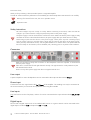
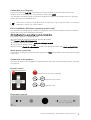
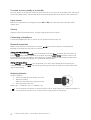
Connection to a Computer Connect the USB-input In 8 USB of the MaiA (unit must be switched on) to a free USB-socket on your computer and turn it on/make sure it is powered on. Select input 8 USB. * For Windows® operating systems an USB driver (supplied on CD) has to be installed. Mac OS® operating systems do not need an additional driver. Please note: Connection should be made to an USB-socket of your computer directly. Connecting to USB-hubs or switches can cause problems. Driver installation (Windows® operating systems only) * For Windows® operating systems a USB driver (supplied on CD) has to be installed. Insert the included CD into the drive of your PC and follow the instructions. After installing the driver, some settings have to be checked/done. For example - Windows 7® operating system: Control Panel Hardware and Sound Sound Playback: select Speaker/ MaiA USB 2.0 Audio Out Properties Supported Formats: make sure nothing is assigned Level Sound: setting must be 100 Enhancements: disable all enhancements Advanced Default Format: set to studio quality 24/192 Mains power connection Connect the low voltage plug from the power supply to the Power socket before connecting the power supply to the mains. Connection to the speakers The output terminals accept loudspeaker cables terminated with 4mm Banana plugs, spades connectors or naked wire. Remote control 1 ON/OFF ON/OFF CH+ 0 turns the unit on or back into standby 0 VOL + VOL and adjust the sound volume VOL+ VOL- 0 0 CH + CH CH- and select the inputs Front panel controls © Pro-Ject Audio Systems · Pro-Ject MaiA · Revision 2014.6.5 3