1
Active3D
3D Electronic Part Modeler and Database
User Guide
www.kov.com
The philosophy behind Kovac Software’s vision is the desire to provide a suite of software
tools to enable today’s engineers to develop world-class electronic solutions to today’s
problems; and have fun doing it!
- Ilija Kovacevic
Architect and developer of AutoTRAX
1
Notice
This program is a propriety product of Kovac Software and is protected by copyright laws
and international treaty. Use of this software is subject to acceptance of the Kovac Software
End User License agreement included in this software package.
Information in this manual is subject to change without notice and does not represent a commitment
on the part of Kovac Software. The software described in this document is furnished under a license
agreement, which states the terms for use of this product. The software may be used or copied only
in accordance with the terms of that agreement. No part of this publication may be reproduced,
transmitted, stored in a retrieval system or translated into another language without the written
permission of Kovac Software. This manual utilizes fictitious names for the purpose of
demonstration, references to actual persons, companies or organizations is strictly coincidental.
Trademarks and Copyrights
Copyright 2000,2001 Ilija Kovacevic. All rights reserved.
AutoTRAX and Active3D are registered trademarks of Ilija Kovacevic.
Adobe and Adobe Acrobat are registered trademarks of Adobe Systems, Inc.
Microsoft Windows, Windows 95, Windows 98, Windows 2000, Windows NT, Access,
ODBC are registered trademarks of Microsoft Corporation.
Other products listed are the trademarks of their respective owners.
Patent Information
This software contains designs that are patent pending.
Kovac Software, Fair Oak, Skeath Lane, Sandon Bank, Stafford ST18 9TD, England.
www.kov.com
Document Number and Revision
Document Number 100-0001 Revision A
Effective Date: Monday, May 13, 2002
2
Contents
NOTICE ................................................................................................................ 6
TRADEMARKS .................................................................................................... 6
INTRODUCTION .................................................................................................. 7
INSTALLATION ................................................................................................... 7
Operating Systems..........................................................................................................7
Memory ...........................................................................................................................7
The Mouse ......................................................................................................................8
Video Card ......................................................................................................................8
Multiple monitors .............................................................................................................8
THE USER INTERFACE ...................................................................................... 8
Numeric entry controls ....................................................................................................9
The main menu ...............................................................................................................9
Thumbwheels..................................................................................................................9
CREATING, SAVING AND OPENING MODELS................................................. 9
Opening models ..............................................................................................................9
Saving models.................................................................................................................9
VIEWING ............................................................................................................ 10
Single and multiple views ..............................................................................................10
Zooming in and out........................................................................................................10
Panning.........................................................................................................................11
Creating a perspective view ..........................................................................................11
Viewing from standard positions....................................................................................11
Adding 3D objects .........................................................................................................11
Adding a box .................................................................................................................12
Adding a sphere ............................................................................................................12
Adding a cone ...............................................................................................................12
Adding a cylinder...........................................................................................................12
Adding a torus ...............................................................................................................13
Adding a revolved surface .............................................................................................13
Adding a revolved surface with a hole ...........................................................................14
Faceted revolved surfaces ............................................................................................14
Adding an extruded shape.............................................................................................15
3
Adding a revolved shape .............................................................................................. 15
Adding a wire ................................................................................................................ 16
Creating object arrays................................................................................................... 16
THE PART LIBRARY .........................................................................................16
Introduction................................................................................................................... 16
Adding parts to the current scene ................................................................................. 16
Adding colors ................................................................................................................ 17
Adding materials ........................................................................................................... 17
SELECTING OBJECTS......................................................................................17
Click the left mouse button over the object you wish to select. ..................................................17
Selecting all objects ...................................................................................................... 17
Deselecting all objects .................................................................................................. 17
Complementing the selection........................................................................................ 17
CHANGING OBJECTS.......................................................................................17
Editing objects .............................................................................................................. 17
Editing boxes ..............................................................................................................................18
Editing spheres ...........................................................................................................................18
Editing cylinders ..........................................................................................................................18
Editing cones ..............................................................................................................................19
Editing tori ...................................................................................................................................19
Editing extruded surfaces ...........................................................................................................20
Editing revolved surfaces............................................................................................................20
Editing wires................................................................................................................................21
Setting object colors....................................................................................................................21
Chrome .......................................................................................................................................22
Conductor ...................................................................................................................................22
Dielectric .....................................................................................................................................23
Environment................................................................................................................................24
Glass ...........................................................................................................................................24
Matte ...........................................................................................................................................24
Metal ...........................................................................................................................................24
Mirror...........................................................................................................................................25
Phong..........................................................................................................................................25
Plastic..........................................................................................................................................25
Setting texture mapping modes ..................................................................................................26
Setting textures ...........................................................................................................................27
Using the object properties dialog box .......................................................................... 27
Moving and resizing objects.......................................................................................... 28
Placing objects on the ground....................................................................................... 28
Centering objects.......................................................................................................... 28
Resizing objects............................................................................................................ 29
4
Rotating objects ............................................................................................................29
Rotating 90º about axes ................................................................................................29
Grouping objects together .............................................................................................29
Ungrouping objects that are in a group..........................................................................29
Deleting objects.............................................................................................................29
Deleting all objects ........................................................................................................29
Changing colors ............................................................................................................30
Copying objects to the clipboard....................................................................................30
Pasting objects from the clipboard.................................................................................30
DRAWING AIDS ................................................................................................ 30
Adding a footprint ..........................................................................................................30
Displaying a grid............................................................................................................31
Snapping to a grid .........................................................................................................31
Showing the X,Y,Z axis .................................................................................................31
PHOTORENDERING ......................................................................................... 32
Creating a photorealistic picture ....................................................................................32
Adding a textured background.......................................................................................32
PRINTING .......................................................................................................... 32
Selecting an configuring the printer ...............................................................................32
Previewing the printed output ........................................................................................32
Printing the current model image...................................................................................33
Mailing your model to others .........................................................................................33
CUSTOMIZING_ACTIVE3D............................................................................... 34
Setting Options ...........................................................................................................................34
The Options dialog......................................................................................................................34
General options...........................................................................................................................34
Toolbars ......................................................................................................................................35
Custom toolbars..........................................................................................................................37
The Shortcut Keys dialog............................................................................................................37
Showing and hiding toolbars .........................................................................................38
Creating new toolbars ...................................................................................................38
Adding and removing keyboard shortcuts......................................................................38
Adding new buttons to toolbars .....................................................................................38
GETTING HELP AND SUPPORT ...................................................................... 38
Fault recovery ...............................................................................................................38
The recovery file .................................................................................................................................... 38
Getting a tip of the day when you start Active3D ...........................................................39
5
I wish Active3D would do this........................................................................................ 39
Kovac Software on the Web.......................................................................................... 39
Obtaining information about your copy of Active3D....................................................... 39
Registering your copy of Active3D ................................................................................ 40
THE HELP SYSTEM...........................................................................................40
Viewing the contents..................................................................................................... 41
Searching for help......................................................................................................... 41
The information pane .................................................................................................... 42
Navigating help topics................................................................................................... 42
Browse sequences ....................................................................................................... 43
Using the index ............................................................................................................. 43
Saving and viewing your favorite topics ........................................................................ 44
The Glossary ................................................................................................................ 44
Printing the help information ......................................................................................... 44
GLOSSARY ........................................................................................................44
LICENSE AGREEMENT.....................................................................................46
Software Product License ......................................................................................................................46
INDEX .................................................................................................................49
Notice
This program is a propriety product of Kovac Software and is protected by copyright laws
and international treaty. Use of this software is subject to acceptance of the Kovac Software
End User License agreement included in this software package.
Information in this electronic manual is subject to change without notice and does not
represent a commitment on the part of Kovac Software. The software described in this
document is furnished under a license agreement, which states the terms for use of this
product. The software may be used or copied only in accordance with the terms of that
agreement. No part of this publication may be reproduced, transmitted, stored in a retrieval
system or translated into another language without the written permission of Kovac
Software. This manual utilizes fictitious names for the purpose of demonstration, references
to actual persons, companies or organizations is strictly coincidental.
Trademarks
Copyright © 2000,2001 Ilija Kovacevic. All rights reserved.
AutoTRAX and Active3D are registered trademarks of Ilija Kovacevic.
Adobe and Adobe Acrobat are registered trademarks of Adobe Systems, Inc.
6
Microsoft Windows, Windows 95, Windows 98, Windows 2000, Windows NT, Access,
ODBC are registered trademarks of Microsoft Corporation.
Other products listed are the trademarks of their respective owners.
Introduction
Welcome and congratulations on choosing Active3D, a modeler design exclusively to work
with AutoTRAX, a leading Electronic Design Automation (EDA) tool designed to help you
produce world-class electronic designs that you will be proud of and also enjoy designing!
We are confident that it will deliver many years of increased productivity, superior designs
and above all, enjoyment.
Great emphasis was place on ease of use and your productivity during the design of
Active3D. This ensures that Active3D utilizes the full power of your computer and puts it to
work for you, not you working for the computer. You want to easily and quickly express your
designs and test their working. You do not want to fight with the computer.
AutoTRAX is a Microsoft Windows based program suite designed to enable both the
professional electronic engineer and the causal/hobbyist electronic engineer to rapidly
develop:
Installation
Active3D is distributed either on a CDROM or as a downloadable executable (.exe) file from
www.kov.com.
Active3D requires that your video card be 16-bit (high color) or higher. It must also have a
minimum resolution of 800x600. Right clicking on your desktop and selecting the Settings
tab can change video setting.
To install Active3D:
Insert the CD-ROM. The installation program should start automatically (unless auto-start is
disabled on your PC). If the installation does not start, open your Explorer and double-click
on the SETUP.EXE file on the CD-ROM.
Follow the on-screen instructions. Most of the instructions can simply be confirmed by
clicking the Next button. If you wish, you can customize the installation directory or the
location of the applications icon in the Start menu. The icon normally appears under the
Programs sub-menu.
Active3D setup will automatically set all ATX files to display the Active3D document icon.
Any files which have the icon assigned can be opened in Active3D by double-clicking on
the file.
Operating Systems
The developers of AutoTRAX have found Windows 2000 to be far superior in performance
and reliability to Windows 98 and in fact strongly discourage the use of Windows 98.
Memory
7
The more memory you have the better. You are recommended to have at 256 Mbytes.
The Mouse
To get the best out of AutoTRAX you are strongly advised to purchase a 3-button mouse
with a thumbwheel.
Video Card
AutoTRAX takes full advantage of hardware acceleration of the current range of graphics
card to give you real-time true WSIWG (what you see is what you get) viewing.
It is recommended to use 24bit color and a resolution 0f 1024x768 or 1280x1024. Using a
larger resolution may slow down the speed of the graphics as more pixels need to be
drawn. Using a lower resolution makes it more difficult to manage floating toolbars and
dialog boxes.
Multiple monitors
Multiple Monitors
With the advent of Windows 98 and Windows 2000 you now have the capability of adding
additional monitors to your computer. AutoTRAX can be used with multiple monitors and
the floating toolbars and dialogs can be positioned on these additional monitors. AutoTRAX
remembers their position when it restarts.
All you need is an additional graphics card and monitor. See the Windows documentation of
setting up the additional monitor.
For Windows 2000
1. Turn off your computer.
2. Insert your additional Peripheral Component Interconnect (PCI) or Accelerated
Graphics Port (AGP) video adapter into an available slot.
3. Plug your additional monitor into the card.
4. Turn on your computer. Windows 2000 will detect the new video adapter and install
the appropriate drivers.
5. Open Display in Control Panel.
6. On the Settings tab, click the monitor icon that represents the monitor you want to
use in addition to your primary monitor.
7. Select the Extend my Windows desktop onto this monitor check box, and then click
Apply or OK.
8. Selecting the Extend my Windows desktop onto this monitor check box allows you to
drag items across your screen onto alternate monitors.
Or, you can resize a window to stretch it across more than one monitor. To use the multiple
monitor support feature, you need a PCI or AGP video adapter for each monitor. If you
have an onboard video adapter (one that is not a plug-in card but is part of the
motherboard) that you want to use as part of a multiple-monitor configuration, it must be set
as VGA.
The User Interface
8
Numeric entry controls
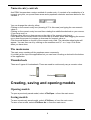
AutoTRAX incorporates a unique method of number entry. It consists of a combination of a
numeric entry box, an up and down arrow and a popdown calculator as shown below for the
variable x.
You can change the value by either:
Clicking on the numeric entry box (showing 4.75 in this case) and typing the new numeric
value or
Clicking on the numeric entry box and then rotating the middle thumbwheel on your mouse,
(If you have one!) or
Clicking either the up or down arrows on the right of the numeric entry box or
Press down the left mouse button over either the up or down arrow and dragging the mouse
up or down the screen to increase or decrease the numeric value or
Click the small button on the left of the numeric entry field. The calculator show below will
appear. You can then use it by clicking on the numbers and %/*- or + keys. Click Enter
when you have done.
The main menu
The main menu contains all the popdown menu commands.
It is initially at the top of the application but you can have it floating or docked to the bottom
of the application.
Thumbwheels
There are 2 types of thumbwheels. These are used to continuously vary a numeric value.
Vertical
Horizontal
Creating, saving and opening models
Opening models
To open a previously saved model, select <File\Open...> from the main menu.
Saving models
To save a previously saved model, select <File\Save...> from the main menu.
To save a new model, select <File\Save As...> from the main menu.
9
Viewing
Single and multiple views
You can either have 1 or 4 views of the model.
Check the <View\Single viewport> menu item from the main menu to have a single
viewport.
Uncheck the <View\Single viewport> menu item from the main menu to 4 viewports.
The current viewport will has a red border. To select another viewport, click the left mouse
button in the viewport you wish to select.
Zooming in and out
To zoom in or out you can either:
1. Place the mouse in camera mode by selecting <Edit\Camera> from the main menu.
2. Rotate the mouse thumbwheel, if you have one.
or:
1. Press the PgDn or PgUp key on the keyboard.
or:
1. Selecting either
• <View\Zoom\In> or
• <View\Zoom]\Out> or
from the main menu.
10
Panning
To pan the current view you can either:
1. Place the mouse in camera mode by selecting <Edit\Camera> from the main menu.
2. Hold down the left mouse button in the viewport and drag the mouse. The view will
then pan. Release the left mouse button when the view is correct.
or:
1. Press one of the arrow button on the keyboard.
or:
1. Selecting either
• <View\Pan\Left> or
• <View\Pan]\Right> or
• <View\Pan]\Up> or
• <View\Pan\Down>
from the main menu.
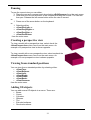
Creating a perspective view
To view a model with a perspective view, select check the
<View\Perspective> menu item from the main menu. An
example of a perspective view is shown opposite.
To view a model with a non-perspective view, select uncheck the
<View\Perspective> menu item from the main menu. An
example of a non-perspective view is shown opposite.
Viewing from standard positions
You can view from a standard position by selecting either:
<View\Top>
<View\Bottom>
<View\Left>
<View\Right>
<View\Front>
<View\Back>
<View\Camera>
from the main menu.
Adding 3D objects
You can add several 3D objects to a scene. These are:
Boxes.
Cones.
Cylinders.
Spheres.
Tori.
Extruded surfaces.
Revolved surfaces.
11
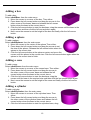
Adding a box
To add a box:
Select <Add/Box> from the main menu.
1. Move the mouse to a corner of the box. Then either:
2. Press down the left mouse button and drag the mouse to the
other corner of the boxes' base and release the left mouse
button when the base is the correct size or
3. Click the left mouse button to start the box base, drag the mouse until the base is the
required size and then click the left mouse button again.
4. Next, move the mouse to set the height of the box and finally click the left mouse
button.
Adding a sphere
To add a sphere:
Select <Add/Sphere> from the main menu.
1. Move the mouse to the center of the sphere Then either:
2. Press down the left mouse button and drag the mouse to set
the size of the sphere. Release the left mouse button when the
sphere is the correct size.
3. Click the left mouse button at the spheres center and move the
mouse until the sphere is the correct size. Click the left mouse button again when the
sphere is the correct size to finish.
Adding a cone
To add a cone:
Select <Add/Cone> from the main menu.
1. Move the mouse to a corner of the cones base. Then either:
2. Press down the left mouse button and drag the mouse to
the other corner of the cones' base and release the left
mouse button when the base is the correct size or
3. Click the left mouse button to start the box base, drag the
mouse until the base is the required size and then click the left mouse button again.
4. Next, move the mouse to set the height of the cone and finally click the left mouse
button.
Adding a cylinder
To add a cylinder:
Select <Add/Cylinder> from the main menu.
1. Move the mouse to a corner of the cylinders base. Then
either:
2. Press down the left mouse button and drag the mouse to
the other corner of the cylinders' base and release the left
mouse button when the base is the correct size or
3. Click the left mouse button to start the cylinders base, drag
12
the mouse until the base is the required size and then click the left mouse button
again.
4. Next, move the mouse to set the height of the cylinder and finally click the left mouse
button.
Adding a torus
To add a torus:
Select <Add/Torus> from the main menu.
1. Move the mouse to the center of the torus Then
either:
2. Press down the left mouse button and drag the
mouse to set diameter of the torus. Release the left
mouse button when the torus is the correct size.
3. Now move the mouse again to set the diameter of the outer tube. Click the left
mouse button when the tube diameter is the correct size.
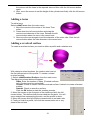
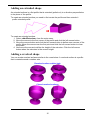
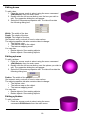
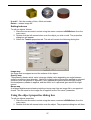
Adding a revolved surface
To create a revolved surface you need to define a profile and a rotation axis.
With closed revolved surfaces, the rotation axis is set at
the first defined point of the profile. To create a closed
revolved surface:
1. Select <Add/Revolved Surface> from the main menu.
The dialog box shown below will appear.
Sides. Enter the number of sides. (Faceted surfaces
only. Circular must be unchecked)
Circular. Check to create a circular revolved surface. Uncheck to create a faceted
surface.
Smooth. Check to smooth a surface.
Click the OK button to start the creation process.
2. Move the mouse to the first point of the profile and click the left
mouse button. This defines both the axis and the first point. You will
see a straight line representing the axis, and the profile in white.
3. Move the mouse and left click the mouse button to set each side.
4. Finally to finish the profile, left click the mouse button on or very
close to the red axis.
13
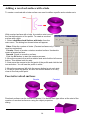
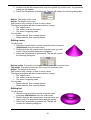
Adding a revolved surface with a hole
To create a revolved with a hole surface you need to define a profile and a rotation axis.
With revolved surface with a hole, the rotation axis is set at
the first defined point of the profile. To create a revolved
surface with a hole:
1. Select <Add/Revolved Surface with hole> from the
main menu. The dialog box shown below will appear.
Sides. Enter the number of sides. (Faceted surfaces only. Circular
must be unchecked)
Circular. Check to create a circular revolved surface. Uncheck to
create a faceted surface.
Smooth. Check to smooth a surface.
Click the OK button to start the creation process.
2. Move the mouse to the set the rotation axis and click the left mouse
button. This defines both the axis.
3. Next move the mouse to the first point of the profile and click the left
mouse button. You will see the profile in white.
3. Move the mouse and left click the mouse button to set each side.
4. Finally to finish the profile, left click the mouse button on or very
close to the first profile point.
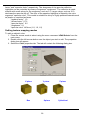
Faceted revolved surfaces
Circular
Faceted
Revolved surfaces can be circular of faceted. You define each type either at the start of the
creation of revolved surfaces or using the object properties
dialog.
14
Adding an extruded shape
An extruded surface is a flat profile that is extruded (pulled out) in a direction perpendicular
to the plane of the profile.
To create an extruded surface you need to first create the profile and then extrude it.
profile extruded profile
To create an extruded surface:
1. Select <Add\Extrusion> from the main menu.
2. Move the mouse to the first corner of the profile and click the left mouse button.
3. Move the mouse button and click the left mouse button to define more corners of the
profile. Move the mouse over the first point and click the left mouse button to close
the profile.
4. Now move the mouse to define the height of the extrusion. Click the left mouse
button when the extrusion is the correct height.
Adding a revolved shape
You can create revolved surfaces similar to the ones below. A revolved surface is a profile
that is rotated around a rotation axis.
Revolved surfaces with a hole
Closed revolved surfaces
15
To create a revolved surface you therefore need to define a profile and a rotation axis.
Two type of revolved surfaces can be creates;
1. Closed revolved surfaces.
2. Revolved surfaces with a central hole at the axis.
Each type of revolved surface can either be smooth or faceted.
Adding a wire
A wire is a send of straight cylindrical section with bends between each segment.
To create a wire:
1. Select <Add\Wire> from the main menu.
The Wire Parameters dialog shown below will appear.
Wire radius. Enter the diameter of the wire.
Bend radius. Enter the radius of bends.
Click OK to continue to create the wire.
2. Move the mouse to the first point of the wire and click
the left mouse button to start the wire.
3. Now move the mouse and click the left mouse button
define each straight segments.
4. Right click to end the wire.
Creating object arrays
To create a rectangular array of an object:
1. Select the object.
2. Select <Tools\Array rectangular> from the main
menu. The dialog box shown below will appear.
Horizontal Rows. Enter the number of horizontal rows.
Vertical Columns. Enter the number of vertical
columns.
Column Spacing. Enter the column spacing.
Row Spacing. Enter the row spacing.
Click OK to create the array.
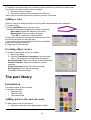
The part library
Introduction
The parts toolbar is shown below.
It consists of the tabs:
The parts tab.
The colors tab.
The material tab.
Adding parts to the current scene
To add a part to the current scene:
1. Select the parts tab in the parts library toolbar.
16
to
2. Hold down the left mouse button over a part and drag it into the scene by moving the
mouse.
3. Release the left mouse button when the part is at the correct location.
Adding colors
To add a color to an object:
1. Select the color tab in the parts library toolbar.
2. Hold down the left mouse button over a color and drag it into the scene by moving
the mouse.
3. Release the left mouse button when the color is on the correct object.
Adding materials
To add a material to an object:
1. Select the materials tab in the parts library toolbar.
2. Hold down the left mouse button over a material and drag it into the scene by moving
the mouse.
3. Release the left mouse button when the material is on the correct object.
Selecting objects
To select an objects:
1. Place the mouse mode in select using the menu command <Edit\Select> from the
main menu.
Click the left mouse button over the object you wish to select.
Selecting all objects
Select <Edit/Select all> from the main menu to select all objects.
Deselecting all objects
Select <Edit/Select none> from the main menu to deselect all objects.
Complementing the selection
Select <Edit/Complement Selection> from the main menu to invert the selection.
Changing objects
Editing objects
17
Editing boxes
To edit a box:
1. Place the mouse mode in select using the menu command
<Edit\Select> from the main menu.
2. Double click the left mouse button over the box you wish to
edit. The properties dialog box will appear.
3. Select the Parameters properties tab. The tab will contain
the following dialog box.
Width. The width of the box.
Depth. The depth of the box.
Height. The height of the box.
See numeric entry controls of how to enter values.
The object properties tab also contains tabs to change:
The objects color.
The texture map on the object.
The texture mapping mode.
You can also:
Resize objects. See resizing objects.
Rotate objects. See rotating objects.
Editing spheres
To edit a sphere:
1. Place the mouse mode in select using the menu command
<Edit\Select> from the main menu.
2. Double click the left mouse button over the sphere you wish to
edit. The properties dialog box will appear.
3. Select the Parameters properties tab. The tab will contain the
following dialog box.
Radius. The width of the sphere.
See numeric entry controls of how to enter values.
The object properties tab also contains tabs to change:
The objects color.
The texture map on the object.
The texture mapping mode.
You can also:
Resize objects. See resizing objects.
Rotate objects. See rotating objects.
Editing cylinders
To edit a cylinder:
1. Place the mouse mode in select using the menu
command <Edit\Select> from the main menu.
18
2. Double click the left mouse button over the cylinder you wish to edit. The properties
dialog box will appear.
3. Select the Parameters properties tab. The tab will contain the following dialog box.
Radius. The radius of the cone.
Height. The depth of the cone.
See numeric entry controls of how to enter values.
The object properties tab also contains tabs to change:
The objects color.
The texture map on the object.
The texture mapping mode.
You can also:
Resize objects. See resizing objects.
Rotate objects. See rotating objects.
Editing cones
To edit a cone:
1. Place the mouse mode in select using the menu command
<Edit\Select> from the main menu.
2. Double click the left mouse button over the cone you wish
to edit. The properties dialog box will appear.
3. Select the Parameters properties tab. The tab will contain
the following dialog box.
Bottom radius. The radius of the base. Set to zero for an inverted cone.
Top radius. The radius of the top. Set to zero for a pointed cone.
Height. The height of the cone.
See numeric entry controls of how to enter values.
The object properties tab also contains tabs to change:
The objects color.
The texture map on the object.
The texture mapping mode.
You can also:
Resize objects. See resizing objects.
Rotate objects. See rotating objects.
Editing tori
To edit a torus:
1. Place the mouse mode in select using the menu
command <Edit\Select> from the main menu.
2. Double click the left mouse button over the torus you
wish to edit. The properties dialog box will appear.
3. Select the Parameters properties tab. The tab will
contain the following dialog box.
19
Width. The width of the box.
Depth. The depth of the box.
Height. The height of the box.
See numeric entry controls of how to enter values.
The object properties tab also contains tabs to change:
The objects color.
The texture map on the object.
The texture mapping mode.
You can also:
Resize objects. See resizing objects.
Rotate objects. See rotating objects.
Editing extruded surfaces
To edit an extrusion:
1. Place the mouse mode in select using the menu
command <Edit\Select> from the main menu.
2. Double click the left mouse button over the
extrusion you wish to edit. The properties dialog
box will appear.
3. Select the Parameters properties tab. The tab will
contain the following dialog box.
Height. The height of the extrusion.
See numeric entry controls of how to enter values.
The object properties tab also contains tabs to change:
The objects color.
The texture map on the object.
The texture mapping mode.
You can also:
Resize objects. See resizing objects.
Rotate objects. See rotating objects.
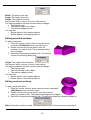
Editing revolved surfaces
To edit a revolved surface:
1. Place the mouse mode in select using the menu command
<Edit\Select> from the main menu.
2. Double click the left mouse button over the revolved
surface you wish to edit. The properties dialog box will appear.
3. Select the Parameters properties tab. The tab will contain the following dialog box.
Sides. Enter the number of sides. (Faceted surfaces only. Circular must be unchecked)
20
Circular. Check to create a circular revolved surface. Uncheck to create a faceted surface.
Smooth. Check to smooth a surface.
See numeric entry controls of how to enter values.
The object properties tab also contains tabs to change:
The objects color.
The texture map on the object.
The texture mapping mode.
You can also:
Resize objects. See resizing objects.
Rotate objects. See rotating objects.
Editing wires
To edit a wire:
1. Place the mouse mode in select using the menu
command <Edit\Select> from the main menu.
2. Double click the left mouse button over the wire you
wish to edit. The properties dialog box will appear.
3. Select the Parameters properties tab. The tab will contain the following dialog box.
Wire radius. Enter the diameter of the wire.
Bend radius. Enter the radius of bends.
See numeric entry controls of how to enter values.
The object properties tab also contains tabs to change:
The objects color.
The texture map on the object.
The texture mapping mode.
You can also:
Resize objects. See resizing objects.
Rotate objects. See rotating objects.
Setting object colors
To edit an objects' color:
1. Place the mouse mode in select using the menu command <Edit\Select> from the
main menu.
2. Double click the left mouse button over the object you wish to edit. The properties
dialog box will appear.
3. Select the Color properties tab. The tab will contain the following dialog box.
21
Surface Type
Check the surface type.
Matte
Phong
Plastic
Dielectric
Metal
Conductor
Glass
Mirror
Chrome
Environment
Color and color parameters see the details in the above topics.
Chrome
A chrome-like reflectance using a two-dimensional chrome map.
Description A reflectance model providing a chrome-like effect which generates a reflection
pattern from a two dimensional array of colors. The map is projected onto surfaces using a
spherical mapping. Reflectance coefficients are provided which allow specification of the
amount of ambient, diffuse, specular and ‘chrome’ light reflected, corresponding to
arguments "ambient factor", "diffuse factor", "specular factor" and "chrome factor"
respectively. The sharpness of the specular reflection highlights can be controlled by
means of argument "roughness". The reflection is made sharper with small values for the
roughness, such as 0.1. Larger values, such as 10.0, decrease the specular fall-off. This
model is suitable for shiny or highly polished chrome-like materials.
"ambient factor" 1.0
"diffuse factor" 0.5
"specular factor" 0.5
"chrome factor" 0.3
"roughness" 0.1
Conductor
Physically accurate metallic simulation using ray tracing, supporting reflection.
A reflectance model that supports secondary mirrored views through ray tracing. Fresnel
filtering is incorporated for accurate modeling of light interaction on the surfaces of objects.
Reflectance coefficients are provided which allow specification of the amount of ambient,
22
diffuse and specular light components, and the contribution made by light reflected in the
mirror direction, corresponding to arguments "ambient factor", "diffuse factor", "specular
factor" and "mirror factor" respectively. The sharpness of specularly reflected highlights can
be controlled by means of argument "roughness". The reflection is made sharper with small
values for the roughness, such as 0.1. Larger values, such as 10.0, decrease the specular
fall-off. The conductor’s indices of refraction for red, green and blue light are given by the
arguments "refraction red", "refraction green" and "refraction blue" respectively. Similarly,
the absorption coefficients for red, green and blue light are given by "absorption red",
"absorption green" and "absorption blue" respectively. This model is appropriate for
simulating metallic surface finishes accurately.
The default values for the refraction and absorption coefficients correspond to those for
silver. The appropriate values for other conductors can be obtained from published data in
handbooks of optical constants a sample of the properties of some common metallic
looking materials is given in the table below.
"ambient factor" 0.1
"diffuse factor" 0.1
"specular factor" 0.8
"mirror factor" 0.8
"roughness" 0.1
"refraction red" 0.13764
"refraction green" 0.128079
"refraction blue" 0.156556
"absorption red" 3.75633
"absorption green" 4.37743
"absorption blue" 2.3437
Dielectric
Physically accurate glass-like simulation using ray tracing, supporting reflection.
A reflectance model that supports an accurate simulation of dielectric (glass-like) materials
that have both reflective and transmissive properties. Secondary mirrored and transmitted
views are incorporated by the use of ray tracing. Fresnel filtering is incorporated for the
specular reflection, the mirrored view and the transmitted view, for accurate modeling of
light interaction on the surfaces of objects. Reflectance coefficients are provided which
allow specification of the amount of ambient, diffuse and specular light components, and
the contribution made by light from the mirror and transmission directions, corresponding to
arguments "ambient factor", "diffuse factor", "specular factor", "mirror factor" and
"transmission factor" respectively. The sharpness of the specular reflection highlights can
be controlled by means of argument "roughness". The reflection is made sharper with small
values for the roughness, such as 0.1. Larger values, such as 10.0, decrease the specular
fall-off. The dielectric’s index of refraction for all wavelengths of light is given by the
argument "re-fraction". The default value for the refractive index corresponds to that for
glass. The appropriate value for other dielectrics can be obtained from published data in
handbooks of optical constants. This model is appropriate for simulating glass surface
finishes.
"ambient factor" 0.0
"diffuse factor" 0.0
"specular factor" 0.9
"transmission factor" 0.9
"mirror factor" 0.9
"roughness" 0.1
23
"refraction" 1.59144
Environment
A reflectance model providing environment mapping. Reflectance coefficients
are provided as arguments which allow specification of the ambient ("ambient factor"),
diffuse ("diffuse factor"), specular ("specular factor") and environment ("environment factor")
terms. The sharpness of the specular reflection highlights can be con-trolled by means of
argument "roughness". The reflection is made sharper with small values for the roughness,
such as 0.1. Larger values, such as 10.0, decrease the specular fall-off. A scaling factor for
the area of sampling in the global environment map is given by "angle scale"; a value of 0
will cause point sampling, a value greater than the default of 1 will cause ‘diffuse’
environment reflections. This model is suitable for reflective materials such as shiny metals.
"ambient factor" 1.0
"diffuse factor" 0.5
"specular factor" 0.5
"environment factor" 0.3
"roughness" 0.1
"angle scale" 1.0
Glass
Approximation of glass-like materials using ray tracing, supporting reflection and refraction.
Description A reflectance model that supports an approximation of glass-like materials that
have both reflective and transmissive properties. Secondary mirrored and transmitted views
are incorporated by the use of ray tracing. Reflectance coefficients are provided as
arguments which allow specification of the amount of the specular light component
("specular factor", and the contribution made by light from the mirror ("mirror factor") and
transmission ("transmission factor") directions. The sharpness of the specular reflection
highlights can be controlled by means of argument "roughness". The reflection is made
sharper with small values for the roughness, such as 0.1. Larger values, such as 10.0,
decrease the specular fall-off. The index of refraction for all wavelengths of light is given by
the argument "refraction". The default value for the refractive index corresponds to that for
glass. The appropriate value for other materials can be obtained from published data in
handbooks of optical constants. This model is appropriate for approximating glass surface
finishes.
"specular factor" 0.5
"transmission factor" 0.9
"mirror factor" 0.1
"roughness" 0.1
"refraction" 1.59144
Matte
Dull matte-like reflectance.
A reflectance model providing a dull matte appearance. Reflectance coefficients are
provided to allow specification of the amount of ambient and diffuse light reflected in
arguments "ambient factor" and "diffuse factor" respectively. This model is suitable for nonglossy materials such as brick or fabric.
"ambient factor" 1.0
"diffuse factor" 1.0
Metal
24
Shiny metallic reflectance.
Description A reflectance model providing a specular metallic appearance. Reflectance
coefficients are provided to allow specification of the amount of ambient and specular light
reflected in arguments "ambient factor" and "specular factor" respectively. The sharpness of
specular re-flections can be controlled by means of the "roughness" argument. The
reflection is made sharper with small roughness values (less than 1), such as 0.1. Larger
values, such as 10.0, decrease the specular fall-off. This model is suitable for most metallic
materials such as steel or brass.
"ambient factor" 1.0
"specular factor" 1.0
"roughness" 0.25
Mirror
Approximation of mirror reflecting materials using ray tracing, supporting reflection.
Description A reflectance model that supports secondary mirrored views through ray
tracing. Reflectance coefficients are provided as arguments which allow specification of the
amount of ambient light ("ambient factor"), diffuse light ("diffuse factor") and specular light
("specular factor") components, and the contribution made by light reflected in the mirror
direction ("mirror factor"). The sharpness of the specular reflection highlights can be
controlled by means of argument "roughness". The reflection is made sharper with small
values for the roughness, such as 0.1 or less. Larger values, such as 10.0, decrease the
specular fall-off. This model is appropriate for representing mirror-like surface finishes.
"ambient factor" 0.1
"diffuse factor" 0.1
"specular factor" 0.8
"mirror factor" 0.8
"roughness" 0.0625
Phong
Phong-style reflectance. A reflectance model conforming with the popular Phong model in
which reflections are greatest in the “mirror” direction of a surface opposite the viewing
direction with respect to the surface normal. Reflectance coefficients are provided which
allow specification of the amount of ambient, diffuse and specular light reflected,
corresponding to arguments "ambient factor", "diffuse factor" and "specular factor"
respectively. The sharpness of the specular reflection highlights can be controlled by
means of argument "exponent". The reflection is made sharper with large values of the
exponent, such as 10.0. Small values, such as 1.0, decrease the specular fall-off. The color
of the specular highlights is filtered by the color argument "specular color". This model is
suitable for shiny or highly polished materials such as ceramic or glass.
"ambient factor" 1.0
"diffuse factor" 0.75
"specular factor" 0.5
"exponent" 10.0
"specular color" LtColour (1.0, 1.0, 1.0)
Plastic
Glossy plastic-like reflectance.
A reflectance model providing a specular effect which is similar to the Phong model.
Reflectance coefficients are provided which allow specification of the amount of ambient,
diffuse and specular light reflected, corresponding to arguments "ambient factor", "diffuse
25
factor" and "specular factor" respectively. The sharpness of the specular reflection
highlights can be controlled by means of argument "roughness". The reflection is made
sharper with small values for the roughness, such as 0.1. Larger values, such as 10.0,
decrease the specular fall-off. The color of the specular highlights is filtered by the color
argument "specular color". This model is suitable for shiny or highly polished materials such
as plastic or varnished surfaces.
"ambient factor" 1.0
"diffuse factor" 0.75
"specular factor" 0.5
"roughness" 0.1
"specular color" LtColour (1.0, 1.0, 1.0)
Setting texture mapping modes
To edit an objects' color:
1. Place the mouse mode in select using the menu command <Edit\Select> from the
main menu.
2. Double click the left mouse button over the object you wish to edit. The properties
dialog box will appear.
3. Select the Color properties tab. The tab will contain the following dialog box.
X plane
Y plane
Box
Sphere
26
Z plane
Cylindrical
U and V - Set the number of tiles, offset and scale.
Rotate – rotates image 90°.
Setting textures
To edit an objects' texture:
1. Place the mouse mode in select using the menu command <Edit\Select> from the
main menu.
2. Double click the left mouse button over the object you wish to edit. The properties
dialog box will appear.
3. Select the Texture properties tab. The tab will contain the following dialog box.
Image map
An image that is wrapped around the surface of the object.
Opacity map
Transparency shader which varies coverage (alpha) value depending on angle between
surface normal and view direction. Useful for creating glow effects when applied to spheroid
surfaces (such as spheres or elipsoids). Such spheres are placed around a light source,
this transparency shader is applied, and the effect is of a spherical glow around the light
source.
Bump map
A wrapped displacement shader providing a bump map from an image file in a supported
format. The file name for the image file is supplied as the "file name" parameter.
Using the object properties dialog box
To edit an objects properties.
1. Place the mouse mode in select using the menu command <Edit\Select> from the
main menu.
2. Double click the left mouse button over the object. The properties dialog box will then
27
appear.
The properties dialog box consists of 4 tabbed dialog pages.
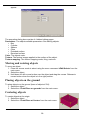
Parameters. The objects editable parameters. See editing objects.
Box
Cylinder
Sphere
Cone
Extruded surface
Revolved surface
Color. The objects color.
Texture. The texture images applied to the surface of the object.
Texture mapping. The texture mapping mode, tiling, scale etc.
Moving and resizing objects
To move an object:
1. Place the mouse mode in select using the menu command <Edit\Select> from the
main menu.
2. Select the object.
3. Hold down the left mouse button over the object and drag the mouse. Release to
mouse button when the object is in the right position.
Placing objects on the ground
To place objects on the ground (base of object at Z=0):
1. Select the object.
2. Select the <Tools\Place on ground> from the main menu.
Centering objects
To center objects at the origin:
1. Select the object.
2. Select the <Tools\Place at Center> from the main menu.
28
Resizing objects
To resize an object:
1. Place the mouse mode in select using the menu command <Edit\Select> from the
main menu.
2. Select the object.
3. Hold down the left mouse button over the object and either :
drag the mouse one of the yellow corner boxes to move a corner or
drag one of the green face balls to move a face.
Rotating objects
To rotate an object:
1. Place the mouse mode in select using the menu
command <Edit\Rotate> from the main menu.
2. Select the object.
3. Hold down the left mouse button over the object and
drag the mouse.
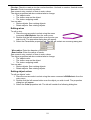
Rotating 90º about axes
To rotate objects 90º about an axis:
1. Select the object.
2. Select either:
<Tools\Rotate 90º about X axis> from the main menu or
<Tools\Rotate 90º about Y axis> from the main menu or
<Tools\Rotate 90º about Z axis> from the main menu.
Grouping objects together
To ungroup a group:
1. Select the objects.
2. Select <Edit/Group> from the main menu.
Ungrouping objects that are in a group
To ungroup a group:
1. Select the group.
2. Select <Edit/Ungroup> from the main menu.
Deleting objects
To delete objects, you can either:
1. Select the objects.
2. Select <Edit\Cut> from the main menu.
Deleting all objects
To delete all objects, you can either:
1. Select <Edit\Clear> from the main menu.
29
or:
1. Select <Edit\Select all> from the main menu.
2. Select <Edit\Cut> from the main menu.
Changing colors
You can change an objects color using:
1. The object's property dialog or
2. Dragging a color/texture map from the parts library toolbar.
Copying objects to the clipboard
To copy objects to the clipboard.
1. Select the objects.
2. Select <Edit/Copy> from the main menu.
Pasting objects from the clipboard
To paste objects from the clipboard.
Select <Edit/Paste> from the main menu.
Drawing aids
Adding a footprint
When creating a model for a PCB part, it is advantageous to have the footprint available.
With Active3D you can add a footprint by:
Selecting <Tools\Add footprint> from the main menu. This will display the Open Footprint
dialog shown below.
Select the footprint from the list of names on the left and click on the Open button to add it
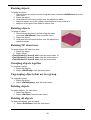
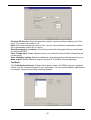
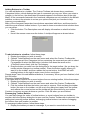
to the scene. Below is an example of a DIP14 footprint added to a scene.
30
Below is the same footprint with a box added to represent a 3D part. This is a very simple
representation and you may wish to add terminals and a texture map to improve realism.
NOTE: The footprint is saved with the model of the part and there is no need to delete it as
it is not used when building a model of a complete PCB.
Displaying a grid
To display a grid:
Select <View\Grid> from the main menu.
Snapping to a grid
To toggle snapping points to a grid:
Select <Edit\Snap to grid> from the main menu.
Showing the X,Y,Z axis
To display a grid:
Select <View\Axis> from the main menu.
31
The X axis is in red.
The Y axis is in green.
The Z axis is in blue.
The negative direction is dotted.
Photorendering
Creating a photorealistic picture
To create a photorealistic picture Select <View\Photorender> from the main menu.
Adding a textured background
To add a textured background:
1. Select <Add\Background image> from the main menu.
Printing
Selecting an configuring the printer
To setup and configure the printer:
Select <File/Print Setup> from the main menu.
The Print Setup dialog will be shown. The Print Setup dialog box shown below shows the
print setup dialog for a HP LaserJet 5L printer.
Previewing the printed output
32
To preview the printed output:
Select <File/Print Preview> from the main menu.
The Print Preview dialog will be shown.
Printing the current model image
To print the current design:
Select <File/Print...> from the main menu.
The Print Dialog shown below will be displayed. The dialog below shows the print dialog for
a HP LaserJet 5L printer. If may be different from your printer as some printers have their
own dialogs.
Mailing your model to others
To mail the current model to another person
Select <File/Send...> from the main menu. The mail dialog box shown below will be
displayed.
33
The current design has been attached to the email message.
Fill in the To... CC... and Subject fields.
Type in any notes in the text message area.
Click the Send button at the top left to send the design.
Customizing_Active3D
Setting Options
All Active3D program settings are changeable using either
• The Options Dialog or
• The Shortcut Keys Dialog.
The Options dialog
Select <Tools/Options> to view the Options dialog. The options dialog contains several
tabbed dialogs that group together configuration settings. These are:
General
Toolbars
Custom Toolbars
General options
The General options tab is shown below.
34
Previous file list size. Enter the maximum number of previous files to display in the File
menu. The maximum number is 15.
Units. Enter the units that you wish to use. You can use millimeters, centimeters, meters,
thou (thousandths of an inch) or inches.
Reload last project on startup. Check this to reload the last project that you saved when
you start AutoTRAX.
View - Enable spin. Enable objects to spin if you rotate the view and then release the left
mouse button.
View - Backface culling. Speed up redraw by not drawing surfaces facing away from you.
Snap to grid. Enable objects to snap to the grid. X, Y and Z are the grid spacings.
Toolbars
The Tools/Options/Custom Toolbars tab is shown below. AutoTRAX gives you complete
control over the toolbars displayed in your workspace. You can create toolbars, add buttons
to a toolbar, remove buttons and rearrange buttons.
35
Adding Buttons to a Toolbar
You can add buttons to a toolbar. The Custom Toolbars tab shown above contains a
Categories list box, which displays the type of commands you can use. When you select a
category in the list box, the associated commands appear in the Buttons box to the right.
Manly of the commands featured in the functional categories are not included in the default
toolbars, so take a few minutes to review your options and pick you favorites to help
improve your productivity.
Many of the command names also have buttons associated with them, and these tend to
make the most efficient toolbar buttons. If you want to learn more about what a button does
you can either:
Click the button. The Description area will display information on what the button
does.
Hover' the mouse cursor over the button. A tooltip will appear as shown below.
To add a button to a toolbar, follow these steps:
1. Display the toolbar you wish to modify.
2. Choose Tools/Options from the main menu and select the Custom Toolbars tab.
3. Click the group in the Categories list box containing the command you wish to select.
For example to select the Mail button (a button than does the same as the
<File/Send >menu item) click the File category.
4. Drag the button you want from the dialog box to the target toolbar. (As you drag, the
mouse pointer changes to a toolbar pointer). Place the button exactly where you
want it on the toolbar, and then release the mouse button. AutoTRAX will shift
existing buttons to the right to make room for the new button.
Repeat steps 3 and 4 to add additional buttons, if necessary. When you have finished, click
the OK button.
Removing Unwanted Buttons
If you have wish to remove one or more buttons from an existing toolbar, follow these steps:
1. Display the toolbar you wish to modify.
2. Choose Tools/Options from the main menu and select the Custom Toolbars tab.
3. Pick the toolbar and then the button you want to remove. Click and drag the toolbar
button (the one on the toolbar, not the one in the dialog box) away from the toolbar
and release the mouse button and the toolbar will be removed from your toolbar.
Continue to remove as many buttons as you like. Click OK when you are finished.
Rearranging Toolbar Buttons.
You can also change the order of toolbar buttons, or move buttons from one toolbar to
another, while the Options dialog box is open and the Custom Toolbars tab is selected. Like
adding and removing toolbar buttons, rearranging toolbar buttons is a matter of dragging
the buttons from one location to another.
To rearrange toolbar buttons, follow these steps:
1. Display the toolbar you want to rearrange. If you want to move buttons from one
36
toolbar to another, display both toolbars.
2. Choose Tools/Options from the main menu and select the Custom Toolbars tab.
3. Drag toolbar buttons from one location to the next. When you release the mouse
button, the button you have just dragged will be relocated.
4. Continue to rearrange as many buttons as you like. Click OK when you are finished.
Custom toolbars
The Tools/Options/Custom Toolbars tab is shown below. AutoTRAX gives you complete
control over the toolbars displayed in your workspace. You can create toolbars, add buttons
to a toolbar, remove buttons and rearrange buttons.
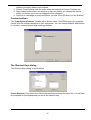
The Shortcut Keys dialog
The Shortcut Keys dialog is shown below.
Create Shortcut. First select one of the command/macros from the macro list. You will then
be prompted for the keyboard key to act as the shortcut key.
37
Type key. You can press the Alt, Shift and Ctrl key at the same time.
Showing and hiding toolbars
Select <Tools/Options> from the main menu and select the Toolbars tab.
For more information, see the Toolbars tab.
Creating new toolbars
Select <Tools/Options> from the main menu and select the Custom Toolbars tab.
For more information, see the Custom Toolbars tab.
Adding and removing keyboard shortcuts
See the Shortcuts dialog.
Adding new buttons to toolbars
Select <Tools/Options> from the main menu and select the Custom Toolbars tab.
For more information, see the Custom Toolbars tab.
Getting help and support
Fault recovery
The recovery file
Before all operations, the current state of the design is saved on an undo stack. In addition,
before any significant operation that modifies the design database, the current design is
save to as recovery file on the hard drive. When Active3D terminates normally, the recovery
file is deleted. However, if the operation fails and Active3D terminates due to a serious error
then the recovery file is not deleted. The presence of the recovery file will be detected when
Active3D is restarted and the user will be prompted to load the recovery file. This will
restore the design to the point just before the serious error occurred. The user will not have
lost any work!
If the operating system fails due to say a power outage, Active3D will detect the recovery
file on restart allowing the user to recover their work. In this case at most only the last
operation is lost.
One of the main advantages of the recovery file is the improved effective reliability of using
Active3D and the effect that recovery has after a program or system failure. Imagine, if you
will, the user having worked on a design for 2 hours without saving the design and then the
program crashes or the power goes off. The user will be none too pleased! Now imagine
38
their delight when then start up Active3D again to find that their work is still there. NOTE:
Unfortunately a hard drive crash will not save enable recovery of the users work if a RAID
system was not used.
By chance during the creation of the actual paragraph (using Word 2000 on Windows 2000
Professional) the computer decided to reboot. All the work was lost so it had to be
retyped….
Getting a tip of the day when you start Active3D
Every time you start Active3D you can optionally display a 'Tip of the Day' to help you learn
how the get the most out of AutoTRAX. The 'Tip of the Day' dialog is shown below:
Every time it is displayed, it displays another helpful tip.
To display the 'Tip of the Day' select <Help/Tip of the Day> from the main menu.
If you do not want to see the tips at startup, uncheck Show Tip at Startup.
To cycle through the tips, click the Next Tip or Previous Tip buttons.
I wish Active3D would do this....
Do you have a feature that you would like to see in Active3D?
If so, select <Help/Wish List> from the main menu.
This will guide you to Kovac Software's web site and will allow you to request new features.
Your features will be considered and hopefully included in new versions. You will be notified
by email.
Kovac Software on the Web
Select <Help/Kovac Software on the Net> from the main menu to go to the Kovac
Software home web page. There you will find information on new versions, other useful
products and design resources.
Obtaining information about your copy of Active3D
Select <Help/About> from the main menu to display information about your copy of
Active3D.
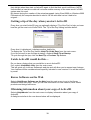
A dialog box similar to the one shown below will be displayed.
39
Registering your copy of Active3D
To register your copy of Active3D Select <Help/Register..> from the main menu.
You will then be taken to the registration page on Kovac Software's web site.
The Help System
The AutoTRAX Help System is designed to rapidly assist you in learning how to use
AutoTRAX. It is task orientated with each topic based on 'How do I do...' questions. This is
in sharp contrast to conventional help systems, which are more like a reference manual.
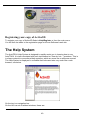
The Help System is displayed in a window that looks and acts very much like a web
browser, see below.
On the top is a navigation bar.
On the left is a set of tabbed windows; these are:
40
Contents. A list of Books with 'How to' topic pages.
Index. A index of all words in the help topics.
Search. A powerful search engine to help you find relevant topics.
Favorites. A list of your favorite topics.
A Glossary.
To the right of the tabbed windows is the information pane that contains the selected topic.
Finally, above the information pane is a browse sequence to assist you in browsing through
related topics.
Viewing the contents
The Table of Contents for the Help system contains a collection of Books on different
subjects.
Click a book icon ( ) to open the book and view the topic pages in the book. Books can also
contain other Books. A Book can also be views as a Chapter.
The help topics have been designed to answer 'How To' questions.
Searching for help
If you can't find the Help you're looking for with the Contents or the Index tab, use the
Search function. To search for a phrase or a combination of words, you can use Boolean
terms (AND, OR, NOT).
41
1. Type a word or a phrase in the Type in the keyword to find field.
2. Click the List Topics button.
3. A list of topics will appear in the Select Topic to display window.
4. Select a topic and click the Display button.
5. The topic will appear in the Help window.
Many topics contain drop-down and expanding links. The word or phrase you are searching
for may be in one of these links and not immediately visible. Click these links (which are not
underlined, making them distinguishable from hyperlink jumps) to view the entire contents
of the Help topic.
The information pane
The pane showing this text is the information pane.
The Information Pane is where you will find the actual topic you have requested. If the topic
is larger than the available display space, you can use the scroll bars to view the rest of the
topic. You can also expand the entire Help window so more of the topic is visible.
Navigating help topics
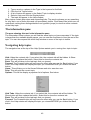
The navigation bar at the top of the Help System assists you in moving from topic to topic.
Hide. Hides the contents tab. If you select this, the contents tab will be hidden. A Show
button will then replace the button. Select this to show the contents tab.
Back. This will be taken to the last topic that you viewed.
Forward. The Forward button will only have an effect after you use the Back button. If you
click it, the Help window will display the topic you viewed BEFORE you clicked the Back
button.
Home. This will take you to the Kovac Software web site. www.kov.com.
Print. This will print the current topic.
Options. This will be display a popdown list of options. See below.
Hide Tabs. Hides the contents tab. If you select this, the contents tab will be hidden. TA
Show button will then replace the button. Select this to show the contents tab.
Back. This will be taken to the last topic that you viewed.
Forward. The Forward button will only have an effect after you use the Back button. If you
click it, the Help window will display the topic you viewed BEFORE you clicked the Back
button.
42
Home. This will take you to the Kovac Software web site. www.kov.com.
Stop. Stops search.
Refresh. Updated the information pane.
Internet Options... Sets Internet options. See your Internet Explorer Help System.
Search Highlight On/Off. Turns On/Off Highlighting text in displayed topics.
Browse sequences
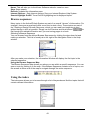
Many topics in the Active3D Help System are part of an overall "stream" of information. For
example, there are several topics that cover how to start a form. These topics are part of
the "Starting a Design" Browse Sequence, which you can read from beginning to end
without having to click a hyperlink. Simply use the Previous and Next buttons (
) to
flip through the related information as if you are turning pages in a book.
Selecting a Browse Sequence
You can choose from the defined Browse Sequences by clicking the drop-down list and
making a selection. This list is found just to the right of the Navigation Pane in the Help
window.
After you make your selection, the Information Window will display the first topic in the
selected sequence.
Using the Browse Sequence Map
The Browse Sequence Map shows you where you are within a specific sequence. You can
open a topic by clicking it on the map. If the Browse Sequence contains a lot of topics, use
the arrows at either end of the map to navigate through the entire sequence.
Using the index
The index pane allows you to browse through a list of keywords and find the topics that will
contain relevant information.
43
You can find a keyword by scrolling through the list or typing it in the Type in the keyword to
find: field. Then double-click the keyword or select it and click the Display button. If the
keyword applies to just one topic, the topic it will be displayed immediately otherwise if the
keyword applies to more than one topic, you'll be prompted to choose which one you would
like to see.
Saving and viewing your favorite topics
The favorites tab holds all you favorite or frequently used topics.
The Glossary
The Glossary is a list explaining important terms, acronyms, and technical jargon.
I
f you come across a word or acronym in the Help Topics that you don't understand, then
check for a definition in the Glossary. The topic you are reading in the Information pane of
the Help window will remain visible while you are searching for it.
Printing the help information
Click the Print button in the Navigation bar.
Glossary
arc
44
A curved line.
bmp
Bitmap, a rasterized graphic format in which the image is represented as a combination of
dots. The TIFF and JPEG formats are variants of the bitmap file type.
cancel
To place your cursor over an object, toolbar button, menu, or other screen item and press
the left mouse button.
cut
copy 1 or more objects to the clipboard and then delete them (not from the clipboard). They
can then be pasted.
ellipse
A squashed circle.
footprint
A collection of pads and silkscreen graphics representing a physical component. It defines
the electrical points to route to.
grid
A design aid that helps you place objects on your sheet. The Snap to Grid function, when
enabled, causes objects to "jump" to the nearest grid point. This function can also help you
draw perfectly straight lines and round circles.
group
Arrange a collection of objects so that the act as a single object. The move together, are all
selected together.
hover
To place your cursor over an object, a toolbar button, or a menu item without actually
clicking.
jpeg
Joint Photographic Experts Group, a rasterized graphic format.
left click
To place your cursor over an object, toolbar button, menu, or other screen item and press
the right mouse button.
OK
The OK button on a dialog box confirms any changes or commands you have initiated.
paste
to copy/add (paste) objects from the clipboard onto a sheet.
PCB
Printed Circuit Board
png
Portable Network Graphic, a 48-bit graphic format designed especially for online viewing
and endorsed by the World Wide Web Consortium (W3C).
properties
The characteristics that define an object.
right click
To place your cursor over an object, toolbar button, menu, or other screen item and press
the right mouse button.
shortcut
A keyboard combination that acts as a 'shortcut' for a command.
snap
force a point to 'snap' to a regular grid
thumbwheel
The rotating wheel in the middle of some mice.
45
tiff
Tagged Image File Format, a rasterized graphic format.
toolbar
A group of buttons on a dialog box
wmf
Windows MetaFile, a 16-bit graphic format typically used for vector drawings.
License Agreement
THIS KOVAC SOFTWARE LICENSE AGREEMENT ("LICENSE AGREEMENT") IS A LEGAL AGREEMENT
BETWEEN YOU AND KOVAC SOFTWARE, FOR THE SOFTWARE PRODUCT. BY USING THE SOFTWARE
PRODUCT, YOU ARE AGREEING UNCONDITIONALLY TO BE BOUND BY THE TERMS OF THIS LICENSE
AGREEMENT, EVEN IF THIS LICENSE AGREEMENT IS DEEMED A MODIFICATION OF ANY PREVIOUS
ARRANGEMENT OR CONTRACT. IF YOU DO NOT AGREE TO THE TERMS OF THIS LICENSE
AGREEMENT, DO NOT USE THE SOFTWARE PRODUCT. INSTEAD, YOU MAY RETURN THE SOFTWARE
PRODUCT TO THE PLACE YOU OBTAINED IT FOR A FULL REFUND (IF APPLICABLE).
Software Product License
The Software Product is protected by copyright laws and international copyright treaties, as well as other
intellectual property laws and treaties. The Software Product is licensed, not sold.
For purposes of this License Agreement, "Software Product" refers to the computer software and associated
media, printed materials, and "online" or electronic documentation, including without limitation any and all
executable files, add-ons, stencils, templates, databases, tutorials, help files and other files, that accompany
the Kovac Software product identified above or in the accompanying documentation; "Use" means storing,
loading (whether into temporary memory (i.e., RAM) or into permanent memory (e.g., hard disk, CD-ROM or
other storage device)), installing, executing or displaying the Software Product; and "You" means the
company, entity or individual whose funds are used to pay the license fee or who has otherwise acquired the
Software Product.
1. Grant of License
Software Product. Kovac Software grants You the non-exclusive, non-sublicensable, limited license to Use
one copy of the Software Product on a single computer, subject to the terms and conditions of this License
Agreement.
Second Copy. The primary user of a computer on which a copy of the Software Product is installed may make
a second copy for his or her exclusive Use on either a home or portable computer, but not both.
Storage/Network Use. You may also store or install a copy of the Software Product on a storage device, such
as a network server, for the purpose of Using the Software Product on Your computers only over an internal
network; however, You must acquire and dedicate a license for each separate computer on which the
Software Product is Used from the storage device. A license for the Software Product may not be shared or
Used concurrently on different computers. You shall inform all users of the Software Product of the terms and
conditions of this License Agreement.
License Pack. If You have acquired this License Agreement in a Kovac Software License Pack, You may
make the number of additional copies of the computer software portion of the Software Product authorized on
the printed copy of this License Agreement, and You may Use each copy only in the manner specified in this
License Agreement. You are also entitled to make a corresponding number of second copies for home or
portable computer Use only in the manner specified in this License Agreement.
2. Ownership
Title, ownership rights and intellectual property rights in and to the Software Product shall remain in Kovac
Software and its suppliers and are protected by US and international copyright laws and international
copyright treaties, as well as other intellectual property laws and treaties. The Software Product is licensed,
not sold. There is no transfer to You of any title to or ownership of the Software Product and the license
granted under this License Agreement should not be construed as a sale of any right in the Software Product.
You must treat the Software Product like any other copyrighted materials (e.g., a book or musical recording)
except that You may make one copy of the Software Product solely for backup or archival purposes (with the
inclusion of all copyright and other proprietary notices), only as long as You otherwise comply with the terms
and conditions of this License Agreement. You may not make additional copies of the Software Product. You
may not copy the printed materials accompanying the Software Product. All rights not specifically granted
under this License Agreement are reserved by Kovac Software.
3. Description of Other Rights and Limitations
46
Limitations on Reverse-Engineering, Decompilation and Disassembly; Other Restrictions. You acknowledge
that the Software Product in source code form remains a confidential trade secret of Kovac Software and
therefore You agree not to reverse-engineer, decompile or disassemble the Software Product, or make any
attempt to discover the source code to the Software Product, except and only to the extent that such activity is
expressly permitted by applicable law notwithstanding this limitation. Except as expressly permitted in this
License Agreement, the Software Product may not be Used, copied, translated, redistributed, retransmitted,
published, sold, rented, leased, marketed, sublicensed, pledged, assigned, disposed of, encumbered,
transferred, altered, modified or enhanced, whether in whole or in part, nor may You create derivative works
from or based on the Software Product. You may not remove any proprietary notices, marks or labels from the
Software Product.
Separation of Components. The Software Product is licensed as a single product and its component parts
may not be separated for Use on more than one computer.
Transfer of Software Product. You may transfer all Your rights under this License Agreement on a permanent
basis only, provided You retain no copies, You transfer the License Agreement, the corresponding serial
number (if applicable) and all the Software Product (including without limitation all component parts, media
and printed materials, and any upgrades) and the recipient agrees to all the terms and conditions of this
License Agreement. If the Software Product is an upgrade product, any transfer must include the latest
release, all prior versions and any prior products used to obtain the Software Product.
Termination. This License Agreement is in effect until terminated. You may terminate it at any time by
destroying the Software Product and all copies You have made. Unauthorized copying or duplication of the
Software Product will result in automatic termination of this License Agreement. Without prejudice to any other
rights, Kovac Software may terminate this License Agreement if You fail to comply with any term or condition
of this License Agreement. Upon termination of this License Agreement, You agree to destroy the Software
Product and all copies You have made.
Academic Software Product. If the Software Product is identified as "Academic", You must be a Qualified
Educational User (as defined by Kovac Software) to Use the Software Product. If You are not a Qualified
Educational User, You have no rights under this License Agreement. To determine whether You are a
Qualified Educational User, please contact Kovac Software - Academic Sales at the applicable address set
forth below.
Not For Resale ("NFR") Software Product. If the Software Product is identified as "Not For Resale" or "NFR",
then, notwithstanding any other terms and conditions of this License Agreement, You may not, for value or
other consideration, distribute, resell, dispose of, or transfer the Software Product.
Support Services. Kovac Software may provide You with customer and technical support services related to
the Software Product ("Support Services"). Use of Support Services is governed by the Kovac Software
policies and programs described in the user manual, in "online" or electronic documentation, and/or in other
Kovac Software-provided materials. Any supplemental software code provided to You as part of the Support
Services shall be considered part of the Software Product and subject to the terms and conditions of this
License Agreement. With respect to any technical information You provide to Kovac Software as part of the
Support Services, Kovac Software may use such information for its business purposes, including product
support and development. Kovac Software will not utilize such technical information in a manner that
personally identifies You.
4. Upgrades
If the Software Product is identified as an "upgrade", You must be properly licensed to Use a product, whether
from Kovac Software or another supplier, that is specified by Kovac Software as being eligible for the upgrade
in order to Use the Software Product. A Software Product identified as an upgrade replaces or supplements
the product that formed the basis for Your eligibility for the upgrade. Notwithstanding any other terms and
conditions of this License Agreement, You may transfer the Software Product only in conjunction with the
product that formed the basis for Your eligibility for the upgrade, unless You destroy such product. If the
Software Product is an upgrade from a component of a package of software programs which You licensed as
a single product, the Software Product may be Used or transferred only as part of that single product package
and may not be separated for Use on more than one computer.
5. Dual-Media Software
You may receive the Software Product in more than one medium; for example, in disk media, on a CD-ROM
or in both media. Regardless of the type or size of medium You receive, You may Use only one medium that
is appropriate for Your computer. You may not Use the other medium on another computer. You may not
distribute, transmit, sell, loan, rent, lease or otherwise transfer the other medium to another user, except as
part of the permanent transfer of the Software Product pursuant to the terms and conditions of this License
Agreement.
6. Reports and Audit Rights
You shall institute reasonable measures to ensure compliance with the terms and conditions of this License
47
Agreement. Upon Kovac Software's reasonable request, You agree to provide reports relating to Your Use of
the Software Product as necessary to demonstrate Your compliance with the terms and conditions of this
License Agreement. You further agree that Kovac Software has the right, upon reasonable prior notice, to
audit Your records and inspect Your facilities to verify Your compliance with the terms and conditions of this
License Agreement.
7. US Government Restricted Rights
The Software Product and documentation are provided with RESTRICTED RIGHTS. Use, duplication or
disclosure by the Government is subject to restrictions as set forth in subparagraph (c)(1)(ii) of The Rights in
Technical Data and Computer Software clause at DFARS 252.227-7013 or subparagraphs (c)(1) and (2) of
the Commercial Computer Software-Restricted Rights at 48 CFR 52.227-19, as applicable. The
contractor/manufacturer is Kovac Software, Kovac Software. Fair Oak, Skeath Lane, Sandon Bank, Stafford
ST18 9TD, England.
8. Export Restrictions
You may not export or reexport the Software Product or any underlying information or technology except in full
compliance with all United States and other applicable laws and regulations. In particular, but without
limitation, none of the Software Product or underlying information or technology may be exported or
reexported (a) into (or to a national or resident of) Cuba, Haiti, Iran, Iraq, Libya, Serbia, Montenegro, North
Korea, Sudan or Syria or (b) to anyone on the US Treasury Department's list of Specially Designated
Nationals or the US Commerce Department's Table of Deny Orders, as such countries, lists and orders may
be amended or modified from time to time. By Using the Software Product, You are specifically agreeing to
the foregoing and You are representing and warranting that You are not located in, under the control of, or a
national or resident of any such country or on any such list.
9. Entire Agreement; Governing Law
This License Agreement constitutes the entire agreement between Kovac Software and You with regard to the
subject matter hereof and supersedes any and all prior agreements, understandings and representations,
whether written or oral, concerning the subject matter of this License Agreement. This License Agreement
shall not be modify except by a written agreement executed by a duly authorized representative of each of
Kovac Software and You.
Nothing in this License Agreement is intended to exclude, modify or restrict the operation of any applicable
statute or other law, the provisions of which cannot lawfully be excluded, modified or restricted. If any court of
competent jurisdiction determines that a provision of this License Agreement is illegal, invalid or
unenforceable in any jurisdiction, then such provision shall be deemed modified to the minimum extent
necessary to make it comply with the applicable statute or law of such jurisdiction, and the remaining
provisions of this License Agreement shall continue in full force and effect. Any such modification shall not
effect any provisions of this License Agreement in any other jurisdiction where this License Agreement
governs the Use of the Software Product.
If You acquired the Software Product in Canada, You agree to the following: Each of Kovac Software and You
hereby confirm, desire and agree that this License Agreement has been and shall be written solely in the
English Language.
IF YOU ACQUIRED THE SOFTWARE PRODUCT IN THE UNITED STATES, THIS LICENSE AGREEMENT
IS GOVERNED BY THE LAWS OF THE STATE OF WASHINGTON, USA, EXCEPT FOR THAT BODY OF
LAW DEALING WITH CONFLICTS OF LAW, WITHOUT REFERENCE TO THE 1980 UNITED NATIONS
CONVENTION ON THE INTERNATIONAL SALE OF GOODS.
IF YOU ACQUIRED THE SOFTWARE PRODUCT OUTSIDE THE UNITED STATES, THIS LICENSE
AGREEMENT IS GOVERNED BY THE LAWS OF THE REPUBLIC OF IRELAND.
Software Product Limited Warranty
To the original customer only, Kovac Software provides the following warranties:
Limited Warranty. KOVAC SOFTWARE WARRANTS THAT (a) FOR A PERIOD OF SIXTY (60) DAYS FROM
THE DATE OF ORIGINAL PURCHASE ("WARRANTY PERIOD") AS EVIDENCED BY YOUR RECEIPT OR
OTHER PROOF OF PURCHASE (i) THE SOFTWARE PRODUCT, UNLESS MODIFIED OR OTHERWISE
ALTERED BY YOU, WILL PERFORM SUBSTANTIALLY IN ACCORDANCE WITH THE ACCOMPANYING
WRITTEN MATERIALS, AND (ii) THE MEDIA ON WHICH THE SOFTWARE PRODUCT IS FURNISHED
WILL BE FREE FROM DEFECTS IN MATERIALS AND WORKMANSHIP UNDER NORMAL USE; AND (b)
ANY SUPPORT SERVICES PROVIDED BY KOVAC SOFTWARE SHALL BE SUBSTANTIALLY AS
DESCRIBED IN APPLICABLE WRITTEN MATERIALS PROVIDED TO YOU BY KOVAC SOFTWARE. Kovac
Software does not warrant that the Software Product will meet Your requirements or that Use of the Software
Product will be uninterrupted or error-free. Kovac Software is not responsible for problems caused by changes
in the operating characteristics of computer hardware or computer operating systems which are made after
the release of the Software Product, nor for problems in the interaction of the Software Product with nonKovac Software software products. Some jurisdictions do not allow limitations on duration of an implied
48
warranty, so the above limitation may not apply to You. The Limited Warranty gives You specific legal rights.
You may have others, which vary by jurisdiction.
Exclusive Remedy. Kovac Software's entire liability, and Your exclusive remedy, shall be, at Kovac Software's
option, either (a) replacement of the defective media, (b) repair or replacement of the Software Product that
does not meet Kovac Software's Limited Warranty, or (c) return of the price paid, if any, and termination of this
License Agreement. This remedy is subject to return of the Software Product to Kovac Software with a copy of
Your receipt within the Warranty Period or, solely for Software Product that was obtained electronically via
"electronic software distribution", to delivery to Kovac Software of a Kovac Software-approved "certification of
destruction" together with proof of purchase within the Warranty Period. This Limited Warranty is void if failure
of the Software Product has resulted from accident, abuse or misapplication. Any replacement Software
Product will be warranted for the remainder of the original warranty period or thirty (30) days, whichever is
longer. Outside of the United States, neither these remedies nor any Support Services are available without
proof of purchase from an authorized source.
No Other Warranties. THE ABOVE WARRANTIES ARE EXCLUSIVE. TO THE MAXIMUM EXTENT
PERMITTED BY APPLICABLE LAW, KOVAC SOFTWARE AND ITS SUPPLIERS DISCLAIM ALL OTHER
WARRANTIES AND CONDITIONS, EITHER EXPRESS OR IMPLIED, INCLUDING, WITHOUT LIMITATION,
IMPLIED WARRANTIES OF MERCHANTABILITY, FITNESS FOR A PARTICULAR PURPOSE, TITLE, AND
NON-INFRINGEMENT, AND THOSE ARISING OUT OF USAGE OF TRADE OR COURSE OF DEALING,
CONCERNING THE SOFTWARE PRODUCT, AND THE PROVISION OF OR FAILURE TO PROVIDE
SUPPORT SERVICES. NO ORAL OR WRITTEN INFORMATION OR ADVICE GIVEN BY KOVAC
SOFTWARE, ITS AGENTS, DEALERS, DISTRIBUTORS OR EMPLOYEES SHALL INCREASE THE SCOPE
OF THE ABOVE WARRANTIES OR CREATE ANY OTHER WARRANTIES.
No Liability for Damages. REGARDLESS OF WHETHER ANY REMEDY SET FORTH HEREIN FAILS OF
ITS ESSENTIAL PURPOSE, TO THE MAXIMUM EXTENT PERMITTED BY APPLICABLE LAW, IN NO
EVENT SHALL KOVAC SOFTWARE OR ITS SUPPLIERS (OR THEIR RESPECTIVE AGENTS,
DIRECTORS, EMPLOYEES OR REPRESENTATIVES) BE LIABLE FOR ANY DAMAGES WHATSOEVER
(INCLUDING, WITHOUT LIMITATION, CONSEQUENTIAL, INCIDENTAL, INDIRECT, SPECIAL,
ECONOMIC, PUNITIVE OR SIMILAR DAMAGES, OR DAMAGES FOR LOSS OF BUSINESS PROFITS,
LOSS OF GOODWILL, BUSINESS INTERRUPTION, COMPUTER FAILURE OR MALFUNCTION, LOSS OF
BUSINESS INFORMATION OR ANY AND ALL OTHER COMMERCIAL OR PECUNIARY DAMAGES OR
LOSSES) ARISING OUT OF THE USE OF OR INABILITY TO USE THE SOFTWARE PRODUCT OR THE
PROVISION OF OR FAILURE TO PROVIDE SUPPORT SERVICES, HOWEVER CAUSED AND ON ANY
LEGAL THEORY OF LIABILITY (WHETHER IN TORT, CONTRACT OR OTHERWISE), EVEN IF KOVAC
SOFTWARE HAS BEEN ADVISED OF THE POSSIBILITY OF SUCH DAMAGES, OR FOR ANY CLAIM BY
ANY OTHER PARTY. YOU ACKNOWLEDGE THAT THE LICENSE FEE REFLECTS THIS ALLOCATION OF
RISK. In any event, if any statute implies warranties or conditions not stated in this License Agreement, Kovac
Software's entire liability under any provision of this License Agreement shall be limited to the greater of the
amount actually paid by You to license the Software Product and Five United States Dollars (US$5.00), or, in
the case of Support Services, providing such Support Services again or refunding the cost thereof. Because
some jurisdictions do not allow the exclusion or limitation of liability for consequential or incidental damages,
the above limitation may not apply to You.
Copyright (c) 2001 Kovac Software.
All Rights Reserved.
Kovac Software. Fair Oak, Skeath Lane, Sandon Bank, Stafford ST18 9TD, England.
Index
3
3-button .........................................................................................................................................10
A
Adding .................................................................................................15, 16, 17, 18, 19, 21, 36, 38
3D objects ..................................................................................................................................15
49
box ..............................................................................................................................................16
cone ............................................................................................................................................16
cylinder ......................................................................................................................................16
extruded shape .........................................................................................................................18
footprint .....................................................................................................................................36
parts ...........................................................................................................................................21
revolved shape..........................................................................................................................19
revolved surface .......................................................................................................................17
sphere .........................................................................................................................................16
textured background ................................................................................................................38
Addng ............................................................................................................................................20
wire .............................................................................................................................................20
C
Centering .......................................................................................................................................33
objects........................................................................................................................................33
Chrome ..........................................................................................................................................27
Clipboard .......................................................................................................................................35
Colors ......................................................................................................................................26, 35
Changing....................................................................................................................................35
Conductor......................................................................................................................................27
Copying .........................................................................................................................................35
Create Shortcut.............................................................................................................................43
Custom Toolbars ....................................................................................................................43, 44
D
Deleting..........................................................................................................................................34
all objects ..................................................................................................................................34
objects........................................................................................................................................34
Deselecting ...................................................................................................................................22
all objects ..................................................................................................................................22
E
Editing..........................................................................................................................23, 24, 25, 26
boxes..........................................................................................................................................23
cones..........................................................................................................................................24
cylinders ....................................................................................................................................24
spheres ......................................................................................................................................23
torii .............................................................................................................................................25
wires............................................................................................................................................26
Edting extruded surfaces................................................................................................................25
Environment..................................................................................................................................28
F
Faceted revolved surfaces .............................................................................................................18
G
General options ............................................................................................................................41
Glass ..............................................................................................................................................29
Grid ................................................................................................................................................37
Snapping....................................................................................................................................37
Ground...........................................................................................................................................33
Grouping........................................................................................................................................34
objects together ........................................................................................................................34
I
Introduction...................................................................................................................................21
50
K
Keyboard shortcuts......................................................................................................................44
removing ....................................................................................................................................44
M
Main menu.....................................................................................................................................12
Matte ..............................................................................................................................................29
Metal...............................................................................................................................................29
Mirror .............................................................................................................................................30
Mouse ............................................................................................................................................10
Multiple views ...............................................................................................................................14
N
New buttons ..................................................................................................................................44
Adding........................................................................................................................................44
New toolbars .................................................................................................................................44
Numeric entry controls ................................................................................................................12
O
Opening .........................................................................................................................................13
models .......................................................................................................................................13
Options ..........................................................................................................................................41
Options dialog ..............................................................................................................................41
Setting ........................................................................................................................................41
P
Pasting...........................................................................................................................................35
Perspective view...........................................................................................................................15
Phong.............................................................................................................................................30
Photorealistic picture...................................................................................................................38
Placing ...........................................................................................................................................33
Plastic ............................................................................................................................................30
Previewing.....................................................................................................................................39
printed output............................................................................................................................39
Printer ............................................................................................................................................39
Printing ....................................................................................................................................39, 51
current model image.................................................................................................................39
help information........................................................................................................................51
R
Recovery file .................................................................................................................................45
Resizing objects .....................................................................................................................33, 34
Revolved surfaces..................................................................................................................17, 25
Adding........................................................................................................................................17
Editing ........................................................................................................................................25
Rotating .........................................................................................................................................34
90º about axes ...........................................................................................................................34
objects .......................................................................................................................................34
S
Saving ............................................................................................................................................13
models .......................................................................................................................................13
Selecting........................................................................................................................................22
all objects ..................................................................................................................................22
objects .......................................................................................................................................22
Selection........................................................................................................................................22
Complementing.........................................................................................................................22
Setting............................................................................................................................................26
51
object colors..............................................................................................................................26
Showing.........................................................................................................................................37
X
Y
Z axis...................................................................................................................................37
Single .............................................................................................................................................14
Snapping .......................................................................................................................................37
grid .............................................................................................................................................37
Standard positions .......................................................................................................................15
T
Texture.....................................................................................................................................31, 32
Setting ........................................................................................................................................32
Thumbwheel......................................................................................................................10, 12, 14
Thumbwheels................................................................................................................................12
Tip ..................................................................................................................................................45
Day..............................................................................................................................................45
Toolbar Buttons............................................................................................................................41
Toolbars.............................................................................................................................41, 43, 44
hiding .........................................................................................................................................44
Torus...............................................................................................................................................17
Adding .........................................................................................................................................17
U
Ungrouping objects......................................................................................................................34
V
View/Back ......................................................................................................................................15
View/Bottom..................................................................................................................................15
View/Camera .................................................................................................................................15
View/Front .....................................................................................................................................15
View/Left ........................................................................................................................................15
View/Right .....................................................................................................................................15
View/Top........................................................................................................................................15
Viewport.........................................................................................................................................14
52