1
Connection
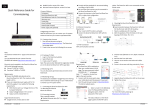
Step3: Select the wireless page and select a router in the [Wireless Network]
area to connect. The Password/Security Key dialog box opens, as shown in Fig.
5-12.
Fig. 5-12 connecting to wireless network
Step4: Enter the password of the wireless local network that you wish to
connect to. Do not enter the password of the router.
Step5: After approximately three minutes the WiFi of the ZeverCom WiFi will
connect to the wireless local network. The status indicator on the Wireless page
should display the
shown in Fig. 5-13.
icon and the yellow WiFi LED should now illuminate, as
Fig. 5-13 WiFi Connection Instructions
~20~