1
32
CHAPTER 4: SYSTEM POWER UP
Power Up
This section provides instructions on how to power up
your system. See Chapter 3 and Chapter 5 for
information about cabling and configuring the
Console port.
To view error messages while the system runs
power-up diagnostics, connect a terminal, a
workstation, or a PC that has terminal emulation to
the system’s Console port.
To Power the Switch 9300 with the RPS
Power-up Diagnostics
The Switch 9300 system runs diagnostic software at
power up. This software verifies that the system
works before you add it to the network.
If any component fails during power-up diagnostics,
the system either fails to power up or keeps faulty
ports off-line. To see if any ports have failed
diagnostics, look at the system configuration display
in the Switch 9300 Administration Console. See the
Implementation Guide.
To install the Advanced Redundant Power Supply
(RPS) Type 2, follow the installation instructions that
are shipped with the RPS and its cable.
To view error messages that are displayed during
power-up diagnostics, connect a terminal in the
Administration Console, workstation, or PC that has
terminal emulation to the system’s Console port.
CAUTION: To prevent damage to the system and the
power supply, insert the AC power cord into the
Switch 9300 before you insert it into the redundant
power system.
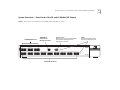
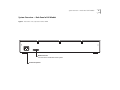
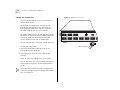
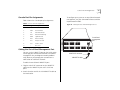
During power up, the system and port status LEDs
provide information on components in the Switch
9300 system. See Figure 1 and Figure 2 for the
location of the LEDs.
To Power the Switch 9300 from the Wall Receptacle
To get your Switch 9300 powered up and ready to
operate, follow these steps:
1 Verify that the power outlet is near the system and
easily accessible. You can turn the system off only by
removing the power cord from the power source.
2 Insert the power cord into the system.
3 Insert the other end of the power cord into the power
outlet. The LEDs provide information while the system
runs power-up diagnostics.