1
Ridom EpiCompare User Guide
1.
4.
2.
3.
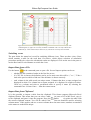
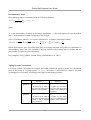
Figure 1: Data View. The buttons for switching views are below the menu bar (1). The
command pane (2) offers the currently available commands. The currently edited cell is
indicated (3). A blue table head, as shown in (4), marks the currently sorted column.
Switching Views
The pane below the menu bar is used for switching different views. There are three views: Data,
which contains a table for the used data, Procedures, which allows selection of calculation
procedures and Results, where the calculation results are displayed. Click on the text in the pane or
use the Back and Forward buttons to switch the views.
Import Data from a File
Use the button
in the command pane to open a file. Several import-options can be set:
•
whether the file contains a header in the first line or not,
•
if a CSV-file is chosen, the delimiter can be set. In most cases this will be “;” or “,”. Take a
look at the preview-table to find out if the delimiter is chosen correctly
•
each column in the table needs an unique name. Columns that have a name assigned are
displayed in white. If a column has no name assigned, it is displayed in a light red colour.
Click on a column and select a predefined name or specify a name by selecting the
command Enter Column Name... from the context menu.
Import Data from Clipboard
It is also possible to import a table from the clipboard. This feature supports Microsoft Excel
clipboard format. This means that you can select a table
(or parts of it) in MS Excel, copy it
to the clipboard and paste it into the program. Press the
button
to replace the table with
the current clipboard content. You will be asked if the
first row should be used for selecting
column names. If this applies and two or more columns have the same name, numbers are attached
to the names to make them unique.
4