1
Section 3: Operation
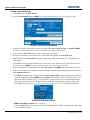
When finished with a function menu:
• Press EXIT to return to the previous screen.
OR
• Press MENU to leave the menu system and return to the presentation.
NOTES: 1) If there is no signal present, all source-dependent adjustments are disabled. 2) After 15 minutes of
inactivity, the projector leaves the menu system and returns to the presentation. 3) The Status menu is read-
only.
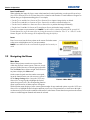
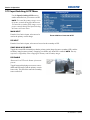
On-line Help
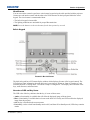
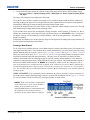
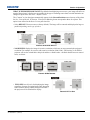
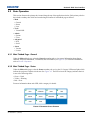
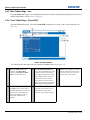
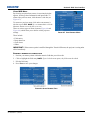
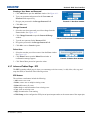
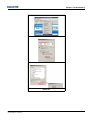
Press HELP to display summary information about the current menu or highlighted option. Press HELP again to
exit.
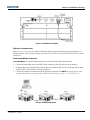
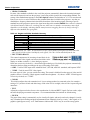
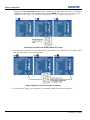
FIGURE 3-5 ON-LINE HELP
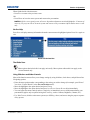
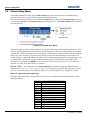
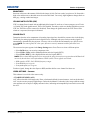
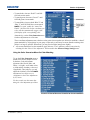
The Global Icon
Menu options that include this icon apply universally. Menu options without this icon apply to the
selected channel only.
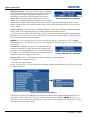
Using Slide bars and Other Controls
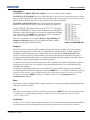
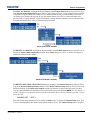
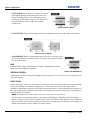
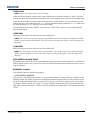
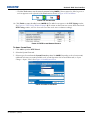
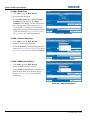
Most of the function menus allow you to change settings by using slide bars, check boxes, and pull-down lists.
Navigating options:
• Enter the menu option number corresponding to the setting you wish to change (for example, press MENU 1
3 to select “Vertical Stretch” in the Size and Position menu).
• Move the highlight to the option desired and press ENTER.
• Move the highlight to the option desired and press LEFT/RIGHT ARROW KEY to adjust immediately.
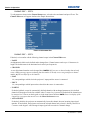
• You can bypass the menus entirely and use a single key to immediately access an adjustment during your
presentation (applies only to options having their own key, such as Contrast, Brightness, Gamma, etc.).
• For “blind” access, hide the entire menu system (see OSD key, above) and access using the proper sequence
of key presses.
M Series User Manual
020-100009-05 Rev. 1 (09-2010)
3-9