1
13
SEQ
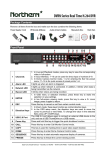
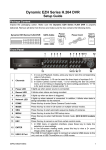
Press this key to start an automatic sequence display of cameras.
14
DOME
Press this key to enter the Dome Camera Control mode.
15
COPY
This key is used for marking time in quick video export function.
16
CALL
Press this key to control call monitor.
17
Power Key
18
USB 2.0 Port
Press this key to power on the DVR.
The USB 2.0 port allows users to connect external USB devices to the
unit, such as a USB ThumbDrive or a USB mouse.
Rear Panel
4CH models:
8CH models:
1
Main Monitor (VGA)
2
USB 2.0 Port
3
Power Jack
4
LAN 10/100/1000M
(RJ-45)
5
Main Monitor (HDMI)
7
Alarm I/O, RS-485 &
Audio In/Out
Main Monitor (BNC)
8
Video Out (BNC)
9
Video In (BNC)
10
Call Monitor (BNC)
6
2
VGA output is offered for connecting to VGA monitors.1280x1024,
1024x768 resolutions recommended for 4:3 aspect monitors.
The USB 2.0 port allows users to connect external USB devices to
the unit, such as a USB ThumbDrive or a USB mouse.
Connect the power supply cord shipped with the DVR. Use of
other power supply cords may cause overloading.
The DVR is capable of networking, and it allows the videos to be
viewed over the LAN network or the Internet via internet browsers.
HDMI output is offered for connecting to a HDMI main monitor.
Supports 1080p,720p,1280x1024,1024x768 resolutions.
The DVR provides alarm I/O, RS-485 & Audio In ports that offer
users the flexibility to connect the unit to other devices.
BNC output is offered for connecting to a BNC main monitor.
The same amount of BNC connectors beneath Video In (BNC) are
offered for looping out the video from the specific input.
A group of BNC connectors is provided for video input streams
from installed cameras. The number of connectors equals to the
number of channels.
BNC connector is provided for connecting to a BNC call monitor.