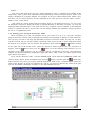
1
Multimedia Lab for Exploring Electricity and Electronics
Version 4
User’s Manual
DesignSoft
Multimedia Lab for Exploring Electricity and Electronics
Version 4
User’s Manual
© Copyright 1994-2000 DesignSoft, Inc. All rights reserved.
DesignSoft
www.edisonlab.com
TABLE OF CONTENTS
1. INTRODUCTION ...................................................................................................................... 5
2. INSTALLATION ........................................................................................................................ 7
2.1 Hardware and Software Requirements ............................................................................. 7
2.2 How to Install Edison ........................................................................................................ 7
3. USING THE EDITOR ................................................................................................................ 8
3.1 The Screen Layout ............................................................................................................ 8
3.2 Parts .................................................................................................................................... 8
3.3 Placing the Parts in the Working Area ........................................................................... 9
3.4 Using the Plug in Breadboard ........................................................................................... 9
3.5 Selecting Shelves .............................................................................................................. 1 1
3.6 Adding, Deleting and Modifying Wires ......................................................................... 1 2
3.7 Selecting, Moving and Deleting Parts in the Working Area ...................................... 1 2
3.8 The Edison Control Panel .............................................................................................. 1 3
3.9 Drawing Diagrams ............................................................................................................ 1 4
3.10 Deriving Formulas ......................................................................................................... 1 4
4. GETTING STARTED .............................................................................................................. 1 6
4.1 Building and Analyzing Circuits ..................................................................................... 1 6
4.2 Transient Mode ............................................................................................................... 1 8
4.3 AC analysis ....................................................................................................................... 1 8
4.4 AC characteristic ............................................................................................................. 1 8
4.5 Building a Circuit Using a Breadboard ........................................................................... 2 0
5. THE PARTS .............................................................................................................................. 2 2
5.1 Connector ......................................................................................................................... 2 2
5.2 Simple Switches ................................................................................................................ 2 2
5.3 Push Button ...................................................................................................................... 2 2
5.4 Alternative Switches ....................................................................................................... 2 2
5.5 Relay ................................................................................................................................. 2 2
5.6 Batteries ............................................................................................................................ 2 2
5.7 Power Supply ................................................................................................................... 2 3
5.8 Resistors ............................................................................................................................ 2 3
5.9 Potentiometer (Variable Resistor) ................................................................................. 2 3
5.10 Electric Bulbs ................................................................................................................. 2 4
5.11 Electric Motor ............................................................................................................... 2 4
5.12 Capacitor ........................................................................................................................ 2 4
5.13 Coil .................................................................................................................................. 2 4
5.14 Meters ............................................................................................................................. 2 4
5.15 Using the Increasing/Decreasing Buttons ................................................................... 2 5
5.16 Signal Generator ............................................................................................................ 2 5
5.17 Oscilloscope ................................................................................................................... 2 5
5.18 Signal Analyzer ............................................................................................................... 2 6
5.19 Speaker ........................................................................................................................... 2 6
5.20 Semiconductor Components ........................................................................................ 2 7
5.21 Fuse ................................................................................................................................. 2 7
5.22 Boards ............................................................................................................................. 2 7
6. THE COMMANDS ................................................................................................................... 2 8
6.1 File ..................................................................................................................................... 2 8
6.1.1 New ................................................................................................................................ 2 8
6.1.2 Open .............................................................................................................................. 2 8
6.1.3 Save ................................................................................................................................ 2 8
6.1.4 Save As .......................................................................................................................... 2 8
6.1.5 Open Experiment Set .................................................................................................. 2 8
6.1.6 Open Problem Set ........................................................................................................ 2 8
6.1.7 Export... ........................................................................................................................ 2 8
6.1.8 Copy to clipboard ......................................................................................................... 2 9
6.1.9 Print ............................................................................................................................... 3 0
6.1.10 Print Setup .................................................................................................................. 3 0
6.1.11 Exit .............................................................................................................................. 3 0
6.2 Edit .................................................................................................................................... 3 0
6.2.1 Select Shelf .................................................................................................................... 3 0
6.2.2 Background picture ...................................................................................................... 3 0
6.2.3 Macro ............................................................................................................................ 3 0
6.2.4 Modify Parameters ...................................................................................................... 3 1
6.2.5 Delete ............................................................................................................................ 3 1
6.2.6 Repair All ...................................................................................................................... 3 1
6.2.7 Repaint .......................................................................................................................... 3 1
6.3 Options ............................................................................................................................. 3 1
6.3.1 Sound Effects ................................................................................................................ 3 1
6.3.2 Show Faults ................................................................................................................... 3 1
6.3.3 Shelf Color ................................................................................................................... 3 2
6.3.4 Wire Color .................................................................................................................... 3 2
6.3.5 Keep Wires at Move .................................................................................................... 3 2
6.3.6 Hints above Shelves ..................................................................................................... 3 2
6.3.7 Hints above Circuit ...................................................................................................... 3 2
6.3.8 Preconnect ICs Pins .................................................................................................... 3 2
6.3.9 Hidden Circuit Connections ........................................................................................ 3 2
6.3.10 Hidden Breadboard Connections .............................................................................. 3 2
6.3.11 Save Schematics ......................................................................................................... 3 2
6.3.12 Save Options on Exit ................................................................................................ 3 2
6.4 Repair ................................................................................................................................ 3 2
6.5 Experiments ..................................................................................................................... 3 3
6.6 Problems ........................................................................................................................... 3 3
6.7 Help ................................................................................................................................... 3 3
6.7.1 Contents ........................................................................................................................ 3 3
6.7.2 Topic Search ................................................................................................................. 3 3
6.7.3 How to Use Help .......................................................................................................... 3 3
6.7.4 Getting Started .............................................................................................................. 3 3
6.7.5 About ............................................................................................................................. 3 3
7. THE SCHEMATIC ANALYZER ............................................................................................ 3 4
7.1 What is the Schematic Analyzer? ................................................................................. 3 4
7.2 Experimenting with Example Circuits .......................................................................... 3 4
7.3 Schematic Editing Using the Mouse .............................................................................. 3 4
7.4 Measurement Units ......................................................................................................... 3 5
7.5 The Basic Screen Format ................................................................................................ 3 6
7.6 Placing the Circuit Components .................................................................................... 3 8
7.7 Exercises ........................................................................................................................... 3 9
7.7 Editing a Circuit Schematic ............................................................................................ 3 9
7.7.2 Running an Analysis .................................................................................................... 41
7.7.3 Analyzing a Digital Circuit .......................................................................................... 4 4
7.7.4 Testing your circuit in interactive mode ................................................................... 4 7
8. COMPILING SETS OF EXPERIMENTS AND PROBLEMS ............................................. 4 8
8.1 The Experiment Set Compiler ....................................................................................... 4 8
8.2 The Problem Set Compiler ............................................................................................. 5 0
4
1. INTRODUCTION
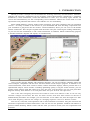
Edison provides a unique new environment for learning electricity and electronics. Teachers,
students and electronics enthusiasts can use digitally scanned photorealistic components, a solderless
breadboard, virtual instruments, sound and animation to create, test, and safely repair lifelike 3D
circuits and simultaneously see the corresponding circuit schematic. Edison also comes with over 100
experiments and problems that teachers and students can use immediately.
Select lifelike batteries, resistors, diodes, LEDs, transistors, logic gates, flip-flops, and even integrated
circuits— all easily available on the shelves of your multimedia lab. Pick and drag components onto
your worktable or plug them into the realistic virtual breadboard, where you can even see the hidden
internal connections. Wire the parts together with the mouse and your circuit begins working immediately
so you can test and troubleshoot it with virtual instruments. In addition, Edison automatically prepares
a standard schematic diagram and displays it simultaneously.
Once you have become familiar with schematic diagrams, you can use Edison’s schematic editor and
circuit analyzer, compatible with the more advanced TINA circuit analysis program. In addition to its
virtual instruments, which show results in small, realistic instrument displays, Edison presents data in a
sophisticated analysis results window of desktop publishing quality. Using the results window, you can
present circuit analyzes with full control over axes, line style, color and fonts. You can even print these
diagrams directly from Edison or cut and paste them into your favorite word processor.
One of the most intriguing and innovative features of the new Edison is that it can not only
calculate voltages and currents, but also, for linear circuits, show how these results are derived or
mathematically described. For example, you can learn how to use Ohm’s law, how the output of a filter
varies with frequency, and how the voltage of a charging capacitor varies as a function of time.
You can see, read, hear, and experiment with a wide assortment of scenarios using the electrical and
electronics experiments included with Edison. You can also use the problems included with Edison to
practice trouble-shooting. Edison comes with the tools you need to create your own experiments and
problems.
5
Edison bridges the gap between games and serious design. Students and electronics enthusiasts will
love playing with Edison as they learn the basics of electronics and take their first steps towards real
circuit design.
Edison runs under Windows 95, 98, Windows ME, Windows NT, or Windows 2000 and requires a
computer with at least a Pentium processor. The faster your computer and your video card are, the
more exciting Edison’s graphics will be. A Pentium II or Pentium-III computer is highly recommended.
When you have a question or need help, refer not only to this manual, but also to the on-line help
system. Some information can be found only in the on-line help system.
6
2. INSTALLATION
2.1
Hardware and Software Requirements
Minimum requirements
· Pentium
· hard
disk drive with 20 MB free space
· printer
· 16
PC with at least 16 MB of RAM
port
bit high color VGA graphics card
· Mouse
· MS
Windows 95 or higher
Recommended hardware
· Pentium
· 64
·
MB of RAM, 100MB free disk space
24 bit true color, fast VGA graphics card
· Sound
·
2.2
III computer
Blaster Pro or compatible sound card
Windows 98 or higher, Windows 2000
How to Install Edison
You should use Edison’s setup program to install the program on your hard disk. Insert the CD into
the drive. The setup program should run automatically. If it does not: Select Start/Run and type:
D:SETUP (Enter) (where D represents your CD-ROM drive).
The setup program will start. Select the language you want (if applicable). Press the Edison button,
a new window will appear with demo buttons and an Install button at the bottom of the window. Press
Install, then follow the instructions.
Keep your CD nearby your computer. The program might require your CD.
In case the program is protected with a hardware protection key, place the key into the parallel port
(LPT1: or LPT2:) before starting the program. Take care to plug the key into a parallel (and not into
a serial) port of the computer. You should plug the side of the protection key with male pins into the
computer. Naturally, you can connect your printer into the other side of the hardware key.
You must install the Windows MIDI mapper in order to play the electric motor’s sound properly on
your sound card.
7
3. USING THE EDITOR
3.1
The Screen Layout
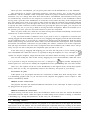
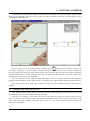
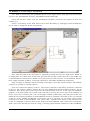
Edison 4 has a double panel screen layout. The left main window shows a 3-D perspective view of
the working area with “component shelves” on both sides. You can pick up parts from the shelves by
clicking on them with the left button of the mouse. Move them to the working area and drop them into
place by left clicking the mouse again. When you move a component over the plug in breadboard, it will
change to a plug-in type component (if available). The right panel presents the same parts using
standard schematic symbols. You can maximize the left window containing the 3D parts if you do not
need the schematics. Once you have become familiar with schematic symbols you may want to run just
Edison’s Schematic Analyzer available by pressing the Schematic Analyzer button in the demo (starts
the demo only) or from the Edison folder of the start menu. Both the left and right panels can be
scrolled by dragging the scroll buttons at the right and bottom side.
3.2
Parts
These are the parts available in Edison:
·
·
·
·
·
·
·
·
·
·
·
·
·
·
·
·
·
·
·
·
·
·
·
·
·
·
·
·
Solderless breadboard
Connector
Simple switches
Push button
Alternative switches
Relay
Batteries
DC power supply
Resistor (color-coded or labeled)
Potentiometer (variable resistor)
Electric bulbs
Electric motor
Capacitor
Coil
Meters (voltmeter, ammeter, ohmmeter, and multimeter)
Signal generator
Oscilloscope
Signal analyzer
Speaker
Bipolar transistors (NPN, PNP)
Enhancement-type transistors (NMOS, PMOS)
Diode
LED
Logic gates (AND, OR, NAND, NOR, NOT, XOR)
Ground
Operational Amplifier (741)
Timer (555)
Flip-flops (D, JK, Latch)
Note that we use the words “component” and “part” interchangeably.
8
3.3
Placing the Parts in the Working Area
Most Edison commands are carried out with the mouse. The left button of the mouse play a
confirming role. For example, you use the left button to pick up parts, change switch settings, select a
component, or move a control bar. The right button serves to interrupt an action or pop up a local
menu on components.
You can pick up a part from a shelf by positioning the cursor over the part and pressing the left
mouse button. Move the part anywhere in the working area and place it by pressing the left button
again. Note that it is not necessary to hold down the left button while moving the part, although this
drag-and-drop technique also works. Parts can be rotated by pressing the Ctrl key or the + key on the
numeric keyboard while the parts are being moved. Also, an alternative part can be selected by pressing
the Shift key or the - key on the numeric keyboard while the part is being moved. For example, for 9V
batteries, Duracell, Varta, and GP are available, while for 1.5 V pencil batteries a battery holder can be
selected. Users of notebook computers, where there often is no numeric keypad, will appreciate that
the Ctrl key has the same function as the numeric + key, and the Shift key as the numeric – key.
If you have already placed a part and want to rotate it or change it to an equivalent part, click on
it, press the right mouse button, and select Move on the popup menu. Now you can rotate it or select
an alternative part and place it again.
To cancel the placement of a part, press the right mouse button or the Esc key. You cannot place
one part over another.
When placing a component on the left side, its schematic version is also placed on the right side.
You can freely move the schematic symbol or wire on the right (schematic) side by clicking and
dragging. This will not affect its original placement on the left side, and its original connections will be
kept. You can use this technique to make the automatically generated schematic diagrams neater and
more readable.
3.4
Using the Plug in Breadboard
One of the most significant innovations of Edison 4 is the virtual breadboard. Breadboards, or plug
boards, or white boards, as they are sometimes called, are used for testing and experimenting with
electronic circuits. They are very convenient since they provide many groups of connection points
with internal connections. All you have to do is plug in the components and add wires to complete your
circuit. Edison’s virtual breadboard makes building circuits extremely easy since it can show the internal
connections whenever you need them and can also show how the parts already placed are connected.
9
The startup screen of Edison 4 does not contain the breadboard. As described in the previous
section, you can drag and drop parts to your worktable and connect them with wire using the mouse.
This technique is easier to follow and perhaps even better for explaining circuit operation. However, if
you wanted to assemble a real circuit on your workbench, you would need a soldering iron and special
connectors to connect the parts and wires.
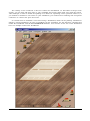
It is much easier to assemble a real circuit using a breadboard, which can be perfectly simulated in
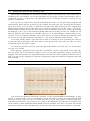
Edison’s virtual breadboard. To place a breadboard on the worktable, use the File/New command and
enable the breadboard with the Use breadboard checkbox. You can also set the size of the breadboard
here to a multiple of the basic breadboard.
10
When you have a breadboard, you can place parts either on the breadboard or on the worktable.
The appearance of certain components (batteries, switches, meters, etc.) is the same on the
breadboard , and the worktable. Other components which have plug-in terminals (resistors, capacitors,
transistors, ICs, etc.) change their form when moved above a breadboard. The terminals of these parts
are automatically connected to the respective connectors in the holes on the breadboard. While
moving such a part above the breadboard, its connection wires follow the body of the component and
they jump from hole to hole. If you want to take control and plug the terminals into positions different
from the automatic ones, press the Space bar. Then you can freely move one terminal with the mouse
to specify the final connection of that terminal. By pressing the Space bar again, you can place all
terminals one by one, or you can go back to moving the whole component. When all terminals are in
the position you want, press the left mouse button to place the component.
There are parts, mainly ICs, which do not allow moving their terminals individually, because these
terminals are in fixed locations, just as with real parts.
A very convenient feature of Edison is that if you need to move a component or terminal wire
already plugged into the breadboard, you can do so by dragging and dropping. Press the left mouse button
on the component body or at the end of a terminal wire plugged into the breadboard, hold the mouse
button while moving, and release the button when you have reached the desired place. Slow and small
movements will maintain connections and just modify the “rubber” terminal wires of the component.
Fast and large movements will tear out the component from the breadboard, the “rubber wires” will go
away, and you can move and place the component again just like a new one.
In the same way, by dragging and dropping you can move the end point of a wire already plugged
into a breadboard hole. When the cursor is in a position to drag the endpoint of a wire, it changes to
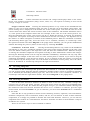
symbol. To drag the endpoint, simply hold down the left mouse button and drag it to another position.
You can also modify the route of the wire by dragging any of its internal handles. When the cursor
is in a position to drag an internal point of a wire, it changes to a
hand symbol. Modifying an
internal point of a wire will also modify the neighborhood of the point to keep the wire route smooth.
There are a few options for the use of the breadboards in the Options menu. Check these options
and try them out, as they can significantly improve the efficiency and speed of your editing.
Preconnect IC pins
If this option is on, the program will show IC connections as rubber lines while moving the IC. This
is a demanding graphics task, so you will need a fast computer and graphics card to exploit it. This
feature is disabled by default.
Hidden circuit connections
The program will show the internal breadboard connections in use. This helps to check if your parts
are plugged into the proper place.
Hidden breadboard connections
While moving with the mouse above the breadboard, Edison will show the internal breadboard
connections under the mouse. While this option is useful during circuit creation or editing, it sometimes
is disturbing (e.g., during demonstrations). In that case you, can disable it.
3.5
Selecting Shelves
The components available in Edison are grouped on so called shelves at the upper left and lower
right corners of the 3D window. You can switch among the component shelves by clicking on the shelf’s
background. Left clicking switches the shelves forward, right clicking switches the shelves backward.
11
Note that the sign board shelf (boards of various sizes used for entering text) can only be activated from
the Edit.Select shelf menu. To help identify a component, move the mouse over it and see a hint
giving the component name. This hint can be enabled or disabled though the Hints above shelves
command in the Options menu.
3.6
Adding, Deleting and Modifying Wires
After you have placed the parts in the working area or on the breadboard, it is time to connect them
with wires. To start a wire run, move the cursor toward one of a component’s connection terminals until
the cursor changes into a small circle. Press the left mouse button and start to draw the wire. You can
draw along any curve and Edison will create a smooth path. You end a wire by moving the cursor to the
second terminal and clicking the left mouse button. The starting or ending terminal of a wire can also
be any unoccupied terminal of a breadboard. When the mouse is above the breadboard, the cursor does
not change to a circle, although you can start or end a wire here.
If you need to connect three or more wires together into a node, it may be neater to place a
connector nearby and use it to terminate the additional wires. You will find a connector on the shelf
with the switches.
If a wire route is not right, press the right mouse button to go back step by step. You can also cancel
the whole wire by pressing the escape key (Esc).
To remove a wire, you must first select it. Position the pick-up cursor over the wire at any point and
click the left mouse button. The wire will turn green, and you may press the Delete button to delete the
wire. If you want to deselect a selected wire, press any mouse button or Esc. Deletion of a wire can also
be managed by right clicking on the wire. A popup menu appears and you choose the Delete option.
You can also modify routing of the wires. Press the left mouse button when you see the hand symbol
similar to the pick-up cursor, and hold the button down while freely moving the mouse. See how
Edison will at first just refine the wire path, or will create a new path if you lead your mouse over a new
path. You can also change the connection points (the two ends) of a wire using the drag and drop
feature. When the cursor is in position to drag the endpoint of a wire, it changes to
. Note that
unless the wire connects to the breadboard, you must select the wire first by clicking on an internal point
of the wire. (If you don’t, clicking on the end of a wire would initiate starting a new wire from the same
terminal.) If you drop the end point of a wire at a point which is not a connection point, the operation
will be undone.
When drawing wires in Edison 4, keep in mind that the wires in the schematic diagram are also being
generated at the same time. Edison tries to make neat right angled wires from the freehand wires you
draw. Keep an eye on the schematic and check that the “schematic wire” is acceptable. If not, go to the
right side and modify the path of the wire as you wish. To do this, first select the wire, then drag and drop
any part of the wire using its “anchor” points.
You can also modify the color and the width of a freehand wire: Double click on a wire and set the
parameters appearing in the dialog box.
Note that the hidden connections in use in a breadboard are automatically shown in the schematic
diagram and can be also shown on the breadboard if the Hidden circuit connections switch in the
Options menu is on.
3.7
Selecting, Moving and Deleting Parts in the Working Area
To select a part, move the cursor over the part, find a place where the cursor is either its default
“arrow” form or changes into a ? symbol, then press the left mouse button. When a part is selected, a
green frame appears around it.
12
Note that for some components, especially those which have buttons or displays, left clicking has
a second function when over some areas of the part, e.g., at a switch’s button. Depending upon the kind
of part, left clicking at a given place will change a switch setting, turn a potentiometer, increase a
parameter, etc. When you are above such areas the cursor will turn into a hand
symbol. In the
following text we refer to such areas as “active” areas.
Other areas, where the cursor is either its default “arrow” form or turns into a ?, we will call
“neutral” areas, because a simple click just results a selection. The ? form cursor means that the
component has further parameters which you can see and change by double-clicking the component.
Multiple selection: Hold down Ctrl button while you are selecting the components one by one.
If you want to delete one or more parts, select them in the above way, then press Delete. All
selected components will be deleted. When you delete a part, all its connecting wires will also be deleted
– no unconnected wires can remain on the worktable.
To move a part to a new location, place the cursor over the selection area of the component and
hold down the left mouse button. By holding down the left button, you can drag the part and drop it in
a new location. Note that in Edison when a part is dragged, all wires connected will be moved accordingly,
but only if the Keep wires at move switch is on in the Option menu.
Another way to move a part is to press the right mouse button, which will pop up a small menu
containing the Move command. Clicking on Move, you can move the part without holding down a
mouse button. To drop the part at the new location, press the left mouse button. This popup menu also
contains the Delete command, so you can delete a part without having selected it.
A very convenient feature of Edison is that if you need to move a component or terminal wire
already plugged into the breadboard, you can do so by dragging and dropping. Press the left mouse button
on the component body or at the end of a terminal wire plugged into the breadboard, hold the mouse
button while moving, and release the button when you have reached the desired place. Slow and small
movements will maintain connections and just modify the “rubber” terminal wires of the component.
Fast and large movements will tear out the component from the breadboard, the “rubber wires” will go
away, and you can move and place the component again just like a new one.
3.8
The Edison Control Panel
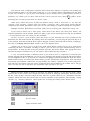
Edison has three different modes of operation. By default, Edison is in the DC/AC mode, which
assumes that all the currents and voltages are either constant or changing sinusoidally. Edison presents
the DC value of (DC) currents/voltages and the effective or peak values of (AC) alternating currents/
voltages. Edison has two more modes that are used to simulate circuit operation with arbitrary varying
currents (e.g., charging capacitor). These modes are set using the control panel, shown below.
DC/AC mode
Single transient mode
13
Continuous transient mode
Start/Stop button
DC/AC mode
Edison calculates the currents and voltages and displays them on the instruments. The animated components (lamp, motor, LED, etc.) will operate according to their actual
average voltage or current.
Single transient mode
Pressing the Start/Stop button or any switch on the breadboard tells
Edison to carry out a single simulation from zero time to the time set in the Edison control panel. The
actual running time is displayed in the bottom line of the control panel. Note that the time set in the
Control Panel also affects the actual execution time of the simulation. The default simulation time is
1s, if the speed of the computer allows that. For example, if the value set in the control panel is 1m,
then the simulation time of the 1ms process will be 1s. While the analysis is running, the animated
components will operate according to their instantaneous currents and voltages. An important use of
this mode is to obtain a diagram or formula of the simulated process. When the simulation is finished,
(the Start/Stop button pops out), move the cursor over a voltmeter, ammeter, or oscilloscope. Click
the right mouse button and select Diagram in the popup menu. Similarly, you can get the mathematical
formula describing the process (linear circuits only) by selecting Formulas.
Continuous transient mode
Pressing the Start/Stop button or any switch on the breadboard
tells Edison to carry out a continuous simulation. The speed of the analysis depends on the time value
set in the Edison control panel. The larger this value, the faster the simulation time. While the analysis
is running, the animated components will operate according to their instantaneous currents and voltages.
Pressing the Start/Stop button will not stop the simulation immediately: simulation will only stop when
the next integer multiple of the time value set at the control panel is reached. If you need to stop the
simulation immediately, press the DC/AC button. To see a diagram of the last analysis (covering the
period indicated by the analysis time set at the bottom of the Edison control panel), move the cursor
above an instrument or oscilloscope and press the right mouse button.
3.9
Drawing Diagrams
In addition to the oscilloscope that presents the time function in “real time” during the simulation,
you can get high quality diagrams after the simulation is finished. When a single or continuous simulation
run is finished (the Start/Stop button pops out), move the cursor over a voltmeter, ammeter, or
oscilloscope and click the right mouse button. Then select Diagram in the popup menu.
3.10 Deriving Formulas
One of the most innovative features of Edison is that it can not only calculate voltages and
currents, but can also (for linear circuits), show how these results are derived or mathematically
described. In DC/AC mode, this means that the program will give you a detailed solution showing how
the numerical result was derived. Position the cursor over a voltmeter or ammeter, press the right
mouse button, and select Formulas. To get AC formulas, you must select Formulas above a multimeter
in AC mode.
Note that this is only possible for linear circuits containing resistors, capacitors, coils and batteries.
Nonlinear components, such as transistors, diodes, and ICs, are not allowed. In most of these nonlinear
components, it is simply not possible to describe the result with formulas. However, you can still use
simplified linear models for semiconductors and derive formulas for them in the Schematic Analyzer
included in the system.
There are two more ways to derive formulas in Edison.
14
Clicking above a Signal Analyzer, you can get the transfer characteristic of linear circuits:
functions describing the circuit’s amplification or attenuation as a function of the complex frequency,
s=jw. For example, you can get the frequency response of a filter.
Clicking above an Oscilloscope, voltmeter or ammeter, you can get the time response in the
form of a formula describing the selected voltage or current as a function of time. For example, you can
get the voltage or current of a charging capacitor as a function of time.
15
4. GETTING STARTED
To start Edison, click the Start button, select the Edison 4 folder, and click on Edison. From the File
menu at the left-hand side of the screen, select the Open command. From the list that appears, select
EXAMPLES\MEVDIV.CIR.
Move the cursor over the switch and see it change into a
hand symbol: click the switch to see
the output voltage go on and off. Then, leaving the switch on, move the cursor over the voltmeter in
the left window and click the right mouse button. The following pop-up menu will appear: Diagram/
Formulas/Delete/Move. Select Formulas and note the dialog box that appears giving the solution and
showing how the voltage was calculated.
Copy the formulas to the clipboard with Edit/Copy or Ctrl C and paste them into the schematic
diagram (using Edit/Paste in the right window or clicking on the right window and then pressing Ctrl V).
You can print the left or right side windows by using the print command while in the respective
window.
4.1
Building and analyzing circuits
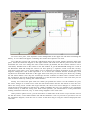
Let’s build the RC circuit shown in the figure below. Note that you can find this circuit in the
EXAMPLES directory (EXAMPLES\RCTRAN.CIR).
Click the 4.5 V battery on the shelf. The cursor will assume the shape of a battery which you can
move anywhere on the left side table. Note that the schematic symbol of the battery will appear at the
same time in the right window. Now press the Ctrl key or + key on the numeric keypad to rotate the
battery by 90 degrees.
16
To access more parts, click anywhere on the background of the upper left side shelf containing the
battery. A new shelf will appear containing the resistor and capacitor we need.
Let’s add the resistor and, from the right-bottom shelf, the switch. Before dropping them into
place, check the schematic diagram in the right window and make sure that the parts are on the same
horizontal line. Now let’s change the value of the resistor (by default, the first resistor entered is set to
100 Ohms). Double-click on the resistor in the left window to get the RESISTOR dialog box. Click in
the Resistance field and change the value to 1k. Now pick up a capacitor, rotate it with the Ctrl key,
and drop it into place, once again taking care to maintain horizontal alignment in the schematic
diagram. Change the value of the capacitor to 1u. To access the voltmeter and the oscilloscope, click
anywhere on the bottom shelf and on the upper shelf. Note that you can select prior shelves by clicking
the left mouse button. Now drop the oscilloscope and the voltmeter as shown above. Double click on
the oscilloscope and set the B channel amplitude to 5 and the Time interval to 10m. Note that you can
also set these values by clicking the control buttons.
Finally, let’s connect the parts with wire. When you position the cursor over the terminal of a part,
the cursor changes to a small circle. Click the left mouse button and use the mouse to trace the wire.
When the wiring cursor reaches the target terminal, the cursor once more changes to a small circle.
Click the left mouse button to end the wire. While extending the wire, pay attention to the schematic
window and try to make the wiring neat. With a little practice, you will be able to create professional
looking schematics and neat, easy to read wiring diagrams at the same time.
After you have placed a wire, you can still edit it on both sides of the screen. If you edit the wire on
the left 3D screen, it will effect both the 3D and the schematic views. If you want to just edit a wire on
the schematic diagram, click the wire to select it and then drag it using the anchors displayed after
selection.
17
4.2
Transient mode
To see how the capacitor acquires charge, click the “Set single transient mode” button of the
control panel window and set the analysis time to 10m. Click on the switch button. This will start the
transient analysis and draw the result on the oscilloscope.
To get a more accurate picture of the charging curve (with greater detail and easier to read values),
move the cursor over the oscilloscope. When the cursor changes to a ?, press the right mouse button.
From the popup menu that appears, select diagram and a detailed diagram appears in a new window. You
can print this diagram on a printer, export it WMF format, or copy and paste it into your word
processor. Before using the diagram in these ways, you can add text and markers, change line style,
customize axes, etc. Check for further information in the Diagram Window’s Help screens and in the
introduction to the Schematic Analyzer in the next chapter.
4.3
AC analysis
To demonstrate Edison’s AC analysis capabilities, load the circuit (EXAMPLES\ RCAC.CIR).
In this circuit, the sinusoidal input and output voltages of an RC circuit are shown. The 3D
voltmeter displays the output amplitude, while the schematic voltmeter displays the phase. You can
also see the amplitude and phase difference on the oscilloscope. Change the frequency of the generator
and observe how this affects the results.
4.4
AC characteristic
To see the AC characteristic of the same RC circuit, load EXAMPLES\RCSIGAN.CIR.
To obtain the circuit frequency response (frequency characteristic), click the Signal Analyzer Run
button and move the cursor over the Signal Analyzer. When the cursor turns into a ?, press the right
18
mouse button. From the popup menu that appears, select diagram: a detailed diagram (showing the same
results as the signal analyzer) appears in a new window. You can also get the formulas describing the
diagram by selecting Formulas from the menu. You can Copy and Paste the formulas into either the
diagram or into the schematic diagram window.
19
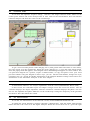
4.5 Building a circuit using a breadboard
Let’s build a circuit using the breadboard shown in the figure below. Note that you can find this
circuit in the EXAMPLES directory (EXAMPLES\NOTGATE.CIR).
Select the File.New menu. Tick the breadboard checkbox, and leave the number of lines and
columns at 1.
Select a 4.5V battery on the shelf. Press Ctrl to rotate the battery by 90 degrees. Press the Shift key
if you want to change the brand of the battery.
Now select the shelf of the logic gates by repeatedly pressing the left or the right mouse button on
an empty place on a shelf. Click on the NOT gate and start moving it. Place this part on the middle row
of the breadboard. Note that ICs should not be placed on any other location on a breadboard, because
their output terminals would be connected (shorted) by the hidden breadboard connections.
Drag and drop an alternate switch according to the figure. Note that normal switches and alternate
switches are located on separate shelves.
Now let’s connect the battery to the IC. The positive terminal of the battery should be connected
to the Vcc pin of the IC. Before starting the wire, one should locate which terminal of the IC will be
connected. This can be done in two ways. One can read the labels of the IC on the right side schematic
diagram, or the same labels can be read on the left side by moving the cursor close to the terminals of
the IC. Once Vcc is located, start a wire at the upper terminal of the battery. The end point of this wire
should be one of those terminals of the breadboard which are internally connected to the Vcc terminal
of the IC. If the ‘Hidden breadboard connections’ option is allowed, one can easily locate which
connections are built in the breadboard. Now connect the - terminal of the battery to the left-most hole
of the five internally connected holes at the bottom of the breadboard. Then connect the second hole
with a wire to the Ground pin of the IC using a vertically placed internal connection of the breadboard.
20
Now connect the terminals of the alternate switch to the battery and to the A1 pin of the IC
according to the figure. Note that real logic ICs always contain several gates. In this case the IC contains
6 NOT gates, which can be used separately. In this presentation, we will use only gate #1.
The LED should now be placed on the breadboard. Let’s first simply drop it somewhere near its
position in the figure. Once it is placed, we can easily adjust its position on the breadboard. Click on the
body of the LED and drag it slowly to final position. Now drag its left terminal to one of those terminals
of the breadboard which is internally connected to the Y1 pin of the IC. Similarly connect the other
LED terminal to the position shown in the figure.
Finally, place the resistor on the breadboard and connect it to the LED as shown in the figure.
Double-click on the resistor and set its value to 220 Ohms.
You can easily check the connections by looking at the right hand panel.
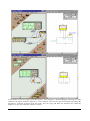
Now we can test the circuit. If every connection has been made correctly, the NOT gate will
function properly: the LED will light when Ground is connected to the A1 input of the gate, and vice
versa.
To finish the circuit, you may want to make some adjustments on the right side. Drag and drop
components to make the schematic neater and easier to follow..
If you wish to make a presentation of your circuit, you can change the appearance of the IC to a
more realistic form. While you are moving the cursor on the right side of the IC, the cursor will
highlight a small yellow button. Pressing the left mouse button there changes the height of the IC.
21
5. THE PARTS
Here is a list and description of the parts available for building circuits in Edison. Most parts (except
connectors and boards) have an error status parameter and can be in an operational or in a faulty state
as noted below.
5.1
Connector
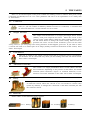
Use a connector to join wires. Each connector permits an unlimited number of connections (i.e. you can connect an arbitrary number of wires to a connector). A connector has
no electrical effect on a circuit and has no error status.
5.2
Simple Switches
The simple switch functions as a single pole/single throw switch
(SPST), with push on/push off action. Move the cursor to the
vicinity of the switch button. When the hand symbol appears, press
the left mouse button to change the switch setting. Take care not to
position the cursor on the switch terminals (you’ll see the little
wiring circle) or you will jump to the wiring function. If this happens, press Esc. If you want to select
a switch, left click on a neutral part of its shape (usually located on the bottom of the switch). Error
status: None/Open.
5.3
Push Button
This part is similar to the simple switch except that its switching action is momentary:
the terminals will be connected only while you are holding down the left mouse button.
Error status: None/Open.
5.4
Alternative Switches
This switch is a single pole/double throw switch (SPDT) and has
three terminals. Depending on the position of the button, the middle
terminal (often called the “wiper” or common terminal) is connected to one of the terminals on the sides. Error status: None/Open.
5.5
Relay
A relay is a controlled switch. Edison’s relay has three terminals arranged as in
an alternate switch. When the current in its coil reaches a certain value
(35mA by default), it changes the connection of the three terminals just like
the alternate switch.
5.6
Batteries
Edison offers several batteries as DC sources:
1.5 V battery
4.5 V battery
22
9 V battery
4.5 V battery from three 1.5 V pencil batteries connected in series
These batteries are similar to typical low voltage batteries.
The batteries have an internal resistance parameter which can be zero (default) or user-defined. You
can specify the internal resistance by using the Edit.Modify Parameters command or double-clicking
on the part. Error status: None/Run-down.
5.7
Power Supply
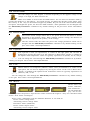
This part is like a typical lab variable DC power supply with a digital voltage
display.You can quickly make voltage adjustments with the front panel buttons.
To change the voltage in large steps (1 V as default), click on the left button.
Clicking on the left or on the right side of a button specifies whether the power
supply will decrease or increase its value. This is shown by the small + or – signs above the buttons. Hold
down the mouse button, and the voltage will continuously changing until you release it. To change the
voltage in small steps, click on the right button in the same way.
You can change the power supply voltage limits, increments, etc. through the Edit.Modify Parameters command or by double-clicking on the component on a neutral part of the shape. Error
status: None/Open.
5.8
Resistors
Edison offers two resistors, each operating the same way but differing in
appearance. The color-coded resistor indicates its actual value with standard color coding. The printed resistor has its resistance printed on it. Note that the Shift bar changes
the basic color of the color coded resistor.
You can change the resistance through the Edit.Modify Parameters command or by doubleclicking on the part. When you have set a new resistance value, the default resistance value will change
to this value. If you then pick up another resistor from the shelf, its value will be the new default value.
Error status: None/Open.
5.9
Potentiometer (Variable Resistor)
A potentiometer is a variable resistor with three terminals. There are two kinds of potentiometers available
in Edison. One is controlled by a slider, the other by a
rotary knob. The sliding contact (“slider”) linearly divides the total resistance between left and right connections. The slider can be dragged and dropped to the
desired position. There are also two buttons, one for decreasing and one for increasing the setting. To
activate these, move the cursor on the left and the right side of the potentiometer respectively.
The potentiometer with the rotary knob also divides the resistance between the two end terminals.
If you click on the left side or on the right side of the knob, it will turn it in the corresponding direction.
If you move the cursor to the middle of the part, a triangular graphic appears that you can use to set the
potentiometer by clicking on the triangle.
The total resistance end to end is 50 ohms by default, but this—and the actual division—can be
changed with the Edit.Modify Parameters command or by double-clicking on the part. It is important
that you double-click only at a neutral place, where clicking will not induce other actions. The actual
settings of a potentiometer can also be seen by moving the cursor above it if “Hints above circuits” is
enabled in the Options menu. Error status: None/Open.
23
5.10 Electric Bulbs
The bulb (lamp) will burn brighter or dimmer depending on the applied voltage. If the
voltage is too high, the bulb will burn out.
Bulbs are available in several sizes and bulb holders. You can select an alternative bulb by
pressing the Shift key or the numeric – key while moving. To change the direction of the lamps, press
the Ctrl key or the + key on the numeric keypad. By default, they are all of the same nominal voltage
and power. The higher the power, the lower the bulb resistance. These parameters can be changed with
the Edit.Modify Parameters command or by double-clicking on the part. Error status: None/Burnt
out.
5.11 Electric Motor
The electric motor accepts either DC or AC power and will turn faster or slower
depending on the applied voltage. When supplied with DC voltage, the direction of
rotation will depend on the polarity of the voltage.
Like the electric bulb, the motor has power and voltage parameters which can be
changed with the Edit.Modify Parameters command or by double-clicking on the
part. Error status: None/Open/Shorted.
5.12 Capacitor
The capacitor’s value (its capacitance) is visible on the right panel, but can also be
displayed by moving the cursor over the capacitor if “Hints above circuits” is enabled in
the Options menu.Capacitance values are typically expressed in F (farads), uF, nF, and pF.
You can change the value through the Edit.Modify Parameters command or by doubleclicking on the part. Error status: None/Open/Shorted.
5.13 C o i l
Edison offers a coil component (inductor) whose value (its inductance) is visible on the
right panel, but can also be displayed by moving the cursor on the coil if “Hints above
circuits” is enabled in the Options menu. Inductance values are typically expressed in H
(Henries), mH, or uH.
You can change the value through the Edit.Modify Parameters command or by double-clicking
on the part. Error status: None/Open/Shorted.
5.14 Meters
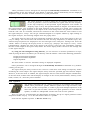
Edison offers voltmeters, ammeters,
and ohmmeters all with digital display. The red terminal represents the positive input and the white terminal the negative. They are considered ideal
meters. Error status: None/Open.
There is also a multimeter with five different functions. It can work as:
Direct current voltage meter
Alternating current voltage meter
Resistance meter (ohmmeter)
Direct current ampere meter
Alternating current ampere meter
24
To select a function, click on the appropriate label, which will turn the main switch of the
multimeter to the required position. Some functions are not available on the front panel and can be
reached by doubleclicking the multimeter at a neutral place. When measuring alternating current
voltage or current, you can choose to measure the zero-to-peak value or the root mean square (rms)
value through the Edit.Modify Parameters command or by double-clicking on the part.
5.15 Using the Increasing/Decreasing Buttons
Edison offers increasing/decreasing (arrow) buttons for the signal generator, oscilloscope, and
signal analyzer. The step size between values is a function of the present setting of the total range.
If you hold a button down, the value will continuously increase or decrease. If you hold the button
down for a longer time, the step size will be increased 10 times, allowing you to quickly cover a bigger
range.
5.16 Signal Generator
The signal generator generates an alternating voltage at the displayed frequency,
amplitude, and phase. The signal is always a sine wave.
The signal generator is designed so that you can quickly change the most important parameters
directly from the front panel. By using the increasing/decreasing buttons you can increase or
decrease a parameter, this is a fine setting. Clicking on the rotary knobs turns them in big steps. You can
also hold down the mouse button on a knob to get a continuous change. Front panel knobs are available
for:
Frequency
Amplitude
Phase
Other parameters can be changed through the Edit.Modify Parameters command or by doubleclicking on the generator at a neutral place. Error status: None/Open.
5.17 Oscilloscope
The oscilloscope can display two channels simultaneously. Channel A data
appears in a red curve and channel B in blue. Terminal A and terminal B
represent the positive input of the respective channel. The ground is common
for both channels. Below the scope’s screen there are numerical displays. The
first shows the A channel maximum amplitude, the second shows the B channel maximum amplitude,
and the third shows the total displayed time. The time parameter applies to both the A and B channels.
Other parameters which are not visible in the screen can be displayed by using the direct set buttons or
by double-clicking on the part. You can get a detailed results diagram in a separate window by right
clicking on the part, and selecting diagram from the popup menu.
The oscilloscope is designed so that you can change the most important parameters directly from
the front panel. By using the increasing/decreasing buttons, you can increase or decrease
parameters in steps, while you can use the direct set buttons (like the Time button) to directly enter the
numeric value of the following parameters:
A channel amplitude
A channel origin move (position the trace baseline vertically)
B channel amplitude
B channel origin move (position the trace baseline vertically)
Total displayed period (time)
25
These parameters can be changed also through the Edit.Modify Parameters command or by
double-clicking on the part. When the Auto button is depressed, Edison automatically sets the displayed
amplitude, origin, and time of both channels for a good presentation.
5.18 Signal Analyzer
The signal analyzer is used to obtain the AC transfer characteristics of a
circuit. It generates a series of sinusoidal test signals from the start frequency
to the stop frequency, at the specified signal amplitude. The number of
frequency steps is set by the specified number of samples. You should connect
the signal analyzer ‘Out’ terminals to the input terminals of the circuit to be tested. Next, connect the
In terminal of the Signal Analyzer to the output of the circuit being tested. The ground is common for
both the ‘Out’ and ‘In’ terminals, and must be connected to the circuit! Push the ‘Run’ button to start
the signal analyzer’s ‘sweep’. You can get a detailed diagram in a separate window by right clicking on
the Signal Analyzer, and selecting diagram from the popup menu.
The signal analyzer places the most important parameters directly on the front panel so they are
easy to change. You can increase and decrease the start and stop frequencies (in decade steps). The
startand stop frequencies are displayed to the left and right of the analyzer’s message line. Press the
‘Mode’ button to change the display mode to ‘linear [V]’ (displays the output in volts), ‘linear
[amplification]’ (displays the ratio of the output to the input in volts/volt), and ‘logarithmic’ (displays
the ratio of the output to the input in dB) modes. The active display mode is shown in the message line
of the signal analyzer.
By using the increasing/decreasing buttons, you can increase or decrease parameters in steps,
while by using the direct set buttons you can directly enter the numeric value of the following parameters:
Displayed maximum amplitude
Displayed minimum amplitude
Signal amplitude
The auto button is used for automatic setting of displayed amplitude.
Other parameters can be changed through the Edit.Modify Parameters command or by doubleclicking on the part.
The signal analyzer always waits for the circuit to settle after each change of frequency before
measuring the circuit output. The signal analyzer always waits the specified gap time between samples.
However, if the fast mode is enabled, the signal analyzer does not wait between samples. Furthermore,
in the fast mode, Edison holds off the display of changes in the circuit (measurements, intensity of the
bulbs, sounds, etc.) until the process finishes.
5.19 Speaker
The speaker transforms the AC voltage presented to its terminals into sound. By
default, like a piezoelectric speaker, Edison’s speaker has a high resistance (1M).
Of course, just like a real speaker, it is able to play back multiple frequencies at the
same time. To get such an effect, connect two signal generators in series with the
speaker, or build two independent circuits each with its own speakers.
This is a good way to demonstrate the phenomenon of beating. Set up two signal generators whose
frequencies differ only by 1 or 2 Hz and connect them to a speaker.
Note that the Speaker operates in DC/AC mode only.
26
5.20 Semiconductor Components
Edison 4 offers a large range of semiconductor components: diodes, LEDs, bipolar and MOS
transistors, logic gates, flip-flops, operational amplifiers, and timers are all available as 3D components
from Edison’s shelves. Note that if you want to place an IC on the breadboard, you must place it in the
middle strip because in any other position the breadboard’s internal connections would short IC pins
together.
Further semiconductor components (e.g. logic ICs) are available in Edison’s Schematic Analyzer. In
Edison’s 3D Lab only the forward current gain (ß) of bipolar transistors and the threshold voltage of
MOS transistors can be changed by double clicking on the part. All model parameters, of any
semiconductor device, are available in Edison’s Schematic Analyzer where you can also select components
using standard part numbers.
5.21 Fuse
Edison offers a fuse which can be placed both on the worktable or on the breadboard.
The fuse automatically breaks the circuit and remains open if the current exceeds its
maximum current. While open it has an error status: None/Open. The parameters
can be changed through the Edit.Modify Parameters command or by double-clicking on the part. If
the fuse burns out, you can repair it using the Repair command on the main menu.
5.22 Boards
There are four different boards available with which you can add text
information to experiments. They are available only through the Edit.Select
Shelf menu. To add text to a board already placed in the working area,
double-click on it. A small text editor window will appear where you can
type in the desired text.
27
6. THE COMMANDS
This chapter presents Edison’s commands in detail, organized according to the menu titles and
menu items.
6.1
File
Use this menu to open and save your circuit files, select experiment and problem sets, print your
circuits, and exit from Edison.
6.1.1 New
This command will clear the working area so you can build your own circuit. If the previous circuit
has not yet been saved, a warning message appears. In this dialog you determine whether or not to use
breadboards. If your design is large and you need several breadboards, you can determine how many rows
and columns of breadboards will be placed.
6.1.2 O p e n
This command lets you load previously saved circuits. The extension of circuit files is .CIR. You
can use a dialog box to select the appropriate directory and/or file name.
6.1.3 Save
Use this command to save circuits which have already been named; i.e., have been previously saved
or loaded.
6.1.4 Save As
Similar to the Save command, but asks you for a new file name under which to save the circuit.
6.1.5 Open Experiment Set
You can open experiments sets on different topics using this command. After opening a set, you
can load in a particular experiment using the Experiments menu.
6.1.6 Open Problem Set
This allows you to open problem sets. Edison will switch into a special problem solving mode. Then
you can load in a particular problem using the Problems menu.
6.1.7 Export…
With this command, you can export the actual Edison screen to a high resolution Windows bitmap
(BMP), Windows metafile (WMF), or JPEG (JPG) image. The exported pictures show only the working
area (not the menu bar). This command brings up a standard save dialog box in which you must specify
the path and the file name for the picture. Before you enter the file name, you can specify the format
you wish to use for export. After completing and accepting the save dialog items, a new dialog appears
which contains output specific parameters explained below.
Export to BMP and JPEG format
Image: The Windows bitmap and the JPEG compressed bitmap formats have only one parameter,
the bitmap size in pixels. By increasing the width or height of the bitmap, the picture resolution
increases. If you double the pixel width and height, the picture resolution will also double. The DPI (dot
per inch) parameter helps you manage the size and resolution of the bitmap; however, take note that
the final result will match the specified DPI only if the target size of the picture is exactly the same
width and height as was specified at export. For example, if you wish to produce a 300 DPI picture on
a full A4 size page, you must ensure that DPI is set to 300, and that the width is set to about 200 mm.
Edison always maintains the aspect ratio.
28
Background: You can select three options here. The white background disables the background
picture and replaces it with pure white. The light gray background disables the background picture and
replaces it with light gray color. The colored background preserves the background picture as seen on
the Edison screen at export.
Include shelves: This property sets whether Edison shelves (containing the parts) will be included
in the picture.
Wire smoothness (1-10): Smoothness 1 corresponds to the smoothness of wires as seen on screen.
In a high resolution picture, however, much better smoothness can be achieved by increasing this
parameter.
Wire width: You can make exported wires thicker or thinner than their original width on screen.
Select a ratio greater than 100% for thicker lines or less than 100% for thinner lines. If the wire width
is big enough, Edison will draw three-dimensional (cylindrical) wires.
Wire color: The program can export the wires in their original color or in black or in white.
Export to Windows metafile
WMF is a compound file format. This is why an WMF picture can be easily resized while maintaining
its maximum resolution. The resolution of a WMF export depends on the resolution of the individual
bitmaps (parts). In Edison the resolution of the bitmaps is 300 DPI or better.
Scale: As described above in the WMF format, the resolution of the included pictures is always
maximum. The scale, however, determines the resolution of wire parts on the picture. The greater the
scale, the smoother the wires. Scale also determines the default size of the picture. The greater the scale,
the greater the default size. However, the picture can always be resized without any loss.
Include shelves: This property sets whether the EDISON shelves will be included in the picture.
Background: You can select three options here. The white background disables the background
picture and replaces it with pure white color. The light gray background disables the background picture
and replaces it with light gray color. The colored background preserves the background picture as seen
on the Edison screen at export.
Wire smoothness (1-10): Smoothness 1 corresponds to the smoothness of wires as seen on screen.
In a high resolution picture, however, much better smoothness can be achieved by increasing this
parameter.
Wire width: You can make exported wires thicker or thinner than their original width on screen.
Select a ratio greater than 100% for thicker lines or less than 100% for thinner lines. If the wire width
is big enough, Edison will draw three-dimensional (cylindrical) wires.
Wire color: The program can export the wires in their original color or in black or in white.
Transparent bitmaps: Because some programs are not able to read Edison’s WMF output properly
if it contains transparent bitmaps, Edison allows you to export the parts without transparency. You can
manage transparency manually in a DTP (desktop publishing) program.
6.1.8 Copy to clipboard
With this command, you can copy the actual Edison screen to the Windows clipboard, with a color
or light background, or without shelves. If you select a light background, the background picture is
disabled, and will be light grey. The color of the shelves will be a slightly darker grey. The picture placed
on the clipboard shows only the working area (not the menu bar) and is available for pasting into other
applications. If you select the no shelves option, both the shelves and the background picture will be
disabled, and the whole background will be white.
In all options, the resolution of the picture will be exactly the resolution of Edison on the screen.
29
6.1.9 Print
With this command, you can print the actual Edison screen with a color or light background, or
without shelves. If you select a light background, the background picture is disabled. The printed picture
shows only the working area (not the menu bar). If you select the no shelves option, both the shelves
and the background picture will be disabled, and the whole background will be white.
In all options, the size of the picture will be exactly the size of Edison on the screen.
6.1.10
Print Setup
You can set printer parameters.
6.1.11
Exit
Exit allows you to end your Edison work session. If you have not yet saved your circuit, a warning
will appear.
6.2
Edit
This menu allows you to select shelves, to modify parameters of the parts, to repair all damaged
parts, and to carry out some supplementary functions of the circuit editor.
6.2.1 Select Shelf
You can switch between shelves by clicking on the grey background of a shelf (see Using the Editor
- Selecting Shelves paragraph). Note, however, that the shelf containing boards (where you can place
text) is only accessible from the Edit.Select Shelf command.
6.2.2 Background picture
Using this command you can select your own background picture for the working area. The
picture’s bitmap should be of maximum 128x128 points with the same width and depth. You can use
bitmaps given with Edison or others copied to the same Edison subdirectory.
If you select ‘Link background to files’, Edison will load and set the background picture together
with the circuit files.
6.2.3 Macro
Use the macro functions if you want to record and replay a specific sequence of actions in Edison
to create a demonstration. Almost all menu commands can be recorded in a macro, and you can record
all events on the shelves and the working area. When creating a macro, place an Open or New
command at the beginning. Edison cannot put a new part on top of an existing one.
After finishing recording, you can save a macro and load it later with the appropriate menu
commands. There is also a special menu item that you can use to concatenate a previously saved macro
with the macro currently existing in memory. To create a chain of macros, first load the starting macro,
then concatenate the following macros one by one. After the last macro, save the result as a combined
macro under a different name.
After finishing a macro you can attach hints to it. These appear in yellow bubbles on the circuits.
First create a text file for the hint which uses the same name as the macro but uses an .MTX extension.
(See the examples which come with Edison.) This text file should contain the hints, in sequence, that
you want to include. Each hint should be on a new line. Empty lines are not allowed. (Note that later
control information will be added to this text file by the program.) Save the text file in the same
directory where the macro is located.
Then load the macro in Edison as usual. Select the Edit.Macro.Modify hints command which will
start to replay the macro whilst allowing you to use the mouse. Click the left mouse button where and
when you want the hint to appear. Clicking the right mouse button anywhere will remove the hint, or
30
clicking the left mouse button again will bring up the next hint. NB. Do not place the hint above an area
of the circuit which will change in any way during the life of the hint. If you are not satisfied with the
result you can repeat the Modify hints command. Do not forget to save your macro with the
Edit.Macro.Save command.
Use the ‘Auto repeat’ feature if you want the macro repeated automatically during playing. Use the
‘Minimize at the end’ feature if you want Edison to become minimized after playing the macro. Set
these options before saving the macro, or set them each time before starting to play the macro.
Start recording with the appropriate menu command or F5.
Stop recording with the appropriate menu command or F8.
Start replay with the appropriate menu command or F6.
Interrupt playing with the Esc button.
6.2.4 Modify Parameters
Most Edison parts have one or more parameters that you can modify; e.g., voltage, resistance, or
error status. If you set the error status you can simulate several possible part faults. You can modify the
parameters of a part by double-clicking on the part in the editor. However, the error status cannot be
altered in this way.
Note that in some cases, the program will set the error status automatically while you are
experimenting with a circuit. For example, if you overload a bulb it will ‘blow up’ and its error status will
be set to faulty. In this case you can use the Repair or Repair All commands to fix the faulty parts.
The error status is also used in the problems provided with Edison where you have to find the faulty
part.
6.2.5 D e l e t e
The delete command allows you to delete the previously selected components or wires. Note that
you can also simply press the Delete key.
6.2.6 Repair All
This command will repair all faulty components at once. If you use this during a problem-solving
(trouble-shooting) session, Edison will take into account that you have done so and you won’t get any
points for your ‘solution.’
6.2.7 Repaint
Use Repaint to repaint (redraw) the screen.
6.3
Options
Use this menu to set several sound, drawing and save options.
6.3.1 Sound Effects
Use this command to turn sound effects on and off.
6.3.2 Show Faults
Edison can be set to display for a faulty components with a different shape. This command serves
as a switch: in its on state, you can recognize the faulty component by its shape; in its off state, all parts,
faulty or not, are displayed with the shape of good parts. Of course, if you are in the problem-solving
(trouble-shooting) mode, Edison shows all parts as being good and you can’t change the state of this
switch.
31
6.3.3 Shelf color
This enables a standard color selection dialog box that lets you choose the shelf color.
6.3.4 Wire Color
You can set up the default wire color and width in this menu.
6.3.5 Keep wires at move
Edison will maintain the wires and their connections and consider them to be flexible wires when
parts are moved.
6.3.6 Hints above shelves
When you move the cursor above a part on the shelves, a short hint will be displayed giving the
part name.
6.3.7 Hints above circuits
When you move the cursor above a part in the 3D circuit, a short hint will be displayed giving
the part name. This options displays the value associated with the button when the cursor is above
certain buttons or knobs (e.g., a potentiometer knob).
6.3.8 Preconnect ICs pins
This options applies only when you place an IC on the breadboard. It tells the program to
display rubber lines connecting each terminal to one of the breadboard pins – into which the
terminals would be connected at the moment. This option requires a fast computer, so pay attention
to how quickly your screen updates are made when it is engaged.
6.3.9 Hidden circuit connections
The breadboards contain several internal connections. When you place components on the
breadboard so that one or more of their terminals are connected within the breadboard, the program
will always automatically recognise and make the connections. With this option, Edison not only
recognises the hidden connections, but also displays them by drawing thin lines between the
connected pins. These lines stay visible even when the mouse is not near them.
6.3.10 Hidden breadboard connections
The breadboard contains several internal connections. If this option is checked, these hidden
connections will appear as you move the cursor above the pins.
6.3.11 Save schematics
You can not only edit in the left 3D panel, but you can also make adjustments in the schematic
right panel. This option tells Edison whether you want to save the right panel also. Doing so means
that when you next open the file everything will look as it did before saving. Disabling this option is
useful when you have made some mistaken adjustments on the right side and you want to undo them.
6.3.12 Save Options on Exit
This command serves as a switch. In its ‘On’ state the program will save the options set in the
menus before exiting so that after program restart, the menus will be in the previously saved state.
6.4
Repair
Use this command to repair faulty parts. After selecting this command, the cursor assumes the
shape of a screwdriver that you can use to point to the faulty component. In normal editing and
experimenting mode, Edison will remove the error in the part and restore its shape to normal. In
problem-solving mode, Edison will applaud you when you find a faulty component and laugh mercilessly
at you when you try to repair a good part.
32
6.5
Experiments
Use this command to see, hear and experiment with the electrical scenarios included in the program.
If you have already opened a set of experiments (File.Open Experiment Set), you can choose a
particular experiment from several topics. Once an experiment is selected, Edison will load the appropriate
circuit and sound file. Then you can follow the audible instructions or the on-screen comments, or just
start experimenting on your own.
6.6
Problems
Use this command to solve problems and trouble-shoot circuits provided with the program.
If you have already opened a problem set (File.Open Problem Set), you can choose from several
tasks. Generally, you have to find the faulty component or type in the correct value. When you think
you have found the faulty component, you can repair it by activating the Repair command. Use the
screwdriver to point to the presumably faulty component. If you have found the faulty component,
Edison will reward you with applause and you will get the highest score; if you are wrong, you’ll hear a
disapproving sound. In this case, you can go on repairing the components one by one, but each wrong
attempt will reduce your score. If the program prompts you to type in a value (a value which would be
displayed by a meter if there were no fault) and you are right on the first trial, Edison will applaud you
and give you the highest score. Edison will play an unpleasant sound if you are wrong.
Although Edison always applauds you when you give the right answer, it reduces your score or sets
it to zero after multiple trials.
6.7
Help
You can activate Edison’s help system with this command.
6.7.1 Contents
By selecting this menu item, or by pressing F1, you will jump to the help system. Any time you are
lost in the program or don’t know how to proceed, just press F1 and you will find detailed information
about menus, hotkeys, commands, etc.
6.7.2 Topic search
This leads you to the topic search window of the help system.
6.7.3 How to use help
Edison’s help system is implemented as a standard Windows help system. If you would like to learn
about Windows help systems, select this option.
6.7.4 Getting started
This help file contains the ‘Getting started’ section of this material.
6.7.5 About
Use this command to obtain information about DesignSoft, the version number of the program
copy you are running, as well as certain other details.
33
7. THE SCHEMATIC ANALYZER
7.1
What is the Schematic Analyzer?
Once you become familiar with schematic diagrams, you can use Edison’s Schematic Analyzer to
simulate complicated analog and digital circuits. In addition to the components in the Edison 3D Lab,
you can select parts from a catalog based on real analog and digital ICs. You can examine analog circuits
using DC, AC, and transient analysis, and digital circuits through step-by-step or complete timing
diagram analysis.
Derive transfer functions or time responses, check your homework, or draw poles and zeros with
the Schematic Analyzer’s unique symbolic analysis. You can refer to any circuit parameter either by
symbolic name or by value on a component by component basis. This helps you not only develop an
in-depth understanding of circuit operation, but also saves hours of work deriving or checking formulas.
7.2
Experimenting with Example Circuits
Start the program and click the File menu item in the top line of the screen to roll down the File
menu. Now select the Open command and the standard open dialog box appears with « .SCH,
indicating that a file name with .SCH extension is requested. Select the EXAMPLES subdirectory, and
a list of files with .SCH extensions appears. After selecting one of the files, the circuit schematic will
appear.
Now you can execute an analysis, modify or expand the network, and evaluate the results. Keep in
mind that every command may be aborted by pressing the [Esc] key or clicking on the Cancel button.
7.3
Schematic Editing Using the Mouse
Here are some basic mouse techniques to help you edit schematics.
Using the right mouse button: If you press the right button of the mouse at any time, a popup
menu appears. Using this menu you can:
· Cancel Mode. Exit from the last operation (e.g. moving a component, drawing a wire)
· Last Component. Return to the last component and reposition it
· Wire. Switch to wire drawing mode. In this mode the cursor turns into a pen. Place a wire by
holding down the left key of the mouse and dragging the pen.
· Delete. Delete selected component(s)
· Rotate Left, Rotate Right, Mirror. Rotate or mirror the component currently selected or
being moved.
· Properties. Use this command to edit the properties (value, label) of the component currently
selected or being moved. From the Properties menu, you can set all parameter of a component
(while it is still unplaced). This lets you place multiple copies of the component, all with the
properties just entered. While you are in the component property editor, the right mouse
button has another function. When you are editing the field of any component parameter
other than the label field, you can copy that field to the label field by pressing the right mouse
button and then selecting the Copy to Label command. You can accomplish the same thing
by simply pressing F9.
Using the left mouse button: In the descriptions below, ‘clicking’ always refers to the left mouse
button.
34
7.4
·
Selection. Clicking on an object will select the desired object and de-select all other objects.
·
Multiple selection. Clicking while holding down the [Shift] key will add the object under the
cursor to the group of currently selected objects. If the object under the cursor is already in
the currently selected group, clicking will remove it from the group.
·
Block selection. To select a block of objects all at once, first make sure there is no object
under the cursor. Then press and hold down the left button while moving the mouse (dragging).
This will create a rectangular block, and all objects within the block will be selected.
·
Selection of all objects. Press Ctrl+A to select all objects.
·
Moving objects. A single object can be moved by dragging it (Position the cursor on the
object, press and hold the left button, and move the mouse.) Multiple objects can be moved
by first selecting them (see above), then clicking the left button while the cursor is over one
of the selected objects, holding the left button down, and dragging.
·
Parameter modification. Double-clicking on an object will bring up its parameter menu so
that you can modify its parameters (if it has any).
·
Crossing wires. The crossing of two wires does not result in a connection at the crossing
unless you deliberately choose there to be one. Use Edit.Hide/Reconnect to place or
remove a connecting dot. However, it is better drafting practice to never make a connection
at a wire crossing, as this avoids ambiguity about the presence or absence of a dot.
·
Block or symbol copying. After a block or symbol has been selected, you may copy it by
pressing Crtl+C. Then click outside the block or symbol to release it, and press Crtl+V. You
will see a copy of the block which you can place as you wish. If the schematic window doesn’t
show enough room for the copy, press Alt - to zoom out. Once you’ve located the block,
click the left mouse button once to anchor it and a second time to deselect the moved block.
Measurement Units
When setting parameters for electronic components or specifying numerical values, you may use
standard electronic abbreviations. For example, you can enter 1k (ohm) for 1000 (ohm). The
multiplicative factor abbreviations should follow the numeric value, e.g., 2.7k, 3.0M, 1u, etc.
The following characters indicate multiplication factors:
p= pico=10 -12 T= tera=1012
n=nano=10-9
G= giga=109
u=micro=10 -6 M= mega=10 6
m=milli=10 -3
Note:
k= kilo=10 3
Upper and lower cases must be carefully distinguished (e.g.,
M ¹ m), and the selected letter must follow the numeric characters
without a space (e.g., 1k or 5.1G), or the Schematic Analyzer
will indicate an error.
35
7.5
The Basic Screen Format
After start-up, the following screen appears on your monitor :
The screen consists of these principal elements:
(1)
The Menu bar
(2)
The Cursor or pointer. This is used to select commands and to edit schematics. You
can move the cursor only with the mouse.
Depending on the mode of operation, the cursor assumes one of the following forms:
·
An arrow, when a command selection is required in the edit window.
·
A component symbol (accompanied by an arrow and small box), when
inserting that component onto the circuit in the schematic window. Until the
position of the component on the schematic is chosen, its movement is controlled
by the mouse.
·
A pen, when defining the endpoint of a wire
·
An elastic line, when defining the endpoint of a wire or the second node of an
input or output.
·
An elastic box, when defining a block after fixing its first corner.
·
A dashed line box, when positioning a component label or a text block.
·
A magnifying glass, when defining a zoom window
36
(3)
The Schematic window This shows the circuit schematic currently being edited or
analyzed. The schematic window is actually a window onto a larger drawing area. You
can move the screen window over the full drawing area using the scroll bars at the right
and bottom of the screen. When selecting the New command on the File menu, the
system automatically aligns the origin of the editor window with the center of the
entire editor drawing area. The same is true when an existing circuit file is loaded, as
this is the default window position.
You can think of the schematic as existing on several “layers.” In addition to the
primary layer that holds components, wires, and text, there are two other drawing
layers, which you can turn on or off individually. It is generally convenient to have
these two layers on.
·
View.Pin Markers On/Off: Displays/hides component pin ends
A grid of closely spaced dots covering the entire drawing area may be made visible or
invisible in the schematic window, depending on the current state of the grid button
of the Grid On/Off switch on the View menu. At some schematic zoom levels, you
will not see the dots of the grid; nevertheless, all component pins and connecting wires
will be on grid. These dots represent the only available interconnecting points.
Component symbols are positioned on the drawing area horizontally and vertically.
These symbols are rigid patterns with predefined pin positions and are handled as single
units. This permits the software to unambiguously recognize the network nodes.
·
View.Grid On/Off: Displays/hides the grid
(4)
The Tool bar You can select most of the editor commands (e.g. select, zoom, wire
etc. from this tool bar.
(5)
The Component bar Components are arranged in groups, named by the tabs on the
Component bar. Once you have selected a group, the available component symbols
appear above the tabs. When you click on the desired component (and release the
button), the cursor changes to that component symbol and you can move it anywhere
in the drawing area. You can also rotate the component by pressing the + or - keys (on
your computer’s numeric keypad) or mirror it by pressing the asterisk (*) key (also on
your computer’s numeric keypad). Once you have selected the part’s position and
orientation, press the left button of the mouse to lock the symbol in place.
(6)
The Task bar The Task bar appears at the bottom of the screen and provides speed
buttons for the various tools or T&M instruments currently in use. Each tool or
instrument operates in its own window and can be made active by clicking on its speed
button (icon of the tool). Once the cursor is over the speed button, a brief hint appears.
Note that the first button (furthest to the left), the Lock schematic button, has a
special function. When the Lock schematic button is pressed, the schematic window is
locked in place as a background behind other windows, so that it can never cover a
diagram or virtual instruments. When the schematic window is not locked and it is
currently selected, you will always see the entire schematic window with any other
windows hidden behind.
(7)
The Help line The Help line, at the bottom of the screen, provides short explanations
of items pointed to by the cursor.
37
7.6
Placing the Circuit Components
Components are selected from the Component bar and their symbols are moved by the mouse to
the required position. When you click the left mouse button, the program locks the pins of the
component symbol to the nearest grid dots.
Components can be positioned vertically or horizontally and rotated by 90-degree steps in a
clockwise direction by pressing the [+] key, or in a counterclockwise direction with the [–] key. In
addition, some components (like transistors) can also be mirrored around their vertical axis by using the
icons or the popup menu (right mouse
[*] key on the numeric keypad. You can also use the
button) to position components.
After a component symbol has been selected and positioned, you may double click on it to enable
a dialog window where you can enter parameter values and a label. When entering numeric values,
abbreviations of integral powers from 10-12 to 1012 can be used as indicated in Section 4.1. For example,
1k is understood as 1,000.
Note:
If you do not wish to run the analysis later on in the Tolerance
mode, you can ignore the tolerance parameters.
The Schematic Analyzer encourages you to enter a label for each component you place on the
schematic. Unless you are working in a great hurry and just want a quick answer or have created an
extremely simple circuit, entering labels (of the form R4,10k) is good practice. The first part of the
label, R4, is required for any of the symbolic analysis modes other than the semi-symbolic modes. The
numeric part of the label, 10k, is only for visual schematic documentation. During symbolic analysis,
the Schematic Analyzer will use the numeric value in the value field, not the one in the label.
Wire: A wire establishes a simple short (zero ohm connection) between two component pins. To
place a wire, select the Insert.Wire command (hotkey: [Space]), move to the beginning point, press
and hold the left mouse button, drag the connecting wire to the end point, and then release the mouse
button. Wire segments are always vertical or horizontal. Be sure not to leave any component nodes
unconnected. When you have completed wiring, use the popup menu (press the right mouse button)or
press the Esc key to terminate the wiring mode.
Input and Output: Certain types of analysis (DC Transfer characteristic, Bode diagram, Nyquist
diagram, Group delay, Transfer function) cannot be executed until both input and output have been
selected. These establish where the excitation is applied and where the circuit response is taken. The
output(s) chosen also determine which curve(s) will be displayed in the chosen analysis mode. Sources
and generators can be configured as inputs, while meters can be configured as outputs. However, meters
can also serve to determine the location of the input quantity that will be used when computing AC
Transfer curves and functions. For even greater flexibility, inputs or outputs can be established at nearly
any location by using the Insert.Input and Insert.Output commands. Note that you can define the
input parameter for parameter sweeping only through the Insert.Input command.
To insert an input or output, move the cursor over the icon on the Tool bar, click, release, and drag
the input or output to the schematic node that it should define. Then click the mouse button and hold
it, while you drag the input or output in the direction of the other node, (usually a ground reference
node). When the input or output has been extended to the second node, release the mouse button.
Since an input reference can be established in so many ways, it is important to remember that only
one input at a time can be defined within a circuit.
Similarly, in some of the Schematic Analyzer’s analysis methods only one output can be defined
within a circuit. These methods include the Symbolic Analysis methods.
38
7.7
Exercises
7.7.1 Editing a Circuit Schematic
Create the circuit diagram of a series RLC network as shown in the next figure:
Clear the schematic window with the File.New command. The file name in the top line is set to
Noname, indicating that a new circuit file is being edited.
Now start adding components. Select the Sources tab (below the component icons): the icons of
the available sources will appear. Click on the voltage generator icon then release the mouse button.
Your cursor will change into the generator symbol. Position it using the mouse (or pressing the [ + ] or
[ – ] key for rotation or the [*] key for mirroring) somewhere in the middle of the screen, then press the
right mouse button: the schematic editor’s popup menu will come up. Select Properties. The following
dialog box will appear:
Leave the DC level, Signal, and the IO state parameters unchanged. Note that by accepting
INPUT for the IO state parameter you have selected the output of this generator to be the input for
the Bode diagram.
Select the Signal menu line and then press the
button, a new dialog box with the graphics icons
of available voltage generator signals will appear. When you select one of them (in this case, click on
the Sinusoidal button), the associated curve comes up with some default parameters. In the case of the
Sine signal, these are:
39
Set the Frequency to 150k. Click on OK and return to the previous dialog box. Enter Source as
label text and Click on OK. The program will automatically place the label near the component and
you will be able to position and place the component and the label together. If the default label position
is not satisfactory, you’ll be able to drag the label to the desired position later on. When the component
is where you want it, press the left mouse button to drop it. This completes the placement of the
generator.
Now click on the Basic tab and choose the Resistor icon (your cursor will automatically change
when you are over the tabs or the icons). After the symbol of a resistor has appeared in the schematic
window, press the right button of the mouse and then select Properties from the popup menu. The
following dialog box appears:
Change the Resistance to 100, then move over the line Label and type in R,100.
Note:
You can copy the resistance value (in this case 100) into the label
field by pressing F9 or using the popup menu while you are in the
value field.
After setting all parameters, click OK. Your cursor will turn into the resistor with the frame of the
label. Position it as required and press the left mouse button to drop it.
Continue circuit entry with the L and C components as indicated in the figure above. Set the
parameters to L = 1 m and C = 1 n. Enter L,1m and C,1n Labels, respectively. Note the default values of
the parallel resistive losses for the capacitor and the series resistive losses of the capacitor. Add the Volt
Meter (chosen from the Meters component group) in parallel with the capacitor and accept its default
40
IO state: OUTPUT parameter. Place a ground below the generator and connect the generator, capacitor and Open circuit as shown in the figure using the Insert.Wire command (hotkey: [Space]).
Alternatively you can also use the
pen icon or the popup menu to start drawing a wire.
Finally, add the title to the schematic. Click the
icon and the text editor will appear. Type in:
RLC Circuit. Click on the
icon and set size 12. The editor also lets you choose another font, style,
color etc. Now click on OK, then position and drop the text on the schematic editor Window.
Before going on, save the circuit with the File.Save As command. Name the circuit as
RLC_NEW.SCH (the .SCH extension is added automatically).
If you wish, you can still change the circuit in many ways:
· Add
new components.
· Delete,
copy, or move selected objects using the Edit|Cut, Copy, Paste, and Delete commands.
· Move, rotate, or mirror groups of components. Select the components one by one, holding down
the shift key as you click on them. You may also use indow selection to identify the group. When
you’ve selected the last component, release the left mouse button, Then move the cursor over one of
the selected components, press and hold down the left mouse button, and drag the selected parts with
the mouse. While dragging, you can use the [+], [-] and [*] keys to rotate and mirror components.
· Move
any component label separately by clicking on it and dragging
· Modify
component parameter value(s) and labels of the component by double-clicking on it.
Of course, if you want to keep these changes you must save the circuit again.
7.7.2 Running an Analysis
The Schematic Analyzer has a variety of analysis modes and options.
The analysis method is analog when a circuit contains only analog components; then the components
are modeled with their analog models.
The analysis method is mixed when a circuit contains both analog and digital components; then the
components are modeled with their analog models.
The analysis method is digital mode when a circuit contains only digital components; then the
components are modeled with their fast digital models.
Now execute AC and transient analyses on the RLC circuit you have just entered.
41
First perform an AC nodal analysis. Select Analysis.AC analysis.Calculate nodal voltages.
Now your cursor will turn into a test probe which you can connect to any node. In a separate window
the nodal voltages will be displayed. If you have placed any meters on the schematic, clicking on them
with the probe will present detailed information from that instrument. Note that you can acquire DC
nodal voltages in a similar fashion through DC Analysis.
Now select AC Analysis.AC Transfer Characteristic... from the main menu. The following
dialog box appears:
By default Amplitude&Phase
will be calculated. Select
Amplitude and Nyquist in
addition. Modify the Start
frequency to 10 k and then press
OK. A progress bar will appear
while the program is calculating.
After the calculations are
finished, the Bode amplitude
characteristic will appear in the
Diagram Window. You can easily
switch
to
Nyquist
or
Amplitude&Phase diagrams by
using the Tabs at the bottom of
the Diagram Window.
You can read exact input/output values by enabling one or more of the cursors. Note that in any
representation you can get and place the formula of the transfer function using Symbolic Analysis and
selecting AC Transfer or Semi Symbolic AC Transfer. The formula will appear in the Equation Editor
Window and you can place it either on the Diagram or the Schematic window as described above.
42
Using the Schematic Analyzer’s graphic facilities, you can add more useful information to your
diagram. As an example, let’s add markers, a special annotation, and the circuit schematic itself to the
diagram.
To add markers to a curve move the cursor over the curve, find a position when the cursor changes
into a + shape and click on the curve at this position. When the curve becomes selected, it turns red.
Now you can either doubleclick on it or press the right button of the mouse and select Properties on the
popup menu. A dialog box will appear and you can set the curve’s parameters: Color, Line width,
Marker. Select Marker Type: Square and click on OK.
To add some text, click on the
Note that using the
text icon. When the Text editor appears, type in “Resonance.”
font icon of the editor you can select any font, style, size and color. Click on
OK and place the text in the neighborhood of the resonance peak. Now click on the
pointer icon,
then on the text, and finally on the peak of the curve. Note the your cursor will turn into a + when you
are at the right position. You have just entered a line and arrow that will always point from the text to
the curve, even if you drag the text into another position or make other changes.
Now place the schematic itself on your diagram. Click the schematic editor Window and select
Edit.Select All. Copy this selection into the clipboard by selecting Edit.Copy or clicking on the Copy
icon or using the Ctrl C hotkey. Click on the Diagram Window and use Edit.Paste, or click on the
Paste icon, or use the Ctrl V hotkey. The frame of the circuit diagram will appear. Position and drop
it at the left corner of your diagram. Now you can still modify this picture by dragging or doubleclicking
on it and changing its size, frame or background.
Now perform a transient analysis. First, make sure your cursor is the selection arrow, then doubleclick
on the voltage generator (and change the waveform to the default unit step . After selecting
Analysis.Transient Analysis, the following dialog box appears:
43
Change the End display parameter (1.0 u ) to 30 u then press OK. In a separate window the
transient response will appear:
As expected, the RLC circuit exhibits a response of damped oscillation. Exact input/output data
pairs can be read by enabling the a and/or b graphic cursors.
Now select Analysis.Symbolic or Analysis.Semi-symbolic Transient from the menu. The
closed form expression of the circuit response appears in the Equation Editor window. Click on the
Copy icon of the Equation Editor Window, then switch to the Schematic window and select the Paste
icon. The frame of the formula will appear. Move the frame to the desired location and press the left
mouse button to place the formula. Note that you can reposition it by dragging to any position and you
can edit it by double-clicking on it.
7.7.3 Analyzing a Digital Circuit
Let’s test a digital circuit. Open the file EXAMPLES\HALF_ADD.SCH. Start the Analysis.Digital
Step-by-Step command. A control panel will appear and you can examine the behavior of the circuit
step-by-step by pressing the Step Forward button. Press the Play button for free-running mode. At each
node a small box will indicate the logic level (Red for High, Blue for Low, Green for High Z, Black for
undefined) as the circuit is clocked.
The picture bellow shows an intermediate state of the display.
44
Now let’s examine the transient behavior of the circuit. Selecting the Analysis.Digital Timing
Analysis command, brings up this menu:
45
The result is shown on the timing diagram below.
You could also select Transient... instead of Digital Timing Analysis, in which case the program
would carry out an analog analysis, giving the detailed continuous waveforms and voltages instead of
idealized logic levels. Note that circuits which contain only digital components can be analyzed by both
digital and analog methods. Circuits containing both analog and digital components, on the other hand,
can only be analyzed by the analog method. Next, load the file EXAMPLES\HALFADMX.SCH.
Because this circuit has two passive parts (a resistor and a capacitor), The Schematic Analyzer must use
analog (or mixed-mode) Transient analysis.
The result is the time response below.
46
Notes:
- You can set the order of the curves by simply appending a colon (:) character and a number to the
output name. This is particularly important when presenting the results of digital analysis, where each
output is displayed as a separate diagram. For example, if you have outputs named OutA, OutB, Carry,
and Sum, you can ensure that they will be displayed in the order given by using the labels OutA:1,
OutB:2, Carry:3, and Sum:4.
- The results of a purely analog analysis normally appear in one diagram; however, you can force
the Schematic Analyzer to display the results as separate diagrams, in the order you desire, by using the
labeling method described above. You must use the View | Separate Curves command in the Diagrams
window to separate the curves. If you don’t use this labeling method, the Schematic Analyzer presents
the curves in alphabetical order.
7.7.4 Testing your circuit in interactive mode
When everything is in order, the ultimate test of your circuit is to try it in a “real life” situation
using its interactive controls (such as keypads and switches) and watching its displays or other indicators.
You can carry out such a test using the Schematic Analyzer’s interactive mode. Not only can you play
with the controls, but you can also change component values and even add or delete components while
the analysis is in progress. You can activate the interactive mode with the
and
buttons located
on the right side of the toolbar. First, select the interactive mode required (DC, AC, Transient or
Digital) with the
button, then press the
button. Now the displays and indicators in your
schematic will reflect whatever you do with the controls. In addition to displays, the Schematic
Analyzer has special multimedia components (light bulb, motor, LED, switch, etc.) which respond with
light, motion and sound.
To try out the interactive mode, load the DISPKEY.SCH circuit from the EXAMPLES\ folder. The
circuit is shown below. Select the Digital mode using the
button, and then press the
button (the
button will turn red). Now you can play with the keypad and watch as the 7 segment display shows the
setting of the keypad. If you have a soundcard on your PC, you will even hear the key clicks of the pad.
You can find further multimedia examples in the EXAMPLES directory.
47
8. COMPILING SETS OF EXPERIMENTS AND PROBLEMS
Edison is greatly enhanced by the inclusion of two utility programs with which you can create sets
of experiments and problems optimized for your teaching circumstances. These programs run under
DOS and are not Windows programs; furthermore, they are command line driven (no menus) and use
ASCII source files. You will need a simple text editor to create/modify the input files.
8.1
The Experiment Set Compiler
An experiment set is a group of Edison circuit files that emulate the DC-AC circuits lab experience
and focus on a particular aspect of circuit fundamentals. They are used in learning situations such as
homework or lab exercises. The circuit files are bound together as an experiment set so that the student
can open them as a group and thread through them using the Experiment menu.
Although a circuit file is loaded for each experiment when in experiment set mode, Edison does not
allow the student to save the circuit file (this prevents him from modifying the files). In general,
though, the student has most of the tools and commands available to him while in experiment set mode.
Creating an Experiment Set
Once you’ve decided to create a new experiment set, you must do the following:
· Define the focus and scope of the experiment set.
· Define each of the individual experiments.
· Create an Edison circuit file (*.CIR) for each experiment.
· Create an experiment set source file (*.SRE).
· Compile the *.SRE file to create the experiment set output file (*.EXP).
· Debug the experiments and correct any errors found.
Example
Let’s make an experiment set consisting of three experiments using light bulbs and focused on
series/parallel circuits. We’ll call the problem set LAMPS.EXP.
Creating the .CIR experiment files
In the first experiment file, SERIAL.CIR, we might take three or four light bulbs and several
ammeters and wire them together in series. Finally, we could wire the series circuit back through a switch
to a power supply. The ammeters will demonstrate that the current is the same in all parts of the circuit.
We could add voltmeters across each bulb, so that the student could see that the sum of the voltage drops
equals the power supply voltage. We could also sprinkle a few sign boards around with helpful comments
and suggestions for experimentation.
We use File/New to create the .CIR file. Typically, circuit files for experiments are named something
like “E60.CIR.” Use a program such as File Manager or Explorer to display the file names in the
directory EDISON\EXPMENTS\ and make sure that the file name you are using is not already taken.
We will name our first problem circuit file SERIAL.CIR and will store it in the directory
EDISON\EXPMENTS\. We will also need an “experiment title” for the *.SRE file, and we will use (later
on) “Serial lamps” as that title. As an added touch, we have created a sound file, SERIAL.WAV, that we
want Edison to play when the student opens this experiment.
In the same fashion, we create the other two circuits, PARALLEL.CIR and MIXED.CIR.
Creating the experiment set source file
Having created the three experiment circuits, we next create the experiment set source file,
LAMPS.SRE. You must use a text editor such as Notepad or Microsoft Word (choose Save As Text
Only) that can create and save files as pure ASCII (text only). This is a “source” file for Edison’s
experiment set compiler (EXPMENT.EXE, in the EDISON directory), so you are actually creating a
little computer program and must strictly obey the conventions of Edison’s programming language.
48
Some people start a source file from scratch, while others take an existing file, copy it, rename it, and
then edit the file into the new one. The latter approach may be easier for first time programmers.
Before presenting our source file, here are some rules and guidelines governing the syntax of this
file:
· No line can be more than 80 characters long.
· Experienced programmers know that they must place comment lines in their source files if they
are going to be able to debug them later on. You can do so by placing // (two slash characters)
at the beginning of a line, followed by your comments. Lines beginning with // will be ignored
by the compiler program.
· You are not allowed to use a space in experiment titles—you must use the ^ (caret) character
instead.
There are six commands known to the compiler. Three of them are global; that is, they apply to
the entire file and should be placed only once, at the beginning of the experiment file. The global
commands are as follows:
· .N - the maximum length of experiment names (+1) This allocates memory that will hold
experiment names. Count characters and the caret (^) characters and add 1. Or just estimate
a maximum length that you’re sure won’t be exceeded.
· .F - the maximum length of file names (+1) This allocates memory that will hold file names.
Include the subdirectories in the path (give the path relative to the directory in which the
EDISON.EXE file resides), slashes, dots, file name, and file extension and add 1. An example:
expments\serial.cir would be length 20. Or just estimate a maximum length that you’re sure
won’t be exceeded.
· .W - the maximum length of .wav file names (+1) Include the subdirectories in the path (give
the path relative to the directory that the Edison .EXE file resides in), slashes, dots, and file
name, and file extension and add 1. An example: expments\serial.wav would be length 20.
You use the remaining three commands to define a single experiment. When you have finished the
definition of the experiment, use the .. (two point characters) command as a terminator. The commands
are:
· .D - experiment title
· .L - experiment file name
· .S - the name of a sound file (.wav file, extension is required) to be played when the student
opens the experiment. You can use this for a musical signature to liven things up, or for a
speech file, perhaps containing a short spoken introduction to the experiment.
.SRE file Example
//Global definitions
.N 40
.F 22
.W 13
//Experiment definitions
.D Serial^lamps
.L EXPMENTS\SERIAL.CIR
.S EXPMENTS\SERIAL.WAV
..
.D Parallel^lamps
.L EXPMENTS\PARALLEL.CIR
// There is no sound in this experiment
..
.D 3 rd^experiment
.L EXPMENTS\MIXED.CIR
..
.E
49
Compiling the source file to create the .EXP file
When the source file for your experiment set is ready, you must use the program called
EXPMENTS.EXE to create the .EXP file that Edison can open and use. Use Windows to access a DOS
prompt and change to the EDISON directory (likely to be C:\EDISON). Notice that, since you are in
the EDISON directory where EXPMENTS.EXE resides, you need to precede the .SRE and .EXP file
names with the path (subdirectory where these files are to be found):
EXPMENTS <path\input file name[.sre]> <path\output file name[.exp]>
In our case, we type:
EXPMENTS EXPMENTS\LAMPS.SRE EXPMENTS\LAMPS.EXP and follow it by pressing the
ENTER key. The program EXPMENTS.EXE reads the source file and creates the problem file,
LAMPS.EXP.
You should now be able to run Edison, select File/Open/Experiment Set, and open up the .EXP file
you created. The next step is to open each experiment to make sure they are all working as expected.
8.2
The Problem Set Compiler
A problem set is a group of Edison circuit files that focus on a particular area of circuit problem
solving. They are used in learning situations as homework, tests, or lab exercises. The circuit files are
bound together by the problem set source file so that the student can open them as a group and thread
through them using the Problem menu.
Although a circuit file is loaded for each problem when in problem set mode, Edison does not allow
the student the same, full range of tools and commands as are available when the circuit file is loaded
directly as a circuit (File/Open). Here are some of the tools and command differences of the problem set
mode:
· If the problem is a selection (multiple choice) or asking a value type, then the student cannot
operate any instruments, such as the Signal Analyzer, until after she has entered her answer.
Then she can use the Signal Analyzer to see the circuit performance, or pick up a meter from
the shelf and wire it in.
· If the problem is a trouble-shooting type, then the student may operate the Signal Analyzer or
pick up a new meter from the shelf and wire it in. The student can use these instruments to
gain insight into where the fault lies.
· In general, the student is not free to pick up parts from the upper left shelf, cannot edit the
content of sign boards, the error status of components, etc. In other words, many commands
and tools are masked from the student during problem set mode.
· The student cannot save the circuit file (this prevents him from modifying the files).
Creating a Problem Set
Once you’ve decided to create a new problem set, you must do the following:
· Define the focus and scope of the problem set.
· Define each of the individual problems.
· Create an Edison circuit file (*.CIR) for each problem.
· Create a problem set source file (*.SRP).
· Compile the *.SRP file to create the problem set output file (*.PRB).
· Debug the problems and correct any errors found.
In defining problems we can choose from three problem formats:
· Selection (multiple choice) The student must check the box containing the correct answer.
· Asking a value The student must compute and enter the correct value in the answer box.
· Trouble-shooting The student must find the faulty component (only one allowed) and may use
meters and switches to do so. Once she thinks she has found the faulty component, she can
click on it with the repair tool and find out if she was right.
50
Example
Let’s make a problem set focusing on basic audio filters and consisting of four problems. We’ll call
the problem set FILTER.PRB.
Creating the .CIR problem files
The first problem will present a Signal Analyzer and an RC low pass filter. We expect the student to
be able to analyze the filter circuit and predict the circuit response. We will ask the multiple choice
question “As the Signal Analyzer frequency rises, what happens to the filter output?” The possible
answers are rises, falls, or rises then falls. The circuit features the signal analyzer and a capacitor and
resistor in series.
We use File/New to create the .CIR file and place the Signal Analyzer, R, and C components on the
board. After setting the desired R and C values and wiring the components together, we save the circuit
with a unique name. Typically, circuit files for problems are named something like “P60.CIR.” Use a
program such as File Manager or Explorer to display the file names in the directory
EDISON\PROBLEMS\ and make sure that the file name you are using is not already taken. We will
name our first problem circuit file P200.CIR, and will store it in the directory EDISON\PROBLEMS\.
We will also need a “problem title” for the *.SRP file, and we will use (later on) “Filter 1” as that title.
The second problem will present a bandpass filter with an LCR circuit. We will ask the selection
(multiple choice) question, “As the Signal Analyzer frequency rises, what happens to the filter output?”
The possible answers are rises, falls, or rises then falls. We again create a new .CIR file, wiring the Signal
Analyzer, inductor, capacitor, and resistor together. We will name our second problem circuit file
P201.CIR, and will store it in the directory EDISON\PROBLEMS\. We will use “Filter 2” later as the
problem title.
The third problem will present a high pass filter and will ask for a value, “What will the output
voltage be at 2kHz?” We will call this “Filter 3.” We will build the circuit, naming the file P202.CIR, and
will place a Multimeter set to read AC volts, 0 to peak. We won’t need to give the correct numerical
value in our .SRP file when we create it, because Edison will compare the student’s answer with the
hidden value read by the Multimeter and will give credit if they match. Edison will accept the answer if
it is within 1% of the correct value.
The fourth problem will require the student to trouble-shoot a circuit and find the faulty component.
We will call this problem Filter 4, and name its file P203.CIR. The circuit is supposed to be series
resonant at 1kHz and the student must find the fault that prevents it from being so. In creating the .CIR
file, we place a white sign board with the hint: “The circuit should be series resonant. Find the faulty
part.” We have used EDIT/MODIFY PARAMETER Error Status to set the capacitor to Shorted. When
the student attempts to solve a trouble-shooting problem, he may use the instruments on the board to
help find the fault, before using the repair tool. In this problem, the student might rewire the Signal
Analyzer input so that its input is across the capacitor. This would show a signal level less than -100dB
as the Signal Analyser runs a sweep, identifying the capacitor as shorted. Note that at present, Edison
only supports the error statuses: Open, Shorted, run-down, and Burnt out. The others are reserved for
future use by the developers of Edison.
Creating the problem set source file
Having created the four problem circuits, we next create the problem set source file, FILTERS.SRP.
You must use a text editor such as Notepad or Microsoft Word that can create and save files as pure
ASCII (text only). This is a “source” file for Edison’s problem compiler (PROBLEMS.EXE, in the
EDISON directory).
Before presenting our source file, here are some rules and guidelines governing the syntax of this
file:
· No line can be more than 80 characters long.
· You are not allowed to use a space in problem titles, questions, or answers—you must use the ^
(caret) character instead.
51
There are eleven commands known to the compiler. Four of them are global; that is, they apply to
the entire file and should be placed only once, at the beginning of the problem file. The global
commands are as follows:
· .N - the maximum length of problem names (+1) This allocates memory that will hold problem
names. Count characters and the caret (^) characters and add 1. Or just estimate a maximum
length that you’re sure won’t be exceeded.
· .F - the maximum length of file names (+1) This allocates memory that will hold file names.
Include the subdirectories in the path (give the path relative to the directory in which the
EDISON.EXE file resides), slashes, dots, file name, and file extension and add 1. An example:
problems\p200.cir would be length 18. Or just estimate a maximum length that you’re sure
won’t be exceeded.
· .W - the maximum length of .wav file names (+1) Include the subdirectories in the path (give
the path relative to the directory that the Edison .EXE file resides in), slashes, dots, and file
name, and file extension and add 1. An example: problems\horn.wav would be length 18.
· .U - the maximum length of questions and answers (+1) Count characters and the caret (^)
characters and add 1. Or just estimate a maximum length that you’re sure won’t be exceeded.
You use the remaining seven commands to define a single problem. When you have finished the
definition of the problem, use the .. (two point characters) command as a terminator. The commands
are:
· .D - problem title
· .L - problem file name
· .S - the name of a sound file (.wav file, extension is required) to be played when the student
opens the problem. You can use this for a musical signature to liven things up, or for a speech
file, perhaps containing a short spoken introduction to the problem. Omit the line altogether
if there is no sound file to be played.
· .Q - the question; If this line is omitted, Edison provides the question ‘What is the value to be
displayed?’ as a default. Omit this line if the problem type is trouble-shooting.
· .A - the three possible answers in case of a selection-type problem (omit these lines unless the
question is a selection-type).
· .G - the number of the good answer (1-3) (used with .A; omit unless the question is a selectiontype)
· .C - your score if the student answered correctly or found the faulty component on his first
attempt.
.SRP file Example
Here’s the source file for FILTERS.PRB, complete with extra comments:
// Filename: FILTERS.SRP
// “EDISON” DesignSoft LTD 2000
// Contains problem items and their file names :
//
.N Maximum length of problem names (+1)
//
N determined by longest problem title, e.g., Filter^1 = 8 + 1 = 9; use 20 to be safe
//
.F Maximum length of file names (+1)
//
F determined by longest path + problem file name +1
//
e.g., PROBLEMS\P200.CIR= 17 + 1 = 18; use 20 to be safe
//
.W Maximum length of .wav file names (+1)
//
W determined by longest path + wave file name + 1, not used here,
//
but set to 20 to be safe
//
.U Maximum length of problem questions and answers (+1)
//
U determined by longest questions and answers + 1; e.g., As^the^Signal
//
^Analyzer^frequency^rises,^what^happens^to^the^filter^output?
//
use 100 to be safe (too tedious to count)
//
.D Problem definitions: problem name
52
//
.L Load: problem file
//
.S Speak: name of .wav file (with extension)
//
.Q Question (if it’s missing, default)
//
.A 3 possible answers in case of selection type question
//
.G Good answer in case of list question (1-3)
//
.C Score for first attempt
// To compile, go to the DOS prompt (in the EDISON directory) and type (followed by
// the Enter key):
// PROBLEMS.EXE PROBLEMS\FILTERS.SRP PROBLEMS\ FILTERS.PRB
.N 20
.F 20
.W 20
.U 100
.D Filter^1
.L problems\p200.cir
.Q As^the^Signal^Analyzer^frequency^rises,^what^happens^to^the^filter^output?
.G 2
.A rises
.A falls
.A rises^then^falls
.C 25
..
.D Filter^2
.L problems\p201.cir
.Q As^the^Signal^Analyzer^frequency^rises,^what^happens^to^the^filter^output?
.G 3
.A rises
.A falls
.A rises^then^falls
.C 25
..
.D
.L
.Q
.C
..
Filter^3
problems\p202.cir
What^voltage^will^the^Multimeter^read^at^2kHz?
25
.D Filter^4
.L problems\p203.cir
.C 25
..
.E
Compiling the source file to create the .PRB file
When the source file for your problem set is ready, you must use the program called PROBLEMS.EXE
to create the .PRB file that Edison can open and use. Use Windows to access a DOS prompt and change
to the EDISON directory (likely to be C:\EDISON). Notice that, since you are in the EDISON directory
where PROBLEMS.EXE resides, you need to precede the .SRP and .PRB file names with path
(subdirectory where these files are to be found):
53
PROBLEMS <path\input file name[.SRP]> <path\output file name[.PRB]>
In our case, we type:
PROBLEMS PROBLEMS\FILTERS.SRP PROBLEMS\FILTERS.PRB and follow it by pressing the
ENTER key. The program PROBLEMS.EXE reads the source file and creates the problem file,
FILTERS.PRB.
You should now be able to run Edison, select File/Open/Problem Set, and open up the .PRB file you
created. The next step is to open each problem to make sure they are all working as expected.
54