1
The STEREO MODE button can also used to change the loop
number on the 45000 main unit although it may be preferable
to do this with the optional 45000 Foot Controller or MIDI:
i. Press and hold the STEREO MODE button. After two seconds all four TRACK LEDs will light up solid.
ii. While continuing to hold down the STEREO MODE button, press and release OCTAVE to go up 1 loop number or
press and release REVERSE to go down 1 Loop number.
iii. You can press either OCTAVE or REVERSE numerous times
to obtain a certain loop number.
iv. While in this mode, the loop numbers will not wrap
around at 0 or 99. In other words pressing down
(REVERSE) while you are on Loop 00, does not load Loop
99, it just keeps you at Loop 00.
v. There is no visual indication as to what loop number you
are on or have changed to. For a visual indication please
use the optional 45000 Foot Controller accessory.
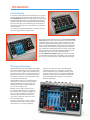
13. MIXDOWN Track
The Mixdown Track is a stereo track that records the audio
from the 4 Recording tracks through their pan knobs and
faders. There are two different modes of Mixdown: Normal
Mixdown and Constant Tempo Mixdown.
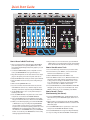
13. MIXDOWN Button and LED
If the 45000 is idle, press the MIXDOWN button once and the
MIXDOWN LED will light up solid. You are now in the normal
Mixdown mode. Normal Mixdown is the mode to use when
you want to make a clean stereo mix of the 4 tracks. Press
the MIXDOWN button again and the MIXDOWN LED will blink.
You are now in the Constant Tempo Mixdown mode. Constant
Tempo is a special mode that you can use to put flanging or
pitch-bending effects onto your Mixdown track, see below
for more information on both modes. To exit either Mixdown
mode, press the Mixdown button while the 45000 is idle, until
the Mixdown LED turns off, or press the TRACK SELECT button.
Normal Mixdown Mode (LED Lit Solid)
In this mode the 45000 is set up to produce a stereo mix of
the 4 tracks. Press the RECORD button to begin mixdown. You
can move the track faders and pan knobs during the mixdown
and the audio will be recorded onto the Mixdown track just
as you hear it. The Mixdown fader acts like a feedback control
during Overdubbing, just like the track faders. You can record
onto the Mixdown track as many times as you like, keeping
what was previously recorded. Please Note: the audio tracks
are not automatically erased after performing a mixdown.
Constant Tempo Mode (LED Blinks Rapidly)
In this mode the Mixdown track is recorded at a constant
speed or tempo but the TEMPO Slider will allow you to vary
the speed of the 4 Recorded tracks. As the Mixdown track
is recorded, speed variations you perform with the TEMPO
Slider will be recorded onto the Mixdown track. This allows
you to make subtle effects such as flanging or more drastic
effects like radically bending the pitch of an instrument.
You can also engage the Reverse function to reverse a track
that was recorded forwards. In some cases of drastic TEMPO
Slider use, the tracks you are mixing will go out of sync with
respect to their original timing. Please Note: you can only
enter CT Mixdown if the 45000 is idle.
14. TEMPO Slider and LED
The TEMPO Slider sets the tempo for the 45000 at all times
except when the EXT.CLOCK is activated (then the 45000
looks to MIDI IN for its tempo). TEMPO normally ranges from
60 BPM to 240 BPM. If the OCTAVE LED is lit, the tempo will
range from 30 BPM to 120 BPM. The tempo increases as the
slider is pushed up. The total range of the TEMPO slider is
+/- 1 Octave + 1 step. When moving the TEMPO Slider, it will
increment the Pitch and Tempo in semitone (1/2) steps.
After recording a New Loop, the TEMPO LED lights up solid
when the TEMPO Slider is set to the original tempo the loop
was initially recorded at. The TEMPO LED goes off when the
tempo slider is no longer set to the original tempo.
Pitch Changing and Bending with the Tempo Slider:
After you have recorded a New Loop, on subsequent tracks
you record, you can move the TEMPO Slider and/or press
the OCTAVE button to record notes at different pitches when
played back at the loop’s original speed. For example, record
Track 1 with some guitar chords. Move the TEMPO Slider up
one octave and record some single low notes with the same
guitar. When you play both tracks back at original speed you
will have guitar and bass tracks. While recording, try moving the TEMPO Slider, when you play the loop back at a set
tempo, the notes will bend according to how you moved the
TEMPO Slider when recording.
15. CLIX LEDs
The CLIX LEDs blink on the beat, at the same tempo the
45000 is set to. The left LED lights briefly on every beat, the
right LED blinks only on beat 1. When the 45000 is using its
internal tempo, the TEMPO Slider will set the tempo the LEDs
blink at. When the EXT. CLOCK is activated, the CLIX LEDs will
blink at the MIDI Clock tempo.
16. CLIX LEVEL Knob
The CLIX LEVEL knob adjusts the volume of the Clix metronome from 0 to 100%. As you turn the knob clockwise, the
metronome beat gets louder. Whether the 45000 is idle,
recording, overdubbing or playing a loop, it always outputs
the metronome beat at the volume specified by the CLIX
LEVEL knob.
Please Note: The Clix metronome is output from only two
audio jacks on the 45000: Headphone Out and MONITOR OUT.
The metronome is never sent out the LEFT OUTPUT or RIGHT
OUTPUT. In addition, the Clix beat does not get recorded.
8