1
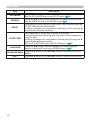
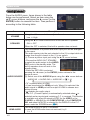
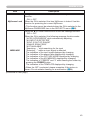
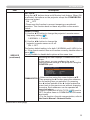
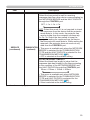
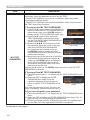
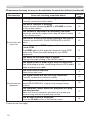
Operating Searching an input signal SEARCH button the SEARCH button on the remote control. 1. Press The projector will start to check its input ports as below in VIDEO order to find any input signals. When an input is found, the projector will stop searching and display the image. If no signal is found, the projector will return to the state selected before the operation. COMPUTER IN1 COMPUTER IN2 VIDEO S-VIDEO HDMI ASPECT MAGNIFY MY SOURCE/ COMPUTER DOC.CAMERA AUTO FREEZE ON SEARCH BLANK PAGE UP VOLUME 㧗 DOWN OFF KEYSTONE MY BUTTON 1 2 MUTE MENU POSITION ENTER ● While the ON is selected for the AUTO SEARCH item in the OPTION menu (47), the projector will keep checking the ports in above order repeatedly till an input signal is detected. RESET ESC Selecting an aspect ratio the ASPECT button on the remote control. 1. Press Each time you press the button, the projector switches the ASPECT button mode for aspect ratio in turn. F or a computer signal NORMAL 4:3 16:9 16:10 NATIVE VIDEO ASPECT MAGNIFY ON AUTO FREEZE SEARCH BLANK PAGE UP VOLUME MY BUTTON 1 2 MUTE MENU POSITION ENTER ESC F or a video signal, s-video signal or component video signal 4:3 16:9 16:10 14:9 NATIVE F or no signal 16:10 (fixed) ● The ASPECT button does not work when no proper signal is inputted. ● The NORMAL mode keeps the original aspect ratio setting. ● The on-screen menu might be displayed outside of the image display area depending on the adjustment value of the ASPECT, D-ZOOM and KEYSTONE. Changing the values of ASPECT, D-ZOOM and KEYSTONE may fix the symptom. 20 㧗 DOWN OFF KEYSTONE F or an HDMI signal NORMAL 4:3 16:9 16:10 14:9 NATIVE MY SOURCE/ COMPUTER DOC.CAMERA RESET