1
Clearview® Guidelines
Individual Claim Lookup
Section 2.1 – Lookup Individual Claim
The Select Account for Individual Claims pop-up box appears listing all of your accounts.
Select the account desired and click OK. If you have only one account, this pop-up box will
not appear.
The Clearview Functions list and Claim Search grid appear.
Click the “+” sign next to any folder under Clearview Functions to view the subset folders.
Double click on a folder to view information within that folder.
The Claim Search grid allows you to view, print or export all of your claims or a subset of
claims based on your search results. Click List All in order to refresh the data after using the
Search feature.
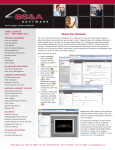
To print, preview, or
export your claim list, click
on More…
Click the drop down list to
search by Claimant Name,
Coverage, Social Security
Number, or one of the other
variables
Click List All to display a
list of all claims or refresh
your data after a search.
Claims are
displayed in claim number
order
If you have access to
multiple accounts,
click here to change
accounts at any time
If the Claim Search grid is not showing on the right- hand side of your screen, single
click on the “+” next to the Individual Claims folder under Clearview Functions, then
double click on the Lookup Individual Claim folder, or click on the binoculars button
located on the tool bar.
New claims are marked with a “#” sign in the left hand column of the grid. New claims
will remain in the new status until all coding has been processed.
To sort, point anywhere on the column you want to sort and right mouse click. Left
click Ascending or Descending (or Exit if you do not want to sort on that column).
Notice that the column selected will automatically move to the left hand side of the grid.
CNA
2
Revised: 4/30/10