1
Color Management
1.3. Using Other ICC Profiles
It is possible to create your own ICC profile and import it into the Capture One application.
For Windows 2000, place the desired profile in the Color folder under C:\WinNT\System32\SpoolDrivers.
For Windows XP it must be placed under C:\WINDOWS\System32\Spool\Drivers.
Restart the application and the new profile will appear in the Preferences pop-up menu. Using third-party
software, customized printer or monitor profiles can be made and installed. This gives greater color
management control of the workflow environment. The smoothness slider makes color adjustments
smoother. By enhancing the smoothness a red color correction will slightly affect neighboring colors like
magenta and yellow as well.
2. The Color Editor
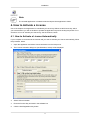
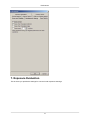
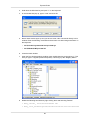
The Color Editor is accessed from the Workflow menu. The purpose of the tool is to provide you with
the option of adjusting predefined camera profiles to fit individual color requirements. The Color Editor
works with Phase One's predefined camera profiles. To start the Color Editor, select the image you want
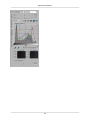
to adjust the profile on and select Color Editor from the Workflow menu (see illustration, below).
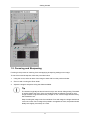
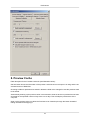
Selecting The Master Profile: open the Color Editor tool from the Workflow menu, and select the profile
you wish the adjust from the Master profile selection field.
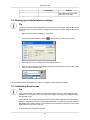
Making Color Adjustments: all adjustments are made to a copy of the original profile. The Capture One
software automatically copies the master profile to avoid unintended overwriting of an original profile.
Use Save As to store the adjusted profile under a new name once all corrections have been carried out.
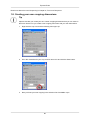
All new profiles are added to, and can be selected from the camera profile drop-down box in the Color
Management dialogue box.
New profiles are added to, and can be selected from the ICC Profile field in the Capture Panel, or in the
Color Management preferences.
47