1
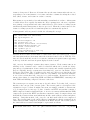
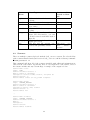
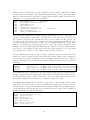
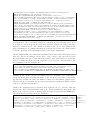
-S hashdb_mode=none
Operational mode [none|import|scan]
none
- The scanner is active but performs no action.
import - Import block hashes.
scan
- Scan for matching block hashes. (hashdb)
-S hashdb_block_size=4096
Hash block size, in bytes, used to generte hashes (hashdb)
-S hashdb_ignore_empty_blocks=YES
Selects to ignore empty blocks. (hashdb)
-S hashdb_scan_path_or_socket=your_hashdb_directory
File path to a hash database or
socket to a hashdb server to scan against. Valid only in scan mode. (hashdb)
-S hashdb_scan_sector_size=512
Selects the scan sector size. Scans along
sector boundaries. Valid only in scan mode. (hashdb)
-S hashdb_import_sector_size=4096
Selects the import sector size. Imports along
sector boundaries. Valid only in import mode. (hashdb)
-S hashdb_import_repository_name=default_repository
Sets the repository name to
attribute the import to. Valid only in import mode. (hashdb)
-S hashdb_import_max_duplicates=0
The maximum number of duplicates to import
for a given hash value, or 0 for no limit. Valid only in import mode. (hashdb)
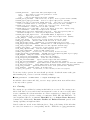
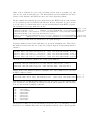
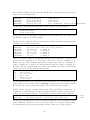
-S exif_debug=0
debug exif decoder (exif)
-S jpeg_carve_mode=1
0=carve none; 1=carve encoded; 2=carve all (exif)
-S min_jpeg_size=1000
Smallest JPEG stream that will be carved (exif)
-S zip_min_uncompr_size=6
Minimum size of a ZIP uncompressed object (zip)
-S zip_max_uncompr_size=268435456
Maximum size of a ZIP uncompressed object (zip)
-S zip_name_len_max=1024
Maximum name of a ZIP component filename (zip)
-S unzip_carve_mode=1
0=carve none; 1=carve encoded; 2=carve all (zip)
-S rar_find_components=YES
Search for RAR components (rar)
-S raw_find_volumes=YES
Search for RAR volumes (rar)
-S unrar_carve_mode=1
0=carve none; 1=carve encoded; 2=carve all (rar)
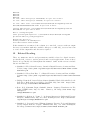
-S gzip_max_uncompr_size=268435456
maximum size for decompressing GZIP objects (gzip)
-S pdf_dump=NO
Dump the contents of PDF buffers (pdf)
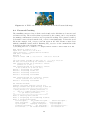
-S opt_weird_file_size=157286400
Weird file size (windirs)
-S opt_weird_file_size2=536870912
Weird file size2 (windirs)
-S opt_max_cluster=67108864
Ignore clusters larger than this (windirs)
-S opt_max_cluster2=268435456
Ignore clusters larger than this (windirs)
-S opt_max_bits_in_attrib=3
Ignore FAT32 entries with more attributes set than this (windirs)
-S opt_max_weird_count=2
Ignore FAT32 entries with more things weird than this (windirs)
-S opt_last_year=2019
Ignore FAT32 entries with a later year than this (windirs)
-S xor_mask=255
XOR mask string, in decimal (xor)
-S sqlite_carve_mode=2
0=carve none; 1=carve encoded; 2=carve all (sqlite)
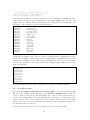
To use any of these options, the user should specify the -S with the name=value pair
when running bulk_extractor as in the following example:
bulk_extractor -S name=value -o output diskimage.raw
As with the other scanner and bulk_extractor usage options, most users will not have
to use any of these options.
4.3
Carving
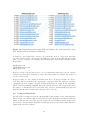
File carving is a special kind of carving in which files are recovered. File carving is useful for both data recovery and forensic investigations because it can recover files when
sectors containing file system metadata are either overwritten or damaged [?]. Currently, bulk_extractor provides carving of contiguous JPEG, ZIP and RAR files. To
carve fragmented files we recommend PhotoRec (free) or Adroit Photo Recovery
(commercial). Additionally, Forensics Toolkit and EnCase Forensic provide some
carving capability on fragmented files.
Carved results are stored in two different places. First, a file listing all the files that
are carved are written to a corresponding .txt file: JPEG files to jpeg_carved.txt,
24