1
Owner’s Manual
USB Serial Adapter Software
for Windows 2000/XP/2003 Server/Vista
(Software V 3.7S)
Model: USA-19HS
Introduction2
Overview
Features
Specifications
Package Contents
Requirements
Software and Hardware Installation
Using the Keyspan Serial Port
Connecting and Configuring a Serial Device to Use a
Keyspan Adapter
Changing Your COM Port Address
Change COM Port via Keyspan Serial Assistant
Change COM Port via the Windows Device Manager
TX Ack Advance Details
16
Serial Port Pin Outs [DB9]
17
Warranty Information and Product Registration
18
Regulatory Compliance 19
Launching the Keyspan Serial Assistant
Explanation of Assistant Features
Adapter Status Tab
Properties Tab
Port Mapping Tab
Diagnostics Tab
Help Tab
Identifying Potential Problems
Creating a Work Around
Configuring Tx Ack Advance
4
USA-19HS Pin Outs Diagram
External Loopback Connector Information
5
Troubleshooting9
Uninstalling USA-19HS Software
10
3
Installing the Keyspan Software
Connecting the Keyspan Hardware
Determine Keyspan’s COM Port Assignment
Keyspan Serial Assistant
10
PROTECT YOUR INVESTMENT!
Register your product for quicker service and ultimate peace of mind.
You could also win an ISOBAR6ULTRA surge protector—a $50 value!
www.tripplite.com/warranty
1111 W. 35th Street, Chicago, IL 60609 USA • www.tripplite.com/support
Copyright © 2015 Tripp Lite. All rights reserved.
1
Introduction
Overview
Keyspan’s USB to Serial Adapter technology allows you to connect serial devices to computers that lack serial ports. Keyspan’s drivers and
firmware provide software addresses (COM ports on Windows® and Serial Ports on Mac OS®) for your devices to access.
Our USA-19HS is recommended by serial device manufacturers for its dependability and “Best in Class” compatibility. The adapter is compatible
with all RS-232 serial devices including modems, GPS devices, cell phones, hand held scanners, networking equipment (console port), graphics
tablets, point of sale devices, touch screens, UPS devices, medical and scientific instruments, industrial process control devices, building
automation instrumentation and other serial devices.
Features
• Microsoft WHQL approved
• Supports 230 Kbps - twice the speed of a built in serial port
• Use adapter with any USB cable (up to 16 ft./5 m long)
• LED shows adapter status and data activity
• Plug and Play - appears as standard COM port
• 2 oz. weight for extra portability
• Bus Powered - no external power adapter required
• Analytic tools include Windows line monitor and data trace software
• Easy to update with free software downloads
• Supports use of multiple adapters on one PC
Specifications
• Connects to the USB 2.0 port on a PC or Mac
• Provides one male DB-9 port for direct connection to a serial device
• Supports data rates up to 230 Kbps
Package Contents
• USA-19HS USB to Serial Adapter
• USB Cable (A male to B male), 3 ft.
• CD-ROM (includes software and electronic user manual)
Requirements
• An available USB port
• Mac OS: 8.6 - 9.2.2
• Mac OS X: 10.2.8, 10.3.x, 10.4.x, 10.5.x
• Windows: 98, 98SE, Me, 2000, XP (32bit and 64bit), Windows Server 2003 x86, Vista (32 bit and 64 bit)
2
Software and Hardware Installation
Note: Disconnect the USB to Serial adapter before installing the Keyspan software.
Installing the Keyspan Software
CD-ROM Installation:
Windows will automatically open the Keyspan CD Browser window (Note: you can manually start the CD browser by locating and running the
“Launch.exe” program on the CD-ROM). Using the onscreen menus, locate the Keyspan Installer selection and click it to start the installation
process. Follow the instructions on-screen.
Installation via download:
Download the Keyspan driver from Keyspan’s website (http://www.keyspan.com). Find and download the Keyspan USA-19HS installer. When you
have downloaded the installer, run installer.
Note: For some installations on Windows Vista, the message ‘’Windows can’t verify the publisher of this software’’ may appear during and/or after the software
installation. If this occurs, click the ‘’Install this driver software anyway’’ selection.
Follow the installer’s onscreen instructions to finish the software installation. When the installer completes, proceed to the next step.
Connecting Keyspan Hardware Using the USB to Serial Adapter
Connect one end of the USB cable to the USB port on the back of the Keyspan adapter. Connect the other end of the USB cable to your
computer’s USB port. Upon connecting the adapter to the computer, Windows will detect your Keyspan adapter. During this time, messages
showing the names of the Keyspan adapter’s different components may appear and disappear. This is normal during the first installation.
Note: During and/or after the hardware installation, the Windows New Hardware Wizard may ask to install software several times. Select “Install the software
automatically”. An additional prompt may appear regarding logo testing. Click “Continue Anyway” if it appears. This message may appear several times. Continue
through all the Hardware Wizards that appear until they stop appearing (up to three Hardware Wizards may appear).
When Windows has finished installing the drivers for your adapter, proceed to the next step.
Determine Keyspan’s COM Port Assignment
The adapter’s COM port instructs your serial devices (i.e. modem, PDAs, GPS, etc.) to use the Keyspan COM port. To determine Keyspan’s COM
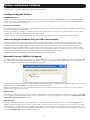
port assignment, use the Keyspan Serial Assistant utility. Open the Keyspan Serial Assistant utility by going to START menu > (All) Programs >
Keyspan > Keyspan Serial Assistant. The following window should appear:
In the Keyspan Serial Assistant window, the adapter’s COM port assignment will appear as “COMxxx : IDLE” or “COMxxx: BUSY”. Take note of the
COM port address (i.e. COM1, COM2, etc.), as this information will be needed later.
Note: As an alternate method, you can also use the DEVICE MANAGER in Windows to determine the Keyspan COM port. COM ports are shown in the Device
Manager under the PORTS (COM & LPT) section.
IDLE message:
If the IDLE status message appears, the Keyspan adapter is working in its normal state and is waiting for a program to access the Keyspan COM
port. The adapter’s status light will blink once per second to indicate that it is idle. If this message is received, proceed to Making Your Keyspan
Adapter Work with Your Serial Device section.
BUSY message:
If the BUSY status message appears, the Keyspan adapter is working and a program has already gained access the Keyspan COM port. The
adapter’s status light will illuminate solid or blink every time data is sent or received (this can be a rapid blink or once every couple of seconds).
If your serial device’s software gained accessed to the Keyspan adapter, you should be able to start using your serial device. However, in some
cases, another program may be accessing the COM port before the serial device has had a chance to gain access to the COM port. If this occurs,
refer to the Troubleshooting section for further assistance.
3
Software and Hardware Installation
No Keyspan Adapters Detected message:
If the “No Keyspan Adapters Detected” status message appears, there is a problem with the installation. Refer to the Troubleshooting section in
this manual for further assistance if this status message occurs.
If the IDLE or BUSY message appears, proceed to Using Your Keyspan Serial Port section.
Using The Keyspan Serial Port
Using a serial device with a serial port requires:
• A serial device (i.e. modem, glucose meter, GPS, etc.)
• Software that sends/receives data from your serial device (i.e. GPS software)
• A serial port (provided with the Keyspan adapter)
• A COM port (provided by the Keyspan software)
• A serial device’s software capable of communicating with the Keyspan COM port
Note: Do not proceed until you have completed the steps outlined in the Software and Hardware Installation section in this manual.
Connecting and Configuring a Serial Device to Use a Keyspan Adapter
1. Once the Keyspan software is installed and the Keyspan adapter [hardware] is connected to your computer, proceed to connect your serial
device hardware to the Keyspan adapter’s DB9 port (if a COM port has not yet been assigned, go to 3. Determine Keyspan’s COM Port
Assignment in the previous section and follow the instructions).
Note: If your serial device has a different connector, a converter cable or adapter to connect to a DB9 port may be needed. Contact the serial device
manufacturer for details.
2. Open your serial device’s software to use the Keyspan COM port found in the COM port selection screen. Refer to your serial device’s owner’s
manual for instructions on how to select a serial port.
Note: Every serial device COM port selection screen is different. Some serial devices have COM port selections in a control panel, some have their COM port
selection screens in menu’s Settings, Communication or Preferences windows, while others may not contain a serial port location.
3. In your serial device’s COM port selection screen, select the Keyspan COM port that appeared when assigning a COM port in Determine
Keyspan’s COM Port Assignment section.
Note: If your software shows a limited number of ports and your Keyspan COM port falls outside of that range, either update the software to recognize all COM
ports or change the Keyspan COM port to one that your program can use. If you need to change your Keyspan COM port, refer to Changing Your COM Port
Address section and follow the instructions. When that section is completed, return to this section.
4. Once the Keyspan COM port has been selected, you may being using your serial device as normal. If the serial device does not work, refer to
Troubleshooting section for further assistance.
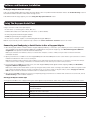
The Keyspan Adapter’s Status Light
The Keyspan USA-19HS comes equipped with a green status light that reports hardware status and is useful in troubleshooting various issues.
LED State
Off
Description
The Keyspan adapter is not connected or not receiving power from your computer.
The Keyspan hardware may not have been installed correctly. Refer to the Troubleshooting section
for more information.
On - Blinking Slowing (1 blink per second) The Keyspan adapter is IDLE and waiting for the serial device's software to access the Keyspan
COM port. This is the normal state.
On - Steady Light (Not blinking)
The Keyspan adapter is BUSY (“in use”). The adapter is being accessed by a serial device's software.
On - Blinking fast or 'randomly'
The Keyspan serial port is sending and/or receiving data.
4
Changing Your COM Port Address
Changing COM Port Using the Keyspan Serial Assistant
Note: This is an advanced feature that requires administrator privileges.
1. Open the Keyspan Serial Assistant utility by going to START menu > (All) Programs > Keyspan > Keyspan Serial Assistant.
The following window will appear displaying the current COM port number (i.e. COM4, COM5, etc.):
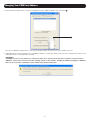
2. Click on the “Port Mapping” tab A and select or highlight the Keyspan COM port that you wish to change B .
A
B
With your Keyspan COM port highlighted, select the new COM port number from the “COM Port mapping for the selected adapter port” pull
down menu C .
C
5
Changing Your COM Port Address
Once the new COM port number has been selected, the Keyspan software will ask if you are sure you want to proceed.
IMPORTANT:
Any COM port can be selected. However, certain ports will be in use. This may mean that there is hardware connected to these
COM ports or they have been reserved for the operating system or other software. Changing the COM port mapping to a COM port
that is in use may render any hardware and/or software using that port inoperable.
3. Your COM port has now been changed to the new COM port number. To confirm the change, click the Keyspan Serial Assistant’s Adapter
Status tab to see the new COM port. The COM port change is complete.
Change COM Port via the Windows Device Manager
On Windows XP and Vista, the Keyspan adapter’s COM port number can be changed via the Device Manager. This requires the latest version of
the Keyspan software (version 3.7 or later).
This process accomplishes the same task as changing the COM port via the Keyspan Serial Assistant. However, certain users may prefer to use
the Device Manager to change ports.
Note: This is an advanced feature that requires administrator privileges.
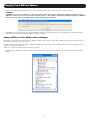
1. Open the Device Manager by double-clicking the system control panel. Next, click the “Hardware” tab, followed by the “Device Manager”
button.
6
Changing Your COM Port Address
2. In the Device Manager, go to the “Ports (COM & LPT)” heading and click the on the plus (+) sign to expand A . Find the Keyspan COM port in
the list and right-click on the “Keyspan USB Serial Port” item B . Select “Properties” C to open the window D .
D
A
B
C
3. In the Properties window, click the “Port Settings” tab A , then click the “Advanced...” button B to open the “Advanced Settings” window C :
A
A
C
7
Changing Your COM Port Address
4. In the Advanced Settings window, select the new COM port from the “COM Port Number” pull down menu A .
A
Once the new COM port number has been selected, the Keyspan software will ask if you are sure you want to proceed.
5. Your COM port has now been changed to the new COM port number. To confirm the change, return to the Device Manager and locate the new
COM port under the “Ports (COM & LPT)” heading.
IMPORTANT:
Any COM port can be selected. However, certain ports will be in use. This may mean that there is hardware connected to these
COM ports or they have been reserved for the operating system or other software. Changing the COM port mapping to a COM port
that is in use may render any hardware and/or software using that port inoperable.
8
Troubleshooting
Before you begin, make sure to have:
• Installed the latest USA-19HS software (available from Keyspan’s website)
• The USA-19HS adapter connected to your USB port
Note: If you are downloading software from Keyspan’s website, make sure you download the USA-19HS drivers. Keyspan has drivers for other adapters such as the
USA-19, USA-19Qi, USA-19QW, etc. These drivers are not compatible with the USA-19HS.
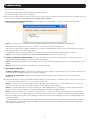
1. Open the Keyspan Serial Assistant utility by going to START menu > (All) Programs > Keyspan > Keyspan Serial Assistant.
The following window will appear:
Option 1 - The Keyspan Serial Assistant will show your adapter’s COM port and status (i.e. “COMxx:Idle” or “COMxx busy”).
If the IDLE message displays, your serial device’s software is not currently accessing the Keyspan port).
If the BUSY message displays, a program (software) has accessed the Keyspan COM port. In most cases, this means that you are ready to
start using your serial device via the Keyspan adapter.
If your COM port appears, the Keyspan software and hardware is installed correctly and further troubleshooting is not needed.
Option 2 - If the message NO KEYSPAN USB SERIAL ADAPTERS FOUND appears, proceed to the next step.
2. Examine your Keyspan adapter hardware. The front of the adapter will have the word “Keyspan” printed on it. On the back of the
adapter, find the printed p/n number located under the FCC and CE symbols.
Option 1 - If the printed p/n number is not “USA-19HS”, you do not have a USA-19HS adapter. Refer to the correct documentation for your
adapter.
Option 2 - If the printed p/n number is “USA-19HS”, proceed to the next step.
3. Open the Device Manager:
On Windows 2000, XP, or Vista™ - Open the Device Manager by double-clicking the “System Control” panel. Then click the “Hardware” tab,
followed by the “Device Manager” button to open the Device Manager.
On Windows 98, 98SE, or ME™ - Open the Device Manager by double-clicking the “System Control” panel. Then click the “Device
Manager” tab.
4. In the Device Manager, looking for any Keyspan-related item that has a question mark “?”, exclamation mark “!”, or red “X”. You do not need
to open every heading. Items with “?”, “!” or “X” will appear on their own.
Option 1 - Nothing shows up for Keyspan adapter in Device Manager (e.g., no “Other Device” or “TUSB 3410 Boot Device”). In this case,
replace the USB cable and connect your Keyspan adapter to another USB port on your computer.
Option 2 - Keyspan adapter appears in the Device Manager as “TUSB 3410 Boot Device”. This indicates a defective Keyspan USB Serial
Adapter. Stop here and contact Tripp Lite Tech Support at www.tripplite.com/support for further assistance.
Option 3 - Check the “Other Devices” heading by clicking on the plus “+” sign for any items with a question mark “?” or an exclamation
point “!”. If items “?”, “!” or “X” appear, right-click on each item and select the “remove” or “uninstall” command from the right-click menu.
Once all items with a question mark or an exclamation point have been removed in Device Manager, disconnect your Keyspan adapter and
restart your computer.
Log in as Administrator and disable any anti-virus software upon returning to the desktop screen. Then reconnect the adapter to a USB port
and open Keyspan Serial Assistant. Your Keyspan COM port should now show up under the “‘Adapter Status” tab and your Keyspan USB
Serial adapter is now ready to use.
9
Uninstalling USA-19HS Software
Uninstalling the Keyspan USA-19HS software is an easy process that completely uninstalls all Keyspan software files and entries in your Windows
registry.
1. Disconnect the Keyspan USA-19HS Adapter from your USB port.
2. Close any Keyspan program windows (i.e. “Keyspan Serial Assistant”).
IMPORTANT:
Make sure to complete steps 1 and 2; uninstall will fail if these steps are skipped.
3. For Windows 98, ME, 2000, and XP, open the “Add/Remove Programs” control panel. For Vista, open the “Programs and Features” control
panel.
4. In the control panel, locate the Keyspan USA-19HS software. Then click the “Uninstall/Change” button to launch the uninstall program. Follow
the on-screen prompts to complete the uninstall process.
Note: You may receive an additional dialog asking to “Repair”, “Modify” or “Remove” the software. Select “Remove” and click the “Next” button if this dialog
appears.
Keyspan Serial Assistant
Aside from the required drivers, the Keyspan USB Serial Adapter software installer installs an application called Keyspan Serial Assistant.
This application is used to:
- Determine the status of the adapter software and hardware
- Assist in problem solving
Launching the Keyspan Serial Assistant
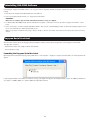
Open Keyspan Serial Assistant utility by going to START menu > (All) Programs > Keyspan > Keyspan Serial Assistant). The following window will
appear:
If your Keyspan hardware and software are installed correctly, your adapter will appear in the “Adapter Status” tab box. The COM port number will
also appear (i.e. COM1, COM2, etc.) and the COM Port Status (IDLE or BUSY).
10
Keyspan Serial Assistant
Explanation of Assistant Features
The following is a description of all the relevant text boxes and menus found in the Keyspan Serial Assistant. You can also obtain this information
by turning on the “Enable Tool Tips” check box in the Keyspan Serial Assistant’s “Help” tab.
Adapter Status Tab
The “Adapter Status” tab in the Keyspan Serial Assistant displays the status of your Keyspan adapter. Specifically, it shows the COM port number
(COM1, COM2, etc.) and the COM Port Status (IDLE or BUSY). If you have several Keyspan adapters of the same type, they will all show up in
this tab.
This is also the first place to check to see if your Keyspan adapter is working properly. If your Keyspan adapter does not show up in the “Adapter
Status” tab, refer to Troubleshooting section for further instructions.
Properties Tab
The “Properties” tab in the Keyspan Serial Assistant has two functions:
• Test your Keyspan adapter (via Serial Test Options)
• Make changes to the behavior of the Keyspan adapter (Endpoints and Serial Port Options)
The “Adapter” pull down menu is used to select which USB Serial Adapter you would like to configure. If you only have one Keyspan USB Serial
Adapter, you will not need to change the selection.
11
Keyspan Serial Assistant
Endpoints and Serial Port Options
The “Endpoints” radio buttons are used to configure how the Keyspan adapter will communicate with the computer’s USB subsystem (software).
Most users will not need to modify the default setting: Compatible (Interrupt). This setting should only be changed unless you are sure that your
serial device needs a specific setting.
“Port” Pull Down Menu: If your Keyspan adapter has more than one serial port, the “Port” pull down menu allows you select which serial port
you want to modify or test. You can also see the serial port’s COM port number and its COM port status next to the “Port” pull down menu. If your
Keyspan adapter contains only one port, you will not need to change the selection.
“Transmit Completion Timing Advance” Pull Down Menu: The “Transmit Completion Timing Advance” pull down menu allows you to adjust a
device’s transmit behavior to achieve optimum balance between compatibility (exact emulation of built-in ports) and improved throughput. The
default setting is “Standard”. This setting is set per port (if you have a multi-port Keyspan adapter, you can set one port according to one setting
and another port to use a different setting). Once the changes have been made, click the “Update Configuration” button to upload the new
settings to your adapter.
Note: Before changing this setting, read the TX Ack Advance Details section for detailed information about what this feature does and how it affects serial
communication.
“Receive FIFO Buffer Size” Pull Down Menu: The “Receive FIFO Buffer Size” pull down menu allows you to configure the number of characters
stored in the card’s “First In, First Out” input buffer (“FIFO”) before they are made available to the computer. The default value of this parameter
is “16”. “Receive FIFO” improves the reliability of data transfer at high speeds. You can turn this option OFF for performance reasons; however,
this is not necessary in most cases. If you are receiving data from your serial device at speeds of 9600 baud or lower, you may want to set the
“Receive FIFO Buffer Size” to “None”. This setting is set per port (i.e. if you have a multi-port Keyspan adapter, you can set one port according
to one setting and another port to use a different setting). Once the changes have been made, click the “Update Configuration” button to upload
the new settings to your adapter.
“Update Configuration” Button: The “Update Configuration” button updates the Keyspan adapter with the changes made in the “Properties”
tab. These changes will take effect when you click the “Update Configuration” button.
Serial Test Options
Note: The baud rate shown is only used to configure the Serial Test. If your serial device’s software does not provide the necessary port settings to our adapter and
you need to specify the default port settings (i.e. baud [bits per second], data bits, parity, stop bits, and flow control), set these settings in the Device Manager by
right-clicking your Keyspan COM port in the “Ports (COM & LPT)” heading, selecting “Properties” and clicking on the “Port Settings” tab.
“Test This Port” Button: The “Test This Port” button tests the COM port selected in the “Port” pull down menu located in the “Serial Port Option”
section of the “Properties” tab. The test that is performed is the selected test in the Test Option box.
“Test Mode” Box: The “Test Mode” box specifies the type of test that will be performed when the “Test This Port” button is pressed. There are
three test types:
TX Only - Use this to test the Keyspan adapter’s transmission (Tx) signals.
Ext. Loopback - Use this to test sending and receiving data. This test sends data out the selected serial port and waits to receive it via a
special loopback connector. More information about the loopback connector can be found in the Serial Port Pin Outs section. IMPORTANT!
This test will fail unless a custom loopback connector is made and a connection has been established.
Int. Loopback - Use this to test sending and receiving data. This test is performed within the Keyspan adapter hardware and DOES NOT
require a loopback cable.
“Test Type” Box: The “Test Type” box specifies how many times the selected test will be repeated when the “Test” button is pressed. Use the
“Quick” option to perform the test once. To perform a subsequent test, press the “Test This Port” button. Use the “Continuous” option to repeat
the test continuously. To stop the test, press the “Stop Test” button.
Note: The “Test This Port” button becomes the “Stop Test” button during a test.
“Test Speed” Pull Down Menu: The “Test Speed” pull down menu specifies the speed (baud rate) at which the port will be tested when the
“Test This Port” button is pressed.
“Test Status” Box: The “Test Status” box reports the test status or results of the selected COM port.
12
Keyspan Serial Assistant
Port Mapping Tab
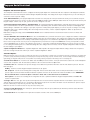
The “Port Mapping” tab in the Keyspan Serial Assistant changes how COM port numbers are assigned to your Keyspan adapter.
Important! Changing COM port assignments may render other hardware unusable. For step by step instructions on how to change a
COM port address, refer to Changing Your COM Port Address section. Make sure to carefully review the sections about changing COM
ports before proceeding.
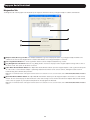
A
B
C
D
E
A “COM Port” List Box: The “COM Port” list box shows connected Keyspan USB Serial Adapter(s), its COM port number and COM port status.
The list box also displays any other COM port that has been assigned or reserved on your computer if you enable or check the “Show All COM
Assignments” check box.
B “Show All COM Assignments” Check Box: Enable the “Show All COM Assignments” check box to display all COM port names and numbers
that have been registered on your computer. This will include COM ports from other devices.
Note: You may have COM ports assigned or set aside for hardware that may not be installed on your computer, depending on how your computer was setup by
its manufacturer.
C “COM Port Mapping” Pull Down Menu: The “COM port mapping” pull down menu reassigns the selected Keyspan COM port in the COM
port list window. This window also reports whether a COM port is in use (e.g., assigned or reserved). It is highly recommended that you only
change the COM port mapping to COM ports that are not in use.
Note: The COM port mapping pull down menu changes the COM port mapping to any COM port, including those that have already been assigned (in use).
Changing the COM port mapping to a COM port that is in use may render any hardware and/or software using that port inoperable.
D “Adapter Port Mapping Mode” Box: The “Adapter Port Mapping Mode” box changes the behavior of how Keyspan COM port numbers are
assigned when the Keyspan adapter is connected to a different USB port than the one it was originally connected to.
Dynamic - Assigns a COM port number (or numbers if your Keyspan adapter has multiple serial ports) to a particular Keyspan adapter. If you
disconnect the Keyspan adapter and connect it to a different USB port, the COM port number of that Keyspan adapter will not change. This is
the default setting and is the recommended setting if you only have one Keyspan adapter.
Geographic - Assigns a COM port number (or numbers if your Keyspan adapter has multiple serial ports) to a particular USB port on your
computer. If you disconnect the Keyspan adapter and connect it to a different USB port, the COM port number of that Keyspan adapter will
change. This setting is recommended if you are using multiple Keyspan adapters and want the COM port numbers to remain the same.
E “Delete All Keyspan USB Serial Adapter Port Mappings” Button: The “Delete All Keyspan USB Serial Adapter Port Mappings” button
clears the Windows registry of all Keyspan USB Serial Adapter COM port numbers and Keyspan USB information. This allows Windows to
create new COM port assignments.
Note: This is option is for advanced users only. Do not use this option you are unsure how this command will affect your computer.
13
Keyspan Serial Assistant
Diagnostics Tab
The Diagnostic tab in the Keyspan Serial Assistant reports diagnostic information about your Keyspan adapter’s software and hardware.
A
B
C
D
E
A “Adapter Status/Error Log” List Box: The “Adapter Status/Error Log” list box displays the status of your Keyspan adapter hardware and
software. It also detects if the Keyspan driver is installed and whether or not a Keyspan adapter is connected.
B “Clear Log Window” Button: The “Clear Log Window” button clears the “Adapter Status/Error Log” list box.
C “Log Debug Events” Check Box: Enable the “Log Debug Events” check box to display all of the Keyspan adapter’s debug events as well as
the driver events. This option can be turned on and off.
D “Open Driver Events Window” Button: The “Open Driver Events Window” button opens the Keyspan adapter’s event log window and reports
all of the events or actions that the adapter is performing. Data from this window can be saved to text file, making this feature useful in
troubleshooting data communication problems.
Note: This is an advanced feature of the Keyspan Serial Assistant. For more details on how to use this feature, refer to Driver Events/Data Monitor Features
section.
E Open Data Monitor Window button: The “Open Data Monitor Window” button opens the Keyspan adapter’s line monitor (i.e. data monitor)
window. The line monitor displays all data and modem control state changes sent to and from the USB Serial Adapter. Data from this window
can be saved as a graphic to your clipboard and pasted into most programs like WordPad.
Note: This is an advanced feature of the Keyspan Serial Assistant. For more details on how to use this feature, refer to Driver Events/Data Monitor Features
section.
14
Keyspan Serial Assistant
Help Tab
The “Help” tab in the Keyspan Serial Assistant displays version numbers of the different components in your Keyspan USB Serial Adapter
installation. You can also enable Tool Tips (on screen help), read the Keyspan adapter’s Owner’s Manual, or go to Keyspan’s home page.
15
Tx Ack Advance Details
Many Keyspan USB serial adapters support configurable “Transmit Acknowledgment Advance” (i.e. TXACK threshold, TX-ACK(nowledgement)
advance, etc.) in the Keyspan Manager. This feature allows the user to adjust a device’s transmission behavior to achieve the optimum balance
between compatibility (exact emulation of built-in ports) and improved throughput.
Identifying Potential Problems
In the case of a standard, built-in serial port, the host CPU can communicate directly with the serial hardware because the serial hardware is
in the address space directly accessible to the CPU. When the serial port has transmitted all the data in its transmit FIFO (the buffer that holds
characters waiting to be sent), it interrupts the CPU, which then adds more characters to the transmit FIFO with a minimal time delay.
In contrast, a USB to serial adapter transmits information about the state of the serial port FIFO to the CPU via USB messages. The USB
subsystem in most computers delay the delivery of inbound (USB peripheral to USB host computer) USB messages by about one millisecond.
The impact of this delay on serial throughput depends on the baud rate. At 9600 baud, it takes about one millisecond to transmit a character. If
the serial adapter signals the host when it begins transmitting the last character in its FIFO, the host learns about it at about the same time the
character is actually finished being transmitted. Since outbound (USB host computer to USB peripheral) USB messages are not subject to as
long of a delay, the host can supply new data before the serial port remains idle for too long. At higher baud rates, however, the one-millisecond
delay becomes more of a problem. For example, at 920 Kbps, one millisecond is enough time to send 92 characters. So if 92 characters are
being sent at a time, only 50% throughput will be achieved, since half the time is spent with the adapter waiting for the host to send more data.
Creating a Work Around
There is no way to eliminate the USB delays, though a work around exists in which the serial adapter “lies” about when it’s finished transmitting.
With this work around, the adapter will still have some data to transmit while it’s waiting for more to arrive from the host. If the next data batch
from the host arrives before the previous data is completely sent, the new data can be sent with no delay and the device will achieve improved
transmit throughput.
In most situations, using the serial adapter lie workaround is harmless or even beneficial. However, certain scenarios should be avoided:
Flow control: If the adapter is programmed to use flow control, the remote (receiving) end of the serial connection can ask the adapter to
suspend its data transmission (i.e. it is not ready to receive more data). Since this state can persist indefinitely, the “I’m done” indication—if it
were sent early—could arrive at the host a significant amount ahead of time. As a result, the application might use the “I’m done” signal as an
indication that the remote end is ready that can lead to various other problems.
Data flushing: Sometimes an application will issue a “transmit flush” command to the adapter to rid itself of extra data. For example, an
application sends “AAAA” to the adapter and once it’s received the “I’m done” indication sends “BBBB.” Then, if after sending “BBBB,” the
application cancels whatever part of the “BBBB” has yet to leave the serial port and sends a “transmit flush” command to the adapter. If the
adapter had been “lying” about completion of sending “AAAA,” it might still not be done and the flush could purge the transmit FIFO of some of
the A’s (which is not what the application was expecting) in addition to the B’s.
Timing: For some applications, the “I’m done” receipt indication is used as a timing reference point. For example, an application could send a
data stream that reads as:
COMMAND................................................................
The extra periods following COMMAND would be used just to establish a timing interval: the application would know that once the serial port
says “I’m done,” the receiver would have had at least 64 character times to process COMMAND. If the “I’m done” indication is sent early, the
application might execute its subsequent action prematurely. There are many other communication protocols in which time periods are counted
from the point that a message has been delivered. Any time the timing of the “I’m done” indication is changed, you run the risk of interfering
with such protocols.
Configuring Tx Ack Advance
There are two ways to configure Tx Ack Advance:
Standard – Select this option when using a baud rate of 57,600 or less, as the 1 millisecond delay will not significantly affect throughput.
This option is also a appropriate when running an application in which throughput is not an issue, or one in which guaranteeing 100% correct
operation is important enough and you prefer not to risk encountering potential problems.
Faster – Select this option when using a baud rate above 57,600. Try increasing this setting and determine whether it improves performance,
causes problems, or doesn’t make any difference, and configure accordingly.
16
Serial Port Pin Outs [DB9]
USA-19HS Pin Outs Diagram
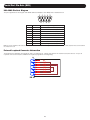
The pin assignments for the Keyspan USA-19HS USB Serial Adapter’s male DB9 port are illustrated below:
1 2 3 4 5
6 7 8 9
Pin
1
2
3
4
5
6
7
8
9
Name
DCD
RX
TX
DTR
GND
DSR
RTS
CTS
RI
Signal Designation
Data Carrier Detect (Input)
Received Data (Input)
Transmitted Data (Output)
Data Terminal Ready (Output)
Ground
Data Set Ready (Input)
Request To Send (Output)
Clear To Send (Input)
Ring Indicator (Input)
Note: To ensure compliance with emission specifications, cables should be shielded using braided shields and metal hoods with complete 100% contact between
the shields and hoods.
External Loopback Connector Information
The Keyspan Serial Assistant can perform two types of loopback tests - internal and external. The external test requires the use of a special
loopback connector that requires a DB9 female loopback plug with the following wiring:
PI
5
9
4
8
3
7
2
6
1
x
RI
DTR
CTS
TxD
RTS
RxD
DSR
DCD
DB-9F
17
Warranty and Product Registration
2-Year Limited Warranty
TRIPP LITE warrants its products to be free from defects in materials and workmanship for a period of two (2) years from the date of initial purchase. TRIPP LITE’s
obligation under this warranty is limited to repairing or replacing (at its sole option) any such defective products. To obtain service under this warranty, you must
obtain a Returned Material Authorization (RMA) number from TRIPP LITE or an authorized TRIPP LITE service center. Products must be returned to TRIPP LITE or an
authorized TRIPP LITE service center with transportation charges prepaid and must be accompanied by a brief description of the problem encountered and proof of
date and place of purchase. This warranty does not apply to equipment which has been damaged by accident, negligence or misapplication or has been altered or
modified in any way.
EXCEPT AS PROVIDED HEREIN, TRIPP LITE MAKES NO WARRANTIES, EXPRESS OR IMPLIED, INCLUDING WARRANTIES OF MERCHANTABILITY AND FITNESS FOR A
PARTICULAR PURPOSE. Some states do not permit limitation or exclusion of implied warranties; therefore, the aforesaid limitation(s) or exclusion(s) may not apply
to the purchaser.
EXCEPT AS PROVIDED ABOVE, IN NO EVENT WILL TRIPP LITE BE LIABLE FOR DIRECT, INDIRECT, SPECIAL, INCIDENTAL OR CONSEQUENTIAL DAMAGES ARISING
OUT OF THE USE OF THIS PRODUCT, EVEN IF ADVISED OF THE POSSIBILITY OF SUCH DAMAGE. Specifically, TRIPP LITE is not liable for any costs, such as lost
profits or revenue, loss of equipment, loss of use of equipment, loss of software, loss of data, costs of substitutes, claims by third parties, or otherwise.
PRODUCT REGISTRATION
Visit www.tripplite.com/warranty today to register your new Tripp Lite product. You’ll be automatically entered into a drawing for a chance to win a FREE Tripp Lite
product!*
* No purchase necessary. Void where prohibited. Some restrictions apply. See website for details.
18
Regulatory Compliance
FCC Notice, Class B
This device complies with part 15 of the FCC Rules. Operation is subject to the following two conditions: (1) This device may not cause harmful interference, and
(2) this device must accept any interference received, including interference that may cause undesired operation.
Note: This equipment has been tested and found to comply with the limits for a Class B digital device, pursuant to part 15 of the FCC Rules. These limits are
designed to provide reasonable protection against harmful interference in a residential installation. This equipment generates, uses and can radiate radio frequency
energy and, if not installed and used in accordance with the instructions, may cause harmful interference to radio communications. However, there is no guarantee
that interference will not occur in a particular installation. If this equipment does cause harmful interference to radio or television reception, which can be
determined by turning the equipment off and on, the user is encouraged to try to correct the interference by one or more of the following measures:
• Reorient or relocate the receiving antenna.
• Increase the separation between the equipment and receiver.
• Connect the equipment into an outlet on a circuit different from that to which the receiver is connected.
• Consult the dealer or an experienced radio/TV technician for help.
Any changes or modifications to this equipment not expressly approved by Tripp Lite could void the user’s authority to operate this equipment.
Canada Digital Apparatus EMI Standard
This Class B digital apparatus meets all the requirements of the Canadian Interference-Causing Equipment Regulations.
Cet appareil numerique de la classe B respecte toutes les exigences du Reglement sur le material.
VCCI (Japan)
Class B ITE
Translation:
This is a Class B product based on the standard of the Voluntary Control Council for Interference from Information Technology Equipment (VCCI). If this is used near
a radio or television receiver in a domestic environment, it may cause radio interference. Install and use the equipment according to the instruction manual.
Australia/New Zealand
This device complies with AS/NZS 3548 Class B limits for the operation of Information Technology Equipment.
WEEE Compliance Information for Tripp Lite Customers and Recyclers (European Union)
Under the Waste Electrical and Electronic Equipment (WEEE) Directive and implementing regulations, when customers buy new electrical and electronic
equipment from Tripp Lite they are entitled to:
• Send old equipment for recycling on a one-for-one, like-for-like basis (this varies depending on the country)
• Send the new equipment back for recycling when this ultimately becomes waste
Tripp Lite has a policy of continuous improvement. Specifications are subject to change without notice.
19
1111 W. 35th Street, Chicago, IL 60609 USA • www.tripplite.com/support
20
15-04-292 93-3021_RevA