1
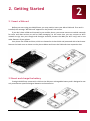
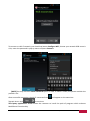
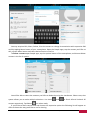
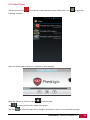
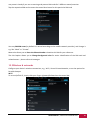
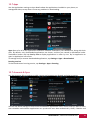
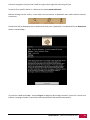
If you have several notifications, you can scroll down the screen to view more notifications.Certain
notifications can be expanded to show more information, such as email previews or calendar events. The
one at the top is always expanded when possible. To open the related app, touch the notification icon on
the left. Some notifications also allow you to take specific actions by touching icons within the
notification. For example, Calendar notifications allow you to Snooze (remind you later) or send email to
the other guests.
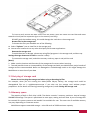
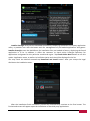
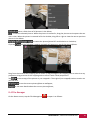
When you’re finished with a notification, just swipe it away.
Simply touch the Back button or slide the Notification panel up to close it.
Quick Settings
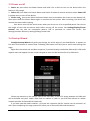
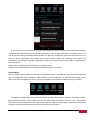
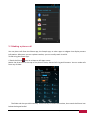
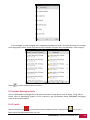
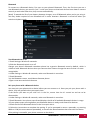
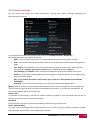
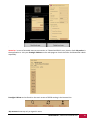
Quick settings menu is placed on the top of notification panel. It provides the user with the convenient
way to change the most frequently used settings of the smartphone. To open Quick Settings, swipe
down from the top edgeof any screen, you may navigate all three tabs by sliding them right and left.
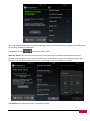
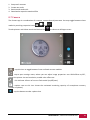
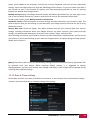
The default (middle) tab contains on/off switches for WiFi, BlueTooth connection, GPS sensor switch,
Data connection button, which allows you to turn instant data connection off, turn it on – and choose
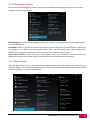
the SIM card which supposed to be used for this and the Airplane mode switch, which turns on/off the
Airplane mode (all the data/voice connection interfaces are disabled)
USER MANUAL | MultiPhonePAP4040 DUO
20