1
User Guide
MOTO VU204
HELLOMOTO
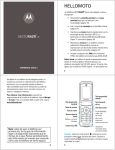
Introducing your new MOTO™ VU204 CDMA wireless phone! It’s a hot-looking phone that’s affordable and easy to
use. Here’s a quick anatomy lesson:
Open menus.
Right Soft Key
Camera Lens
Directional Key
Clear Key
Left Soft Key
Volume Keys
Take a photo.
CLR
SEND
Make & answer
calls.
Charge the
battery.
Voice
Command
Key
Speakerphone
Key
pwr/END
Turn on & off,
hang up, exit
menus.
Connect a 2.5mm
headset here.
1
Motorola, Inc.
Consumer Advocacy Office
1307 East Algonquin Road
Schaumburg, IL 60196
www.hellomoto.com
Note: Do not ship your phone to the above address. If you need to
return your phone for repairs, replacement, or warranty service,
please contact the Motorola Customer Support Center at:
1-800-331-6456 (United States)
1-888-390-6456 (TTY/TDD United States for hearing impaired)
1-800-461-4575 (Canada)
Certain mobile phone features are dependent on the capabilities and
settings of your service provider’s network. Additionally, certain features
may not be activated by your service provider, and/or the provider’s
network settings may limit the feature’s functionality. Always contact your
service provider about feature availability and functionality. All features,
functionality, and other product specifications, as well as the information
contained in this user’s guide are based upon the latest available
information and are believed to be accurate at the time of printing.
Motorola reserves the right to change or modify any information or
specifications without notice or obligation.
MOTOROLA and the Stylized M Logo are registered in the US Patent &
Trademark Office. All other product or service names are the property of
their respective owners. The Bluetooth trademarks are owned by their
proprietor and used by Motorola, Inc. under license. Java and all other
Java-based marks are trademarks or registered trademarks of Sun
2
Microsystems, Inc. in the U.S. and other countries. Microsoft, Windows
and Windows Me are registered trademarks of Microsoft Corporation; and
Windows XP is a trademark of Microsoft Corporation.
© 2008 Motorola, Inc. All rights reserved.
Caution: Changes or modifications made in the radio phone, not expressly
approved by Motorola, will void the user’s authority to operate the
equipment.
Software Copyright Notice
The Motorola products described in this manual may include
copyrighted Motorola and third-party software stored in
semiconductor memories or other media. Laws in the United
States and other countries preserve for Motorola and third-party
software providers certain exclusive rights for copyrighted
software, such as the exclusive rights to distribute or reproduce
the copyrighted software. Accordingly, any copyrighted software
contained in the Motorola products may not be modified,
reverse-engineered, distributed, or reproduced in any manner to
the extent allowed by law. Furthermore, the purchase of the
Motorola products shall not be deemed to grant either directly or
by implication, estoppel, or otherwise, any license under the
copyrights, patents, or patent applications of Motorola or any
third-party software provider, except for the normal, non-exclusive,
royalty-free license to use that arises by operation of law in the
sale of a product.
Manual Number: 68000201487-B
contents
menu map . . . . . . . . . . . . . . . . 5
Use and Care . . . . . . . . . . . . . . 7
get started . . . . . . . . . . . . . . . . 8
about this guide. . . . . . . . . . . 8
battery . . . . . . . . . . . . . . . . . . 8
turn it on & off . . . . . . . . . . . 12
make a call . . . . . . . . . . . . . 13
answer a call . . . . . . . . . . . . 13
end a call . . . . . . . . . . . . . . . 13
store a phone number. . . . . 13
call a stored phone
number . . . . . . . . . . . . . . . . 14
see your phone number . . . 14
basics . . . . . . . . . . . . . . . . . . . 15
main screen. . . . . . . . . . . . . 15
adjust volume . . . . . . . . . . . 19
change sound settings . . . . 19
handsfree. . . . . . . . . . . . . . . 19
airplane mode . . . . . . . . . . . 21
change lock code . . . . . . . . . 21
lock & unlock phone. . . . . . . 22
TTY operation . . . . . . . . . . . 23
voice privacy . . . . . . . . . . . . 25
tips & tricks. . . . . . . . . . . . . . . 26
personalize . . . . . . . . . . . . . . . 27
sounds. . . . . . . . . . . . . . . . . 27
get ringtones . . . . . . . . . . . . 30
talking phone . . . . . . . . . . . . 30
voice recognition . . . . . . . . . 31
answer options . . . . . . . . . . 37
wallpaper . . . . . . . . . . . . . . . 37
backlight. . . . . . . . . . . . . . . . 38
brightness . . . . . . . . . . . . . . 38
AGPS & your location . . . . . 39
AGPS limitations & tips . . . . 40
languages. . . . . . . . . . . . . .
clock format . . . . . . . . . . . .
banner . . . . . . . . . . . . . . . .
main screen & shortcuts . . .
40
41
42
42
calls . . . . . . . . . . . . . . . . . . . . 44
redial a number . . . . . . . . .
automatic redial . . . . . . . . .
recent calls. . . . . . . . . . . . .
return missed calls. . . . . . .
speed dial. . . . . . . . . . . . . .
emergency calls. . . . . . . . .
AGPS during an
emergency call. . . . . . . . . .
voicemail . . . . . . . . . . . . . .
in-call options . . . . . . . . . . .
more calling . . . . . . . . . . . .
call times & data volumes .
contents
44
44
45
46
46
47
48
49
49
49
51
3
text entry . . . . . . . . . . . . . . . . 54
select entry mode. . . . . . . .
Abc (tap) mode . . . . . . . . . .
iTAP® mode . . . . . . . . . . . .
numeric mode. . . . . . . . . . .
symbol mode . . . . . . . . . . .
delete letters & words . . . .
55
56
56
57
57
58
messages . . . . . . . . . . . . . . . . 59
send a multimedia (picture)
message . . . . . . . . . . . . . . .
receive a multimedia
(picture) message . . . . . . . .
send a text message . . . . .
email . . . . . . . . . . . . . . . . . .
mobile IM . . . . . . . . . . . . . .
chat . . . . . . . . . . . . . . . . . . .
view sent messages. . . . . .
read received message. . . .
view drafts . . . . . . . . . . . . .
erase messages . . . . . . . . .
4
contents
59
61
62
62
63
63
64
64
64
65
entertainment . . . . . . . . . . . . 66
Industry Canada Notice. . . . . 98
take photos . . . . . . . . . . . . . 66
fun & games . . . . . . . . . . . . 69
Web access. . . . . . . . . . . . . 70
FCC Notice . . . . . . . . . . . . . . . 98
tools . . . . . . . . . . . . . . . . . . . . 71
contacts . . . . . . . . . . . . . . .
calendar. . . . . . . . . . . . . . . .
alarm clock . . . . . . . . . . . . .
world clock . . . . . . . . . . . . .
notepad . . . . . . . . . . . . . . . .
calculators . . . . . . . . . . . . . .
71
75
76
77
77
78
connections . . . . . . . . . . . . . . 79
Bluetooth® connections . . . 79
cable connections . . . . . . . . 86
network. . . . . . . . . . . . . . . . 87
service & repairs . . . . . . . . . . 90
SAR Data . . . . . . . . . . . . . . . . 91
Safety Information. . . . . . . . . 94
Warranty . . . . . . . . . . . . . . . . . 99
Hearing Aids . . . . . . . . . . . . . 102
WHO Information. . . . . . . . . 103
Registration . . . . . . . . . . . . . 104
Export Law . . . . . . . . . . . . . . 104
Recycling Information . . . . . 105
Perchlorate Label . . . . . . . . . 105
Privacy and Data Security . . 106
Driving Safety. . . . . . . . . . . . 107
index . . . . . . . . . . . . . . . . . . . 109
menu map
main menu
]
Ò
Ó
Media Center
• Tunes & Tones
• Picture
• Games
• Mobile Web
• Browse & Download
• Extras
Messaging
• New Message
• Inbox
• Sent
• Drafts
• Voicemail
• Mobile IM *
• Email *
• Chat *
Contacts
• New Contact
• Contact List
• Groups
• Speed Dials
• In Case of Emergency
Ô
Õ
Ö
Ù
Email *
Mobile IM *
My Ringtones
Recent Calls
• Missed
• Received
• Dialed
• All
• View Timers
VZ Navigator *
Ú
Settings & Tools
• (see next page)
* optional services
This is the standard main menu layout. Your
phone’s menu may be a little different.
menu map
5
SETTINGS & TOOLS menu
• My Verizon
• Tools
• Voice Commands
• Calculators
• Calendar
• Alarm Clock
• Stopwatch
• World Clock
• Notepad
• Bluetooth Menu
• Add New Device
• Sounds Settings
• Call Sounds
• Alert Sounds
• Keypad Volume
• Service Alerts
• Power On/Off
• Voice Readout
6
menu map
• Display Settings
• Banner
• Backlight
• Brightness
• Wallpaper
• Display Themes
• Main Menu Layout
• Dial Fonts
• Clock Format
• Speed Dial Display
• Show Shortcuts
• Call Settings
• Answer Options
• Auto Retry
• TTY Mode
• One Touch Dial
• Voice Privacy
• DTMF Tones
• Hearing Aid
• Phone Settings
• Airplane Mode
• Set Shortcuts
• Language
• Location
• Security
• System Select
• NAM Select
• Text Input
• Phone Info
• My Number
• SW/HW Version
• Icon Glossary
• Software Update
• Memory
• Phone Memory
Use and Care
Use and Care
To care for your Motorola phone, please keep it away from:
liquids of any kind
dust and dirt
Don’t expose your phone to water, rain,
extreme humidity, sweat, or other moisture. If
it does get wet, don’t try to accelerate drying
with the use of an oven or dryer, as this may
damage the phone.
Don’t expose your phone to dust, dirt, sand,
food, or other inappropriate materials.
extreme heat or cold
cleaning solutions
Avoid temperatures below 0°C/32°F or
above 45°C/113°F.
To clean your phone, use only a dry soft cloth.
Don’t use alcohol or other cleaning solutions.
microwaves
the ground
Don’t try to dry your phone in a microwave
oven.
Don’t drop your phone.
Use and Care
7
get started
CAUTION: Before using the phone for
the first time, read the Important Safety
and Legal Information guide included in
the box.
battery
battery use & safety
IMPORTANT: HANDLE AND STORE BATTERIES
PROPERLY TO AVOID INJURY OR DAMAGE. Most
battery issues arise from improper handling of
about this guide
symbols
batteries, and particularly from the continued use of
damaged batteries.
DON’Ts
This means a feature is
•
Don’t disassemble, crush, puncture, shred,
network/subscription dependent and may
or otherwise attempt to change the form of
not be available in all areas. Contact your
your battery.
service provider for more information.
•
8
Don’t let the phone or battery come in
This means a feature requires an optional
contact with water. Water can get into the
accessory.
phone’s circuits, leading to corrosion. If the
get started
phone and/or battery get wet, have them
checked by your carrier or contact Motorola,
even if they appear to be working properly.
•
•
in prolonged contact with the battery contact
points, the battery could become very hot.
Don’t place your battery near a heat
source. Excessive heat can damage the
phone or the battery. High temperatures can
cause the battery to swell, leak, or
malfunction. Therefore:
•
•
Do avoid dropping the battery or phone.
Dropping these items, especially on a hard
surface, can potentially cause damage.
Don’t allow the battery to touch metal
objects. If metal objects, such as jewelry, stay
•
DOs
•
Do contact your service provider or
Motorola if your phone or battery has been
damaged from dropping or high
temperatures.
IMPORTANT: USE MOTOROLA ORIGINAL
PRODUCTS FOR QUALITY ASSURANCE AND
SAFEGUARDS. To aid consumers in identifying
authentic Motorola batteries from non-original or
Do not dry a wet or damp battery with an
counterfeit batteries (that may not have adequate
appliance or heat source, such as a hair
safety protection), Motorola provides holograms on its
dryer or microwave oven.
batteries. Consumers should confirm that any battery
Avoid leaving your phone in your car in
high temperatures.
they purchase has a “Motorola Original” hologram.
Motorola recommends you always use
Motorola-branded batteries and chargers. Motorola
mobile devices are designed to work with Motorola
get started
9
batteries. If you see a message on your display such
PROPER AND SAFE BATTERY DISPOSAL AND
as Invalid Battery or Unable to Charge, take the following steps:
RECYCLING
•
•
Remove the battery and inspect it to confirm
Proper battery disposal is not only important for
that it has a “Motorola Original” hologram;
safety, it benefits the environment. Consumers may
If there is no hologram, the battery is not a
Motorola battery;
•
If there is a hologram, replace the battery and
retry charging it;
•
If the message remains, contact a Motorola
Authorized Service Center.
Important: Motorola’s warranty does not cover
damage to the phone caused by non-Motorola
batteries and/or chargers.
Warning: Use of a non-Motorola battery or charger
may present a risk of fire, explosion, leakage, or other
hazard.
10
get started
recycle their used batteries in many retail or service
provider locations. Additional information on proper
disposal and recycling may be found on the Web:
•
www.motorola.com/recycling
•
www.rbrc.org/call2recycle/ (in English only)
Disposal: Promptly dispose of used batteries
in accordance with local regulations. Contact
your local recycling center or national
recycling organizations for more information on how to
dispose of batteries.
Warning: Never dispose of batteries in a fire because
they may explode.
install the battery
Tip: To open the battery door, first open the headset
and USB port doors.
1
3
Replace the battery
door and close the
headset and USB
port doors.
Remove the battery
door by pressing
down on the door
and sliding it down a
charge the battery
little. Then, lift it off.
Plug the battery
charger into your
2
Insert the battery by
phone and an electrical
aligning the metal
outlet. Your phone may
contacts, then press
take several seconds
it into place.
to start charging the
battery. When the battery is fully charged, your phone
displays N.
You can also charge your battery by connecting a cable
from your phone’s USB port to a USB port on a
computer. Both your phone and the computer must be
get started
11
turned on, and your computer must have the correct
software drivers installed.
To conserve your battery’s charge:
•
•
When charging your battery, keep it near room
Turn Bluetooth power off when not in use (see
page 80).
Notes for charging your phone’s battery:
•
Turn off the backlight (see page 38).
temperature. Never expose batteries to
temperatures below 0°C (32°F) or above 45°C
(113°F) when charging.
turn it on & off
•
New batteries are not fully charged.
To turn on your phone,
•
New batteries or batteries stored for a long
time may take more time to charge.
•
Motorola batteries and charging systems have
circuitry that protects the battery from
damage from overcharging.
conserve battery charge
press the Power/End key
(U) and the display
CLR
SEND
turns on.
The phone may take several
seconds to turn on. If prompted, enter your four-digit
unlock code (the last four digits of your phone number)
and press the Center Select key (s) (OK) to unlock
the phone.
Using certain features can quickly deplete your
battery’s charge. These features can include using
the camera and using Bluetooth®.
12
get started
pwr/END
To turn off your phone, press and hold the
Power/End key (U).
make a call
•
applications
Enter a phone number and press the Send key (T)
•
to make a call.
answer a call
When your phone rings and/or vibrates, open the
phone or press the Send key (T) to answer.
end a call
To hang up, press the Power/End key (U).
not using the speakerphone. Closing the flip does not
store a phone number
Note: When you add phone numbers to your contact
list, add the area code plus the 7 digit number.
1
a data connection using a USB cable to
connect the phone to a computer
Enter a phone number in the main screen and
press the Left Soft key (p) (Save).
2
Select Add New Contact by pressing the Center Select
key (s) (OK).
3
Use the Directional key (S) to scroll to a type of
entry and press the Center Select key (s) (OK).
end these activities:
•
active BREW® download sessions, such as
downloading ringtones
You can also end a call by closing the flip if you are not
connected to a headset or a handsfree car kit and are
wallpapers, banners, and other similar
4
Enter a name and other details for the phone
number and press the Center Select key (s)
(SAVE) to store the number.
get started
13
To edit or delete a Contacts entry, see page 71.
see your phone number
Tip: You can set your phone to display a picture or play
From the main screen, press the B key and then
a special ringtone for caller identification (see
page 73).
call a stored phone
number
1
From the main screen, press the Right Soft key
(p) (Contacts) to open the CONTACT LIST quickly.
2
Use the Directional key (S) to scroll to the entry.
Tip: To quickly jump to a contact name, start
typing the name in the Go To field. If the contact
has more than one number, press left or right on
the Directional key (S) to scroll through the
numbers.
3
14
Press the Send key (T) to call the contact.
get started
#. Press the Center Select key (s) (OK) to
select Mobile Device #.
basics
See page 1 for a basic phone diagram.
To exit any other screen and return to the main screen,
press Power/End key (U).
main screen
Press the Center Select key (s) to open the main
The main screen appears when you turn on the phone.
1 1X ❙❙❙❙
ò
N
menu. Soft key labels show current soft key functions.
(For soft key locations, see page 1.)
Tip: You can quickly select a menu option by pressing
the number for that option. For example, from the
Date &
Time
Left
Soft
Key
Label
SETTINGS & TOOLS menu, press 5 to select Display Settings.
12:45 PM
Wed, Dec 31, 2008
Message
MENU
Contacts
Right
Soft
Key
Label
To dial a number from the main screen, enter the
number and press the Send key (T).
basics
15
Press up, down, left, or right on the Directional
Your phone displays system status indicators across
key (S) to open these basic menu feature shortcuts:
the top and bottom of the display:
1 1X ❙❙❙❙
Directional key & menu
up
MOBILE WEB
down
Calendar
left
My Verizon
right
My Shortcuts
ò
System
Status
Indicators
N
12:45 PM
Wed, Dec 31, 2008
Message
You can set your phone to display or hide these menu
MENU
Contacts
icons on the main screen (see page 43).
alert/indicator
01X Signal Strength
1X indicates when the phone is in a 1x-RTT
coverage area. The number of bars show the
strength of each signal.
16
basics
alert/indicator
alert/indicator
2 Roaming
9 No Service
Indicates when the phone is roaming off your home
Indicates that the phone is in area with no service
network.
coverage.
5 SSL
8 TTY
Indicates that application verification is via SSL
Indicates that the phone is in TTY mode.
during a download session.
t Voice Call
L Data Call, Tethered, or Embedded
WAP/BREW Application
Shows during data calls, tethered mode, or
Shows during an active voice call.
P E911
WAP/BREW application.
Indicates that E911 is On.
M Dormant
O Location On
Indicates that the phone is dormant and the Internet
Indicates that Location is set to On.
connection is active.
N Battery Level
Shows battery strength. The more bars, the greater
the charge.
basics
17
alert/indicator
alert/indicator
n All Sounds Off
y New Voicemail
Indicates that Master Volume is set to Off.
Shows when a voicemail message is received.
o Alarm Only
A Alarm On
Indicates that Master Volume is set to Alarm Only.
Shows when an alarm has been set.
r Vibrate On
E Bluetooth Power On
Indicates that Master Volume is set to Vibrate On.
Indicates that Bluetooth power is on. (To conserve
â Speakerphone
battery charge, turn off Bluetooth power when not
in use. See page 80.)
Indicates speakerphone is on.
s Missed Call
Indicates that a call was missed.
g Message
Shows when you receive a new message.
x Calendar Event
Shows that you have calendar appointments.
18
basics
I Bluetooth Connection Active
Indicates that your phone is paired with another
Bluetooth device.
adjust volume
change sound settings
Press the Volume keys to:
Press down on the
•
•
•
turn off an incoming call alert
Volume keys to lower the
volume. The volume
change the earpiece or Bluetooth device
screen appears when
volume during calls with the flip open
you switch settings.
CLR
SEND
pwr/END
change the ringer volume from the main
Switch to Vibrate Only, then Alarm Only, and, finally, All Sounds
screen (with the flip open)
Off. Press up on the Volume keys to go up from silent
to vibrate and then up to the volume settings.
Tip: Sometimes silence is golden. That’s why
you can quickly set your ringer to All Sounds Off by
pressing down on the Volume keys while in
the main screen.
handsfree
Note: The use of wireless phones while driving may
cause distraction. Discontinue a call if you can’t
concentrate on driving. Additionally, the use of
wireless devices and their accessories may be
prohibited or restricted in certain areas. Always obey
the laws and regulations on the use of these products.
basics
19
handsfree speaker
You can use your phone’s handsfree speaker to make
To turn off the speakerphone, press and hold the
Speakerphone key.
calls without holding the phone to your ear. The
Note: Turning off the speakerphone during a call does
handsfree speaker stays on until you press and hold
not end the call.
the Speakerphone key again with the flip open or turn
off the phone.
flip closed
1
Open your phone.
2
Press and hold the Speakerphone key to turn on
Note: The handsfree speaker won’t work when your
phone is connected to a handsfree car kit or headset.
the speakerphone.
flip open
To activate the speakerphone during a call, press
3
Send key (T).
and hold the Speakerphone key. You will hear an audio
alert and see the speakerphone indicator â. You also
4
speakerphone.
To end the call, press the Power/End key (U). An
speakerphone is still on for your next call or key press.
Note: Closing the phone while using the
speakerphone does not end the call.
20
basics
When the call connects, close the phone and
continue your conversation using the
briefly see SPEAKER PHONE ON on the screen.
audio alert that tells you the call ended. The
Enter the number you want to call and press the
5
To end the call, press and hold the Speakerphone
key. You will hear a soft audio alert.
accessory volume settings
(car kit or headset)
2
Ú Settings & Tools and press the Center Select
key (s).
To adjust volume of Bluetooth wireless headsets or
car kit accessories, press up or down on your phone’s
3
4
airplane mode
Press Center Select key (s) to select
Airplane Mode.
5
Highlight On and press the Center Select key (s)
(OK).
features in locations where wireless phone use is
prohibited. You cannot make or receive calls or use
Scroll to Phone Settings and press the Center Select
key (s) (OK).
Volume keys during an active call.
Use airplane mode to turn off your phone’s calling
Use the Directional key (S) to scroll to
Your phone displays Airplane Mode on the main screen.
Bluetooth in airplane mode, but you can use your
phone’s other non-calling features.
Note: Consult airline staff about the use of airplane
change lock code
mode in flight. Turn off your phone whenever
Your phone’s four-digit lock code is originally set to the
instructed to do so by airline staff.
last four digits of your phone number. If your service
1
Press the Center Select key (s) to open the
menu.
provider didn’t change this code, you should change it.
1
Press the Center Select key (s) to open the
menu.
basics
21
2
Use the Directional key (S) to scroll to
Ú Settings & Tools and press the Center Select
key (s) (OK).
3
Scroll to Phone Settings and press the Center Select
key (s) (OK).
4
Scroll to Security and press the Center Select
key (s) (OK).
5
When prompted, enter the lock code and press
the Center Select key (s) (OK).
6
Select Edit Codes by pressing the Center Select
key (s) (OK).
7
Scroll to Phone Only or Calls & Services and press the
Center Select key (s) (OK).
8
(S) to move the cursor into the Re-Enter New Code
entry area. Re-enter the new lock code.
22
To lock or unlock your phone, you need the four-digit
lock code (which is originally set to the last four digits
of your phone number).
Note: You can make emergency calls on a locked
phone. A locked phone still rings or vibrates for
incoming calls or messages, but you need to unlock
it to answer.
To manually lock your phone:
1
Press the Center Select key (s) (OK).
basics
Press the Center Select key (s) to open the
menu.
2
Use the Directional key (S) to scroll to
Ú Settings & Tools and press the Center Select
key (s) (OK).
Enter the new lock code in the Enter New Code entry
area, then press down on the Directional key
9
lock & unlock phone
3
Scroll to Phone Settings and press the Center Select
key (s) (OK).
4
Scroll to Security and press the Center Select
5
key (s) (OK).
5
When prompted, enter the lock code and press
the Center Select key (s) (OK).
6
the Center Select key (s) (OK).
6
Select Lock Phone Now and press the Center Select
key (s) (OK).
When prompted, enter the lock code and press
Scroll to Phone Lock and press the Center Select
key (s) (OK).
7
Scroll to On Power Up and press the Center Select
key (s) (OK).
To automatically lock your phone when you turn
To unlock the phone, enter the four-digit lock code in
it off:
the Enter Lock Code entry area and press the Center Select
1
Press the Center Select key (s) to open the
key (s) (OK).
menu.
2
3
Use the Directional key (S) to scroll to
TTY operation
Ú Settings & Tools and press the Center Select
You can use an optional teletypewriter (TTY) device
key (s) (OK).
with your phone to send and receive calls. You must
Scroll to Phone Settings and press the Center Select
plug the TTY device into the phone’s headset
key (s) (OK).
connector and set the phone to operate in one of
three TTY modes.
4
Scroll to Security and press the Center Select
key (s) (OK).
basics
23
set TTY mode
Notes:
•
A TTY is a communication device used by
ù When you set your phone to a TTY mode, it
people who are hard of hearing or have a
operates in that mode whenever a TTY device is
speech impairment. TTY does not work from
connected.
mobile phone to mobile phone.
•
the TTY manufacturer) to connect the TTY
device to your phone.
•
1
2
number of incorrect characters, adjust the
Ú Settings & Tools and press the Center Select
3
For optimal performance, your phone should
be at least 12 inches (30 centimeters) from the
TTY device. Placing the phone too close to the
TTY device may cause high error rates.
24
basics
Scroll to Call Settings and press the Center Select
key (s) (OK).
volume as needed to minimize the error rate.
•
Use the Directional key (S) to scroll to
key (s).
Set the phone to Medium volume level for
proper operation. If you experience a high
Press the Center Select key (s) to open the
menu.
Use a TSB-121 compliant cable (provided by
4
Select TTY Mode and press the Center Select
key (s) (OK).
TTY Mode can include these options:
voice privacy
Encrypt outgoing voice calls and use secure channels
option
TTY Full
Transmit and receive TTY characters.
TTY + Talk
Receive TTY characters but transmit
(VCO)
by speaking into microphone.
TTY + Hear
Transmit TTY characters but receive
(HCO)
by listening to earpiece.
TTY Off
All TTY modes are turned off.
when available:
1
2
Ú Settings & Tools and press the Center Select
4
return to voice mode
Scroll to Voice Privacy and press the Center Select
key (s) (OK).
In a TTY mode, your phone displays the international
TTY symbol and mode setting during a TTY call.
Scroll to Call Settings and press the Center Select
key (s) (OK).
Scroll to an option and press the Center Select
key (s) (OK).
Use the Directional key (S) to scroll to
key (s).
3
5
Press the Center Select key (s) to open the
menu.
5
Select On and press the Center Select key (s)
(OK).
To return to standard voice mode, select TTY OFF from
the TTY MODE menu.
basics
25
tips & tricks
From the main screen, you can use these shortcuts:
To...
Do this...
Press the Send key (T).
To...
Do this...
see recent calls
open Your
Press right on the Directional
take a picture
Shortcuts
Press the Camera key (e) to
start the camera.
key (S). To set Your Shortcuts,
see page 42.
use voice
Press the side Voice Command
view your
Press left on the Directional
commands
key (see page 1). Use the
account
key (S).
quickly set
Press and hold #. To set the
open the
Press down on the Directional
ringer to
ring back to the previous
calendar
key (S).
vibrate
setting, press and hold #
browse the
Press up on the Directional
again.
Web
key (S).
change
Press the side Volume keys (see
ring volume
page 1).
call voicemail
Press and hold 1.
26
tips & tricks
on-screen help for commands.
personalize
sounds
Alarm Only—Your phone plays an audible alarm to
You can set how your phone alerts you to incoming
detail settings for events.
alert you to events. You are not able to change
calls or other events.
All Sounds Off—The phone does not alert you to
incoming calls or other events.
master volume
1
Open your phone.
sounds for calls, events, & alerts
2
Press up or down on the Volume keys for the
Note: Master Volume must be set to High, Med High, Med,
desired setting:
Med Low, or Low.
High, Med High, Med, Med Low, Low—Your phone rings for
To set sounds for calls:
incoming calls and other events, depending on
the detail settings.
Vibrate Only—The phone vibrates to indicate an
incoming call.
1
Press the Center Select key (s) to open the
menu.
2
Use the Directional key (S) to scroll to
Ú Settings & Tools and press the Center Select
key (s).
personalize
27
3
Scroll to Sounds Settings and press the Center Select
2
key (s) (OK).
4
5
Ú Settings & Tools and press the Center Select
key (s).
Select Call Sounds by pressing the Center Select
key (s) (OK).
3
4
press the Center Select key (s) (OK).
Note: Press the Left Soft key (p) (Play) to
5
Scroll to a type of event, such as TXT Message, that
you want to set an alert sound for and press the
Center Select key (s) (OK).
or
From Call Sounds, scroll to Call Vibrate (to make your
phone both vibrate and ring) and press the Center
Select key (s) (OK), then scroll to On or Off and
press the Center Select key (s) (OK) to save.
To set sounds for events (such as incoming
messages) or alerts:
28
Scroll to Alert Sounds and press the Center Select
key (s) (OK).
preview the ringtone.
1
Scroll to Sounds Settings and press the Center Select
key (s) (OK).
Select Call Ringtone by pressing the Center Select
key (s) (OK), then scroll to a desired ringtone and
Use the Directional key (S) to scroll to
6
Scroll to Tone and press the Center Select
key (s) (OK), then scroll to a desired ringtone and
press the Center Select key (s) (OK) to save.
Note: With a sound highlighted, press the Left
Soft key (p) (Play) to preview the ringtone.
or
Press the Center Select key (s) to open the
From the TXT Message, Pic Message, or Voicemail screen,
menu.
scroll to Vibrate and press the Center Select
personalize
key (s) (OK), then scroll to On or Off and press the
4
Center Select key (s) (OK).
or
Scroll to Keypad Volume and press the Center Select
key (s) (OK).
5
Use the side Volume keys or Directional key (S)
to adjust the volume and press the Center Select
Scroll to Reminder and press the Center Select
key (s) (SET).
key (s) (OK), then scroll to Once, Every 2 Minutes,
Every 15 Minutes, or Off, and press the Center Select
Note: Master Volume must be set to High, Med High, Med,
key (s) (OK). For all settings but Off, your phone
Med Low, or Low.
plays an audible reminder at the interval you set.
power on/off sounds
keypad volume
1
Press the Center Select key (s) to open the
menu.
2
the power on or off.
1
Use the Directional key (S) to scroll to
Ú Settings & Tools and press the Center Select
key (s).
3
Set whether your phone plays a tone when you turn
2
Use the Directional key (S) to scroll to
Ú Settings & Tools and press the Center Select
key (s).
Scroll to Sounds Settings and press the Center Select
key (s) (OK).
Press the Center Select key (s) to open the
menu.
3
Scroll to Sounds Settings and press the Center Select
key (s) (OK).
personalize
29
4
Scroll to Power On/Off and press the Center Select
4
key (s) (OK).
5
6
Scroll to Power On or Power Off and press the Center
Select Get New Ringtones by pressing the Center
Select key (s) (OK).
5
Select Get New Application by pressing the Center
Select key (s) (OK).
Select key (s) (OK).
Select On or Off and press the Center Select
Your phone connects to the ringtone collections
key (s) (OK).
site. Follow the prompts on the screen to browse
ringtone lists and to select and download a
Note: Master Volume must be set to High, Med High, Med,
ringtone.
Med Low, or Low.
Note: Normal airtime and/or carrier usage charges
get ringtones
1
Press the Center Select key (s) to open the
menu.
2
Select ] Media Center by pressing the Center
Select key (s).
3
Select Tunes & Tones by pressing the Center Select
key (s) (OK).
30
personalize
may apply.
talking phone
You can set your phone to speak aloud when you
press keys, receive a call with caller ID available, or
scroll through recent calls or contacts:
1
Press the Center Select key (s) to open the
menu.
2
Use the Directional key (S) to scroll to
Ú Settings & Tools and press the Center Select
key (s).
3
4
voice recognition tips
•
Scroll to Sounds Settings and press the Center Select
example, to call the mobile number for an
key (s) (OK).
entry named Bill Smith, say “Call Bill Smith
mobile.” (If the entry includes only one
Scroll to Voice Readout and press the Center Select
number for Bill Smith, say “Call Bill Smith.”)
key (s) (OK).
5
Select Keypad Digits, Contact List Entries, Recent Call Entries, or
•
Avoid pausing between digits.
key (s) (OK).
Select On and press the Center Select
key (s) (OK).
voice recognition
Your phone’s voice recognition feature lets you make
calls and complete other actions by speaking
commands to your phone.
Speak numbers at a normal speed and
volume, and pronounce each digit distinctly.
Caller ID Alert and press the Center Select
6
When speaking the name of a Contacts entry,
say the name exactly as it is listed. For
•
You can set your phone to play voice
command instructions through the
speakerphone by pressing the Voice
Command key, which opens the VOICE COMMANDS
menu. If you use the Call command to place a
call, audio plays through the phone’s earpiece
when the call connects. You can turn this
feature off (see page 36).
personalize
31
voice commands
1
With the phone flip closed, press and hold the
Voice Command key on the right side of the
phone.
Note: With the phone open, press and release
the Voice Command key. Pressing and holding the
key activates voice recording.
Your phone says Please say a command and displays a
2
Say one of the commands listed in the following
table. Your phone performs the corresponding
action.
feature
Call <Name or #>
Place a call to:
•
list of voice commands.
a Contacts entry whose name you speak
or
•
a phone number you speak
For example, when prompted to say a command,
say “Call Bill Smith mobile” or “Call 8475551212.”
32
personalize
feature
feature
Send <MSG Type>
Go To <Shortcut>
Send a text or picture message.
Access the menu or perform the action you specify:
Say “Send text” or “Send picture,” then:
Contacts—Browse your contacts.
•
•
the name of a Contacts entry
Recent Calls—Go to the recent calls list.
or
Messaging—Access messages.
a phone number
Media Center—Go to the Media Center menu.
For instructions on sending a text or multimedia
message, see page 59.
Settings & Tools—Go to settings and tools.
Mobile Web—Go to Mobile Web.
Redial—Call the last number you called.
Note: If you don’t have any content, the phone
returns to the home screen.
personalize
33
feature
feature
Check <Item>
Contact <Name>
View the item on the screen that you say aloud:
Look up a Contacts entry by saying the contact’s
Status—coverage, signal strength, and battery charge
Voicemail—new voicemail messages
Messages—newly received text or multimedia
name.
My Verizon
Launch Mobile Web and view your account options.
messages
Help
Missed Calls—unanswered incoming calls
Access help information for the voice recognition
Time—time and date
feature.
Signal Strength—network connection strength
voice recognition settings
Battery—battery charge
To modify voice recognition settings:
Volume—ringer volume
1
With the phone open, press and release the Voice
Command key on the right side of the phone.
Note: With the phone closed, press and hold the
Voice Command key.
34
personalize
2
Press the Right Soft key (p) (Settings).
3
Use the Directional key (S) to scroll to the
voice recognition settings
Confirmation
desired option and press the Center Select
key (s) (OK).
If your phone is not sure that it has correctly
identified a name or number that you speak, it can
voice recognition settings
Digit Dial Readout
Set your phone to say numbers aloud as you press
them on the keypad.
display up to three choices and prompt you to
confirm the correct one.
You can control when choice lists appear:
Automatic—Display a list of choices from multiple
alternatives.
Always Confirm—Always display a list of choices when
there are multiple alternatives.
Never Confirm—Never display a choice list. The phone
chooses from the best alternatives.
personalize
35
voice recognition settings
voice recognition settings
Sensitivity
Prompts
You can fine tune your phone’s ability to recognize
Mode—Set whether your phone says Prompts, Readout (to
voice commands. Select Most Sensitive, Recommended, or
read every word on the screen), or Tones Only.
Least Sensitive.
If sensitivity is too strict, your phone often rejects
voice commands and displays “Please repeat ...” or
Audio Playback—Set how you want to hear prompts:
Automatic detection, Speakerphone, or through your Earpiece.
Call Alert
“No match found.” Select Most Sensitive.
For an incoming call, set whether you hear a Ring Only,
If sensitivity is too forgiving, you experience false
Caller ID + Ring, or Name Repeat (repeat the name until you
activations (indicating that the phone detects a
answer or the call goes to voicemail).
wrong match). Select Least Sensitive.
To access in-device help for a setting you speak, press
Adaptation
Follow the prompts on your screen to improve
recognition of spoken words. Adaptation takes
about sixty seconds and requires you to be in a
quiet place (no background noise).
36
personalize
the Left Soft key (p) (Info).
answer options
options
You can use different ways to answer an incoming call.
Auto w/
Automatically answer an incoming
Handsfree
call (works with headset,
1
Press the Center Select key (s) to open the
Bluetooth® connections, and when
menu.
2
the phone is operating in handsfree
Use the Directional key (S) to scroll to
Ú Settings & Tools and press the Center Select
key (s).
3
4
Scroll to Call Settings and press the Center Select
mode).
wallpaper
key (s) (OK).
Set a picture or animation as a wallpaper (background)
Select Answer Options by pressing the Center Select
display.
key (s) (OK).
image on your main screen and your phone’s external
1
Press the Center Select key (s) to open the
menu.
options
Flip Open
Answer by opening the phone.
Any Key
Answer by pressing any key except
2
Ú Settings & Tools and press the Center Select
key (s).
the Power/End key (U). Pressing
the Power/End key ignores the call.
Use the Directional key (S) to scroll to
3
Scroll to Display Settings and press the Center Select
key (s) (OK).
personalize
37
4
Scroll to Wallpaper and press the Center Select
2
key (s) (OK).
5
6
Ú Settings & Tools and press the Center Select
key (s).
Select Main Screen or Front Screen and press the Center
Select key (s) (OK).
3
Scroll to Display Settings and press the Center Select
key (s) (OK).
Scroll to a picture in MY PICTURES and press the
Center Select key (s) (OK).
Use the Directional key (S) to scroll to
4
Scroll to Backlight and press the Center Select
key (s) (OK).
or
Press Options, then select Take New Picture to take a
5
Select key (s) (OK).
new photo to use as a wallpaper or select
Get New Pictures to download a picture (see page 68).
Scroll to Display or Keypad and press the Center
6
Select the desired duration or mode and press
the Center Select key (s) (OK).
backlight
Your phone’s keypad backlight turns on every time you
brightness
open the flip. Adjust how long the main screen and
Set the brightness of your main screen:
keypad backlight stays on to extend battery life:
1
Press the Center Select key (s) to open the
menu.
38
personalize
1
Press the Center Select key (s) to open the
menu.
2
3
4
Use the Directional key (S) to scroll to
When ALI is set to Location On, your phone displays the
Ú Settings & Tools and press the Center Select
key (s).
location to provide useful information (for example,
Scroll to Display Settings and press the Center Select
driving directions, or the location of the nearest bank).
key (s) (OK).
Your phone prompts you when the network or a
Scroll to Brightness and press the Center Select
point.
key (s) (OK).
5
O (ALI on) indicator. Services may use your known
Press left or right on the Directional key (S) to
service asks for your location. You can refuse at this
When ALI is set to E911 Only, your phone displays the P
(ALI off) indicator, and the phone does not send
adjust the brightness and press the Center Select
location information unless you call an emergency
key (s) (OK).
phone number (such as 911).
AGPS & your
location
1
2
key (s).
(ALI) feature, along with Assisted Global Positioning
where you are physically located.
Use the Directional key (S) to scroll to
Ú Settings & Tools and press the Center Select
Your phone can use the automatic location information
System (AGPS) satellite signals, to tell the network
Press the Center Select key (s) to open the
menu.
3
Scroll to Phone Settings and press the Center Select
key (s) (OK).
personalize
39
4
Scroll to Location and press the Center Select
foliage. Indoor performance might improve if
key (s) (OK).
you move closer to a window, but some
5
Scroll to Location ON or E911 Only.
6
Press the Center Select key (s) (OK) to select
window sun-shielding films can block satellite
signals.
•
the setting.
Move away from radios, entertainment
equipment, and other electronic devices that
might interfere with or block AGPS satellite
AGPS limitations & tips
signals.
Your phone uses Assisted Global Positioning System
AGPS uses satellites controlled by the U.S.
(AGPS) satellite signals to estimate your location. If
government and is subject to changes implemented in
your phone cannot find strong satellite signals, your
accordance with the Department of Defense AGPS
AGPS might be slower, less accurate, or it might not
user policy and the Federal Radio Navigation Plan.
work at all. AGPS provides only an approximate
These changes might affect AGPS performance.
location, often within 150 feet (45 meters) but
sometimes much farther from your actual location.
To improve AGPS accuracy:
•
Go outside and away from underground
locations, covered vehicles, structures with
metal or concrete roofs, tall buildings, and
40
personalize
languages
1
Press the Center Select key (s) to open the
menu.
2
Use the Directional key (S) to scroll to
2
Ú Settings & Tools and press the Center Select
key (s).
3
Scroll to Phone Settings and press the Center Select
Ú Settings & Tools and press the Center Select
key (s).
3
key (s) (OK).
4
Scroll to Language and press the Center Select
Select English or Español and press the Center Select
key (s) (OK).
Scroll to Display Settings and press the Center Select
key (s) (OK).
4
key (s) (OK).
5
Use the Directional key (S) to scroll to
Scroll to Clock Format and press the Center Select
key (s) (OK).
5
Select Main Clock or Front Clock and press the Center
Select key (s) (OK).
Select Analog for a dial clock, Digital 12 for a 12-hour clock,
clock format
Set how your phone shows the current time on the
Digital 24 for a 24-hour clock, or Off for no clock. (You can
select larger font settings for the main clock.)
main screen:
1
Press the Center Select key (s) to open the
menu.
personalize
41
banner
Create a heading to display on your phone’s main
screen:
1
Press the Center Select key (s) to open the
main screen & shortcuts
set My Shortcuts
1
menu.
2
3
2
Press the Left Soft key (p) (Settings).
Ú Settings & Tools and press the Center Select
key (s).
3
Select Set My Shortcuts by pressing the Center Select
Scroll to Display Settings and press the Center Select
4
Use the Directional key (S) to scroll to
key (s) (OK).
Select Banner by pressing the Center Select
5
Select Personal Banner or ERI Banner (to indicate whether
you are on a home or partner network) and press
the Center Select key (s) (OK).
6
For a personal banner, enter text and press the
Center Select key (s) (OK).
42
personalize
Scroll to a phone feature and press the Center
Select key (s) (OK) to select it.
key (s) (OK).
5
Scroll to a shortcut and press the Center Select
key (s) (OK) to edit it.
key (s) (OK).
4
Press right on the Directional key (S) to open
My Shortcuts.
6
When you are finished, press the Center Select
key (s) (SET).
show or hide menu icons
change Directional key shortcuts
You can use icons on the main screen as shortcuts to
You can use the icons on the main screen as shortcuts
menus. Show or hide these menu icons:
to phone features. Personalize these icons:
1
Press the Center Select key (s) to open the
1
menu.
2
3
2
Ú Settings & Tools and press the Center Select
key (s).
3
key (s) (OK).
4
4
Scroll to Set Directional Keys and press the Center
Select UP Directional Key, LEFT Directional Key, or DOWN
Directional Key and press the Center Select key (s)
(OK).
5
Scroll to the menu want to set to that key and
press the Center Select key (s) (OK).
Select Show or Hide, and press the Center Select
key (s) (OK).
Press the Left Soft key (p) (Settings).
Select key (s) (OK).
Scroll to Show Shortcuts and press the Center Select
key (s) (OK).
5
My Shortcuts.
Use the Directional key (S) to scroll to
Scroll to Display Settings and press the Center Select
Press right on the Directional key (S) to open
6
When you are finished, press the Center Select
key (s) (SET).
personalize
43
calls
To make and answer calls, see page 13.
goes through, your phone rings or vibrates once,
displays Redial Successful, and connects the call.
redial a number
1
Press the Send key (T) to see the ALL CALLS list.
2
Use the Directional key (S) to scroll to the entry
you want to call.
3
To turn on automatic redial:
1
menu.
2
key (s).
automatic redial
3
When you receive a busy signal, your phone displays
4
44
calls
Scroll to Call Settings and press the Center Select
key (s) (OK).
Call Failed, Number Busy.
redials the number for four minutes. When the call
Use the Directional key (S) to scroll to
Ú Settings & Tools and press the Center Select
Press the Send key (T) to redial the number.
With automatic redial, your phone automatically
Press the Center Select key (s) to open the
Scroll to Auto Retry and press the Center Select
key (s) (OK).
5
Select On and press the Center Select
key (s) (OK).
When automatic redial is turned off, you can activate
3
see Call Failed, press the Send key (T) or RETRY to
automatically redial.
Scroll to Missed, Received, Dialed, or All and press the
Center Select key (s) (OK) to select the list.
redial manually. When you hear a fast busy signal and
4
5
Scroll to an entry.
Press the Send key (T) to call the entry’s
recent calls
number.
Your phone keeps lists of the last calls you received
message to the entry’s number.
and dialed, even if the calls didn’t connect. The most
Press the Left Soft key (p) (Message) to send a
recent calls are listed first. The oldest calls are deleted
Press the Center Select key (s) (OPEN) to view
as new calls are added.
entry details.
Shortcut: Press the Send key (T) from the main
Press the Right Soft key (p) (Options) to perform
screen to view the ALL CALLS list.
other actions on the entry.
1
Press the Center Select key (s) to open the
The Options menu may include these options:
menu.
2
Use the Directional key (S) to scroll to
Ù Recent Calls and press the Center Select
key (s).
options
Save
Create or update a Contacts entry
for the call.
Details
View more details.
calls
45
Select View Later and press the Center Select
options
Erase
Lock
Delete the selected entry (if the
appears on the bottom of the main screen until
entry is not locked).
you view recent calls by pressing the Send
Lock selected entry so it cannot
key (T).
be erased.
Erase All
key (s) (OK). The missed call indicator (s)
2
Delete all unlocked entries.
View Timers
Go to the View Timers screen to see
Use the Directional key (S) to scroll to the call
you want to return.
3
Press the Send key (T) to make the call.
the length of each call.
return missed calls
Your phone keeps a record of your missed calls, and
displays [Number] Missed Calls.
1
When you see the missed call alert, select View
Now and press the Center Select key (s) (OK) to
speed dial
Note: Speed dial number 1 is already assigned to your
voicemail number.
To assign a speed dial number to an entry:
1
menu.
see the missed calls list.
2
or
46
Press the Center Select key (s) to open the
Use the Directional key (S) to scroll to Ó Contacts
and press the Center Select key (s).
calls
3
Use the Directional key (S) to scroll to Speed Dials
and press the Center Select key (s) (OK).
4
5
6
To speed dial an entry:
Call speed dial entries 1 through 9 by pressing and
Scroll to an unassigned speed dial number and
holding the one-digit speed dial number for one
press the Center Select key (s) (SET).
second.
Scroll to a contact in the Contacts list and press
For two-digit speed dial numbers, enter the first
the Center Select key (s) (OK).
number, then press and hold the second number for
If the contact has more than one number, select a
one second.
number and press the Center Select key (s)
7
(OK).
emergency calls
Select Yes and press the Center Select
Your service provider programs emergency phone
key (s) (OK).
numbers, such as 911, that you can call under any
To see an entry’s speed dial number:
circumstances, even when your phone is locked.
1
From the main screen, press the Right Soft key
1
Enter the emergency number.
(p) (Contacts) to open the CONTACT LIST.
2
Press the Send key (T).
2
Use the Directional key (S) to scroll to the entry
Note: Emergency numbers vary by country. Your
and press the Center Select key (s) (View). The
phone’s preprogrammed emergency number(s) may
speed dial number displays with the U icon.
not work in all locations, and sometimes an
calls
47
emergency call cannot be placed due to network,
•
environmental, or interference issues.
Your local emergency response center might
not process AGPS location information. For
details, contact your local authorities.
AGPS during an
emergency call
For best results:
•
Go outside and away from underground
locations, covered vehicles, structures with
When you make an emergency call, your phone can
metal or concrete roofs, tall buildings, and
use Assisted Global Positioning System (AGPS)
foliage. Indoor performance might improve if
satellite signals to tell the emergency response center
you move closer to windows, but some
your approximate location.
window sun shielding films can block satellite
signals.
The AGPS feature has limitations, so always tell the
emergency response center your best knowledge of
your location. Remain on the phone for as long as the
emergency response center instructs you.
AGPS might not work for emergency calls:
•
•
Move away from radios, entertainment
equipment, and other electronic devices that
might interfere with or block AGPS satellite
signals.
Your phone’s AGPS feature must be turned on
If your phone cannot find strong AGPS satellite
(see page 39).
signals, the location of the nearest cell tower in
contact with your phone is automatically provided to
the emergency response center.
48
calls
voicemail
in-call options
Your network stores the voicemail messages
During an active call, press Options for these options:
you receive. When you receive a voicemail
message, your phone shows the voicemail message
Messaging
Main Menu
indicator y.
Contact List
Notepad
Recent Calls
Voice Record
Note: Your service provider may include additional
information about using this feature.
Bluetooth Menu
Select Listen Now and press the Center Select key (s)
Note: When you have a Bluetooth device connected
(OK) to dial voicemail.
during a call, you also see Audio to Phone and Disconnect
or
also see a TTY Setup option.
Bluetooth options. When you have TTY Mode on, you
Select Listen Later and press the Center Select key (s)
(OK). The voicemail message indicator (y) appears on
the bottom of the main screen until you listen to your
more calling
message.
restrict calls
To check voicemail messages later, press and hold
1
1 to call your voicemail number.
Press the Center Select key (s) to open
the menu.
calls
49
2
Use the Directional key (S) to scroll to Ú Settings
& Tools and press the Center Select key (s).
3
Scroll to Phone Settings and press the Center Select
key (s) (OK).
10 Scroll to Allow All, Contacts Only, or Block All, and press
the Center Select key (s) (OK).
insert special characters
While entering a number, press the Right Soft
4
Scroll to Security and press the Center Select
key (s) (OK).
key (p) (Options) and select one of these options:
2-Sec Pause—Your phone pauses for two seconds before
5
When prompted, enter the lock code (the last four
it dials the next digit.
digits of your phone number) and press the
Center Select key (s) (OK).
Wait—Your phone waits until the call connects, then
prompts you for confirmation before it dials the next
6
Scroll to Restrictions and press the Center Select
key (s) (OK).
7
8
9
When prompted, enter the lock code (the last four
DTMF tones
digits of your phone number) and press the
Your phone sends Dual-tone multi-frequency (DTMF)
Center Select key (s) (OK).
tones for calling card calls or to navigate automated
Select Calls and press the Center Select key (s)
systems (such as banking by phone).
(OK).
If you know you need to change your phone’s
Select Incoming Calls or Outgoing Calls and press the
Center Select key (s) (OK).
50
digit(s).
calls
DTMF tones:
1
Press the Center Select key (s) to open the
2
2
key (s).
Use the Directional key (S) to scroll to
Ú Settings & Tools and press the Center Select
3
key (s).
3
Scroll to Call Settings and press the Center Select
Scroll to DTMF Tones and press the Center Select
key (s) (OK).
5
Scroll to Call Settings and press the Center Select
key (s) (OK).
4
key (s) (OK).
4
Use the Directional key (S) to scroll to
Ú Settings & Tools and press the Center Select
menu.
Scroll to Hearing Aid and press the Center Select
key (s) (OK).
5
Select On and press the Center Select key (s)
(OK).
Select Normal or Long and press the Center Select
Note: For more information about hearing aid
key (s) (OK).
compatibility, see “Hearing Aid Compatibility with
Mobile Phones” on page 102.
hearing aid
If you use a hearing aid, set your phone to be
compatible with your hearing aid.
1
Press the Center Select key (s) to open the
menu.
call times & data
volumes
Network connection time is the elapsed time from
the moment you connect to your service provider's
calls
51
network to the moment you end the call by pressing
the Power/End key (U). This time includes busy
signals and ringing.
The amount of network connection time you track
on your resettable timer may not equal the
amount of time for which you are billed by your
set in-call timer
Set your phone to beep every minute that you
are on a call. The person you are talking to does not
hear the minute beep.
1
menu.
service provider. For billing information, contact
your service provider.
Press the Center Select key (s) to open the
2
Use the Directional key (S) to scroll to
Ú Settings & Tools and press the Center Select
key (s).
call timers & data volumes
1
Press the Center Select key (s) to open
3
2
Use the Directional key (S) to scroll to
Ù Recent Calls and press the Center Select
key (s).
3
4
52
4
Scroll to a category to view details.
calls
Scroll to Service Alerts and press the Center Select
key (s) (OK).
5
Scroll to Minute Beep, and press the Center Select
key (s) (OK).
Scroll to View Timers and press the Center Select
key (s) (OK).
Scroll to Sounds Settings and press the Center Select
key (s) (OK).
the menu.
6
Select On or Off and press the Center Select
key (s) (OK).
reset timer
1
Press the Center Select key (s) to open
view last reset
1
the menu.
2
Use the Directional key (S) to scroll to
2
Ù Recent Calls and press the Center Select
key (s).
3
Scroll to View Timers and press the Center Select
Scroll to the timer you want to reset and press
Use the Directional key (S) to scroll to
Ù Recent Calls and press the Center Select
key (s).
3
key (s) (OK).
4
Press the Center Select key (s) to open
the menu.
Scroll to View Timers and press the Center Select
key (s) (OK).
4
Scroll to Last Reset to view details.
the Left Soft key (p) (Reset).
To reset all timers, press the Right Soft key (p) (Reset
All).
calls
53
text entry
Some features let you enter text, like this screen for
This example shows how to enter a text message
editing a contact:
after you have scrolled down to the text area:
1 1X ❙❙❙❙
ò
N
EDIT CONTACT
I
Abc
Name
Press the
Left Soft
key to
change
entry
modes.
54
Linda
a Mobile 1
1
Cursor
indicates
where
you are
entering
text.
1 1X ❙❙❙❙
ò
N
NEW TXT MESSAGE
0/160
To:
Abc
Text:
g Home
J
Abc
text entry
SAVE
Cancel
Abc
SEND
Options
Your
current
text
mode.
select entry mode
entry modes
Multiple entry modes make it easy for you to enter
ABC
Enter letters and numbers. All
characters appear in uppercase.
names, numbers, and messages. The default mode is
Abc (tap mode, first character of a sentence in
Note: This mode is not available when
uppercase).
you are editing a contact.
Tip: Ready to try it? For more about editing contacts,
see page 72. For more about creating a text message,
see page 62.
123
Enter numbers only.
Symbols
Enter symbols.
When your cursor is in a text field, you can select one
Press * in the text entry screen to toggle through
of these entry modes:
capitalization options:
entry modes
abc
no uppercase letters
iTAP English
The phone predicts each word (in
Abc
first letter of a sentence in uppercase
English) as you press keys.
ABC
all uppercase letters
iTAP
The phone predicts each word (in
Spanish
Spanish) as you press keys.
Abc
Enter letters and numbers. The first
character of a sentence is in uppercase.
text entry
55
Abc (tap) mode
This is the standard mode for entering text on your
•
If you don’t want to save your text or text
edits, press the Power/End key (U) twice to
exit without saving.
phone. This mode cycles through the letters,
numbers, and symbols of the key you press.
1
2
Press a key once to insert the first letter on the
iTAP® mode
key, twice for the second letter, and so on. If you
iTAP software provides a predictive text entry method
pause briefly, your phone accepts the last letter in
that combines your key presses into common words.
the display and waits for the next entry.
When you enter three or more letters in a row, your
Enter the remaining characters in the same way.
phone may guess the rest of the word. For example, if
Tip: Press # to enter a space. On your keypad, a
space looks like
.
you enter prog, your phone might show:
1 1X ❙❙❙❙
ò
N
NEW TXT MESSAGE
When you enter text with tap mode, the soft key
functions change.
•
Press left or right on the Directional key (S)
to move the flashing cursor in a text message.
18/160
To:
233-2233
Text:
This is a prog ram
iTAPEn
56
text entry
SEND
Options
Press right on the
Directional key
(S) to accept
program. Enter
a space after
prog to keep
only prog.
If you want a different word (such as progress),
continue pressing keys to enter the remaining letters.
If you enter a word the phone does not recognize, the
phone stores it as a new word option. When you fill
memory space for new word options, your phone
deletes the oldest words to add new ones.
•
Scroll up or down to view other possible
combinations, and select the one you want.
•
Press right on the Directional key (S) to
enter the highlighted combination when it
spells a word. A space is inserted
automatically after the word.
•
To enter numbers quickly, press and hold a
number key to temporarily switch to numeric
mode. Press the number keys to enter the
numbers you want.
•
numeric mode
After selecting numeric mode, press the number keys
to enter the numbers you want. When you finish
entering numbers, press the Left Soft key (p) (123) to
switch to another entry mode.
symbol mode
After selecting the symbols mode, in the SYMBOLS
screen, use the Directional key (S) to scroll to the
desired symbol and press the Center Select key (s)
(OK) to select it.
To search for additional symbols, press the Right Soft
key (p) (Next) to page down to the next set of
symbols. Press the Left Soft key (p) (Prev) to page up
to the previous set.
Press 1 to enter punctuation or
other characters.
text entry
57
delete letters & words
Move the cursor to the right of the text you want to
delete, then:
•
Press and release the Clear key (B) to
delete one letter.
•
Press and hold the Clear key (B) to delete
an entire word.
58
text entry
messages
send a multimedia
(picture) message
3
A multimedia message contains embedded media
4
objects (including pictures, sounds, or voice records).
You can send a multimedia message to other Verizon
Wireless multimedia messaging-capable phones and
to other email addresses.
Use the Directional key (S) to scroll to
Picture Message and press the Center Select key (s)
(OK).
Enter a phone number in the To: field, then press
the Center Select key (s) (OK).
or
Press the Right Soft key (p) (Add) to select a
contact. Select From Contacts and press the Center
create & send message
Select key (s). For each entry you want to add,
1
scroll to the entry and press the Center Select key
From the main screen, press the Left Soft key
(p) (Message) to open MESSAGING.
2
Press Center Select key (s) to select New Message.
(s) (MARK). Press the Left Soft key (p) (Done)
when finished selecting entries.
Note: The maximum number of recipients for a
message is ten.
messages
59
or
10 Enter the message subject.
Press the Right Soft key (p) (Add) to select a
or
contact. Select Recent Calls and press the Center
Press the Right Soft key (p) (Options), scroll to Add
Select key (s). For each entry you want to add,
scroll to the entry and press the Center Select key
(s) (MARK). Press the Left Soft key (p) (Done)
when finished selecting entries.
5
Scroll to the Text entry area and enter the message
text.
6
Scroll to the Picture: entry area and press the Left
Soft key (p) (My Pics).
7
Scroll to a picture and press the Center Select
key (s) (OK).
8
If you are sending a sound file in a picture
message, scroll to the Sound entry area and press
the Left Soft key (p) (Sounds).Then scroll to a
sound and press the Center Select key (s) (OK).
9
60
Scroll to Subject.
messages
Quick Text and press the Center Select key (s) (OK).
Then select a Quick Text item as the message
subject.
11 Press the Center Select key (s) (SEND) to send
the message.
message options
After adding a picture or sound to a multimedia
message, press the Right Soft key (p) (Options) to
select from these options:
receive a multimedia
(picture) message
When you receive a multimedia message, your phone
displays <, a New Message notification, and plays an
alert sound (if the Master Volume is set to high, med
option
Preview
Save as Draft
View the current contents of the
message.
To view the message immediately, open the phone,
Save the message to the Drafts
use the Directional key (S) to scroll to View now, and
folder.
Priority Level
Validity Period
high, medium, med low, or low).
Set to High or Normal.
Specify how long the message
stays in the Outbox folder.
Remove Picture,
Remove a multimedia object
Remove Sound
from the message.
Add Slide
Add a page to the message.
Cancel Message
Cancel the message.
press the Center Select key (s).
To save it in your Inbox to view later, scroll to View later and
press the Center Select key (s) (OK). Your phone
displays < until you view the message.
To view messages in your Inbox:
1
From the main screen, press the Left Soft key
(p) (Message) to open MESSAGING.
2
Use the Directional key (S) to scroll to Inbox and
press the Center Select key (s) (OK).
messages
61
3
4
Scroll to the desired message.
3
Press the Center Select key (s) (OPEN) to open
the message.
4
•
5
Tip: When you are entering text, you can press
the Right Soft key (p) (Options) to perform other
A sound file begins playing when you open the
actions on the message. To select an entry mode
message. Use the Volume keys to adjust the
from the NEW TXT MESSAGE screen, press the Left
volume as the sound file plays.
send a text message
1
From the main screen, press the Left Soft key
(p) (Message) to open MESSAGING.
2
Select New Message by pressing the Center Select
key (s) (OK).
62
messages
Enter your message and then press the Center
Select key (s) (SEND).
Photos and animations are displayed as you
read the message.
•
Enter a recipient or press the Right Soft key (p)
(Add) and select From Contacts to choose a contact.
Multimedia messages that you receive can contain
different media objects:
Select TXT Message and press the Center Select
key (s) (OK).
Soft key (p) (Abc), then select an entry mode.
email
Access your internet email account to exchange email
from your phone.
1
Press the Center Select key (s) to open the
menu.
2
Use the Directional key (S) to scroll to Ô Email
or
and press the Center Select key (s) and then
From the main screen, press the Directional key
select your email client.
3
(S) up to access MOBILE WEB. Press the Right Soft
Follow the on-screen prompts to log into your
key (p) (Menu) and scroll to Go To URL to enter a
account.
Web address for your IM site.
4
mobile IM
Access your internet Instant Messaging account to
exchange messages in real time with family and
friends.
1
Press the Center Select key (s) to open the
menu.
2
3
account.
chat
Access your internet chat account to keep in touch
with friends and family in real time.
1
Use the Directional key (S) to scroll to
Õ Mobile IM and press the
Center Select key (s) (OK).
Follow the on-screen prompts to log into your
From the main screen, press the Left Soft key
(p) (Message) to open MESSAGING.
2
Use the Directional key (S) to scroll to Chat and
press the Center Select key (s) (OK).
Use the Directional key (S) to scroll to your IM
community and press the
Center Select key (s) (OK).
messages
63
3
Use the Directional key (S) to scroll to your chat
4
community and press the Center Select key (s)
Press the Right Soft key (p) (Options) to perform
other actions on the message.
(OK).
or
read received message
Press the Right Soft key (p) (Menu) and scroll to
1
Go To URL to enter a Web address for your chat site.
4
Follow the on-screen prompts to log into your
(p) (Message) to open MESSAGING.
2
1
From the main screen, press the Left Soft key
3
3
4
Press the Right Soft key (p) (Options) to perform
other actions on the message.
Use the Directional key (S) to scroll to Sent and
press the Center Select key (s) (OK).
view drafts
Scroll to the message you want to view and press
1
the Center Select key (s) (OPEN).
64
Scroll to the message you want to read and press
the Center Select key (s) (OPEN).
(p) (Message) to open MESSAGING.
2
Use the Directional key (S) to scroll to Inbox and
press the Center Select key (s) (OK).
account.
view sent messages
From the main screen, press the Left Soft key
messages
From the main screen, press the Left Soft key
(p) (Message) to open MESSAGING.
2
3
Use the Directional key (S) to scroll to Drafts and
If you select Erase Inbox or Erase All, scroll to All Messages
press the Center Select key (s) (OK).
or Only Read Messages (only messages that you have
already viewed) and press the Center Select
Scroll to the message you want to view and press
key (s) (OK).
the Center Select key (s) (EDIT).
To delete the message, press the Left Soft key
(p) (Erase).
4
Press the Directional key (S) to select Yes, and
press the Center Select key (s) (OK).
Press the Right Soft key (p) (Options) to perform
other actions on the message.
erase messages
1
From the main screen, press the Left Soft key
(p) (Message) to open MESSAGING.
2
Press the Right Soft key (p) (Options).
3
Use the Directional key (S) to scroll to Erase Inbox,
Erase Drafts, Erase Sent, or Erase All, and press the Center
Select key (s) (OK).
messages
65
entertainment
Have fun with your phone!
The active viewfinder appears on your phone’s
screen:
take photos
1 1X ❙❙❙❙
ò
N
When your phone is open, the camera lens is on the
back. To get the clearest photos, wipe the lens
clean with a soft, dry cloth before you capture a
photo.
Press the
Left Soft
key
to view
My Pics .
take & send photo
1
TAKE
(
Options
Press the Center Select key
(s) to take a photo.
To activate the camera, open the phone and press
the Camera key (e).
640x480
My Pics
Press the
Right Soft
key
to view
Options .
Press left or right on the Directional key (S) to
zoom in or out.
Press the Right Soft key (p) (Options) to see more
options.
2
66
Point the camera lens at the camera subject and
entertainment
press the Center Select key (s) (TAKE).
3
Press the Center Select key (s) (SEND) to save
the photo and go to the NEW PICTURE MESSAGE screen.
adjust camera settings
When the phone is open and the camera is active (but
or
not taking a picture), press the Right Soft key (p)
Press the Left Soft key (p) (Save) to save the
(Options) to select from these settings:
picture in My Pics.
or
Press the Right Soft key (p) (Erase) to delete the
option
Resolution
Select 640x480, 320x240, or Picture ID.
Self Timer
Set the camera to take a photo
photo and return to the active viewfinder.
after an interval (3 seconds, 5 seconds,
10 seconds or Off).
Brightness
Adjust image brightness.
White Balance
Adjust for different lighting.
Shutter Sound
Activate a sound that plays
when you take a photo.
Color Effects
Scroll left or right to select Normal,
Antique, Black & White, or Negative.
entertainment
67
5
option
With Get New Application highlighted, press the Center
Select key (s) (OK) to connect to the picture
Multi-shot
Set your camera to take 4, 6, or 8
catalog.
photos in rapid succession.
Note: Normal airtime and/or carrier usage charges
Fun Frame
Select a custom frame for your
apply.
photo.
download pictures
1
4
2
Scroll to Get New Pictures and press the Center Select
key (s) (OK).
Select ] Media Center by pressing the Center
Select key (s).
3
Use the Directional key (S) to scroll to Pictures
and press the Center Select key (s) (OK).
Press the Center Select key (s) to open
the menu.
Select ] Media Center by pressing the Center
Select key (s).
3
1
Press the Center Select key (s) to open
the menu.
2
manage pictures
Use the Directional key (S) to scroll to Pictures
and press the Center Select key (s) (OK).
4
Scroll to My Pictures and press the Center Select
key (s) (OK) to view a list of pictures.
To view a picture, scroll to the picture and press the
Center Select key (s) (VIEW).
68
entertainment
While looking at a picture, press the Right Soft key
3
Online Album, Zoom, Edit, Rename, Lock, or File Info.
Use the Directional key (S) to scroll to Games and
press the Center Select key (s) (OK).
(p) (Options) to see the following options: Send, Set As, To
4
Scroll to the game or application you want to
launch and press the Center Select key (s) (OK).
Note: The OPTIONS menu includes different options for
locked or preloaded images. You will also see different
options if you are looking at a picture in the My
Pictures screen.
download game or
application
Download a game or application:
fun & games
1
Note: A lock (9) icon next to a picture or sound
means that the file is protected, and you cannot send,
2
1
3
Select ] Media Center by pressing the Center
Select key (s).
Use the Directional key (S) to scroll to
Tunes & Tones (for Get New Ringtones), Pictures (for Get New
Press the Center Select key (s) to open
Pictures), Games, Browse & Download, or Extras and press the
the menu.
2
Select ] Media Center by pressing the Center
Select key (s).
copy, or delete it.
launch game or application
Press the Center Select key (s) to open the
menu.
Center Select key (s) (OK).
4
Scroll to Get New Application and press the Center
Select key (s) (OK).
entertainment
69
5
Select an application and pricing option.
Note: Normal airtime and/or carrier usage
charges apply.
Web access
From the main screen, press up on the Directional key
(S) to access MOBILE WEB and surf the Internet.
Note: Mobile Web is a subscription service. Contact
your service provider for more information.
70
entertainment
tools
contacts
3
CONTACT 2, or CONTACT 3 and press the Center Select
key (s) (ADD).
emergency contact & personal
information
Note: Select Personal Info to add personal
information that may assist emergency workers.
If you are injured, emergency workers may check your
phone for emergency contact information. Store the
4
1
5
or
Select In Case of Emergency by pressing the Center
Enter contact information and press the Center
Select key (s) (VIEW).
create a contact
Scroll to a contact and press the Center Select
key (s) (OK).
From the main screen, press the Right Soft key
(p) (Contacts) to open the CONTACT LIST.
2
Scroll to From Contacts or New Contact and press the
Center Select key (s) (OK).
phone numbers for relatives or friends as emergency
contacts.
Use the Directional key (S) to scroll to CONTACT 1,
Select key (s) (SAVE).
1
From the main screen, press the Right Soft key
(p) (Contacts) to open the CONTACT LIST.
tools
71
2
Press the Right Soft key (p) (Options).
erase a contact
3
Use the Directional key (S) to scroll to New Contact
1
and press the Center Select key (s) (OK).
4
Enter contact information and press the Center
(p) (Contacts) to open the CONTACT LIST.
2
Select key (s) (SAVE).
edit a contact
1
2
3
Use the Directional key (S) to scroll to the entry
and press the Right Soft key (p) (Options).
3
Scroll to Erase and press the Center Select
key (s) (OK).
From the main screen, press the Right Soft key
(p) (Contacts) to open the CONTACT LIST.
set default number for a contact
Use the Directional key (S) to scroll to the entry
Set the default number for a Contacts entry that has
and press the Left Soft key (p) (Edit).
multiple numbers:
Edit the contact information and press the Center
1
Select key (s) (SAVE).
Tip: To select a text entry mode from the EDIT CONTACT
screen, press the Left Soft key (p) (Edit), and then
press the Left Soft key (p) (Abc).
72
From the main screen, press the Right Soft key
tools
From the main screen, press the Right Soft key
(p) (Contacts) to open the CONTACT LIST.
2
Use the Directional key (S) to scroll to the entry
and press the Left Soft key (p) (Edit).
3
Scroll to the number to be set as the default
4
4
Scroll to Set As Default and press the Center Select
Note: When you’re browsing ringtones, press the
key (s) (OK).
Center Select key (s) (PLAY) to sample them.
assign ringtone to a contact
When you assign a ringtone to a Contacts entry, your
phone plays that ringtone when you receive a call from
the contact.
1
From the main screen, press the Right Soft key
(p) (Contacts) to open the CONTACT LIST.
2
Use the Directional key (S) to scroll to the entry
and press the Left Soft key (p) (Edit).
3
Scroll to the desired ringtone and press the
Center Select key (s) (OK).
number and press the Right Soft key (p) (Options).
5
Note: Master Volume must be set to High, Med High, Med,
Med Low, or Low.
assign picture to a contact
When you assign a picture to a Contacts entry, your
phone displays that picture when you receive a call
from the contact.
1
Scroll to Ringtone and press the Left Soft key (p)
(Set).
Press the Center Select key (s) (SAVE).
From the main screen, press the Right Soft key
(p) (Contacts) to open the CONTACT LIST.
2
Use the Directional key (S) to scroll to the entry
and press the Left Soft key (p) (Edit).
3
Scroll to Picture and press the Left Soft key (p)
(Set) to go to My Pictures.
tools
73
4
Scroll to a picture and press the Center Select
key (s) (OK).
5
Press the Center Select key (s) (SAVE).
add contacts to a group
You can easily send a text message to many people at
once by creating a group and adding contact entries to
the group.
download ringtone for a contact
You can download a ringtone to assign to a Contacts
Tip: You can add a Contacts entry to a group while
editing the entry by scrolling to Group and pressing Set.
entry. When you receive a call from that entry, your
phone plays the ringtone you assigned.
1
Press the Center Select key (s) to open the
menu.
1
From the main screen, press the Right Soft key
(p) (Contacts) to open the CONTACT LIST.
2
2
Use the Directional key (S) to scroll to
Ó Contacts, and then press the Center Select
key (s).
Use the Directional key (S) to scroll to the entry
and press the Left Soft key (p) (Edit).
3
3
Scroll to Ringtone and press the Left Soft key (p)
Scroll to Groups and press the Center Select
key (s) (OK).
(Set) to go to MY RINGTONES.
4
4
Right Soft key (p) (Options) or create a group by
and save a ringtone.
pressing the Left Soft key (p) (New). (For
Note: To sample and select ringtones that are already
on your phone, see page 73.
74
Scroll to the desired group name and press the
Select Get New Application, then proceed to download
tools
instructions, see page 75.
5
Scroll to Add and press the Center Select key (s)
5
6
On the ADD CONTACTS screen, scroll to each contact
you want to add and press the Center Select
key (s) (MARK).
7
Enter the name for the new group and press the
Center Select key (s) (SAVE).
(OK).
calendar
When you are finished adding contacts to a
add calendar appointment
group, press the Left Soft key (p) (Done).
1
From the main screen, press down on the
Directional key (S) to open the calendar.
create a group
2
Add a new group as an entry on the Groups screen:
1
Press the Center Select key (s) to open the
menu.
2
3
Use the Directional key (S) to scroll to the
desired date and press the Left Soft key (p)
(Add).
3
Enter new appointment name and details. To
Use the Directional key (S) to scroll to
change the time, recurrence, or alert type, scroll
Ó Contacts, and then press the Center Select
key (s).
to the line and press the Left Soft key (p) (Set).
Scroll to Groups and press the Center Select
4
To save the appointment, press the Center Select
key (s) (SAVE).
key (s) (OK).
4
Press the Left Soft key (p) (New).
tools
75
see calendar appointment
1
3
5
6
Press the Center Select key (s) (VIEW) again to
pressing the Left Soft key (p) (Set).
7
set alarm
1
2
Press the Center Select key (s) to open the
turn off alarm
When an alarm rings, press Dismiss or the Power/End
key (U) to turn it off.
To disable an alarm that has not rung yet:
Use the Directional key (S) to scroll to
1
Scroll to Tools and press the Center Select
key (s) (OK).
76
Press the Center Select key (s) (SAVE).
menu.
Ú Settings & Tools and press the Center Select
key (s).
3
Select On, and set the alarm time, recurrence, and
alert sound by scrolling to the category and
see appointment details.
alarm clock
Scroll to an alarm and press the Center Select
key (s) (OK).
Scroll to the date of the appointment and press
the Center Select key (s) (VIEW).
Scroll to Alarm Clock and press the Center Select
key (s) (OK).
From the main screen, press down on the
Directional key (S) to open the calendar.
2
4
tools
Press the Center Select key (s) to open the
menu.
2
Use the Directional key (S) to scroll to
Ú Settings & Tools and press the Center Select
key (s).
3
Scroll to Tools and press the Center Select
3
key (s) (OK).
4
Scroll to Alarm Clock and press the Center Select
key (s) (OK).
4
key (s) (OK).
5
Scroll to an alarm and press the Center Select
5
7
View current time in cities around the world:
1
Press the Center Select key (s) to open the
menu.
2
(p) (Cities) to view a list of cities.
6
Use the Directional key (S) to scroll to
Press the Center Select key (s) (OK) to exit the
world clock.
Press the Center Select key (s) (SAVE).
world clock
Use the Directional key (S) to scroll left or right
to the desired city or press the Right Soft key
Toggle On to Off by pressing the Directional key
(S) left or right.
Scroll to World Clock and press the Center Select
key (s) (OK).
key (s) (VIEW).
6
Scroll to Tools and press the Center Select
notepad
1
Press the Center Select key (s) to open the
menu.
2
Use the Directional key (S) to scroll to
Ú Settings & Tools and press the Center Select
key (s).
Ú Settings & Tools and press the Center Select
key (s).
tools
77
3
Scroll to Tools and press the Center Select
4
key (s) (OK).
4
Scroll to Notepad and press the Center Select
key (s) (OK).
5
To create a note, press the Left Soft key (p)
(Add).
6
Enter text and press the Center Select key (s)
(SAVE).
calculators
1
Press the Center Select key (s) to open the
menu.
2
Use the Directional key (S) to scroll to
Ú Settings & Tools and press the Center Select
key (s).
3
Scroll to Tools and press the Center Select
key (s) (OK).
78
tools
Scroll to Calculators and press the Center Select
key (s) (OK).
5
Scroll to Basic Calculator for basic math functions or Tip
Calculator for figuring gratuities and press the Center
Select key (s) (OK).
Use the keypad to enter numbers and Directional
key (S) for math functions. For more operators,
press the Right Soft key (p) (Operator). For a
decimal, press *. To change positive or
negative, press #.
connections
Bluetooth® connections
Your phone supports Bluetooth wireless connections.
You can connect your phone with a Bluetooth headset
or car kit to make handsfree calls.
prohibited or restricted in certain areas. Always obey
•
Headset
•
Handsfree
•
Dial Up Networking (DUN)
Basic Printing
•
OBEX profiles—File Transfer Profile (FTP) and
(OPP only)
To view descriptions of the profiles on your phone:
1
Press the Center Select key (s) to open the
menu.
the laws and regulations on the use of these products.
Your phone currently supports these profiles:
•
device-generated content (images), and vCard
cause distraction. Discontinue a call if you can’t
wireless devices and their accessories may be
Phonebook Access
Object Push Profile (OPP) for
Note: The use of wireless phones while driving may
concentrate on driving. Additionally, the use of
•
2
Use the Directional key (S) to scroll to
Ú Settings & Tools and press the Center Select
key (s).
3
Scroll to Bluetooth Menu and press the Center Select
key (s) (OK).
connections
79
4
Press the Right Soft key (p) (Options).
turn Bluetooth on or off
5
Scroll to Supported Profiles and press the Center
1
Select key (s) (OK).
6
Scroll to a profile and press the Center Select
menu.
2
key (s) (OK) to read a description.
Ú Settings & Tools and press the Center Select
3
www.verizonwireless.com/bluetoothchart.
Scroll to Bluetooth Menu and press the Center Select
key (s) (OK).
www.verizonwireless.com/bluetooth.
For information about vehicle compatibility, go to
Use the Directional key (S) to scroll to
key (s).
For more information about Bluetooth wireless
connections supported by this device, go to FAQ
Press the Center Select key (s) to open the
4
Press the Left Soft key (p) (Turn On) to turn
Bluetooth power On or Off.
Note: All sounds play from the speakerphone when
Note: To extend battery life, set Bluetooth power to Off
your phone is connected to a mono Bluetooth device.
when not in use.
For maximum Bluetooth security, you should
always connect Bluetooth devices in a safe, private
environment.
80
connections
pair with a headset, handsfree
device, or PC
2
Ú Settings & Tools and press the Center Select
key (s).
Note: If you use your Motorola Bluetooth headset
with both an audio device and your phone, use
3
Scroll to Bluetooth Menu and press the Center Select
key (s) (OK).
your phone’s Bluetooth menus to connect the
phone with the headset. If you establish the
Use the Directional key (S) to scroll to
4
connection by pressing a button on the headset, or if
Scroll to Add New Device and press the Center Select
key (s) (OK).
you allow the headset to connect automatically by
Note: If your Bluetooth power is not turned on,
turning it on, you may experience unexpected results.
your phone prompts you to turn it on.
Before you try to connect your phone with another
Bluetooth device, make sure your phone’s Bluetooth
5
When you see PLACE DEVICE YOU ARE CONNECTING TO IN
power is On and the other device is in pairing or
DISCOVERABLE MODE on your screen, make sure the
bonding mode (see the user’s guide for the device).
other device is in discovery mode, and then press
You can connect your phone with only one device at a
the Center Select key (s) (OK) on your phone.
time.
Your phone lists the devices it finds within range.
1
Press the Center Select key (s) to open the
If your phone is already connected to a device,
menu.
your phone identifies that device with a I
(in-use) indicator.
6
Scroll to a device in the list.
connections
81
7
Press the Center Select key (s) (PAIR) to connect
used before. Just turn on the device or move it near
to the device.
the phone.
Note: The device may automatically pair with
transfer files
your phone.
You can use a Bluetooth connection to transfer some
8
If the device requests permission to bond with
your phone, press the Center Select key (s)
media files between your computer and phone.
(YES) and enter the device PIN code to create a
Note: Your computer’s Bluetooth interface may be
secure connection with the device. (The PIN code
different.
is typically set to 0000).
1
Pair your phone and computer (see “pair with a
Note: See the instructions that came with your
headset, handsfree device, or PC” on page 81)
device for the device PIN code and other
and place your phone in discoverable mode.
information about the device.
2
in your System Tray.
When the connection is made, the Bluetooth indicator
I and a Bluetooth message displays on the main
screen.
3
Select “Send a File.”
4
Click “Browse” to locate your phone name, and
Tip: When Bluetooth power is on, your phone can
automatically connect to a handsfree device you have
On your computer, right-click the Bluetooth icon
then click “Next.”
5
Click “Browse” to locate the file you want to
transfer, and then click “Next.”
82
connections
6
On your phone, when prompted, press the
1
Center Select key (s) (ACCEPT) to accept the file
transfer.
7
From the main screen, press the Right Soft key
(p) (Contacts) to open the CONTACT LIST.
2
Use the Directional key (S) to scroll to the entry
When you are finished transferring files, press the
you want to transfer and press the Right Soft key
Power/End key (U) on your phone to close the
(p) (Options).
connection.
3
turn off Bluetooth power on your phone. Turning
Bluetooth power off conserves battery charge.
4
Scroll to Bluetooth and press the Center Select key
(s) (OK).
connect with another phone
Note: If your phone does not already have
Bluetooth power turned on, it prompts you to turn
You can use a Bluetooth connection to transfer a
it on.
contact or file to another phone.
To transfer a contact to another phone:
Scroll to Send Name Card and press the Center Select
key (s) (OK).
Note: Breaking the link with your computer does not
5
Select the name card and press the Center Select
key (s) (SEND).
Note: Make sure the phone receiving the entry has
Bluetooth power on and is in Find Me mode. The
6
phone.
receiving device must also be capable of receiving a
vCard. Not all Bluetooth devices have this capability.
Select [Add New Device] or select the destination
7
When prompted, enter the default PIN code 0000
or accept the transfer.
connections
83
When the phones connect, the entry transfers to the
4
other phone.
To transfer a file to another phone:
5
1
On your phone, select the file (such as a picture or
sound) you want to transfer and press the Right
Soft key (p) (Options).
2
Use the Directional key (S) to scroll to Send and
press the Center Select key (s) (OK).
3
Scroll to Bluetooth and press the Center Select key
(s) (OK).
make phone visible to other
device
Allow an unknown Bluetooth device to discover your
phone:
1
it on.
2
connections
Use the Directional key (S) to scroll to
Ú Settings & Tools and press the Center Select
key (s).
3
Scroll to Bluetooth Menu and press the Center Select
key (s) (OK).
4
84
Press the Center Select key (s) to open the
menu.
Note: If your phone does not already have
Bluetooth power turned on, it prompts you to turn
When prompted, enter the default PIN code 0000
or accept the transfer.
Note: Make sure the phone receiving the entry has
Bluetooth power on and is in Find Me mode.
Select [Add New Device] or select the destination
phone.
Press the Right Soft key (p) (Options).
5
Scroll to Discovery Mode and press the Center Select
4
key (s) (OK).
6
Scroll to the device name and press the Center
Select key (s) (OK).
Scroll to On, and press the Center Select key (s)
Note: Your phone will prompt you to turn
(OK).
Bluetooth on if it is not already on. If you have
previously connected with the device, select the
Note: To ensure the best Bluetooth connection,
device name and press the Left Soft key (p) (On)
always connect to Bluetooth devices using your
to connect with the device.
phone’s menus rather than making your device
discoverable.
5
If prompted, enter the passkey (0000 by default)
and press the Center Select key (s) (OK).
connect to recognized device
1
Press the Center Select key (s) to open
the menu.
2
3
connect to handsfree device
during a call
Use the Directional key (S) to scroll to
Note: You cannot switch to a headset or car kit if you
Ú Settings & Tools and press the Center Select
are already connected to a Bluetooth device.
key (s).
1
Scroll to Bluetooth Menu and press the Center Select
key (s) (OK).
During a call, press the Right Soft key (p)
(Options), then select Bluetooth Menu.
2
Use the Directional key (S) to scroll to [Add New
Device] or select the name of your handsfree device
if you have paired with it previously.
connections
85
3
Press the Center Select key (s) (OK).
4
If connecting to a new device, place the new
5
Select Yes by pressing the Center Select key (s)
(OK).
device in discoverable mode and press the Center
5
Select key (s) (OK) on your phone.
cable connections
When your phone finds your handsfree device,
Your phone has a USB port so you can connect it to a
press the Center Select key (s) (PAIR).
computer.
disconnect from a device
1
Press the Center Select key (s) to open
If you use a USB cable connection:
•
high-power USB port on your computer (not a
the menu.
2
low-power one such as the USB port on your
Use the Directional key (S) to scroll to
keyboard or bus-powered USB hub). Typically,
Ú Settings & Tools and press the Center Select
key (s).
3
USB high-power ports are located directly on
your computer.
Scroll to Bluetooth Menu and press the Center Select
Note: If you connect your phone to a
key (s) (OK).
4
key (s) (DROP).
86
low-power USB port, the computer may not
recognize your phone.
Scroll to the name of the device you are
connected to and press the Center Select
connections
Make sure to connect the phone to a
•
Make sure both your phone and the computer
are turned on.
network
6
the Center Select key (s) (OK).
adjust network settings
1
2
Use the Directional key (S) to scroll to
Ú Settings & Tools and press the Center Select
key (s).
3
Scroll to Phone Settings and press the Center Select
key (s) (OK).
4
set call drop alerts
Set the phone to beep whenever the network
drops a call. (Because digital networks are so quiet,
the call drop alert may be your only sign that a call was
dropped.)
1
Scroll to System Select and press the Center Select
key (s) (OK).
5
Note: Your options may vary depending on your
service plan.
Press the Center Select key (s) to open
the menu.
Select Home Only, Automatic A, or Automatic B and press
Press the Center Select key (s) to open the
menu.
2
Use the Directional key (S) to scroll to
Ú Settings & Tools and press the Center Select
Select Set Mode by pressing the Center Select
key (s) (OK).
key (s).
3
Scroll to Sounds Settings and press the Center Select
key (s) (OK).
connections
87
4
Scroll to Service Alerts and press the Center Select
4
key (s) (OK).
5
Scroll to Network Lost Tone and press the Center
5
Select key (s) (OK).
6
Select On and press the Center Select key (s)
Scroll to Service Alerts and press the Center Select
key (s) (OK).
Scroll to Call Connect and press the Center Select
key (s) (OK).
6
(OK).
Select On and press the Center Select key (s)
(OK).
set call connect alerts
set roaming alerts
Set the phone to beep whenever an outgoing
Set the phone to beep whenever the phone
call is connected:
roams:
1
Press the Center Select key (s) to open the
1
menu.
2
Use the Directional key (S) to scroll to
menu.
2
Ú Settings & Tools and press the Center Select
key (s).
3
Scroll to Sounds Settings and press the Center Select
key (s) (OK).
88
connections
Press the Center Select key (s) to open the
Use the Directional key (S) to scroll to
Ú Settings & Tools and press the Center Select
key (s).
3
Scroll to Sounds Settings and press the Center Select
key (s) (OK).
4
Scroll to Service Alerts and press the Center Select
key (s) (OK).
5
Scroll to ERI (which indicates if you are on a home
or partner network) and press the Center Select
key (s) (OK).
6
Select On and press the Center Select key (s)
(OK).
connections
89
service & repairs
If you have questions or need assistance, we're here
to help.
Go to www.motorola.com/support, where you can
select from a number of customer care options. You
can also contact the Motorola Customer Support
Center at 1-800-331-6456 (United States),
1-888-390-6456 (TTY/TDD United States for hearing
impaired), or 1-800-461-4575 (Canada).
90
service & repairs
Specific Absorption Rate Data
SAR Data
The model wireless phone meets the
government’s requirements for exposure to
radio waves.
Your wireless phone is a radio transmitter and receiver. It is
designed and manufactured not to exceed limits for exposure to
radio frequency (RF) energy set by the Federal Communications
Commission (FCC) of the U.S. Government and by the Canadian
regulatory authorities. These limits are part of comprehensive
guidelines and establish permitted levels of RF energy for the
general population. The guidelines are based on standards that
were developed by independent scientific organizations through
periodic and thorough evaluation of scientific studies. The
standards include a substantial safety margin designed to assure
the safety of all persons, regardless of age or health.
The exposure standard for wireless mobile phones employs a unit
of measurement known as the Specific Absorption Rate, or SAR.
The SAR limit set by the FCC and by the Canadian regulatory
authorities is 1.6 W/kg.1 Tests for SAR are conducted using
standard operating positions accepted by the FCC and by Industry
Canada with the phone transmitting at its highest certified power
level in all tested frequency bands. Although the SAR is
determined at the highest certified power level, the actual SAR
level of the phone while operating can be well below the
maximum value. This is because the phone is designed to operate
at multiple power levels so as to use only the power required to
reach the network. In general, the closer you are to a wireless
base station, the lower the power output.
Before a phone model is available for sale to the public in the U.S.
and Canada, it must be tested and certified to the FCC and Industry
Canada that it does not exceed the limit established by each
government for safe exposure. The tests are performed in
positions and locations (e.g., at the ear and worn on the body)
reported to the FCC and available for review by Industry Canada.
The highest SAR value for this model phone when tested for use at
the ear is 1.55 W/kg, and when worn on the body, as described in
this user guide, is 0.58 W/kg. (Body-worn measurements differ
among phone models, depending upon available accessories and
regulatory requirements).2
While there may be differences between the SAR levels of various
phones and at various positions, they all meet the governmental
requirements for safe exposure. Please note that improvements to
this product model could cause differences in the SAR value for
later products; in all cases, products are designed to be within the
guidelines.
SAR Data
91
Additional information on Specific Absorption Rates (SAR) can be
found on the Cellular Telecommunications & Internet Association
(CTIA) Web site:
http://www.phonefacts.net
or the Canadian Wireless Telecommunications Association (CWTA)
Web site:
http://www.cwta.ca
1. In the United States and Canada, the SAR limit for mobile phones used
by the public is 1.6 watts/kg (W/kg) averaged over one gram of tissue.
The standard incorporates a substantial margin of safety to give
additional protection for the public and to account for any variations in
measurements.
2. The SAR information includes the Motorola testing protocol,
assessment procedure, and measurement uncertainty range for this
product.
92
SAR Data
Important Safety and
Legal Information
93
Safety and General Information
This section contains important information on the safe and
efficient operation of your mobile device. Read this
information before using your mobile device.
Safety Information
Exposure to Radio Frequency (RF)
Energy
Your mobile device contains a transmitter and receiver. When it is
ON, it receives and transmits RF energy. When you communicate
with your mobile device, the system handling your call controls the
power level at which your mobile device transmits.
Your Motorola mobile device is designed to comply with local
regulatory requirements in your country concerning exposure of
human beings to RF energy.
Operational Precautions
For optimal mobile device performance, and to be sure that human
exposure to RF energy does not exceed the guidelines set forth in
the relevant standards, always follow these instructions and
precautions.
94
Safety Information
Product Operation
When placing or receiving a phone call, hold your mobile device
just like you would a landline phone.
If you wear the mobile device on your body, always place the
mobile device in a Motorola-supplied or approved clip, holder,
holster, case, or body harness. If you do not use a body-worn
accessory supplied or approved by Motorola, keep the mobile
device and its antenna at least 2.5 centimeters (1 inch) from your
body when transmitting.
Using accessories not supplied or approved by Motorola may
cause your mobile device to exceed RF energy exposure
guidelines. For a list of Motorola-supplied or approved
accessories, visit our Web site at: www.motorola.com.
RF Energy Interference/Compatibility
Nearly every electronic device is subject to RF energy interference
from external sources if inadequately shielded, designed, or
otherwise configured for RF energy compatibility. In some
circumstances your mobile device may cause interference with
other devices.
Follow Instructions to Avoid Interference
Problems
your mobile device with your implantable medical device, consult
your healthcare provider.
Turn off your mobile device in any location where posted notices
instruct you to do so.
In an aircraft, turn off your mobile device whenever instructed to
do so by airline staff. If your mobile device offers an airplane mode
or similar feature, consult airline staff about using it in flight.
Driving Precautions
Implantable Medical Devices
If you have an implantable medical device, such as a pacemaker or
defibrillator, consult your physician before using this mobile
device.
Persons with implantable medical devices should observe the
following precautions:
• ALWAYS keep the mobile device more than
20 centimeters (8 inches) from the implantable medical
device when the mobile device is turned ON.
• DO NOT carry the mobile device in the breast pocket.
• Use the ear opposite the implantable medical device to
minimize the potential for interference.
• Turn OFF the mobile device immediately if you have any
reason to suspect that interference is taking place.
Read and follow the directions from the manufacturer of your
implantable medical device. If you have any questions about using
The use of wireless phones while driving may cause distraction.
Discontinue a call if you can’t concentrate on driving.
Additionally, the use of wireless devices and their accessories may
be prohibited or restricted in certain areas. Always obey the laws
and regulations on the use of these products.
Responsible driving practices can be found in the “Smart Practices
While Driving” section in this guide (or separate guide).
Operational Warnings
Obey all posted signs when using mobile devices in public areas.
Potentially Explosive Atmospheres
Areas with potentially explosive atmospheres are often, but not
always, posted and can include fueling areas, such as below decks
on boats, fuel or chemical transfer or storage facilities, or areas
where the air contains chemicals or particles, such as grain dust,
or metal powders.
When you are in such an area, turn off your mobile device, and do
not remove, install, or charge batteries. In such areas, sparks can
occur and cause an explosion or fire.
Safety Information
95
Symbol Key
Batteries & Chargers
Your battery, charger, or mobile device may contain symbols,
defined as follows:
Caution: Improper treatment or use of batteries may present
a danger of fire, explosion, leakage, or other hazard. For
more information, see the “battery use & safety” section in
the user’s guide.
Symbol
Definition
Important safety information follows.
032374o
032376o
032375o
Do not dispose of your battery or mobile device
in a fire.
Your battery or mobile device may require
recycling in accordance with local laws.
Contact your local regulatory authorities for
more information.
Do not throw your battery or mobile device in
the trash.
Do not let your battery, charger, or mobile
device get wet.
Listening at full volume to music or voice
through a headset may damage your hearing.
96
Safety Information
Keep Your Mobile Device and Its
Accessories Away From Small
Children
These products are not toys and may be hazardous to children. For
example:
• A choking hazard may exist for small, detachable parts.
• Improper use could result in loud sounds, possibly causing
hearing injury.
• Improperly handled batteries could overheat and cause a
burn.
Glass Parts
Some parts of your mobile device may be made of glass. This glass
could break if the product is dropped on a hard surface or receives
a substantial impact. If glass breaks, do not touch or attempt to
remove. Stop using your mobile device until the glass is replaced
by a qualified service center.
Seizures/Blackouts
Some people may be susceptible to epileptic seizures or blackouts
when exposed to flashing lights, such as when playing video
games. These may occur even if a person has never had a previous
seizure or blackout.
If you have experienced seizures or blackouts, or if you have a
family history of such occurrences, please consult with your
physician before playing video games or enabling a flashing-lights
feature (if available) on your mobile device.
Discontinue use and consult a physician if any of the following
symptoms occur: convulsion, eye or muscle twitching, loss of
awareness, involuntary movements, or disorientation. It is always
a good idea to hold the screen away from your eyes, leave the
lights on in the room, take a 15-minute break every hour, and stop
use if you are very tired.
Caution About High Volume Usage
Warning: Exposure to loud noise from any source for
extended periods of time may affect your hearing.
The louder the volume sound level, the less time is
required before your hearing could be affected. To
protect your hearing:
• Limit the amount of time you use headsets or headphones
at high volume.
• Avoid turning up the volume to block out noisy
surroundings.
• Turn the volume down if you can’t hear people speaking
near you.
If you experience hearing discomfort, including the sensation of
pressure or fullness in your ears, ringing in your ears, or muffled
speech, you should stop listening to the device through your
headset or headphones and have your hearing checked.
For more information about hearing, see our Web site at
www.motorola.com/hearingsafety (in English only).
Repetitive Motion
When you repetitively perform actions such as pressing keys or
entering finger-written characters, you may experience occasional
discomfort in your hands, arms, shoulders, neck, or other parts of
your body. If you continue to have discomfort during or after such
use, stop use and see a physician.
Mar0108
Safety Information
97
Industry Canada Notice to Users
Operation is subject to the following two conditions: (1) This
device may not cause interference and (2) This device must accept
Industry Canada Notice
any interference, including interference that may cause undesired
operation of the device. See RSS-GEN 7.1.5.
FCC Notice to Users
The following statement applies to all products that have
received FCC approval. Applicable products bear the FCC
logo, and/or an FCC ID in the format FCC-ID:xxxxxx on the
product label.
Motorola has not approved any changes or modifications to this
device by the user. Any changes or modifications could void the
user’s authority to operate the equipment. See 47 CFR Sec. 15.21.
This device complies with part 15 of the FCC Rules. Operation is
subject to the following two conditions: (1) This device may not
cause harmful interference, and (2) this device must accept any
interference received, including interference that may cause
undesired operation. See 47 CFR Sec. 15.19(3).
This equipment has been tested and found to comply with the
limits for a Class B digital device, pursuant to part 15 of the FCC
Rules. These limits are designed to provide reasonable protection
against harmful interference in a residential installation.
FCC Notice
98
Industry Canada Notice
This equipment generates, uses and can radiate radio frequency
energy and, if not installed and used in accordance with the
instructions, may cause harmful interference to radio
communications. However, there is no guarantee that interference
will not occur in a particular installation. If this equipment does
cause harmful interference to radio or television reception, which
can be determined by turning the equipment off and on, the user is
encouraged to try to correct the interference by one or more of the
following measures:
• Reorient or relocate the receiving antenna.
• Increase the separation between the equipment and the
receiver.
• Connect the equipment to an outlet on a circuit different
from that to which the receiver is connected.
• Consult the dealer or an experienced radio/TV technician
for help.
Motorola Limited Warranty for the United States
and Canada
Warranty
What Does this Warranty Cover?
Subject to the exclusions contained below, Motorola, Inc. warrants
its telephones, pagers, messaging devices, and consumer and
professional two-way radios (excluding commercial, government
or industrial radios) that operate via Family Radio Service or
General Mobile Radio Service, Motorola-branded or certified
accessories sold for use with these Products (“Accessories”) and
Motorola software contained on CD-ROMs or other tangible media
and sold for use with these Products (“Software”) to be free from
defects in materials and workmanship under normal consumer
usage for the period(s) outlined below. This limited warranty is a
consumer's exclusive remedy, and applies as follows to new
Motorola Products, Accessories and Software purchased by
consumers in the United States or Canada, which are accompanied
by this written warranty:
Products and Accessories
Products Covered
Length of Coverage
Products and
Accessories as
defined above, unless
otherwise provided for
below.
One (1) year from the date of
purchase by the first consumer
purchaser of the product unless
otherwise provided for below.
Decorative
Accessories and
Cases. Decorative
covers, bezels,
PhoneWrap™ covers
and cases.
Limited lifetime warranty for the
lifetime of ownership by the first
consumer purchaser of the product.
Monaural Headsets.
Ear buds and boom
headsets that transmit
mono sound through a
wired connection.
Limited lifetime warranty for the
lifetime of ownership by the first
consumer purchaser of the product.
Warranty
99
Products Covered
Length of Coverage
Consumer and
Professional
Two-Way Radio
Accessories.
Ninety (90) days from the date of
purchase by the first consumer
purchaser of the product.
Products and
Accessories that are
Repaired or
Replaced.
The balance of the original
warranty or for ninety (90) days
from the date returned to the
consumer, whichever is longer.
Exclusions
Normal Wear and Tear. Periodic maintenance, repair and
replacement of parts due to normal wear and tear are excluded
from coverage.
Batteries. Only batteries whose fully charged capacity falls below
80% of their rated capacity and batteries that leak are covered by
this limited warranty.
Abuse & Misuse. Defects or damage that result from:
(a) improper operation, storage, misuse or abuse, accident or
neglect, such as physical damage (cracks, scratches, etc.) to the
surface of the product resulting from misuse; (b) contact with
liquid, water, rain, extreme humidity or heavy perspiration, sand,
dirt or the like, extreme heat, or food; (c) use of the Products or
Accessories for commercial purposes or subjecting the Product or
Accessory to abnormal usage or conditions; or (d) other acts which
are not the fault of Motorola, are excluded from coverage.
100
Warranty
Use of Non-Motorola Products and Accessories. Defects or
damage that result from the use of Non-Motorola branded or
certified Products, Accessories, Software or other peripheral
equipment are excluded from coverage.
Unauthorized Service or Modification. Defects or damages
resulting from service, testing, adjustment, installation,
maintenance, alteration, or modification in any way by someone
other than Motorola, or its authorized service centers, are
excluded from coverage.
Altered Products. Products or Accessories with (a) serial
numbers or date tags that have been removed, altered or
obliterated; (b) broken seals or that show evidence of tampering;
(c) mismatched board serial numbers; or (d) nonconforming or
non-Motorola housings, or parts, are excluded from coverage.
Communication Services. Defects, damages, or the failure of
Products, Accessories or Software due to any communication
service or signal you may subscribe to or use with the Products
Accessories or Software is excluded from coverage.
Software
Products Covered
Length of Coverage
Software. Applies only to physical
defects in the media that embodies
the copy of the software (e.g.
CD-ROM, or floppy disk).
Ninety (90) days from
the date of purchase.
Exclusions
Software Embodied in Physical Media. No warranty is made
that the software will meet your requirements or will work in
combination with any hardware or software applications provided
by third parties, that the operation of the software products will be
uninterrupted or error free, or that all defects in the software
products will be corrected.
Software NOT Embodied in Physical Media. Software that is
not embodied in physical media (e.g. software that is downloaded
from the internet), is provided “as is” and without warranty.
Who Is Covered?
This warranty extends only to the first consumer purchaser, and is
not transferable.
What Will Motorola Do?
Motorola, at its option, will at no charge repair, replace or refund
the purchase price of any Products, Accessories or Software that
does not conform to this warranty. We may use functionally
equivalent reconditioned/refurbished/pre-owned or new Products,
Accessories or parts. No data, software or applications added to
your Product, Accessory or Software, including but not limited to
personal contacts, games and ringer tones, will be reinstalled. To
avoid losing such data, software and applications please create a
back up prior to requesting service.
How to Obtain Warranty Service or
Other Information
USA
Phones
1-800-331-6456
Pagers
1-800-548-9954
Two-Way Radios and Messaging Devices
1-800-353-2729
Canada
All Products
1-800-461-4575
TTY
1-888-390-6456
For Accessories and Software, please call the telephone
number designated above for the product with which they are
used.
You will receive instructions on how to ship the Products,
Accessories or Software, at your expense, to a Motorola
Authorized Repair Center. To obtain service, you must include: (a) a
copy of your receipt, bill of sale or other comparable proof of
purchase; (b) a written description of the problem; (c) the name of
your service provider, if applicable; (d) the name and location of the
installation facility (if applicable) and, most importantly; (e) your
address and telephone number.
Warranty
101
What Other Limitations Are There?
ANY IMPLIED WARRANTIES, INCLUDING WITHOUT LIMITATION
THE IMPLIED WARRANTIES OF MERCHANTABILITY AND FITNESS
FOR A PARTICULAR PURPOSE, SHALL BE LIMITED TO THE
DURATION OF THIS LIMITED WARRANTY, OTHERWISE THE
REPAIR, REPLACEMENT, OR REFUND AS PROVIDED UNDER THIS
EXPRESS LIMITED WARRANTY IS THE EXCLUSIVE REMEDY OF
THE CONSUMER, AND IS PROVIDED IN LIEU OF ALL OTHER
WARRANTIES, EXPRESS OR IMPLIED. IN NO EVENT SHALL
MOTOROLA BE LIABLE, WHETHER IN CONTRACT OR TORT
(INCLUDING NEGLIGENCE) FOR DAMAGES IN EXCESS OF THE
PURCHASE PRICE OF THE PRODUCT, ACCESSORY OR SOFTWARE,
OR FOR ANY INDIRECT, INCIDENTAL, SPECIAL OR
CONSEQUENTIAL DAMAGES OF ANY KIND, OR LOSS OF
REVENUE OR PROFITS, LOSS OF BUSINESS, LOSS OF
INFORMATION OR DATA, SOFTWARE OR APPLICATIONS OR
OTHER FINANCIAL LOSS ARISING OUT OF OR IN CONNECTION
WITH THE ABILITY OR INABILITY TO USE THE PRODUCTS,
ACCESSORIES OR SOFTWARE TO THE FULL EXTENT THESE
DAMAGES MAY BE DISCLAIMED BY LAW.
Some states and jurisdictions do not allow the limitation or
exclusion of incidental or consequential damages, or
limitation on the length of an implied warranty, so the
above limitations or exclusions may not apply to you. This
warranty gives you specific legal rights, and you may also
have other rights that vary from state to state or from one
jurisdiction to another.
Laws in the United States and other countries preserve for
Motorola certain exclusive rights for copyrighted Motorola
software such as the exclusive rights to reproduce and distribute
copies of the Motorola software. Motorola software may only be
copied into, used in, and redistributed with, the Products
associated with such Motorola software. No other use, including
without limitation disassembly of such Motorola software or
exercise of the exclusive rights reserved for Motorola, is
permitted.
Hearing Aid Compatibility with Mobile Phones
Some Motorola phones are measured for compatibility with
hearing aids. If the box for your particular model has “Rated for
Hearing Aids” printed on it, the following explanation applies.
immune than others to this interference noise, and phones also
Hearing Aids
102
Hearing Aids
When some mobile phones are used near some hearing devices
(hearing aids and cochlear implants), users may detect a buzzing,
humming, or whining noise. Some hearing devices are more
vary in the amount of interference they generate.
The wireless telephone industry has developed ratings for some of
their mobile phones, to assist hearing device users in finding
phones that may be compatible with their hearing devices. Not all
phones have been rated. Phones that are rated have the rating on
their box or a label on the box.
The ratings are not guarantees. Results will vary depending on the
user’s hearing device and hearing loss. If your hearing device
happens to be vulnerable to interference, you may not be able to
use a rated phone successfully. Trying out the phone with your
hearing device is the best way to evaluate it for your personal
needs.
M-Ratings: Phones rated M3 or M4 meet FCC requirements and
are likely to generate less interference to hearing devices than
phones that are not labeled. M4 is the better/higher of the two
ratings.
T-Ratings: Phones rated T3 or T4 meet FCC requirements and are
likely to be more usable with a hearing device’s telecoil (“T
Switch” or “Telephone Switch”) than unrated phones. T4 is the
better/higher of the two ratings. (Note that not all hearing devices
have telecoils in them.)
Hearing devices may also be measured for immunity to this type of
interference. Your hearing device manufacturer or hearing health
professional may help you find results for your hearing device. The
more immune your hearing aid is, the less likely you are to
experience interference noise from mobile phones.
Information from the World Health Organization
Present scientific information does not indicate the need for any
special precautions for the use of mobile phones. If you are
concerned, you may want to limit your own or your children’s RF
exposure by limiting the length of calls or by using handsfree
devices to keep mobile phones away from your head and body.
Source: WHO Fact Sheet 193
Further information: http://www.who.int./peh-emf
WHO Information
WHO Information
103
Product Registration
Online Product Registration:
direct.motorola.com/hellomoto/ Motosupport/source/registration.asp
Product registration is an important step toward enjoying your new
Motorola product. Registering helps us facilitate warranty service,
and permits us to contact you should your product require an
update or other service. Registration is for U.S. residents only and
is not required for warranty coverage.
Registration
Export Law Assurances
This product is controlled under the export regulations of the
United States of America and Canada. The Governments of the
United States of America and Canada may restrict the exportation
or re-exportation of this product to certain destinations. For further
information contact the U.S. Department of Commerce or the
Canadian Department of Foreign Affairs and International Trade.
Export Law
104
Registration
Please retain your original dated sales receipt for your records. For
warranty service of your Motorola Personal Communications
Product you will need to provide a copy of your dated sales receipt
to confirm warranty status.
Thank you for choosing a Motorola product.
Caring for the Environment by Recycling
Recycling Information
This symbol on a Motorola product means the product
should not be disposed of with household waste.
Disposal of your Mobile Device and
Accessories
Please do not dispose of mobile devices or electrical accessories
(such as chargers, headsets, or batteries) with your household
waste. These items should be disposed of in accordance with the
national collection and recycling schemes operated by your local or
regional authority. Alternatively, you may return unwanted mobile
devices and electrical accessories to any Motorola Approved
Service Center in your region. Details of Motorola approved
national recycling schemes, and further information on Motorola
recycling activities can be found at: www.motorola.com/recycling
Disposal of your Mobile Device
Packaging and User’s Guide
Product packaging and user’s guides should only be disposed of in
accordance with national collection and recycling requirements.
Please contact your regional authorities for more details.
California Perchlorate Label
Some mobile phones use an internal, permanent backup battery on
the printed circuit board that may contain very small amounts of
perchlorate. In such cases, California law requires the following
label:
Perchlorate Label
“Perchlorate Material – special handling may apply. See
www.dtsc.ca.gov/hazardouswaste/perchlorate.”
There is no special handling required by consumers.
Recycling Information
105
Privacy and Data Security
Motorola understands that privacy and data security are important
to everyone. Because some features of your mobile device may
affect your privacy or data security, please follow these
recommendations to enhance protection of your information:
• Monitor access—Keep your mobile device with you and
do not leave it where others may have unmonitored
access. Lock your device’s keypad where this feature is
available.
• Keep software up to date—If Motorola or a
software/application vendor releases a patch or software
fix for your mobile device that updates the device’s
security, install it as soon as possible.
• Erase before recycling—Delete personal information
or data from your mobile device prior to disposing of it or
turning it in for recycling. For step-by-step instructions on
how to delete all personal information from your device,
see the section entitled “master clear” or “delete data” in
the user’s guide.
Note: For information on backing up your mobile device
data before erasing it, go to www.motorola.com and then
navigate to the “downloads” section of the consumer Web
page for “Motorola Backup” or “Motorola Phone Tools.”
Privacy and Data Security
106
Privacy and Data Security
• Understanding AGPS—To provide location information
for emergency calls, certain Motorola mobile devices
incorporate Assisted Global Positioning System (AGPS)
technology. AGPS technology also can be used in
non-emergency applications to track and monitor a user’s
location—for example, to provide driving directions. Users
who prefer not to permit such tracking and monitoring
should avoid using such applications.
If you have further questions regarding how the use of your mobile
device may impact your privacy or data security, please contact
Motorola at [email protected], or contact your service
provider.
Smart Practices While Driving
Drive Safe, Call Smart
Check the laws and regulations on the use of mobile
devices and their accessories in the areas where you drive.
Always obey them. The use of these devices may be
prohibited or restricted in certain areas -- for example,
handsfree use only. Go to www.motorola.com/callsmart (in
English only) for more information.
Your mobile device lets you communicate by voice and
data—almost anywhere, anytime, wherever wireless service is
available and safe conditions allow. When driving a car, driving is
your first responsibility. If you choose to use your mobile device
while driving, remember the following tips:
• Get to know your Motorola mobile device and its
features such as speed dial and redial. If available,
these features help you to place your call without taking
your attention off the road.
• When available, use a handsfree
device. If possible, add an additional
layer of convenience to your mobile device
with one of the many Motorola Original
handsfree accessories available today.
• Position your mobile device within easy reach. Be
able to access your mobile device without removing your
Driving Safety
•
•
•
•
eyes from the road. If you receive an incoming call at an
inconvenient time, if possible, let your voicemail answer it
for you.
Let the person you are speaking with know you are
driving; if necessary, suspend the call in heavy
traffic or hazardous weather conditions. Rain, sleet,
snow, ice, and even heavy traffic can be hazardous.
Do not take notes or look up phone numbers while
driving. Jotting down a “to do” list or going through your
address book takes attention away from your primary
responsibility—driving safely.
Dial sensibly and assess the traffic; if possible,
place calls when your car is not moving or before
pulling into traffic. If you must make a call while
moving, dial only a few numbers, check the road and your
mirrors, then continue.
Do not engage in stressful or emotional
conversations that may be distracting. Make people
you are talking with aware you are driving and suspend
conversations that can divert your attention away from the
road.
Driving Safety
107
• Use your mobile device to call for help. Dial 911 or
other local emergency number in the case of fire, traffic
accident, or medical emergencies.*
• Use your mobile device to help others in
emergencies. If you see an auto accident, crime in
progress, or other serious emergency where lives are in
danger, call 911 or other local emergency number, as you
would want others to do for you.*
• Call roadside assistance or a special
non-emergency wireless assistance number when
necessary. If you see a broken-down vehicle posing no
serious hazard, a broken traffic signal, a minor traffic
accident where no one appears injured, or a vehicle you
know to be stolen, call roadside assistance or other
special non-emergency wireless number.*
* Wherever wireless phone service is available.
108
Driving Safety
index
A
accessories 21
airplane mode 21
Alarm On indicator 18
Alarm Only indicator 18
alarm, set 76
alert
sounds 27
turn off 19
All Sounds Off indicator 18
answer
call 13, 37
options 37
B
backlight 38
banner 42
battery
charge 11
conserve 12
install 11
life 12, 80
Battery Level indicator 17
Bluetooth connection 79
Bluetooth Connection Active
indicator 18
Bluetooth Power On indicator 18
brightness 38
C
cables 86
calculator 78
calendar 75, 76
call
answer 13
contact 14
emergency 47
end 13
make 13
missed 46
restrict 49
stored number 14
call connect alert 88
call drop alerts 87
call sounds 27
call timers 52
camera 66
car kit 21
chat 63
clock
alarm, set 76
alarm, turn off 76
world 77
codes 21, 22
index
109
conserve battery 12
Contacts
assign picture 73
assign ringtone 73
create entry 72
create group 74, 75
download ringtone 74
edit entry 72
emergency 71
erase entry 72
set default number 72
D
Data Call indicator 17
data volume 52
dial a phone number 13
dialed calls 45
Directional keys 43
display 15
Dormant indicator 17
draft message 64
110
index
DTMF tones 50
I
E
ICE contact 71
in case of emergency 71
iTAP text entry mode 56
E911 indicator 17
earpiece volume 19
edit a contact 54
email 62
emergency number 47
end a call 13
enter text 54
erase messages 65
event sounds 27
export regulations 104
K
keypad 29
L
flip, open to answer 37
language 40, 41
lens, cleaning 66
linking. See Bluetooth connection
Location On indicator 17
lock
code 21
phone 22
H
M
handsfree speaker 19, 20
headset 21
hearing aids 51, 102
main screen 15, 42
main screen keys 43
make a call 13
master volume 27
menu icons 43
F
message 62
chat 63
draft 64
email 62
erase 65
Mobile IM 63
read 64
received 64
sent 64
Message indicator 18
Missed Call indicator 18
missed calls 46
Mobile IM 63
multimedia message 59
mute 19
My Shortcuts 42
N
network settings 87
New Voicemail indicator 18
No Service indicator 17
notepad 77
number. See phone number
numeric entry mode 57
O
options during a call 49
P
pairing. See Bluetooth connection
personalize 42
phone number 14
phonebook 71
photo 66, 68
picture 68
Power/End key 12, 13, 15
R
read a message 61
receive a message 61
received calls 45
received message 64
recent calls 45
redial 44
reset timer 53
restrict calls 49
ring style, setting 19
ringer volume 19
ringtones
assign to caller 73
download 30
roaming alert 88
Roaming indicator 17
S
safety tips 107
send
picture 59
sound 59
send a message 62
Send key 13
sent message 64
service tones 88
set
call connect alert 88
call drop alert 87
roaming alert 88
set alarm 76
index
111
shortcuts 26, 42
Signal Strength indicator 16
soft keys 15
sound settings 19, 27
sounds, turn off 29
Spanish 40
speak keypad digits 30
speakerphone 21
Speakerphone indicator 18
SSL indicator 17
standalone mode 21
status indicators 16
store a number 13
store your number 14
symbol entry mode 57
T
take notes 77
take photo 66
talking phone 30
tap text entry mode 56
telephone number. See phone
number
112
index
Tethered indicator 17
text entry 54
text message 62
timers 52, 53
tips & tricks 26
TTY 23
TTY indicator 17
turn off alarm clock 76
turn off ringer 19
turn off sounds 29
turn phone on/off 12
U
unanswered calls 46
unlock
code 22
phone 22
USB cables 86
voice message, send 59
voice privacy 25
voice readout 30
voice recognition 31
voicemail 49
voicemail message indicator 49
volume 19, 27, 29
W
wallpaper 37
WAP/BREW Application indicator
17
warranty 99
world clock 77
Y
your phone number 14
V
vibrate 19
Vibrate On indicator 18
Voice Call indicator 17
U.S. patent Re. 34,976
Guía del Usuario
MOTO VU204
HELLOMOTO
Presentamos el nuevo teléfono inalámbrico MOTO™ VU204 CDMA. Es un teléfono económico, de apariencia
atractiva y fácil de usar. Aquí le brindamos una rápida lección acerca de su anatomía:
Abrir menús.
Tecla programable
derecha
Tecla direccional
Tecla Apagar
Tecla programable
izquierda
Lente de la cámara
Tecla Comando
de voz
Teclas de volumen
Tomar una fotografía.
Tecla Altavoz
CLR
SEND
Realizar y contestar
llamadas.
Cargar la batería.
pwr/END
Encender y apagar,
colgar, salir de
menús.
Conecte un audífono
de 2.5mm aquí.
1
Motorola, Inc.
Consumer Advocacy Office
1307 East Algonquin Road
Schaumburg, IL 60196
www.hellomoto.com
Nota: no envíe el teléfono a la dirección anterior. Si debe devolver
el teléfono para reparaciones, reemplazo o servicio de garantía,
comuníquese con el Centro de atención a clientes de Motorola al:
1-800-331-6456 (Estados Unidos)
1-888-390-6456 (TTY/TDD Estados Unidos, para personas con
problemas de audición)
1-800-461-4575 (Canadá)
Algunas funciones del teléfono móvil dependen de las capacidades y de la
programación de la red de su proveedor de servicio. Además, es posible
que su proveedor de servicio no active algunas funciones y/o que la
programación de la red del proveedor limite la funcionalidad de éstas.
Siempre comuníquese con su proveedor de servicio para conocer la
funcionalidad y la disponibilidad de las funciones. Todas las funciones, la
funcionalidad y otras especificaciones del producto, así como la
información incluida en esta guía del usuario, se basan en la información
más reciente disponible, la que se considera precisa en el momento de la
impresión. Motorola se reserva el derecho de cambiar o modificar
cualquier información o especificación sin previo aviso ni obligación.
MOTOROLA y el Logotipo de la M Estilizada están registrados en la Oficina de
Patentes y Marcas Registradas de los Estados Unidos. Todos los demás
nombres de productos o de servicios pertenecen a sus respectivos dueños. Las
marcas comerciales Bluetooth pertenecen a sus respectivos dueños y son
2
utilizadas por Motorola, Inc. bajo licencia. Java y todas las demás marcas
basadas en Java son marcas comerciales o marcas comerciales registradas de
Sun Microsystems, Inc. en Estados Unidos y en otros países. Microsoft,
Windows y Windows Me son marcas comerciales registradas de Microsoft
Corporation y Windows XP es una marca comercial de Microsoft Corporation.
© 2008 Motorola, Inc. Todos los derechos reservados.
Precaución: los cambios o las modificaciones realizados en el teléfono
radio que no estén aprobados expresamente por Motorola, invalidarán la
autoridad del usuario para operar el equipo.
Aviso de derechos de autor de software
Los productos Motorola descritos en este manual pueden incluir
software protegido por derechos de autor de Motorola y de terceros
almacenado en las memorias de los semiconductores o en otros
medios. Las leyes de Estados Unidos y de otros países reservan para
Motorola y para otros proveedores de software ciertos derechos
exclusivos sobre el software protegido por derechos de autor, como
los derechos exclusivos para distribuir o reproducir dicho software.
En consecuencia, no podrá modificarse, someterse a operaciones de
ingeniería inversa, distribuirse ni reproducirse de forma alguna,
según lo permitido por la ley, ningún software protegido por
derechos de autor contenido en los productos Motorola. Asimismo,
no se considerará que la compra de productos Motorola otorgue en
forma directa, implícita, por exclusión ni de ningún otro modo una
licencia sobre los derechos de autor, patentes o aplicaciones de
patentes de Motorola ni de ningún otro proveedor de software,
excepto la licencia normal, no exclusiva y sin regalías de uso que
surge de las consecuencias legales de la venta de un producto.
Número de manual: 68000201487-B
contenido
mapa de menús . . . . . . . . . . . . 5
Uso y cuidado . . . . . . . . . . . . . 7
inicio . . . . . . . . . . . . . . . . . . . . . 8
acerca de esta guía . . . . . . . . 8
batería . . . . . . . . . . . . . . . . . . 8
encender y apagar. . . . . . . . 13
realizar una llamada . . . . . . . 13
contestar una llamada . . . . . 14
finalizar una llamada . . . . . . 14
almacenar un número
telefónico . . . . . . . . . . . . . . 14
llamar a un número
telefónico almacenado . . . . 15
ver su número telefónico . . 15
conceptos básicos . . . . . . . . .
pantalla principal . . . . . . . . .
ajustar el volumen . . . . . . . .
cambiar la programación
de sonido . . . . . . . . . . . . . .
16
16
20
20
manos libres . . . . . . . . . . . . 20
modo avión . . . . . . . . . . . . . 22
cambiar código
de bloqueo. . . . . . . . . . . . . . 23
bloquear y desbloquear
el teléfono . . . . . . . . . . . . . . 24
funcionamiento TTY. . . . . . . 25
conversación privada . . . . . . 27
consejos y trucos . . . . . . . . . . 28
personalización . . . . . . . . . . . 29
sonidos . . . . . . . . . . . . . . . . 29
obtener timbres. . . . . . . . . . 32
teléfono con habla . . . . . . . . 33
reconocimiento de voz . . . . 34
opciones de respuesta . . . . 39
fondo de pantalla . . . . . . . . . 40
luz de fondo . . . . . . . . . . . . . 41
brillo . . . . . . . . . . . . . . . . . . . 41
AGPS y su ubicación . . . . . . 42
limitaciones y consejos
sobre AGPS . . . . . . . . . . . .
idiomas . . . . . . . . . . . . . . .
formato de reloj . . . . . . . . .
titular . . . . . . . . . . . . . . . . .
pantalla principal
y atajos. . . . . . . . . . . . . . . .
llamadas . . . . . . . . . . . . . . . .
remarcar un número . . . . .
remarcado automático . . . .
llamadas recientes . . . . . . .
responder llamadas
perdidas . . . . . . . . . . . . . . .
marcado rápido . . . . . . . . .
llamadas de emergencia . .
AGPS durante una
llamada de emergencia . . .
correo de voz . . . . . . . . . . .
contenido
43
44
44
45
45
48
48
48
49
50
51
52
53
54
3
opciones de llamada
entrante . . . . . . . . . . . . . . . 54
más llamadas . . . . . . . . . . . 55
tiempos de llamada y
volúmenes de datos . . . . . . 57
ingreso de texto. . . . . . . . . . .
seleccionar modo de
ingreso . . . . . . . . . . . . . . . .
modo Abc (tap) . . . . . . . . . .
modo iTAP® . . . . . . . . . . . .
modo numérico. . . . . . . . . .
modo símbolo . . . . . . . . . . .
eliminar letras y
palabras. . . . . . . . . . . . . . . .
mensajes . . . . . . . . . . . . . . . .
enviar un mensaje
multimedia (imagen) . . . . . .
recibir un mensaje
multimedia (imagen) . . . . . .
enviar un mensaje
de texto. . . . . . . . . . . . . . . .
email . . . . . . . . . . . . . . . . . .
4
contenido
60
61
62
62
64
64
64
65
65
67
68
69
IM móvil . . . . . . . . . . . . . . .
chat . . . . . . . . . . . . . . . . . . .
ver los mensajes
enviados . . . . . . . . . . . . . . .
leer mensaje recibido . . . . .
ver borradores . . . . . . . . . . .
borrar mensajes . . . . . . . . .
69
70
70
71
71
72
entretenimiento . . . . . . . . . . .
tomar fotografías. . . . . . . . .
diversión y juegos . . . . . . . .
Acceso Web . . . . . . . . . . . .
73
73
76
77
herramientas . . . . . . . . . . . . .
contactos . . . . . . . . . . . . . .
calendario . . . . . . . . . . . . . .
despertador. . . . . . . . . . . . .
reloj mundial . . . . . . . . . . . .
apuntes . . . . . . . . . . . . . . . .
calculadoras. . . . . . . . . . . . .
78
78
83
84
85
86
86
conexiones . . . . . . . . . . . . . . .
conexiones Bluetooth®. . . .
conexiones de cable . . . . . .
red . . . . . . . . . . . . . . . . . . . .
88
88
96
97
servicio y reparaciones . . . . 100
Datos SAR. . . . . . . . . . . . . . . 101
Información de
seguridad . . . . . . . . . . . . . . . 104
Aviso de Industry
Canada . . . . . . . . . . . . . . . . . 108
Aviso FCC . . . . . . . . . . . . . . . 109
Garantía . . . . . . . . . . . . . . . . 110
Prótesis auditivas. . . . . . . . . 114
Información de la OMS . . . . 115
Registro. . . . . . . . . . . . . . . . . 115
Ley de exportaciones. . . . . . 116
Información de reciclaje. . . . 116
Etiqueta de perclorato . . . . . 117
Privacidad y seguridad
de datos . . . . . . . . . . . . . . . . 117
Seguridad al conducir . . . . . 118
índice. . . . . . . . . . . . . . . . . . . 120
mapa de menús
menú principal
]
Ò
Ó
Centro de medios
• Melodías y tonos
• Imagen
• Juegos
• Acceso Web
• Exploración y descarga
• Extras
Mensajería
• Mensaje nuevo
• Buzón
• Enviado
• Borradores
• Correo de voz
• IM móvil *
• Email *
• Chat *
Contactos
• Contacto nuevo
• Lista de contactos
• Grupos
• Marcado rápido
• En caso de emergencia
Ô
Õ
Ö
Ù
Email *
IM móvil *
Mis tonos de timbre
Llams recientes
• Perdidas
• Recibido
• Hechas
• Todo
• Ver cronómetros
VZ Navigator *
Ú
Programación y herramientas
• (consulte la página siguiente)
* servicios opcionales
Ésta es la disposición estándar del menú
principal. El menú de su teléfono puede
diferir en cierta medida.
mapa de menús
5
menú PROGRAMACIÓN Y HERRAMIENTAS
• Mi Verizon
• Herramientas
• Comandos de voz
• Calculadoras
• Calendario
• Despertador
• Cronómetro
• Reloj mundial
• Apuntes
• Menú Bluetooth
• Agregar disp nvo
• Programación de sonido
• Sonidos de llamada
• Sonidos de alerta
• Volumen del teclado
• Alertas de servicio
• Encendido/Apagado
• Lectura de voz
6
mapa de menús
• Prog pantalla
• Titular
• Luz de fondo
• Brillo
• Fondo de pantalla
• Mostrar temas
• Disposición menú principal
• Tamaños de letra de marcación
• Formato de reloj
• Pantalla de marcado rápido
• Mostrar atajos
• Programación de llamadas
• Opc para contestr
• Reintento automático
• Modo TTY
• Marcado con una tecla
• Privacidad voz
• Tonos DTMF
• Prótesis auditiva
• Programación del teléfono
• Modo avión
• Programar atajos
• Idioma
• Posición
• Seguridad
• Seleccionar sistema
• Selección NAM
• Ingreso de texto
• Info del teléfono
• Mi número
• Versión SW/HW
• Glosario de iconos
• Actualización de software
• Memoria
• Memoria del teléfono
Uso y cuidado
Uso y cuidado
Para proteger su teléfono Motorola, manténgalo alejado de:
todo tipo de líquidos
polvo y suciedad
No exponga su teléfono al agua, a la lluvia, a la
humedad extrema, al sudor ni a otro tipo de
humedad. Si el teléfono se moja, no intente
acelerar el secado utilizando un horno o secador
de pelo, ya que puede dañar el dispositivo.
No exponga su teléfono al polvo, a la
suciedad, a arena, a alimentos ni a otros
materiales no apropiados.
calor o frío extremo
soluciones de limpieza
Evite temperaturas inferiores a 0ºC/32ºF o
superiores a 45°C/113°F.
Para limpiar su teléfono, use sólo un paño
suave y seco. No use alcohol ni otras
soluciones de limpieza.
microondas
el suelo
No intente secar su teléfono en un horno
microondas.
No deje caer su teléfono.
Uso y cuidado
7
inicio
PRECAUCIÓN: antes de usar el
teléfono por primera vez, lea la guía
de Información legal y de seguridad
importante que se incluye en la caja.
símbolos
Esto significa que la función requiere un
accesorio opcional.
batería
acerca de esta guía
símbolos
IMPORTANTE: MANIPULE Y ALMACENE
ADECUADAMENTE LAS BATERÍAS PARA EVITAR
Esto significa que la función depende de la
LESIONES O DAÑOS. La mayoría de los problemas
red o de la suscripción, y es posible que no
con las baterías surgen del manejo inadecuado de las
esté disponible en todas las áreas. Para
baterías y específicamente del uso continuo de
obtener más información, comuníquese
baterías dañadas.
con su proveedor de servicio.
8
uso y seguridad de las baterías
inicio
RESTRICCIONES
•
•
No desarme, rompa, perfore, triture ni
teléfono o la batería. Las temperaturas altas
intente cambiar de ningún otro modo la
pueden hacer que la batería se hinche, tenga
forma de la batería.
•
No ponga la batería cerca de una fuente de
calor. El calor excesivo puede dañar el
fugas o falle. Por lo tanto:
No permita que el teléfono ni la batería
•
entren en contacto con el agua. El agua
con un electrodoméstico o una fuente de
puede entrar a los circuitos del teléfono, lo
calor externa, como un secador de pelo o
que produce corrosión. Si el teléfono y/o la
un horno microondas.
batería se mojan, haga que el operador los
revise o comuníquese con Motorola, incluso
•
si parecen funcionar correctamente.
•
No permita que la batería toque objetos
metálicos. Si objetos de metal, como joyas,
permanecen en contacto prolongado con los
puntos de contacto de la batería, la batería se
puede calentar mucho.
No seque una batería mojada o húmeda
Evite dejar el teléfono dentro del
automóvil a altas temperaturas.
RECOMENDACIONES
•
Evite dejar caer la batería o el teléfono.
Dejar caer estos elementos, especialmente en
una superficie dura, puede provocar un daño
potencial.
inicio
9
•
Comuníquese con el proveedor de servicios
•
o con Motorola si el teléfono o la batería se
dañan por caídas o altas temperaturas.
tiene el holograma “Motorola Original”;
•
SEGURIDAD. Para ayudar a los consumidores para
•
(que pueden no tener una protección de seguridad
Si tiene el holograma, vuelva a poner la batería
y vuelva a intentar cargarla;
distinguir las baterías auténticas de Motorola de
aquellas que no lo son o baterías falsificadas
Si no tiene el holograma, la batería no es una
batería Motorola;
IMPORTANTE: USE PRODUCTOS ORIGINALES
MOTOROLA PARA ASEGURAR LA CALIDAD Y LA
Retire la batería y revísela para confirmar si
•
Si el mensaje permanece, comuníquese con
un Centro de servicio Motorola autorizado.
adecuada), Motorola pone hologramas en sus
Importante: la garantía de Motorola no cubre daños
baterías. Los consumidores deben confirmar que
provocados al teléfono por el uso de baterías y/o
cualquier batería que adquieran tenga el holograma
cargadores que no sean Motorola.
“Motorola Original”.
Advertencia: el uso de una batería o cargador que
Motorola recomienda que siempre utilice baterías
no sean de Motorola puede dar origen a un incendio,
y cargadores marca Motorola. Los dispositivos
una explosión, una fuga u otra situación de peligro.
móviles Motorola están diseñados para funcionar con
baterías Motorola. Si ve en la pantalla un mensaje tal
como Batería inválida o No puede cargar, realice los siguientes
pasos:
10
inicio
RECICLAJE Y ELIMINACIÓN
para obtener más información acerca de cómo
ADECUADA Y SEGURA DE LA BATERÍA
desechar las baterías.
La correcta eliminación de la batería no sólo es
Advertencia: jamás arroje las baterías al fuego, ya que
importante por seguridad, además beneficia el medio
pueden explotar.
ambiente. Los clientes pueden reciclar las baterías
usadas en varios lugares dispuestos por los
instalación de la batería
distribuidores o el proveedor de servicios. En la Web
Consejo: para abrir la tapa de la batería, primero abra
puede encontrar información adicional acerca de la
las tapas del audífono y del puerto USB.
correcta eliminación y reciclaje:
1
Quite la tapa de
•
www.motorola.com/recycling
la batería presionándola
•
www.rbrc.org/call2recycle/ (sólo en inglés)
y deslizándola un poco.
Eliminación: elimine inmediatamente las
Luego, levántela.
baterías usadas de acuerdo a las normas
locales. Comuníquese con el centro local de
reciclaje o con organizaciones nacionales de reciclaje
inicio
11
2
Inserte la batería
comenzar a cargar la batería. Cuando la batería está
alineando los contactos
completamente cargada, el teléfono muestra N.
metálicos, luego
presiónela en su lugar.
También puede cargar la batería conectando el cable
del puerto USB del teléfono a un puerto USB de la
computadora. Tanto el teléfono como la computadora
deben estar encendidos, y la computadora debe tener
3
Vuelva a colocar la tapa
de la batería y cierre las
tapas del audífono y del
puerto USB.
instalados los controladores de software adecuados.
Para tener en cuenta al cargar la batería del
teléfono:
•
Cuando cargue la batería, manténgala a
temperatura ambiente. Nunca exponga las
baterías a temperaturas inferiores a 0ºC (32ºF)
ni superiores a 45ºC (113ºF).
cargar la batería
Enchufe el cargador de
•
totalmente.
la batería al teléfono y
a una toma de
Las baterías nuevas no están cargadas
•
El proceso puede demorar más en las baterías
corriente. El teléfono
nuevas o almacenadas durante un período
puede tardar varios
prolongado.
segundos antes de
12
inicio
•
Las baterías y los sistemas de carga Motorola
tienen circuitos que las protegen contra daños
por sobrecarga.
encender y apagar
Para encender el teléfono,
oprima la tecla de
CLR
conservación de la carga de la
batería
encendido/fin (U) y la
El uso de ciertas funciones puede consumir
Es posible que el teléfono
rápidamente la carga de la batería. Entre estas
tarde varios segundos en encenderse. Si se le solicita,
funciones se incluyen el uso de la cámara y el uso
ingrese el código de desbloqueo de cuatro dígitos (los
de Bluetooth®.
últimos cuatro dígitos de su número telefónico) y
Para conservar la carga de la batería:
•
Desactive la función Bluetooth cuando no esté
en uso (consulte la página 89).
•
SEND
pwr/END
pantalla se activará.
oprima la tecla de selección central (s) (OK) para
desbloquear el teléfono.
Para apagar el teléfono, mantenga oprimida la tecla
de encendido/fin (U).
Desactive la luz de fondo (consulte la
página 41).
realizar una llamada
Ingrese un número telefónico y oprima la tecla Enviar
(T) para realizar una llamada.
inicio
13
contestar una llamada
Cuando el teléfono timbre y/o vibre, abra el teléfono u
oprima la tecla Enviar (T) para contestar.
almacenar un número
telefónico
Nota: cuando agregue números telefónicos a la lista
de contactos, añada el código de área más el número
finalizar una llamada
de 7 dígitos.
Para colgar, oprima la tecla de encendido/fin (U).
1
principal y oprima la tecla programable izquierda
También puede finalizar una llamada al cerrar la solapa
(p) (Guardar).
si no está conectado a un audífono o un equipo manos
libres para automóvil y no está usando el altavoz.
2
Una conexión de datos con un cable USB para
3
•
Sesiones de descarga BREW® activas, tales
como descarga de tonos de timbre.
14
central (s) (OK).
Fondos de pantalla, titulares y otras
aplicaciones similares.
inicio
Use la tecla direccional (S) para desplazarse a
un tipo de ingreso y oprima la tecla de selección
conectar el teléfono a una computadora.
•
Seleccione Agregar nuevo contacto al oprimir la tecla de
selección central (s) (OK).
Cerrar la solapa no finaliza estas actividades:
•
Escriba un número telefónico en la pantalla
4
Escriba un nombre y otros detalles para el
número telefónico y oprima la tecla de selección
central (s) (GUARDAR) para almacenar el número.
Para modificar o borrar un ingreso de Contactos, consulte
Consejo: para ir rápidamente al nombre del
la página 78.
contacto, comience a escribir el nombre en el
campo Ir a. Si el contacto tiene más de un número
Consejo: puede programar el teléfono para que
telefónico, oprima la tecla direccional (S) hacia
muestre una imagen o para que reproduzca un tono
la derecha o izquierda para desplazarse por los
de timbre especial para identificar a la persona que
números.
llama (consulte la página 81).
3
llamar a un número
telefónico almacenado
1
En la pantalla principal, oprima la tecla
programable derecha (p) (Contactos) para abrir la
LISTA DE CONTACTOS rápidamente.
2
Use la tecla direccional (S) para desplazarse al
registro.
Oprima la tecla Enviar (T) para llamar al
contacto.
ver su número
telefónico
Desde la pantalla principal, oprima la tecla B y luego
#. Oprima la tecla de selección central (s) (OK)
para seleccionar Nº de dispositivo móvil.
inicio
15
conceptos básicos
Consulte la página 1 donde encontrará un diagrama
Para marcar un número desde la pantalla principal,
básico del teléfono.
ingrese el número y oprima la tecla Enviar (T).
Para salir de cualquier pantalla y regresar a la pantalla
pantalla principal
principal, oprima la tecla de encendido/fin (U).
La pantalla principal aparece cuando enciende el
Oprima la tecla de selección central (s) para abrir el
teléfono.
menú principal. Las Etiquetas de teclas programables
1 1X ❙❙❙❙
ò
muestran las funciones actuales de las teclas
N
programables. (Para conocer las ubicaciones de las
teclas programables, consulte la página 1.)
Fecha
)
y hora
Etiqueta
de la tecla
programable
iquierda
16
Consejo: puede seleccionar rápidamente una opción
12:45 PM
Miércoles 31 de diciembre
de 2008
Mensaje
MENÚ
conceptos básicos
Contactos
Etiqueta
de la tecla
programable
derecha
de menú al oprimir el número correspondiente a la
opción que desea. Por ejemplo, en el menú
PROGRAMACIÓN Y HERRAMIENTAS, oprima 5 to select
Programación de pantalla.
Oprima la tecla direccional (S) hacia arriba, abajo,
El teléfono muestra indicadores de estado del sistema
izquierda o derecha para abrir los atajos a las
en toda la parte superior en inferior de la pantalla:
siguientes funciones básicas del menú:
1 1X ❙❙❙❙
ò
N
Tecla direccional y menú
arriba
ACCESO WEB
abajo
Calendario
izquierda
Mi Verizon
derecha
Mis atajos
Indicadores
de estado
del sistema
12:45 PM
Miércoles 31 de diciembre
de 2008
Mensaje
MENÚ
Contactos
Puede programar el teléfono para que muestre u
oculte estos iconos de menú en la pantalla principal
alerta/indicador
(consulte la página 46).
01X Intensidad de la señal
1X indica que el teléfono está en un área de
cobertura 1x-RTT. El número de barras indica la
intensidad de cada señal.
conceptos básicos
17
alerta/indicador
alerta/indicador
2 Roaming
9 Sin servicio
Indica cuando el teléfono está en roaming fuera de
Indica que el teléfono está en un área sin cobertura
la red local.
de servicio.
5 SSL
8 TTY
Indica que la verificación de aplicaciones se realiza a
Indica que el teléfono está en el modo TTY.
través de SSL durante una sesión de descarga.
t Llamada de voz
L Llamada de datos, modo anclado o
aplicación WAP/BREW incorporada
Aparece durante llamadas de datos, modo anclado
Aparece durante una llamada de voz activa.
P E911
o aplicación WAP/BREW.
Indica que E911 está Encendido.
M Dormant
O Ubicación activada
Indica que el teléfono está inactivo (dormant) y que
Indica que Posición está programada en Encendido.
la conexión a Internet está activa.
N Nivel de batería
Muestra el nivel de carga de la batería. Más
cantidad de barras indica que la carga es mayor.
18
conceptos básicos
alerta/indicador
alerta/indicador
n Todos los sonidos desactivados
x Evento del calendario
Indica que Volumen principal está programado en Apagado.
Muestra que tiene citas en el calendario.
o Sólo alarma
y Correo de voz nuevo
Indica que el Volumen principal está programado en Sólo
Aparece cuando se recibe un mensaje de correo de
alarma.
voz.
r Vibración activada
A Alarma activada
Indica que el Volumen principal está programado en
Muestra cuando se ha programado una alarma.
Vibración activada.
E Bluetooth encendido
â Altavoz
Indica que Bluetooth está encendido. (Para
Indica que el altavoz está activado.
conservar la carga de la batería, apague Bluetooth
s Llamada perdida
cuando no esté en uso. Consulte la página 89.)
Indica que se perdió una llamada.
g Mensajes
I Conexión Bluetooth activa
Indica que el teléfono está asociado con otro
dispositivo Bluetooth.
Aparece cuando se recibe un nuevo mensaje.
conceptos básicos
19
ajustar el volumen
•
desactivar una alerta de llamada entrante
cambiar la
programación
de sonido
•
cambiar el volumen del auricular o del
Mantenga oprimidas las
dispositivo Bluetooth durante una llamadas
teclas de volumen para
con la solapa abierta
disminuir el volumen.
cambiar el volumen del timbre desde la
La pantalla de volumen
pantalla principal (con la solapa abierta)
aparece cuando cambia
Oprima las teclas de volumen para:
•
CLR
SEND
pwr/END
la programación. Cambia a Sólo vibración, luego a Sólo alarma
Consejo: en ocasiones, el silencio vale oro.
Por eso, puede programar rápidamente el
timbre en Todos los sonidos desactivados al mantener
y finalmente a Todos los sonidos desactivados. Oprima las
teclas de volumen hacia arriba para ir de silencio a
vibración y luego a la programación de volumen.
oprimidas las teclas de volumen mientras se
encuentra en la pantalla principal.
manos libres
Nota: el uso de teléfonos inalámbricos mientras se
conduce puede ocasionar distracción. Corte la llamada
si no puede concentrarse en la conducción. Además,
el uso de dispositivos inalámbricos y sus accesorios
20
conceptos básicos
puede estar prohibido o restringido en ciertas áreas.
Para finalizar la llamada, oprima la tecla de
Cumpla siempre con las leyes y regulaciones sobre el
encendido/fin (U). Una alerta de audio que le
uso de estos productos.
indicará que la llamada terminó. El altavoz todavía está
activado para la próxima llamada o tecla que oprima.
altavoz del manos libres
Puede usar el altavoz del manos libres para realizar
Nota: si cierra el teléfono mientras usa el altavoz, la
llamada no finaliza.
llamadas sin necesidad de llevar el teléfono a la oreja.
El altavoz del manos libres permanece activado hasta
Para apagar el altavoz, mantenga oprimida la tecla
que vuelva a mantener oprimida la tecla Altavoz con la
Altavoz.
solapa abierta o apague el teléfono.
Nota: desactivar el altavoz no finaliza la llamada.
Nota: el altavoz del manos libres no funcionará
solapa cerrada
cuando el teléfono esté conectado a un equipo manos
libres para automóvil o a un audífono.
1
Abra el teléfono.
2
Mantenga oprimida la tecla Altavoz para activar el
solapa abierta
Para activar el altavoz durante una llamada,
mantenga oprimida la tecla Altavoz. Escuchará una
altavoz.
3
tecla Enviar (T).
alerta de audio y verá el indicador del altavoz â.
Además verá brevemente en la pantalla ALTAVOZ
ACTIVADO.
Ingrese el número al que desea llamar y oprima la
4
Cuando se conecte la llamada, cierre el teléfono y
continúe la conversación con el altavoz.
conceptos básicos
21
5
Para finalizar la llamada, mantenga oprimida la
funciones del teléfono que no se relacionan con las
tecla Altavoz. Escuchará una alerta de audio
llamadas.
suave.
programación de volumen de
accesorio (equipo para
automóvil o audífono)
Nota: consulte con el personal de la aerolínea acerca
del uso del modo avión durante el vuelo. Apague el
teléfono cada vez que se lo indiquen.
1
Para ajustar el volumen de audífonos inalámbricos
Bluetooth o accesorios de equipo para automóvil,
Oprima la tecla de selección central (s) para
abrir el menú.
2
Use la tecla direccional (S) para desplazarse
oprima las teclas de volumen arriba o abajo del
hasta Ú Programación y herramientas y oprima la tecla de
teléfono durante una llamada activa.
selección central (s).
3
modo avión
Use el Modo avión para desactivar las funciones de
4
inalámbricos. No puede hacer ni recibir llamadas ni
modo avión, pero puede usar el resto de las
22
conceptos básicos
Oprima la tecla de selección central (s) para
seleccionar Modo avión.
llamada donde se prohíbe el uso de teléfonos
usar dispositivos inalámbricos Bluetooth en el
Desplácese hasta Programación del teléfono y oprima la
tecla de selección central (s) (OK).
5
Resalte Act y oprima la tecla de selección
central (s) (OK).
El teléfono muestra Modo avión en la pantalla principal.
cambiar código de
bloqueo
5
El código de bloqueo de cuatro dígitos está
6
bloqueo y oprima la tecla de selección
central (s) (OK).
cambió este código, usted debe hacerlo.
1
Oprima la tecla de selección central (s) para
abrir el menú.
2
3
Seleccione Modificar códigos al oprimir la tecla de
selección central (s) (OK).
programado como los últimos cuatro dígitos de su
número telefónico. Si su proveedor de servicio no
Cuando se le solicite, ingrese el código de
7
Desplácese hasta Sólo teléfono o Llamadas y servicios y
oprima la tecla de selección central (s) (OK).
8
Ingrese el nuevo código de bloqueo en el área de
ingreso Ingresar código nuevo y oprima la tecla
Use la tecla direccional (S) para desplazarse
direccional (S) hacia abajo para mover el cursor
hasta Ú Programación y herramientas y oprima la tecla de
al área de ingreso Reingresar código nuevo. Reingrese el
selección central (s) (OK).
código de bloqueo.
Desplácese hasta Programación del teléfono y oprima la
9
Oprima la tecla de selección central (s) (OK).
tecla de selección central (s) (OK).
4
Desplácese a Seguridad y oprima la tecla de
selección central (s) (OK).
conceptos básicos
23
bloquear y desbloquear
el teléfono
3
4
programado como los últimos cuatro dígitos de su
5
teléfono bloqueado. Un teléfono bloqueado aún tendrá
Cuando se le solicite, ingrese el código de
bloqueo y oprima la tecla de selección
número telefónico).
Nota: puede realizar llamadas de emergencia en un
Desplácese a Seguridad y oprima la tecla de
selección central (s) (OK).
Para bloquear o desbloquear el teléfono, necesita un
código de cuatro dígitos (que originalmente está
Desplácese hasta Programación del teléfono y oprima la
tecla de selección central (s) (OK).
central (s) (OK).
6
Seleccione Bloquear teléfono ahora y oprima la tecla de
selección central (s) (OK).
activado el timbre o la vibración para llamadas o
mensajes entrantes, pero lo deberá desbloquear
Para bloquear automáticamente el teléfono
para contestar.
cuando lo apaga:
Para bloquear manualmente su teléfono:
1
1
Oprima la tecla de selección central (s) para
abrir el menú.
2
2
Use la tecla direccional (S) para desplazarse
hasta Ú Programación y herramientas y oprima la tecla de
Use la tecla direccional (S) para desplazarse
selección central (s) (OK).
hasta Ú Programación y herramientas y oprima la tecla de
selección central (s) (OK).
Oprima la tecla de selección central (s) para
abrir el menú.
3
Desplácese hasta Programación del teléfono y oprima la
tecla de selección central (s) (OK).
24
conceptos básicos
4
5
Desplácese a Seguridad y oprima la tecla de
audífonos del teléfono y programar el teléfono para
selección central (s) (OK).
que opere en uno de los tres modos TTY.
Cuando se le solicite, ingrese el código de
Notas:
bloqueo y oprima la tecla de selección
central (s) (OK).
6
7
•
Un TTY es un dispositivo de comunicaciones
utilizado por personas que tienen dificultad
Desplácese a Bloq de teléfono y oprima la tecla de
para oír o discapacidad del habla. TTY no
selección central (s) (OK).
funciona de un teléfono móvil a otro
teléfono móvil.
Desplácese a Al encender y oprima la tecla de
selección central (s) (OK).
•
Use un cable compatible con TSB-121
(proporcionado por el fabricante del dispositivo
Para desbloquear el teléfono, ingrese el código de
TTY) para conectar el dispositivo TTY al
bloqueo de cuatro dígitos en el área de ingreso Ing cód de
teléfono.
bloqueo y oprima la tecla de selección central (s) (OK).
•
Programe el volumen del teléfono en
funcionamiento TTY
programación media para una operación correcta.
Puede usar un escritor de teletipos (TTY) opcional con
incorrectos, ajuste el volumen según sea
el teléfono para enviar y recibir llamadas. Debe
necesario para minimizar la tasa de errores.
Si recibe un alto número de caracteres
enchufar el dispositivo TTY en el conector para
conceptos básicos
25
•
Para un rendimiento óptimo, el teléfono debe
4
de distancia del dispositivo TTY. Si coloca el
teléfono demasiado cerca del dispositivo TTY,
puede originar una alta tasa de errores.
Seleccione Modo TTY y oprima la tecla de selección
central (s) (OK).
estar al menos a 30 centímetros (12 pulgadas)
Modo TTY puede incluir estas opciones:
opción
programar el modo TTY
TTY completa
Transmitir y recibir caracteres TTY.
ù Cuando programa el teléfono en un modo TTY,
TTY+Hablar
Recibir caracteres TTY, pero transmitir
éste opera en ese modo cada vez que se conecta un
(VCO)
hablando al micrófono.
dispositivo TTY.
1
2
TTY+Escuchar
Transmitir caracteres TTY, pero recibir
Oprima la tecla de selección central (s) para
(HCO)
escuchando el auricular.
abrir el menú.
TTY desactivado Todos los modos TTY están
hasta Ú Programación y herramientas y oprima la tecla de
selección central (s).
3
desactivados.
Use la tecla direccional (S) para desplazarse
5
Desplácese hasta una opción y oprima la tecla de
selección central (s) (OK).
Desplácese a Prog de llamada y oprima la tecla de
En un modo TTY, el teléfono muestra el símbolo
selección central (s) (OK).
internacional TTY y la programación del modo durante
una llamada TTY.
26
conceptos básicos
volver al modo de voz
4
selección central (s) (OK).
Para volver al modo de voz estándar, seleccione
TTY DESACTIVADO en el menú MODO TTY.
Desplácese a Conversación privada y oprima la tecla de
5
Seleccione Activado y oprima la tecla de selección
central (s) (OK).
conversación privada
Encripte las llamadas de voz salientes y use canales
seguros cuando estén disponibles:
1
Oprima la tecla de selección central (s) para
abrir el menú.
2
Use la tecla direccional (S) para desplazarse
hasta Ú Programación y herramientas y oprima la tecla de
selección central (s).
3
Desplácese a Prog de llamada y oprima la tecla de
selección central (s) (OK).
conceptos básicos
27
consejos y trucos
Desde la pantalla principal, puede usar estos atajos:
Para...
Haga esto...
abrir los atajos
Oprima la tecla direccional a la
derecha (S). Para programar
los atajos, consulte la página 45.
ver su cuenta
programar
llamar a correo
Mantenga oprimida la tecla 1.
de voz
ver llamadas
Oprima la tecla Enviar (T).
recientes
Oprima la tecla Cámara (e)
hacia la izquierda (S).
fotografía
para iniciar la cámara.
Mantenga oprimida #. Para
usar comandos
Oprima la tecla lateral de
de voz
comando de voz (consulte la
programar el estilo de timbre a
el timbre en
la programación anterior, vuelva
vibración
a mantener oprimida #.
volumen
Haga esto...
tomar una
Oprima la tecla de navegación
rápidamente
cambiar el
Para...
Oprima las teclas de volumen
laterales (consulte la página 1).
del timbre
página 1). Use la ayuda en
pantalla para los comandos.
abrir el
Oprima la tecla de navegación
calendario
hacia abajo (S).
explorar la Web
Oprima la tecla de navegación
hacia arriba (S).
28
consejos y trucos
personalización
sonidos
Sólo alarma: el teléfono reproduce una alarma
Puede programar cómo el teléfono indica que tiene
cambiar la programación de detalles para
llamadas entrantes u otros eventos.
eventos.
audible para avisarle que hay eventos. No puede
Todos los sonidos desactivados: el teléfono no le avisa que
volumen principal
1
Abra el teléfono.
2
Oprima las teclas de volumen hacia arriba o abajo
hay llamadas entrantes u otros eventos.
para obtener la programación que desea:
sonidos para llamadas, eventos
y alertas
Alto, Medio alto, Medio, Medio bajo, Bajo: el teléfono timbra
Nota: el Volumen principal debe programarse en Alto,
para llamadas entrantes y otros eventos, según la
Medio alto, Medio, Medio bajo o Bajo.
programación de detalle.
Para programar sonidos para llamadas:
Sólo vibración: el teléfono vibra para indicar que hay
1
una llamada entrante.
Oprima la tecla de selección central (s) para
abrir el menú.
personalización
29
2
Use la tecla direccional (S) para desplazarse
luego desplácese a Encendido o Apagado y oprima la
hasta Ú Programación y herramientas y oprima la tecla de
tecla de selección central (s) (OK) para guardar.
selección central (s).
3
Desplácese hasta Programación de sonidos y oprima la
tecla de selección central (s) (OK).
4
ejemplo, mensajes entrantes) o alertas:
1
2
Use la tecla direccional (S) para desplazarse
Seleccione Tono de timbre de llamada al oprimir la tecla
hasta Ú Programación y herramientas y oprima la tecla de
de selección central (s) (OK), luego desplácese
selección central (s).
hasta un tono de timbre que desee y oprima la
tecla de selección central (s) (OK).
Nota: oprima la tecla programable izquierda (p)
(Reprod) para escuchar previamente el tono de
3
4
Desplácese a Sonidos de alerta y oprima la tecla de
selección central (s) (OK).
5
o
Desplácese hasta Programación de sonidos y oprima la
tecla de selección central (s) (OK).
timbre.
Desplácese hasta un tipo de evento, como
Mensaje de TXT, para el cual desee programar un
Desde Sonidos para llamadas, desplácese a Vibración por
sonido de alerta y oprima la tecla de selección
llamada (para que el teléfono vibre y suene) y
central (s) (OK).
oprima la tecla de selección central (s) (OK),
30
Oprima la tecla de selección central (s) para
abrir el menú.
Seleccione Sonidos de llamadas al oprimir la tecla de
selección central (s) (OK).
5
Para programar sonidos para eventos (como por
personalización
6
Desplácese a Tono y oprima la tecla de selección
programación, excepto para Apagado, el teléfono
central (s) (OK), luego desplácese al tono de
reproducirá un recordatorio audible en el intervalo
timbre que desee y oprima la tecla de selección
que programó.
central (s) (OK) para guardar.
Nota: con un sonido resaltado, oprima la tecla
programable izquierda (p) (Reprod) para ver
volumen del teclado
1
abrir el menú.
previamente el tono de timbre.
o
Oprima la tecla de selección central (s) para
2
Use la tecla direccional (S) para desplazarse
hasta Ú Programación y herramientas y oprima la tecla de
En la pantalla de Mensaje TXT, Mensaje con imagen o Correo
selección central (s).
de voz, desplácese a Vibrar y oprima la tecla de
selección central (s) (OK), luego desplácese a
3
central (s) (OK).
o
Desplácese hasta Programación de sonidos y oprima la
tecla de selección central (s) (OK).
Encendido o Apagado y oprima la tecla de selección
4
Desplácese a Volumen del teclado y oprima la tecla de
selección central (s) (OK).
Desplácese a Recordatorio y oprima la tecla de
selección central (s) (OK), luego desplácese a Una
vez, Cada 2 minutos, Cada 15 minutos o Desactivado y oprima la
tecla de selección central (s) (OK). Para toda
personalización
31
5
Use las teclas laterales de volumen o la tecla
5
direccional (S) para ajustar el volumen y oprima
la tecla de selección central (s) (PROGRAMAR).
6
Medio alto, Medio, Medio bajo o Bajo.
Nota: el Volumen principal debe programarse en Alto,
Medio alto, Medio, Medio bajo o Bajo.
activar/desactivar sonidos
enciende o lo apaga.
1
Oprima la tecla de selección central (s) para
obtener timbres
1
Use la tecla direccional (S) para desplazarse
2
3
4
Desplácese a Encendido /Apagado y oprima la tecla de
selección central (s) (OK).
32
3
personalización
Seleccione Melodías y tonos al oprimir la tecla de
selección central (s) (OK).
Desplácese hasta Programación de sonidos y oprima la
tecla de selección central (s) (OK).
Seleccione ] Centro de medios al oprimir la tecla de
selección central (s).
hasta Ú Programación y herramientas y oprima la tecla de
selección central (s).
Oprima la tecla de selección central (s) para
abrir el menú.
abrir el menú.
2
Seleccione Encendido o Apagado y oprima la tecla de
selección central (s) (OK).
Nota: el Volumen principal debe programarse en Alto,
Programe si el teléfono reproduce un tono cuando lo
Desplácese a Encendido o Apagado y oprima la tecla de
selección central (s) (OK).
4
Seleccione Obtener tonos de timbre nuevos al oprimir la
tecla de selección central (s) (OK).
5
Seleccione Obtener aplicación nueva al oprimir la tecla de
2
selección central (s) (OK).
hasta Ú Programación y herramientas y oprima la tecla de
selección central (s).
El teléfono se conecta al sitio con colecciones de
tonos de timbre. Siga las instrucciones en pantalla
3
4
Desplácese a Lectura de voz y oprima la tecla de
selección central (s) (OK).
Nota: es posible que se apliquen cargos normales por
tiempo de conexión y/o uso de portador.
Desplácese hasta Programación de sonidos y oprima la
tecla de selección central (s) (OK).
para explorar las listas de timbres y seleccionar y
descargar un timbre.
Use la tecla direccional (S) para desplazarse
5
Seleccione Dígitos del teclado, Ingr lista contacto, Ingr de
llamadas recientes o Alert ID llam, y oprima la tecla de
teléfono con habla
Puede programar el teléfono para que hable en voz
alta cuando oprima teclas, reciba una llamada con
selección central (s) (OK).
6
Seleccione Activado y oprima la tecla de selección
central (s) (OK).
identificación disponible o para desplazarse por
llamadas recientes o contactos:
1
Oprima la tecla de selección central (s) para
abrir el menú.
personalización
33
reconocimiento de voz
•
Puede programar el teléfono para reproducir
instrucciones de comandos de voz por el
Esta función le permite hacer llamadas y completar
altavoz al oprimir la tecla de voz, que abre el
otras acciones al decir en voz alta los comandos.
menú COMANDOS DE VOZ. Si usa el comando
sugerencias para el
reconocimiento de voz
reproduce a través del auricular del teléfono
•
Llamar para hacer una llamada, el audio se
cuando la llamada se conecta. Puede
desactivar esta función (consulte la página 39).
Cuando diga el nombre de un ingreso de
Contactos, pronúncielo como aparece en la lista.
Por ejemplo, para llamar al número móvil de
comandos de voz
un ingreso llamado Bill Smith, diga “Llamar Bill
1
oprimida la tecla Comando de voz en el costado
número para Bill Smith, diga “Llamar Bill
derecho del teléfono.
Smith.”).
•
Con la solapa del teléfono cerrada, mantenga
Smith móvil” (si el ingreso incluye un solo
Nota: con el teléfono abierto, oprima y suelte la
Diga los números a velocidad y volumen
tecla Comando de voz. Mantener oprimida la tecla
normales, y pronuncie cada dígito claramente.
activa la grabación de voz.
Evite hacer pausas entre dígitos.
El teléfono pronuncia Diga un comando y muestra una
lista de comandos de voz.
34
personalización
2
Diga uno de los comandos que aparecen en la
función
siguiente tabla. El teléfono realiza la acción
correspondiente.
Enviar <tipo de MSJE>
Envía un mensaje de texto o con imagen.
función
Diga “Enviar texto” o “Enviar imagen,” luego:
Llamar <Nombre o #>
•
el nombre de un ingreso de Contactos
Haga una llamada:
o
•
a un ingreso de Contactos cuyo nombre
pronuncie
o
•
un número telefónico
Para obtener instrucciones sobre cómo enviar un
mensaje de texto o multimedia, consulte la
•
a un número telefónico que especifica
página 65.
Por ejemplo, cuando se le solicite decir un
comando, diga “Llamar Bill Smith móvil” o “Llamar
8475551212”.
personalización
35
función
función
Ir a <Atajo>
Verificar <Elemento>
Obtenga acceso al menú o realice la acción que
Vea al elemento en la pantalla que dijo en voz alta:
especifique:
Estado: cobertura, intensidad de la señal y carga de la
Contactos: busque contactos.
batería
Llamadas recientes: vaya a la lista de llamadas recibidas.
Correo de voz: mensajes nuevos en el correo de voz
Mensajería: acceso a los mensajes.
Centro de medios: ir al menú del Centro de medios.
Programación y herramientas: vaya al menú programación y
Mensajes: mensajes de texto o multimedia recibidos
recientemente
Llamadas perdidas: llamadas entrantes no contestadas
herramientas.
Hora: hora y fecha
Web móvil: ir a Acceso Web.
Intensidad de la señal: intensidad de la conexión de red
Remarcar: llama al último número al que llamó.
Batería: carga de la batería
Nota: si no tiene contenido, el teléfono vuelve a la
Volumen: volumen del timbre
pantalla principal.
Nombre <Del contacto>
Busque un ingreso de Contactos al decir su nombre.
36
personalización
función
2
Oprima la tecla programable derecha (p)
(Programación).
Mi Verizon
3
Use la tecla direccional (S) para desplazarse a la
Iniciar Acceso Web y ver las opciones de la cuenta.
opción deseada y oprima la tecla de selección
Ayuda
central (s) (OK).
Obtenga acceso a información de ayuda sobre la
función de reconocimiento de voz.
programación de reconocimiento de voz
Lectura de marcar número
programación de reconocimiento
de voz
Programe el teléfono para que diga en voz alta los
números a medida que los oprime en el teclado.
Para modificar la programación de reconocimiento
de voz:
1
Con el teléfono abierto, oprima y suelte la tecla
Comando de voz que está al lado derecho del
teléfono.
Nota: con el teléfono cerrado, mantenga oprimida
la tecla Comando de voz.
personalización
37
programación de reconocimiento de voz
programación de reconocimiento de voz
Confirmación
Sensibilidad
Si el teléfono no está seguro de que identificó
Puede ajustar la capacidad del teléfono para
correctamente un nombre o número que usted
reconocer comandos de voz. Seleccione Más sensible,
diga, puede mostrar hasta tres opciones e indicarle
Recomendado o Menos sensible.
que confirme la correcta.
Si la sensibilidad es demasiado estricta,
Puede controlar la aparición de las listas de
el teléfono muchas veces rechaza los comandos
opciones:
de voz y muestra “Favor, repetir...” o “No hay
Automática: vea una lista de opciones desde varias
alternativas.
Siempre confirmar: siempre muestra una lista de
opciones cuando haya varias alternativas.
Nunca confirmar: no mostrar nunca una lista de
opciones. El teléfono elige a partir de las mejores
alternativas.
38
personalización
coincidencias”. Seleccione Más sensible.
Si la sensibilidad es demasiado flexible,
experimentará activaciones falsas (lo que indica que
el teléfono detecta una coincidencia errónea).
Seleccione Menos sensible.
programación de reconocimiento de voz
programación de reconocimiento de voz
Adaptación
Alerta de llamada
Siga las indicaciones que aparecen en la pantalla
Para una llamada entrante, programe si desea oír
para mejorar el reconocimiento de las palabras
Sólo timbre, Id de llamada + timbre o Repetir nombre (repite el
pronunciadas. La adaptación toma alrededor de
nombre hasta que conteste o la llamada pase al
sesenta segundos y requiere que esté en un lugar
correo de voz).
silencioso (sin ruido de fondo).
Instrucciones
Para acceder a la ayuda incluida en el dispositivo para
una programación que diga, oprima la tecla
Modo: programe si el teléfono dice Instrucciones, Lectura
programable izquierda (p) (Info).
(para leer cada palabra que aparece en la pantalla) o
Sólo tonos.
Reproducción de audio: programe cómo desea oír las
opciones de respuesta
instrucciones: Detección automática, Altavoz o a través
Puede utilizar distintos métodos para contestar una
del Audífono.
llamada entrante.
1
Oprima la tecla de selección central (s) para
abrir el menú.
personalización
39
2
Use la tecla direccional (S) para desplazarse
hasta Ú Programación y herramientas y oprima la tecla de
selección central (s).
3
Desplácese a Prog de llamada y oprima la tecla de
selección central (s) (OK).
4
Seleccione Opciones de respuesta al oprimir la tecla de
fondo de pantalla
Programe una imagen o animación como imagen de
fondo en la pantalla principal y en la pantalla externa
del teléfono.
1
selección central (s) (OK).
2
Use la tecla direccional (S) para desplazarse
hasta Ú Programación y herramientas y oprima la tecla de
opciones
Solapa abierta
Contestar abriendo el teléfono.
Cualquier tecla
Contestar al oprimir cualquier tecla,
selección central (s).
3
(U). Al oprimir la tecla de
4
encendido/fin se ignora la llamada.
Auto c/ manos
Contestar automáticamente una
libres
llamada entrante (funciona con
modo de manos libres).
personalización
Desplácese a Fondo de pantalla y oprima la tecla de
selección central (s) (OK).
5
Seleccione Pantalla principal o Pantalla frontal y oprima la
tecla de selección central (s) (OK).
audífono, conexiones Bluetooth® y
cuando el teléfono opera en el
Desplácese a Progr pantalla y oprima la tecla de
selección central (s) (OK).
excepto la tecla de encendido/fin
40
Oprima la tecla de selección central (s) para
abrir el menú.
6
Desplácese hasta una imagen en MIS IMÁGENES y
oprima la tecla de selección central (s) (OK).
u
3
selección central (s) (OK).
Oprima Opcnes, seleccione Tomar fotografía nueva para
tomar una nueva fotografía a usar como fondo de
4
Desplácese a Luz de fondo y oprima la tecla de
selección central (s) (OK).
pantalla o seleccione Obtener imágenes nuevas para
descargar una imagen (consulte la página 75).
Desplácese a Progr pantalla y oprima la tecla de
5
Desplácese a Pantalla o Teclado y oprima la tecla de
selección central (s) (OK).
luz de fondo
6
Seleccione la duración o modo que desea y
oprima la tecla de selección central (s) (OK).
La luz de fondo del teclado del teléfono se enciende
cada vez que se abre la solapa. Ajuste cuánto tiempo
permanece encendida la luz de fondo de la pantalla
principal y del teclado para prolongar la duración de la
batería:
1
Oprima la tecla de selección central (s) para
brillo
Defina el brillo de la pantalla principal:
1
2
Use la tecla direccional (S) para desplazarse
hasta Ú Programación y herramientas y oprima la tecla de
selección central (s).
Oprima la tecla de selección central (s) para
abrir el menú.
abrir el menú.
2
Use la tecla direccional (S) para desplazarse
hasta Ú Programación y herramientas y oprima la tecla de
selección central (s).
personalización
41
3
4
Desplácese a Progr pantalla y oprima la tecla de
indicaciones viales o la ubicación del banco más
selección central (s) (OK).
cercano). El teléfono mostrará un aviso cada vez que la
Desplácese a Brillo y oprima la tecla de selección
central (s) (OK).
5
Oprima la tecla direccional hacia la izquierda o la
derecha (S) para ajustar el brillo y oprima la
tecla de selección central (s) (OK).
AGPS y su ubicación
red o un servicio le soliciten su ubicación. Puede
negarse a dar esta información.
Cuando la función ALI esta programada en Sólo 911, el
teléfono muestra el indicador P (ALI desactivada) y
no envía información acerca de la ubicación, a menos
que llame a un teléfono de emergencia (911, por
ejemplo).
1
ubicación automática (ALI), junto con las señales
satelitales Sistema de posicionamiento global asistido
2
selección central (s).
física.
3
proporcionar información útil (por ejemplo,
42
personalización
Desplácese hasta Programación del teléfono y oprima la
tecla de selección central (s) (OK).
teléfono muestra el indicador O (ALI activada). Los
servicios pueden usar su ubicación conocida para
Use la tecla direccional (S) para desplazarse
hasta Ú Programación y herramientas y oprima la tecla de
(AGPS), para indicarle a la red cuál es su ubicación
Cuando la función ALI se programa en Posición Act, el
Oprima la tecla de selección central (s) para
abrir el menú.
El teléfono puede usar la función Información de
4
Desplácese a Posición y oprima la tecla de selección
central (s) (OK).
5
Desplácese hasta Ubicación ACT o Sólo E911.
concreto, los edificios altos y el follaje de los
6
Oprima la tecla de selección central (s) (OK) para
árboles. El rendimiento en espacios interiores
podría mejorar si se acerca a una ventana; no
seleccionar la programación.
limitaciones y consejos
sobre AGPS
Su teléfono utiliza las señales satelitales del Sistema
de posicionamiento global asistido (AGPS) para
calcular su ubicación. Si su teléfono no puede
obstante, algunas películas de parasol para
ventanas pueden bloquear las señales
satelitales.
•
Aléjese de radios, equipos de entretenimiento
y otros dispositivos electrónicos que podrían
bloquear o interferir con las señales satelitales
del AGPS.
encontrar señales satelitales intensas, el AGPS puede
El AGPS emplea satélites controlados por el gobierno
ser más lento, menos exacto o no funcionar. El AGPS
de Estados Unidos y está sujeto a los cambios
sólo proporciona una ubicación aproximada, casi
implementados de acuerdo con la política del usuario
siempre, dentro de 45 metros (150 pies) y, en
AGPS del Departamento de Defensa y el Federal
ocasiones, mucho más lejos de su ubicación real.
Radio Navigation Plan. Estos cambios podrían afectar
Para mejorar la exactitud del AGPS:
•
el rendimiento del AGPS.
Salga o aléjese de las ubicaciones
subterráneas, los vehículos cubiertos, las
estructuras con techos de metal o de
personalización
43
idiomas
1
2
formato de reloj
Oprima la tecla de selección central (s) para
Defina cómo el teléfono muestra la hora actual en la
abrir el menú.
pantalla principal:
Use la tecla direccional (S) para desplazarse
1
hasta Ú Programación y herramientas y oprima la tecla de
selección central (s).
3
4
2
Use la tecla direccional (S) para desplazarse
Desplácese hasta Programación del teléfono y oprima la
hasta Ú Programación y herramientas y oprima la tecla de
tecla de selección central (s) (OK).
selección central (s).
Desplácese a Idioma y oprima la tecla de selección
3
central (s) (OK).
5
Oprima la tecla de selección central (s) para
abrir el menú.
Seleccione Inglés o Español y oprima la tecla de
Desplácese a Progr pantalla y oprima la tecla de
selección central (s) (OK).
4
selección central (s) (OK).
Desplácese a Formato de reloj y oprima la tecla de
selección central (s) (OK).
5
Seleccione Reloj principal o Reloj frontal y oprima la tecla
de selección central (s) (OK).
Seleccione Analógico para ver un reloj analógico, Digital 12
para un reloj de 12 horas, Digital 24 para un reloj de
24 horas o Desactivado para no ver el reloj. (Puede
44
personalización
seleccionar programación de fuente grande para el
5
reloj principal).
Seleccione Titular personal o Titular ERI (para indicar si
está en una red local o una red asociada) y oprima
la tecla de selección central (s) (OK).
titular
6
la tecla de selección central (s) (OK).
Cree un encabezado para mostrarlo en la pantalla
principal del teléfono:
1
Oprima la tecla de selección central (s) para
abrir el menú.
2
Use la tecla direccional (S) para desplazarse
hasta Ú Programación y herramientas y oprima la tecla de
selección central (s).
3
4
pantalla principal
y atajos
programar atajos
1
2
Oprima la tecla programable izquierda (p)
(Programación).
Seleccione Titular al oprimir la tecla de selección
central (s) (OK).
Oprima la tecla direccional a la derecha (S) para
abrir Mis atajos.
Desplácese a Progr pantalla y oprima la tecla de
selección central (s) (OK).
Para un titular personal, ingrese el texto y oprima
3
Seleccione Programar Mis atajos al oprimir la tecla de
selección central (s) (OK).
personalización
45
4
Desplácese hasta un atajo y oprima la tecla de
2
selección central (s) (OK) para modificarlo.
5
hasta Ú Programación y herramientas y oprima la tecla de
selección central (s).
Desplácese hasta una función de teléfono y
oprima la tecla de selección central (s) (OK) para
3
Cuando termine, oprima la tecla de selección
Desplácese a Progr pantalla y oprima la tecla de
selección central (s) (OK).
seleccionarla.
6
Use la tecla direccional (S) para desplazarse
4
central (s) (SET).
Desplácese hasta Mostrar atajos y oprima la tecla de
selección central (s) (OK).
mostrar u ocultar los iconos del
menú
5
Puede usar los iconos de la pantalla principal como
cambiar los atajos de la tecla
direccional
atajos a los menús. Mostrar u ocultar estos iconos del
menú:
1
Seleccione Mostrar u Ocultar y oprima la tecla de
selección central (s) (OK).
Puede usar los iconos de la pantalla principal como
Oprima la tecla de selección central (s) para
atajos a las funciones del teléfono. Personalizar estos
abrir el menú.
iconos:
1
Oprima la tecla direccional a la derecha (S) para
abrir Mis atajos.
46
personalización
2
Oprima la tecla programable izquierda (p)
(Programación).
3
Desplácese hasta Programar teclas direccionales y oprima
la tecla de selección central (s) (OK).
4
Seleccione Tecla direccional Arriba, Tecla direccional Izquierda o
Tecla direccional Abajo y oprima la tecla de selección
central (s) (OK).
5
Desplácese al menú que desea programar para
dicha tecla y presione la tecla de selección
central (s) (OK).
6
Cuando termine, oprima la tecla de selección
central (s) (SET).
personalización
47
llamadas
página 13.
remarcado
automático
remarcar un número
Cuando recibe una señal de ocupado, su teléfono
Para realizar y contestar llamadas, consulte la
1
Oprima la tecla Enviar (T) para ver la lista de
TODAS LAS LLAMS.
2
3
Use la tecla direccional (S) para desplazarse
muestra Llamada falló, número ocupado.
Con el remarcado automático, su teléfono volverá a
marcar el número automáticamente durante cuatro
minutos. Cuando se procesa la llamada, su teléfono
hasta el registro al que desea llamar.
timbra o vibra una vez, muestra Remarcado exitoso y
Oprima la tecla Enviar (T) para volver a marcar
conecta la llamada.
el número.
Para activar el remarcado automático:
1
Oprima la tecla de selección central (s) para
abrir el menú.
48
llamadas
2
3
4
Use la tecla direccional (S) para desplazarse
conectaron. Las llamadas más recientes se muestran
hasta Ú Programación y herramientas y oprima la tecla de
primero. Las llamadas más antiguas se borran a
selección central (s).
medida que se agregan otras nuevas.
Desplácese a Prog de llamada y oprima la tecla de
Atajo: oprima la tecla Enviar (T) en la pantalla
selección central (s) (OK).
principal para ver la lista de TODAS LAS LLAMADAS.
Desplácese a Reintento automático y oprima la tecla de
1
selección central (s) (OK).
5
Seleccione Activado y oprima la tecla de selección
abrir el menú.
2
central (s) (OK).
Use la tecla direccional (S) to scroll to
Ù Llams recientes y oprima la tecla de selección
central (s).
Cuando el remarcado automático está desactivado,
puede activarlo manualmente. Cuando escuche una
Oprima la tecla de selección central (s) para
3
Desplácese a Perdidas, Recibidas, Hechas o Todas y oprima
señal de ocupado rápida y vea No pudo llamar, oprima la
la tecla de selección central (s) (OK) para
tecla Enviar (T) o REINTEN para remarcar
seleccionar la lista.
automáticamente.
llamadas recientes
4
Desplácese a un ingreso.
5
Oprima la tecla Enviar (T) para llamar al
número del ingreso.
Su teléfono mantiene listas de las últimas llamadas
recibidas y hechas, incluso si las llamadas no se
llamadas
49
Oprima la tecla programable izquierda (p)
opciones
(Mensaje) para enviar un mensaje al número del
Borrar todo
ingreso.
desbloqueados.
Oprima la tecla de selección central (s) (ABRIR)
para ver detalles del ingreso.
Borrar todos los ingresos
Ver cronómetros
Ir a la pantalla Ver cronómetros para
ver la duración de cada llamada.
Oprima la tecla programable derecha (p) (Opcnes)
para realizar otras acciones en el ingreso.
El menú Opciones puede incluir las siguientes opciones:
opciones
Guardar
Su teléfono mantiene un registro de la llamadas
Crear o actualizar un ingreso de
Contactos para la llamada.
Detalles
Borrar
Bloquear
responder llamadas
perdidas
perdidas y muestra [Número] Llamadas perdidas.
1
Cuando vea la alerta de llamadas perdidas,
Ver más detalles.
seleccione Ver ahora y oprima la tecla de selección
Borrar el ingreso seleccionado (si
central (s) (OK) para ver la lista de llamadas
no está bloqueado).
perdidas.
Bloquear el ingreso seleccionado
o
para que no se pueda borrar.
Seleccione Ver despuésy oprima la tecla de selección
central (s) (OK). El indicador de llamada perdida
50
llamadas
(s) aparece en la parte inferior de la pantalla
2
2
hasta Ó Contactos y oprima la tecla de selección
perdidas oprimiendo la tecla Enviar (T).
central (s).
Use la tecla direccional (S) para desplazarse
3
hasta la llamada que desea devolver.
3
Use la tecla direccional (S) para desplazarse
principal hasta que usted vea las llamadas
hasta Marcado rápido y oprima la tecla de selección
central (s) (OK).
Oprima la tecla Enviar (T) para hacer la
llamada.
Use la tecla direccional (S) para desplazarse
4
Desplácese a un número de marcado rápido no
asignado y oprima la tecla de selección
central (s) (PROGRAMAR).
marcado rápido
Nota: el marcado rápido 1 está asignado al correo de
5
contactos y oprima la tecla de selección
voz.
central (s) (OK).
Para asignar un número de marcado rápido a un
ingreso:
1
Desplácese a un contacto de la Lista de
6
seleccione un número y oprima la tecla de
Oprima la tecla de selección central (s) para
abrir el menú.
Si el contacto tiene más de un número telefónico,
selección central (s) (OK).
7
Seleccione Sí y oprima la tecla de selección
central (s) (OK).
llamadas
51
Para ver el número de marcado rápido de un
ingreso:
1
En la pantalla principal, oprima la tecla
programable derecha (p) (Contactos) para abrir la
LISTA DE CONTACTOS.
2
Use la tecla direccional (S) para desplazarse
al ingreso y oprima la tecla de selección
central (s) (Ver). El número de marcación rápida
aparece con el icono U.
Para poner un ingreso en marcado rápido :
Para llamar a los ingresos de marcado rápido 1 al 9,
mantenga oprimido el número de marcado rápido de
un dígito durante un segundo.
Para números de marcado rápido de dos dígitos,
ingrese el primer número, luego mantenga oprimido
el segundo número durante un segundo.
52
llamadas
llamadas de emergencia
Su proveedor de servicio programa uno o más
números de emergencia, como 911, al que puede
llamar en cualquier circunstancia, incluso cuando el
teléfono está bloqueado.
1
Ingrese el número de emergencia.
2
Oprima la tecla Enviar (T).
Nota: los números de emergencia varían según el
país. Es posible que los números de emergencia
programados en su teléfono no funcionen en todas las
ubicaciones, y a veces es probable que no se pueda
realizar una llamada de emergencia debido a
problemas de red, del ambiente o de interferencia.
AGPS durante una
llamada de
emergencia
Cuando realiza una llamada de emergencia, el teléfono
puede usar las señales satelitales del Sistema de
•
Es posible que su centro de respuesta a
emergencias local no procese la información
de ubicación del AGPS. Para obtener detalles,
comuníquese con las autoridades locales.
Para obtener mejores resultados:
•
Salga o aléjese de las ubicaciones
posicionamiento global asistido (AGPS) para indicar su
subterráneas, los vehículos cubiertos, las
ubicación aproximada al centro de respuesta a
estructuras con techos de metal o de
emergencias.
concreto, los edificios altos y el follaje de los
árboles. El rendimiento en espacios interiores
La función AGPS tiene limitaciones; por eso, entregue
podría mejorar si se acerca a las ventanas; no
siempre la información más completa de su ubicación
obstante, algunas películas de parasol para
al centro de respuesta a emergencias. y permanezca
ventanas pueden bloquear las señales
al teléfono el tiempo necesario para que le den
satelitales.
instrucciones.
El AGPS podría no funcionar para llamadas de
emergencia:
•
La función AGPS del teléfono debe estar
•
Aléjese de radios, equipos de entretenimiento
y otros dispositivos electrónicos que podrían
bloquear o interferir con las señales satelitales
del AGPS.
activada (consulte la página 42)
llamadas
53
Si el teléfono no puede encontrar señales satelitales
Seleccione Escuchar después y oprima la tecla de selección
del AGPS intensas, se entrega automáticamente al
central (s) (OK). El indicador de mensajes de correo
centro de respuesta a emergencias la ubicación de la
de voz (y) aparece en la parte inferior de la pantalla
torre de telefonía celular más cercana que esté en
principal hasta que escuche el mensaje.
contacto con el aparato.
Para revisar los mensajes del correo de voz en otro
momento, mantenga oprimida 1 para llamar a su
correo de voz
La red almacena los mensajes del correo de
voz que usted recibe. Cuando recibe un
mensaje de correo de voz, el teléfono muestra el
indicador de mensajes de correo de voz y.
Nota: su proveedor de servicio puede incluir
información adicional acerca del uso de esta función.
número del correo de voz.
opciones de llamada
entrante
Durante una llamada activa, oprima Opcnes para ver las
siguientes opciones:
Seleccione Escuchar ahora y oprima la tecla de selección
Mensajería
Menú principal
central (s) (OK) para llamar al correo de voz.
Lista de contactos
Apuntes
Llams recientes
Registro de voz
o
Menú Bluetooth
54
llamadas
Nota: cuando tiene un dispositivo Bluetooth
5
Cuando se le solicite, ingrese el código de
conectado durante una llamada, también ve las
bloqueo (los últimos cuatro dígitos de su número
opciones Audio para el teléfono y Desconectar Bluetooth. Cuando
de teléfono) y oprima la tecla de selección
tiene activado el Modo TTY, también ve una opción
central (s) (OK).
Configuración TTY.
6
Desplácese a Restricciones y oprima la tecla de
selección central (s) (OK).
más llamadas
7
bloqueo (los últimos cuatro dígitos de su número
restringir llamadas
1
2
selección central (s).
Desplácese hasta Programación del teléfono y oprima la
tecla de selección central (s) (OK).
4
central (s) (OK).
8
Use la tecla direccional (S) para desplazarse
hasta Ú Programación y herramientas y oprima la tecla de
3
de teléfono) y oprima la tecla de selección
Oprima la tecla de selección central (s)
para abrir el menú.
Cuando se le solicite, ingrese el código de
Seleccione Llamadas y oprima la tecla de selección
central (s) (OK).
9
Seleccione Llams entrantes o Llams salientes y oprima la
tecla de selección central (s) (OK).
10 Desplácese a Permitir todo, Sólo contactos o Bloquear todo y
oprima la tecla de selección central (s) (OK).
Desplácese a Seguridad y oprima la tecla de
selección central (s) (OK).
llamadas
55
ingreso de caracteres
especiales
Si necesita cambiar los tonos DTMF del teléfono:
1
programable derecha (p) (Opcnes) y seleccione una de
Oprima la tecla de selección central (s) para
abrir el menú.
Mientras ingresa un número, oprima la tecla
2
Use la tecla direccional (S) para desplazarse
las siguientes opciones:
hasta Ú Programación y herramientas y oprima la tecla de
Pausa de 2 seg.: el teléfono hace una pausa de dos
selección central (s).
segundos antes de marcar el dígito siguiente.
3
Espera: el teléfono espera hasta que la llamada se
conecta y luego solicita su confirmación antes de
4
marcar los siguientes dígitos.
tonos DTMF
El teléfono envía Tonos de multifrecuencia de doble
tono (DTMF) para llamadas con tarjeta de llamada o
para navegar en sistemas automatizados (tales como
banca telefónica).
56
llamadas
Desplácese a Prog de llamada y oprima la tecla de
selección central (s) (OK).
Desplácese a Tonos DTMF y oprima la tecla de
selección central (s) (OK).
5
Seleccione Normal o Largo y oprima la tecla de
selección central (s) (OK).
aparato auditivo
Si usa un aparato auditivo, programe el teléfono para
que sea compatible con el aparato auditivo.
1
Oprima la tecla de selección central (s) para
abrir el menú.
2
3
4
Use la tecla direccional (S) para desplazarse
tiempos de llamada y
volúmenes de datos
Tiempo de conexión de red es el tiempo transcurrido
desde el momento en que se conecta a la red de su
proveedor de servicio hasta el momento en que
termina la llamada al oprimir la tecla de encendido/fin
hasta Ú Programación y herramientas y oprima la tecla de
(U). Este tiempo incluye las señales de ocupado y
selección central (s).
de timbre.
Desplácese a Prog de llamada y oprima la tecla de
Es posible que el tiempo de conexión de red que
selección central (s) (OK).
registra en su cronómetro reiniciable no sea igual
Desplácese a Aparato auditivo y oprima la tecla de
selección central (s) (OK).
al tiempo que le factura su proveedor de servicio.
Para obtener información de facturación,
comuníquese con su proveedor de servicios.
5
Seleccione Activado y oprima la tecla de selección
central (s) (OK).
Nota: para obtener más información acerca de la
cronómetros de llamada y
volúmenes de datos
compatibilidad del aparato auditivo, consulte
1
“Compatibilidad de prótesis auditivas con teléfono
Oprima la tecla de selección central (s) para
abrir el menú.
móviles” en la página 114.
llamadas
57
2
Use la tecla direccional (S) to scroll to
Ù Llams recientes y oprima la tecla de selección
central (s).
3
Desplácese hasta Programación de sonidos y oprima la
tecla de selección central (s) (OK).
4
Desplácese a Alertas de servicio y oprima la tecla de
selección central (s) (OK).
Desplácese a Ver cronómetros y oprima la tecla de
selección central (s) (OK).
4
3
5
Desplácese a Bip por minuto y oprima la tecla de
selección central (s) (OK).
Desplácese a una categoría para ver detalles.
programar cronómetro de
llamada
6
Programe el teléfono para que emita un sonido cada
reiniciar cronómetro
minuto que está en una llamada. La persona con la
1
que habla no escucha el sonido que emite cada
Oprima la tecla de selección central (s) para
2
Use la tecla direccional (S) para desplazarse
hasta Ú Programación y herramientas y oprima la tecla de
selección central (s).
58
llamadas
Use la tecla direccional (S) to scroll to
Ù Llams recientes y oprima la tecla de selección
central (s).
abrir el menú.
2
Oprima la tecla de selección central (s)
para abrir el menú.
minuto.
1
Seleccione Encendido o Apagado y oprima la tecla de
selección central (s) (OK).
3
Desplácese a Ver cronómetros y oprima la tecla de
selección central (s) (OK).
4
Desplácese al cronómetro que desee reiniciar y
oprima la tecla programable izquierda (p)
(Reiniciar).
Para reiniciar todos los cronómetros, oprima la tecla
programable derecha (p) (Reiniciar todo).
ver último reinicio
1
Oprima la tecla de selección central (s)
para abrir el menú.
2
Use la tecla direccional (S) to scroll to
Ù Llams recientes y oprima la tecla de selección
central (s).
3
Desplácese a Ver cronómetros y oprima la tecla de
selección central (s) (OK).
4
Desplácese a Último reinicio para ver detalles.
llamadas
59
ingreso de texto
Algunas funciones le permiten ingresar texto, como
Este ejemplo le muestra cómo ingresar un mensaje
esta pantalla para modificar un contacto:
de texto después de desplazarse al área de texto:
1 1X ❙❙❙❙
ò
N
MODIFICAR CONTACTO
I
Nombre
Oprima
la tecla
programable
izquierda
para cambiar
los modos
de ingreso.
60
Abc
Linda
a Móvil 1
1
El cursor
indica
el lugar
donde
ingresa
texto.
N
ò
1 1X ❙❙❙❙
MENSAJE DE TEXTO NUEVO
0/160
A:
Abc
Texto:
g Inicio
J
Abc
GUARDAR
ingreso de texto
Cancelar
Abc
ENVIAR
Opciones
Modo
de texto
actual.
seleccionar modo de
ingreso
Varios modos de ingreso facilitan la escritura de
modos de ingreso
iTAP en
El teléfono predice cada palabra (en
español
español) a medida que oprime las teclas.
Abc
Ingresar letras y números. El primer
nombres, números y mensajes. El modo
carácter de una frase está en
predeterminado es Abc (modo tap, con el primer
carácter de una oración en mayúscula).
mayúscula.
ABC
Consejo: ¿Listo para probar? Para obtener más
caracteres aparecen en mayúscula.
información acerca de la modificación de contactos,
Nota: este modo no está disponible
vea la página 79. Para conocer más acerca de la
cuando modifica un contacto.
creación de un mensaje de texto, consulte la
página 68.
Cuando el cursor esté en un campo de texto, puede
seleccionar uno de los siguientes modos:
modos de ingreso
Ingresar letras y números. Todos los
123
Permite ingresar sólo números.
Símbolos
Se ingresan símbolos.
Oprima * en la pantalla de ingreso de texto para
alternar entre las opciones de mayúsculas:
iTAP en
El teléfono predice cada palabra (en
abc
letras minúsculas
inglés
inglés) a medida que oprime las teclas.
Abc
primera letra de una frase en mayúscula
ABC
todas las letras en mayúscula
ingreso de texto
61
modo Abc (tap)
•
derecha (S) para mover el cursor destellante
Éste es el modo estándar para ingresar texto en el
teléfono. Este modo se desplaza por las letras,
números y símbolos de la tecla que oprime.
1
Oprima la tecla direccional hacia la izquierda o
en un mensaje de texto.
•
Si no desea guardar el texto o las
modificaciones del texto, oprima dos veces la
Oprima la tecla una vez para ingresar la primera
tecla de encendido/fin (U) para salir
letra correspondiente a esa tecla, dos veces para
sin guardar.
la segunda letra y así sucesivamente. Si hace una
breve pausa, el teléfono acepta la última letra que
aparece en la pantalla y espera la próxima
2
El software iTAP brinda un método de ingreso de
Ingrese los caracteres restantes de la misma
texto predictivo que combina las pulsaciones de las
manera.
teclas para formar palabras comunes.
Consejo: oprima # para ingresar un espacio. En el
teclado, un espacio se ve como
.
Cuando ingresa texto con el modo tap, las funciones
de las teclas programables cambian.
62
modo iTAP®
entrada.
ingreso de texto
Cuando ingresa tres o más letras seguidas, el teléfono
•
Desplácese hacia arriba o abajo para ver otras
puede adivinar el resto de la palabra. Por ejemplo, si
combinaciones posibles y seleccione la
ingresa prog, el teléfono podría mostrar:
que desea.
1 1X ❙❙❙❙
N
ò
MENSAJE DE TEXTO NUEVO
18/160
A:
233-2233
Texto:
Éste es un prog rama
iTAPEs
ENVIAR
Opciones
•
Oprima la tecla
direccional (S)
a la derecha
para aceptar
el programa.
Ingrese un
espacio después
de prog para
conservar sólo
prog.
(S) para ingresar la combinación resaltada
cuando deletrea una palabra. Se insertará
automáticamente un espacio después de la
palabra.
•
cambiar temporalmente al modo numérico.
Oprima las teclas numéricas para ingresar los
números que desea.
oprimiendo las teclas para ingresar el resto de los
Si ingresa una palabra que el teléfono no reconoce,
Para ingresar números en forma rápida,
mantenga oprimida una tecla numérica para
Si desea una palabra diferente (como progreso), siga
caracteres.
Oprima la tecla direccional hacia la derecha
•
Oprima 1 para ingresar puntuación u
otros caracteres.
éste la guarda como una nueva opción de palabra.
Cuando llena el espacio en memoria para nuevas
opciones de palabra, el teléfono borra las palabras
más antiguas para agregar las nuevas.
ingreso de texto
63
modo numérico
Después de seleccionar el modo numérico, oprima las
teclas para ingresar los números que desee. Cuando
termine de ingresar números, oprima la tecla
programable izquierda (p) (123) para cambiar a otro
modo de ingreso.
eliminar letras y
palabras
Mueva el cursor a la derecha del texto que desee
borrar y luego:
•
Oprima y suelte la tecla Borrar (B) para
borrar una letra.
modo símbolo
•
Mantenga oprimida la tecla Borrar (B) para
borrar una palabra completa.
Después de seleccionar el modo símbolos, en la
pantalla SÍMBOLOS use la tecla direccional (S) para
desplazarse al símbolo que desee y oprima la tecla de
selección central (s) (OK) para seleccionarlo.
Para buscar símbolos adicionales, oprima la tecla
programable derecha (p) (Siguiente) para avanzar una
página hasta el siguiente conjunto de símbolos.
Oprima la tecla programable izquierda (p) (Anter) para
retroceder una página hasta el conjunto anterior.
64
ingreso de texto
mensajes
enviar un mensaje
multimedia (imagen)
3
Un mensaje multimedia contiene objetos multimedia
4
Use la tecla direccional (S) para desplazarse
hasta Mensaje de imagen y oprima la tecla de selección
central (s) (OK).
Escriba un número telefónico en el campo Para: y
incorporados (incluidas imágenes, sonidos o registros
luego oprima la tecla de selección central (s)
de voz). Puede enviar un mensaje multimedia a otros
(OK).
teléfonos habilitados para mensajería multimedia
Verizon Wireless y a otras direcciones de email.
u
Oprima la tecla programable derecha (p) (Agregar)
creación y envío de mensajes
para seleccionar un contacto. Seleccione
1
De contactos y oprima la tecla de selección central
2
En la pantalla principal, oprima la tecla
programable izquierda (p) (Mensaje) para abrir
(s). Para cada ingreso que desee agregar,
MENSAJERÍA.
desplácese al ingreso y oprima la tecla de
Oprima la tecla de selección central (s) para
selección central (s) (MARCAR). Oprima la tecla
seleccionar Mensaje nuevo.
mensajes
65
programable izquierda (p) (Listo) cuando termine
7
Nota: la cantidad máxima de destinatarios para
8
un mensaje es diez.
desplácese hasta el área de ingreso de Sonido y
(Sonidos). Luego desplácese a un sonido y oprima la
Oprima la tecla programable derecha (p) (Agregar)
para seleccionar un contacto. Seleccione
Llams recientes y oprima la tecla de selección central
(s). Para cada ingreso que desee agregar,
desplácese al ingreso y oprima la tecla de
selección central (s) (MARCAR). Oprima la tecla
9
Desplácese a Asunto.
10 Se ingresa el asunto del mensaje.
u
programable izquierda (p) (Listo) cuando termine
Oprima la tecla programable derecha (p) (Opcnes),
desplácese a Agregar texto rápido y oprima la tecla de
Desplácese al área de ingreso de Texto y escriba el
Desplácese al área de ingreso Imagen: y oprima la
tecla programable izquierda (p) (Mis imágenes).
66
tecla de selección central (s) (OK).
de seleccionar ingresos.
mensaje de texto.
6
Si envía un sonido en un mensaje de imagen,
oprima la tecla programable izquierda (p)
u
5
Desplácese hasta una imagen y oprima la tecla de
selección central (s) (OK).
de seleccionar ingresos.
mensajes
selección central (s) (OK). Luego, seleccione un
elemento de Texto rápido como el asunto del
mensaje.
11 Oprima la tecla de selección central (s) (ENVIAR)
para enviar el mensaje.
opciones de mensaje
Después de agregar una imagen o sonido a un
mensaje multimedia, oprima la tecla programable
derecha (p) (Opcnes) para seleccionar de entre estas
recibir un mensaje
multimedia (imagen)
Cuando recibe un mensaje multimedia, el teléfono
muestra <, una notificación de Mensaje nuevo y
opciones:
reproduce un sonido de alerta (si el Volumen principal
opción
Vista previa
Guardar como borrador
está programado en alto, medio alto, medio, medio
Vea el contenido actual del
bajo o bajo).
mensaje.
Para ver el mensaje de inmediato, abra el teléfono,
Guarde el mensaje en la carpeta
use la tecla direccional (S) para desplazarse a Ver ahora
Borradores.
y oprima la tecla de selección central (s).
Nivel prioritario
Programe como Alto o Normal.
Periodo de validez
Especifique durante cuánto
desplácese a Ver después y oprima la tecla de selección
tiempo el mensaje permanece
central (s) (OK). El teléfono muestra < hasta que
en la carpeta Buzón de salida.
vea el mensaje.
Quitar imagen, Quitar
Quite un objeto multimedia del
sonido
mensaje.
Agregar diapositiva
Agregue una página al mensaje.
Cancelar mensaje
Cancele el mensaje.
Para guardarlo en el Buzón para verlo después,
mensajes
67
Para ver mensajes del Buzón:
1
En la pantalla principal, oprima la tecla
programable izquierda (p) (Mensaje) para abrir
MENSAJERÍA.
2
enviar un mensaje
de texto
1
programable izquierda (p) (Mensaje) para abrir
Use la tecla direccional (S) para desplazarse
MENSAJERÍA.
a Buzón y oprima la tecla de selección central (s)
2
(OK).
3
Desplácese al mensaje que desea.
4
Oprima la tecla de selección central (s) (ABRIR)
3
Las fotografías y animaciones aparecen a
medida que lee el mensaje.
•
Un archivo de sonido comienza a reproducirse
cuando abre el mensaje. Use las teclas de
volumen para ajustar el volumen mientras se
reproduce el archivo de sonido.
68
mensajes
Seleccione Mensaje TXT y oprima la tecla de
selección central (s) (OK).
4
Ingrese un destinatario u oprima la tecla
programable derecha (p) (Agregar) y seleccione
distintos objetos multimedia:
•
Seleccione Mensaje nuevo al oprimir la tecla de
selección central (s) (OK).
para abrir el mensaje.
Los mensajes multimedia que recibe pueden contener
En la pantalla principal, oprima la tecla
Desde contactos para elegir un contacto.
5
Ingrese el mensaje y oprima la tecla de selección
central (s) (ENVIAR).
Consejo: cuando ingresa texto, puede oprimir la
tecla programable derecha (p) (Opcnes) para
realizar otras acciones en el mensaje. Para
seleccionar un modo de ingreso desde la pantalla
CREAR MENSAJE DE TXT oprima la tecla programable
IM móvil
izquierda (p) (Abc), y seleccione un modo de
Acceda a su cuenta de mensajería instantánea en
ingreso.
Internet para intercambiar mensajes en tiempo real
con su familia y amigos.
email
1
abrir el menú.
Acceda a su cuenta de correo electrónico en Internet
para intercambiar email desde el teléfono.
1
2
Use la tecla direccional (S) para desplazarse
hasta Ô Email y oprima la tecla de selección
central (s) y luego seleccione el cliente de
email.
3
Siga las instrucciones en pantalla para conectarse
a su cuenta.
Use la tecla direccional (S) para desplazarse
hasta Õ IM móvil y oprima la tecla de
Oprima la tecla de selección central (s) para
selección central (s) (OK).
abrir el menú.
2
Oprima la tecla de selección central (s) para
3
Use la tecla direccional (S) para desplazarse a la
comunidad de IM y oprima la tecla de
selección central (s) (OK).
o
Desde la pantalla principal, oprima la tecla
direccional (S) hacia arriba para acceder a ACCESO
WEB. Oprima la tecla programable derecha (p)
(Menú) y desplácese a Ir a URL para ingresar una
dirección Web para el sitio de IM.
mensajes
69
4
Siga las instrucciones en pantalla para conectarse
Oprima la tecla programable derecha (p) (Menú) y
a su cuenta.
desplácese a Ir a URL para ingresar una dirección
Web para el sitio de chat.
chat
4
a su cuenta.
Acceda a su cuenta de chat en Internet para
mantenerse en contacto en tiempo real con su familia
y amigos.
1
En la pantalla principal, oprima la tecla
programable izquierda (p) (Mensaje) para abrir
MENSAJERÍA.
2
central (s) (OK).
3
1
central (s) (OK).
u
mensajes
En la pantalla principal, oprima la tecla
programable izquierda (p) (Mensaje) para abrir
MENSAJERÍA.
2
Use la tecla direccional (S) para desplazarse a
Enviado y oprima la tecla de selección central (s)
Use la tecla direccional (S) para desplazarse a la
comunidad de chat y oprima la tecla de selección
70
ver los mensajes
enviados
Use la tecla direccional (S) para desplazarse
hasta Chat y oprima la tecla de selección
Siga las instrucciones en pantalla para conectarse
(OK).
3
Desplácese al mensaje que desee ver y oprima la
tecla de selección central (s) (ABRIR).
4
Oprima la tecla programable derecha (p) (Opcnes)
para realizar otras acciones en el mensaje.
ver borradores
1
programable izquierda (p) (Mensaje) para abrir
leer mensaje recibido
1
2
En la pantalla principal, oprima la tecla
En la pantalla principal, oprima la tecla
MENSAJERÍA.
2
Use la tecla direccional (S) para desplazarse a
programable izquierda (p) (Mensaje) para abrir
Borradores y oprima la tecla de selección
MENSAJERÍA.
central (s) (OK).
Use la tecla direccional (S) para desplazarse a
Buzón y oprima la tecla de selección central (s)
3
Desplácese al mensaje que desee ver y oprima la
tecla de selección central (s) (MODIFICAR).
(OK).
Para eliminar el mensaje, oprima la tecla
3
Desplácese al mensaje que desee leer y oprima la
tecla de selección central (s) (ABRIR).
4
Oprima la tecla programable derecha (p) (Opcnes)
programable izquierda (p) (Borrar).
Oprima la tecla programable derecha (p) (Opcnes)
para realizar otras acciones en el mensaje.
para realizar otras acciones en el mensaje.
mensajes
71
borrar mensajes
1
En la pantalla principal, oprima la tecla
programable izquierda (p) (Mensaje) para abrir
MENSAJERÍA.
2
Oprima la tecla programable derecha (p) (Opcnes).
3
Use la tecla direccional (S) para desplazarse a
Borrar buzón, Borrar borradores, Borrar enviados o Borrar todo, y
oprima la tecla de selección central (s) (OK).
Si selecciona Borrar buzón o Borrar todo, desplácese a
Todos los mensajes o Sólo mensajes leídos (sólo mensajes
que ya vio) y oprima la tecla de selección
central (s) (OK).
4
Oprima la tecla direccional (S) para seleccionar
Sí y oprima la tecla de selección central (s) (OK).
72
mensajes
entretenimiento
¡Disfrute de su teléfono!
En la pantalla del teléfono aparece la imagen del
visor activo:
tomar fotografías
1 1X ❙❙❙❙
ò
N
Cuando su teléfono está abierto, la lente de la cámara
se encuentra en la parte posterior. Para obtener las
fotografías más nítidas, limpie la lente con una tela
suave y seca antes de capturarla una foto.
tomar y enviar fotografía
1
Para activar la cámara, abra el teléfono y oprima la
tecla Cámara (e).
Oprima
la tecla
programable
izquierda
para ver
Mis imágenes.
640x480
(
Oprima
la tecla
programable
derecha
para ver las
Opciones.
Mis imágenes TOMR Opciones
Oprima la tecla de selección central
(s) para tomar una fotografía.
Oprima la tecla direccional hacia la izquierda o
derecha (S) para acercar o alejar la imagen.
Oprima la tecla programable derecha (p) (Opcnes)
para ver más opciones.
entretenimiento
73
2
Dirija la lente de la cámara hacia el objetivo de la
programable derecha (p) (Opcnes) para seleccionar
cámara y oprima la tecla de selección
entre las siguientes programaciones:
central (s) (TOMAR).
3
Oprima la tecla de selección central (s) (ENVIAR)
opción
para guardar la fotografía e ir a la pantalla NUEVO
Resolución
MENSAJE DE IMAGEN.
Auto cronómetro
u
Seleccione 640x480, 320x240 o ID de
imagen.
Programe la cámara para que
tome una fotografía después de
Oprima la tecla programable izquierda (p)
un intervalo (3 segundos, 5 segundos,
(Guardar) para guardar la imagen en Mis imágenes.
10 segundos o Apagado).
u
Brillo
Ajuste el brillo de la imagen.
Oprima la tecla programable derecha (p) (Borrar)
Balance blanco
Ajuste una iluminación diferente.
Sonido de obturador
Active un sonido para que se
para eliminar la fotografía y volver al visor activo.
reproduzca cuando toma una
ajustar la programación de la
cámara
Cuando el teléfono está abierto y la cámara está activa
(pero sin tomar una fotografía), oprima la tecla
foto.
Efectos de colores
Desplácese a la izquierda o a la
derecha para seleccionar Normal,
Antiguo, Blanco y negro o Negativo.
74
entretenimiento
5
opción
Múltiples tomas
Con Obtener aplicación nueva resaltado, oprima la tecla
de selección central (s) (OK) para conectarse al
Programe la cámara para que
catálogo de imágenes.
tome 4, 6 o 8 fotografías en
sucesión rápida.
Nota: se aplican los cargos normales por tiempo aire o
uso de operador.
Cuadros divertidos
Seleccione un marco
personalizado para la fotografía.
descargar imágenes
1
Oprima la tecla de selección central (s)
para abrir el menú.
2
Seleccione ] Centro de medios al oprimir la tecla de
selección central (s).
3
1
(OK).
Desplácese a Obtener imágenes nuevas y oprima la tecla
Oprima la tecla de selección central (s)
para abrir el menú.
2
Seleccione ] Centro de medios al oprimir la tecla de
selección central (s).
3
Use la tecla direccional (S) para desplazarse a
Imágenes y oprima la tecla de selección central (s)
Use la tecla direccional (S) para desplazarse a
Imágenes y oprima la tecla de selección central (s)
4
administrar imágenes
(OK).
4
Desplácese a Mis imágenes y oprima la tecla de
selección central (s) (OK) para ver una lista de
imágenes.
de selección central (s) (OK).
entretenimiento
75
Para ver una imagen, desplácese hasta la imagen y
oprima la tecla de selección central (s) (VER).
iniciar juegos o aplicaciones
1
derecha (p) (Opcnes) para ver las siguientes opciones:
Enviar, Programar como, Al álbum en línea, Zoom, Modificar, Cambiar
2
3
Use la tecla direccional (S) para desplazarse a
Juegos y oprima la tecla de selección central (s)
para las imágenes bloqueadas o precargadas. También
(OK).
verá distintas opciones si está viendo una imagen en
la pantalla Mis imágenes.
Seleccione ] Centro de medios al oprimir la tecla de
selección central (s).
nombre, Bloquear o Información de archivo.
Nota: el menú OPCIONES incluye diferentes opciones
Oprima la tecla de selección central (s)
para abrir el menú.
Mientras ve una imagen, oprima la tecla programable
4
Desplácese al juego o aplicación que desea iniciar
y oprima la tecla de selección central (s) (OK).
diversión y juegos
Nota: un icono de bloqueo (9) que aparece junto una
descargar juegos o
aplicaciones
imagen o sonido significa que el archivo está
Descargar un juego o aplicación:
protegido y no puede enviarlo, copiarlo ni eliminarlo.
1
Oprima la tecla de selección central (s) para
abrir el menú.
2
Seleccione ] Centro de medios al oprimir la tecla de
selección central (s).
76
entretenimiento
3
Use la tecla direccional (S) para desplazarse
hasta Melodías y tonos (para Obtener tonos de timbre nuevos),
Imágenes (para Obtener imágenes nuevas), Juegos, Exploración y
descarga o Extras y oprima la tecla de selección
central (s) (OK).
4
Desplácese hasta Obtener aplicación nueva y oprima la
tecla de selección central (s) (OK).
5
Seleccione una aplicación y una opción de precio.
Nota: se aplican los cargos normales por tiempo
aire y/o uso de portadora.
Acceso Web
Desde la pantalla principal, oprima la tecla direccional
hacia arriba (S) para acceder a ACCESO WEB y navegue
por Internet.
Nota: Acceso Web es un servicio de suscripción. Para
obtener más información, comuníquese con su
proveedor de servicio.
entretenimiento
77
herramientas
contactos
3
CONTACTO 1, CONTACTO 2 o CONTACTO 3 y oprima la tecla
de selección central (s) (AGREGAR).
contactos de emergencia e
información personal
Nota: seleccione Información personal para agregar
información personal que pueda ayudar al
Si está herido, el personal de emergencia puede
personal de emergencia.
verificar el teléfono para obtener información para
contactos en caso de emergencia. Guarde números
4
1
En la pantalla principal, oprima la tecla
programable derecha (p) (Contactos) para abrir la
LISTA DE CONTACTOS.
2
Seleccione En caso de emergencia al oprimir la tecla de
selección central (s) (VER).
78
herramientas
Desplácese a De contactos o Contacto nuevo y oprima la
tecla de selección central (s) (OK).
de teléfono de parientes o amigos como contactos en
caso de emergencia.
Use la tecla direccional (S) para desplazarse a
5
Desplácese hasta un contacto y oprima la tecla
de selección central (s) (OK).
o
Ingrese información de contactos y oprima la
tecla de selección central (s) (GUARDAR).
crear un contacto
1
programable derecha (p) (Contactos) para abrir la
Consejo: para seleccionar un modo de ingreso en la
LISTA DE CONTACTOS.
pantalla MODIFICAR CONTACTO, oprima la tecla programable
Oprima la tecla programable derecha (p) (Opcnes).
3
Use la tecla direccional (S) para desplazarse a
Contacto nuevo y oprima la tecla de selección
central (s) (OK).
borrar un contacto
1
En la pantalla principal, oprima la tecla
programable derecha (p) (Contactos) para abrir la
tecla de selección central (s) (GUARDAR).
LISTA DE CONTACTOS.
2
LISTA DE CONTACTOS.
Use la tecla direccional (S) para desplazarse al
ingreso y oprima la tecla programable derecha
En la pantalla principal, oprima la tecla
programable derecha (p) (Contactos) para abrir la
2
izquierda (p) (Modificar) y luego oprima la tecla
programable izquierda (p) (Abc).
Ingrese información de contactos y oprima la
modificar un contacto
1
Modifique la información del contacto y oprima la
tecla de selección central (s) (GUARDAR).
En la pantalla principal, oprima la tecla
2
4
3
(p) (Opcnes).
3
Desplácese a Borrar y oprima la tecla de selección
central (s) (OK).
Use la tecla direccional (S) para desplazarse al
ingreso y oprima la tecla programable izquierda
(p) (Modificar).
herramientas
79
programar número
predeterminado para un contacto
asignar un tono de timbre a un
contacto
Programe el número predeterminado para un ingreso
Al asignar un tono de timbre a un ingreso de Contactos, el
de Contactos que tenga varios números:
teléfono reproducirá el tono de timbre cuando reciba
1
En la pantalla principal, oprima la tecla
programable derecha (p) (Contactos) para abrir la
2
una llamada del contacto.
1
programable derecha (p) (Contactos) para abrir la
Use la tecla direccional (S) para desplazarse al
LISTA DE CONTACTOS.
ingreso y oprima la tecla programable izquierda
2
(p) (Modificar).
3
(p) (Modificar).
3
programable derecha (p) (Opcnes).
Desplácese a Programar como predeterminado y oprima la
tecla de selección central (s) (OK).
Use la tecla direccional (S) para desplazarse al
ingreso y oprima la tecla programable izquierda
Desplácese hasta el número que va a programar
como el número predeterminado y oprima la tecla
4
En la pantalla principal, oprima la tecla
LISTA DE CONTACTOS.
Desplácese a Tono de timbre y oprima la tecla
programable izquierda (p) (Programar).
4
Desplácese hasta el tono de timbre que desea y
oprima la tecla de selección central (s) (OK).
Nota: cuando se despláce por los tonos, oprima
la tecla de selección central (s) (REPROD) para
escucharlos.
80
herramientas
5
Oprima la tecla de selección central (s)
4
Nota: el Volumen principal debe programarse en Alto,
5
Oprima la tecla de selección central (s)
(GUARDAR).
Medio alto, Medio, Medio bajo o Bajo.
asignar una imagen a un contacto
Desplácese hasta una imagen y oprima la tecla de
selección central (s) (OK).
(GUARDAR).
Al asignar una imagen a un ingreso de Contactos, el
descargar tono de timbre para un
contacto
teléfono muestra esa imagen cuando recibe una
Puede descargar un tono de timbre para asignarlo a un
llamada del contacto.
1
2
En la pantalla principal, oprima la tecla
programable derecha (p) (Contactos) para abrir la
asignado.
LISTA DE CONTACTOS.
1
En la pantalla principal, oprima la tecla
Use la tecla direccional (S) para desplazarse al
programable derecha (p) (Contactos) para abrir la
ingreso y oprima la tecla programable izquierda
LISTA DE CONTACTOS.
(p) (Modificar).
3
ingreso de Contactos. Cuando reciba una llamada de ese
ingreso, el teléfono reproducirá el tono de timbre
Desplácese a Imagen y oprima la tecla programable
izquierda (p) (Programar) para ir a Mis imágenes.
2
Use la tecla direccional (S) para desplazarse al
ingreso y oprima la tecla programable izquierda
(p) (Modificar).
herramientas
81
3
4
Desplácese a Tono de timbre y oprima la tecla
2
Use la tecla direccional (S) para desplazarse
programable izquierda (p) (Programar) para ir al
hasta Ó Contactos y luego oprima la tecla de
menú MIS TONOS DE TIMBRE.
selección central (s).
Seleccione Obtener aplicación nueva, luego proceda a
3
Nota: para escuchar y seleccionar tonos de timbre
Desplácese hasta Grupos y oprima la tecla de
selección central (s) (OK).
descargar y guardar un tono de timbre.
4
Desplácese al nombre del grupo que desea y
oprima la tecla programable derecha (p) (Opcnes)
que ya están en el teléfono, consulte la página 80.
o cree un grupo oprimiendo la tecla programable
agregar contactos a un grupo
izquierda (p) (Nuevo). (Para recibir instrucciones,
Puede enviar fácilmente un mensaje de texto a varias
consulte la página 83.
personas a la vez creando un grupo y agregando
5
ingresos de contacto al grupo.
Consejo: puede agregar un ingreso de Contactos a un
Desplácese a Agregar y oprima la tecla de selección
central (s) (OK).
6
En la pantalla AGREGAR CONTACTOS, desplácese a cada
grupo mientras modifica el contacto, desplazándose a
contacto que desee agregar y oprima la tecla de
Grupo y oprimiendo Programar.
selección central (s) (MARCAR).
1
Oprima la tecla de selección central (s) para
abrir el menú.
82
herramientas
7
Cuando termine de agregar contactos a un grupo,
oprima la tecla programable izquierda (p) (Listo).
crear un grupo
calendario
Agregue un nuevo grupo como ingreso en la pantalla
Grupos:
1
Oprima la tecla de selección central (s) para
agregar cita a calendario
1
2
calendario.
Use la tecla direccional (S) para desplazarse
hasta Ó Contactos y luego oprima la tecla de
2
selección central (s).
3
4
izquierda (p) (Agregar).
3
Ingrese el nombre del grupo nuevo y oprima la
tecla de selección central (s) (GUARDAR).
Ingrese el nombre y los detalles de la cita nueva.
Para cambiar la hora, periodicidad o tipo de alerta,
Oprima la tecla programable izquierda
desplácese a la línea y oprima la tecla
(p) (Nuevo).
5
Use la tecla direccional (S) para desplazarse a la
fecha que desea y oprima la tecla programable
Desplácese hasta Grupos y oprima la tecla de
selección central (s) (OK).
Desde la pantalla principal, oprima la tecla
direccional (S) hacia abajo para abrir el
abrir el menú.
programable izquierda (p) (Programar).
4
Para guardar la cita oprima la tecla de selección
central (s) (GUARDAR).
herramientas
83
ver cita del calendario
1
3
selección central (s) (OK).
Desde la pantalla principal, oprima la tecla
direccional (S) hacia abajo para abrir el
4
Desplácese a la fecha de la cita y oprima la tecla
5
de selección central (s) (VER).
3
Vuelva a oprimir la tecla de selección central (s)
Desplácese hasta Despertador y oprima la tecla de
selección central (s) (OK).
calendario.
2
Desplácese a Herramientas y oprima la tecla de
Desplácese a una alarma y oprima la tecla de
selección central (s) (OK).
6
(VER) para ver detalles de la cita.
Seleccione Encendido y programe la hora, la
periodicidad y el sonido de la alarma
desplazándose a la categoría y oprimiendo la tecla
programable izquierda (p) (Programar).
despertador
7
programar una alarma
1
Oprima la tecla de selección central (s) para
abrir el menú.
2
Use la tecla direccional (S) para desplazarse
hasta Ú Programación y herramientas y oprima la tecla de
selección central (s).
84
herramientas
Oprima la tecla de selección central (s)
(GUARDAR).
desactivar la alarma
Cuando suena una alarma, oprima Descartar o la tecla de
encendido/fin (U) para desactivarla.
Para desactivar una alarma que todavía no suena:
1
7
Oprima la tecla de selección central (s)
(GUARDAR).
Oprima la tecla de selección central (s) para
abrir el menú.
2
Use la tecla direccional (S) para desplazarse
reloj mundial
hasta Ú Programación y herramientas y oprima la tecla de
Vea la hora actual en varias ciudades del mundo:
selección central (s).
3
selección central (s) (OK).
4
1
Desplácese a Herramientas y oprima la tecla de
abrir el menú.
2
Desplácese hasta Despertador y oprima la tecla de
Desplácese a una alarma y oprima la tecla de
selección central (s).
3
selección central (s) (OK).
6
Alterne de Encendido a Apagado al oprimir la tecla
direccional (S) a la izquierda o la derecha.
Use la tecla direccional (S) para desplazarse
hasta Ú Programación y herramientas y oprima la tecla de
selección central (s) (OK).
5
Oprima la tecla de selección central (s) para
Desplácese a Herramientas y oprima la tecla de
selección central (s) (OK).
4
Desplácese a Reloj mundial y oprima la tecla de
selección central (s) (OK).
herramientas
85
5
Use la tecla direccional (S) para desplazarse a la
4
oprima la tecla programable derecha (p)
(Ciudades) para ver una lista de ciudades.
6
Oprima la tecla de selección central (s) (OK) para
salir del reloj mundial.
apuntes
1
Oprima la tecla de selección central (s) para
abrir el menú.
2
Use la tecla direccional (S) para desplazarse
hasta Ú Programación y herramientas y oprima la tecla de
5
Desplácese a Herramientas y oprima la tecla de
selección central (s) (OK).
86
herramientas
Para crear una nota, oprima la tecla programable
izquierda (p) (Agregar).
6
Ingrese texto y oprima la tecla de selección
central (s) (GUARDAR).
calculadoras
1
Oprima la tecla de selección central (s) para
abrir el menú.
2
Use la tecla direccional (S) para desplazarse
hasta Ú Programación y herramientas y oprima la tecla de
selección central (s).
3
Desplácese a Apuntes y oprima la tecla de selección
central (s) (OK).
izquierda o derecha hasta la ciudad que desea u
selección central (s).
3
Desplácese a Herramientas y oprima la tecla de
selección central (s) (OK).
4
Desplácese a Calculadoras y oprima la tecla de
selección central (s) (OK).
5
Desplácese hasta Calculadora básica para funciones
matemáticas básicas o Calculadora de propinas para
calcular gratuidades y oprima la tecla de selección
central (s) (OK).
Use el teclado para ingresar números y use la
tecla direccional (S) para funciones
matemáticas. Para obtener más operadores,
oprima la tecla programable derecha (p)
(Operador). Para obtener un decimal, oprima *.
Para cambiar a positivo o negativo, oprima #.
herramientas
87
conexiones
conexiones Bluetooth®
El teléfono admite actualmente estos perfiles:
•
Audífono
•
Manos libres
•
Acceso telefónico a redes (DUN)
•
Acceso a directorio telefónico
conducción puede ocasionar distracción. Corte la
•
Impresión básica
llamada si no puede concentrarse en la conducción.
•
Perfiles OBEX: Perfil de transferencia de
Su teléfono admite conexiones inalámbricas
Bluetooth. Puede conectar el teléfono con un audífono
Bluetooth o con un equipo para automóvil para hacer
llamadas de manos libres.
Nota: el uso de teléfonos inalámbricos durante la
Además, el uso de dispositivos inalámbricos y sus
archivos (FTP) y Perfil Object Push (OPP) para
accesorios puede estar prohibido o restringido en
contenido generado por dispositivo
ciertas áreas. Obedezca siempre las leyes y las
(imágenes), y vCard (sólo OPP)
regulaciones sobre el uso de estos productos.
88
conexiones
Para ver descripciones de los perfiles que hay en el
dispositivo, vaya a la sección de preguntas frecuentes
teléfono:
www.verizonwireless.com/bluetooth.
1
2
3
Oprima la tecla de selección central (s) para
Para obtener información sobre compatibilidad con
abrir el menú.
vehículos, visite
Use la tecla direccional (S) para desplazarse
www.verizonwireless.com/bluetoothchart.
hasta Ú Programación y herramientas y oprima la tecla de
Nota: todos los sonidos se reproducen desde el
selección central (s).
audífono cuando el teléfono está conectado a un
Desplácese a Menú Bluetooth y oprima la tecla de
dispositivo Bluetooth monofónico.
selección central (s) (OK).
Para una seguridad máxima de la conexión
4
Oprima la tecla programable derecha (p) (Opcnes).
Bluetooth , siempre debe asociar dispositivos
5
Desplácese a Perfiles admitidos y oprima la tecla
6
Bluetooth en un entorno seguro y privado.
de selección central (s) (OK).
activar o desactivar Bluetooth
Desplácese hasta un perfil y oprima la tecla de
1
selección central (s) (OK) para leer una
descripción.
Oprima la tecla de selección central (s) para
abrir el menú.
2
Use la tecla direccional (S) para desplazarse
Para obtener más información acerca de las
hasta Ú Programación y herramientas y oprima la tecla
conexiones inalámbricas Bluetooth admitidas por este
de selección central (s).
conexiones
89
3
4
Desplácese a Menú Bluetooth y oprima la tecla de
Antes de intentar conectar el teléfono a otro
selección central (s) (OK).
dispositivo Bluetooth, asegúrese de que la función
Oprima la tecla programable izquierda (p)
(Activar) para Encender o Apagar Bluetooth.
Nota: para prolongar la vida útil de la batería, configure
Bluetooth en Apagado cuando no esté en uso.
asociar con un audífono,
dispositivo manos libres o
computadora
Bluetooth de su teléfono esté en Activado y que el otro
dispositivo esté en modo de asociación o vinculación
(consulte la guía del usuario del dispositivo). Puede
conectar el teléfono sólo a un dispositivo a la vez.
1
2
hasta Ú Programación y herramientas y oprima la tecla de
3
oprimiendo un botón del audífono, o si permite que el
audífono se conecte automáticamente al encenderse,
es posible que obtenga resultados inesperados.
Desplácese a Menú Bluetooth y oprima la tecla de
selección central (s) (OK).
menús de Bluetooth del teléfono para conectar el
teléfono con el audífono. Si establece la conexión
Use la tecla direccional (S) para desplazarse
selección central (s).
Nota: si usa el audífono Bluetooth Motorola con
un dispositivo de audio y con el teléfono, use los
Oprima la tecla de selección central (s) para
abrir el menú.
4
Desplácese a Agregar disp nvo y oprima la tecla de
selección central (s) (OK).
Nota: si Bluetooth no está activado, el teléfono le
indicará que lo active.
90
conexiones
5
Cuando ve PONGA EL DISPOSITIVO QUE ESTÁ CONECTANDO EN
MODO DETECTABLE en la pantalla, asegúrese de que el
8
Si el dispositivo solicita permiso para vincularse
con el teléfono, oprima la tecla de selección
toro dispositivo esté en modo de detección y
central (s) (SÍ) e ingrese el código PIN del
oprima la tecla de selección central (s) (OK) en el
dispositivo para crear una conexión segura con
teléfono.
éste. (El código PIN se configura generalmente
El teléfono muestra los dispositivos que
en 0000).
encuentra dentro de su alcance. Si el teléfono ya
Nota: consulte las instrucciones que venían con
está conectado a un dispositivo, el teléfono
su dispositivo para obtener el código PIN del
identifica ese dispositivo con un indicador I (en
dispositivo y otra información acerca del aparato.
uso).
Una vez establecida la conexión, aparece el indicador
6
Desplácese hasta un dispositivo de la lista.
Bluetooth I y aparece un mensaje Bluetooth en la
7
Oprima la tecla de selección central (s) (ASOCIAR)
pantalla principal.
para conectarse al dispositivo.
Nota: el dispositivo puede vincularse
automáticamente con su teléfono.
Consejo: cuando la conexión Bluetooth está activada,
su teléfono puede conectarse automáticamente a un
dispositivo manos libres que ha usado antes. Encienda
el dispositivo o acérquelo al teléfono.
conexiones
91
transferir archivos
6
tecla de selección central (s) (ACEPTAR) para
Puede usar una conexión Bluetooth para transferir
aceptar la transferencia del archivo.
algunos archivos de medios entre la computadora y el
teléfono.
7
Nota: la interfaz Bluetooth de su computadora puede
ser diferente.
1
Asocie el teléfono y la computadora (consulte
“asociar con un audífono, dispositivo manos
libres o computadora” en la página 90) y
2
En el teléfono, cuando se le solicite, oprima la
Cuando termine de transferir archivos, oprima la
tecla de encendido/fin (U) en el teléfono para
cortar la conexión.
Nota: interrumpir la vinculación con la computadora
no desactiva la conexión Bluetooth en el teléfono.
Apagar Bluetooth conserva la carga de la batería.
colóquelo en modo de detección.
conectarse a otro teléfono
En la computadora, haga clic con el botón
Puede usar una conexión Bluetooth para transferir un
derecho en el icono Bluetooth de la bandeja del
contacto o archivo a otro teléfono.
sistema.
Para transferir un contacto a otro teléfono:
3
Seleccione “Enviar un archivo”.
4
Haga clic en “Navegar” para ubicar el nombre del
Nota: asegúrese de que el teléfono que recibe el
teléfono y haga clic en “Siguiente”.
5
92
ingreso tenga activado Bluetooth y de que esté en
modo Encuéntrame. El dispositivo receptor también
Haga clic en “Navegar” para ubicar el archivo que
debe ser capaz de recibir una vCard. No todos los
desee transferir y haga clic en “Siguiente”.
dispositivos Bluetooth tienen esta capacidad.
conexiones
1
En la pantalla principal, oprima la tecla
7
programable derecha (p) (Contactos) para abrir la
LISTA DE CONTACTOS.
2
Use la tecla direccional (S) para desplazarse al
ingreso que desea transferir y oprima la tecla
programable derecha (p) (Opcnes).
3
Desplácese a Enviar tarjeta de nombre y oprima la tecla
de selección central (s) (OK).
4
Desplácese a Bluetooth y oprima la tecla de
selección central (s) (OK).
predeterminado 0000 o acepte la transferencia.
Cuando los teléfonos se conectan, el ingreso se
transfiere al otro teléfono.
Para transferir un archivo a otro teléfono:
Nota: asegúrese de que el teléfono que recibe el
ingreso tenga activado Bluetooth y de que esté en
modo Encuéntrame.
1
5
6
En el teléfono, seleccione el archivo (como una
imagen o sonido) que desea transferir y oprima la
tecla programable derecha (p) (Opcnes).
Nota: si en el teléfono aún no se ha activado la
conexión Bluetooth, éste le indicará que lo active.
Cuando se le pregunte, ingrese el código PIN
2
Use la tecla direccional (S) para desplazarse
Seleccione la tarjeta de nombre y oprima la tecla
hasta Enviar y oprima la tecla de selección central
de selección central (s) (ENVIAR).
(s) (OK).
Seleccione [Agregar disp nvo] o seleccione el teléfono
de destino.
3
Desplácese a Bluetooth y oprima la tecla de
selección central (s) (OK).
Nota: si en el teléfono aún no se ha activado la
conexión Bluetooth, éste le indicará que lo active.
conexiones
93
4
Seleccione [Agregar disp nvo] o seleccione el teléfono
4
5
Cuando se le pregunte, ingrese el código PIN
5
Permita que un dispositivo Bluetooth desconocido
detecte su teléfono:
1
Oprima la tecla de selección central (s) para
abrir el menú.
2
Use la tecla direccional (S) para desplazarse
hasta Ú Programación y herramientas y oprima la tecla de
selección central (s).
3
Desplácese a Menú Bluetooth y oprima la tecla de
selección central (s) (OK).
94
conexiones
Desplácese a Modo de detección y oprima la tecla de
selección central (s) (OK).
predeterminado 0000 o acepte la transferencia.
teléfono visible para otros
dispositivos
Oprima la tecla programable derecha
(p) (Opcnes).
de destino.
6
Desplácese a Encendido y oprima la tecla de
selección central (s) (OK).
Nota: para asegurarse de obtener la mejor conexión
Bluetooth, siempre conecte los dispositivos Bluetooth
usando los menús del teléfono en lugar de hacer que
su teléfono se pueda detectar.
conectarse a un dispositivo
reconocido
1
Use la tecla direccional (S) para desplazarse
hasta Ú Programación y herramientas y oprima la tecla de
selección central (s).
3
4
Si se le solicita, ingrese la contraseña (0000 en
forma predeterminada) y oprima la tecla de
selección central (s) (OK).
Oprima la tecla de selección central (s) para
abrir el menú.
2
5
conexión a un dispositivo
manos libres durante una
llamada
Nota: no puede cambiar a un audífono o equipo para
Desplácese a Menú Bluetooth y oprima la tecla de
automóvil si ya está conectado a un dispositivo
selección central (s) (OK).
Bluetooth.
Desplácese al nombre del dispositivo y oprima la
1
tecla de selección central (s) (OK).
Nota: si Bluetooth no está activado, el teléfono le
Durante una llamada, oprima la tecla programable
derecha (p) (Opcnes) y seleccione el Menú Bluetooth.
2
Use la tecla direccional (S) para desplazarse a
indicará que lo active. Si se ha conectado
[Agregar disp nvo] o seleccione el nombre del
anteriormente con el dispositivo, seleccione el
dispositivo manos libres si lo ha asociado
nombre del dispositivo y oprima la tecla
anteriormente.
programable izquierda (p) (Encendido) para
conectarse con el dispositivo.
3
Oprima la tecla de selección central (s) (OK).
conexiones
95
4
5
Si se conecta a un dispositivo nuevo, colóquelo
4
Desplácese al nombre del dispositivo al que está
en modo de detección y oprima la tecla de
conectado y oprima la tecla de selección
selección central (s) (OK) en el teléfono.
central (s) (DESCONE).
Cuando el teléfono encuentre el dispositivo
manos libres, oprima la tecla de selección
5
Seleccione Sí al oprimir la tecla de selección
central (s) (OK).
central (s) (ASOCIAR).
desconexión de un
dispositivo
1
2
3
conexiones de cable
El teléfono tiene un puerto USB, de modo que puede
Oprima la tecla de selección central (s) para
conectarlo a una computadora.
abrir el menú.
Si usa una conexión de cable USB:
Use la tecla direccional (S) para desplazarse
•
Asegúrese de conectar el teléfono a un puerto
hasta Ú Programación y herramientas y oprima la tecla de
USB de alta potencia en una computadora (no
selección central (s).
a uno de baja potencia, como el puerto USB
Desplácese a Menú Bluetooth y oprima la tecla de
del teclado o de un hub USB alimentado por
selección central (s) (OK).
bus). Comúnmente, los puertos USB de alta
potencia se encuentran directamente en la
computadora.
96
conexiones
Nota: si conecta el teléfono a un puerto USB
4
computadora no reconozca el teléfono.
•
5
Seleccione Programar modo al oprimir la tecla de
selección central (s) (OK).
Compruebe que el teléfono y la computadora
estén encendidos.
Desplácese a Seleccionar sistema y oprima la tecla de
selección central (s) (OK).
de baja potencia, es posible que la
6
Seleccione Sólo local, Automático A o Automático B y
oprima la tecla de selección central (s) (OK).
red
ajustar la programación
de red
1
2
Nota: las opciones pueden depender de su plan
de servicio.
Oprima la tecla de selección central (s) para
programar alertas de llamada
perdida
abrir el menú.
Programe el teléfono para que emita un bip cada vez
Use la tecla direccional (S) para desplazarse
que la red pierda una llamada. (Debido a que las redes
hasta Ú Programación y herramientas y oprima la tecla de
digitales son tan silenciosas, la alerta de llamada
selección central (s).
perdida puede ser el único signo de que se perdió una
llamada.)
3
Desplácese hasta Programación del teléfono y oprima la
tecla de selección central (s) (OK).
1
Oprima la tecla de selección central (s) para
abrir el menú.
conexiones
97
2
3
Use la tecla direccional (S) para desplazarse
2
hasta Ú Programación y herramientas y oprima la tecla de
selección central (s).
selección central (s).
Desplácese hasta Programación de sonidos y oprima la
3
tecla de selección central (s) (OK).
4
Desplácese a Alertas de servicio y oprima la tecla de
Desplácese a Tono de pérdida de red y oprima la tecla de
4
Seleccione Activado y oprima la tecla de selección
Desplácese a Alertas de servicio y oprima la tecla de
selección central (s) (OK).
5
selección central (s) (OK).
6
Desplácese hasta Programación de sonidos y oprima la
tecla de selección central (s) (OK).
selección central (s) (OK).
5
Use la tecla direccional (S) para desplazarse
hasta Ú Programación y herramientas y oprima la tecla de
Desplácese a Conexión de llamada y oprima la tecla de
selección central (s) (OK).
6
central (s) (OK).
Seleccione Activado y oprima la tecla de selección
central (s) (OK).
programar alertas de
conexión de llamada
programar alertas de roaming
Programe el teléfono para que emita un bip cada vez
cada vez que esté en roaming:
que se conecte una llamada saliente:
1
Oprima la tecla de selección central (s) para
abrir el menú.
98
conexiones
Programe el teléfono para que emita un bip
1
Oprima la tecla de selección central (s) para
abrir el menú.
2
Use la tecla direccional (S) para desplazarse
hasta Ú Programación y herramientas y oprima la tecla de
selección central (s).
3
Desplácese hasta Programación de sonidos y oprima la
tecla de selección central (s) (OK).
4
Desplácese a Alertas de servicio y oprima la tecla de
selección central (s) (OK).
5
Desplácese a ERI (que indica si el teléfono esta en
una red local o asociada) y oprima la tecla de
selección central (s) (OK).
6
Seleccione Activado y oprima la tecla de selección
central (s) (OK).
conexiones
99
servicio y reparaciones
Si tiene dudas o necesita asesoría, con gusto le
ayudaremos.
Visite el sitio www.motorola.com/support, donde podrá
seleccionar diferentes opciones de atención al cliente.
También puede comunicarse con el Centro de
atención a clientes de Motorola, llamando al
1-800-331-6456 (Estados Unidos), al 1-888-390-6456
(TTY/TDD en Estados Unidos, para personas con
problemas de audición) o al 1-800-461-4575 (Canadá).
100
servicio y reparaciones
Datos de índice de absorción específico para
Estados Unidos
Datos SAR
El modelo de teléfono celular cumple con las
exigencias del gobierno para la exposición a
ondas de radio.
Su teléfono celular es un transmisor y receptor de radio. Se ha
diseñado y fabricado para no exceder los límites para la exposición
a la energía de radiofrecuencia (RF) establecidos por la Federal
Communications Commission (FCC) el Gobierno de Estados Unidos
y por por los organismos reguladores de Canadá. Estos límites
forman parte de directrices globales y establecen los niveles
permitidos de energía RF para la población general. Las directrices
se basan en estándares preparados por organizaciones científicas
independientes mediante la evaluación periódica y exhaustiva de
estudios científicos. Los estándares incluyen un margen de
seguridad considerable destinado a garantizar la protección de
todas las personas, independientemente de su edad o salud.
El estándar de exposición para teléfonos celulares móviles emplea
una unidad de medición conocida como Índice de absorción
específico o SAR. El límite SAR establecido por la FCC y por los
organismos reguladores de Canadá es de 1,6 W/kg.1 Las pruebas
de SAR se realizan utilizando posiciones de operación estándar
aceptadas por la FCC y por Industry Canada en que el teléfono
transmite con su nivel de potencia certificado más alto en todas
las bandas de frecuencia probadas. Aunque el índice SAR se
determina al nivel de potencia certificado más alto, el nivel real de
SAR del teléfono durante el funcionamiento puede encontrarse
muy por debajo del valor máximo. Esto se debe a que el teléfono
está diseñado para funcionar en niveles de potencia múltiples, de
modo que sólo usa la potencia necesaria para conectarse con la
red. En general, mientras más cerca se encuentre de una estación
base celular, menor será la potencia de salida.
Antes de que un modelo de teléfono esté disponible para la venta
al público de Estados Unidos y Canadá, debe ser probado y
certificado ante la FCC e Industry Canada para verificar que no
exceda el límite establecido por cada gobierno para la exposición
segura. Las pruebas se realizan en las posiciones y lugares (por
ejemplo, en la oreja y en el cuerpo) informados a la FCC y
disponibles para la revisión por Industry Canada. El valor de índice
SAR más alto para este modelo de teléfono en las pruebas para
uso en la oreja es de 1,55 W/kg y cuando se usa en el cuerpo,
como se describe en esta guía del usuario, es de 0,58 W/kg (las
mediciones del teléfono usado en el cuerpo difieren según el
Datos SAR
101
modelo de teléfono, dependiendo de los accesorios disponibles y
de las exigencias de regulación).2
Aunque puede haber diferencias entre los niveles de índice SAR de
los diferetes teléfonos y las distintas posiciones, todas cumplen
con las exigencias gubernamentales para exposición segura.
Tenga en cuenta que las mejoras a este modelo podrían ocasionar
diferencias en el índice SAR para los productos más nuevos, de
todas maneras, los productos se diseñan para que cumplan con las
directrices.
Se puede encontrar información adicional sobre Índices de
absorción específicos (SAR) en el sitio Web de Cellular
Telecommunications & Internet Association (CTIA):
http://www.phonefacts.net
o en el sitio Web de Canadian Wireless Telecommunications
Association (CWTA):
http://www.cwta.ca
1. En Estados Unidos y Canadá, el límite de SAR para teléfonos celulares
usados por el público es de 1,6 W/kg promediados sobre un gramo de
tejido. El estándar incorpora un margen de seguridad significativo que
proporciona protección adicional al público y que considera cualquier
variación en las mediciones.
2. La información sobre SAR incluye el protocolo de prueba, el
procedimiento de evaluación y la escala de incertidumbre de medición
de Motorola para este producto.
102
Datos SAR
Información legal y de seguridad
importante
103
Información general y de seguridad
Esta sección contiene información importante sobre la
operación segura y eficiente de su dispositivo móvil. Lea
esta información antes de usar su dispositivo móvil.
Información de seguridad
Exposición a señales de
radio frecuencia (RF)
Su dispositivo móvil contiene un transmisor y un receptor. Cuando
está encendido, recibe y transmite señales de radio frecuencia
(RF). Cuando usted se comunica con el dispositivo móvil, el sistema
que administra las llamadas controla los niveles de potencia a los
que transmite el dispositivo.
El dispositivo móvil Motorola fue diseñado para cumplir con las
exigencias de regulación locales de su país respecto de la
exposición de seres humanos a las señales de RF.
Precauciones de operación
Con el fin de asegurar el rendimiento óptimo del dispositivo móvil
y mantener la exposición de seres humanos a las señales de RF
dentro de los límites establecidos en las reglamentaciones
correspondientes, respete siempre las siguientes instrucciones y
precauciones.
104
Información de seguridad
Operación del producto
Cuando realice o reciba una llamada telefónica, sostenga el
dispositivo móvil como si fuera un teléfono fijo.
Si lleva consigo el dispositivo móvil, colóquelo siempre en un
broche, soporte, portateléfonos, estuche o arnés para el cuerpo
provisto o aprobado por Motorola. Si usted no utiliza un accesorio
provisto o aprobado por Motorola, o si cuelga su dispositivo móvil
de una correa alrededor del cuello, mantenga el dispositivo y la
antena a no menos de 2,54 centímetros (1 pulgada) de su cuerpo al
transmitir señales.
El uso de accesorios no provistos o aprobados por Motorola puede
hacer que el dispositivo móvil exceda las reglamentaciones sobre
la exposición a las señales de RF. Si desea obtener una lista de los
accesorios provistos o aprobados por Motorola, visite nuestro sitio
Web en: www.motorola.com.
Interferencia y compatibilidad de
señales de RF
Casi todos los dispositivos electrónicos están sujetos a sufrir
interferencias por señales de RF desde fuentes externas si están
protegidos, diseñados o bien configurados incorrectamente para la
compatibilidad con señales de RF. En determinadas circunstancias,
el dispositivo móvil podría producir interferencia con otros
dispositivos.
Siga las instrucciones para evitar problemas de
interferencia
Apague el dispositivo móvil en todos los lugares donde existan
avisos consignados que señalen que debe hacerlo.
En un avión, apague el dispositivo móvil cada vez que se lo indique
el personal. Si el dispositivo móvil ofrece un modo de avión o una
función similar, consulte al personal acerca de su uso durante el
vuelo.
Dispositivos médicos implantables
Si tiene un dispositivo médico implantable, como un marcapasos o
desfibrilador, consulte a su médico antes de utilizar este
dispositivo móvil.
Las personas con dispositivos médicos implantables deben
observar las siguientes precauciones:
• Mantener SIEMPRE el dispositivo móvil a más de
20 centímetros (8 pulgadas) del dispositivo médico
implantable cuando el dispositivo esté ENCENDIDO.
• NO llevar el dispositivo móvil en el bolsillo de la camisa.
• Usar el oído del lado opuesto al del dispositivo médico
implantable para minimizar la posibilidad de interferencia.
• APAGAR inmediatamente el dispositivo móvil si se tiene
alguna razón para sospechar que se está produciendo
interferencia.
Lea y siga las instrucciones del fabricante de su dispositivo médico
implantable. Si tiene alguna pregunta acerca del uso del
dispositivo móvil con un dispositivo médico implantable, consulte
al profesional de la salud.
Precauciones al conducir
El uso de teléfonos inalámbricos durante la conducción puede
ocasionar distracción. Corte la llamada si no puede concentrarse
en la conducción.
Además, el uso de dispositivos inalámbricos y sus accesorios
puede estar prohibido o restringido en ciertas áreas. Obedezca
siempre las leyes y las regulaciones sobre el uso de estos
productos.
Podrá encontrar las prácticas para una conducción responsable en
la sección “Prácticas inteligentes al conducir” que se incluye en
esta guía (o guía separada).
Advertencias operacionales
Obedezca todas las señalizaciones al usar dispositivos móviles en
zonas públicas.
Información de seguridad
105
Atmósferas potencialmente explosivas
Con frecuencia, aunque no siempre, las zonas con atmósferas
potencialmente explosivas están señalizadas y pueden incluir
lugares de abastecimiento de combustible, tales como la cubierta
inferior de los barcos, instalaciones de almacenamiento o
transferencia de combustible o de productos químicos y zonas
donde el aire contiene productos químicos o partículas, tales como
grano en polvo, polvo o polvos de metal.
Cuando esté en una de estas zonas, apague el dispositivo móvil y
no retire, instale ni cargue las baterías. En estas zonas se pueden
producir chispas que pueden causar explosiones o incendios.
Tecla de símbolo
La batería, el cargador o el dispositivo móvil pueden incluir los
símbolos que se definen a continuación:
Símbolo
032374o
032376o
032375o
Definición
Importante información de seguridad a
continuación.
No deseche la batería ni el dispositivo móvil en
el fuego.
Es posible que la batería o el dispositivo móvil
deban reciclarse de acuerdo con las leyes
locales. Comuníquese con las autoridades de
regulación locales para obtener más
información.
No arroje la batería ni el dispositivo móvil a la
basura.
No permita que la batería, cargador o
dispositivo móvil se humedezcan.
Escuchar música o voz con un audífono al
máximo de volumen puede ocasionar daños en
la audición.
Baterías y cargadores
Caution: el tratamiento o uso inadecuado de las baterías
puede dar origen a un incendio, una explosión, una fuga u
otra situación de peligro. Para obtener más información,
106
Información de seguridad
consulte la sección “Uso y seguridad de las baterías” en la
guía del usuario.
Mantenga el dispositivo móvil y sus
accesorios alejados de los niños
pequeños
Estos productos no son juguetes y pueden ser peligrosos para los
niños. Por ejemplo:
• Es posible que las piezas pequeñas y removibles
representen peligros de asfixia.
• El uso inadecuado puede provocar sonidos fuertes, que
posiblemente dañen la audición.
• Las baterías que no se manipulan correctamente pueden
sobrecalentarse o provocar quemaduras.
Partes de vidrio
Algunas partes de su dispositivo móvil pueden ser de vidrio. Este
vidrio se puede quebrar si el producto se deja caer en una
superficie dura o si recibe un impacto considerable. Si el vidrio se
quiebra, no lo toque ni intente quitarlo. Deje de usar el dispositivo
móvil hasta que el vidrio sea reemplazado por un centro de servicio
calificado.
Ataques o pérdida de conocimiento
Es posible que algunas personas sean susceptibles a sufrir
ataques o pérdida de conocimiento cuando se exponen a luces
destellantes, como por ejemplo al usar juegos de video. Esto
puede producirse incluso si la persona nunca ha sufrido este tipo
de ataques.
En caso de que haya experimentado ataques o pérdida de
conocimiento, o si tiene antecedentes familiares de dichos
problemas, consulte a su médico antes de usar juegos de video o
de activar la función de luces destellantes (si está disponible) del
dispositivo móvil.
Deje de usar el dispositivo y consulte a un médico si aparece
alguno de los siguientes síntomas: convulsiones, movimiento
ocular o muscular nervioso, pérdida de la conciencia, movimientos
involuntarios o desorientación. Si está cansado, siempre es
aconsejable mantener la pantalla alejada de los ojos, dejar las
luces encendidas en la habitación, tomar un descanso de 15
minutos a cada hora y dejar de usar el dispositivo.
Precaución sobre el uso con
volumen alto
Advertencia: la exposición a ruidos fuertes de
cualquier tipo durante períodos prolongados de
tiempo puede afectar su capacidad auditiva. Mientras
mayor sea el nivel de sonido del volumen, menos
Información de seguridad
107
tiempo pasará antes de que se afecte su capacidad auditiva. Para
proteger su capacidad auditiva:
• limite la cantidad de tiempo que utiliza los audífonos o
auriculares a volumen alto;
• evite subir el volumen para abstraerse de entornos
ruidosos;
• baje el volumen si no puede escuchar a las personas que
le hablan de cerca.
Si siente molestias en el oído, incluida la sensación de presión o
inflamación, timbres o sonidos distorsionados, debe dejar de
utilizar el dispositivo con los audífonos o auriculares y recibir
atención médica.
Para obtener más información acerca de la capacidad auditiva,
visite nuestro sitio Web en www.motorola.com/hearingsafety (sólo
en inglés).
Movimiento repetitivo
Cuando realiza acciones repetitivas, como oprimir teclas o ingresar
caracteres con los dedos, puede sufrir molestias ocasionales en
manos, brazos, hombros, cuello o en otras partes del cuerpo. Si
continúa sufriendo molestias durante o después del uso, deje de
usar el dispositivo y consulte a un médico.
[Mar0108]
Aviso de Industry Canada para los usuarios
Su funcionamiento está sujeto a las siguientes condiciones: (1)
Este dispositivo no puede provocar interferencia y (2) este
dispositivo debe aceptar cualquier interferencia, incluso aquella
que pudiera causar un funcionamiento no deseado del mismo
según. Consulte RSS-GEN 7.1.5.
Aviso de Industry Canada
108
Aviso de Industry Canada
Aviso de la FCC para los usuarios
La siguiente afirmación se aplica a todos los productos que
cuentan con la aprobación de la FCC. Los productos
correspondientes llevan el logotipo de la FCC y/o una ID de
la FCC con el formato FCC-ID:xxxxxx en la etiqueta del
producto.
Motorola no aprueba ningún cambio ni modificación del
dispositivo realizados por el usuario. Cualquier cambio o
modificación puede anular la autoridad del usuario para operar el
equipo. Consulte CFR 47 Sec. 15.21.
Este dispositivo cumple con la parte 15 de las Normas de la FCC.
Su funcionamiento está sujeto a las siguientes condiciones: (1)
este dispositivo no puede provocar interferencia dañina y (2) este
dispositivo debe aceptar cualquier interferencia recibida, incluso
aquella que pudiera provocar un funcionamiento no deseado.
Consulte CFR 47 Sec. 15.19(3).
Este equipo ha sido probado y se comprobó que cumple con los
límites para un dispositivo digital Clase B, en aplicación de lo
dispuesto en la parte 15 de las Normas de la FCC. Estos límites
están diseñados para proporcionar protección razonable contra
interferencia dañina en una instalación residencial. Este equipo
genera, usa y puede irradiar energía de radiofrecuencia y, si no se
instala y usa de acuerdo con las instrucciones, puede causar
interferencia dañina a las comunicaciones por radio. Sin embargo,
no se garantiza que no ocurra interferencia en una instalación en
Aviso FCC
particular. Si este equipo causa interferencia dañina en la
recepción de radio o televisión, lo que se puede descubrir
encendiendo y apagando el equipo, se aconseja al usuario que
intente corregir la interferencia siguiendo uno o más de los
procedimientos indicados a continuación:
• Reoriente o ubique en otra parte la antena receptora.
• Aumente la separación entre el equipo y el receptor.
• Conecte el equipo a una toma de corriente o un circuito
distinto al cual está conectado el receptor.
• Consulte con el distribuidor o con un técnico
experimentado de radio o TV para recibir ayuda.
Aviso FCC
109
Garantía Limitada Motorola para Estados Unidos y Canadá
¿Qué cubre esta garantía?
Garantía
Sujeta a las exclusiones contenidas más abajo, Motorola, Inc.
garantiza contra defectos de materiales y mano de obra en
condiciones de uso normal, por el o los períodos indicados a
continuación, sus teléfonos, buscapersonas, dispositivos de
mensajería y radios de dos vías para consumidores y profesionales
(sin incluir radios comerciales, gubernamentales o industriales)
que funcionan a través del Servicio de radio familiar o del Servicio
general de radio móvil, accesorios certificados o de marca
Motorola vendidos para usarse con estos productos (“Accesorios”)
y software Motorola contenido en CDROM u otros medios
tangibles y vendidos para usarse con estos productos
(“Software”). Esta garantía limitada es un recurso exclusivo del
consumidor y se aplica de la manera siguiente a los nuevos
productos, accesorios y software Motorola que hayan comprado
los consumidores en Estados Unidos o Canadá y que estén
acompañados por esta garantía escrita:
110
Garantía
Productos y accesorios
Productos cubiertos
Duración de la cobertura
Los Productos y
accesorios antes
definidos, salvo que se
disponga lo contrario a
continuación.
Un (1) año a partir de la fecha
de compra por parte del primer
comprador consumidor del
producto, a menos que se
disponga lo contrario a
continuación.
Accesorios y estuches
decorativos. Cubiertas
decorativas, cubiertas
PhoneWrap™ y estuches.
Garantía de por vida
limitada para el primer
comprador consumidor del
producto.
Audífonos
monoauriculares
Audífonos y auriculares que
transmiten sonido
monofónico a través de una
conexión alámbrica.
Garantía de por vida
limitada para el primer
comprador consumidor del
producto.
Accesorios para radios
de dos vías para
consumidores y
profesionales.
Noventa (90) días a partir de
la fecha de compra por parte
del primer comprador
consumidor del producto.
Productos cubiertos
Duración de la cobertura
Productos y accesorios
que se reparan o
reemplazan.
Lo que queda de la garantía
original o noventa (90) días
a partir de la fecha de
devolución al consumidor, lo
que sea mayor.
Exclusiones
Uso y desgaste normal. Se excluye de la cobertura el
mantenimiento, reparación y reemplazo periódicos de piezas
debido al uso y desgaste normal.
Baterías. Esta garantía limitada sólo cubre las baterías cuya
capacidad cargada completa quede bajo el 80% de su capacidad
nominal y las baterías que presenten filtraciones.
Uso indebido y maltrato. Se excluyen de la cobertura los
defectos o daños provocados por: (a) el manejo inadecuado,
almacenamiento, uso indebido o maltrato, accidente o descuido,
como daños físicos (hendiduras, rayones, etc.) en la superficie del
producto resultantes del uso indebido; (b) contacto con líquido,
agua, lluvia, humedad extrema o transpiración excesiva, arena,
polvo o similares, calor extremo o alimentos; (c) uso de los
productos o accesorios para propósitos comerciales o
sometimiento del producto o accesorio a uso o condiciones
anormales; u (d) otras acciones que no son responsabilidad de
Motorola.
Uso de productos y accesorios que no sean Motorola.
Se excluyen de la cobertura los defectos que resulten del uso de
productos, accesorios, software u otros equipos periféricos que no
tengan marca ni certificación Motorola.
Servicio o modificación sin autorización. Se excluyen de la
cobertura los defectos o daños que resulten del servicio, prueba,
ajuste, instalación, mantenimiento, alteración o modificación de
cualquier tipo realizados por personas ajenas a Motorola o sus
centros de servicio autorizados.
Productos alterados. Se excluyen de la cobertura los productos
o accesorios (a) cuyos números de serie o etiquetas de fechas
hayan sido retirados, alterados o borrados; (b) con sellos rotos o
que muestren indicios de manipulación; (c) con números de serie
de tarjeta que no coincidan; o (d) cubiertas o piezas que no sean
Motorola o no cumplan sus normativas.
Servicios de comunicación. Se excluyen de la cobertura los
defectos, daños o mal funcionamiento de los productos, accesorios
o software debido a cualquier servicio o señal de comunicación al
cual se pueda suscribir o usar con los productos, accesorios o
software.
Garantía
111
¿Qué hará Motorola?
Software
Productos cubiertos
Duración de la
cobertura
Software. Se aplica sólo a los
defectos físicos en los medios que
soportan la copia del software (por
ejemplo, CD-ROM, o disquete).
Noventa (90) días a
partir de la fecha de
compra.
Exclusiones
Software soportado por medios físicos. No se garantiza que el
software cumpla con sus requisitos ni funcione en combinación
con cualquier otro hardware o aplicaciones de software
proporcionados por terceros, que el funcionamiento de los
productos de software no tenga interrupciones ni errores ni que se
corregirán todos los defectos de los productos de software.
Software NO soportado por medios físicos. El software no
soportado por medios físicos (por ejemplo, el software descargado
de Internet) se proporciona “tal como está” y no tiene garantía.
Motorola, a su elección, reparará, reemplazará o reembolsará sin
cargos el precio de compra de cualquier producto, accesorio o
software que no cumpla con esta garantía. Podremos utilizar
productos, accesorios o piezas
reacondicionados/renovados/usados o nuevos que sean
funcionalmente equivalentes. No se reinstalará ninguno de los
datos, software ni aplicaciones que se hayan agregado al
producto, accesorio o software, incluido, pero no limitado a
contactos personales, juegos y tonos de timbre. Para evitar la
pérdida de estos datos, software y aplicaciones, cree una copia de
seguridad antes de solicitar servicio.
Cómo obtener servicio de garantía u
otra información
Estados
Unidos
Teléfonos: 1-800-331-6456
Buscapersonas: 1-800-548-9954
Radios de dos vías y dispositivos
de mensajería: 1-800-353-2729
Canadá
Todos los productos: 1-800-461-4575
¿Quién está cubierto?
Esta garantía se extiende sólo al primer comprador consumidor y
no es transferible.
112
Garantía
TTY
1-888-390-6456
Para accesorios y software, llame al número de teléfono
antes señalado, correspondiente al producto con el cual se
usan.
Recibirá instrucciones sobre cómo enviar los productos, accesorios
o software, por su cuenta y cargo, al Centro de reparaciones
autorizado de Motorola. Para obtener servicio, debe incluir: (a) una
copia de su recibo, contrato de venta u otra prueba de compra
equivalente; (b) una descripción escrita del problema; (c) el nombre
de su proveedor de servicio, si corresponde; (d) el nombre y
ubicación del servicio de instalación (si corresponde) y lo que es
más importante; (e) su dirección y número telefónico.
¿Qué otras limitaciones existen?
TODA GARANTÍA IMPLÍCITA, INCLUIDAS SIN LIMITACIÓN LAS
GARANTÍAS IMPLÍCITAS DE COMERCIABILIDAD Y APTITUD PARA
UN PROPÓSITO EN PARTICULAR, SE DEBERÁ LIMITAR A LA
DURACIÓN DE ESTA GARANTÍA LIMITADA, DE LO CONTRARIO, LA
REPARACIÓN, REEMPLAZO O REEMBOLSO DISPUESTOS EN
VIRTUD DE ESTA GARANTÍA EXPRESA LIMITADA SERÁ EL
RECURSO EXCLUSIVO DEL CONSUMIDOR, SEGÚN SE DISPONE
EN LUGAR DE TODA OTRA GARANTÍA EXPRESA O IMPLÍCITA. EN
NINGÚN CASO MOTOROLA TENDRÁ RESPONSABILIDAD
CONTRACTUAL O EXTRACONTRACTUAL (INCLUIDA
NEGLIGENCIA) POR DAÑOS QUE SUPEREN EL PRECIO DE
COMPRA DEL PRODUCTO, ACCESORIO O SOFTWARE, O POR
CUALQUIER DAÑO INDIRECTO, IMPREVISTO, ESPECIAL O
RESULTANTE DE CUALQUIER TIPO O LA PÉRDIDA DE INGRESOS O
UTILIDADES, PÉRDIDA DE NEGOCIOS, PÉRDIDA DE
INFORMACIÓN O DATOS, SOFTWARE O APLICACIONES U OTRA
PÉRDIDA FINANCIERA QUE SURJAN DE LA CAPACIDAD O
INCAPACIDAD DE USAR LOS PRODUCTOS, ACCESORIOS O
SOFTWARE, O EN RELACIÓN CON LAS MISMAS, DENTRO DE LO
PERMITIDO POR LA LEY.
Algunos estados y jurisdicciones no permiten la limitación
o exclusión de daños imprevistos o resultantes ni la
limitación sobre la duración de una garantía implícita, de
modo que las limitaciones o exclusiones anteriores
probablemente no correspondan a su caso. Esta garantía le
otorga derechos legales específicos y también podría tener
otros derechos que varían de un estado a otro o de una
jurisdicción a otra.
Las leyes de Estados Unidos y otros países reservan para Motorola
ciertos derechos exclusivos sobre el software Motorola protegido
por derechos de autor, como los derechos exclusivos a reproducir y
distribuir copias del software Motorola. El software Motorola sólo
se podrá copiar, usar y redistribuir para los productos asociados a
dicho software Motorola. No se permite ningún otro uso, incluidos
sin limitaciones, el desmontaje de dicho software Motorola o el
ejercicio de los derechos exclusivos reservados para Motorola.
Garantía
113
Compatibilidad de prótesis auditivas con teléfono móviles
Se ha medido la compatibilidad de algunos teléfonos Motorola con
prótesis auditivas. Si la caja de su modelo tiene impresa la frase
“Con clasificación para prótesis auditivas”, se aplica la siguiente
explicación.
Cuando algunos teléfonos móviles se utilizan cerca de audífonos
(prótesis auditivas e implantes cocleares), es posible que los
usuarios detecten un zumbido, silbido o chirrido. Algunos
audífonos son más inmunes que otros a esta interferencia y los
distintos teléfonos también generan diferentes cantidades de
interferencia.
La industria de teléfonos inalámbricos ha desarrollado una
clasificación para algunos de sus teléfonos móviles, para ayudar a
los usuarios de audífonos a encontrar teléfonos que puedan ser
compatibles con sus dispositivos. No todos los teléfonos tienen
clasificación. Los teléfonos clasificados, tienen la clasificación
impresa en la caja o una etiqueta en ésta.
Las clasificaciones no están garantizadas. Los resultados variarán
dependiendo del audífono y de la pérdida de audición del usuario.
Si su audífono es vulnerable a la interferencia, es posible que no
pueda utilizar con éxito un teléfono clasificado. La mejor forma de
evaluar el teléfono según sus necesidades personales es probarlo
con el audífono.
Prótesis auditivas
114
Prótesis auditivas
Clasificaciones M: los teléfonos que tienen la clasificación M3
o M4 cumplen con los requisitos de la FCC y es probable que
generen menos interferencia con audífonos que otros teléfonos no
clasificados. M4 es la mejor o más alta clasificación de las dos.
Clasificaciones T: los teléfonos que tienen la clasificación T3 o
T4 cumplen con los requisitos de la FCC y es probable que sean
más utilizables con la bobina de un audífono (“bobina T” o “bobina
telefónica”) que los teléfonos no clasificados. T4 es la mejor o más
alta clasificación de las dos. (Tenga en cuenta que no todos los
audífonos tienen bobinas.)
Es posible que también se mida la capacidad de los audífonos en
cuanto a su inmunidad frente a este tipo de interferencia. Para
obtener información respecto a su audífono, consulte con el
fabricante o con el médico especialista. Mientras más inmune sea
la prótesis auditiva, menos probable es que experimente ruido de
interferencia con teléfonos móviles.
Información de la Organización Mundial de la Salud
La información científica actual no indica la necesidad de tomar
precauciones especiales para usar teléfonos celulares. Si tiene
dudas, es posible que desee limitar su exposición, o la de sus
hijos, a las señales de radio frecuencia, limitando la duración de
Información de la OMS
las llamadas o usando dispositivos manos libres para mantener el
teléfono celular alejado de la cabeza o el cuerpo.
Fuente: OMS Hoja de datos 193
Para obtener más información: http://www.who.int./peh-emf
Registro del producto
Registro del producto en línea:
www.motorola.com/us/productregistration
El registro del producto es un paso importante para disfrutar su
nuevo producto Motorola. El registro nos permite comunicarnos
con usted para informarle sobre actualizaciones de productos o
software y le permite suscribirse a actualizaciones de nuevos
productos o promociones especiales. El registro no se requiere
para efectos de la cobertura de la garantía.
Conserve en sus registros el recibo de compra original con la fecha
indicada en el mismo. Para obtener el servicio de garantía de su
producto de comunicaciones personales Motorola, debe
Registro
entregarnos una copia de su recibo de compra con la fecha para
confirmar el estado de la garantía.
Gracias por elegir un producto Motorola.
Información de la OMS
115
Garantías de la ley de exportaciones
Este producto está controlado por las regulaciones de exportación
de Estados Unidos de Norteamérica y Canadá. Los gobiernos de
Estados Unidos de América y Canadá pueden restringir la
exportación o reexportación de este producto a ciertos destinos.
Ley de exportaciones
Para obtener más información, póngase en contacto con el
Departamento de Comercio de Estados Unidos o el Departamento
de Asuntos extranjeros y Comercio internacional de Canadá.
Reciclaje como medida para el cuidado del medioambiente
Información de reciclaje
Este símbolo en un producto Motorola significa que el
producto no debe desecharse con la basura doméstica.
Eliminación del dispositivo móvil y los
accesorios
No deseche dispositivos móviles ni accesorios eléctricos, tales
como cargadores, audífonos o baterías, con la basura doméstica.
Estos productos se deben eliminar de acuerdo con los planes
nacionales de recolección y reciclaje que lleva a cabo la autoridad
local o regional. Como alternativa, puede deolver los dispositivos
móviles y los accesorios eléctricos no deseados a cualquier Centro
de servicio autorizado de Motorola de su región. Podrá encontrar
los detalles sobre los planes nacionales de reciclaje aprobados por
116
Ley de exportaciones
Motorola y más información acerca de las actividades de reciclaje
de la empresa en: www.motorola.com/recycling
Eliminación del embalaje del
dispositivo móvil y guía del usuario
El embalaje del producto y las guías del usuario sólo se deben
eliminar de acuerdo con los requisitos nacionales de recolección y
reciclaje. Comuníquese con las autoridades regionales para
obtener más detalles.
Etiqueta de perclorato para California
Algunos teléfonos móviles utilizan una batería de reserva interna
permanente en la placa de circuito impreso, que puede contener
cantidades muy pequeñas de perclorato. En esos casos, las leyes
de California exigen la siguiente etiqueta:
Etiqueta de perclorato
“Material con perclorato - Se puede necesitar manejo especial.
Visite www.dtsc.ca.gov/hazardouswaste/perchlorate.”
No existe necesidad de que los consumidores realicen un manejo
especial.
Privacidad y seguridad de datos
Motorola entiende que la privacidad y seguridad de datos es
importante para todos. Dado que algunas funciones de su
dispositivo móvil pueden afectar su privacidad o la seguridad de
sus datos, siga estas recomendaciones para optimizar la
protección de su información:
• Controle el acceso — Mantenga consigo el dispositivo
móvil y no lo deje en lugares en los que otras personas
puedan tener acceso no controlado a él. Bloquee
el teclado de su dispositivo si tiene disponible dicha
función.
• Mantenga actualizado el software — Si Motorola o
un proveedor de software/aplicaciones lanza parches o
arreglo de software para su dispositivo móvil que
Privacidad y seguridad de datos
actualiza la seguridad del dispositivo, instálelo tan pronto
como le sea posible.
• Borre antes de reciclar — Elimine la información o los
datos personales de su dispositivo móvil antes de
eliminarlo o entregarlo para su reciclaje. Si desea obtener
instrucciones paso a paso sobre cómo eliminar toda la
información personal de su dispositivo, consulte la
sección “borrado general” o “borrar datos” en la guía
del usuario.
Nota: para obtener más información acerca del respaldo
de los datos del dispositivo móvil antes de borrarlos, visite
www.motorola.com y navegue a la sección “descargas” de
la página Web para el consumidor para “Motorola
Backup” o “Motorola Phone Tools”.
Etiqueta de perclorato
117
• Conozca el AGPS — Con el fin de ofrecer información
de ubicación para llamadas de emergencia, algunos
dispositivos móviles Motorola incorporan la tecnología
Sistema de posicionamiento global asistido (AGPS). La
tecnología AGPS también se puede usar con ciertas
aplicaciones que no son de emergencia para hacer un
seguimiento y monitorear la ubicación de un usuario, por
ejemplo, para proporcionar instrucciones de conducción.
Los usuarios que prefieran no permitir dicho seguimiento y
monitoreo deben evitar usar estas aplicaciones.
Si tiene alguna otra pregunta acerca de cómo el uso de su
dispositivo móvil puede afectar su privacidad o la seguridad de los
datos, comuníquese con Motorola a [email protected] o con su
proveedor de servicio.
Prácticas inteligentes durante la conducción
Maneje seguro; llamada inteligente
Revise las leyes y regulaciones sobre el uso de teléfonos
inalámbricos y sus accesorios en las áreas en que
conduce. Obedézcalas siempre. Es posible que en ciertas
áreas el uso de estos dispositivos esté prohibido o
restringido, por ejemplo, sólo uso de manos libres. Vaya a
www.motorola.com/callsmart (sólo en ingles) para obtener más
información.
Su teléfono inalámbrico le permite comunicarse por voz y datos
desde casi cualquier lugar, en cualquier momento y dondequiera
que exista servicio inalámbrico y las condiciones de seguridad lo
permitan. Recuerde que cuando conduce, eso es su primera
responsabilidad. Si decide usar el teléfono inalámbrico mientras
conduce, tenga presente los siguientes consejos:
Seguridad al conducir
118
Seguridad al conducir
• Conozca su teléfono inalámbrico Motorola y sus
funciones, como marcado rápido y remarcado. Si
cuenta con ellas, estas funciones le permiten hacer
llamadas sin desviar la atención del camino.
• Si tiene un dispositivo de manos
libres, úselo. Cuando sea posible,
agregue una capa adicional de
conveniencia al teléfono inalámbrico con
uno de los muchos accesorios manos libres
Motorola Original disponibles actualmente en el mercado.
• Ponga el teléfono al alcance. Debe poder acceder al
teléfono inalámbrico sin sacar la vista del camino. Si
recibe una llamada entrante en un momento inoportuno,
•
•
•
•
•
de ser posible, deje que su correo de voz la conteste por
usted.
Dígale a la persona con la que está hablando que
usted está manejando, si es necesario, suspenda la
llamada cuando haya mucho tráfico o cuando
existan condiciones climáticas peligrosas. La lluvia,
el aguanieve, la nieve, el hielo e, incluso, el tráfico intenso
pueden ser peligrosos.
No tome notas ni busque números de teléfono
mientras maneja. Apuntar una lista de “cosas por hacer”
o revisar la agenda desvía la atención de su principal
responsabilidad: manejar en forma segura.
Marque en forma sensata y evalúe el tráfico; de ser
posible, haga las llamadas cuando el automóvil no
está en movimiento o antes de entrar al tráfico. Si
debe hacer una llamada mientras conduce, marque sólo
algunos números, mire el camino y los espejos y, luego,
continúe.
No participe en conversaciones estresantes o
emocionales que lo puedan distraer. Infórmele a la
persona que usted está conduciendo mientras habla y
suspenda cualquier conversación que pueda desviar su
atención del camino.
Utilice el teléfono inalámbrico para solicitar ayuda.
Marque el 911-1-1 u otro número de emergencia local en
caso de incendio, accidente de tránsito o emergencias
médicas.*
• Utilice el teléfono inalámbrico para ayudar a otros
en casos de emergencia. Si presencia un accidente
automovilístico, delito en curso u otra emergencia grave,
donde la vida de las personas esté en peligro, llame al
911-1-1 o a otro número de emergencia local, tal como
esperaría que otros hicieran por usted.*
• Llame a la asistencia en carretera o a un número
celular especial que no sea de emergencia cuando
sea necesario. Si ve un vehículo averiado que no corre
peligros serios, una señal de tránsito rota, un accidente de
tránsito menor donde nadie resulta herido, o un vehículo
que fue robado, llame a asistencia en carretera o a un
número celular especial que no sea de emergencia.*
* Dondequiera que exista servicio de telefonía inalámbrica.
Seguridad al conducir
119
índice
A
asociación. Consulte conexión
Bluetooth
accesorios 22
C
cables 96
alarma, programar 84
atajos 28, 45
cables USB 96
alerta
audífono 22
calculadora 86
desactivar 20
sonidos 29
alerta de conexión de llamada 98
calendario 83, 84
B
cámara 73
batería
captura de fotografías 73
alerta de roaming 98
carga 12
chat 70
alertas de llamada perdida 97
conservación 13
códigos 23, 24
almacenamiento de su número
duración 13, 90
compatibilidad de prótesis
15
almacenar un número 14
instalar 11
bloqueo
auditivas 114
conexión Bluetooth 88
altavoz 22
código 23
consejos de seguridad. 118
altavoz del manos libres 20, 21
teléfono 24
consejos y trucos 28
aparatos auditivos 57
borrar mensajes 72
apuntes 86
brillo 41
conservación de carga de la
batería 13
contacto ICE 78
120
índice
desactivar el despertador 84
contactos
etiqueta de perclorato 117
asignar imagen 81
desactivar sonidos 32
asignar tono de timbre 80
desactivar timbre 20
F
borrar ingreso 79
desbloquear
finalizar una llamada 14
creación de un grupo 82, 83
código 24
fondo de pantalla 40
creación de un ingreso 79
teléfono 24
fotografía 73, 75
descargar tono de timbre 81
directorio telefónico 78
emergencia 78
modificación de ingreso 79
E
programar número
email 69
predeterminado 80
contestar
llamada 14, 39
garantía 110
en caso de emergencia 78
H
encender o apagar el teléfono 13
hacer una llamada 13
enlace. Consulte conexión
Bluetooth
opciones 39
conversación privada 27
G
enviar
I
iconos del menú 46
correo de voz 54
imagen 65
idioma 44
cronómetros 57, 58, 59
sonido 65
IM móvil 69
enviar un mensaje 68
imagen 75
equipo para automóvil 22
indicador anclado 18
D
español 44
indicador de alarma activada 19
definir alarme 84
estilo de timbre, programación 20
indicador de altavoz 19
cronómetros de llamadas 57, 58
índice
121
indicador roaming 18
emergencia 52
WAP/BREW 18
indicador sin servicio 18
fin 14
indicador de Bluetooth encendido
indicador sólo alarma 19
hacer 13
indicador SSL 18
números guardados 15
indicador todos los sonidos
perdidas 50
indicador de aplicación
19
indicador de conexión Bluetooth
desactivados 19
activa 19
indicador de intensidad de la señal
restringir 55
indicador TTY 18
llamadas hechas 49
indicador vibración activada 19
llamadas no contestadas 50
indicador de llamada de datos 18
indicadores de status 17
llamadas perdidas 50
indicador de llamada de voz 18
información de la OMS 115
llamadas recibidas 49
indicador de llamadas perdidas 19
información de seguridad 104
llamadas recientes 49
indicador de mensaje 19
ingresar texto 60
luz de fondo 41
indicador de mensaje de correo de
ingreso de texto 60
17
M
voz 54
indicador de nivel de batería 18
L
marcar un número telefónico 13
indicador de nuevo correo de voz
lectura de voz 33
mensaje 68
leer un mensaje 67
borrador 71
indicador de posición activada 18
lente, limpieza 73
borrar 72
indicador dormant 18
llamada
chat 70
19
indicador E911 18
122
índice
contacto 15
email 69
contestar 14
enviado 70
IM móvil 69
número telefónico. Visualización
recibido 71
teclado 33
número. Consulte número
telefónico
mensaje de texto 68
mensaje de voz, enviar 65
pronunciar en voz alta dígitos del
de número telefónico
leído 71
número. Visualización de número
telefónico
mensaje en borrador 71
R
recibir un mensaje 67
reconocimiento de voz 34
regulaciones de exportación 116
mensaje enviado 70
mensaje multimedia 65
O
reiniciar cronómetro 58, 59
mensaje recibido 71
opciones durante una llamada 54
reloj
Mis atajos 45
alarma, desactivar 84
modificar un contacto 60
P
modo avión 22
pantalla 16
modo de ingreso de símbolo 64
pantalla principal 16, 45
reloj mundial 85
modo de ingreso de texto iTAP 62
personalización 45
restringir llamadas 55
modo de ingreso de texto tap 62
programación de red 97
modo de ingreso numérico 64
programación de sonido 20, 29
S
modo independiente 22
programar
silenciar 20
alarma, programar 84
alerta de conexión de llamada
N
98
mundial 85
solapa, contestar al abrir 39
sonidos de evento 29
número de emergencia 52
alerta de llamada perdida 97
sonidos de llamada 29
número telefónico 15
alerta de roaming 98
sonidos, desactivar 32
índice
123
su número telefónico 15
V
vibrar 20
T
vida útil de la batería, prolongación
tecla de encendido/fin 13, 14, 16
8
tecla enviar 14
volumen 20, 29, 31
teclado 31
volumen de datos 57
teclas de la pantalla principal 46
volumen del auricular 20
teclas direccionales 46
volumen del timbre 20
teclas programables 16
volumen principal 29
teléfono con habla 33
volver a marcar 48
titular 45
tomar notas 86
tonos de servicio 98
tonos de timbre
asignar a llamante 80
descargar 32
tonos DTMF 56
trecla enviar 13
TTY 25
Patente en EE.UU. Re. 34,976
124
índice