1
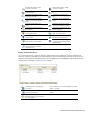
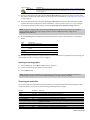
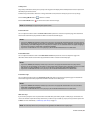
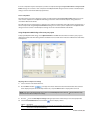
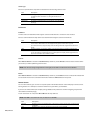
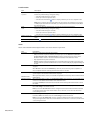
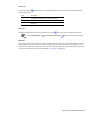
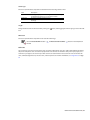
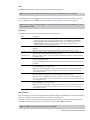
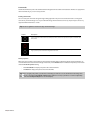
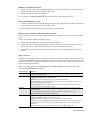
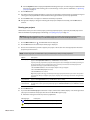
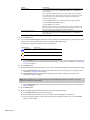
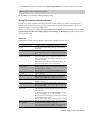
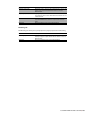
Message Type
Error
Description
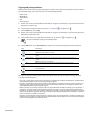
Produces an invalid DVD and must be resolved.
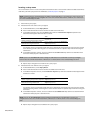
b. Click the Optimize button to display the Optimize DVD dialog where you can make changes to individual media
6.
files and project settings (often allowing you to resolve warnings or errors). For more information, see Optimizing
your project on page 34.
Click the Next button.
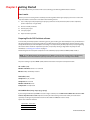
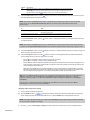
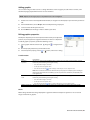
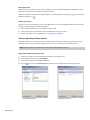
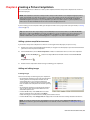
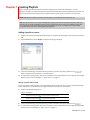
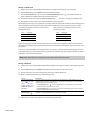
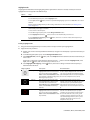
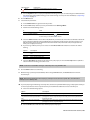
7. Select the burn parameters:
a. In the Volume name box, type the name of your disc.
b. From the Device drop-down list, choose your DVD burner or ISO Image Writer.
c. Perform one of the following actions:
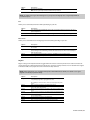
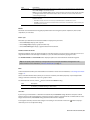
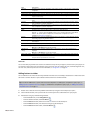
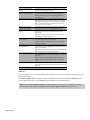
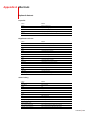
If
Then
You chose your DVD burner
You chose ISO Image Writer
In the Speed drop-down list, choose your burning speed.
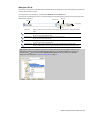
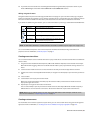
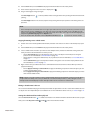
In the File name field, click the
button to browse to the
location where you would like to save the file.
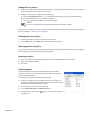
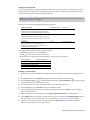
d. Select the Advanced button for the Drive Info, Media Info, and Labels tabs. Drive Info lists information about the
drive to which the DVD will be burned. Media Info lists information about the type of media currently in your
DVD burner. The Labels tab has information about the volume name, volume set name, and application ID,
which you can adjust, if necessary.
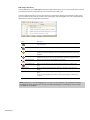
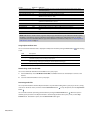
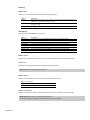
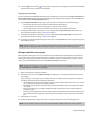
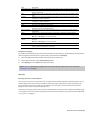
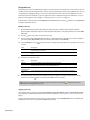
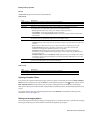
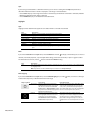
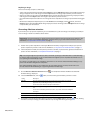
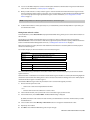
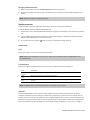
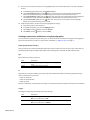
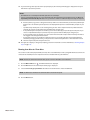
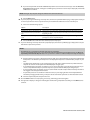
e. If you’re using a -RW disc, then you can select one of the Erase mode radio buttons to erase the disc before
burning.
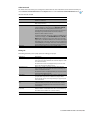
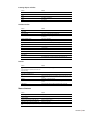
Option
Description
Do not erase Does not erase the contents of the
disc.
Quick erase Erases only the table of contents.
Full erase
Erases all data from the disc.
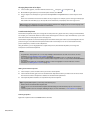
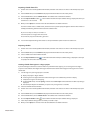
f. Select the Burn DVD radio button if you want to burn your project, or select the Test only button to perform a
test burn without activating your burner's laser.
Note: Test burns are not available with single- or dual-layer discs using +R/+RW media.
8. Click the Finish button to start burning.
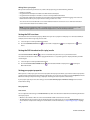
9. When burning a previously mastered folder, after clicking the Finish button, click Continue to burn the next
mastered layer.
Note: When burning a dual-layer mastered project, each layer must be burned to separate discs. You cannot burn
both layers to one dual-layer disc.
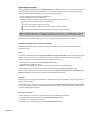
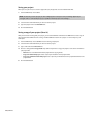
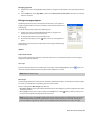
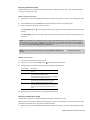
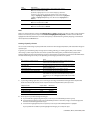
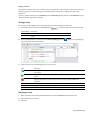
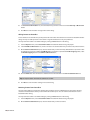
10. If you are preparing and mastering a dual-layer disc, the Choose Layer Break Behavior page is displayed to allow you
to choose if you want to choose a layer break or if you would like the software to choose a break for you.
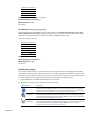
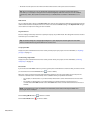
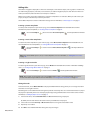
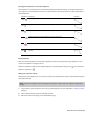
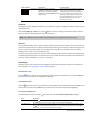
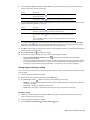
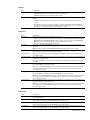
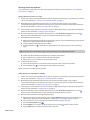
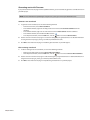
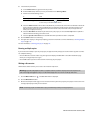
a. Select one of the following options:
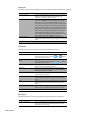
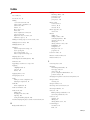
Option
Description
Choose a layer break point automatically
Prompt me to choose a layer break point
only if the break must be placed within a
title
Prompt me to choose the layer break
point
The software will choose a layer break for you.
After the project is prepared, the software will interrupt the mastering process to
prompt you to choose a layer break point if a break point cannot be placed at the
beginning of a title.
After the project is prepared, the software will interrupt the mastering process to
prompt you to choose a layer break point.
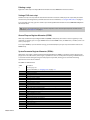
b. Click the Finish button. DVD Architect software prepares the project.
PREPARING AND BURNING YOUR DVD | 143