1
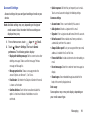
– Website settings: View and manage settings for individual
–
–
–
–
–
–
websites.
Default zoom: Sets the default zoom for page content to Far,
Medium, or Close.
Open pages in overview: When enabled, displays an overview
of newly-opened pages.
Auto-fit pages: When enabled, the Browser automatically sizes
web pages to fit your device’s display.
Block pop-ups: When enabled, blocks pop-up windows.
Text encoding: Choose a default character set for web pages.
Reset to default: Clear all browser data and reset all settings to
the factory defaults.
Bandwidth management
– Preload search results: Allows the browser to preload high
confidence search results in the background.
– Load images: When enabled, images are automatically loaded
when you visit a page. When disabled, images are indicated by
a link, which you can touch to download the picture.
Labs
– Quick controls: Access quick controls and hide application and
URL bars by sweeping your tablet.
– Google Instant: When using Google Search, Google Instant
allows you to have results shown as you type (this can increase
data use).
Wi-Fi
Wi-Fi is a wireless networking technology that provides
access to local area networks. Use your device’s Wi-Fi
feature to:
• Access the internet for browsing or to send and receive email.
• Access your corporate network.
• Use hotspots provided by hotels or airports while traveling.
Wi-Fi communication requires access to an existing Wireless
Access Point (WAP). WAPs can be Open (unsecured, as with
most hotspots) or Secured (requiring you to provide login
credentials). Your device supports the 802.11 a/b/g/n Wi-Fi
protocol.
Configuring Wi-Fi Settings
For more information about configuring your device’s Wi-Fi
settings, see “Wi-Fi Settings” on page 105
Finding Wi-Fi Networks
You can have your device automatically notify you of
available networks. For more information, refer to “Advanced
Settings” on page 105.
Connections
138