1
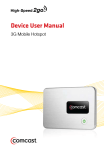
Comcast ### Secure does not appear in my computer’s wireless network list.
If the 3G Mobile Hotspot’s network name (SSID) does not appear right away, wait about 15 seconds
for your computer to recognize the 3G Mobile Hotspot and then refresh the network list.
➤➤ Refresh your network list.
•• Windows: Click Refresh Network List on the left side of the Wireless Network Connection
screen.
If that does not work you can try the following:
1.
2.
3.
4.
5.
Open Network Connections.
Right-click Wireless Network Connection and select Properties.
Click the Wireless Networks tab.
Delete any unused wireless connections from the Preferred Networks list and click OK.
Restart your computer.
•• Mac: Click the AirPort icon in the menu bar at the top of the screen. Select Turn Airport Off.
Then select Turn Airport On.
If that does not work you can try the following:
1. Click the AirPort icon, then select Open Network Preferences.
2. Be sure AirPort is selected in the left column, then click the Advanced button. A sheet drops
down.
3. Select the AirPort tab at the top of the sheet. The list of preferred networks is right below the
tabs.
4. Select any unused wireless networks from the Preferred Networks list and click the minus sign
at the lower left corner of the list to delete them.
5. Click OK, close the Network Preferences pane and then try to connect again.
If the network name (SSID) still does not appear, check the following:
➤➤ Verify the 3G Mobile Hotspot LEDs are on and are not showing an error condition. See LED
Operation on page 5.
➤➤ Be sure the 3G Mobile Hotspot is within range (i.e., less than 30 feet) of the WiFi enabled device
you are trying to connect.
I can’t remember my personalized settings.
➤➤ You can reset the device to factory defaults using the Master Reset button. See Use the Master
Reset Button on page 50.
47