1
Operation
Average Noise
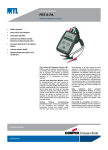
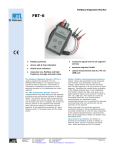
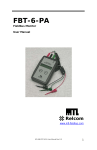
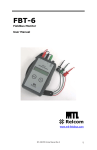
The FBT-6 is connected to the network using the clip-on probes at the
end of the cable. The red probe is connected to the fieldbus + wire, the
black probe to the – wire and the green probe to the shield wire. The +
and – test leads are polarity sensitive and the Monitor will not operate
if they are reversed.
Displays the average noise based on the average of the last 100
noise measurements. Noise levels are measured and displayed in 3
frequency bands: frequencies in the fieldbus signalling band (Fieldbus
Frequency, FF), frequencies below the fieldbus signalling band (Low
Frequency, LF) and frequencies above the fieldbus signalling band
(High Frequency, HF). The particular frequency band displayed is
selected by pushing the “SELECT” button. Measurements of less than
75mV are OK.
When first connected to a fieldbus, a version number is displayed
for several seconds. The Monitor then performs an Overall Network
Check to give the user a quick indication of network health.
The “FUNCTION” and “SELECT” buttons are used to select from
network parameters that can be examined with the Monitor. When
a function is selected, the data portion of the LCD display is blank
until the Monitor has collected and processed the data. After that,
the measured value is shown. The indication “OK” is shown if the
measured value is within the acceptable range. The indication “BAD”
is shown if the measured value is outside of the acceptable range.
The rotating symbol in the lower right corner of the display indicates
that there is network activity. A horizontal bar (underscore) under the
rotating symbol indicates that a frame was detected, but could not be
decoded. This is not a maintained function, so if a single “bad” frame
is detected, the underscore will only display for a short time. Periodic
“bad” frames will cause the underscore to blink.
Here follows a more detailed explanation of each of the Monitor’s
functions.
Segment Check
When first connected, the FBT-6 gathers data for all of its monitoring
functions. If all the measured data is within an acceptable range, the
Monitor displays “ALL MEASUREMENTS OK”.
Voltage
The DC voltage on the network is shown. Measurements over 9 volts
are OK. The maximum input voltage is 32.0 volts.
Peak Noise
Displays the peak noise recorded since the Monitor was connected.
The value displayed is the highest noise level measured since the last
reset. Peak noise levels are measured and displayed in the same three
frequency bands as average noise. Measurements of less than 75mV
are OK.
Retransmit
The FBT-6 checks for any device not responding to a LAS pass token
and indicates the address (decimal and hexadecimal) of the last device
that failed to respond to the LAS pass token, together with the number
of missed pass tokens since the function was reset. If more than 250
re-transmissions are detected, the display will read “250+”. Pressing
and holding the “SELECT” key for 2 seconds will reset the re-transmit
count for all devices to zero. Pressing the “SELECT” button for less
than 2 seconds displays the number of detected, missed pass tokens
for each device.
Add–Drop
If a new device is added to the network, the Monitor will display its
address and signal level. If a device does not respond to a Pass
Token frame, the device is considered “dropped” by the FBT-6 and
the Monitor will display the address and last known signal level of the
dropped device.
Shield Short
Device Count
If there are fieldbus devices active on the network, the Monitor counts
them. If the count has remained the same since the initial network
check was performed, the display shows “OK”.
Note: on Foundation™ fieldbus networks, the Link Active Scheduler
(LAS) is considered a device and, as such, is included in the count.
The FBT-6 is more sensitive to missed communications than most PC
monitoring software. As a result, a device may still show up on PC
monitoring software, even though the FBT-6 has removed the device
from its internal list of active devices. Devices having communication
difficulties may show up on the FBT-6 as repeatedly being added or
dropped. If a device leaves the network, the display shows “–”; if a new
device is added it shows “+”.
Low
The signal level of the device with the weakest signal is shown. The
device’s address (in decimal and hexadecimal) is also displayed. This
will be the lowest signal level reading from a device since the Monitor
was connected to the fieldbus. Measurements greater than 150mV are
OK.
If a short circuit between the + fieldbus wire and the cable shield is
detected, “(+) TO SHIELD SHORT” is displayed. If the short is between
the – wire and the shield, “(–) TO SHIELD SHORT” is displayed.
If a detected shield short goes away the Monitor indicates an
INTERMITTENT SHIELD SHORT to (+) or (-).
Save Report
Saves the data collected by the Monitor as a report. Up to 8 reports
may be saved from multiple segments and/or multiple locations on
one segment.
Transfer Report
Connect the Monitor to a PC USB port and transfer the saved reports
to Excel files on the PC.
Set Report Names
Customize the names of the reports saved in the Monitor to easily
identify the report source
Set OK/BAD Limits
Change the limits at which Monitor measurements transition from OK
to BAD to establish customized plant standards.
Device
The address (in decimal and hexadecimal) and signal level of each
device on the network is displayed in turn by pushing the “SELECT”
button. On Foundation fieldbus™ networks, the first device shown will
be the LAS. Measurements greater than 150mV are OK.
The given data is only intended as a product description and should not be regarded as a legal warranty of properties or guarantee. In the interest of further technical developments, we reserve the right to make design changes.
EUROPE (EMEA): +44 (0)1582 723633
THE AMERICAS: +1 800 835 7075
ASIA-PACIFIC: +65 6645 9888
[email protected]
[email protected]
[email protected]
EPS FBT6 RevF 040613