1
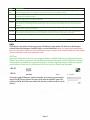
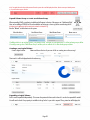
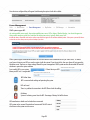
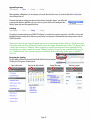
Click
and drag the slider bar to expand the lv.
Removing Volume Groups and Logical Volumes
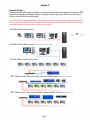
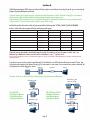
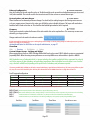
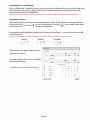
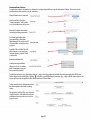
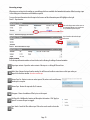
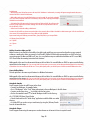
Because of the link from Volume group to Workspace there are safety checks in place to ensure the right decisions are being made.
Device
Volume Group
Logical Volume
Workspace
A Volume Group cannot be removed if it contains Logical Volumes
A Logical Volume cannot be removed if it contains an active Workspace
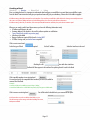
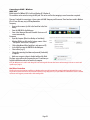
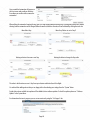
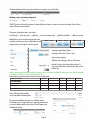
To remove a Logical Volume click
The System will check to see if there are active
Workspaces and if so will warn you at this point.
N.B. Removing a Logical Volume will delete any data held on that logical volume.
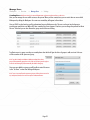
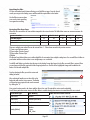
To remove a Volume Group click
are active lv’s and if so will warn you at this point.
The System will check to see if there
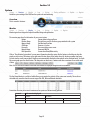
Disk Monitor
Disks g Overview g Disk Monitor g Settings
N.B. This section should only be used by the system administrator.
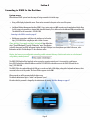
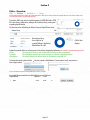
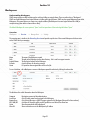
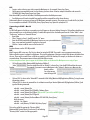
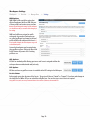
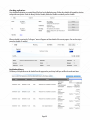
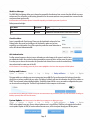
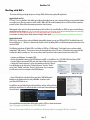
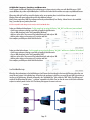
The disk monitor shows an overview of each of the disks attached to each enclosure. A green light denotes good working order,
orange a disk that has errors and a red light for a failed disk. This screen can also be used to identify a disk ready for removal.
Click
to flash the drive failure light on the front of the disk array. Once identified click
to cancel.
If a disk is marked as failed then you should replace it as soon as possible. Empty slots are also shown as well, as this could indicate a drive which has been
removed. If you suspect a drive is faulty and the slot it is shown as having no drive, then it means that there is a problem with the drive. Either it has been
physically removed or it has failed.
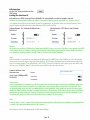
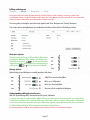
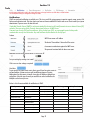
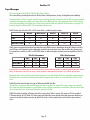
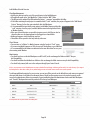
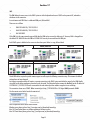
Click on the drive bar to show the S.M.A.R.T
(Self-Monitoring, Analysis and Reporting Technology)
data. This information may be needed in a support
scenario.
Page
21
Page- 21